How to Unlock Google Pixel 5 Without Password
Forgot the password, PIN, or pattern on your Google Pixel 5? This guide explains the working ways to unlock or reset a locked Pixel 5, what will erase data, and what to do if Google account verification appears after reset.
The Google Pixel 5 is a reliable Android phone, but getting locked out of it can be stressful. You may forget the screen password, buy a second-hand Pixel 5 that is still locked, or reset the phone and then see Google account verification. The important point is that most working unlock methods for a modern Pixel phone will erase the device.
This guide focuses on screen lock removal , which means removing or resetting the PIN, pattern, password, fingerprint, or face lock on the phone. If you want to use your Pixel 5 with another mobile network, see the carrier unlock section near the end of this article.
Quick Answer: Can You Unlock Google Pixel 5 Without Password?
Yes, you can unlock a Google Pixel 5 without the screen password, but most working methods will erase the phone. For Pixel 5, the old “Forgot pattern” Google account method is not available because it only applies to Android 4.4 or lower. The practical options are to erase the phone with Find Hub / Find My Device, factory reset it through Fastboot and Recovery Mode, or use a screen unlock tool such as DroidKit.
Before resetting your Pixel 5, make sure you know the Google account previously synced to the phone. After a factory reset, Factory Reset Protection may ask for that Google account during setup.
Before You Unlock Google Pixel 5: Important Notes
1. Screen Lock Unlock Is Different from Carrier Unlock
Screen lock unlock removes the lock screen password, PIN, pattern, fingerprint, or face lock. Carrier unlock, also called SIM unlock or network unlock, allows your Pixel 5 to work with another carrier. Contacting your carrier will not remove the screen lock password.
2. Most Methods Will Erase Your Pixel 5
If you cannot unlock the screen normally, the safest assumption is that your Pixel 5 will need to be erased. You may be able to restore backed-up data after reset, but data stored only on the device may be lost.
3. FRP May Appear After Factory Reset
After you erase or factory reset a Pixel 5, the phone may ask you to sign in with a Google account that was previously synced on the device. This is called Factory Reset Protection, or FRP. If you bought a used Pixel 5, contact the previous owner before resetting the phone.
Which Method Should You Choose?
| Method | Best For | Requires Google Account? | Will It Erase Data? | Difficulty |
|---|---|---|---|---|
| Find Hub / Find My Device | Your Pixel 5 is online and linked to your Google account | Yes | Yes | Easy |
| Fastboot and Recovery Mode | You can access the phone buttons but cannot unlock the screen | May be required after reset because of FRP | Yes | Medium |
| DroidKit Screen Unlocker | You want a guided desktop tool to remove the Android screen lock | Not needed to start screen lock removal; may be needed after reset if FRP appears | Yes, for most Android devices including Google Pixel models | Easy to Medium |
| Contact Previous Owner | You bought a second-hand Pixel 5 with unknown Google account or FRP lock | Yes | No direct data operation | Depends on the owner |
How to Unlock Google Pixel 5 Without Password
Method 1. Erase Google Pixel 5 with Find Hub / Find My Device
If your Pixel 5 is linked to your Google account and can connect to the internet, you can use Google’s Find Hub / Find My Device service to erase it remotely. This removes the screen lock, but it also deletes the data on the phone.
Use this method when:
- Your Pixel 5 is signed in to your Google account.
- The phone is powered on and connected to mobile data or Wi-Fi.
- Find Hub / Find My Device was enabled before the phone was locked.
- You understand that the erase action cannot be undone.
Steps to erase and unlock Pixel 5:
- Open Google Find My Device on a computer or another mobile device.
- Sign in with the Google account linked to your locked Pixel 5.
- Select your Google Pixel 5 from the device list.
- Choose Erase device and confirm the action.
- After the erase is complete, set up your Pixel 5 again.
Note: If Google account verification appears after reset, sign in with the Google account previously used on the device.
Method 2. Factory Reset Google Pixel 5 in Fastboot and Recovery Mode
If you cannot access your Pixel 5 screen and Find Hub is not available, you can reset the phone manually through Fastboot and Recovery Mode. This method erases the device and removes the screen lock.
Steps to factory reset Pixel 5:
- Turn off your Google Pixel 5 completely.
- Press and hold the Volume Down and Power buttons at the same time until the Fastboot screen appears.
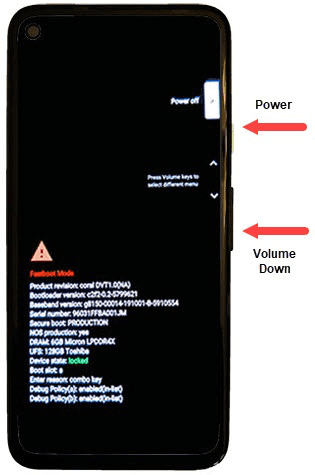
Enter Fastboot Mode on Google Pixel
- Use the Volume buttons to highlight Recovery Mode , then press the Power button to select it.
- If you see “No command,” press and hold the Power button, then press the Volume Up button once.
- Use the Volume buttons to select Wipe data/factory reset , then press the Power button.
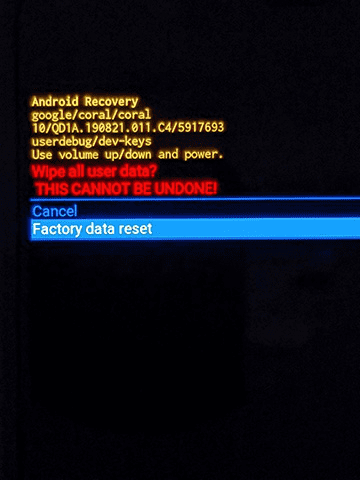
Factory Reset Google Pixel in Recovery Mode
- Select Factory data reset to confirm.
- When the reset finishes, select Reboot system now .
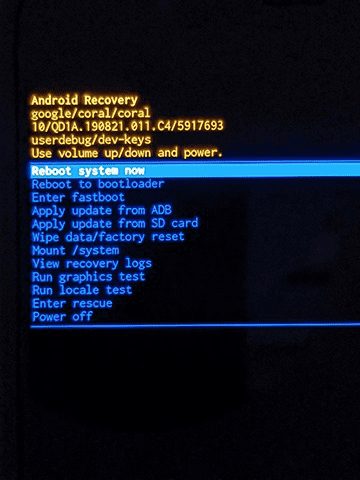
Reboot System in Google Pixel Recovery Mode
After the restart, your Pixel 5 will no longer have the previous screen lock. If FRP is triggered, enter the Google account that was previously synced to the device.
Method 3. Unlock Google Pixel 5 with DroidKit Screen Unlocker
If you prefer a guided desktop solution, you can use DroidKit Screen Unlocker to remove the screen lock from supported Android devices, including Google Pixel models. It can help remove PIN, pattern, password, fingerprint, or face lock.
Important: Unlocking most Android devices with this method, including Google Pixel models, will erase device data. If your Pixel 5 shows Google account verification after reset, you may still need the previously synced Google account or a separate FRP solution.
Why choose DroidKit Screen Unlocker:
- Remove Android screen locks such as PIN, pattern, password, fingerprint, or face lock.
- Provide guided steps for users who are not familiar with Recovery Mode.
- Support common Android phone brands, including Google Pixel models.
- Offer a separate FRP bypass feature for supported Android scenarios.
How to unlock Google Pixel 5 using DroidKit:
Step 1. Download and install DroidKit on your Windows or Mac computer.
Free Download * 100% Clean & Safe
Step 2. Run DroidKit and choose the Screen Unlocker option. Then connect your Google Pixel 5 to the computer with a USB cable.
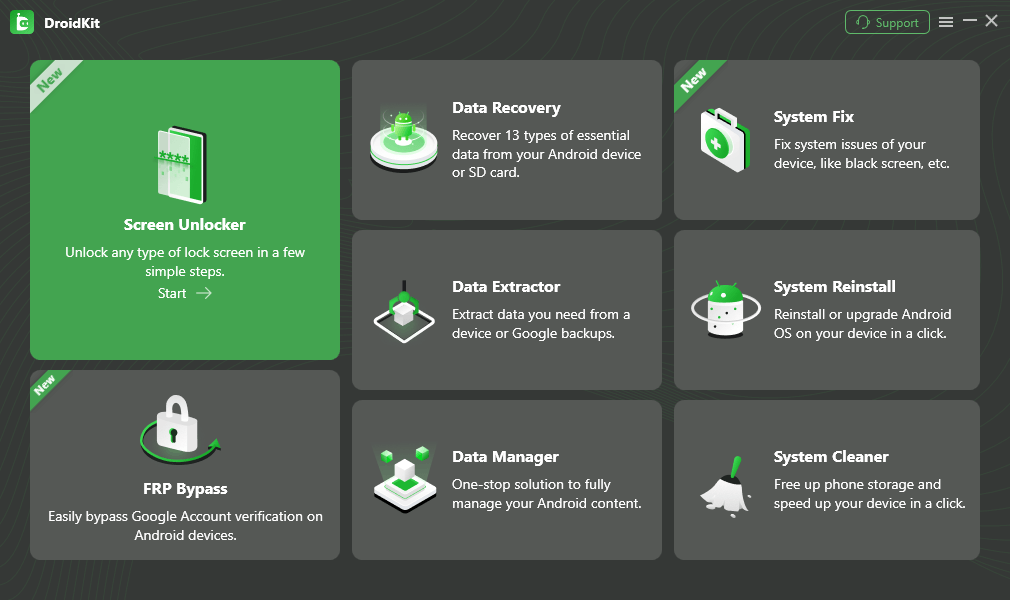
Choose Screen Unlocker
Step 3. Choose Google Pixel from the brand page, then follow the on-screen instructions to continue.
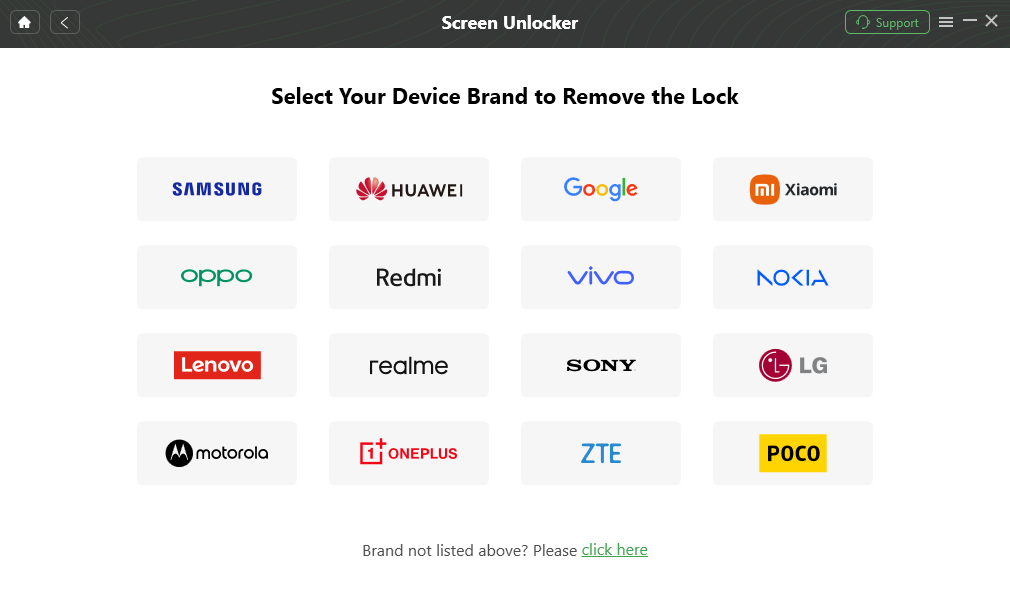
Confirm Your Device Brand and Continue
Step 4. Wait for the lock screen removal process to complete. After that, set up your Pixel 5 again.
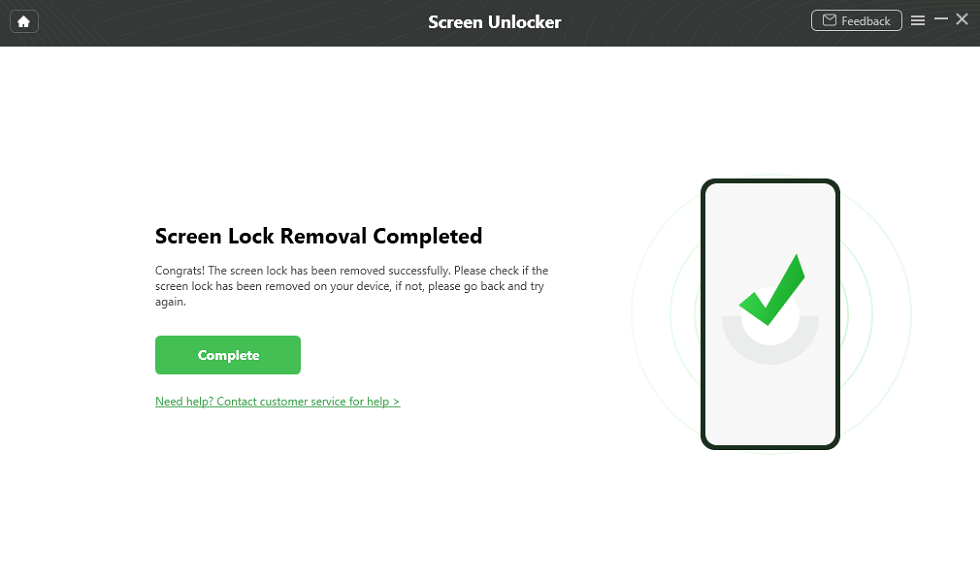
Lock Screen Removal Completed
Method 4. Contact the Previous Owner or Google Account Owner
If you bought a second-hand Pixel 5 and it is locked by a Google account after reset, the best first step is to contact the previous owner. Ask them to remove the device from their Google account or help you complete the verification during setup.
This is especially important if the device shows a message asking you to sign in with an account that was previously synced on the phone. In that case, simply resetting the phone again usually will not remove the verification screen.
Methods That Do Not Work on Google Pixel 5
“Forgot Pattern” or Google Account Unlock
You may see older tutorials suggesting that you can enter the wrong pattern several times and then tap “Forgot pattern” to unlock the phone with a Google account. This method is for very old Android versions and does not work on Google Pixel 5.
Carrier Unlock
Carrier unlock does not remove the screen password. It only allows the phone to work with another mobile network. If your Pixel 5 is locked at the screen, you need a screen lock removal or factory reset method instead.
How to Unlock Google Pixel 5 to Use Another Carrier
If your goal is to use the Pixel 5 with a different mobile carrier, you need a carrier unlock, not a screen lock unlock. The process depends on your carrier and device status.
- Check eligibility: The device usually needs to be fully paid off and not reported as lost or stolen.
- Contact your carrier: Ask whether your Pixel 5 is eligible for network unlocking.
- Follow the carrier’s instructions: The carrier may unlock the device remotely or provide instructions.
- Insert the new SIM card: After unlock, insert the SIM card from the new carrier and follow any on-screen prompts.
If the phone is still screen-locked, carrier unlock will not help you access the device.
FAQs About Unlocking Google Pixel 5
Can I unlock a Google Pixel 5 without losing data?
In most cases, no. If you forgot the Pixel 5 screen password, the working unlock methods usually erase the phone. You may be able to restore backed-up data after reset, but you will need the Google account previously used on the device.
Does the “Forgot pattern” option work on Google Pixel 5?
No. The “Forgot pattern” Google account reset method only applies to Android 4.4 or lower. Google Pixel 5 shipped with a much newer Android version, so this option is not available for Pixel 5 users.
Can I unlock Google Pixel 5 without a Google account?
You can erase or reset the device without entering the screen password, but after a factory reset, Factory Reset Protection may ask for the Google account previously synced to the phone. If you bought a second-hand Pixel 5, contact the previous owner before resetting it.
Will Find Hub unlock my Pixel 5 without deleting data?
No. Find Hub / Find My Device can remotely erase a Pixel 5 if the device meets Google’s requirements, but the erase action deletes data stored on the phone. It is useful when you cannot access the screen and have backups available.
What should I do if my Pixel 5 asks for Google verification after reset?
That is Factory Reset Protection. You need to sign in with a Google account that was previously synced on the device. If it is a second-hand phone, ask the previous owner to remove the device from their account or help you complete setup.
Is carrier unlock the same as screen unlock on Pixel 5?
No. Screen unlock removes or resets the lock screen password, PIN, or pattern. Carrier unlock allows the phone to work with another mobile network. If your Pixel 5 is screen-locked, contacting the carrier will not remove the lock screen password.
Can DroidKit unlock a Google Pixel 5?
DroidKit Screen Unlocker can help remove Android screen locks on supported devices, including Google Pixel models. For most Android devices, the screen unlock process will erase data, so check your backups before you continue.
Conclusion
Unlocking a Google Pixel 5 without the password is possible, but you should choose the method based on your situation. If the phone is linked to your Google account and online, Find Hub / Find My Device is the easiest option. If you cannot use Find Hub, Recovery Mode can factory reset the phone manually. If you want guided desktop steps, DroidKit Screen Unlocker can help remove the Android screen lock on supported devices.
Before you erase the phone, remember that most methods will delete device data. After reset, you may also need the Google account previously synced to the Pixel 5 because of Factory Reset Protection.
Related Articles
- How to Unlock Google Pixel Without Password
- How to Bypass Google Pixel FRP Lock
- How to Bypass Google Account Verification After Reset
- How to Unlock a Google Locked Phone
Remove Google Pixel 5 Screen Lock with DroidKit
Need a guided way to remove the screen lock from your Pixel 5? DroidKit Screen Unlocker can help remove PIN, pattern, password, fingerprint, or face lock on supported Android devices. Please note that unlocking most Android devices, including Google Pixel models, will erase device data.
Free Download * 100% Clean & Safe



Senior writer of the iMobie team as well as an Apple fan, love to help more users solve various types of iOS & Android-related issues.
Product-related questions? Contact Our Support Team to Get Quick Solution >
