How to Factory Reset Android Without Password
Forgot your Android screen password? This guide explains safe ways to factory reset Android without a password, what each method erases, and what to do if Google FRP or brand account verification appears after reset.
Getting locked out of an Android phone can feel urgent, especially when you cannot remember the PIN, pattern, or password. A factory reset can remove the local screen lock, but it is also one of the most destructive options because it deletes data stored on the device. Before you start, it is important to understand whether you need a real factory reset, a remote erase, a screen unlock tool, or account recovery after reset.
This guide focuses on legitimate ways to reset an Android phone you own when you cannot pass the lock screen. It covers Google Find Hub, Android Recovery Mode, DroidKit as a tool-assisted option, brand-specific reset notes, and the old Google account method that only applies to Android 4.4 or lower. It also explains what happens after reset, including Google Factory Reset Protection.
Quick Answer: Yes, you can factory reset many Android phones without the screen password. The common options are Google Find Hub, Recovery Mode, or a supported tool-assisted method such as DroidKit. However, a factory reset deletes device data and may ask for the previously synced Google account during setup. If the phone is second-hand, contact the previous owner before wiping it.
Before You Reset: What You Need to Know
A factory reset returns the phone to setup mode and removes the local lock screen password. It does not recover the old password, and it does not guarantee that you can immediately use the phone afterward. On many Android devices, Google Factory Reset Protection may appear after reset and ask for a Google account previously synced on the device.
Here are the most important checks before resetting a locked Android phone:
- Data loss: Photos, downloads, app data, and local files on internal storage may be erased unless they were backed up before the lockout.
- Account verification: After reset, Android may ask for the Google account, Samsung account, Xiaomi account, or Huawei ID used on the phone.
- Second-hand phones: If you bought the phone used, ask the previous owner to remove the device from their account before you reset it.
- Battery and connection: Charge the phone first. For remote erase methods, the phone normally needs to be connected to the internet.
- SD card and SIM: Remove removable storage if you do not want it affected by a reset or format prompt.
Which Reset Method Should You Choose?
| Situation | Best option | Will it erase data? | Important limitation |
|---|---|---|---|
| The phone is online and linked to your Google account | Google Find Hub | Yes | Requires Find Hub / Find My Device conditions to be met |
| You have physical access to the phone but cannot unlock it | Recovery Mode | Yes | Button combinations vary by brand and model |
| Manual steps are difficult or unclear | DroidKit Screen Unlocker | Usually yes for Android 5+ common brands | Check compatibility and data-loss notes first |
| You use Samsung, Xiaomi, Huawei, or another brand account | Brand cloud/account service | Usually yes if using erase/reset | Requires the matching account and pre-enabled service |
| Old phone running Android 4.4 or lower | Forgot pattern with Google account | Usually no | Not available on modern Android phones |
Method 1. Factory Reset Android with Google Find Hub
Google Find Hub, previously known as Find My Device, can help you find, secure, or erase a lost Android device. If your locked phone is connected to your Google account and appears in Find Hub, you can use the erase option to remove the screen lock by wiping the device.
This method is useful when the phone is lost, stolen, or physically unavailable. It is also useful when the lock screen is inaccessible but the device is online. It does not reveal or change the old screen password.
Requirements:
- The locked Android phone is turned on.
- The phone is connected to mobile data or Wi-Fi.
- The device is signed in to a Google account you can access.
- Find Hub / Find My Device was enabled before the lockout.
- The device is visible to Google Play or Google services.
Steps to erase Android with Find Hub:
- Open Google Find Hub on another phone or computer.
- Sign in with the Google account linked to the locked Android phone.
- Select the locked phone from the device list.
- Choose Erase device and confirm the warning.
- After the erase is complete, set up the phone again and sign in with the required account.
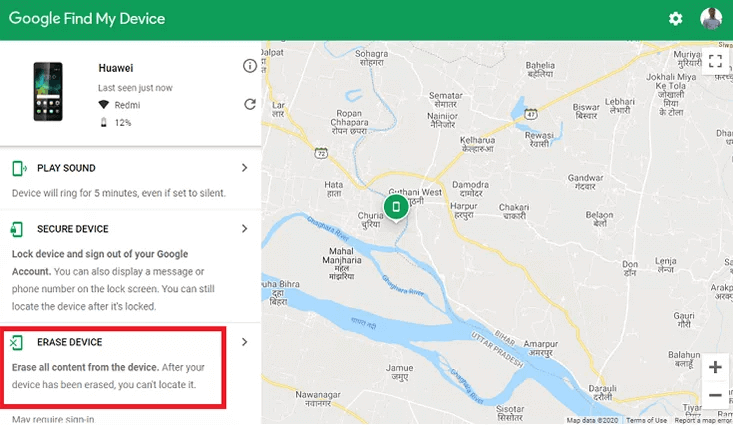
Choose Erase Device in Find Hub
Important: The erase action is permanent for local data on the phone. If the device is offline, the erase command may wait until the phone reconnects.
Method 2. Reset or Unlock Android with DroidKit
If you cannot complete the reset manually or do not know the correct recovery steps for your model, DroidKit Screen Unlocker can be a tool-assisted option for supported Android devices. It is designed to remove Android screen locks such as PIN, pattern, password, fingerprint, and face lock in supported cases.
Do not treat this as a no-data-loss guarantee. For most Android 5+ common brands, screen lock removal is a data-removing process. DroidKit is most suitable when you accept the reset/data-loss risk and want guided instructions instead of manually searching for your exact Recovery Mode path.
Free Download * Check compatibility before use
Steps to use DroidKit Screen Unlocker:
- Download and install DroidKit on your Windows PC or Mac.
- Launch DroidKit and choose Screen Unlocker.
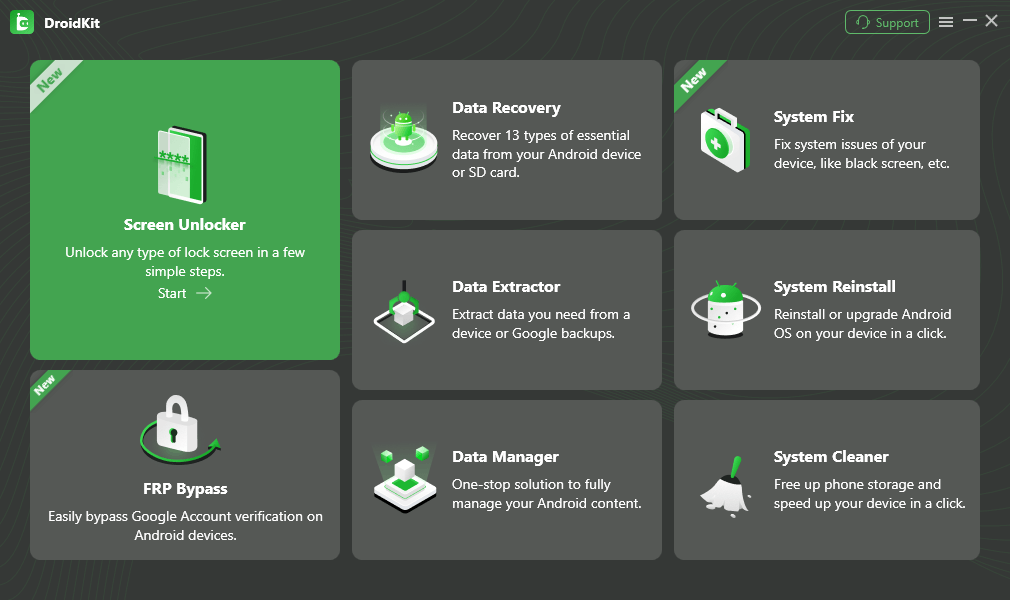
Choose Screen Unlocker
- Connect the locked Android phone to the computer with a USB cable.
- Follow DroidKit's instructions and click Remove Now when the configuration is ready.
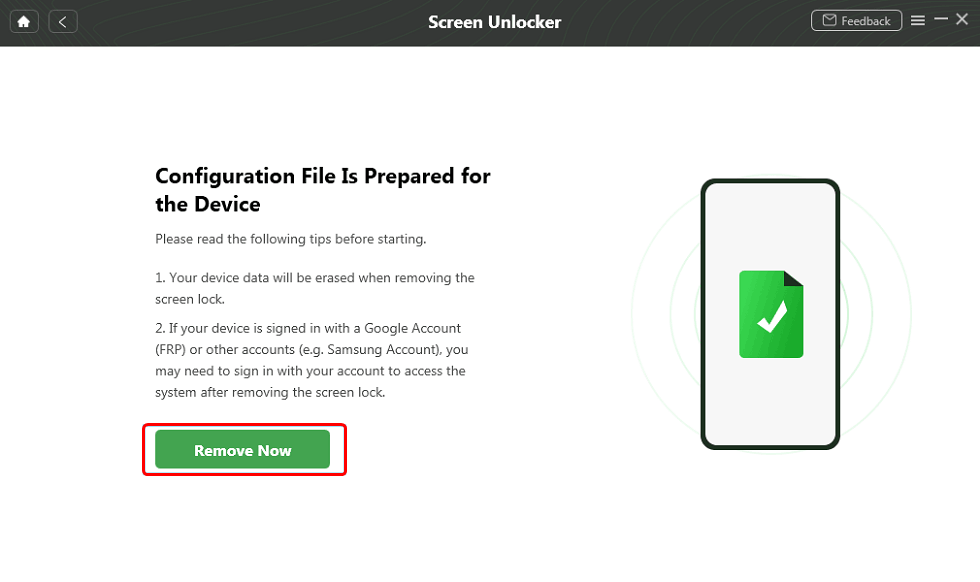
Click Remove Now Button
- Put the phone into the required mode according to the on-screen instructions.

Put Android Phone into Recovery Mode
- Wait for the process to finish, then set up the device again.
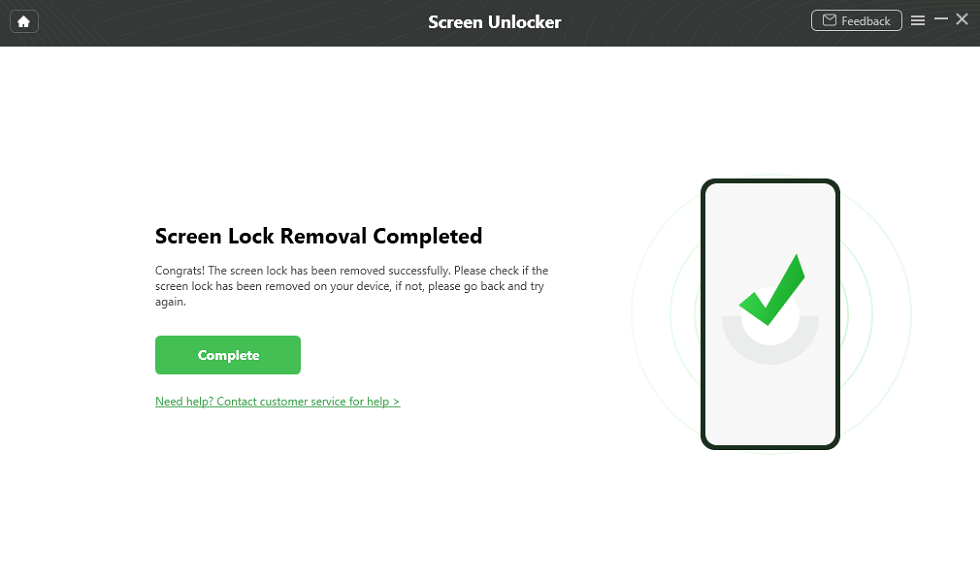
Lock Screen Removal Completed
Method 3. Factory Reset Android Phone Without Password via Recovery Mode
Recovery Mode is the most common manual way to factory reset an Android phone when you cannot unlock the screen. The exact buttons vary by brand, but the general idea is the same: turn off the phone, enter the bootloader or recovery menu, select Wipe data/factory reset, confirm, and reboot.
General Recovery Mode steps:
- Power off the Android phone completely.
- Press the required button combination for your model. Common combinations include Power + Volume Up, Power + Volume Down, or Power + Volume Up + Home on older Samsung devices.
- When the recovery menu appears, use the volume buttons to move and the power button to select.
- Select Wipe data/factory reset or Factory data reset.
- Confirm the reset and wait for the process to finish.
- Select Reboot system now.
For Pixel 6 and later, Google describes a Fastboot process where you press Volume Down + Power to enter Fastboot Mode, choose Recovery Mode, handle the No command screen, and then select Wipe data/factory reset. Other brands may use different key combinations and menu labels.
Method 4. Brand-Specific Reset Options
Because Android brands customize reset paths, a generic instruction may not work on every phone. Use the notes below to choose a better route before you wipe the device.
Samsung Galaxy
Samsung phones may support reset or erase features through Samsung account services if they were enabled before the lockout. If the phone is reset from Recovery Mode while a Google account remains on the device, Google FRP or Samsung account verification may appear after reboot. Make sure you know the account previously used on the phone.
Google Pixel
Pixel devices commonly use Fastboot and Android Recovery for button-based resets. Pixel 6 and later models have a documented manual reset path through Fastboot Mode. After reset, Pixel setup may ask for the Google account previously synced on the device.
Xiaomi, Redmi, and POCO
Xiaomi, Redmi, and POCO phones may ask for Mi Account verification or Google verification after reset. If your issue is a Mi Account lock rather than a screen lock, use Xiaomi account recovery or contact Xiaomi support instead of repeatedly resetting the device.
Huawei
Huawei phones may require HUAWEI ID verification after reset, especially on newer models and regions. Some Huawei models also differ depending on whether Google services are present. If you forgot the HUAWEI ID password, use Huawei account recovery before wiping the phone.
Method 5. Factory Reset Android Without Password With Google Account
Some older Android guides mention unlocking with a Google account after too many wrong pattern attempts. This method is not a modern Android reset method. Google states that the Forgot pattern option applies to Android 4.4 or lower only.
On those very old phones, after repeated wrong pattern attempts, the screen may show Forgot pattern?. You can tap it, sign in with the Google account on the phone, and reset the pattern.
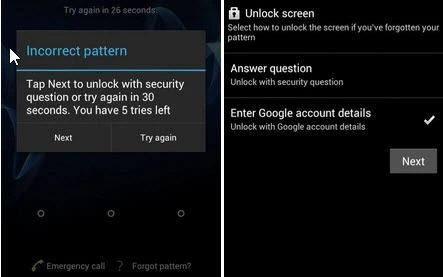
Enter Google Account Details on Old Android
For modern Android phones, do not rely on this method. Use Find Hub, Recovery Mode, a brand account service, or a supported tool-assisted option instead.
What Happens After Factory Reset?
After the reset, the phone restarts to the setup screen. You can choose language, Wi-Fi, Google account, and restore options. If the device was reset while still protected by a Google account, it may show a Google verification screen. This is not an error; it is Factory Reset Protection.
If FRP appears, use one of these legitimate options:
- Sign in with a Google account previously synced on the device.
- Use Google Account Recovery if you forgot your own account password.
- Ask the previous owner to remove the device from their account if it is second-hand.
- Use a supported FRP help guide only for your own device and only when allowed in your region.
If you cannot verify the account, the reset may remove the local screen lock but still leave the phone unusable during setup.
FAQs About Factory Resetting Android Without Password
Can I factory reset an Android phone without the password?
Yes. You can factory reset many Android phones without the screen password by using Google Find Hub, Recovery Mode, or a supported tool-assisted method. However, the reset erases local device data and may require the previously synced Google account during setup because of Factory Reset Protection.
Will a factory reset remove the Android screen lock?
Yes. A factory reset removes the local PIN, pattern, password, fingerprint, or face lock from the device. It does not remove Google account verification after reset, and it cannot recover data that was not backed up before the reset.
Can I reset Android without losing data?
Usually no. If you cannot unlock the phone, the practical reset methods normally erase device data. You may be able to restore contacts, photos, apps, and settings later only if they were backed up to Google, Samsung Cloud, Xiaomi Cloud, Huawei Cloud, or another service before the reset.
Why does my phone ask for a Google account after factory reset?
That is Factory Reset Protection. If the Android phone was reset without first removing the Google account, setup may ask for a Google account that was previously synced on the device. This helps prevent unauthorized use after theft or loss.
Can Google Find Hub factory reset my locked Android phone?
Yes, Find Hub can erase a supported Android device remotely when the device is linked to your Google account and meets the required conditions, such as being turned on, connected to the internet, and visible to Google. The erase action deletes device data.
Does the old Forgot pattern Google account method still work?
Only on very old Android versions. Google states that the Forgot pattern reset option applies to Android 4.4 or lower. Modern Android phones generally do not provide this option, so users usually need Recovery Mode, Find Hub, a brand account service, or another reset method.
What should I do before resetting a locked Android phone?
Check whether you know the Google account or brand account previously used on the phone, confirm whether important data is backed up, charge the phone, remove the SIM and SD card if needed, and understand that the reset may trigger account verification during setup.
Is DroidKit a factory reset tool or a screen unlock tool?
DroidKit is a tool-assisted Android screen unlock option. In many supported Android cases, removing the screen lock also involves data removal. It should not be described as a guaranteed no-data-loss factory reset method, and users should check device compatibility before using it.
The Bottom Line
You can factory reset Android without a password, but the right method depends on your device and what you still have access to. Find Hub is best when the phone is online and linked to your Google account. Recovery Mode is the most universal manual option. DroidKit can be a guided tool-assisted option for supported devices when manual methods are difficult, but most Android lock removal cases involve data loss.
Before resetting, remember the most important limitation: a factory reset removes the local screen lock, but it may trigger Google FRP or brand account verification. If the phone is second-hand, contact the previous owner before wiping it. If the phone is yours, make sure you can access the Google or brand account used on the device.
More Related Articles



Senior writer of the iMobie team as well as an Apple fan, love to help more users solve various types of iOS & Android-related issues.
Product-related questions? Contact Our Support Team to Get Quick Solution >
