MTK Tool Latest Version Download & Use | With Bonus FRP Bypass Tip
Technology makes our lives easier, but sometimes, we need tools to fix issues. In this guide, learn about the MTK Flash Tool for flashing firmware on MediaTek devices. We’ll explain the complete method of downloading and using the tool alongside tips. Moreover, discover DroidKit for easily bypassing FRP locks— perfect for quick solutions!
DroidKit – Unlock FRP Lock Easily
DroidKit allows you to unlock FRP lock without reset. It supports on both MTK and non-MTK Android phones. One-click to bypass FRP lock on various Android devices like Samsung, OPPO, Huawei, Xiaomi and so on.

If you are looking for a simple way to flash, repair, or unlock MediaTek devices, then MTK Flash Tool is definitely one of the tools you have heard of. It is a free tool widely used by Android technicians and mobile phone repair enthusiasts, which can help users easily flash firmware, format, unlock, etc. on MTK chip mobile phones. This article will introduce in detail the functions, main features, advantages and disadvantages of MTK Flash Tool, as well as how to download and use it.
Additionally, we are also exploring another powerful Android Tool to bypass FRP/ unlock screen effectively. Let’s started!
Part 1. What is the MTK Flash Tool?
MTK Flash Tool is a specialized flashing software designed for MediaTek chipset devices, such as OPPO, Vivo, Infinix, Tecno, and certain Xiaomi models. Similar to the commonly used SP Flash Tool, it enables users to write official firmware (Stock ROM) to their phones via a computer, fix system issues, and even unlock the device.
It is most commonly used in the following scenarios:
- Fixing system issues such as phone getting stuck on the logo, freezing, or black screen
- ROM upgrades or downgrades (flashing official firmware)
- Unlocking/removing passwords or pattern locks
- Restoring factory settings (deep formatting)
Main Features of MTK Flash Tool:
Below are some of the most commonly used features of MTK Flash Tool:
- Firmware Flashing (ROM Flashing): Supports writing official firmware to MTK phones to fix system errors or upgrade system versions.
- Device Unlocking: Can be used to remove pattern locks, PIN codes, passwords, or fingerprint locks from phones (Note: FRP locks require special handling).
- Format & Reset: Can perform advanced formatting operations to help resolve storage partition issues.
- User Data Erasure: Can clear cache and user data with a single click to restore factory settings.
- Error Repair: Provides flashing repair solutions for common Android system issues such as freezing, being stuck on the logo, or inability to boot.
Pros & Cons:
| Pros | Cons |
| Completely free, no additional fees required. | Supports only MTK devices: Not compatible with Qualcomm, Spreadtrum, or other chipset models. |
| Lightweight | Cannot bypass FRP lock |
| User-friendly | Data loss risks |
| Supports most MTK devices. | Supports only Windows systems |
| Effectively resolves common issues such as logo stuck, black screen, and system freeze. |
The pros and cons of the MTK tool are provided above. For users who want to unlock the screen, bypass FRP, or repair system issues on macOS, you can try DroidKit, an all-in-one Android Tool.
How to Get MTK Tool Download -Latest Version
Downloading the MTK Flash Tool from a trusted source is crucial to avoid malware or outdated versions.
Steps to Download MTK Flash Tool:
Step 1. Download the latest version like: v3.0912 or v5.1112.
Step 2. Once downloaded, extract the ZIP file. Then, unzip the folder to access flash_tool.exe.
Step 3. Check for Updates: Some sources provide auto-updaters, but always verify the file hash for security.
How to Use MTK Tool to Flash Firmware
Now, let’s dive into the core MTK Flash Tool usage. This section assumes you have a compatible stock ROM downloaded (scatter file included) and your device is backed up.
Prerequisites:
- A Windows PC (7/8/10/11).
- USB cable.
- Charged device battery (at least 50%).
- Stock or custom ROM ZIP file extracted.
Detailed Steps to Flash with MTK Flash Tool:
Step 1. Download and install the stock firmware of your Mediatek device.
Step 2. Download and install the Vcom USB driver.
Step 3. Download the MTK Flash tool from the links provided above and extract the file. Open Flash_tool.exe from the extracted file.
Step 3. Click on the Scatter/Config button and locate the .cfg or .txt file.
Step 4. Connect your MediaTek Android device to the PC using the USB cable. Make sure the device is powered off.
Step 5. Now tap on the download option to begin the flashing process.
Once the flashing process is completed, you will see a Green Ring in the end.
Part 3. Bonus Tip: How to Bypass FRP/Unlock Screen on Android – DroidKit
The MTK FRP Tool lacks support for bypassing FRP and screen locks on Android devices. For a versatile solution, DroidKit offers a comprehensive Android toolkit, efficiently bypassing FRP and screen locks (PINs, passcodes, fingerprints) on devices like Samsung and Xiaomi, while also recovering deleted files without backups, making it an ideal choice for users.
Why Choose DroidKit:
- Bypass FRP without root or technical skills
- Supports thousands of Android models such as Samsung, Xiaomi, POCO, OPPO, and more.
- Offers data recovery, screen unlock, and system repair features
- Verified and regularly updated software
- 100% secure download with customer support
How to Bypass FRP on Android Devices via DroidKit:
To bypass the FRP lock, try to follow these steps below. Before you start, please download DroidKit and install it correctly on your computer.
Free Download * 100% Clean & Safe
Step 1. Open DroidKit and select “FRP Bypass” from the main menu.

DroidKit FRP Bypass
Step 2. Connect your Android device to your computer using a USB cable. Click “Start,” then choose your device’s brand to continue.
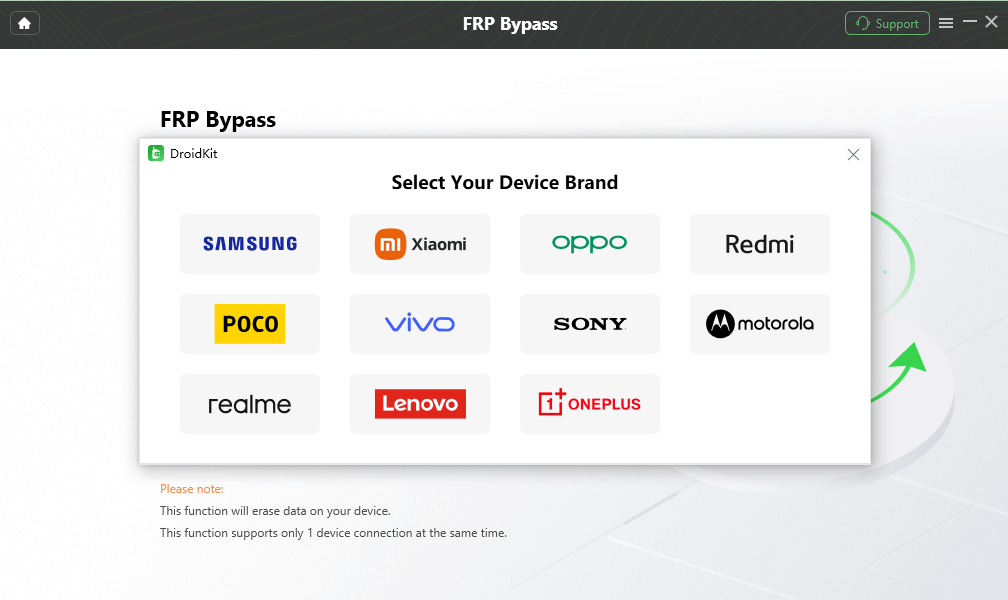
Select the Correct Brand
Step 3. Wait as DroidKit prepares the configuration file for your device. Once done, click “Start to Bypass” to proceed.
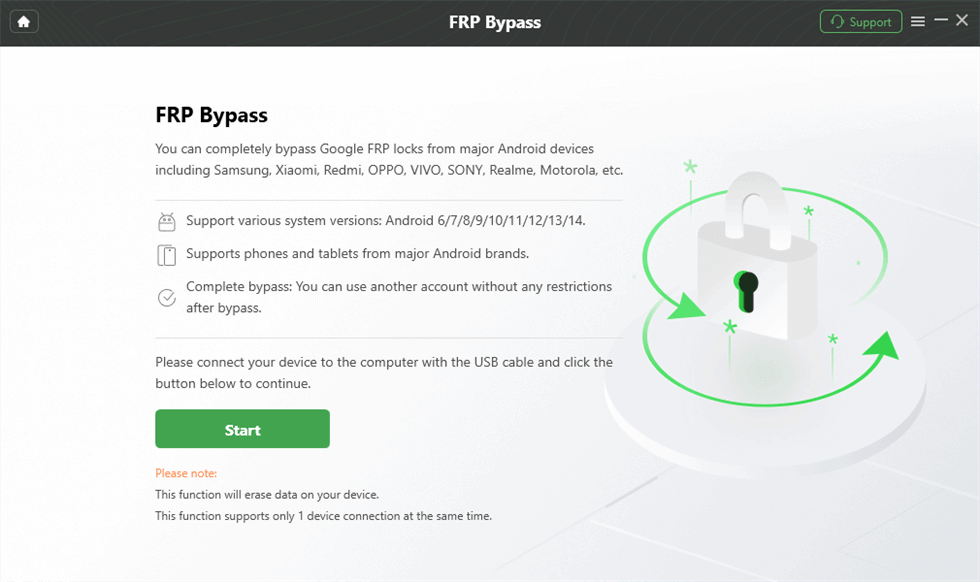
Launch the FRP Operation
Step 4. Select your device’s operating system version and model, then click “Next” to move forward.
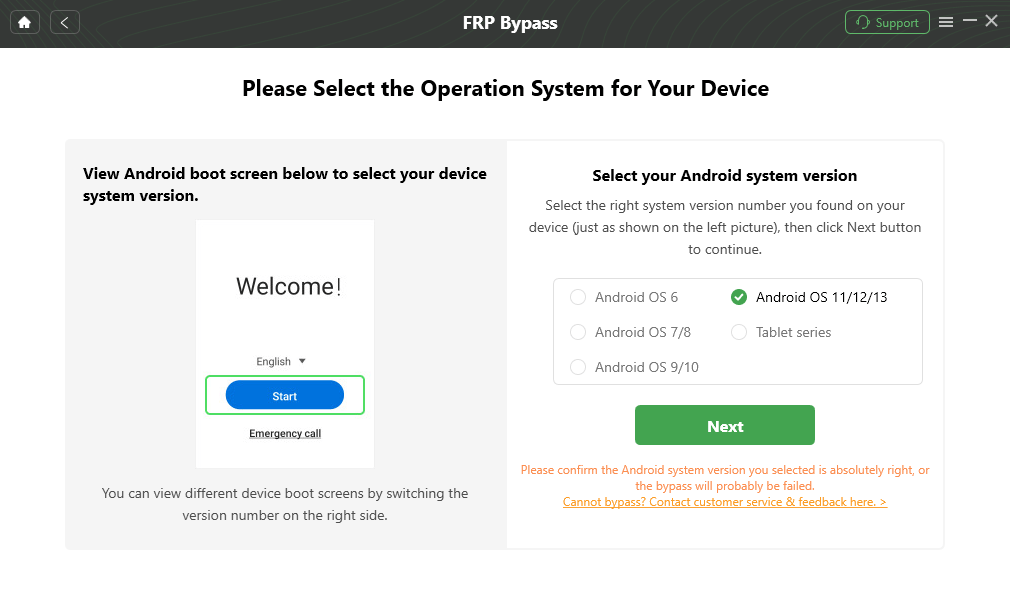
Select the Correct System Version
Step 5. Follow the on-screen instructions to enter Factory Mode and complete the necessary settings on your device.
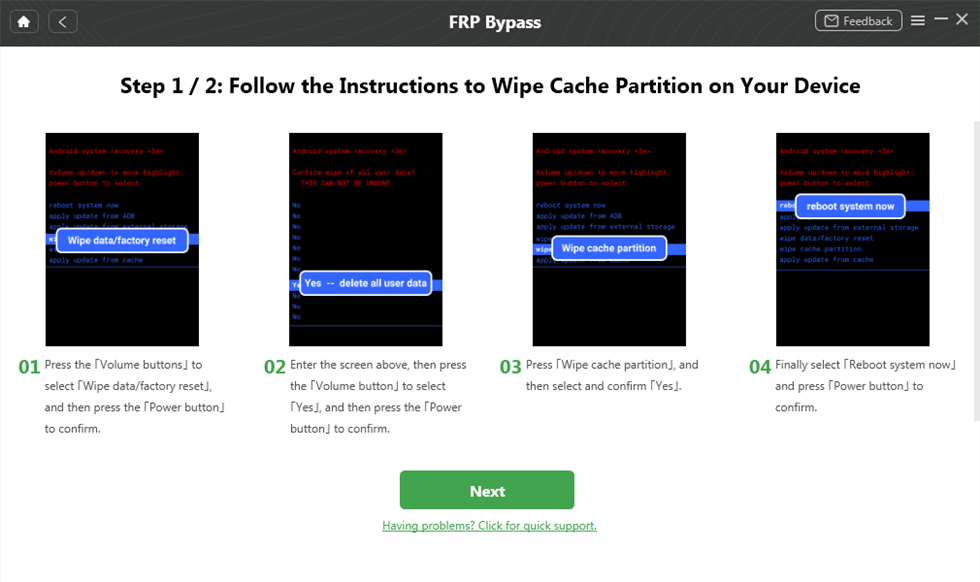
Complete Corresponding Settings
Step 6. Wait for the process to finish. Your device will restart, and the FRP lock will be successfully removed.

FRP Bypass Complete
FAQ on MTK Flash Tool
Q1. What is the difference between MTK Flash Tool and SP Flash Tool?
Both are flashing tools for MTK devices, but SP Flash Tool is more powerful and suitable for professional users, while MTK Flash Tool is lighter and easier to use.
Q2. Will flashing the device result in data loss?
Yes. It is recommended to back up all data in advance.
Q3. Will using the MTK Flash Tool damage the phone?
Generally not, as long as the procedure is performed correctly. However, flashing the wrong firmware may cause the device to become bricked.
Conclusion
The MTK Flash Tool remains a practical choice in 2026 for users looking to flash or repair on MediaTek Android devices. However, it’s not a perfect choice for all Android devices. For a more user-friendly and secure experience, DroidKit is a powerful alternative that provides broader compatibility and professional support. With only one click, you can bypass FRP/unlock screen on any Android device effortlessly. Why not try now?
DroidKit – Best Android FRP Unlock Tool
- Unlock all types of screen locks on an Android phone in minutes.
- Unlock 20,000+ models of Android phones & tablets.
- No technical knowledge is required; No need to root your device.
- Bypass Samsung FRP lock if forgot Google account password.
Free Download100% Clean & Safe
Free Download100% Clean & Safe
Free Download * 100% Clean & Safe


Roger Smith is a senior technical writer with years of experience in providing Android solutions. He loves to help users solve various problems such as Android unlock, Android data recovery, and Android system repair.
Product-related questions? Contact Our Support Team to Get Quick Solution >
