Quick Shortcut Maker FRP Bypass Full Review
The Quick Shortcut Maker FRP bypass app is helpful when you’re stuck at the FRP lock page. In this guide, we have explained a detailed method for downloading and using the Quick Shortcut Maker App. In case this method does not work, we will also review an alternative method for removing the FRP lock, DroidKit.
Stuck on the FRP screen on your phone and don’t know the credentials? What if we tell you that an app can open the settings so that you can bypass FRP? Google FRP can be frustrating for people who have factory reset their device and forgotten their credentials, or purchased a second-hand phone. The Quick Shortcut Maker app can help bypass the Google FRP.
This blog will review the complete method for FRP bypass using the Quick Shortcut Maker app. We will also discuss an alternative tool that can bypass Google FRP effortlessly. Let’s first delve into the Quick Shortcut Maker app and learn how it works.
What Is Quick Shortcut Maker APK?
The Quick Shortcut Maker App is a popular solution for individuals who are locked out of their devices due to a FRP lock. An FRP screen appears when setting up a device after a factory reset, and one cannot proceed without Google account credentials. If you are having trouble logging into your device after a Factory Reset, you can use the Quick Shortcut Maker FRP bypass app. This App helps remove FRP lock by temporarily turning off security protocols. Here are some features that this kind of App offers.
Here are the main features of Quick Shortcut Maker:
- Create a customizable shortcut for any application, setting, or hidden option directly on your home screen.
- You can click the shortcut to access those settings or services directly with just one tap.
- It creates a direct link to a software or a setting.
How Quick Shortcut Maker works to remove FRP Lock:
- When people get stuck in FRP lock, they do not know their Google Account credentials and cannot proceed without entering their details.
- Using Quick Shortcut Maker FRP bypass apps, users can access settings such as OEM Unlocking or Google Account Manager for logging in with a new Google ID.
Let’s move further and explore more about the Quick Shortcut Maker FRP bypass app.
You may also like: Best free FRP bypass tools
How to Download Quick Shortcut Maker APK
The Quick Shortcut maker app is also available on the Google Play Store. But as you are stuck on the Google account verification page, it’s unable to access the Google Play Store. Then you need to download it from a third-party website. Be cautious while downloading it from other sources. If you choose the wrong source, you can end up with viruses or malware.
Steps to download the Quick Shortcut Maker App from the Google FRP Screen:
Step 1. Upon starting the phone, you will be presented with a Connect to Network option. Tap Add Network.
Step 2. Instead of Network SSID, type the URL of the YouTube site and click the link button, and it will open YouTube for you.
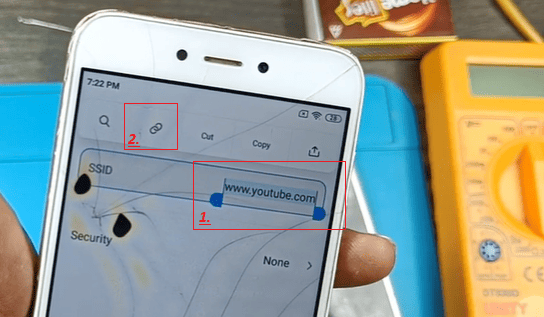
Open YouTube Link
Step 3. Tap the Three Dots menu and select Help & Feedback.
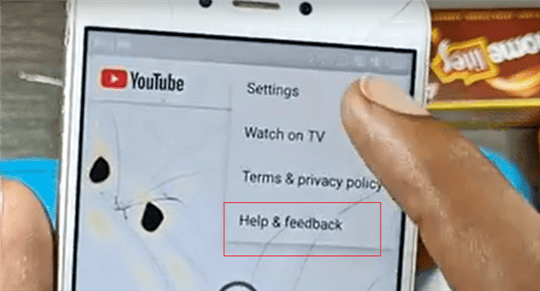
YouTube Help & Feedback
Step 4. Select Delete or Hide your YouTube channel.
Step 5. YouTube will open help instructions and a YouTube video for details. Click the Three Dots on the top right side of the video and select the Share option.
Step 6. Tap the link and select Open with Chrome. It will open Google Chrome. Here, you can search and download any application.
Step 7. Search for Quick Shortcut Maker App. Select your trusted source and download the application through it. Your Phone will confirm, as the third-party tools may be harmful. Confirm, and the Quick Shortcut Maker App will be downloaded to your phone.
How to Bypass FRP with Quick Shortcut Maker APK
This application can open settings and other hidden options that are usually not visible. Follow the steps below to remove Google FRP using Quick Shortcut Maker.
Step 1. Install the Quick Shortcut Maker APK and launch. It shows a search box so users can find available activities quickly. Write “settings” in the search box and select settings.
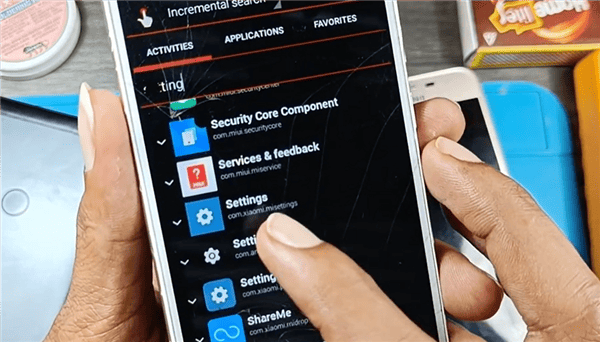
Quick Shortcut Maker Settings
Step 2. Scroll down and tap Try. It will open settings for you.
Step 3. Tap About phone and scroll down. Tap your device’s build version or UI version 7 times. You will enter the developer mode on Android.
Step 4. Go back and navigate to Additional Settings>Developer Options.
Step 5. Scroll down and turn on OEM Unlocking. Go back and check if OEM Unlocking is still turned ON or not. If not, repeat the process. After OEM Unlocking is turned on, it will bypass Google FRP.
Step 6. If this method does not work, search for Google account manager inside the Quick Shortcut Maker FRP bypass app.
Step 7. Log in with any other Gmail ID, and FRP will bypass.
These methods work sometimes, but the success probability is different for different devices and device models. These techniques may occasionally get past FRP, but they do not always work on all devices or Android versions. If you’re still stuck, do not worry, there’s another option. Instead of experimenting with APKs or secret tricks, you can use a third-party FRP bypass tool.
Quick Shortcut Maker APK Best Alternative – DroidKit
DroidKit is a comprehensive Android solution designed to unlock Android screen, remove FRP, recover lost data, and even repair system issues. The claim that it can cater to nearly every issue an Android user can encounter, all within one software. Quick Shortcut Maker, which relies on step-by-step procedures, can break on recent Android versions. Whereas DroidKit presents a direct, safe, and guaranteed method to bypass FRP locks. It is compatible with almost all new and old Android and smartphone versions. You can easily FRP bypass the devices that don’t work with Quick Shortcut Maker FRP bypass apps.
Steps to use DroidKit for FRP removal:
First, download and install DroidKit on your computer/laptop and follow the steps mentioned below.
Free Download * 100% Clean & Safe
Step 1. Launch DroidKit on your PC and click on FRP bypass mode from the welcome screen.

DroidKit FRP Bypass
Step 2. Connect your mobile phone to the PC using a USB cable. Click the Start button and select your device brand, followed by the device version.
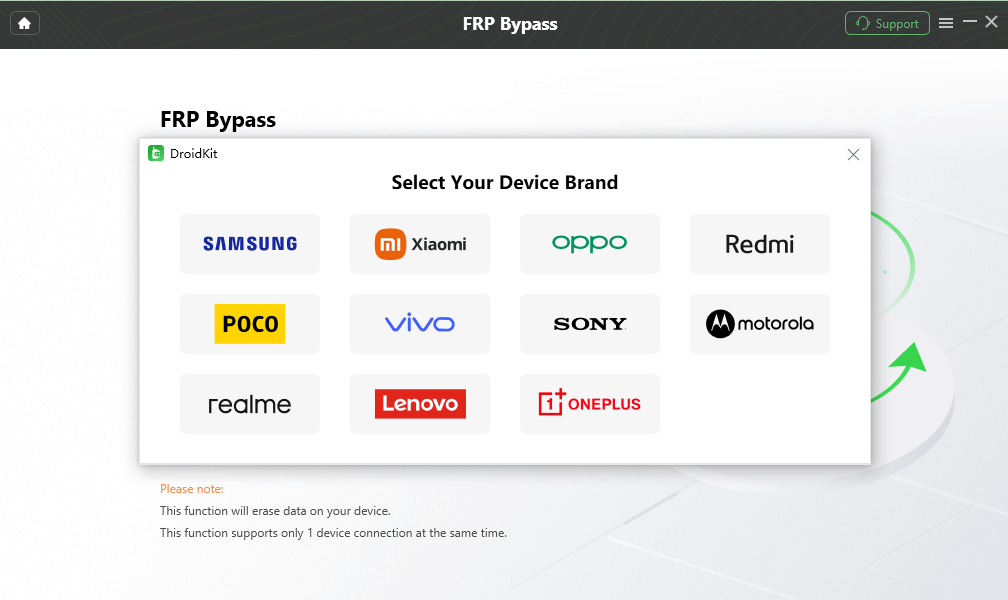
Select Correct Brand
Step 3. DroidKit will prepare a configuration file for your mobile device and brand. Once it is done, click Start to Bypass.
Step 4. Follow the PC screen instructions on your mobile device to enter your device into factory mode. After completing the necessary steps, click the Reset button on your PC screen.
Step 5. Droidkit will start the process to remove FRP lock from your mobile device. It will take some time.
Step 6. Once the process is complete, there will be a success page on your PC screen, and your device will restart with its FRP lock removed.

FRP Bypass Complete
That’s how easy it is to use DroidKit and remove Google FRP. Now it’s your choice. Use the method you find reliable and easy.
FAQs About Quick Shortcut Maker APK
Q1. Does Quick Shortcut Maker run on Samsung phones?
No. Samsung devices have additional security, such as Knox. Due to this, the Quick Shortcut Maker FRP bypass technique generally does not function on Samsung devices.
Q2. Is Quick Shortcut Maker free?
Yes. The app itself is free to use and download. But be cautious when downloading from third-party websites. They might have fake versions with malware.
Q3. Can I FRP bypass on Android 15 using Quick Shortcut Maker?
No. Android 15 has more secure updates. Security features prevent the launch of Google Account Manager on newer versions of Android.
Conclusion
Quick Shortcut Maker FRP bypass app can be useful if you’re locked out after a factory reset, but it doesn’t always work on every device or Android version. It particularly struggles with Samsung phones and newer updates like Android 15. On the other hand, DroidKit is a safer and more reliable alternative. It offers wide compatibility, guaranteed results, and extra features like data recovery and system repair. DroidKit can work in most cases as compared to Quick Shortcut Maker. So, if you’re stuck at the FRP screen, you can try the Quick Shortcut Maker FRP bypass app. But if that doesn’t work, try DroidKit for a smooth, secure, and fast solution.


Roger Smith is a senior technical writer with years of experience in providing Android solutions. He loves to help users solve various problems such as Android unlock, Android data recovery, and Android system repair.
Product-related questions? Contact Our Support Team to Get Quick Solution >
