Samsung A23 FRP Bypass on Android 13/14: Methods & Troubleshooting
Samsung A23 FRP recovery depends on the account situation, Android 13/14 setup screens, and whether the access required by a manual method is still available. Start with the previously synced Google account or previous owner, then compare OTG, keyboard and compatible PC-based routes without assuming an older Samsung tutorial matches your current A23.
If your Samsung Galaxy A23 asks for a previously synced Google account after a factory reset, Factory Reset Protection (FRP) is active. Before trying an OTG cable, APK file, keyboard shortcut, or PC program, identify the account situation and the exact setup screen your A23 still allows you to reach.
If the Google account belongs to you and can still be recovered, signing in with that account is the most direct route. If the Galaxy A23 was bought second-hand and the requested account belongs to the previous owner, contact that person before repeating another reset. Manual FRP routes become relevant only when those account-based options are unavailable and the required Samsung setup path still exists.
This guide stays focused on the Galaxy A23 running Android 13 or Android 14. Older Samsung tutorials may show OTG, APK, keyboard, Help & Feedback, Developer Options, or other setup paths that look different on your current A23. Treat the first missing checkpoint as a sign that the route does not match your phone instead of automatically blaming one security patch.
For Samsung-wide model, One UI, tool, and troubleshooting routes, see the Samsung FRP bypass guide.
Samsung A23 FRP on Android 13/14: What Should You Try First?
The useful first question is not “Which bypass trick works?” It is which A23 checkpoint still works on the phone in front of you.
| Your Samsung A23 Situation | Check First | Best Next Step |
| You know or can recover the previously synced Google account | Google account access | Sign in or recover the account instead of starting a bypass workflow. |
| The A23 was bought second-hand | Whether the requested account belongs to the seller | Ask the previous owner to resolve the account association first. |
| Your A23 runs Android 14 | Whether the tutorial matches the current Android 14 setup screens | Use Android 14-specific guidance before relying on older Samsung shortcuts. |
| An OTG drive opens a file manager during setup | Whether APK installation and the next required screen are actually available | Evaluate the OTG/APK route one checkpoint at a time. |
| The keyboard opens Settings or Help & Feedback | Whether the next screen still matches the older guide | Continue only while the exact route remains available. |
| OTG, APK, or keyboard routes stop at missing screens | The point where your A23 differs from the tutorial | Stop that manual route rather than repeating the earlier steps. |
| You have a computer and prefer an on-screen workflow | Whether the connected Samsung scenario is supported | Evaluate a compatible Samsung FRP tool or DroidKit workflow. |
If your Galaxy A23 is on Android 14, the Android 14 FRP guide covers the Android-version layer separately. Keep this page for A23-specific method and failure-point decisions.
Compare Samsung A23 FRP Recovery Options
Instead of ranking methods as universally “easy” or “working,” compare what each route requires.
| Route | PC Needed | Best Fit | Main Limitation |
| Previously synced Google account | No | You still control or can recover the account used before the reset | Requires access to the account or its recovery options. |
| Previous-owner assistance | No | The A23 is second-hand and still linked to the seller’s account | Depends on the previous owner’s cooperation. |
| OTG / APK route | A computer may be needed to prepare the USB drive | The setup screen still opens external storage, allows the package to install, and exposes the next required page | The route stops when file access, package installation, or Settings access is unavailable. |
| Google Keyboard route | No | Keyboard Settings, Help & Feedback, search, and the later screens still match the older route | A single missing menu makes the rest of the sequence inapplicable. |
| DroidKit FRP workflow | Windows or Mac | You want guided instructions and the connected Samsung workflow applies to your device | Requires a computer, USB connection, and compatible device route. |
If you want to compare Samsung-specific software before choosing a PC route, see the Samsung FRP tool guide.
PC-Based Samsung A23 FRP Option with DroidKit
DroidKit is relevant on this A23 page when account recovery is unavailable, an older Samsung setup route no longer matches the phone, and you prefer an on-screen Windows or Mac workflow. Do not assume that Android 13 or Android 14 alone guarantees compatibility; use the Samsung/device route presented by the software.
You can review the current DroidKit FRP Bypass page before starting.
Start the Samsung A23 FRP Workflow in DroidKit
Step 1. Install DroidKit on the computer, launch it, and choose FRP Bypass.

Choose FRP Bypass Mode in DroidKit.
Step 2. Connect the Galaxy A23 with a data-capable USB cable and click Start.
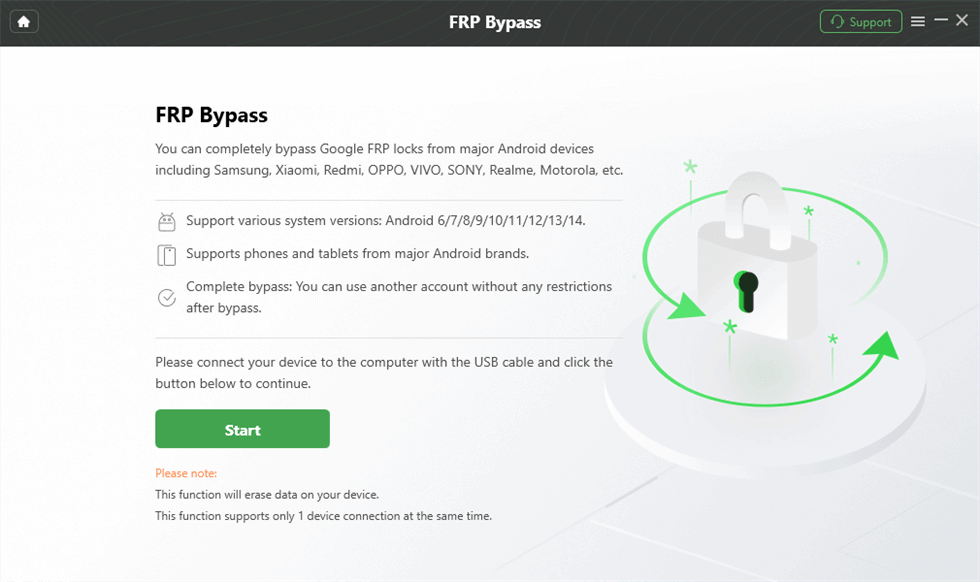
Connect the device and start the FRP workflow.
Step 3. Follow the brand and device-selection prompts shown by DroidKit. Choose Samsung only when that is the route requested for the connected phone.
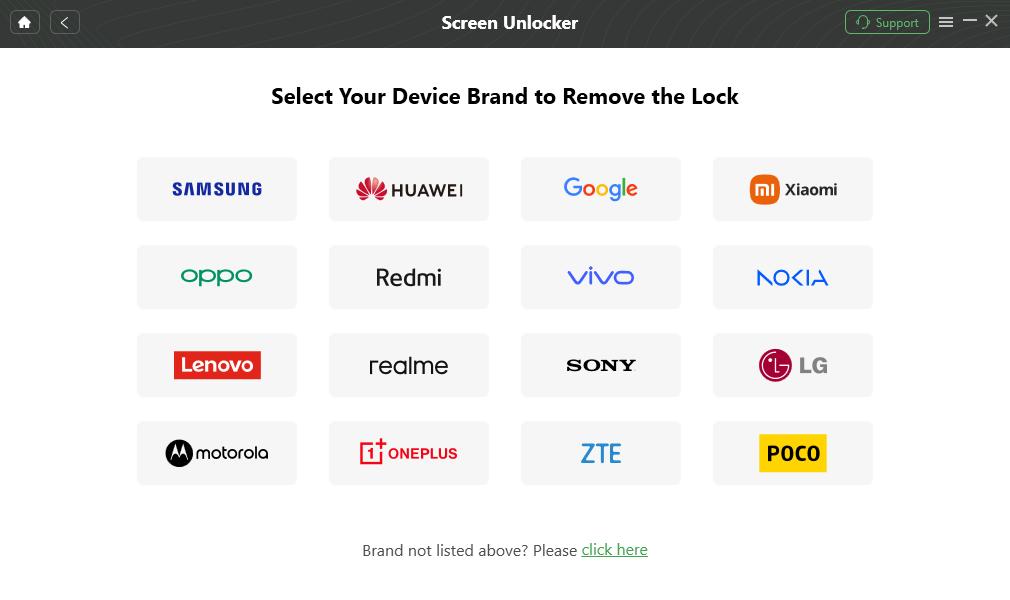
Choose the device brand requested by the software.
Step 4. When the preparation stage is ready, continue to the FRP workflow shown for the connected device.
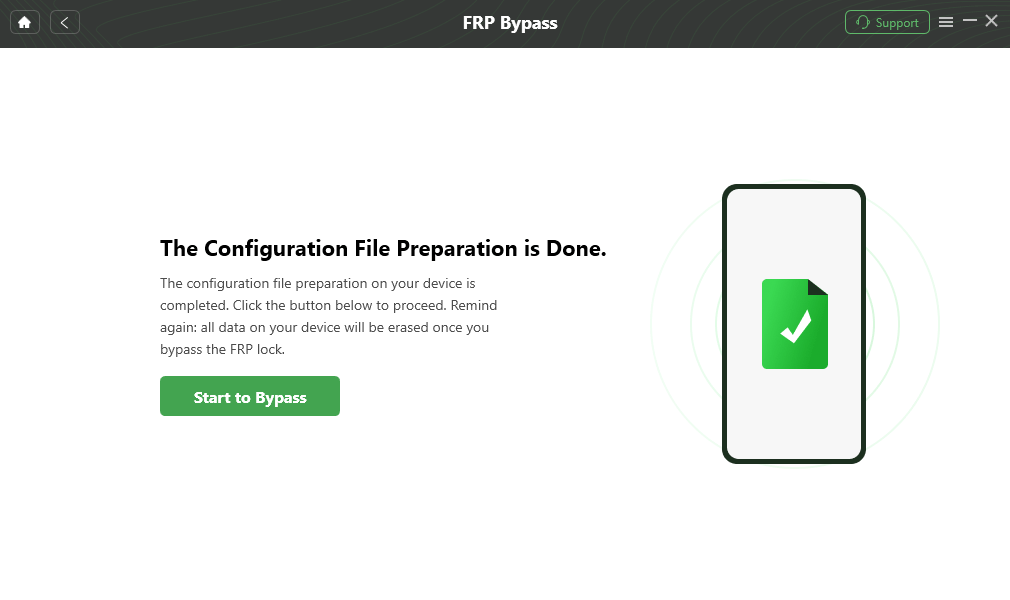
Start the applicable FRP workflow.
Step 5. Select the Samsung system or boot-screen option requested by the software. Match the actual A23 rather than choosing an option solely because it appears in an older tutorial.
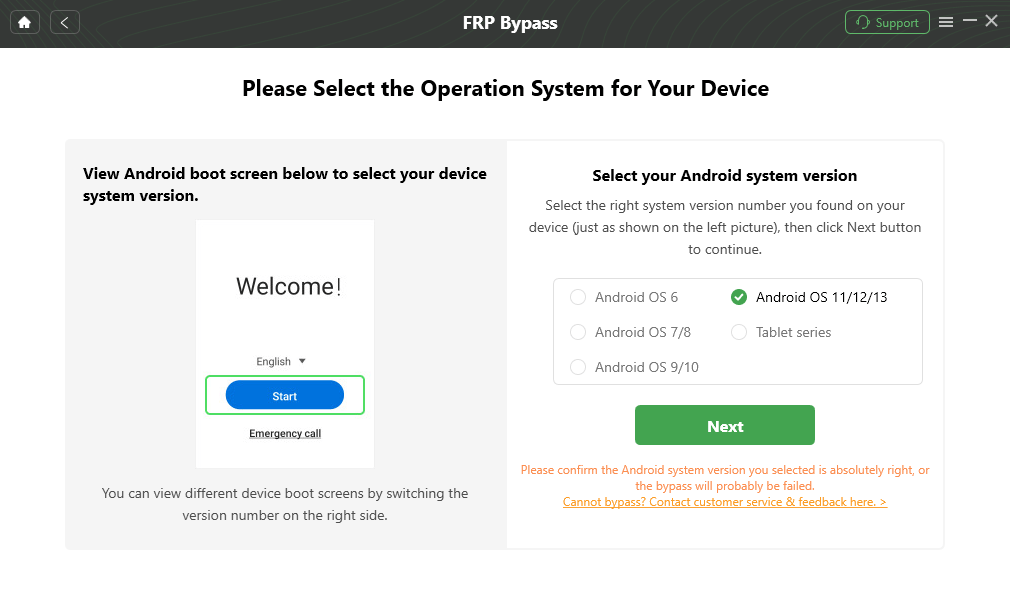
Use the Samsung system option requested by the workflow.
Step 6. Complete the Samsung-side preparation shown by DroidKit. If the workflow displays a Reset step, follow the preceding instructions before selecting it.
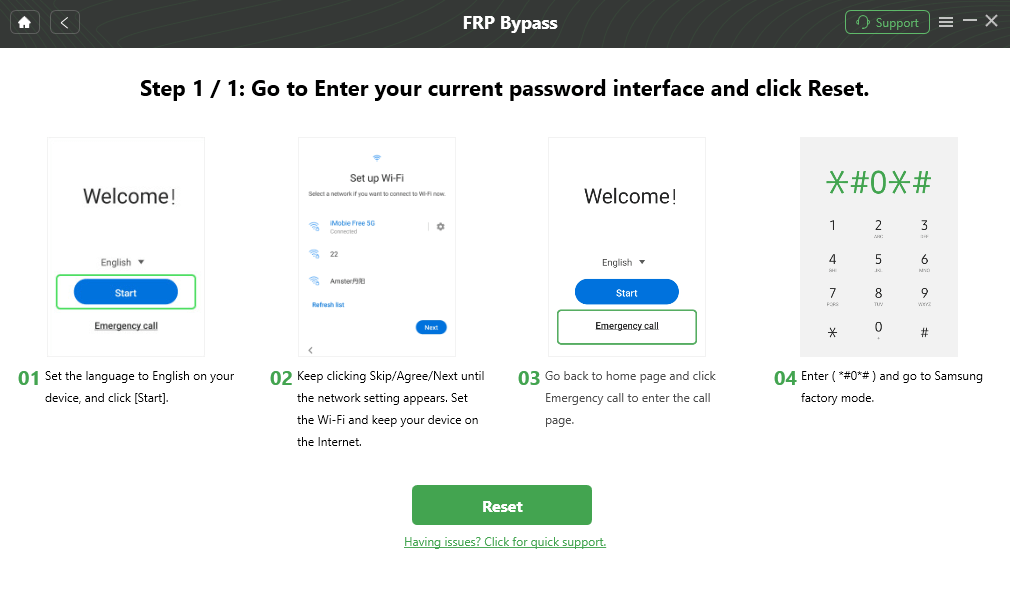
Follow the Samsung preparation steps displayed by DroidKit.
Step 7. Keep the A23 connected while the applicable workflow runs. When DroidKit displays its completion screen, follow the device setup instructions shown for your phone.

DroidKit FRP workflow completion screen.
Compatibility note: This section preserves the existing A23 conversion workflow, but it does not claim that every Galaxy A23 Android 13/14 configuration is covered. Check the device route presented by the current software before relying on it.
Samsung A23 OTG/APK Route: Check the Required Access First
The OTG route found in older Samsung FRP tutorials uses a USB drive and APK package as a way to test whether the setup environment still exposes external storage, package installation, and a path into the required Android settings. On the Galaxy A23, those checkpoints matter more than the age of the tutorial.
For background on APK-based Samsung FRP routes and download risks, see the Samsung FRP APK guide.
Checkpoint 1: Does the Galaxy A23 Open the OTG Drive?
Prepare the USB drive and connect it to the A23 through a compatible OTG adapter. The first useful result is whether the setup environment exposes the external storage at all.
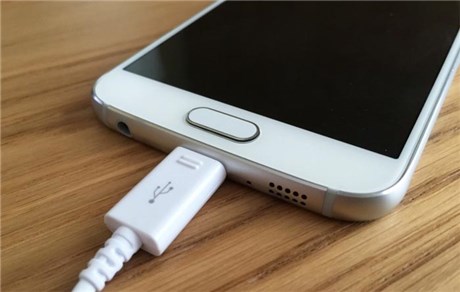
The older OTG route depends on the setup environment recognizing external storage.
If no file manager or usable storage view appears: stop this route. The remaining APK steps depend on access the current setup does not provide.
Checkpoint 2: Can the APK Be Installed?
If the phone exposes the USB drive, check whether the package installer can actually open the APK used by the device-specific tutorial.
If installation is blocked or “App not installed” appears: do not keep downloading random APK versions. That tells you the installation stage of this route does not match the current A23 environment.
Checkpoint 3: Does the Installed App Reach the Expected Settings Page?
An APK opening successfully is not the same as removing FRP. The older workflow still depends on the app exposing the next Android screen shown in the exact guide.
If the expected Settings, account, or setup page is absent, stop. The supplied page evidence does not establish a universal OTG → reset → FRP removed sequence for every Galaxy A23 Android 13/14 build, so this article does not treat another factory reset as proof that the old Google account requirement will disappear.
Google Keyboard Route: Does the Old Settings Path Still Exist?
Older Samsung FRP tutorials may use the keyboard on the verification screen to reach Keyboard Settings, Help & Feedback, search, Android Settings, Developer Options, and other menus. For the A23, treat those screens as compatibility checkpoints rather than assuming the full old sequence remains valid.
Checkpoint 1: Can You Open Keyboard Settings?
At the Google verification screen, tap a text field to open the keyboard and check whether the Settings route shown in the older guide still appears.
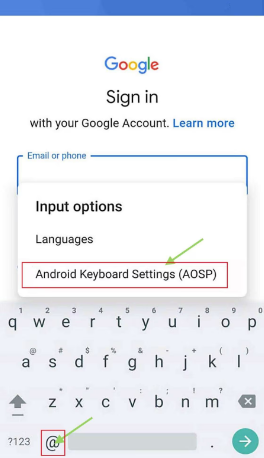
The keyboard route depends on access to the expected Settings menu.
If the keyboard does not expose the same Settings path, stop the route at this point.
Checkpoint 2: Is Help & Feedback Still Available?
If Keyboard Settings opens, check whether the older guide’s Help & Feedback option and the next search or web action are present.
If Help & Feedback is missing, or the interface no longer exposes the action used by the tutorial, the route no longer matches the current setup environment.
Checkpoint 3: Can the Route Reach Android Settings?
Some older instructions proceed from a help/search action into Settings, then into About Phone and Software information. Continue evaluating the route only if your A23 actually reaches those screens.
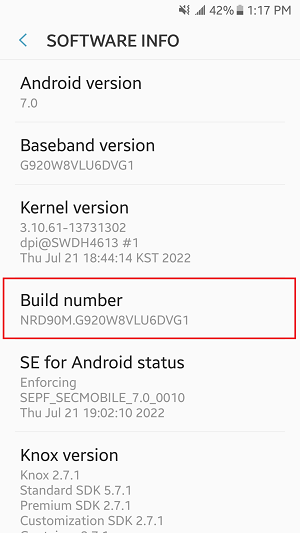
Developer Options appears in some older Samsung setup tutorials.
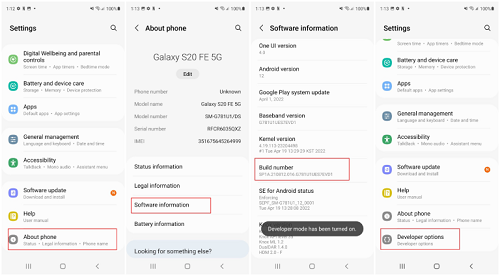
Older tutorials may continue into Developer Options when Settings access is available.
What About OEM Unlocking?
Some older Samsung tutorials continue from Developer Options to OEM unlocking. That setting is separate from Google FRP verification and should not be described as a universal A23 FRP-removal step.
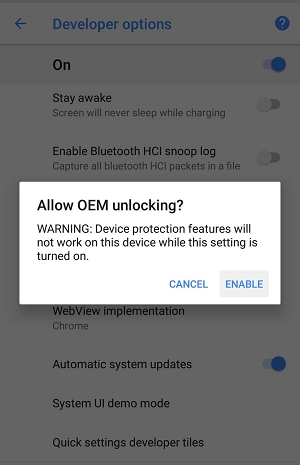
OEM unlocking is a separate device setting and is not proof that Google FRP has been removed.
If OEM unlocking is missing, do not interpret that alone as evidence that one security patch blocked FRP bypass. More importantly, do not force the setting or assume that enabling it would automatically clear the previously synced Google account requirement.
Samsung A23 FRP Not Working? Find the Failure Point
When an Android 13/14 A23 route stops, identify the exact missing checkpoint before changing tools or downloading more APK files.
| Where You Get Stuck | What It Tells You | What to Do Next |
| OTG drive produces no usable file manager | The external-file path required by that tutorial is unavailable. | Stop the OTG route instead of reconnecting the same drive repeatedly. |
| APK cannot be installed | The package or installation stage does not match the current setup. | Do not stack random FRP APK versions. |
| APK installs but cannot reach the expected Settings page | The app alone does not provide the access required by the tutorial. | Move away from that APK workflow. |
| Keyboard Settings is missing | The first keyboard shortcut in the old guide is unavailable. | Stop the keyboard route. |
| Help & Feedback or Web Search is missing | The middle transition in the old guide no longer matches the A23 setup. | Do not repeat the earlier keyboard steps. |
| Settings opens but later screens differ | Your Android/One UI environment differs from the tutorial. | Use A23/Android-version-specific guidance rather than mixing steps from another Galaxy model. |
| OEM unlocking is absent | That developer setting is not available in the current device state. | Do not treat OEM unlocking as a required universal FRP fix. |
| The phone still asks for the old Google account after another reset | FRP verification remains active. | Use the recoverable account, contact the previous owner, or evaluate another appropriate FRP route. |
| A PC tool does not detect the Galaxy A23 | The connection layer is not ready. | Check the data cable, USB port, drivers, and device state before changing FRP software. |
If both manual routes stop at missing setup checkpoints, the defensible conclusion is that your current A23 environment does not match those older workflows. A security update may be one factor, but the supplied evidence does not support naming it as the automatic cause.
For a broader failure map, see the FRP bypass not working guide.
Samsung A23 FRP FAQ
Can I bypass FRP on a Samsung A23 running Android 14?
Android 14 A23 users have several recovery categories to evaluate, but the Android version alone does not identify a working method. Start with the previously synced account, then check whether the exact OTG, keyboard, Samsung-specific, or PC workflow matches the screens and device state on your phone.
What should I try first on a Samsung A23 after a factory reset?
If you still control the previously synced Google account, recover or sign in to it first. If the phone was bought used, contact the previous owner. Only after those account routes are unavailable should you spend time testing a manual or PC-based FRP workflow.
Can Samsung A23 FRP be handled without a PC?
A no-PC route is relevant only if its required setup checkpoints still exist. For the keyboard route, that can include Keyboard Settings, Help & Feedback, search, and later Settings access. If a required screen is missing, the rest of that tutorial does not apply to the current A23.
Why does the OTG method not work on my Galaxy A23?
Check where it stops. The phone may not expose the USB drive during setup, package installation may be unavailable, or the installed app may not reach the Settings page required by that workflow. Those are more useful observations than assuming one security patch is always responsible.
Why does the Google Keyboard method stop at Help & Feedback?
The setup interface on your A23 does not expose the same transition used by that older tutorial. Treat the missing page or action as a stopping point rather than combining keyboard steps from another Samsung model.
Does enabling OEM unlocking remove Samsung A23 FRP?
Do not treat OEM unlocking as a universal FRP-removal step. It is a separate developer/device setting, and its presence, absence, or enabled state does not by itself prove that Google account verification has been removed.
Why is my A23 still asking for the previous Google account after another reset?
Another factory reset does not by itself resolve the FRP verification requirement. If the same account screen returns, recover the account when possible, contact the previous owner when applicable, or evaluate another route that matches the current device state.
Is a PC FRP tool always better than OTG or keyboard methods?
No. A PC tool still needs device compatibility and a stable connection. It becomes relevant when the account-first routes are unavailable, the manual checkpoints do not match your A23, and the selected Samsung workflow applies to the connected phone.
Will FRP recovery restore data erased by the previous reset?
No FRP route should be expected to restore local files already erased by the factory reset that triggered Google verification. Additional reset-related operations can also affect data, so review the workflow before continuing.
The main Samsung A23 decision on Android 13/14 is not whether an old trick is labeled “working.” Check the account first, then the first setup checkpoint required by the route. If OTG never exposes storage, the APK cannot install, or the keyboard path stops before Settings, that method does not match the current phone.
A computer-based workflow is a separate next option when the Samsung route presented by the software applies to your A23. That is a stronger stopping-and-switching rule than repeatedly resetting the phone or downloading multiple unverified APK files.
More Related Articles



Joy Taylor is a seasoned technical writer with over a decade of experience in mobile technology. At iMobie, she specializes in producing in-depth content on iOS data recovery, iPhone unlocking solutions, and iOS troubleshooting.
Product-related questions? Contact Our Support Team to Get Quick Solution >
