Samsung A25 FRP Bypass: No-PC & FRP Unlock Methods
Samsung A25 FRP routes depend on the Android/One UI build and whether the setup screen still exposes OTG file access, APK installation, or the older Keyboard Settings path. Check those entry points first, then choose an account-recovery, manual, or PC-based route that matches your A25.
After a factory reset, your Samsung Galaxy A25 may stop at Google verification and request a Google account that was previously synced with the phone. That is Factory Reset Protection (FRP). The challenge is that Samsung A25 FRP instructions do not behave the same way on every Android, One UI, or security-patch state.
For this phone, the useful question is not simply whether an OTG, APK, or Google Keyboard method exists. First check whether your A25 still exposes the exact setup-screen entry point that method needs. If OTG storage never appears, APK installation is blocked, or the older Keyboard Settings and Help & Feedback path is missing, continuing with steps recorded on another Samsung build will not make that route compatible.
This guide keeps the three main Samsung A25 search scenarios—DroidKit, OTG/APK without a computer, and the Google Keyboard route—but treats each one according to its actual prerequisites and failure points.
Before continuing: If the Google account requested by the A25 belongs to you and can still be recovered, resolving that account is the most direct route. If the phone was purchased second-hand and is still linked to another person’s account, ask the previous owner or seller to help resolve the account association before trying unrelated FRP shortcuts.
Quick Answer: Which Samsung A25 FRP Method Should You Use?
Choose the route according to what your A25 actually allows during setup:
- You can recover the previously synced Google account: use that account rather than trying to replace it with a new one during setup.
- OTG storage opens a usable file screen: an APK/OTG route may be worth evaluating, but only if the installer and the next required system screen also remain available.
- Keyboard Settings and Help & Feedback still appear: the older keyboard route may still expose some of the checkpoints used by legacy FRP instructions.
- Those setup shortcuts are missing: stop the manual route that depends on them. A PC-based Samsung FRP workflow may be more relevant if it supports the current device scenario.
Samsung FRP behavior varies across Galaxy models and software builds. If your screen does not resemble this A25-specific flow, the Samsung FRP bypass guide helps distinguish Galaxy model, One UI, Android version, and setup-checkpoint differences before you choose another tutorial.
Check Your Samsung A25 Android, One UI & Setup Path First
Before connecting OTG storage, opening an APK, or following a keyboard video, compare the tutorial’s first required screen with the phone in front of you. Android version matters, but the stronger signal is whether the exact menu or app transition still exists on your A25.
| Check on Your A25 | Why It Matters | Stop the Method If… |
| Android / One UI environment | A tutorial recorded on another software build may expose different setup menus. | The required screen, menu name, or app transition is not present. |
| Security update | Setup Wizard restrictions can change after updates. | An older shortcut no longer opens the next required screen. |
| OTG storage access | The APK route depends on being able to reach a stored file during setup. | The USB drive is connected but no usable file picker or File Manager appears. |
| APK installer | Reaching the file is not enough; Android must also allow the package installer to run. | The installer cannot open or repeatedly reports an installation error. |
| Keyboard Settings | The older keyboard method needs Settings access from the keyboard shown during verification. | The keyboard does not expose the Settings path required by the tutorial. |
| Help & Feedback / sharing path | Older instructions often depend on moving from keyboard help into another app or system screen. | Help, sharing, Gmail, or the next required action is missing. |
| Original Google account | If the requested account can be recovered, you may not need a bypass method. | You can successfully recover and sign in with that account. |
A method failing at one of these checkpoints does not automatically mean another APK or keyboard sequence will work. It usually means the instructions do not match the current setup state.
Samsung A25 FRP Bypass Methods Compared
| Method | PC Needed? | Continue Only If | Main Limitation |
| Google account recovery | No | The requested Google account belongs to you and can be recovered | Requires access to Google’s available recovery options |
| DroidKit FRP workflow | Yes | The software presents an applicable Samsung route for your device/system situation | Requires a Windows PC or Mac and USB connection |
| OTG + APK | No | OTG exposes the file, Android opens the installer, and the required next screen is accessible | Any missing checkpoint stops the route |
| Google Keyboard route | No | Keyboard Settings, Help & Feedback, and the next required actions still exist | Older instructions may not match the current A25 Setup Wizard |
If your search intent is specifically for software rather than a setup-screen trick, compare the requirements in the Samsung FRP tool guide instead of assuming every Samsung utility supports the same A25 state.
Why Does Samsung A25 Ask for the Previous Google Account?
FRP is part of Android device protection. When a protected phone is factory-reset, setup may ask for a Google account previously associated with the device. Creating another Google account does not automatically replace that verification requirement while setup is still locked.
Common situations include forgetting the Google password, resetting the phone before removing the account, or buying a used A25 that still requests the seller’s credentials.
If the main problem is identifying or recovering that old account rather than choosing an A25-specific tool, see the guide to a previously synced Google account after reset.
Method 1: Use DroidKit When the A25 Manual Entry Points Are Missing
DroidKit includes a PC-based FRP workflow. For this Samsung A25 page, its relevance begins at a specific point: OTG does not expose storage, APK installation cannot continue, or the Keyboard Settings / Help & Feedback chain required by the no-PC route is no longer present.
It avoids depending on those particular setup-screen shortcuts, but you should still follow the device and system choices currently shown by the software rather than assuming one Samsung procedure applies to every A25 software state.
DroidKit FRP Bypass
Consider this route when your Samsung A25 no longer exposes the OTG, APK, or keyboard checkpoints required by the manual methods below and you have access to a computer.
Free Download100% Clean & Safe
Free Download100% Clean & Safe
Steps to Start the Samsung A25 FRP Workflow with DroidKit
Step 1. Install DroidKit on your Windows PC or Mac. Launch the program and choose FRP Bypass.

Open FRP Bypass
Step 2. Connect the Samsung A25 to the computer with a reliable data-capable USB cable. Click Start, then choose Samsung when the software asks for the device brand.
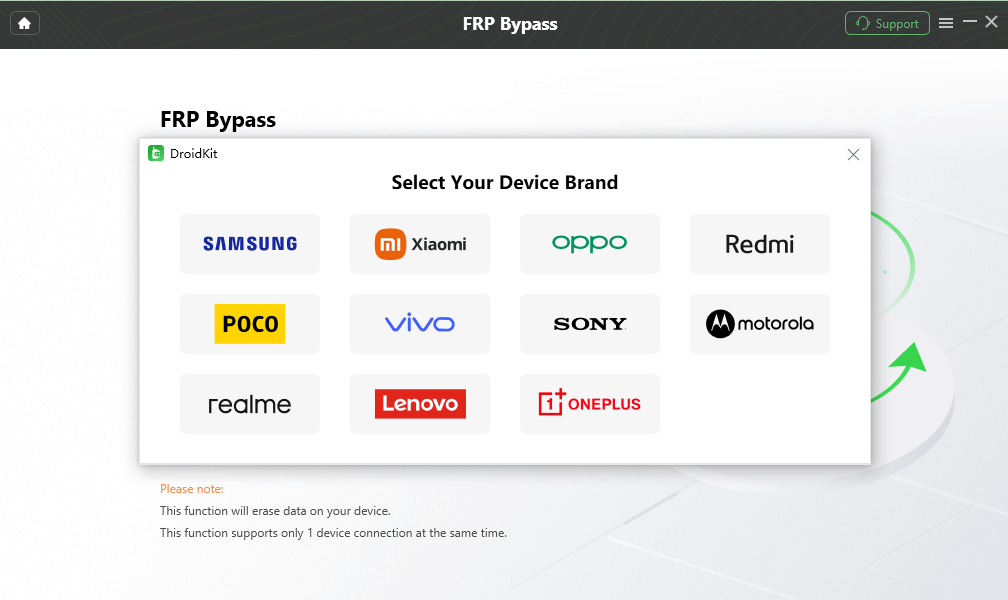
Choose the Samsung Device Brand
Step 3. Allow DroidKit to prepare the information required for the selected route. Keep the phone connected, then click Start to Bypass when prompted.
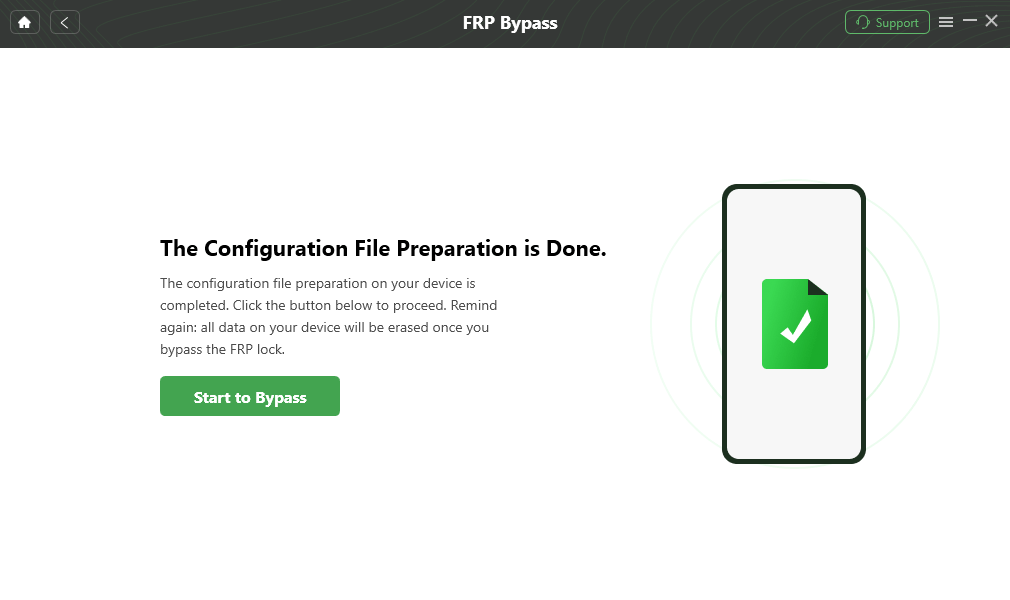
Click Start to Bypass
Step 4. Select the Samsung system version or route that matches the information requested by the current software interface, then click Next.
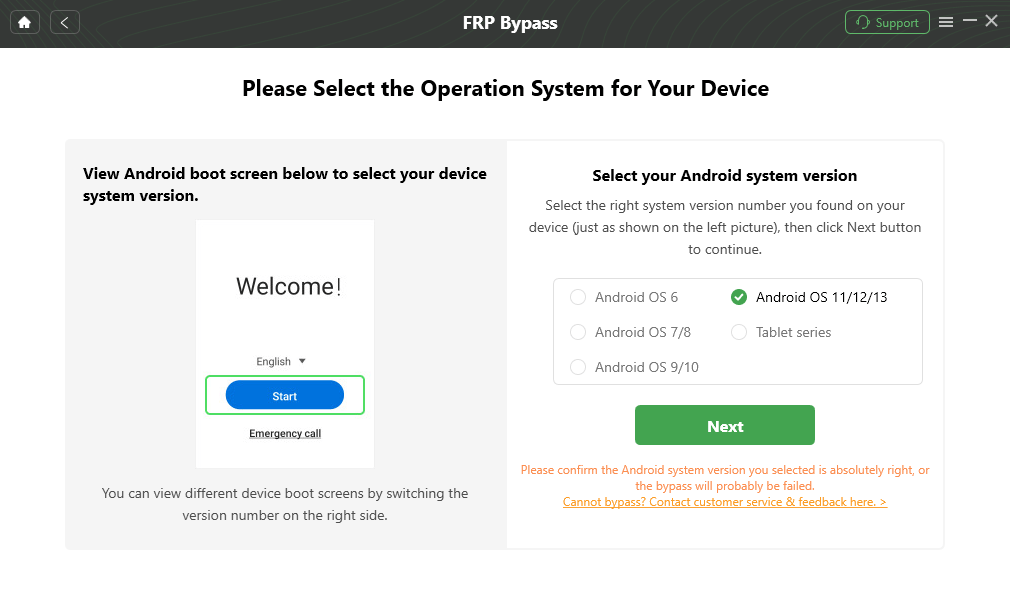
Choose the Matching Samsung System Route
Step 5. Complete the device-side settings shown in DroidKit. Do not substitute instructions from a different Samsung model if the screens presented by the software differ.
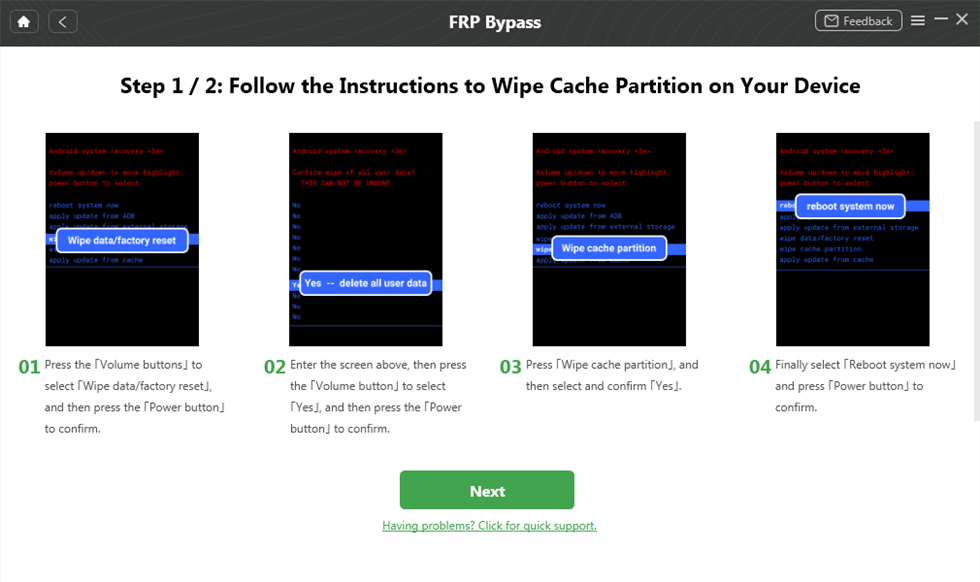
Complete the Corresponding Settings
Step 6. Keep the phone connected while the selected process completes, then follow the setup instructions shown by the software.
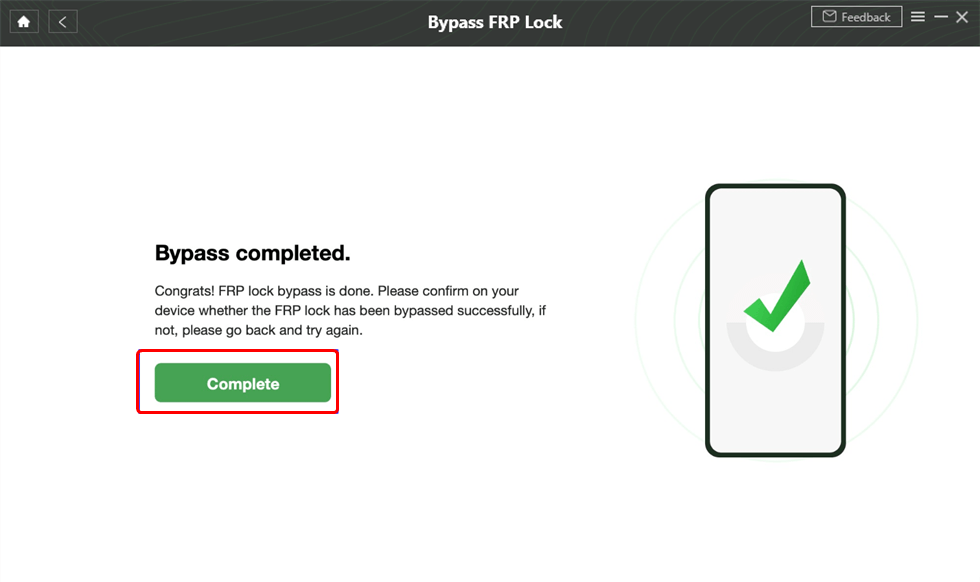
FRP Process Completion Screen
A25 decision point: The reason to move to this route is not simply that a paid or PC tool is “better.” It becomes relevant when your actual A25 no longer exposes the storage, installer, Keyboard Settings, Help & Feedback, or sharing path required by the manual methods.
Method 2: Check Samsung A25 FRP Bypass via OTG / APK Without a Computer
The OTG method is commonly searched as a Samsung A25 FRP bypass without PC. However, connecting a USB drive does not guarantee that the locked Setup Wizard will automatically open File Manager. Check the route in stages.
What You Need
- A compatible OTG adapter.
- A USB storage device.
- An APK file whose source and purpose you have evaluated.
APK warning: A filename containing “FRP” does not prove that the package is trustworthy or appropriate for your A25. Avoid unknown mirrors, modified packages, misleading download buttons, and APKs that request permissions unrelated to what they claim to do.
Checkpoint 1: Does OTG Expose Storage During Setup?
Step 1. Put the APK file on the USB storage device using another device.
Step 2. Connect the USB storage device to the Samsung A25 through the OTG adapter.
Step 3. Check whether Setup Wizard exposes a usable file picker, Files screen, or File Manager.
If no file interface appears, stop here. Do not keep changing APK files—the method is missing its first required entry point.
Checkpoint 2: Can Android Open the APK Installer?
Step 4. If storage access appears, locate the package and try to open it.
Step 5. Continue only if Android exposes the installer and permits the installation action required by the route.
If you see App not installed, the installer does not open, or installation permission is unavailable, treat that as a compatibility failure rather than downloading several unrelated FRP packages.
Checkpoint 3: Can the Installed Route Reach Its Next Required Screen?
Step 6. If the app installs, compare its next screen with the exact route you are following.
Step 7. If the instructions require Settings, account management, or another system screen that your A25 cannot open from this state, stop the method.
The OTG route is only usable when all three checkpoints line up: storage access → installer access → required system path.
Method 3: Check Whether the Older Google Keyboard Route Still Exists
Google Keyboard appears in many older Samsung FRP tutorials, but it should not be treated as a universal Samsung A25 procedure. This route depends on a chain of setup screens: the keyboard must expose Settings, Settings must expose the relevant Help & Feedback path, and the following share/app actions must still behave as shown by the guide.
Use the steps below as a compatibility check. If a checkpoint is missing, stop instead of borrowing the next step from another Samsung model.
Checkpoint 1: Can You Reach Keyboard Settings?
Step 1. Turn on the Samsung A25, connect it to Wi-Fi, and continue until you reach the Google verification screen.
Step 2. Tap the account input field and check which keyboard opens.
Step 3. Look for the Settings entry required by the older keyboard method. If the keyboard on your A25 does not provide that path, the route cannot continue as written.
Checkpoint 2: Does Help & Feedback Still Exist?
Step 4. If Keyboard Settings opens, check whether the menu contains the Help & Feedback or equivalent screen used in the older route.
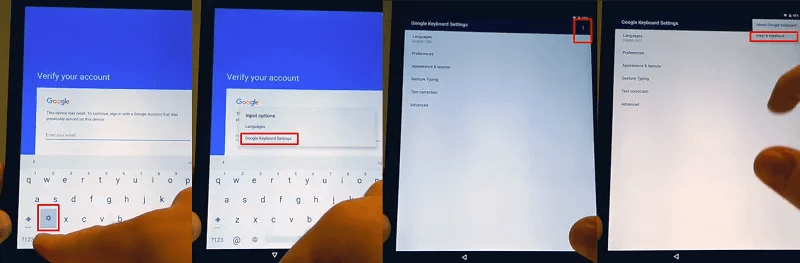
Example of the Help Page Used in an Older Keyboard Route
If this screen is missing or behaves differently, do not assume another tap sequence will recreate the old path.
Checkpoint 3: Does the Next Share or App Path Match?
Step 5. Some older instructions continue from a help item into a share action or another application. Check whether the exact next action shown by that guide is available on your A25.
Step 6. If sharing, Gmail, account management, Settings, or another required transition is unavailable, stop the route.
Step 7. Do not disable unrelated security services or system components solely because an older video instructs you to do so. Reaching a Settings screen does not by itself prove that the Google verification requirement has been resolved.
The value of this method on an A25 is therefore diagnostic: it tells you whether the older keyboard chain still matches your Setup Wizard. A missing checkpoint means the route does not fit the current device state.
What If Samsung A25 FRP Bypass Does Not Work?
Use the first failed checkpoint to decide what to do next. Repeating the entire procedure rarely fixes a missing setup menu.
| Problem | What It Suggests | Next Step |
| OTG drive is connected but nothing opens | The Setup Wizard may not expose USB storage access, or the OTG hardware may not be working. | Test the OTG hardware separately. If it works normally but no storage screen appears during setup, stop the OTG method. |
| APK shows “App not installed” | The package may be incompatible or installation may be restricted. | Do not keep testing random APK versions; choose a route that does not depend on that installer. |
| APK installs but cannot reach Settings | The required system transition is blocked or does not match the tutorial. | Stop the APK route at that checkpoint. |
| Keyboard Settings is missing | The older keyboard shortcut does not match the current A25 setup environment. | Do not continue with later keyboard steps from another build. |
| Help & Feedback is unavailable | The legacy keyboard chain is incomplete. | Stop the route instead of combining steps from another Samsung model. |
| Share or Gmail does not open | The next app transition used by the older route is restricted. | Use another A25-appropriate option. |
| DroidKit presents a system route that does not match your phone | The selected device/system option may not correspond to the current phone state. | Recheck the Samsung and system choices before continuing. |
| The phone still asks for the previously synced Google account | Google verification remains active. | Recover the requested account when possible or choose another authorized recovery route. |
| An old tutorial shows completely different screens | Its Android, One UI, patch level, region, or setup environment differs from your A25. | Treat the screen mismatch as the stopping point rather than forcing the tutorial. |
For a broader explanation of why setup shortcuts, APK routes, and accessibility paths disappear after Android or security changes, see why FRP bypass methods stop working.
Samsung A25 FRP Bypass FAQs
1. Can I bypass Samsung A25 FRP without a computer?
A no-PC route is only viable when your A25 still exposes the required setup entry point. For OTG/APK, that means usable storage access, an installer, and the required next system screen. For the older keyboard route, Keyboard Settings, Help & Feedback, and subsequent actions must still exist.
2. Why does the OTG drive not automatically open File Manager on my A25?
Automatic file access is not guaranteed from the locked Setup Wizard. First verify that the OTG adapter and storage work normally. If they do but setup still exposes no usable file interface, the OTG/APK procedure cannot continue as written.
3. Why does my FRP APK show “App not installed”?
The package may not fit the current Android environment, or installation may be restricted from the setup state. Trying many unrelated APKs does not solve a missing installer permission or incompatible setup path.
4. Does Google Keyboard FRP bypass still work on Samsung A25?
Do not assume it does based only on the model name. Check whether your A25 actually exposes Keyboard Settings, Help & Feedback, and the next sharing or system screen required by the specific route. If any checkpoint is missing, the older keyboard instructions do not match your current setup state.
5. Why can’t I find Help & Feedback in Keyboard Settings?
The keyboard interface or Setup Wizard on your Android/One UI build may differ from the version used in the tutorial. The missing menu is a compatibility signal; it is better to stop there than continue with later steps that depend on that screen.
6. Is DroidKit the first method I should use for Samsung A25 FRP?
Not automatically. If the original Google account is recoverable, resolve that account. If you want a no-PC route and your A25 still exposes the necessary OTG or keyboard checkpoints, you can evaluate those first. DroidKit becomes relevant when those setup-screen entry points are unavailable and you want to use a computer-based Samsung FRP workflow.
7. What Android version does my Samsung A25 need for these methods?
Do not use one Android version number as a guarantee. FRP behavior can also depend on One UI, security updates, region, and Setup Wizard behavior. The more useful compatibility test is whether the exact checkpoint required by the method appears on the phone.
8. Can I add a new Google account to replace the previous one?
While the phone is still requesting a previously synced account during FRP verification, simply creating or adding another account does not necessarily satisfy that requirement. If the requested account is yours, recover it first; if it belongs to a previous owner, resolve that ownership situation.
9. What should I do if every Samsung A25 tutorial shows different screens?
Stop combining the tutorials. Differences in Android, One UI, security patches, region, or setup state can change the available route. Choose the method whose first required screens actually match your phone.
10. Will another factory reset remove FRP from Samsung A25?
No additional reset should be assumed to remove the Google verification requirement. If FRP remains active, another reset may simply return the phone to the same account-verification stage.
Final Words
Samsung A25 FRP is easier to troubleshoot when you treat each method as a chain of prerequisites rather than a guaranteed recipe. For OTG/APK, confirm storage, installer, and system access. For the older Keyboard Settings route, confirm the keyboard, Help & Feedback, and the next app transition. If one link in that chain is missing, stop that method.
If the previous Google account belongs to you, recover it rather than trying to replace it during setup. If the no-PC checkpoints do not exist on your A25, a computer-based Samsung FRP workflow is the next category to evaluate—not because it is automatically better, but because it does not depend on the same missing OTG or keyboard entry points.
More Related Articles



Joy Taylor is a seasoned technical writer with over a decade of experience in mobile technology. At iMobie, she specializes in producing in-depth content on iOS data recovery, iPhone unlocking solutions, and iOS troubleshooting.
Product-related questions? Contact Our Support Team to Get Quick Solution >
