Samsung A34 FRP Bypass on Android 14: SamFW, No-PC & Tool Options
Samsung A34 FRP recovery depends on more than the Android version. On A34/A34 5G, check whether Samsung Test Mode opens, whether TalkBack can still reach browser or file access, and whether the SIM/keyboard route can reach Settings. If those checkpoints are missing, stop the older workflow and choose a route that matches the current device state.
If your Samsung Galaxy A34 or A34 5G asks for a Google account that was previously synced with the phone after a factory reset, Factory Reset Protection (FRP) is active. The first step is not choosing between SamFW, TalkBack, a SIM trick, or another tool. First check whether the original Google account can still be recovered and which setup checkpoints your A34 actually exposes.
If the Google account belongs to you, recover or sign in to it first. If the A34 was bought second-hand and still requests the previous owner’s account, ask the seller to resolve that account association. These routes address the ownership verification directly and should come before experimenting with manual setup shortcuts.
When account recovery is unavailable, the useful A34-specific checkpoints are straightforward: does *#0*# open Samsung Test Mode, does a SamFW workflow reach the USB debugging prompt, can TalkBack leave the accessibility flow and reach the expected browser or file screen, and does the SIM/keyboard route still reach Settings? A missing checkpoint means that particular route does not match the current phone.
For broader Galaxy model and Samsung FRP navigation, use the Samsung FRP bypass guide.
Samsung A34 FRP: Which Route Fits Your Phone?
Use the first available checkpoint to choose a route instead of trying all methods one after another.
| Your A34 Situation | Check First | Best Next Step |
| You know or can recover the previously synced Google account | Google account access | Sign in or recover the account instead of using a bypass route. |
| The A34 was bought second-hand | Whether the requested account belongs to the previous owner | Ask the seller or previous owner to resolve the account association. |
| Your Galaxy A34 runs Android 14 | Whether the route matches the current Samsung setup screens | Use Android 14-specific compatibility guidance before following an older tutorial. |
| *#0*# opens Samsung Test Mode | Whether the remaining SamFW prerequisites are available | Continue checking device detection and the USB debugging prompt. |
| *#0*# does nothing | Test Mode availability | Stop any SamFW workflow that depends on Test Mode. |
| TalkBack can reach the expected browser or file path | Whether every next screen still matches the tutorial | Evaluate the no-PC route one checkpoint at a time. |
| The SIM/keyboard route still exposes search and Settings | Whether the account/settings page required by the guide is present | Continue only while the exact path remains available. |
| Manual routes stop at missing screens and you have a computer | Whether a PC workflow supports your Samsung device situation | Compare a Samsung FRP tool or another compatible guided option. |
If your A34 is running Android 14, see the Android 14 FRP guide for version-level checkpoints. This page stays focused on the Galaxy A34 and A34 5G.
Compare Samsung A34 FRP Recovery Options
Different routes solve different A34 situations. Compare the prerequisites and stopping conditions rather than assuming that a no-PC method or PC tool is automatically better.
| Route | PC Needed | Best Fit | Main Limitation |
| Previously synced Google account | No | You still control or can recover the account used before the reset | Requires access to the account or its recovery options. |
| Previous-owner assistance | No | A second-hand A34 still requests the seller’s account | Depends on the previous owner’s cooperation. |
| SamFW route | Windows | Advanced users whose A34 exposes the Test Mode and USB/debugging checkpoints required by the workflow | The route cannot continue if a required checkpoint is unavailable. |
| TalkBack / accessibility route | No | The current setup still exposes the accessibility, browser, file, and later screens used by the exact guide | One missing transition makes the remaining sequence inapplicable. |
| SIM / keyboard route | No | The keyboard/search/Settings chain used by the older method still exists | The route stops when the keyboard, search, Settings, or account page differs. |
| DroidKit FRP workflow | Windows or Mac | You prefer on-screen instructions and the current Samsung workflow applies to the connected phone | Requires a computer, stable USB connection, and a supported device route. |
If your main goal is comparing Samsung software rather than following one A34 route, see the Samsung FRP tool guide.
PC-Based Samsung A34 FRP Option with DroidKit
DroidKit is a separate PC-based FRP workflow to evaluate when the previously synced account cannot be recovered, a legitimate previous-owner route is unavailable, and the manual setup path no longer matches the A34. It should not be selected merely because the phone says Android 14; check the current Samsung workflow presented by the software first.
Review the current DroidKit FRP Bypass information before starting so you can compare the current device route with your Galaxy A34.
Start the Samsung A34 FRP Workflow in DroidKit
Step 1. Install DroidKit on the Windows or Mac computer, open it, and choose FRP Bypass.

Choose FRP Bypass in DroidKit.
Step 2. Connect the Samsung A34 or A34 5G using a data-capable USB cable and follow the device-detection prompts.
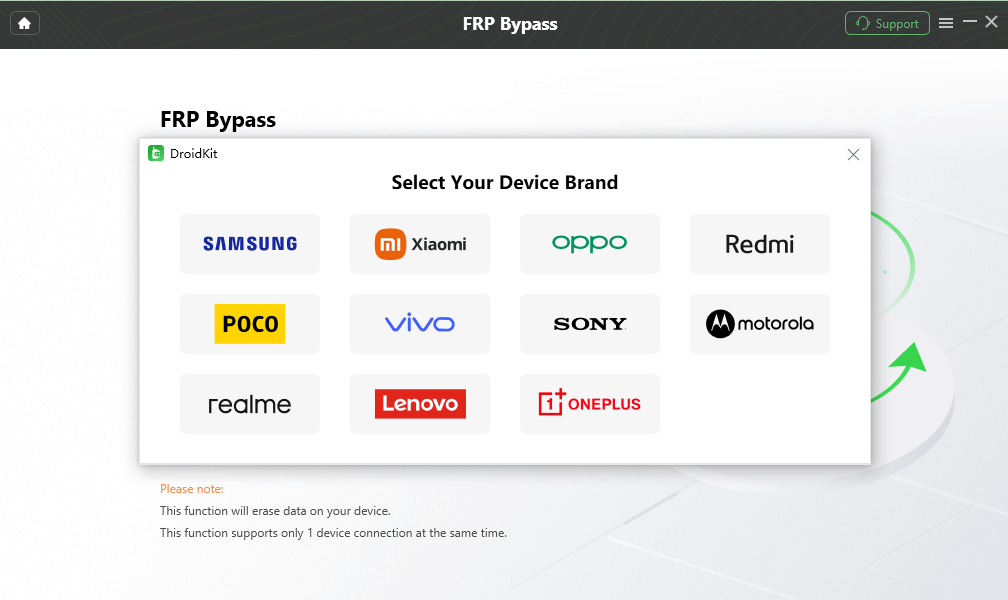
Choose Samsung when that is the route requested for the connected phone.
Step 3. Wait while DroidKit prepares the available configuration. Continue only when the workflow shown applies to the connected device.
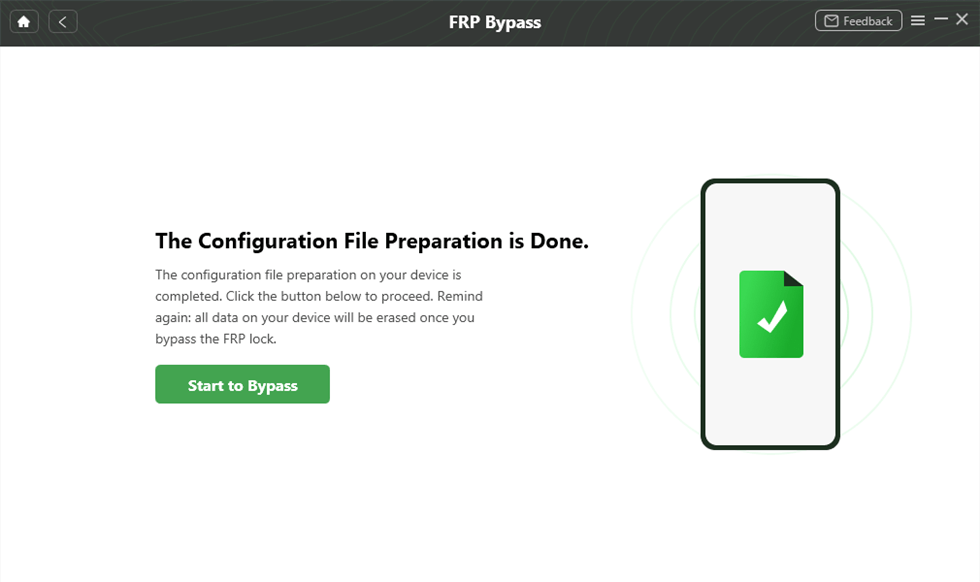
Start the applicable FRP workflow after the preparation stage.
Step 4. Complete the Samsung-side operations displayed by the software. If a Reset step appears, follow the preceding instructions before selecting it.
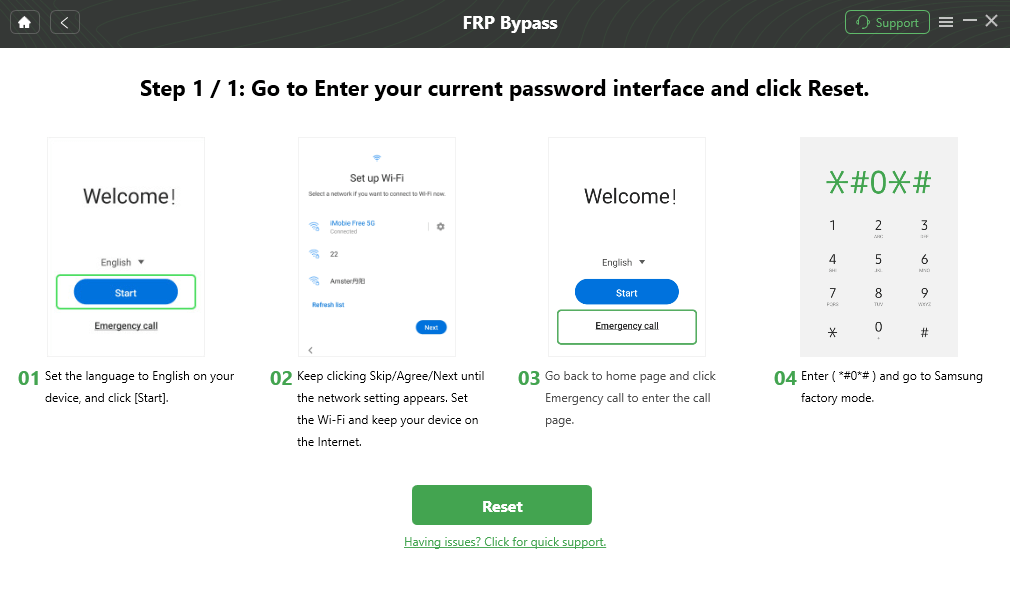
Follow the Samsung preparation shown for the applicable workflow.
Step 5. Keep the phone connected while the selected workflow runs. When the completion screen appears, follow the device setup instructions shown by the software.
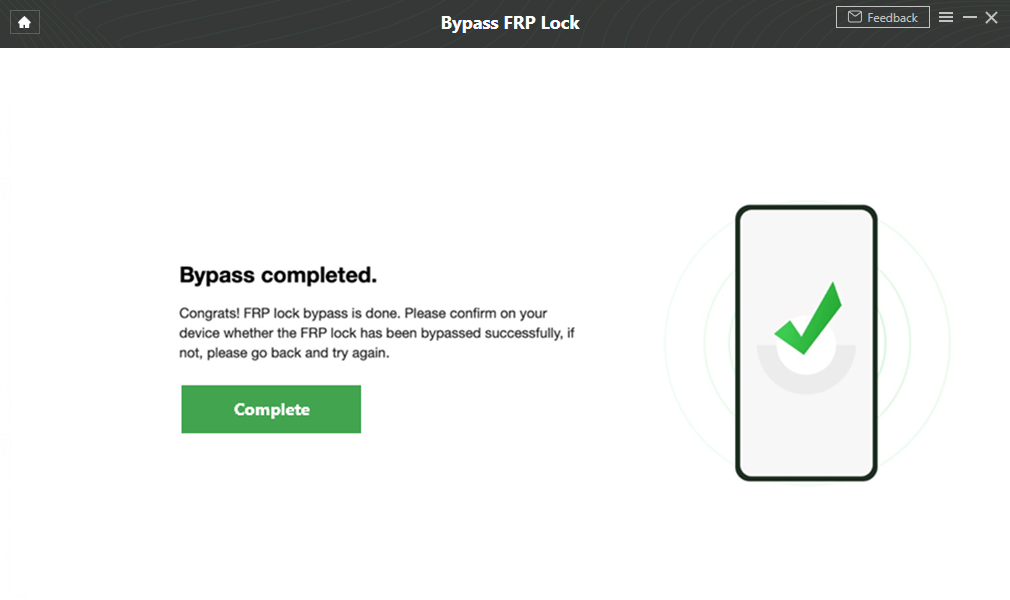
DroidKit FRP workflow completion screen.
Compatibility note: This section preserves the existing A34 PC conversion path without claiming that every A34/A34 5G Android 14 configuration is supported. Match the current device route before relying on it.
Samsung A34 SamFW Route: Check Test Mode & USB Debugging
SamFW is a Windows-based Samsung utility used in some FRP workflows. On the Galaxy A34, the useful way to evaluate it is to check each prerequisite instead of assuming that a Samsung model or Android version guarantees compatibility.
The SamFw Tool guide covers the software, versions, download considerations, and broader troubleshooting separately.
Checkpoint 1: Does *#0*# Open Samsung Test Mode?
Step 1. Connect the A34 to the Windows PC with a reliable data cable.
Step 2. If the SamFW workflow you are evaluating requires the Emergency Call screen, open it and enter *#0*#.
Step 3. Check whether Samsung Test Mode actually opens.
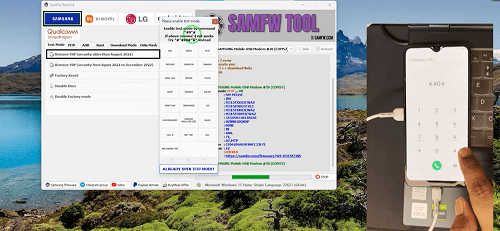
Check whether the Samsung Test Mode screen required by the workflow is available.
If Test Mode does not open: stop this SamFW route. The code is a compatibility checkpoint for that particular workflow, not proof that FRP can or cannot be removed from the phone.
Checkpoint 2: Does SamFW Detect the A34?
If Test Mode is available, open SamFW on Windows and check whether the phone is detected by the tool. If it is not detected, review the Samsung USB driver, cable, direct USB port, and device state before judging the FRP operation itself.
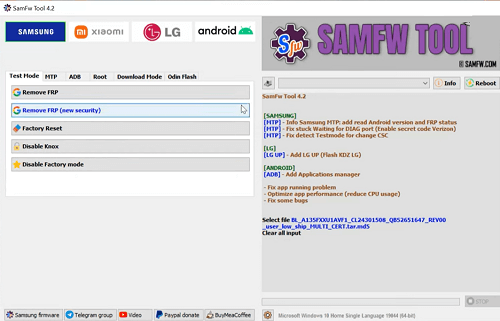
Open SamFW and confirm device detection before selecting an operation.
Checkpoint 3: Does the USB Debugging Prompt Appear?
If the applicable SamFW workflow reaches the Remove FRP stage, monitor the A34 for any required USB debugging permission.
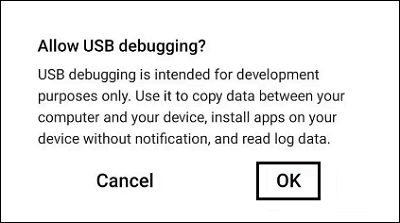
The USB debugging prompt is a required checkpoint in workflows that depend on it.
If the prompt never appears after the connection has been checked, do not keep cycling through unrelated SamFW packages. The current A34 state does not match that workflow as written.
Samsung A34 TalkBack Route: Check the Required Access First
Older Samsung A34 no-PC tutorials may use accessibility features such as TalkBack or Switch Access as an entry point into a browser, file manager, APK installer, or Android Settings. Because this chain depends on several separate setup screens, it is safer to evaluate it as a series of checkpoints rather than one universal ten-step bypass process.
Checkpoint 1: Is the Accessibility Route Available?
From the Samsung setup screen, check whether the accessibility feature required by the guide can actually be opened and configured.
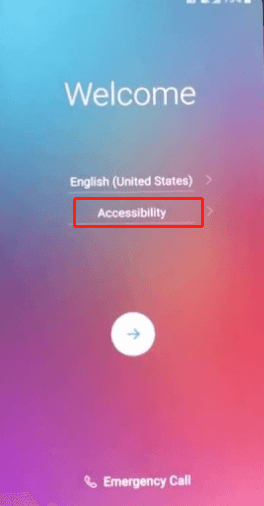
Older TalkBack-based routes begin by checking whether the required accessibility menu is available.
If the accessibility menu or shortcut looks different from the guide, stop rather than adapting gestures from another Samsung model.
Checkpoint 2: Can the Route Leave Accessibility?
The method needs more than TalkBack itself. Check whether the next action used by the exact tutorial can reach a browser, privacy page, search result, or another app.
If the route remains inside accessibility settings or the required action is missing, the rest of the workflow cannot continue as written.
Checkpoint 3: Is Browser or File Access Available?
If a browser opens, check whether the current setup allows access to the file or page required by the guide. If a file manager is needed, confirm that it can actually open from the setup state.
Do not download an APK only because an older A34 video uses it. File source, package compatibility, installation permission, and the next Settings path all need to match.
Checkpoint 4: Can the APK or App Reach the Required Settings?
Installing an APK is not proof that FRP has been removed. If the app cannot reach the specific Settings, account, or user-management page required by the tutorial, stop the route rather than installing additional packages.
This article therefore does not preserve the old universal sequence of “add user → add Google account → factory reset → FRP removed.” The supplied A34 material does not establish that chain as a current Android 14 procedure for every A34/A34 5G build.
Samsung A34 SIM/Keyboard Route: Does the Settings Path Still Exist?
The SIM-card route found in older Samsung tutorials usually depends less on the SIM itself than on the keyboard and search shortcuts exposed during setup. For a current Galaxy A34, check those shortcuts before following the remaining steps.
Checkpoint 1: Does the Expected Keyboard Menu Appear?
Insert the SIM only if the guide you are evaluating requires it, proceed to the Google verification screen, and open the keyboard.
Check whether the keyboard responds to the exact shortcut used in that tutorial. If long-pressing @ or another key does not expose the expected menu, stop this route.
Checkpoint 2: Can You Reach Keyboard Settings or Search?
If the keyboard settings are available, check whether the older path through licenses, text selection, Web Search, or another action still appears.
A missing search action means the route cannot make the transition into Android Settings.
Checkpoint 3: Does Settings Expose the Required Account Page?
If Settings opens, verify that the account-management page required by the guide actually exists in the current setup state.
If Add account or the expected account page is blocked, do not assume that another SIM card, repeated restart, or slightly different keyboard timing will restore it.
The useful result of the SIM/keyboard route is therefore not “SIM bypass works” or “SIM bypass is patched.” It is whether the current A34 exposes the exact keyboard → search → Settings chain required by that method.
Samsung A34 FRP Not Working? Find the Failure Point
Use the exact missing checkpoint to decide what to do next.
| Where You Get Stuck | What It Tells You | Next Step |
| *#0*# does nothing | The Test Mode checkpoint required by that SamFW route is unavailable. | Stop the Test Mode-dependent workflow. |
| SamFW does not detect the A34 | The USB/driver/device-state layer is not ready. | Check the Samsung driver, cable, USB port, and connection state. |
| USB debugging prompt never appears | A required SamFW checkpoint is missing. | Recheck the connection requirements; if the prompt remains absent, reassess the workflow. |
| TalkBack or accessibility does not expose the expected menu | The no-PC route does not match the current setup interface. | Stop the accessibility workflow. |
| Browser or file manager cannot be opened | The manual route cannot reach its download/file stage. | Do not continue with a browser- or APK-dependent sequence. |
| APK says “App not installed” | The package or installation path does not match the current environment. | Do not stack random APK versions. |
| APK opens but required Settings page is absent | Installing the app did not provide the access needed by the route. | Stop that APK workflow. |
| SIM/keyboard shortcut does not open Settings | The keyboard/search path used by the tutorial is unavailable. | Stop the SIM/keyboard route. |
| The phone still asks for the previously synced Google account after another reset | FRP verification remains active. | Recover the account, contact the previous owner, or choose another applicable route. |
| A PC tool does not detect the A34 | The connection problem occurs before the FRP workflow. | Resolve USB/driver detection before switching desktop tools. |
A software update or security patch can be one reason that an older setup path changes, but a missing screen alone does not prove which update caused it. The defensible conclusion is that the current A34 environment does not match that particular workflow.
For broader diagnosis across Android FRP methods, see the FRP bypass not working guide.
Samsung A34 FRP FAQ
Can I bypass FRP on Samsung A34 5G without a PC?
A no-PC route is relevant only when all of its required setup checkpoints still exist. For TalkBack, that may include accessibility, browser or file access, and later Settings pages. For the SIM/keyboard route, the keyboard, search, and Settings chain must remain available. If a required screen is missing, that route cannot continue as written.
What should I try first after my Samsung A34 is factory reset?
Use the previously synced Google account if you still control or can recover it. If the phone was bought used, contact the previous owner. After those account routes are checked, compare the exact A34 setup checkpoints required by SamFW, TalkBack, SIM/keyboard, or a compatible PC workflow.
Does Samsung A34 FRP bypass work on Android 14?
Android 14 alone does not determine the answer. Check the current Samsung setup environment and the first dependency of the route you want to use. A Test Mode-dependent method needs Test Mode to open; a TalkBack route needs its accessibility-to-browser path; and a PC tool needs a supported Samsung workflow and stable device connection.
Why does *#0*# not work on my Samsung A34?
If the diagnostic/Test Mode screen does not open, treat that as a stopping point for any SamFW workflow that requires it. The code not working does not by itself establish the exact technical reason or prove that every other A34 FRP route is unavailable.
Why does SamFW not detect my Galaxy A34?
Check the Windows Samsung USB driver, data cable, USB port, phone state, and the workflow requested by the SamFW build you are using. Device detection should be fixed before judging whether the FRP operation itself can proceed.
Why does the USB debugging prompt never appear?
The A34 may not have reached the device state required by that SamFW workflow. Recheck the connection and preceding steps; if the prompt remains absent, the workflow does not currently match the phone as written.
Why does the TalkBack method stop before the browser opens?
The current setup environment does not expose the same transition used by the older tutorial. Do not mix TalkBack gestures or browser steps from another Galaxy model once the required A34 screen is absent.
Is it safe to install an FRP APK during the TalkBack method?
Do not treat an APK as safe simply because it appears in an FRP tutorial. Verify the source and package before installation, and stop if the setup environment cannot expose the installer or required Settings path.
Why does the SIM card method stop at keyboard settings?
The current keyboard or setup environment does not expose the next search/Settings transition required by that old route. The SIM itself does not guarantee that those Android menus will appear.
Does another factory reset remove Samsung A34 FRP?
No additional reset should be expected to remove the Google verification requirement by itself. If the phone returns to the same previously synced account screen, resolve the account or use another appropriate FRP recovery route.
Is DroidKit always better than SamFW or a no-PC route?
No. These are different workflows. SamFW may be relevant when its Samsung Test Mode and USB requirements are met. A no-PC route is relevant only while its setup shortcuts exist. DroidKit is worth evaluating when its current Samsung workflow applies and you prefer a guided Windows or Mac process.
On the Galaxy A34, the best stopping rule is the first required screen that does not appear. If *#0*# never opens Test Mode, do not continue a SamFW sequence that needs it. If TalkBack cannot reach browser or file access, stop that no-PC path. If the SIM/keyboard route cannot reach Settings, repeated keyboard timing will not change the missing dependency.
That checkpoint-based approach is more useful than assuming that every Android 14 A34 uses the same FRP method or that every failed tutorial was blocked by one specific security patch.
More Related Articles



Joy Taylor is a seasoned technical writer with over a decade of experience in mobile technology. At iMobie, she specializes in producing in-depth content on iOS data recovery, iPhone unlocking solutions, and iOS troubleshooting.
Product-related questions? Contact Our Support Team to Get Quick Solution >
