How to Fix Samsung Galaxy A50 Stuck on Logo or Boot Loop
Is your Samsung Galaxy A50 stuck on the Samsung logo or restarting again and again? This guide walks you through safe fixes first, then advanced options such as system repair and factory reset when the phone still cannot boot.
Quick Answer: If your Samsung A50 is stuck on the Samsung logo, try a force restart and charging check first. If it can enter Safe Mode, remove recently installed apps. If it still will not boot, wipe the cache partition or use a supported Android system repair tool. Use factory reset only as a last resort because it erases data and may trigger Google account verification.
Part 1. Why Is My Samsung A50 Stuck on the Samsung Logo?
When a Samsung Galaxy A50 is stuck on the logo screen, the phone begins to start but cannot finish the boot process. You may see the Samsung logo for a long time, the phone may restart repeatedly, or it may freeze before the lock screen appears.
This issue is often called a boot loop or stuck on startup screen . It can happen after a software update, app installation, failed restart, low battery, corrupted cache, system file damage, or hardware failure.
Common Causes
- Temporary system freeze: The phone may be stuck during startup because of a minor software glitch.
- Low battery or charging issue: A weak battery, damaged cable, dirty charging port, or unstable power source can interrupt booting.
- Problematic third-party app: An app installed before the issue started may prevent Android from loading normally.
- Corrupted system cache: Temporary Android system files can become corrupted after an update or restart.
- System file damage: If Android system files are damaged, the phone may need system repair or a reset.
- Hardware problem: Storage failure, motherboard damage, water damage, or impact damage can also keep the phone on the logo screen.
Part 2. Before You Start: Check Charging, Data, and Hardware Signs
Before using Recovery Mode or factory reset, take a few minutes to check the basics. These steps can help you avoid unnecessary data loss.
- Charge the phone first: Leave the Samsung A50 connected to a reliable charger for at least 15-30 minutes.
- Check the cable and port: Use another cable or charger if the phone does not respond. Remove dust from the charging port gently.
- Think about recent changes: If the problem started after installing an app, Safe Mode may help. If it started after an update, wiping cache may help.
- Watch for hardware signs: Stop troubleshooting if the phone is swollen, overheated, water-damaged, or physically damaged.
- Know the data risk: Force restart, Safe Mode, and wiping cache are usually safer. Factory reset will erase data from the phone.
- Avoid repeated resets: If the phone still cannot boot after one factory reset, repeated resets are unlikely to help and may increase data recovery risk.
Part 3. Compare Fixes for Samsung A50 Stuck on Logo
Use this table to choose the right method before you start. Try the low-risk methods first, then move to advanced options only if the phone still cannot boot.
| Fix | Best For | Data Loss Risk | Difficulty | Try First? |
|---|---|---|---|---|
| Force restart | Temporary freeze or boot glitch | Low | Easy | Yes |
| Charging and cable check | Battery or power-related startup issue | Low | Easy | Yes |
| Safe Mode | Issue caused by a third-party app | Low | Medium | Yes, if the phone can enter Safe Mode |
| Wipe cache partition | Stuck after update or corrupted system cache | Low | Medium | Yes, before factory reset |
| DroidKit Android System Repair | System issue that manual fixes cannot solve | Needs review before use | Medium | After safer manual methods |
| Factory reset | Severe software conflict or failed boot | High | Medium | Last resort |
Fix 1. Force Restart Your Samsung A50
A force restart is the safest first step when your Samsung A50 is frozen on the logo screen. It refreshes the device without deleting your photos, apps, messages, or other personal files.
Samsung also recommends restarting a frozen Galaxy device by holding the Power or Side button and the Volume Down button until the device restarts. See Samsung Support for the official restart guidance: Different ways to restart your Galaxy phone or tablet .
- Press and hold the Power button and the Volume Down button at the same time.
- Keep holding both buttons for more than 7 seconds, or until the screen turns off and the Samsung logo appears again.
- Release the buttons and wait for the phone to finish booting.
- If nothing changes, keep the phone connected to a charger and repeat the force restart once more.
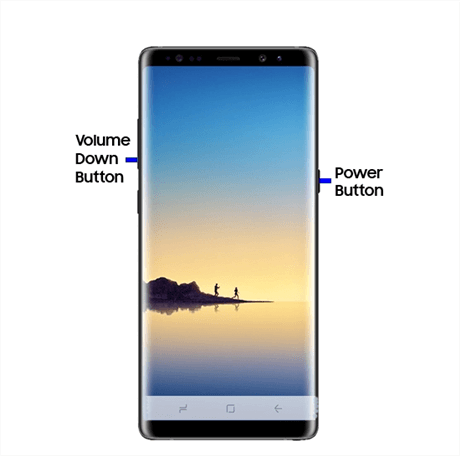
Force Restart Your Samsung A50
If the phone still stays on the logo screen, move to the charging and power-source check below.
Fix 2. Charge the Phone and Check the Cable or Power Source
A Samsung A50 can fail to boot correctly when the battery is too low or the power connection is unstable. This is especially possible if the phone shut down during an update or restart.
- Connect the Samsung A50 to a wall charger with a working USB cable.
- Leave it charging for at least 15-30 minutes, even if the screen does not change immediately.
- Check whether the cable fits firmly in the charging port.
- Try another charger, cable, or power outlet if the phone does not show any charging sign.
- After charging, force restart the phone again with Power + Volume Down .
Note: If the phone is hot, swollen, wet, or physically damaged, stop charging it and contact a repair center instead.
Fix 3. Boot Samsung A50 into Safe Mode
Safe Mode loads Android with third-party apps disabled. If your Samsung A50 can boot in Safe Mode, a recently installed or updated app may be causing the phone to freeze on the logo during normal startup.
- Force restart your Samsung A50.
- When the Samsung logo appears, press and hold the Volume Down button.
- Keep holding Volume Down until the lock screen or home screen appears.
- If Safe Mode works, you should see Safe mode in the lower-left corner.
- Uninstall recently installed apps, app cleaners, launchers, security apps, or apps added before the boot issue started.
- Restart the phone normally to exit Safe Mode.
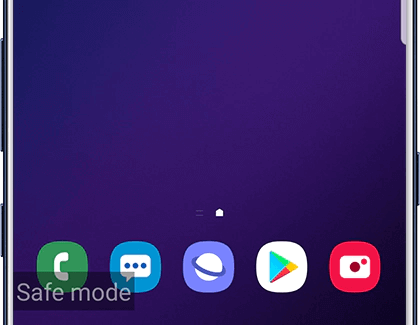
Boot Samsung A50 into Safe Mode
If your phone cannot enter Safe Mode and still stops at the logo, try clearing the system cache partition.
Fix 4. Wipe Cache Partition in Recovery Mode
Wiping the cache partition removes temporary Android system files. It usually does not delete personal data, such as photos, videos, messages, or apps. This method is useful when Samsung A50 gets stuck on the logo after a system update or repeated restart.
Important: Recovery Mode button combinations may vary by Android/One UI version. On some Samsung phones, you may need to connect the phone to a computer with a USB cable before Recovery Mode appears.
- Turn off the Samsung A50 if possible. If it is frozen, force restart it first.
- Connect the phone to a computer with a USB cable if your device requires it for Recovery Mode.
- Press and hold the Power button and the Volume Up button.
- Release the buttons when the Recovery menu appears.
- Use the Volume buttons to highlight Wipe cache partition .
- Press the Power button to select it, then confirm the action.
- When the process finishes, select Reboot system now .
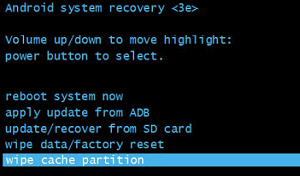
Wipe Cache Partition
If your Samsung A50 still cannot boot, a deeper Android system repair may be needed.
Fix 5. Repair Samsung A50 System Issues with DroidKit
Note: DroidKit is not required for every Samsung A50 boot issue. Try the safer manual fixes first, then consider DroidKit when the phone still cannot boot normally.
If force restart, Safe Mode, and wiping cache do not work, the problem may be related to Android system damage. In this case, DroidKit Android System Repair can be considered as a tool-assisted option for supported Samsung devices.
DroidKit's System Fix mode is designed for Android system issues such as a phone stuck in a boot loop, frozen screen, black screen, or device not responding. Before starting, check the current device compatibility, confirm that your Samsung A50 model is supported, and review whether the repair process may affect your data.
DroidKit – Android System Repair
- Repair Android system issues on supported Samsung devices.
- Useful when manual fixes cannot get the phone past the startup logo.
- No complicated manual flashing steps required.
- Check compatibility and data risk before repairing.
Free Download 100% Clean & Safe
Free Download 100% Clean & Safe
Get it now * 100% Clean & Safe
Steps to Repair Samsung A50 System Issues with DroidKit
- Download and install DroidKit on your computer.
- Open DroidKit and choose System Fix .
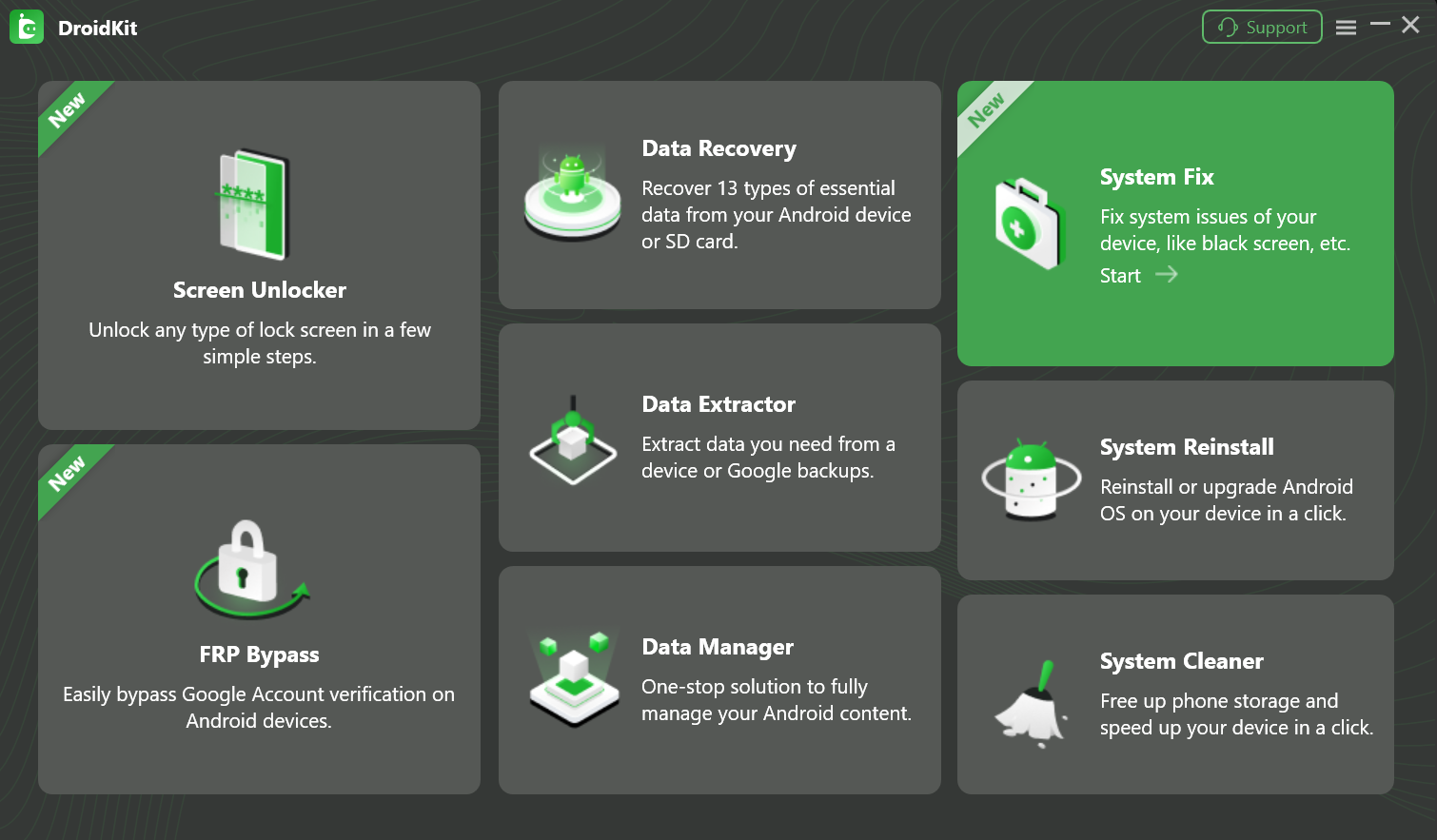
Choose System Fix Mode in DroidKit
- Connect your Samsung A50 to the computer with a USB cable, then click Start .
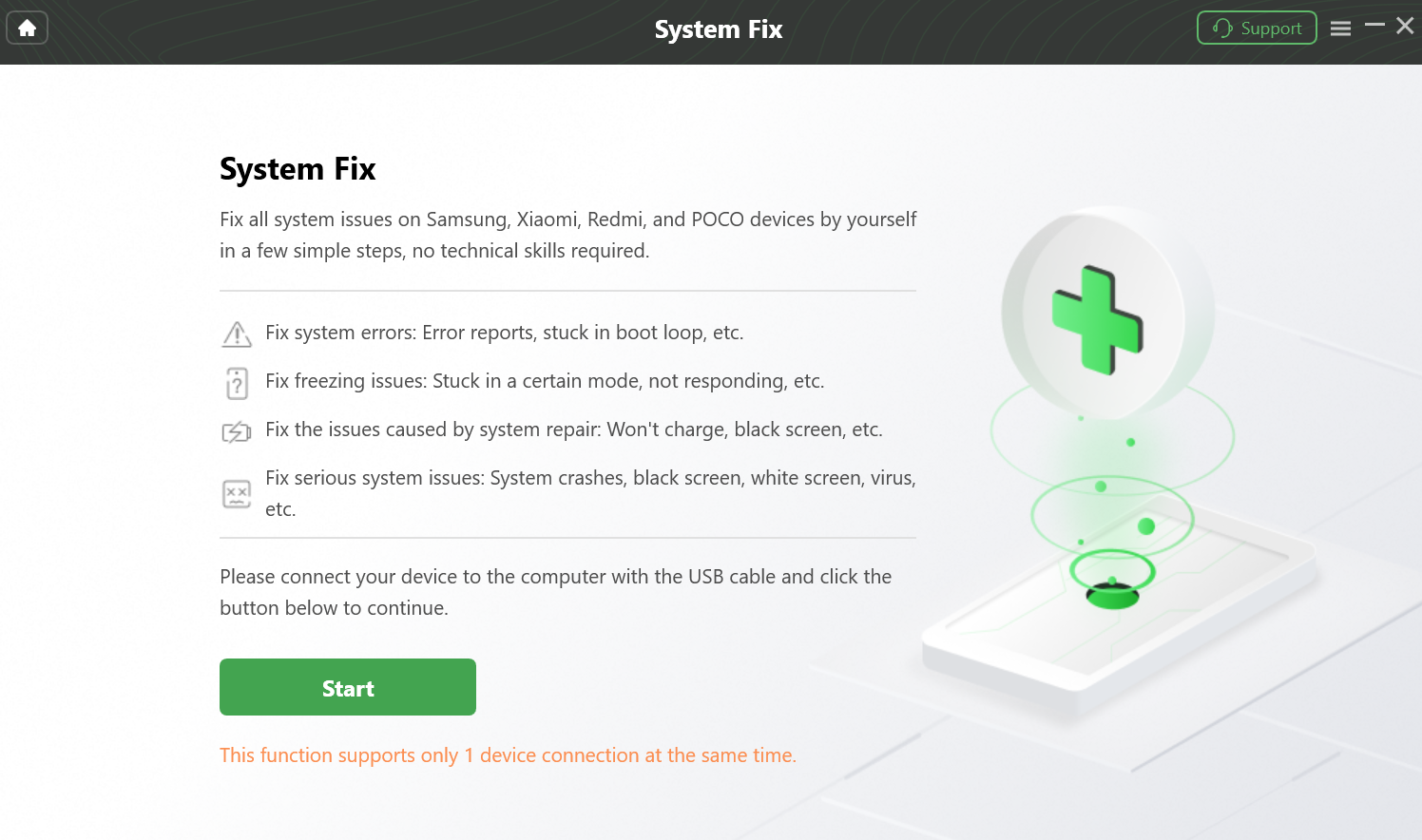
Click Start to Fix System Issues
- Follow the on-screen instructions to confirm the device information and download the matching firmware package.
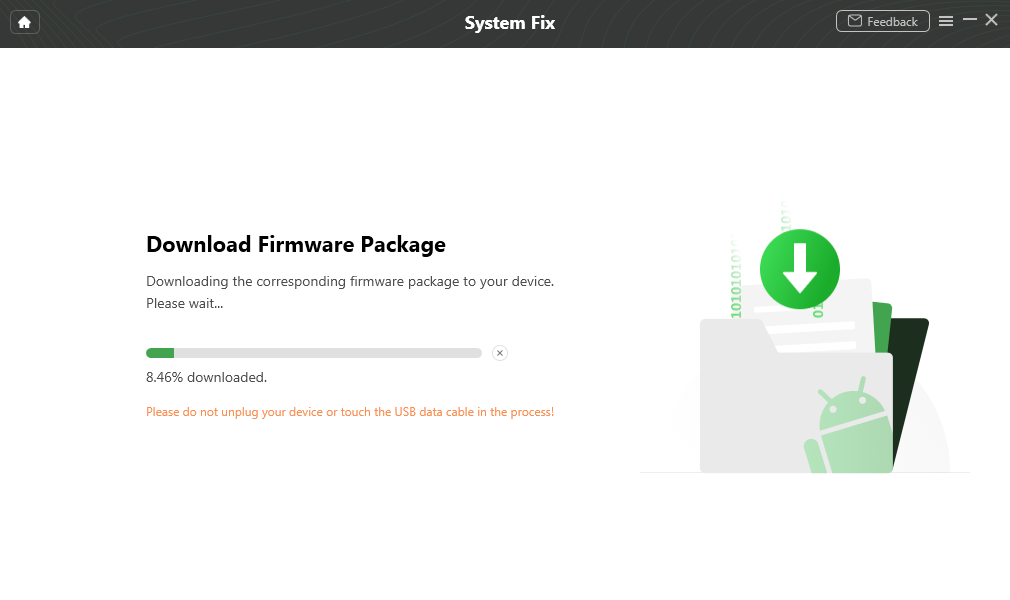
Download the Firmware Package
- When the package is ready, follow DroidKit's instructions to continue the repair process.
- Keep your Samsung A50 connected until the repair finishes. Do not unplug the USB cable during the process.
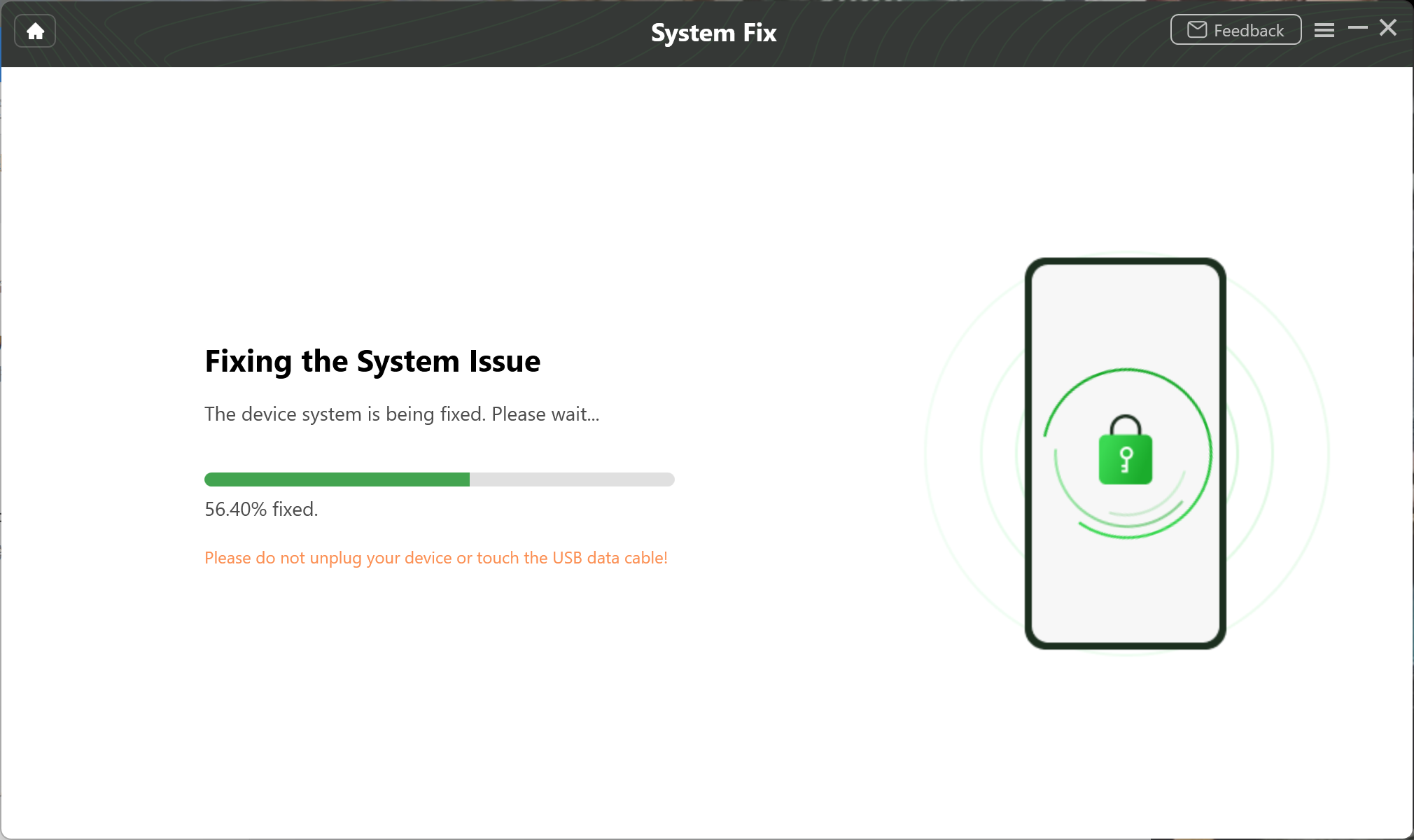
Repair the Android System with DroidKit
- After the phone restarts, check whether it can pass the Samsung logo and boot normally.
Note: Do not disconnect the phone during system repair. If the device contains important data, review the repair instructions and backup options first whenever possible.
For the latest product flow and compatibility notes, check the official DroidKit System Fix guide .
Fix 6. Factory Reset Samsung A50 in Recovery Mode
Factory reset can remove serious software conflicts, but it should be used only as a last resort. This method erases data stored on the phone, including apps, local files, messages, and settings.
- Turn off the Samsung A50 if possible.
- Connect the phone to a computer with a USB cable if your software version requires it for Recovery Mode.
- Press and hold the Power button and Volume Up button until the Recovery menu appears.
- Use the Volume buttons to highlight Wipe data/factory reset .
- Press the Power button to select it.
- Choose Factory data reset to confirm.
- After the reset finishes, select Reboot system now .
If your phone asks for Google account verification after the reset, use the Google account that was previously synced on this device. You can also read: what to do if you cannot log in after factory reset .
When to Contact Samsung Support or a Repair Center
If your Samsung A50 still stays on the logo after force restart, cache wipe, system repair, and factory reset, the issue may not be a simple software problem. Contact Samsung Support or a professional repair center if:
- The phone was dropped, bent, water-damaged, or overheated.
- The battery is swollen or the phone becomes unusually hot.
- The Recovery menu does not appear after repeated attempts.
- The phone keeps returning to the Samsung logo after a factory reset.
- You need to recover important data before further repair.
FAQs About Samsung A50 Stuck on Logo
Why is my Samsung A50 stuck on the Samsung logo?
A Samsung A50 may get stuck on the logo because of a failed update, corrupted system cache, a problematic third-party app, low battery, damaged system files, or hardware failure. Start with simple fixes such as force restart and charging checks before trying Recovery Mode, system repair, or factory reset.
Will fixing Samsung A50 stuck on logo delete my data?
It depends on the method. Force restart, charging checks, Safe Mode, and wiping cache partition usually do not erase personal data. Factory reset will delete data from the phone. A system repair tool may also carry data-loss risk depending on the repair mode and device condition, so check the instructions first.
Can Safe Mode fix a Samsung A50 stuck on logo?
Safe Mode can help only if the phone is able to boot far enough to enter Safe Mode and the issue is caused by a third-party app. If your Samsung A50 still cannot pass the logo screen, Safe Mode may not be available and you should try cache partition, system repair, or factory reset.
What does wiping cache partition do on Samsung A50?
Wiping the cache partition clears temporary system files used by Android. It does not normally delete photos, messages, apps, or personal files. It may help if the phone is stuck after an update or keeps restarting because of corrupted cache files.
When should I factory reset my Samsung A50?
Use factory reset only after safer methods fail. A factory reset can remove corrupted settings or software conflicts, but it deletes data stored on the phone. After reset, the device may ask for the previously synced Google account because of Factory Reset Protection.
What if my Samsung A50 still stays on the logo after factory reset?
If the phone still cannot boot after factory reset, the issue may involve firmware damage, storage failure, motherboard damage, or another hardware problem. At that point, stop repeating resets and contact Samsung Support or a professional repair center.
How long should I wait if my Samsung A50 is stuck on the logo?
If the phone stays on the Samsung logo for more than several minutes and does not continue booting, it is likely stuck. Start with a force restart and charging check. If the issue repeats, move to Safe Mode, cache partition, system repair, or factory reset depending on the symptoms.
The Bottom Line
When your Samsung A50 is stuck on the logo, start with the safest methods: force restart, charging check, Safe Mode, and wiping cache partition. If those do not work, DroidKit Android System Repair may be a tool-assisted option for supported Samsung devices. Factory reset should be the final software method because it erases data and may trigger Google account verification afterward.
For more related guides, see how to factory reset a locked Samsung phone and what to do with Google account verification after reset .
Free Download * 100% Clean & Safe
Related Guides You May Need



Senior writer of the iMobie team as well as an Apple fan, love to help more users solve various types of iOS & Android-related issues.
Product-related questions? Contact Our Support Team to Get Quick Solution >
