Samsung A7 FRP Bypass With/Without PC [4 Methods]
Samsung A7 FRP bypass depends on what is still available after reset: Google Account recovery, a supported PC workflow, a verified Odin firmware route, or an older APK setup path. This guide compares four methods and explains what to do when Odin detection, APK installation, or Google verification blocks the process.
Locked out of your Samsung Galaxy A7 after a factory reset? If the setup screen asks for a Google Account that was previously synced with the phone, Factory Reset Protection (FRP) is active. Before choosing a bypass method, first check whether you can recover that Google Account and confirm the exact Galaxy A7 model and software build.
Samsung released Galaxy A7 phones across different hardware and Android generations, so a method that works on one A7 should not automatically be treated as compatible with another. The four routes below cover a guided PC workflow, Google Account recovery, an Odin-based firmware route, and a legacy no-PC APK method. Use FRP methods only on a phone you own or are authorized to service.
Quick Answer: Samsung A7 FRP Bypass Options
The best Samsung A7 FRP route depends on the account access, exact phone model, Android build, security patch, and whether you have a computer. If you can recover the Google Account that was previously synced with the A7, use that route before trying a bypass utility. If account recovery is unavailable, compare the other methods against the exact screen and device state you have.
For other Samsung models or a broader decision path, see the Samsung FRP bypass guide.
Samsung A7 FRP Bypass Methods Compared
| Method | PC Needed | Best For | Main Limitation |
| DroidKit FRP Bypass | Yes | Users who prefer an on-screen PC workflow for an available supported Samsung route | Device support should be checked before use |
| Google Account Recovery | No | Users who still control the previous Google Account or its recovery phone/email | Requires an eligible Google Account recovery route |
| Odin Firmware Workflow | Yes | Advanced users who understand Samsung firmware and Download Mode | Wrong or mismatched files can cause flashing or startup problems |
| Legacy FRP APK Route | No | Older A7 builds where the required setup-screen shortcuts are still exposed | Menus can be patched or missing, and unknown APK files can be risky |
Key takeaway: Do not choose a method only because another guide also says “Samsung A7.” Confirm the exact model and screen flow first. A missing browser shortcut, failed Odin connection, or unavailable account-recovery option means you should reassess the method rather than forcing the same steps.
Check Your Samsung A7 Model and Software First
Galaxy A7 devices were released in different generations and software configurations. This matters most for Odin and APK methods because firmware packages, Download Mode behavior, setup menus, and security patches can differ.
Before continuing, identify as much of the following as you can:
- The exact Samsung Galaxy A7 model number.
- The Android version or firmware information shown by the phone when available.
- Whether the device reaches the Google Account verification screen after reset.
- Whether you still know or can recover the Google Account previously used on the phone.
- Whether you have access to a Windows or Mac computer.
If the phone, menu names, or firmware workflow does not match the instructions for your exact A7, stop rather than substituting files or shortcuts from another Galaxy model.
Method 1. Samsung A7 FRP Bypass with DroidKit
If account recovery is unavailable and you prefer an on-screen computer workflow, DroidKit FRP Bypass provides guided FRP steps for available supported Android device routes. For Samsung A7 users, the advantage is that you can follow the device information and instructions presented by the software rather than manually searching for Odin files or unknown APK packages.
If you want to compare this route with other Samsung-focused utilities first, review the Samsung FRP tool options.
Step 1. Open DroidKit on your Windows or Mac computer and select FRP Bypass.

Choose FRP Bypass Mode
Step 2. Connect the Samsung A7 with a USB cable, click Start, and select Samsung when the software asks for the device brand.
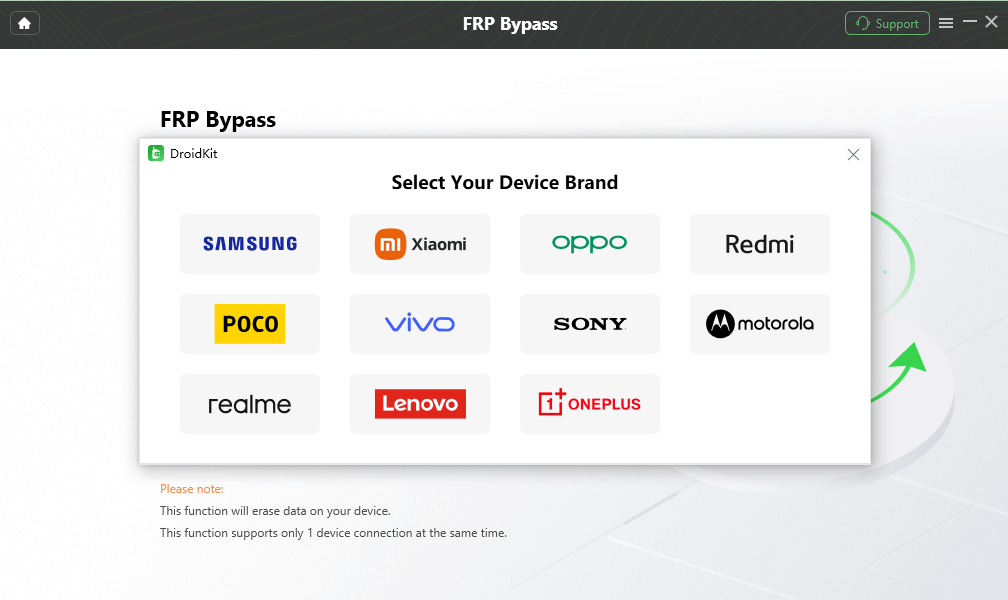
Select Samsung as the Device Brand
Step 3. Wait while DroidKit prepares the required configuration. Keep the phone connected and click Start to Bypass when the option appears.
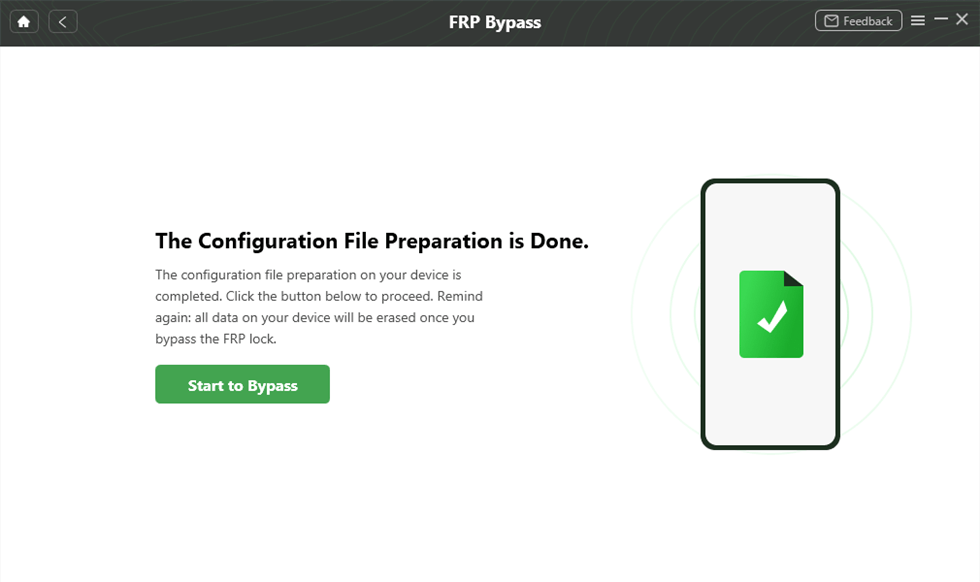
Start the FRP Workflow
Step 4. Select the Android system information requested by the software. Do not guess if the displayed options do not match your Samsung A7.
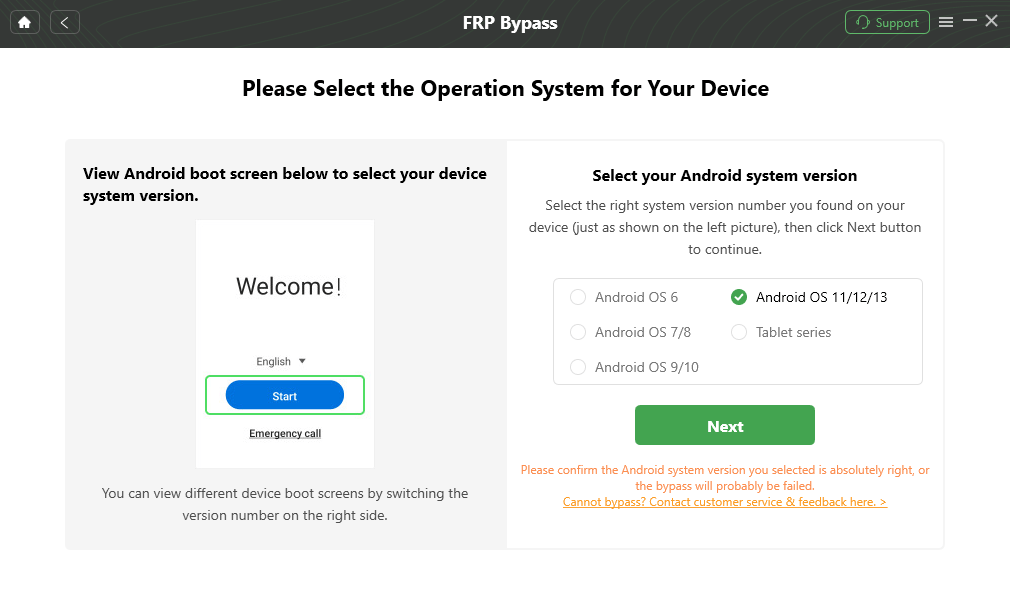
Choose the System Version
Step 5. Follow the device-specific instructions shown in DroidKit and complete the requested settings on the Samsung A7.
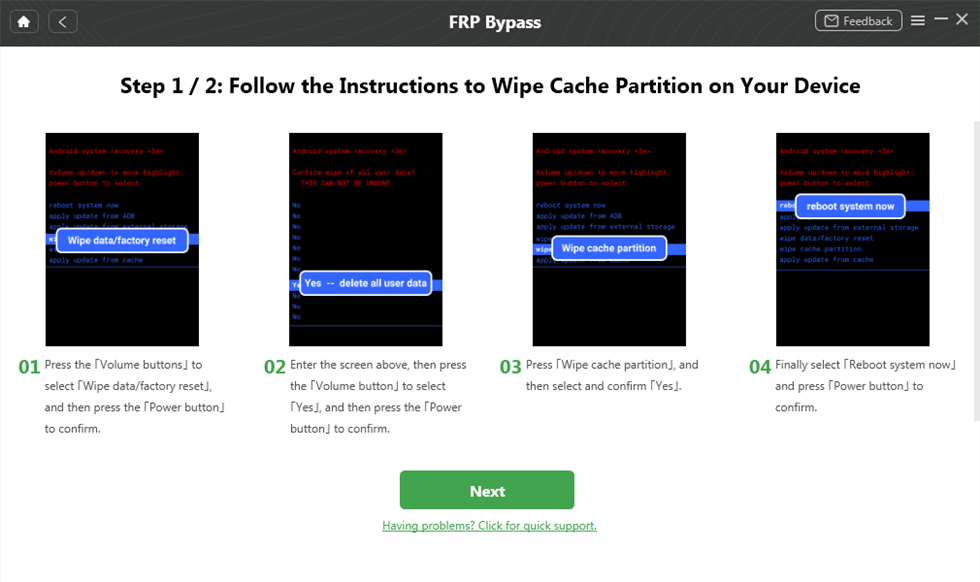
Complete the Required Settings
Step 6. Keep the device connected until the software reports that the process has finished, then continue the Samsung setup process.

FRP Workflow Complete
Method 2. Recover the Previous Google Account
If you still control the Google Account or recovery phone number linked to the Samsung A7, account recovery should be tried before a bypass workflow. This is not a SIM PIN bypass. The SIM card is useful only when it helps you receive a Google recovery message or verification code.
Step 1. On the Samsung A7 verification screen, use the available account-recovery option if you have forgotten the password.
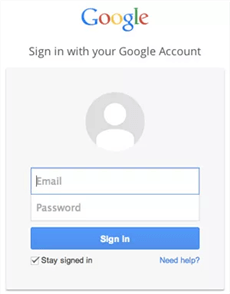
Open the Google Account Recovery Option
Step 2. If Google offers recovery by phone number, make sure you can receive the verification message on that number. You may use another phone to receive the message if necessary.
Step 3. Complete Google’s identity-verification process using the recovery phone, recovery email, or another option Google provides for that account.
Step 4. Set a new password if Google allows it. If the Samsung A7 does not accept a recently changed password immediately, follow the waiting or security instructions shown by Google instead of repeatedly resetting the password.
Step 5. Return to the Samsung A7 and sign in with the recovered account when Google allows the account to be used on the reset device.
Account recovery first: If you can restore access to the previously synced Google Account, use that route before installing an APK or flashing firmware.
Method 3. Samsung A7 FRP Workflow with Odin
Odin is primarily a Windows utility for Samsung firmware flashing. It is not a universal one-click FRP remover. Some model-specific FRP procedures use Odin as one part of a firmware workflow, but loading random AP, BL, CP, CSC, or so-called “FRP files” does not guarantee that Google verification will disappear.
Before using Odin:
- Confirm the exact Galaxy A7 model number.
- Use only firmware or files verified for that exact model and binary/build.
- Install the appropriate Samsung USB drivers.
- Use a stable Windows computer and USB data cable.
- Do not proceed if you cannot identify what each file is intended to do.
Step 1. Prepare the Odin version and firmware workflow that matches the exact Samsung A7 procedure you have verified.
Step 2. Put the A7 into the required Samsung Download Mode using the procedure for that exact model.
Step 3. Connect the phone to the Windows PC and confirm that Odin detects it before loading any firmware component.
Step 4. Load only the AP, BL, CP, CSC, or other files specifically required by the verified firmware procedure. Do not substitute files from another Samsung A7 generation simply because the names look similar.
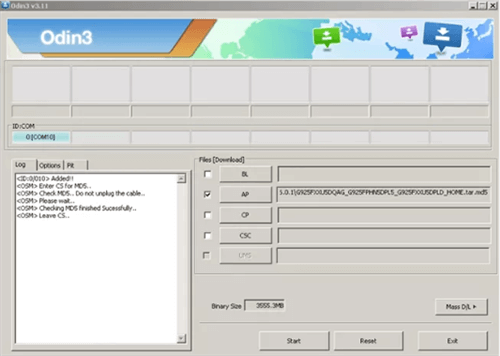
Check the Odin Firmware Fields Carefully
Step 5. Start the flashing process only after checking the model and files. Keep the connection stable until Odin finishes.
If Odin does not detect the phone, reports a FAIL message, or the firmware package does not clearly match the exact Galaxy A7, stop before flashing additional files. The detailed Odin-specific troubleshooting guide is included in More Related Articles below.
Method 4. Legacy Samsung A7 FRP APK Route Without PC
Some older Samsung A7 software builds may expose setup-screen shortcuts that can reach a browser or settings page and allow an FRP APK workflow. This is a legacy, build-dependent method rather than a universal Samsung A7 no-PC solution. Security updates can remove the menus or shortcuts used by older instructions.
Before trying an APK route:
- Continue only when the menus on your A7 match the instructions.
- Do not install an APK from an unknown or suspicious source.
- Do not enter Google or Samsung credentials into an unknown webpage or app.
- If the browser shortcut or installation route is missing, assume that path is unavailable on the current build.
- Do not keep downloading differently named APK files to force an old route to work.
Step 1. Connect the Samsung A7 to Wi-Fi and check whether the setup screen exposes the network-management options used by the legacy method.
Step 2. If available, open Manage Network Settings and check whether the text-selection or search shortcut described by the method still appears.
Step 3. If the A7 exposes a browser or settings path, use only an APK source you have independently evaluated.
Step 4. Install the APK only if Android allows the installation and the source can be trusted.
Step 5. Continue only when the app and settings menus match the legacy workflow for your device.
Step 6. If a step, menu, or security setting is absent, stop. The missing route usually indicates that the method does not match the current A7 software rather than that another random APK is required.
No-PC limitation: There is no single APK or setup-screen route that can be assumed to work on every Galaxy A7. The exact firmware and security patch determine whether these legacy paths are exposed.
What If Samsung A7 FRP Bypass Fails?
Instead of repeating the same method, identify where the process actually stopped.
| Problem | Possible Reason | What to Check |
| Recovered Google password is not accepted | The password was changed recently or account recovery is incomplete | Follow Google’s security or waiting instructions before trying again |
| Odin does not detect the Samsung A7 | Driver, USB cable, USB port, or Download Mode problem | Repair device detection before loading firmware |
| Odin files do not clearly match the model | The firmware workflow is for another A7 generation or binary | Stop rather than flashing an unverified package |
| FRP APK cannot be installed | The setup shortcut or unknown-source route is blocked | Do not search for random replacement APKs |
| Browser or settings shortcut is missing | The older no-PC route may be patched on that build | Use a different device-appropriate route |
| A7 still requests the previous Google Account | FRP verification is still active | Recover the account or compare another supported Samsung FRP method |
Samsung A7 Is Not Detected by Odin
Check the Samsung USB driver, cable, USB port, and Download Mode before assuming FRP is the problem. If Windows or Odin cannot maintain a stable connection, flashing additional files will not fix the detection layer.
FRP APK Says “App Not Installed” or the Browser Route Is Missing
This usually means the APK route does not match the current software state, installation is restricted, or the legacy setup shortcut has been patched. Do not disable security protections or download unrelated APK packages simply to recreate an older tutorial.
The New Google Password Is Not Accepted After Reset
If you recently changed the password through Google Account recovery, the new credentials may not be usable on the reset phone immediately. Follow the recovery and security instructions provided by Google, then try the recovered account again when permitted.
Samsung A7 Still Shows Google Verification
If the four routes above do not match your A7, compare the broader Samsung FRP methods rather than repeating an A7 method that has already failed.
FAQs About Samsung A7 FRP Bypass
Can I bypass FRP on Samsung A7 without a PC?
Some no-PC routes may be available if you can recover the original Google Account or if an older A7 software build still exposes a legacy APK setup path. There is no single no-PC method that applies to every Samsung A7 model and security patch.
Is a Samsung A7 FRP Bypass APK safe?
Safety depends on the exact source and file. An APK from an unknown download site can be modified or request unnecessary permissions. If you cannot evaluate the source or the A7 no longer exposes the required setup path, do not install random replacement APKs.
Does Odin remove FRP on Samsung A7?
Odin is a Samsung firmware flashing utility, not a universal FRP remover. It may be used as part of a verified model-specific firmware procedure, but the files and process must match the exact Samsung A7 model and build.
Why does my Samsung A7 still ask for the previous Google Account?
FRP is still active after the factory reset. If you own the Google Account, recover it and sign in with the credentials when Google permits. If the phone is second-hand, the previous owner may need to help remove or verify the account.
What should I do if Samsung A7 FRP bypass fails?
Identify which checkpoint failed before changing methods. Account-recovery failure, Odin detection problems, mismatched firmware, blocked APK installation, and missing setup shortcuts all require different next steps. Do not repeat random flashing or APK operations when the device does not match the method.
In Sum
For Samsung Galaxy A7 FRP, start with the exact model and the previously synced Google Account rather than the method name. If account recovery is available, it is the most direct first route. If it is not, decide whether your A7 matches a supported guided PC workflow, a verified Odin firmware procedure, or an older build where the legacy APK path still exists.
The main warning is not to treat all Galaxy A7 phones as identical. If Odin files do not match, an APK menu has disappeared, or Google recovery is temporarily unavailable, solve that specific blocker instead of downloading random files or copying instructions from another Samsung model.
More Related Articles



Joy Taylor is a seasoned technical writer with over a decade of experience in mobile technology. At iMobie, she specializes in producing in-depth content on iOS data recovery, iPhone unlocking solutions, and iOS troubleshooting.
Product-related questions? Contact Our Support Team to Get Quick Solution >
