How to Unlock Moto G Pure Without Password
Forgot your Moto G Pure password, PIN, or pattern? This guide explains how to regain access with a supported screen unlock tool, Google Find Hub erase, Recovery Mode factory reset, and what to do if the phone asks for a Google account after reset.
If your Moto G Pure is locked because you forgot the password, PIN, or pattern, you are dealing with a screen lock issue. If the phone asks for the Google account previously synced after a reset, that is usually FRP or activation verification. If the phone cannot use another carrier's SIM card, that is a SIM/carrier lock . These are different problems and need different solutions.
Important: Use the methods below only on a Moto G Pure you own or are authorized to unlock. Some methods erase local data and may require the Google account previously synced to the phone during setup.
Part 1. Quick Answer
Quick Answer: If you forgot the password, PIN, or pattern on your Moto G Pure, you can regain access by using a supported screen unlock tool, erasing the phone with Google Find Hub, or factory resetting it in Recovery Mode. Motorola's official guidance says a forgotten screen lock usually requires erasing the phone and setting it up again. After reset, Android may ask for the previously synced Google account to verify ownership.
Part 2. Which Moto G Pure Unlock Do You Need?
The word "unlock" can mean several things on Moto G Pure. Confirm the lock type first so you do not use the wrong method.
| Lock Type | What It Means | Common Search Intent | Best Next Step |
|---|---|---|---|
| Screen lock | You forgot the PIN, password, or pattern on the lock screen. | how to unlock Moto G Pure without password | Use a screen unlock method, Find Hub erase, or Recovery Mode reset. |
| FRP / activation lock | After reset, the phone asks for the Google account previously synced to the device. | Moto G Pure activation bypass | Use the correct Google account or read the FRP notes below. |
| SIM / carrier lock | The phone is restricted to a carrier and cannot use another network's SIM card. | Moto G Pure SIM unlock | Contact the original carrier with the IMEI number. |
| Bootloader unlock | Advanced system modification for flashing or rooting. | Motorola bootloader unlock | Not covered as a screen password solution. |
Part 3. Before You Unlock Moto G Pure
Before you try any unlock method, check these points carefully:
- Back up whenever possible. If you can still access the phone, back up important photos, contacts, messages, and files before resetting.
- Know the Google account. After factory reset, Android may ask for the Google account previously synced to the phone.
- Charge the battery. Keep the Moto G Pure charged to at least 30% before using Recovery Mode or a reset method.
- Do not confuse lock types. A screen unlock method does not remove a carrier lock, and a carrier unlock does not remove the screen password.
Part 4. Which Method Should You Use?
| Method | Best For | Will It Erase Data? | Requirements |
|---|---|---|---|
| DroidKit screen unlock | Forgotten Moto G Pure screen password, PIN, or pattern | May erase data depending on device support and lock type | Computer, USB cable, supported device |
| Google Find Hub erase | Phone is linked to your Google account and online | Yes, local data is erased | Google account access and Find Hub availability |
| Recovery Mode factory reset | Locked phone that cannot be unlocked normally | Yes, local data is erased | Hardware buttons and Google account after reset |
| Carrier SIM unlock | Using Moto G Pure with another carrier | No local data wipe in most cases | Original carrier eligibility and IMEI number |
Part 5. Unlock Moto G Pure Screen Lock with DroidKit
If you forgot the Moto G Pure screen password, PIN, or pattern and manual options are unavailable, DroidKit Screen Unlocker may be a tool-assisted option for supported Android devices. Check compatibility and data-loss notes before using it.
DroidKit – Screen Unlock Option for Supported Android Devices
Forgot your Moto G Pure password, PIN, or pattern? DroidKit may help remove Android screen locks on supported devices when you own the phone and cannot use manual recovery options. Review compatibility and data-loss notices before proceeding.
How to use DroidKit to remove Moto G Pure screen lock:
Step 1. Download and launch DroidKit on your computer. Choose Screen Unlocker .
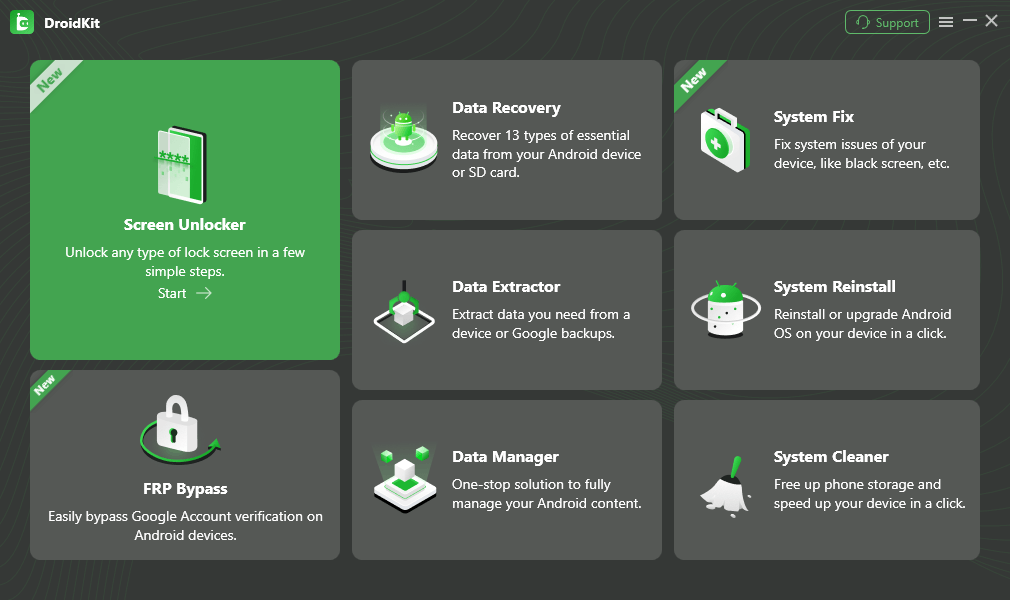
Choose Screen Unlocker
Step 2. Connect your Moto G Pure to the computer with a USB cable, then click Start .
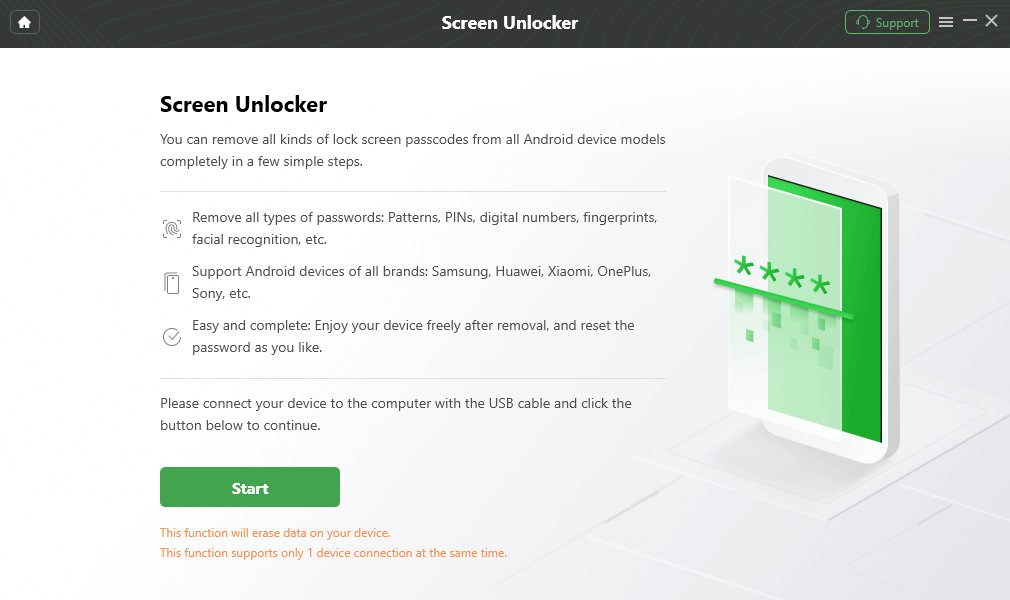
Connect your Locked Phone
Step 3. Wait for DroidKit to prepare the configuration file, then click Remove Now and follow the on-screen instructions for your device.
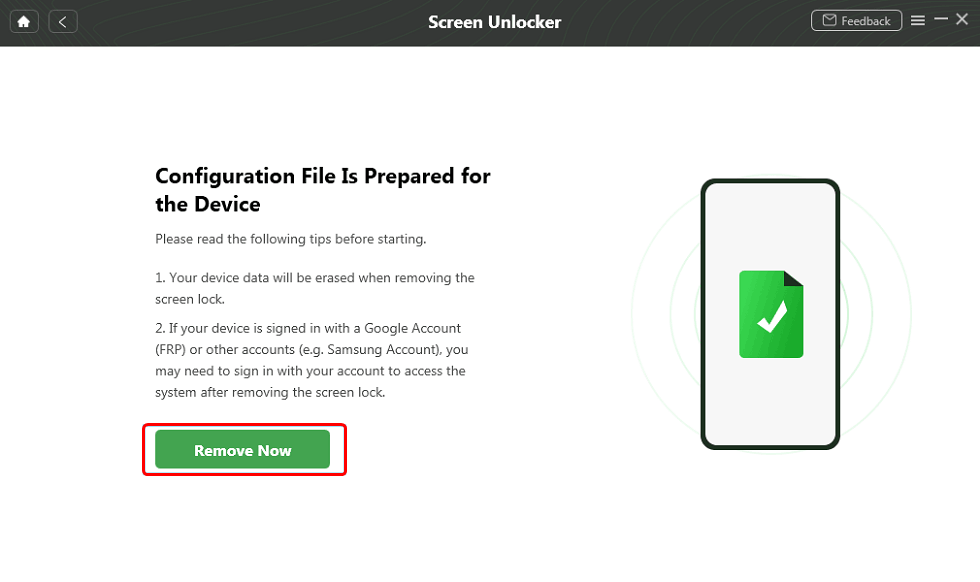
Click Remove Now Button
Step 4. Keep the phone connected until the screen lock removal process is complete. Then set up the phone again if prompted.
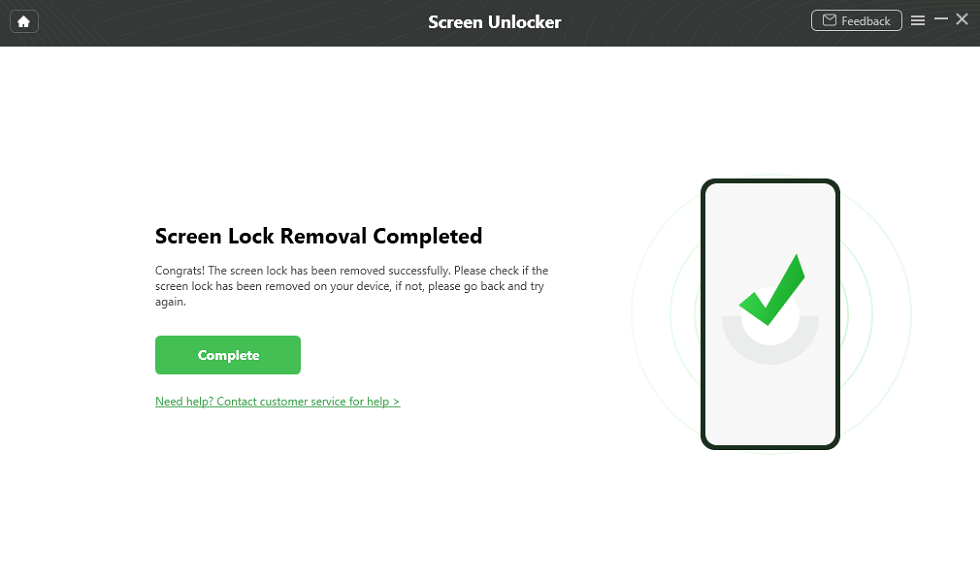
Lock Screen Removal Completed
Note: The exact result can vary by device model, Android version, and lock type. Do not use any screen unlock method on a device you do not own or do not have permission to unlock.
Part 6. Erase Moto G Pure with Google Find Hub
Google Find Hub, formerly known as Find My Device, can help you locate, secure, or erase an Android phone linked to your Google account. It does not show or reset your forgotten password directly, but erasing the Moto G Pure can remove the local screen lock.
Use this method only if you accept data loss:
- Go to Google Find Hub from a browser or another Android device.
- Sign in with the Google account linked to your Moto G Pure.
- Select your Moto G Pure from the device list.
- Choose Erase device and follow the confirmation steps.
- After the phone resets, set it up again with the Google account previously synced to the device.
Google notes that Find Hub can locate, lock, erase, or play a sound on Android devices, but remote erase permanently deletes local device data.
Part 7. Factory Reset Moto G Pure in Recovery Mode
If you cannot use Google Find Hub or a tool-assisted option, Recovery Mode can reset Moto G Pure with hardware buttons. Motorola's own support guidance says that if you forgot the PIN, pattern, or password for unlocking the screen, you need to erase the phone, set it up again, and set a new screen lock.
- Charge your Moto G Pure to at least 30%.
- Turn off the phone.
- Press and hold Volume Down and Power together until the phone turns on.
- Use the volume buttons to highlight Recovery Mode , then press Power to select it.
- If you see the Android robot with "No command", press and hold Power , then press and release Volume Up .
- Choose Wipe data/factory reset , then confirm Factory data reset .
- After the reset completes, choose Reboot system now .
Important: This will erase local data. During setup, Moto G Pure may ask for the Google account previously synced to the phone.
Part 8. What If Moto G Pure Asks for Google Account After Reset?
If Moto G Pure shows a "Verify your account" screen after reset, it is protected by Android Factory Reset Protection. This is often what users call Moto G Pure activation bypass , but it is different from the original screen password.
Try these steps first:
- Enter the Google account email or phone number previously synced to the Moto G Pure.
- If you forgot the Gmail address or password, use Google's account recovery page before resetting again.
- If you bought the phone used, ask the previous owner to remove the device from their Google account or sign in during setup.
- Read more about Moto G Pure FRP bypass if you own the device and cannot pass verification.
Do not try to bypass FRP on a lost, stolen, or unauthorized phone. FRP is designed to protect device ownership after a reset.
Part 9. What About Moto G Pure SIM Unlock?
SIM unlock is a carrier/network issue, not a forgotten password issue. If your Moto G Pure is locked to one carrier and you want to use another carrier's SIM card, contact the original carrier and ask for the official SIM unlock process.
- Find your IMEI number by dialing *#06# or checking the phone box, carrier account, or device settings if accessible.
- Contact the original carrier and ask whether the Moto G Pure is eligible for network unlock.
- Follow the carrier's instructions. Eligibility can depend on payment status, activation history, account standing, and carrier policy.
A screen unlock tool does not remove a SIM/carrier lock. Likewise, a carrier unlock does not remove a forgotten screen password.
Part 10. FAQs
Q1. Can I unlock Moto G Pure without a password?
Yes, but the available method depends on what kind of lock you mean. If it is a forgotten screen password, PIN, or pattern, you can use a supported screen unlock tool, Google Find Hub erase, or Recovery Mode factory reset. Some methods erase data.
Q2. Will unlocking Moto G Pure erase my data?
It depends on the method. Google Find Hub erase and Recovery Mode factory reset delete local data on the phone. A tool-assisted screen unlock method may also affect data depending on device support and lock type, so check compatibility and data-loss notes before using it.
Q3. What is the difference between screen unlock and FRP on Moto G Pure?
Screen unlock refers to removing or resetting the phone's PIN, password, or pattern. FRP appears after a factory reset and asks for the Google account previously synced to the device. They are related, but they are not the same problem.
Q4. Why does Moto G Pure ask for a Google account after factory reset?
This is Android device protection, also known as FRP. After a reset, Android may ask for the Google account previously synced to the phone to verify ownership. Use the correct Gmail address and password before continuing setup.
Q5. Can Google Find Hub unlock Moto G Pure password?
Google Find Hub does not reveal or reset the forgotten password directly. It can help locate, secure, or erase the device. Erasing the phone can remove the local screen lock, but it also permanently deletes local data.
Q6. How do I factory reset Moto G Pure in Recovery Mode?
Power off the phone, press Volume Down and Power together to enter the boot menu, select Recovery Mode, then choose Wipe data/factory reset. The reset erases local data and may require the previously synced Google account during setup.
Q7. Can I unlock Moto G Pure SIM with IMEI?
SIM unlock is different from screen password unlock. To unlock the phone for another carrier, contact the original carrier with the IMEI number and follow that carrier's unlock policy. A screen unlock tool does not remove a carrier lock.
Q8. Is Moto G Pure activation bypass the same as password unlock?
Not exactly. "Activation bypass" usually refers to FRP or Google account verification after reset. Password unlock refers to the local lock screen. The steps and risks are different, so confirm the lock type first.
The Bottom Line
To unlock Moto G Pure without a password, first confirm whether you are dealing with a screen lock, FRP/activation verification, or a SIM carrier lock. For a forgotten screen password, DroidKit may help on supported devices, while Google Find Hub erase and Recovery Mode reset can also remove the lock but will erase local data. If the phone asks for the previous Google account after reset, follow account recovery or FRP-specific guidance. For SIM unlock, contact the original carrier.
More Related Articles



Senior writer of the iMobie team as well as an Apple fan, love to help more users solve various types of iOS & Android-related issues.
Product-related questions? Contact Our Support Team to Get Quick Solution >
