Moto G Pure FRP Bypass Android 11/12: Without PC & Tool Options
Need to bypass FRP on Moto G Pure after a factory reset? This guide compares Android 11 and Android 12 methods, no-PC routes such as Emergency Call and APK, and a guided tool fallback when manual steps are blocked.
Locked out of your Moto G Pure after a factory reset? If the phone asks for the Google account previously synced on the device, you are facing Factory Reset Protection (FRP) lock.
This guide focuses on Moto G Pure FRP bypass, especially for users searching for Android 11, Android 12, without-PC methods, APK steps, Emergency Call routes, and Moto FRP unlock tool options.
Before you begin, remember that FRP behavior depends on your Android version, security patch, and carrier firmware. A method that works on one Moto G Pure may fail on another if the system has been updated.
⚠ Legal Notice: Use these methods only on a Moto G Pure you own or are authorized to unlock. Bypassing FRP on a device you do not own may be illegal. Some methods may erase data on the phone.
Quick Answer: Can You Bypass FRP on Moto G Pure?
Yes, but the best Moto G Pure FRP bypass method depends on your Android version and security patch.
- Android 11: Emergency Call and accessibility routes may work on some older patches.
- Android 12: No-PC methods are often patched, so success is less predictable.
- APK method: May work on some older setups, but it requires trusted APK files and careful installation.
- FRP unlock tool: A PC-based tool is usually a better fallback when manual methods fail.
For broader Motorola models, check the full Motorola FRP bypass guide. To compare more tool-based options, see this best FRP bypass tools guide.
Table of ContentsHide
Quick Answer: Can You Bypass FRP on Moto G Pure?
Choose the Right Moto G Pure FRP Bypass Method
Moto G Pure Android 11 vs Android 12: What Still Works?
How to Bypass Moto G Pure FRP Without PC
Method 1: Moto G Pure FRP Bypass APK / OTG Method
Method 2: Moto G Pure FRP Bypass via Emergency Call
What If Moto G Pure FRP Bypass Without PC Fails?
Moto G Pure FRP Unlock Tool: Use DroidKit When Manual Methods Fail
How to Turn Off Google FRP Before Resetting Moto G Pure
Moto G Pure FRP Bypass FAQs
Conclusion: Best Path for Moto G Pure FRP Bypass
Choose the Right Moto G Pure FRP Bypass Method
Use the table below to choose the most realistic method before spending time on steps that may already be blocked by your security patch.
| Situation | Recommended Method | PC Needed? | Main Limitation |
| Moto G Pure on Android 11 | Emergency Call / Accessibility route | No | May fail after security updates |
| Moto G Pure on Android 12 | Try no-PC route only if the patch is old; otherwise use a tool fallback | Usually Yes | Many no-PC tricks are patched |
| You have a trusted APK source | APK / OTG method | No | Unknown APK files can be risky |
| Emergency Call or APK does not open Settings | Guided Moto FRP unlock tool | Yes | Requires a Windows or Mac computer |
| You are not sure which method fits | Start with Android version and patch check | No | Wrong method may waste time |
Moto G Pure Android 11 vs Android 12: What Still Works?
Many searches for this topic mention either Moto G Pure FRP bypass Android 11 or Moto G Pure FRP bypass Android 12 without PC. These two situations should not be treated the same.
| Android Version | What to Try First | What to Expect |
| Android 11 | Emergency Call / Accessibility method | May work on older patches, but not guaranteed on updated phones |
| Android 12 | Check no-PC method only once, then switch if blocked | Manual methods are often patched |
| Unknown version | Try to check system information from recovery or setup clues | Do not install random APKs before confirming the situation |
If your Moto G Pure is on Android 12 or a newer security patch, avoid repeating the same no-PC steps for hours. A tool-based fallback may save time when Settings cannot be opened.
How to Bypass Moto G Pure FRP Without PC
There are two common no-PC routes: the APK / OTG method and the Emergency Call method. Both may work on older patches, but both can fail on updated Moto G Pure devices.
Method 1: Moto G Pure FRP Bypass APK / OTG Method
The APK method attempts to open Settings through a bypass APK and then reset the phone. It is only suitable if you can verify the APK source and understand the risk of installing files from outside Google Play.
Safety Note: Do not download FRP APK files from random websites. Unknown APK files may contain malware, fail to install, or no longer work on updated Android versions.
Step 1. Download a trusted FRP bypass APK file on another device.
Step 2. Transfer the APK file to a USB flash drive.
Step 3. Connect the USB drive to your Moto G Pure with an OTG cable when the setup screen asks for account verification.
Step 4. If the file manager opens, tap the APK file to start the installation.
Step 5. If the phone asks for permission to install from unknown sources, enable it only if you trust the APK source.
Step 6. Tap Install and wait for the installation to finish.
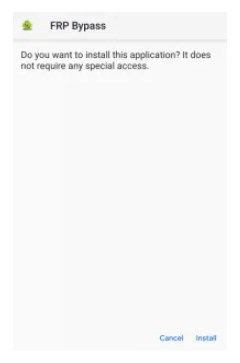
Install the FRP bypass APK on Moto G Pure.
Step 7. Launch the installed app if it opens successfully.
Step 8. Try to open Settings from the APK tool.
Step 9. Go to System > Reset options > Erase all data.
Step 10. Restart your Moto G Pure and set it up with your own Google account.
Checkpoint: If the file manager does not open, the APK will not install, or Settings cannot be opened, this method is likely blocked on your device.
Method 2: Moto G Pure FRP Bypass via Emergency Call
The Emergency Call method is another no-PC route. It tries to reach Settings through Emergency Information, profile picture selection, app permissions, and accessibility menus. It may work on some Android 11 devices with older security patches.
Step 1. Turn on your Moto G Pure and connect it to a Wi-Fi network.
Step 2. On the Google verification or lock screen, tap Emergency Call.
Step 3. Open the emergency information screen and tap the pencil icon.
Step 4. Tap Name or the profile picture option, then choose the option to change the profile picture.
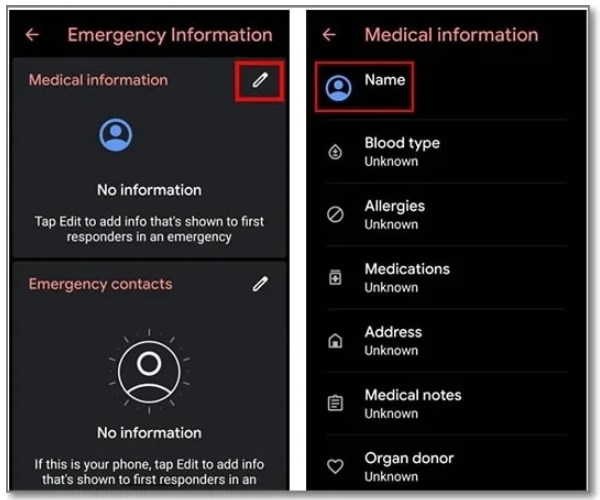
Tap the pencil icon and profile name from Emergency Information.
Step 5. From the image selection screen, open the menu and try to reach Photos, Permissions, or App Info.
Step 6. Search for the Settings app and open its App Info page.
Step 7. If Settings opens, go to Accessibility and enable the Accessibility Menu shortcut.
Step 8. Go to Apps & notifications > App info.
Step 9. Find Android Setup, tap Force Stop, then clear storage and cache if available.
Step 10. Open Google Play Services, tap Disable if the option is available.
Step 11. Return to the setup screen and continue the process.
Step 12. If the phone lets you reach the home screen, go to System > Reset options and reset the phone from Settings.
Checkpoint: If Emergency Call cannot open the profile image path, Settings does not open, or Android Setup cannot be stopped, your Moto G Pure is likely patched.
What If Moto G Pure FRP Bypass Without PC Fails?
Most failed Moto G Pure FRP bypass attempts happen because Android or Motorola security updates block older setup loopholes. Use the table below to decide what to do next.
| Problem | Likely Reason | Next Step |
| APK file does not install | Unknown source access is blocked or the APK is incompatible | Do not download random APKs; switch to another method |
| Emergency Call cannot open Settings | The accessibility route has been patched | Try a guided Moto FRP unlock tool |
| Phone stays on Google verification | The previous account is still required after reset | Review Google verification after factory reset options |
| Android 12 without-PC method fails | Newer patches often block no-PC tricks | Compare Moto FRP unlock tool options |
| You are not sure which tool to choose | Different devices and patches need different workflows | Check tool compatibility and avoid unsupported claims |
If the APK does not install or Emergency Call cannot open Settings, stop repeating the same steps. A guided Moto FRP unlock tool may be a safer next step.
Moto G Pure FRP Unlock Tool: Use DroidKit When Manual Methods Fail
When no-PC methods fail, DroidKit can be used as a guided PC-based fallback. It is useful when your Moto G Pure is on a newer patch, when APK installation is blocked, or when Emergency Call no longer opens Settings.
Use this method if:
- Your Moto G Pure is on Android 12 or a newer security patch.
- The Android 11 Emergency Call method fails.
- The APK / OTG method is blocked or feels unsafe.
- You have access to a Windows PC or Mac and a stable USB cable.
Steps to Bypass Moto G Pure FRP with DroidKit
Step 1. Download and install DroidKit on your computer. Launch it and choose FRP Bypass mode.
Free Download * 100% Clean & Safe

Choose FRP Bypass mode in DroidKit.
Step 2. Connect your Moto G Pure to the computer with a reliable USB cable.
Step 3. Choose the correct device brand or model option when prompted, so the instructions match your device situation.
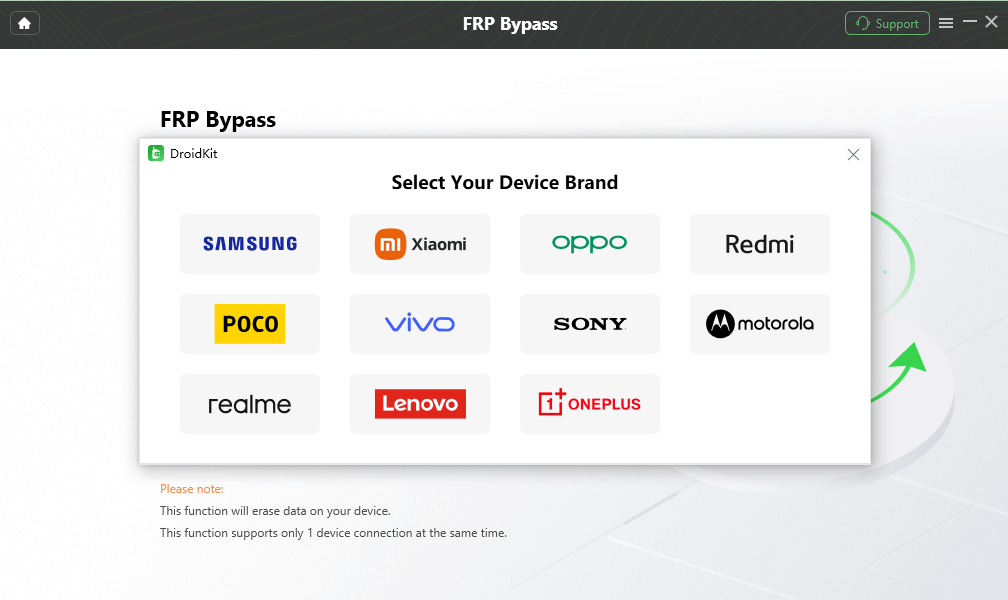
Choose the device brand before starting FRP bypass.
Step 4. Click Start and follow the on-screen instructions carefully.
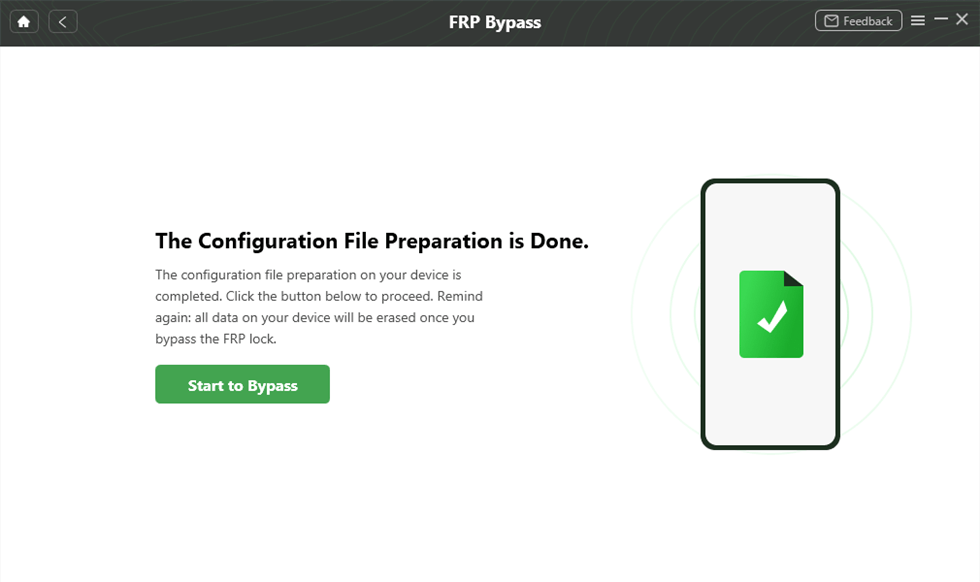
Click Start to begin the FRP bypass process.
Step 5. Complete the required settings according to the on-screen guide. The exact screen may vary depending on the device model and Android patch.
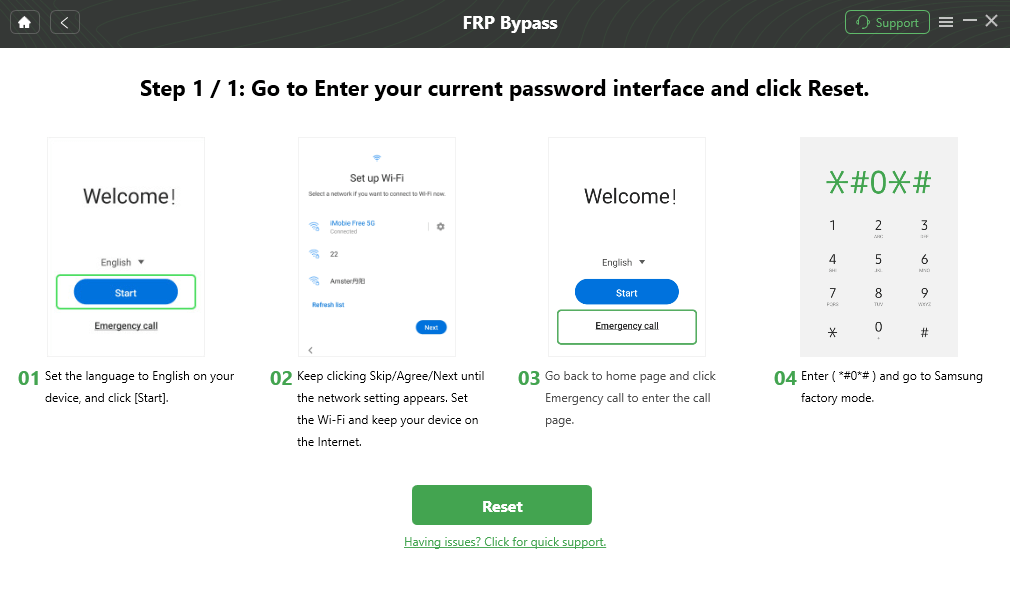
Complete the corresponding settings as instructed.
Follow the DroidKit on-screen instructions for your device. Do not use steps meant for another model unless the software prompts you to do so.
Step 6. Wait for the process to complete. Your Moto G Pure may restart, and you can continue setup after the FRP lock is removed.

FRP bypass complete.
How to Turn Off Google FRP Before Resetting Moto G Pure
After you regain access to your Moto G Pure, remove the Google account before resetting, selling, giving away, or trading in the phone. This helps prevent FRP from being triggered again.
Step 1. Open Settings on your Moto G Pure.
Step 2. Go to Accounts, Passwords & accounts, or Accounts backup.
Step 3. Select the Google account linked to the phone.
Step 4. Tap Remove account.
Step 5. Repeat this for any other Google accounts on the phone.
Step 6. After removing the account, reset the phone from Settings if needed.
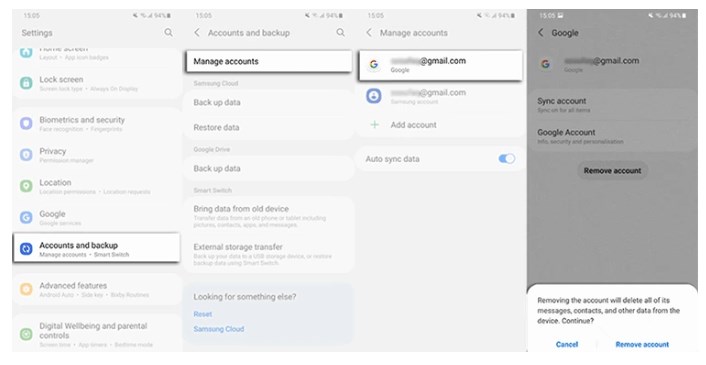
Remove the Google account before resetting to prevent FRP lock.
Moto G Pure FRP Bypass FAQs
Can I bypass Moto G Pure FRP without a PC?
Sometimes. APK and Emergency Call methods may work on older Android 11 patches, but they often fail on Android 12 or newer security patches. If Settings cannot be opened, a PC-based fallback may be needed.
Does Moto G Pure FRP bypass work on Android 12 without PC?
It depends on the security patch. Many Android 12 no-PC tricks are patched, so you should try only safe methods and switch to a guided tool if the setup loophole is blocked.
What is the best Moto G Pure FRP unlock tool?
The best tool depends on your device version, patch level, and whether the tool supports your situation. DroidKit is a guided option when manual FRP bypass methods fail.
Why does the Emergency Call method fail on Moto G Pure?
It usually fails because the phone has a newer security patch that blocks the accessibility or Settings path used by older guides.
Is the APK method safe for Moto G Pure FRP bypass?
It can be risky if the APK comes from an unknown source. Avoid random download sites, and do not install files you cannot verify.
Will bypassing FRP delete my Google account?
No. FRP bypass only removes the lock from the phone setup process. Your Google account itself remains available and can still be used on other devices.
How do I prevent FRP from activating again?
Remove all Google accounts from the phone before performing a factory reset. After that, reset the device from Settings instead of recovery mode when possible.
Conclusion: Best Path for Moto G Pure FRP Bypass
The best Moto G Pure FRP bypass method depends on your Android version and security patch. If your phone is on Android 11 with an older patch, the Emergency Call method may still be worth trying. If you have a trusted APK source, the APK / OTG method is another possible no-PC route.
However, if your Moto G Pure is on Android 12, if APK installation is blocked, or if Emergency Call cannot open Settings, stop repeating the same steps. A guided PC-based FRP unlock tool is usually the more practical fallback.
Free Download * 100% Clean & Safe
More Related Articles



Joy Taylor is a seasoned technical writer with over a decade of experience in mobile technology. At iMobie, she specializes in producing in-depth content on iOS data recovery, iPhone unlocking solutions, and iOS troubleshooting.
Product-related questions? Contact Our Support Team to Get Quick Solution >
