How Much Storage Does iOS 26/27 Take Up? Full iPhone Storage Guide
Wondering how much storage iOS 26 or iOS 27 needs? This guide explains update size, required free space, System Data changes, and what to do if your iPhone gets stuck or runs out of storage during the update.
iOS 26 usually needs more space than the update file size shown on your iPhone. In many cases, the update download may be several GB, but your iPhone may need around 10GB–20GB of free space to download, unpack, verify, and install the update safely.
For iOS 27, the exact storage requirement can vary because beta versions and final public releases may not use the same amount of space. If you are installing an iOS 27 beta, keep even more free space available because beta builds often include extra logs, temporary files, and system data.
A practical rule:
| Situation | Recommended Free Space |
|---|---|
| Small iOS 26 point update | 5GB–10GB |
| Major iOS 26 update | 10GB–20GB |
| iOS 27 beta update | 15GB–25GB |
| iPhone with Apple Intelligence enabled | Add around 7GB extra headroom |
| 64GB iPhone | Free as much space as possible before updating |
The update file size is not the same as the final storage used by iOS. Your iPhone needs temporary working space during installation, and some of that space may be released after the update is complete.
Why iOS Updates Need More Storage Than You Expect
Many users see an iOS update listed as 7GB or 8GB and assume they only need that exact amount of free space. That is not how iOS updates work.
When your iPhone installs iOS 26 or iOS 27, it may need space for:
- The update download package
- Temporary installation files
- Verification files
- System cache
- App optimization after restart
- Apple Intelligence files on supported devices
- System Data growth during and after installation
That is why your iPhone may say there is not enough storage even when you think you have enough free space.
For example, if the update file is around 8GB, your iPhone may still need 10GB, 15GB, or even more free space to complete the installation smoothly.
iOS 26 Download Size vs Installed Size vs Required Free Space
To answer “how much storage does iOS 26 take up,” you need to separate three different numbers.
1. Download Size
This is the size of the update package shown on the Software Update screen. It may vary by:
- iPhone model
- Current iOS version
- Region
- Whether you are updating from iOS 18 or an earlier iOS 26 version
- Whether the update is a full upgrade or a small patch
2. Required Free Space
This is the amount of free space your iPhone needs to complete the update. It is usually larger than the download size because iOS needs temporary room to unpack and install the update.
For major iOS 26 updates, keeping 10GB–20GB free is much safer than trying to update with only 5GB or 6GB available.
3. Final Installed Size
After the update finishes, some temporary files may disappear. However, iOS itself, System Data, caches, and Apple Intelligence resources may still take up more space than before.
This is why some users feel that their iPhone storage “shrinks” after updating.
How Much Storage Does iOS 27 Take Up?
For iOS 27, the safest answer is: it depends on the build.
If you are using an iOS 27 developer beta or public beta, the storage size can change across beta versions. Beta builds may also create more temporary files, logs, and diagnostic data than stable releases.
For that reason, do not install iOS 27 beta on an iPhone that is already close to full.
Recommended free space before installing iOS 27 beta:
| iPhone Storage Capacity | Suggested Free Space Before iOS 27 Beta |
|---|---|
| 64GB | 20GB+ if possible |
| 128GB | 15GB–25GB |
| 256GB | 15GB–20GB |
| 512GB or 1TB | 15GB+ |
If your iPhone has less than 10GB free, you should clean up storage before trying to install iOS 27 beta.
How to Check How Much Storage iOS Is Using
You can check your iPhone storage in Settings.
Follow these steps:
- Open Settings.
- Tap General.
- Tap iPhone Storage.
- Wait for the storage chart to finish loading.
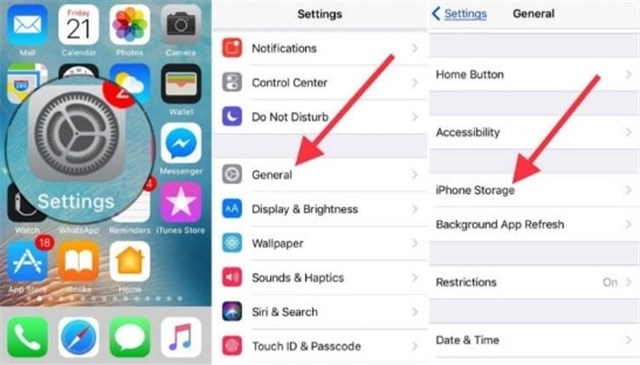
This page shows which categories are taking up the most storage.
If your iPhone storage is full, do not only look at the iOS category. In many cases, System Data, Photos, Messages, or app caches are the real reason the update cannot install.
What Is System Data After iOS 26/27?
System Data is a broad storage category that may include:
- Caches
- Logs
- Temporary update files
- Siri voices
- System resources
- Streaming media cache
- App support files
- Safari cache
- Update leftovers
After a major update like iOS 26 or iOS 27 beta, System Data may temporarily grow. Sometimes it shrinks after your iPhone finishes indexing, optimizing apps, and clearing temporary files.
You can try these simple steps first:
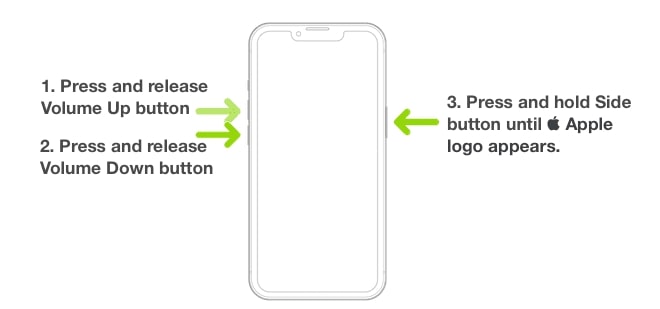
- Restart your iPhone.
- Keep your iPhone connected to Wi-Fi and power for a while.
- Update all apps from the App Store.
- Delete large unused apps.
- Remove downloaded videos, podcasts, and offline maps.
- Clear Safari history and website data.
- Delete old Messages attachments.
If System Data stays extremely large and your iPhone becomes almost unusable, you may need a deeper fix such as backing up and restoring your iPhone.
Does Apple Intelligence Take Extra Storage?
Yes. On supported devices, Apple Intelligence can require extra on-device storage. If your iPhone supports Apple Intelligence, you should leave additional storage available before updating.
This is especially important for 128GB iPhones. Even if your device has enough space to install iOS 26 or iOS 27, Apple Intelligence files may reduce your remaining free storage afterward.
If you use Apple Intelligence, try to keep at least 15GB–20GB free before a major iOS update.
Is 64GB Enough for iOS 26 or iOS 27?
A 64GB iPhone can still run supported iOS versions, but the experience may feel tight.
On a 64GB device, storage is usually consumed by:
- iOS
- System Data
- Photos and videos
- Messages attachments
- WhatsApp or social media cache
- Apps and games
- Offline music and videos
If your 64GB iPhone has less than 10GB free, you may run into update problems.
Before installing iOS 26 or iOS 27 beta on a 64GB iPhone, you should delete or move large files first. A computer-based update may also help in some cases because your Mac or PC can handle part of the update process, but your iPhone still needs enough free space to complete installation.
Is 128GB Enough for iOS 26 or iOS 27?
For most users, 128GB is still workable, but you need to manage storage carefully.
A 128GB iPhone is usually enough if:
- You use iCloud Photos or regularly back up photos.
- You delete old videos and downloads.
- You do not keep many large games installed.
- You clear Messages attachments occasionally.
- You keep at least 15GB free before major updates.
If you use Apple Intelligence, shoot a lot of 4K video, or store many offline files, 128GB can fill up quickly after iOS 26 or iOS 27.
Best Ways to Free Up Storage Before Updating to iOS 26/27
Before installing iOS 26 or iOS 27, use this cleanup order.
1. Delete Downloaded Videos and Music
Streaming apps often store large offline files. Delete downloaded content you can stream again later.
2. Remove Large Messages Attachments
Go to: Settings > General > iPhone Storage > Messages
Then review:
- Large attachments
- Photos
- Videos
- GIFs and stickers
- Old conversations
Messages can quietly take up several GB.
3. Offload Unused Apps
Go to: Settings > General > iPhone Storage
Tap unused apps and choose Offload App.
Offloading removes the app but keeps its documents and data. You can reinstall the app later.
4. Delete Apps You No Longer Need
For large games or editing apps, deleting the app may free more space than offloading.
Check the storage list and remove apps you rarely use.
5. Optimize iCloud Photos
If you use iCloud Photos, go to: Settings > Apple Account > iCloud > Photos
Turn on Optimize iPhone Storage.
This keeps smaller versions on your iPhone and stores full-resolution files in iCloud.
6. Delete Offline Maps
Offline maps can take up a lot of space. Open your maps app and remove offline areas you no longer need.
7. Delete the Downloaded iOS Update File
If the iOS update already downloaded but failed to install, delete the update file and try again.
Go to: Settings > General > iPhone Storage
Find the iOS update file, tap it, and delete it.
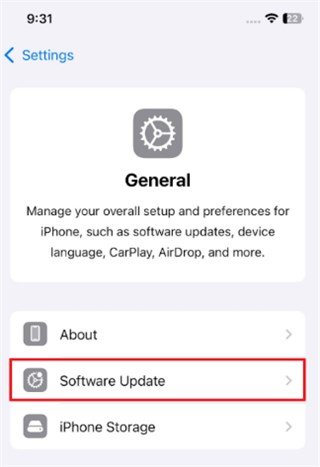
Then restart your iPhone and go back to: Settings > General > Software Update. Download the update again.
When AnyFix Can Help with iOS 26/27 Update Problems
AnyFix is useful when your iPhone has a system-level update problem, such as:
- iPhone stuck on Preparing Update
- iPhone stuck on Apple logo after updating
- iPhone stuck in recovery mode
- iPhone update failed through iTunes or Finder
- iPhone keeps restarting after an iOS update
- iOS 26/27 update gets interrupted
- iPhone screen freezes during installation
- iTunes or Finder shows an update/restore error
AnyFix is not a storage cleaner. It will not magically reduce the amount of storage iOS 26 or iOS 27 needs. However, it can help when the update process fails, the iPhone becomes stuck, or the system needs repair after an update attempt.
How to Use AnyFix If iOS 26/27 Update Gets Stuck
Use this method if your iPhone is stuck on the Apple logo, recovery mode, boot loop, frozen update screen, or failed update screen.
Step 1: Download AnyFix
Go to the official AnyFix page: Download and install AnyFix on your Mac or Windows computer.
Free Download for all windows & 100% safe Free Download for all mac & 100% safe
Free Download100% Clean & Safe
Step 2: Connect Your iPhone
Open AnyFix and connect your iPhone to the computer using a USB cable. Wait for the software to recognize your device.
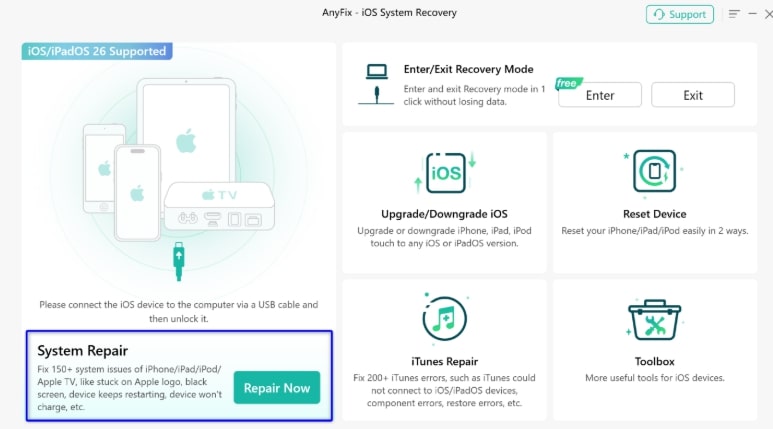
Step 3: Choose System Repair
On the main interface, choose System Repair. This mode is designed for iOS system issues, including update failures and stuck screens.
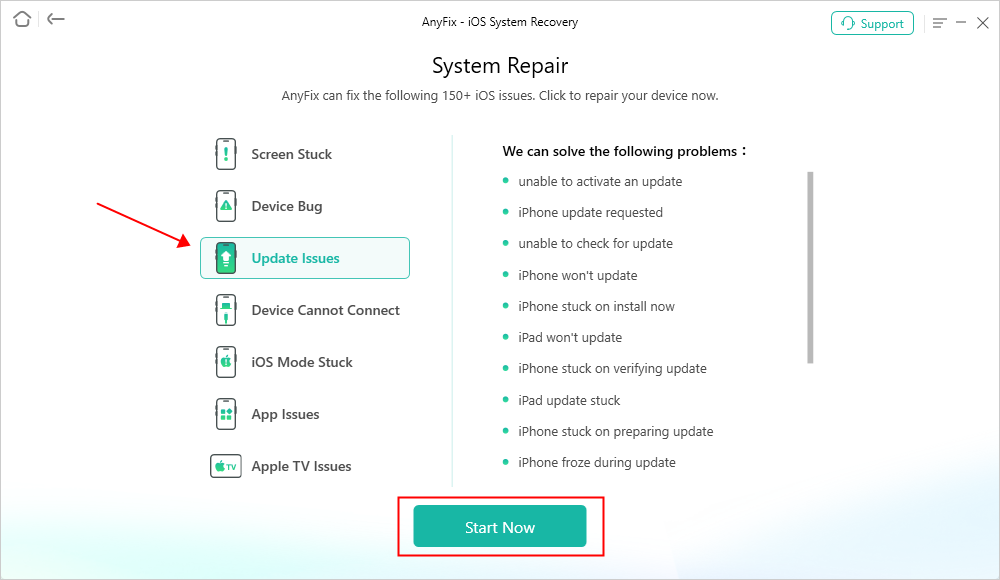
Step 4: Select the iPhone Problem Type
Choose the issue that best matches your iPhone’s condition.
For example:
- Stuck on Apple logo
- Stuck in recovery mode
- Update failure
- Device frozen
- Boot loop
Step 5: Choose a Repair Mode
Start with Standard Repair when possible.
Standard Repair is usually the safer first option because it is designed to fix common iOS system problems without data loss.
If Standard Repair does not work, deeper repair modes may be available, but they can erase data. Always read the on-screen warning before continuing.

Step 6: Download the Firmware Package
AnyFix will provide a firmware package for your device.
Make sure:
- Your internet connection is stable.
- Your computer has enough storage.
- Your iPhone remains connected.
Step 7: Start Repair
Click Start Repair and wait for the process to finish. Do not disconnect your iPhone while AnyFix is repairing the system.
After the repair, your iPhone should restart. Then go to: Settings > General > iPhone Storage. Check whether your storage is stable and whether the failed update file is still present.
How to Use AnyFix for iOS Upgrade or Downgrade
If your goal is to upgrade or downgrade iOS rather than repair a stuck update, AnyFix also provides an Upgrade/Downgrade iOS option.
This may be useful if:
- You want a guided iOS update process.
- You want to downgrade from a beta version.
- You want to leave iOS 27 beta and return to a stable iOS version.
- Your iPhone update through Settings is not working properly.
Follow these steps:
- Open AnyFix on your computer.
- Connect your iPhone with a USB cable.
- Select Upgrade/Downgrade iOS.
- Choose the option that matches your goal.
- Review the available firmware versions.
- Download the firmware package.
- Follow the on-screen instructions to complete the process.
Important: iOS downgrade availability depends on Apple signing status. If Apple no longer signs the iOS version you want, AnyFix cannot force-install it.
Should You Update with Only 10GB Free?
If you only have 10GB free, you may be able to install some iOS updates, but it is not ideal for a major iOS 26 or iOS 27 update.
Use this simple guide:
| Available Storage | Recommendation |
|---|---|
| Under 5GB | Do not update yet. Free more space first. |
| 5GB–10GB | Risky for major updates. Delete more files. |
| 10GB–15GB | May work for iOS 26, but not ideal. |
| 15GB–20GB | Safer for iOS 26. |
| 20GB+ | Better for major updates and beta installs. |
For iOS 27 beta, aim for 20GB or more if possible.
Can You Delete iOS or System Data?
You cannot directly delete the iOS system itself.
You also cannot manually delete all System Data with one button. But you can reduce related storage by clearing caches, deleting update files, removing offline downloads, restarting your device, and backing up/restoring if necessary.
Avoid third-party apps that claim to delete iOS system files directly. iOS is designed to protect system files, and unsafe cleanup methods can create more problems.
Final Recommendation
So, how much storage does iOS 26/27 take up?
For iOS 26, expect the visible update package to be several GB, but keep 10GB–20GB free before installing. For iOS 27 beta, keep 15GB–25GB free if possible because beta builds can use more temporary storage.
If your iPhone says there is not enough storage, start with safe cleanup steps: delete large downloads, offload unused apps, remove Messages attachments, optimize Photos, and delete any failed update file.
If your iPhone gets stuck during the update, enters recovery mode, freezes on the Apple logo, or fails through Finder/iTunes, AnyFix can help repair iOS system problems and guide you through recovery, upgrade, or downgrade workflows.
The key is to treat storage cleanup and system repair as two different problems. Free up space first. If the update still fails or your iPhone becomes stuck, then use a repair tool like AnyFix to fix the iOS system safely.
More Related Articles



Wanda Norris is a junior author in iMobie specializing in iOS tips and solutions. She keeps a close eye on every iOS update to provide practical, easy-to-understand guides that help users solve problems and master their Apple devices.
Product-related questions? Contact Our Support Team to Get Quick Solution >
