How to Update to iOS 18 Instead of iOS 26: What Still Works and What Doesn’t
Only seeing iOS 26 on your iPhone? This guide explains whether you can still update to iOS 18, why the iOS 18 option may be missing, and when AnyFix can help with iOS downgrade or system recovery.
Quick Answer: Can You Update to iOS 18 Instead of iOS 26?
Yes, but only in limited cases.
If your iPhone still supports iOS 18 and Apple is still offering an iOS 18 update for your exact model, you may be able to install iOS 18 from Settings > General > Software Update. However, if your iPhone only shows iOS 26, that usually means Apple is guiding your device to the newer iOS branch.
For most iPhone 11 and newer models, iOS 26 is now the main update path. For older models such as iPhone XS, iPhone XS Max, and iPhone XR, iOS 18 may still appear because those devices do not move to iOS 26.
If you already updated to iOS 26 and want to go back to iOS 18, the situation is different. A downgrade is only possible if Apple is still signing the iOS 18 firmware for your exact iPhone model. Tools such as AnyFix can help simplify the downgrade or recovery process, but they cannot bypass Apple’s signing restrictions.
Why Your iPhone Shows iOS 26 Instead of iOS 18
Many users search for “how to update to iOS 18 instead of 26” because they open Software Update expecting a small iOS 18 security patch, but the screen only shows iOS 26.
This happens for a few common reasons:
- Your iPhone model is eligible for iOS 26.
- Apple has stopped prominently offering iOS 18 as an alternative update for your device.
- Your current iOS version is too old, so Apple shows the newest available major update.
- Your iPhone is already on iOS 26, so iOS 18 is no longer an update option.
- The iOS 18 version you want may no longer be signed by Apple.
The most important thing to understand is this: updating to iOS 18 and downgrading from iOS 26 to iOS 18 are two different problems.
If your iPhone is still on iOS 17 or iOS 18, you are looking for an update path. If your iPhone is already on iOS 26, you are looking for a downgrade path.
Check Your iPhone Model First
Before trying any method, check your exact iPhone model.
Go to: Settings > General > About > Model Name
Then compare your situation below.
| Your iPhone Model | What It Usually Means |
|---|---|
| iPhone XS, iPhone XS Max, iPhone XR | These models support iOS 18 but are not on the iOS 26 path, so iOS 18 updates may still appear. |
| iPhone 11, 12, 13, 14, 15, 16 series | These models are generally eligible for iOS 26, so Software Update may push iOS 26 instead of iOS 18. |
| iPhone SE 2nd/3rd generation | These models may also be directed toward iOS 26 depending on Apple’s current update availability. |
| Already updated to iOS 26 | You cannot “update” to iOS 18. You would need to downgrade, and that depends on Apple signing status. |
This model check is essential because many online guides treat every iPhone the same, but Apple’s update path can differ by device generation.
Before You Try Anything: Back Up Your iPhone
Before updating, downgrading, or repairing your iPhone, back it up first.
You can use:
- iCloud Backup: Settings > Apple Account > iCloud > iCloud Backup
- Finder on Mac: Connect iPhone > Finder > General > Back Up Now
- iTunes on Windows or older macOS: Connect iPhone > Summary > Back Up Now
This matters because normal iOS updates usually keep your data, but downgrade and firmware restore processes can erase your device.
Also remember: a backup made on iOS 26 may not restore properly to an iPhone running iOS 18. If you are planning to downgrade, save important photos, files, messages, and app data separately whenever possible.
Method 1: Check Whether iOS 18 Is Still Available in Software Update
This is the safest method because it uses Apple’s official update system.
Follow these steps:
- Open Settings on your iPhone.
- Tap General.
- Tap Software Update.
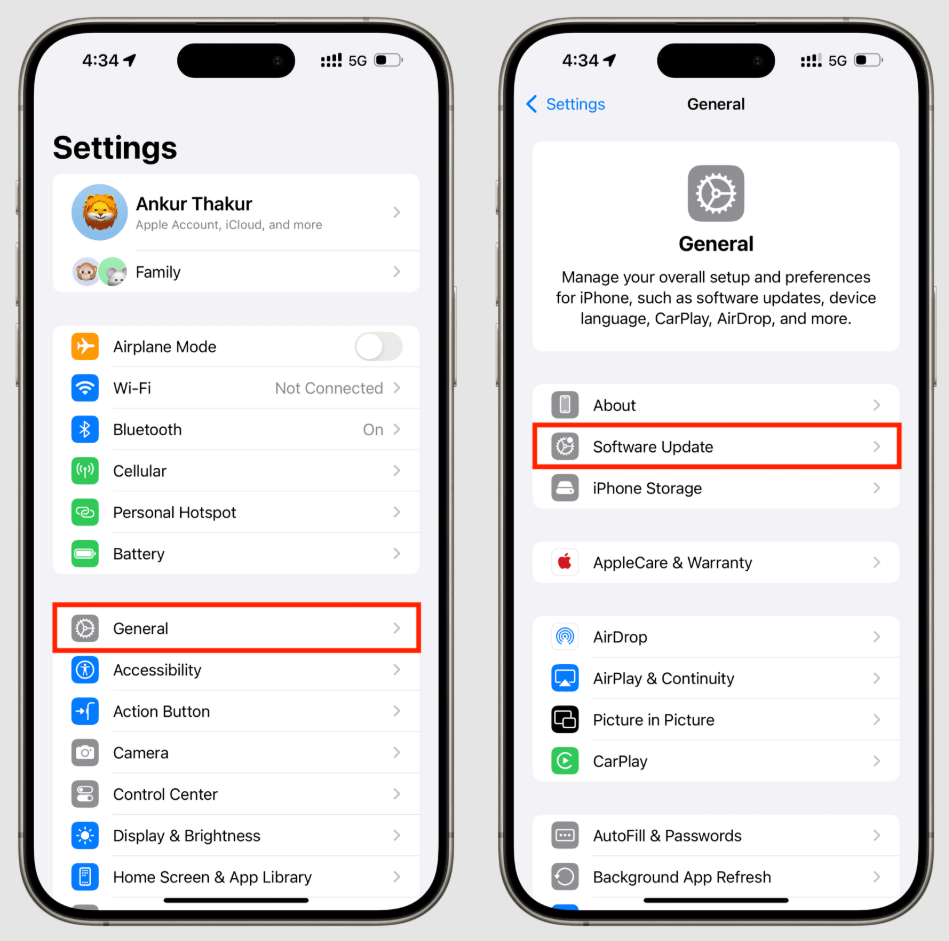
- Wait for the page to finish checking.
- Look carefully for an iOS 18 option below or near the main iOS 26 update card.
- If iOS 18 appears, tap Download and Install.
- Keep your iPhone connected to Wi-Fi and power until the update finishes.
If you only see iOS 26 and no iOS 18 option appears, do not assume your phone is broken. It likely means Apple is no longer offering iOS 18 as a selectable update for that device.
Method 2: Turn Off Automatic iOS Updates If You Want to Avoid iOS 26
If you are not ready to move to iOS 26, turn off automatic iOS installation.
Go to: Settings > General > Software Update > Automatic Updates
Then turn off:
- Automatically Install iOS Updates
- Automatically Download iOS Updates, if available
This does not bring back iOS 18 if Apple has already removed the option. However, it can stop your iPhone from automatically installing iOS 26 overnight.
You may still receive system file or security-related background updates depending on your settings, but the major iOS update will not install automatically if automatic installation is disabled.
Method 3: Use a Computer to Check for an Available Update
If Software Update on your iPhone only shows iOS 26, you can also check from a computer.
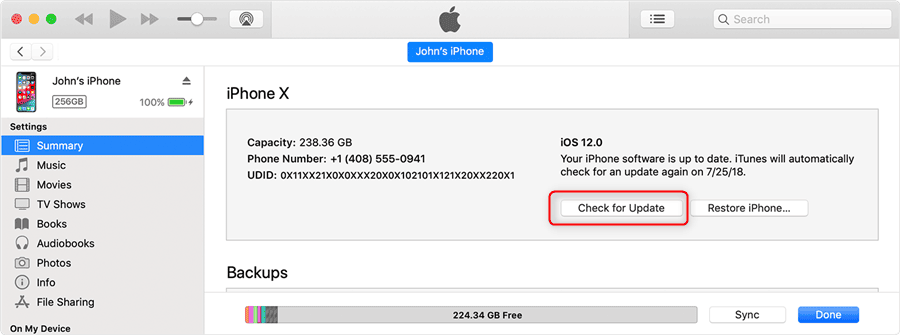
On Mac
- Connect your iPhone to your Mac with a USB cable.
- Open Finder.
- Select your iPhone in the sidebar.
- Click General.
- Click Check for Update.
On Windows
- Install or open iTunes or Apple Devices.
- Connect your iPhone with a USB cable.
- Select your iPhone.
- Choose Check for Update.
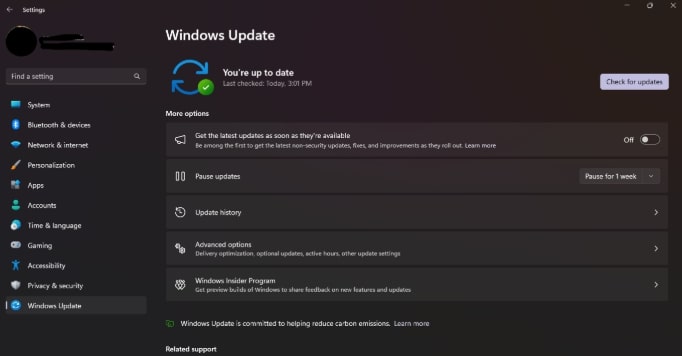
If Apple still offers an iOS 18 update for your device, it may appear here. If the computer also shows only iOS 26, then iOS 18 is probably not available through the official update route for that iPhone.
Method 4: Can You Install iOS 18 with an IPSW File?
Some advanced users try to install iOS 18 manually using an IPSW firmware file. This method depends on one critical factor: Apple must still be signing that iOS 18 version for your exact iPhone model.
If the iOS 18 IPSW is unsigned, the installation will fail. It does not matter whether you use Finder, iTunes, recovery mode, DFU mode, or a third-party recovery tool. Apple’s signing server still decides whether the firmware can be installed.
This is where many users make a mistake. They download an old iOS 18 firmware file and assume they can manually install it. But if Apple has stopped signing it, the file is not useful for a normal restore.
How to Use AnyFix to Downgrade from iOS 26 to iOS 18
If your iPhone update fails, gets stuck on Preparing Update, enters recovery mode, or you want a simpler way to manage iOS upgrade/downgrade tasks, AnyFix can be useful.
AnyFix is designed for iOS system repair, recovery mode, iTunes errors, and iOS upgrade/downgrade workflows. It is especially relevant in these situations:
- Your iPhone is stuck during an iOS update.
- Your iPhone is stuck on the Apple logo.
- Your iPhone enters recovery mode after trying to update.
- iTunes or Finder fails with an update or restore error.
- You want to check available firmware options through a guided interface.
- You want to downgrade iOS, but only if the target version is still signed by Apple.
However, AnyFix should not be presented as a magic way to force iOS 18 onto every iPhone. If Apple no longer signs the iOS 18 firmware for your device, AnyFix cannot override that restriction.
Use this method only if you are already on iOS 26 and want to go back to iOS 18. Important: Downgrading may erase your iPhone. Back up your device first.
Step 1: Download and Install AnyFix
Go to the official AnyFix page: Download and install AnyFix on your Windows PC or Mac.
Step 2: Connect Your iPhone
Open AnyFix and connect your iPhone to the computer using a USB cable. Wait for AnyFix to detect your device model.
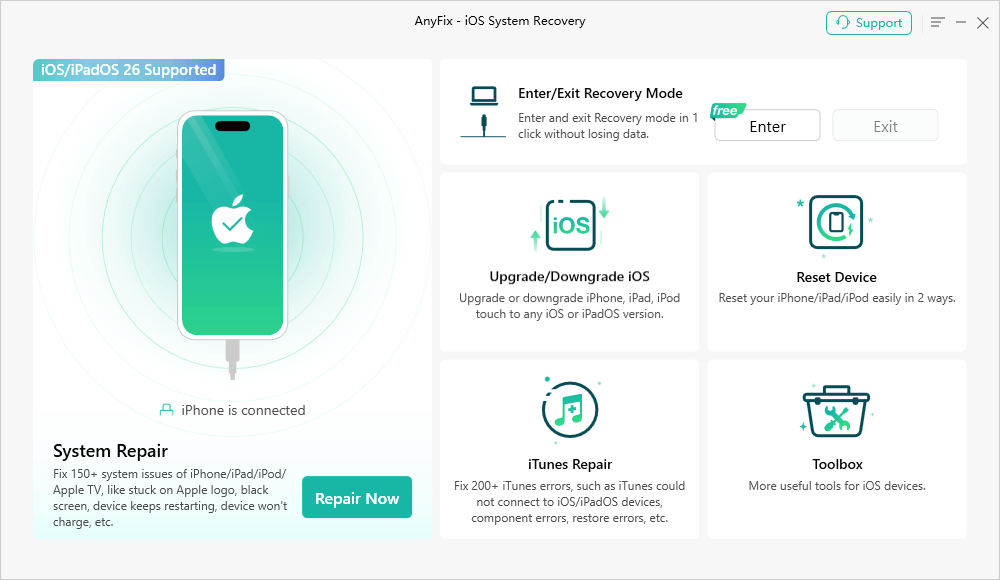
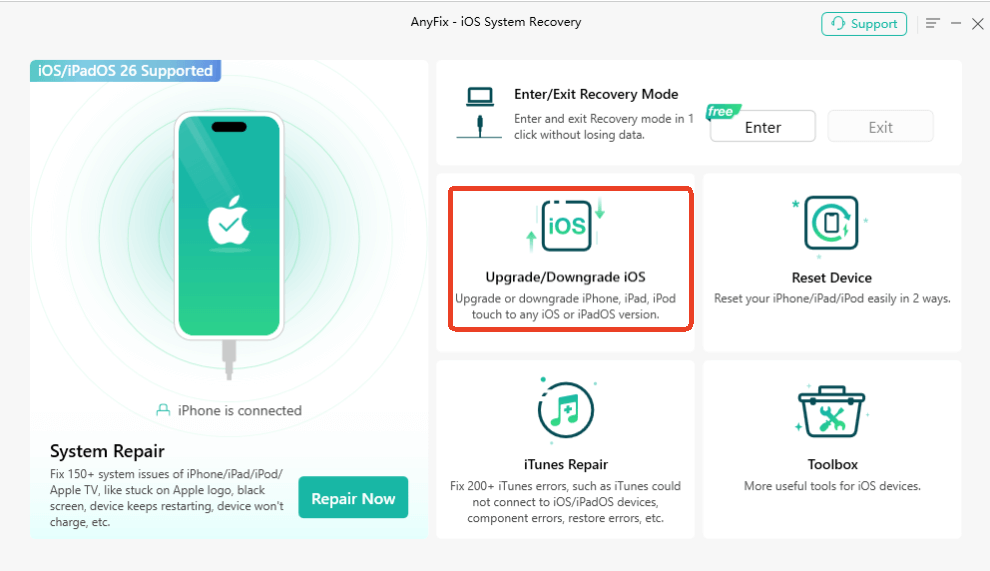
Step 3: Choose Upgrade/Downgrade iOS
From the main interface, choose:
Upgrade/Downgrade iOS
This section is designed for iOS version changes rather than general system repair.
Step 4: Select Downgrade iOS
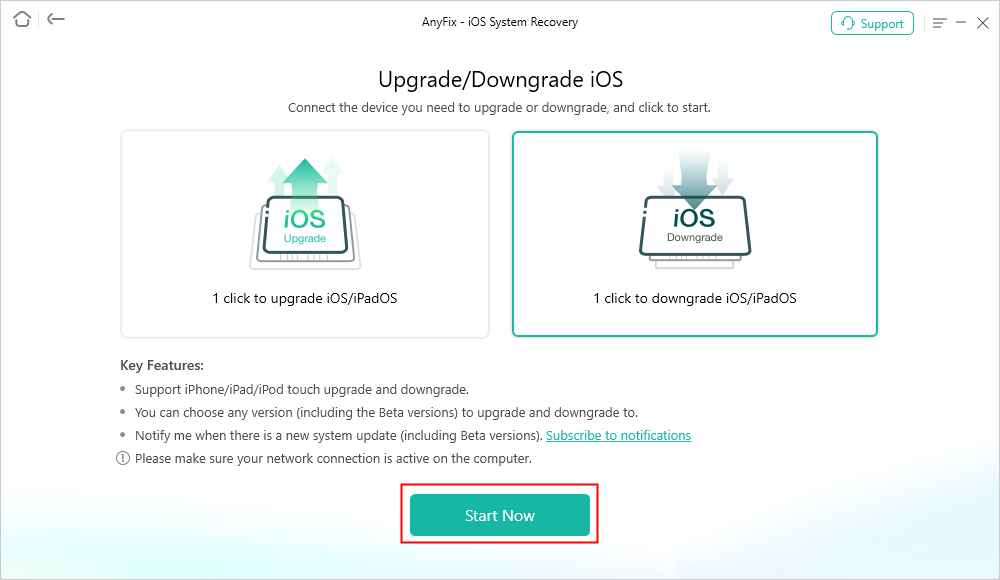
Choose the downgrade option, then continue. AnyFix should display firmware versions available for your device.
If iOS 18 does not appear, or if the firmware is not available for your model, that usually means you cannot downgrade to iOS 18 through this method.
Step 5: Download the Firmware
Select the available iOS 18 firmware if it is shown, then download it inside AnyFix.
Make sure your network is stable and your computer has enough storage space.
Step 6: Start the Downgrade
After the firmware package is ready, click the downgrade button and follow the on-screen instructions.
Do not disconnect your iPhone during the process. Your iPhone may restart several times.
Step 7: Set Up Your iPhone
After the downgrade finishes, set up your iPhone and restore your backup if compatible.
If your iOS 26 backup cannot be restored to iOS 18, you may need to restore data from iCloud sync, photos, contacts, or other separately saved files.
How to Use AnyFix If Your iPhone Gets Stuck During Update
If you tried to update and your iPhone is now stuck on the Apple logo, recovery mode screen, boot loop, or a frozen update screen, use AnyFix’s system repair feature instead.
Follow these steps:
- Open AnyFix on your computer.
- Connect your iPhone with a USB cable.
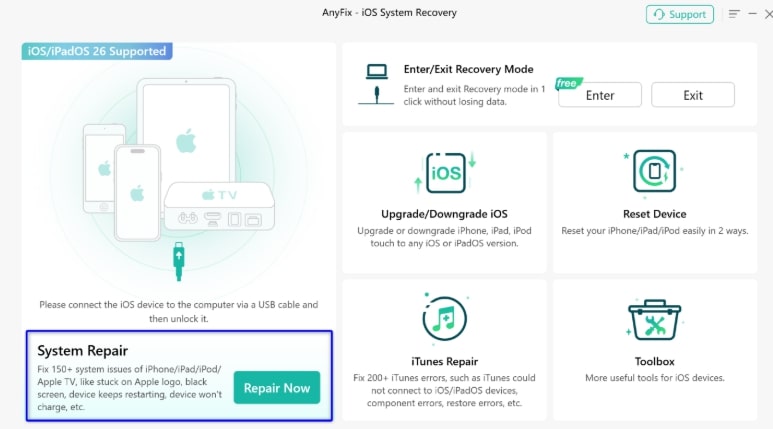
- Choose System Repair.
- Select the repair mode that matches your situation.
- Start with Standard Repair if you want to try fixing common system issues without erasing data.

- Download the required firmware package.
- Click Start Repair and wait for the process to finish.
If Standard Repair does not work, Advanced Repair or deeper repair modes may be required, but those options can erase data. Read the on-screen instructions carefully before continuing.
What If iOS 18 Does Not Appear Anywhere?
If iOS 18 does not appear in Settings, Finder, iTunes, or AnyFix, the safest conclusion is that your iPhone cannot currently install iOS 18 through normal methods.
At that point, you have three realistic options:
- Stay on your current version temporarily Turn off automatic iOS updates and keep your current setup for now.
- Update to iOS 26 If your device no longer receives iOS 18 security updates, moving to iOS 26 may be the safer long-term choice.
- Use AnyFix only for repair problems If your iPhone is stuck, frozen, or failing to update, AnyFix can still help repair system issues even if iOS 18 itself is no longer available.
Avoid random IPSW files, unofficial profiles, or unknown downgrade tools that claim to bypass Apple signing. They can fail, erase your device, or create security risks.
Should You Stay on iOS 18 or Update to iOS 26?
If your iPhone is still receiving iOS 18 security updates, staying on iOS 18 may be reasonable for a while, especially if you value stability and dislike major interface changes.
But if your device is eligible for iOS 26 and Apple no longer offers iOS 18 updates, staying behind for too long may create security and app compatibility risks.
You should consider updating to iOS 26 if:
- Your banking, work, or school apps require newer iOS support.
- Your iPhone is no longer receiving iOS 18 security patches.
- You want the latest Apple features and security improvements.
- You have already backed up your device and are ready for the design changes.
You may want to wait if:
- Your iPhone is critical for work and you cannot risk temporary bugs.
- You rely on apps that have not yet been optimized.
- Your device has limited storage.
- You want to read more user feedback before upgrading.
Common Mistakes to Avoid
Mistake 1: Thinking Any Tool Can Bypass Apple Signing
No normal consumer tool can install an unsigned iOS version. AnyFix can help manage upgrade, downgrade, and recovery workflows, but Apple signing status still matters.
Mistake 2: Forgetting That Downgrades Can Erase Data
Updating usually keeps your data. Downgrading is different. Always back up first.
Mistake 3: Restoring an iOS 26 Backup to iOS 18
A backup made on a newer iOS version may not restore correctly to an older iOS version. Save important data separately before downgrading.
Mistake 4: Downloading IPSW Files from Random Sites
Only use trusted firmware sources and make sure the firmware matches your exact device model. The wrong file will fail.
Mistake 5: Ignoring Your iPhone Model
An iPhone XR and an iPhone 15 may show completely different update options. Always check the model before following any guide.
Final Verdict
If you want to update to iOS 18 instead of iOS 26, start with the official Software Update screen. If iOS 18 appears, you can install it normally. If only iOS 26 appears, your iPhone is probably being directed to Apple’s current major iOS branch.
If you already installed iOS 26 and want to return to iOS 18, the key question is whether Apple still signs iOS 18 for your exact model. If it does, a tool like AnyFix can make the downgrade or recovery process easier. If Apple no longer signs iOS 18, no tool can reliably force that downgrade.
The safest path is simple: check your iPhone model, back up your data, verify whether iOS 18 is still available, and only then decide whether to stay on iOS 18, update to iOS 26, or use AnyFix for a guided recovery workflow.
Free Download for all windows & 100% safe Free Download for all mac & 100% safe
Free Download100% Clean & Safe
More Related Articles



Wanda Norris is a junior author in iMobie specializing in iOS tips and solutions. She keeps a close eye on every iOS update to provide practical, easy-to-understand guides that help users solve problems and master their Apple devices.
Product-related questions? Contact Our Support Team to Get Quick Solution >
