Cannot Create Apple ID at This Time? Fix it in 10 Ways!
Seeing the “Cannot Create Apple ID at this time” error on your iPhone can prevent you from accessing its full features. This guide explains why this issue occurs and provides 10 proven fixes to resolve it. We also include instructions on creating an Apple ID, plus a bonus tip for Apple ID removal.
Are you repeatedly getting a “Cannot Create Apple ID at this time” message when trying to sign up for a new Apple ID? This common issue stops you from accessing Apple services like the App Store and iCloud. In this article, we’ll explore why you might be unable to create an Apple ID and walk you through 10 fixes to resolve the issue.
We’ll also show you how to create an Apple ID on various iOS devices. Plus, we will provide you with a bonus tip to remove your old Apple ID without even requiring a password.
Part 1. Why Can’t I Create an Apple ID?
Those who are wondering “why can’t I create an Apple ID?” can check out these common factors listed below:
- Apple Server Issues: Account creation may be temporarily blocked if Apple’s servers are under maintenance.
- Network Problems: Weak internet or certain IP setups can stop the signup process.
- Existing Account with Same Email: You can’t use an email already tied to another Apple ID.
- Device Limit Reached: Exceeding the limit of new Apple IDs per device triggers the error.
- Eligibility Issues: Users under 13 are not permitted to create an Apple ID.
Part 2. How to Fix “Cannot Create Apple ID at This Time”
You can fix the “Cannot Create Apple ID at this time” issue through the following 10 fixes listed here:
1. Check Apple System Status
You might see the error due to no fault of your own if Apple’s servers are temporarily down or undergoing maintenance. Before trying anything else, check if Apple’s system is operational for account services.
Instructions: Open Apple’s official System Status page and look for services related to Apple ID. Ensure those entries have a green dot next to them. A yellow or red symbol indicates an outage in Apple’s system.
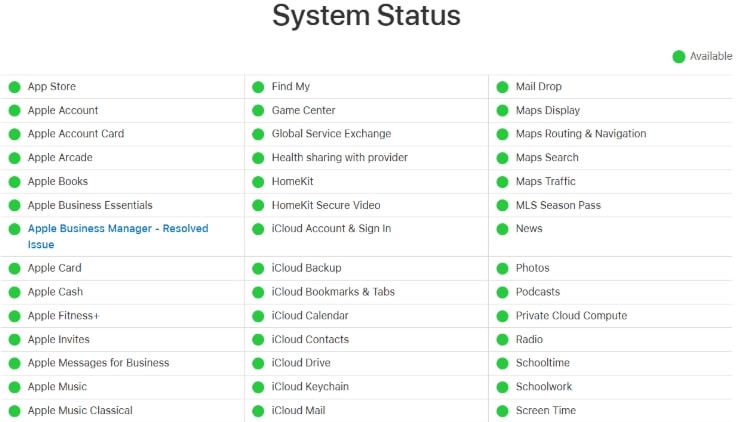
Apple System Status
2. Verify Your Internet Connection
Make sure your account-creating device has proper internet access before you try creating the ID.
Step 1: Run a speed test on a browser to ensure your device has internet access. Simply connect to a different network if nothing loads.

Internet Speed Test
Step 2: Try turning your VPN off if it’s ON and then attempt to create the Apple ID again. Once you have a reliable connection, go back and try signing up again.
3. Use a Different Device or Browser
The issue may be with the specific device or app you use to create the Apple ID. Apple even suggests using an alternative platform if you encounter trouble on one device.
Switch devices: On an iPhone/iPad, you can go to “Settings” > “Apple Account” > “Don’t have an Apple Account?”
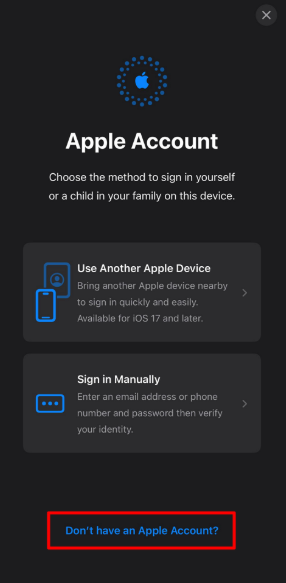
Create Apple ID on iPhone
Use a web browser: Go to the Apple ID account website on any browser. There, create your Apple ID that can bypass iOS-related glitches.
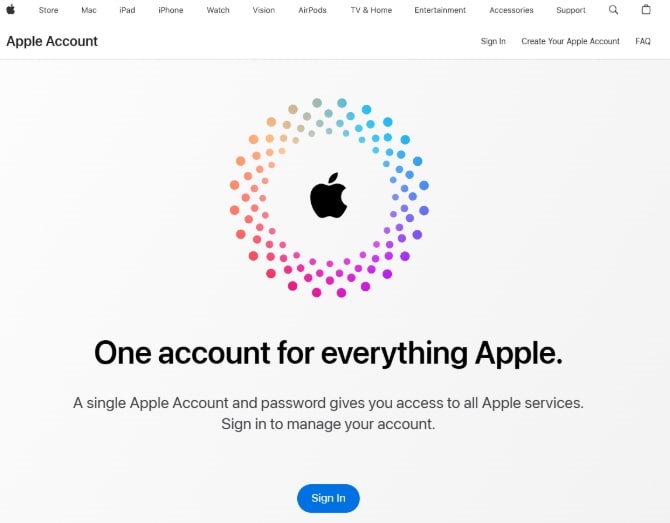
Create Apple ID on Browser
4. Try a New Email Address
You might see the “Cannot Create Apple ID at this time” error if the email address you entered is already in use by another Apple ID. The solution is to use a fresh email that has never been associated with an Apple account.
Instructions: Start the Apple ID registration again with the new email. Enter all required info and use this alternate email as your Apple ID username. After filling out everything, check your email for Apple’s verification message and confirm it.
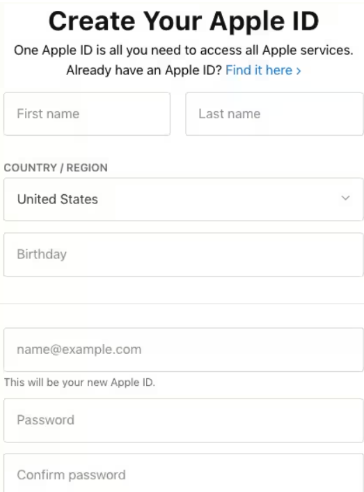
Create New Apple ID
5. Restart Your Device
Device reboot can also clear temporary glitches that might be interfering with ID creation. Here’s how you can perform it and give your iPhone a fresh start.
Step 1: Press and hold the side button of your iPhone and either volume button. Press the slide that appears on the screen to power off.
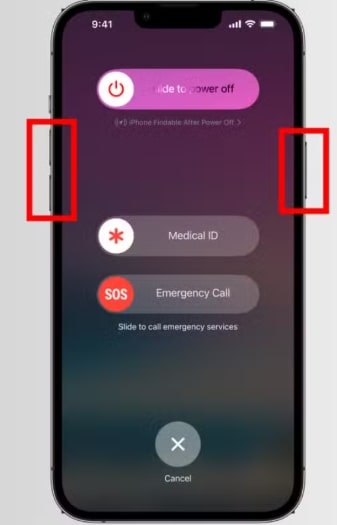
Power off iPhone
Step 2: Now turn your smartphone on again by holding the side button until the Apple logo appears. Once it’s booted up, go back to Settings and try to create the Apple ID again.
6. Update System Software
Don’t forget to get your system to its latest available software because Apple regularly fixes software performance in updates.
Step 1: First, reach the Settings > General > Software Update page. There, download and install the iOS update if available.
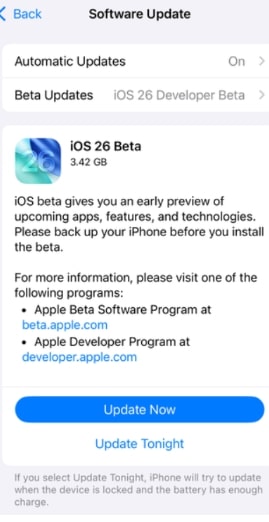
Software Update iPhone
Step 2: Now, attempt to create your Apple ID again once your device is up-to-date with the latest iOS.
7. Erase All Content and Settings
Resetting your device to factory settings will remove any problematic configurations and give you a clean slate. Only try this if other methods haven’t worked, and be sure to back up your device first because this will wipe everything.
Step 1: Go to Settings > General > Transfer or Reset iPhone (or just “Reset” on older iOS versions).
Step 2: Next, choose Erase All Content and Settings. Confirm with your passcode and follow prompts to erase the device.
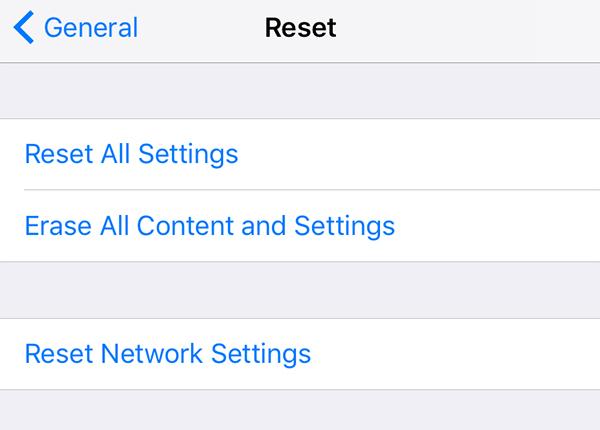
Choose Erase All Content and Settings
8. Try Creating an Apple ID via the Browser
Try creating the Apple ID using Apple’s website if you still see the error on your iPhone.
Step 1: Open a browser and visit the Apple ID account page. Afterwards, hit “Create Your Apple Account” to open the account creation form.
Step 2: Fill in the required details on the web form and click “Continue” to proceed with the verification.
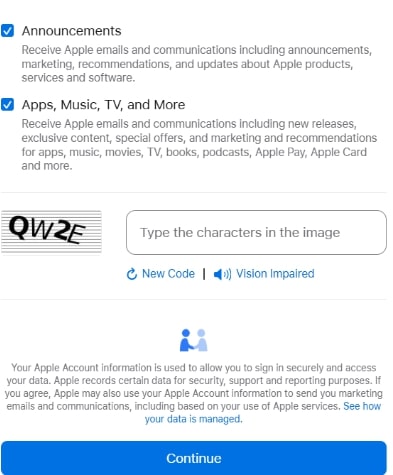
Fill Apple ID Details
9. Double-Check Your Information
Apple’s system will reject the creation if something is not properly input. Ensure your account information is input correctly and meets Apple’s format criteria. Finally, confirm that any CAPTCHA or verification codes are entered correctly.
10. Sign Out of Any Existing Apple ID
You cannot create a new ID until you sign out of your old account on the same device. Here’s how you can lead with logging out.
Warning: Avoid factory reset unless necessary, as it erases all data. Back up via iCloud/iTunes first.
Instructions: Access the Settings of your iPhone and tap your Apple ID name at the top. Now, scroll down and tap Sign Out. Once signed out, restart the device and try the Apple ID creation process.
11. Contact Apple Support
Apple’s support team can assist further if the error persists even after trying all the above fixes. Go to Apple’s support website and initiate a chat for Apple ID account issues.
Part 3. How to Create an Apple ID
Follow this quick account creation guideline if you’re not sure whether you are performing the right steps.
1. Create a New Apple ID on iPhone/iPad
Settings > Apple Account > Don’t have an Apple Account > Create Apple ID. Then fill in your details and verify.
2. Create a New Apple ID on Mac
System Settings > Sign In > Don’t Have an Account. Then enter your personal information and verify.
3. Create a New Apple ID on Windows or Web
Visit the Apple ID account page and click Create Your Apple ID. Complete the form with your details and verify via email and phone code.
4. Create a New Apple ID with iTunes
iTunes > Account > Sign In > Create New Apple ID. Follow the setup prompts and verify your email to activate the account.
Part 4. Bonus Tip: Remove Apple ID Without Password
You won’t be able to set up a new account if your phone is still linked to a forgotten Apple ID. A simple way to fix this is by using a tool that quickly removes Apple IDs without needing credentials. Here comes AnyUnlock, an all-in-one iPhone Unlocker as beginner-friendly software to offer you a clean start for creating a new Apple ID.
Additionally, AnyUnlock can also help you unlock other iOS locks, such as iCloud activation lock, iPhone/iPad screen lock, SIM card lock, MDM lock, etc. And it can also help you get back your Apple ID if you forget it.
Free Download * 100% Clean & Safe
Step-by-Step Guide to Remove Apple ID via AnyUnlock
Step 1: Start by downloading and launching AnyUnlock on your system. Open the program and choose the “Unlock Apple ID” mode. Afterwards, click the “Start Now” button on the next window to proceed with this feature.
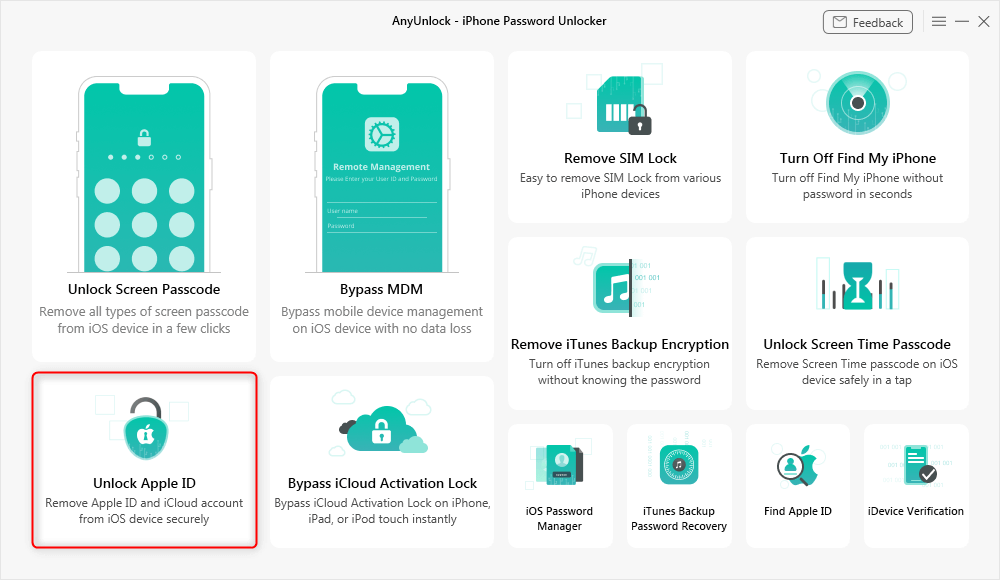
Click Unlock Apple ID from the Homepage
Step 2: Please connect your iOS device to your Windows or Mac computer by using a USB cable. Once your device is successfully connected, please select the “Unlock Now” option.
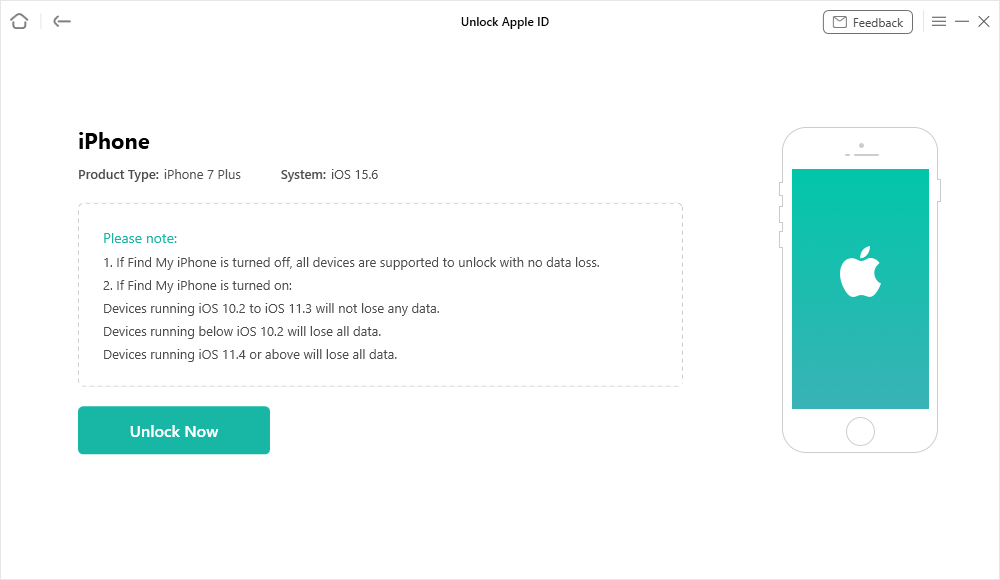
Click Unlock Now Button
Step 3. After selecting “Unlock Now”, AnyUnlock will unlock your Apple ID automatically. Please don’t unplug your device during the unlocking process, or it may cause a failure. Once AnyUnlock successfully removes the Apple ID, you will see the interface given below.
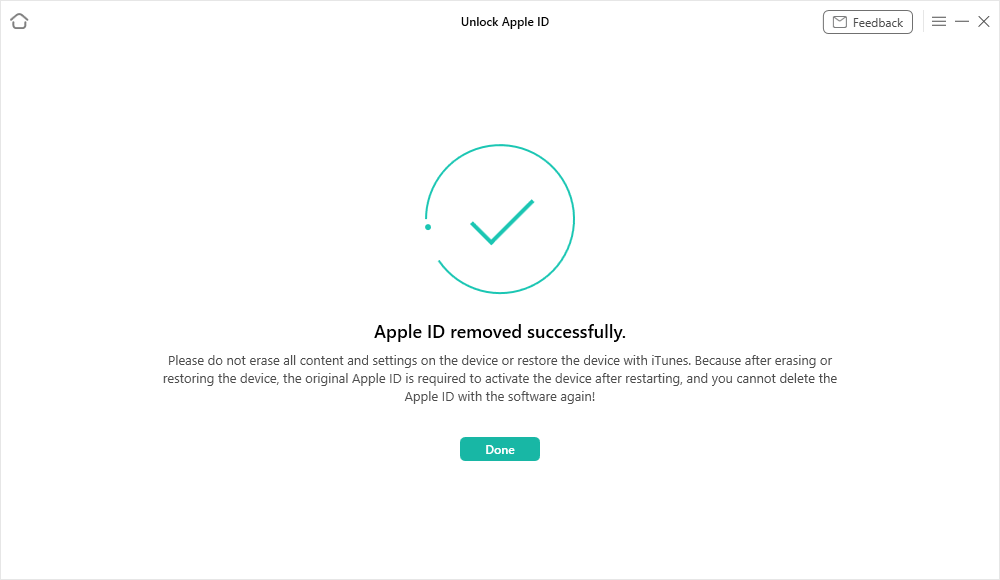
Apple ID Removed Successfully
Conclusion
The “Cannot Create Apple ID at this time” error usually comes down to issues like server downtime or misconfigurations. This guide covered 10 effective fixes along with step-by-step instructions for creating an Apple ID on multiple Apple platforms. Moreover, AnyUnlock offers a safe way to remove an Apple ID without a password if your device is still tied to an old account.



Wanda Norris is a junior author in iMobie specializing in iOS tips and solutions. She keeps a close eye on every iOS update to provide practical, easy-to-understand guides that help users solve problems and master their Apple devices.
Product-related questions? Contact Our Support Team to Get Quick Solution >
