How Long Can an iPhone be Erase or Reset? 2026 Guide
Erasing an iPhone can take 5 minutes to over an hour, depending on the model, storage, and method used. This 2026 guide details average reset times for 4 methods, factors affecting speed, and tips to avoid delays. For locked devices or faster resets, AnyUnlock offers a reliable, user-friendly solution.
AnyUnlock – Reset iPhones Without Passwords
Free download AnyUnlock to reset your iDevices without passwords, including passcodes, Face ID, and so on. [Support the latest iOS 26]
Erasing an iPhone is common before selling, troubleshooting, or starting fresh, but the time varies by model, storage, and method. Newer models like iPhone 16/17 reset in minutes, while older ones with large data may take longer. This guide provides average reset times for 4 methods, factors influencing speed, and AnyUnlock as a quick, secure alternative for locked devices.
Part 1. How Long Does It Take to Erase an iPhone?
Erasing an iPhone typically takes 5–30 minutes, depending on the device and method. Newer models (e.g., iPhone 14/15/16 with A16/A17 chips) reset faster (5–10 minutes for 128GB), while older models (e.g., iPhone 8) with 512GB of data can take up to 30–60 minutes. A factory reset wipes all apps, photos, settings, and accounts, restoring the device to its original state. Delays beyond an hour suggest software or hardware issues.
The following is the time required for different methods:
1. Erase iPhone via Settings
How long it takes: Normally 5–10 minutes.
The easiest way to erase iPhone data is by using the Settings app to do the work. This works best if you have the phone and know the passcode. Resetting it erases all the data, whether contacts, photos, apps, or accounts.
Step 1: Open Settings > General > Transfer or Reset iPhone.
Step 2: Tap “Erase All Content and Settings” > Continue.
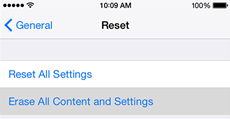
Choose Erase All Content and Settings
Step 3: Enter passcode and Apple ID password.
Step 4: iPhone restarts and erases. Ensure a full battery or charger.
2. Erase iPhone with iCloud
Time required: 10-15 minutes in normal conditions, varying as per the Internet connection.
If your iPhone is lost or stolen, or if you simply do not have it with you, then this is the procedure for erasing the iPhone remotely via iCloud. This only works on the condition that the device gets internet access; if not, the request will remain pending under the “Erase Pending” state until the phone comes online.
Step 1: Visit icloud.com on another device, sign in with your Apple ID.
Step 2: Select Find iPhone > All Devices > choose your iPhone.
Step 3: Click “Erase This Device” and confirm with your Apple ID password.
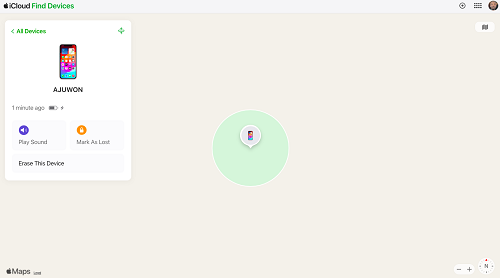
Tap the Erase This Device icon
Step 4: Erase begins when the device connects online.
3. Erase iPhone with Find My App
How long it takes: Usually 5–15 minutes if the iPhone is online.
Your iPhone is gone, and you wish to protect your private information. You need the Find My app. It works much the same way as iCloud, but is usually faster and easier if you are near another Apple device, such as an iPad or spare iPhone. You can track the phone, lock it, or wipe all of its data remotely.
Step 1: Open Find My app on another Apple device.
Step 2: Tap Devices, select your iPhone, swipe up, and tap “Erase This Device.”
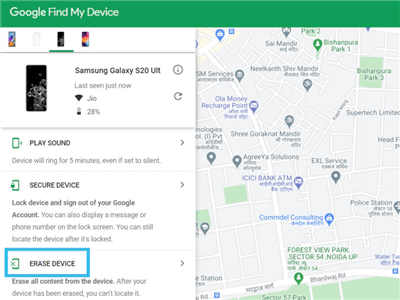
Select Erase Device on Google Find My
Step 3: Confirm with Apple ID password. Erase starts if online.
Part 2. Quickest Way to Erase/Reset iPhone with Anyunlock
Sometimes, normal methods take so much time or just don’t produce the desired result. In such a case, AnyUnlock can be of help. This is an efficient tool that enables you to reset or delete your iPhone even with a forgotten passcode. You can remove screen locks with the Screen Unlocker and get rid of screen passcode, Apple ID, MDM limits, SIM, or iTunes backup.
The program supports the latest iOS versions, supporting different iPhones and iPads. The steps are so simple that even someone without tech expertise can follow.
Free Download * 100% Clean & Safe
Key Features of AnyUnlock
- Erase and reset iPhone with Screen Unlocker in a few clicks
- Unlock screen passcodes (4-digit, 6-digit, Touch ID, Face ID)
- Remove Apple ID without a password
- Bypass iCloud Activation Lock
- Remove iTunes backup password or Screen Time passcode
- Works with the latest iOS versions and supports many devices
How to Erase iPhone Without Password Using AnyUnlock
Step 1: Install AnyUnlock on your computer. Plug in your iPhone or iPad using a USB cable. Open the software and choose “Unlock Screen Passcode”.
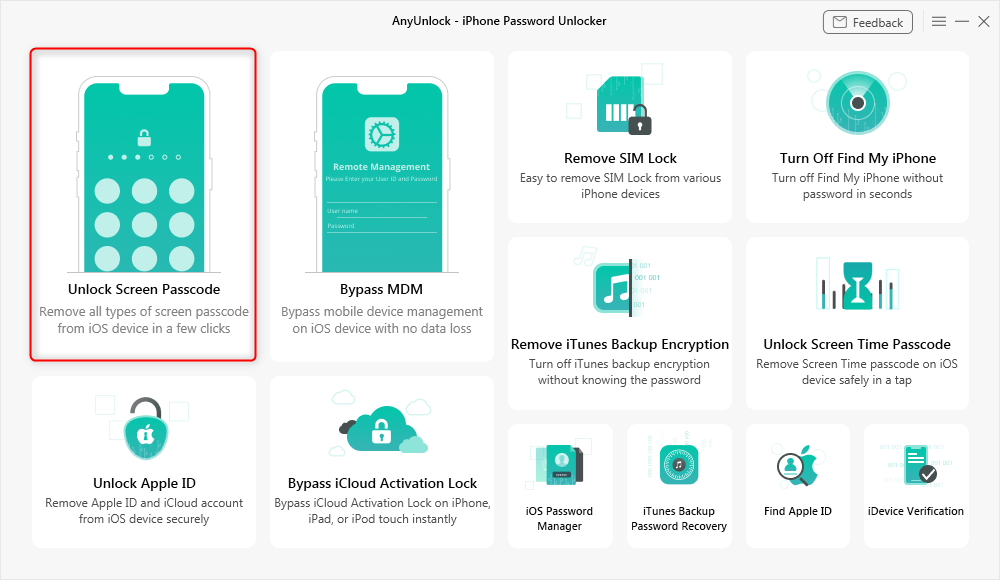
Choose Unlock Screen Mode
Step 2: Once the device is detected, click “Start Now.” The program will match the right firmware for your model. Select it and hit “Download.” If the device isn’t detected, put it into recovery mode manually.
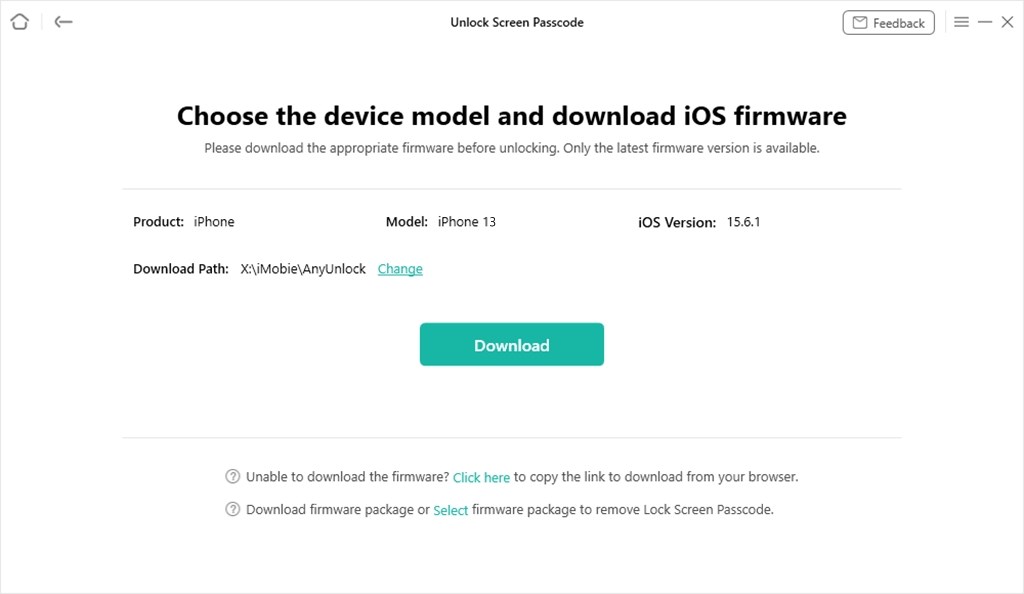
Get Matching Firmware for iPhone 13
Step 3: The firmware will start downloading. This can take some time, so keep your internet stable and make sure your computer has enough storage.
Step 4: Whenever the firmware is ready, click “Unlock Now.”
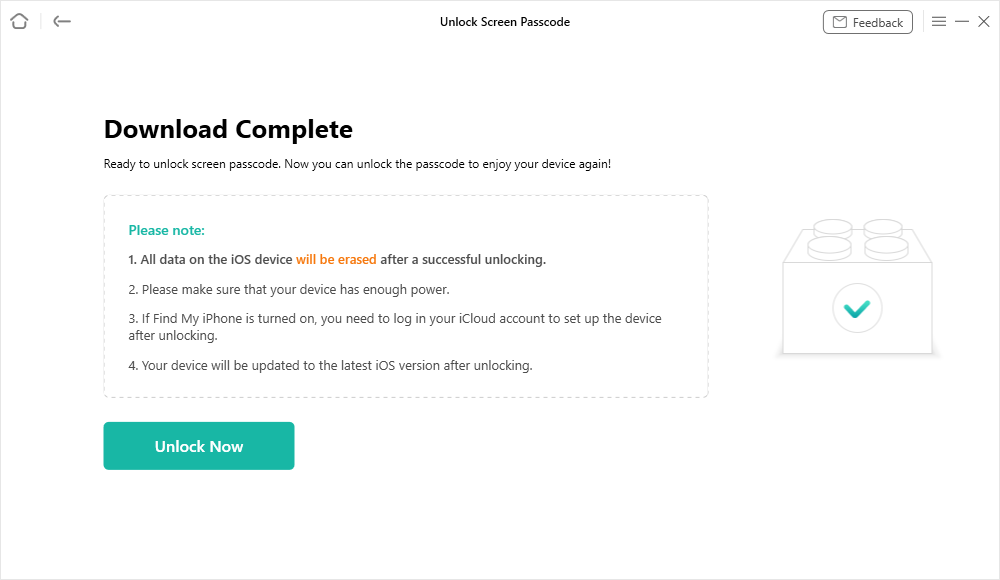
Download Suitable Firmware
Step 5: AnyUnlock will unlock the screen passcode. You need to keep connecting your device during this process. In just a few minutes, your iPhone or iPad will get unlocked.
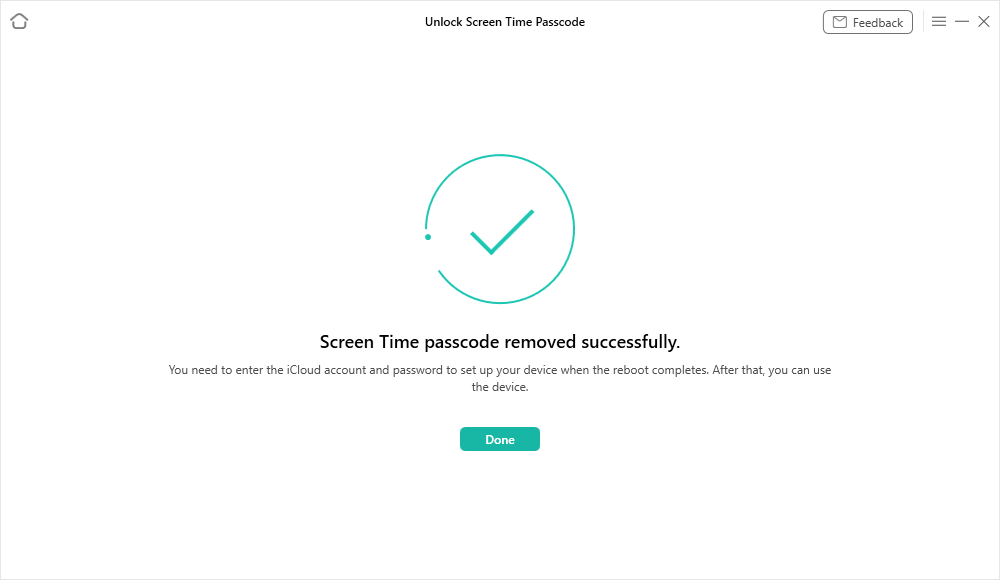
Successfully Removed Screen Time Passcode
Part 3. Factors Influencing Erase Time
- iPhone Model: Newer chips (e.g., A16/A17 in iPhone 14/15/16) reset faster than older ones (e.g., iPhone 6S).
- Storage Size: 1TB takes longer (15–30 minutes) than 64GB (5–10 minutes).
- iOS Version: iOS 18 optimizes reset speed; older versions may lag.
- Reset Method: Settings is fastest; iCloud/Find My depends on internet.
- System Issues: Corrupted data or software bugs can extend times or cause “Erase Pending.”
Part 4. FAQ
Q1. Why is it taking so long to erase my iPhone?
Large storage (e.g., 512GB+), slow internet (for iCloud), older models, or software bugs can delay erasing. Restart or use AnyUnlock for faster results.
Q2. Does erasing an iPhone delete everything?
Yes, it wipes away all apps, photos, messages, and settings, leaving the phone brand new.
Q3. How to wipe an iPhone if you lose it?
You can use the Find My iPhone feature from iCloud. With your Apple ID, log in, then select “Erase iPhone” in order to wipe it remotely.
Q4. What is iPhone stuck on erase pending?
It means the erase command was sent but hasn’t started yet, often because the phone is offline. Once it connects to the internet, the process begins.
Part 5. Conclusion
There are many reasons you might need to erase or reset your iPhone. How long does it take to erase iPhone? It depends on the model, storage, and method, but now you know the usual times and what can affect the speed. If you want an easier way to reset or unlock your device, AnyUnlock is a good choice. It works on most iPhones and makes the process simple, even without tech experience.



Wanda Norris is a junior author in iMobie specializing in iOS tips and solutions. She keeps a close eye on every iOS update to provide practical, easy-to-understand guides that help users solve problems and master their Apple devices.
Product-related questions? Contact Our Support Team to Get Quick Solution >
