How to Reset Apple ID Password Online [Full Guide]
To reset your Apple ID password online, go to Apple’s iForgot website. Within this site, you get to reset the password with a trusted device, phone, or security questions. Moreover, try AnyUnlock to regain access to your Apple ID account without credentials.
Users may feel annoyed after forgetting their Apple ID password, especially when it locks them out of essential services like iCloud. Fortunately, Apple offers several ways to reset your password online, with the iForgot portal making recovery simple through trusted devices or a recovery email. In this guide, we’ll help you learn how to reset Apple ID password online with regular ways. We’ll also explore an alternative solution, AnyUnlock, for cases when traditional methods don’t work.
Table of ContentsHide
Can You Reset Your Apple ID Online?
How to Reset Apple ID Password Online?
- Way 1. Reset Apple ID Password Online via Two-Factor Authentication
- Way 2. Use Recovery Key/Recovery Contact to Reset Apple ID Password Online
- Way 3. Reset Apple ID Password with Email/Security Questions
Alternatives to Unlock Apple ID Password When Forgotten
- Way 1. Remove Apple ID Password via AnyUnlock
- Way 2. Retrieve Apple ID Password via Browsers
- Way 3. Recover Apple ID Password via System Settings
FAQs about How to Reset Apple ID Password Online
Can You Reset Your Apple ID Online?
Yes. Apple allows you to reset your Apple ID password online. The process works in any web browser and only takes a few minutes. To confirm it’s really you, Apple may ask for verification through a trusted device, recovery email, or security questions. Once verified, you can create a new password and immediately restore access to iCloud, the App Store, Apple Music, and other Apple services.
How to Reset Apple ID Password Online?
According to Apple, there are three main ways to reset your Apple ID password online. Each method uses its iForgot website with different verification options. Use one of the following methods that matches the security settings you have enabled on your account.
Way 1. Reset Apple ID Password Online via Two-Factor Authentication
Two-Factor Authentication (2FA) is Apple’s most secure method for resetting your Apple ID password online. When you attempt to reset your Apple ID, a verification prompt will be sent to your trusted device or phone number, confirming your identity before allowing the change. Follow these steps to reset Apple ID password online:
Step 1. Upon launching your browser, shift to the iForgot website. Then, click the Reset Password button.
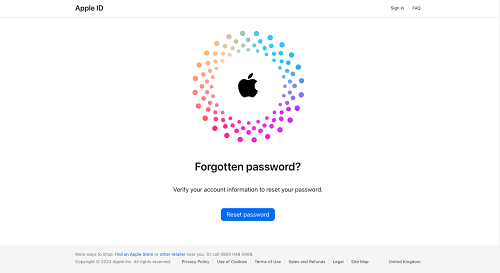
click on the Reset password icon
Step 2. Enter the email address linked to your ID and fill in captcha before tapping Continue.
Step 3. Tap Allow to reset your Apple ID password. Finally, create and confirm a new Apple ID password online.
Way 2. Use Recovery Key/Recovery Contact to Reset Apple ID Password Online
If you set up advanced account recovery, Recovery Key or Recovery Contact would help to reset Apple ID password online when you can’t use your devices or trusted number.
Use Apple ID Recovery Key:
A Recovery Key is a 28-character code you generated for your Apple ID when enabling advanced account recovery. It is also a secure way to regain access to your Apple ID. The downside: if you misplace this code, recovery becomes almost impossible, so it’s critical to keep it safe. Here’s how you can reset Apple ID password online:
Step 1. Visit iForgot website and start the reset process. Choose Forgotten Password and enter your recovery key.
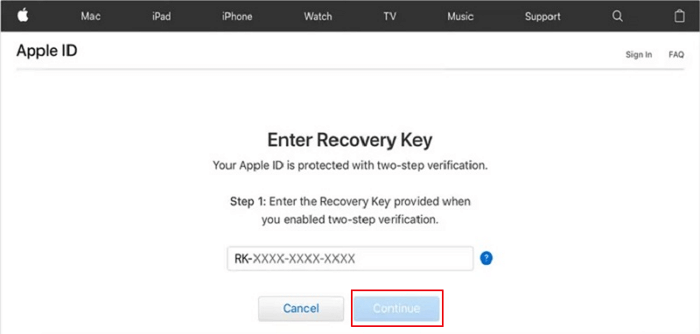
Enter Recovery Key and Click Continue
Step 2. Enter the verification code sent to your trusted number. Once your key and code get verified, the system will let you set new passwords.
Use Apple ID Recovery Contact:
If you’ve set up a Recovery Contact, you can ask a trusted person to help reset your password. This option is more user-friendly than a Recovery Key and is especially useful if you’re locked out of your devices. To use this method:
Step 1. Within iForgot website, tap Reset Password > Reset My Password. Enter your Apple ID email or phone number, and click Continue.
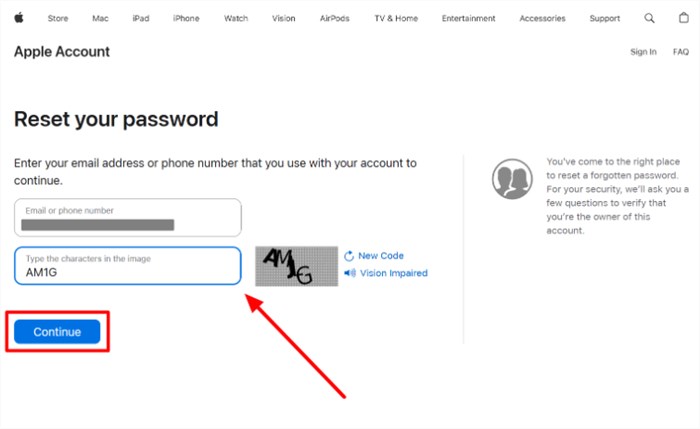
Enter Email and Captcha
Step 2. Tap Can’t Use This Number? > Get Help from Your Recovery Contact.
Step 3. Hit the Get Help Now button on the recovery contact screen. Your designated contact must now help you.
Step 4. Ask your recovery contact to open Settings and then tap on their Apple ID. Then, go to the Sign-In & Security screen and from there enter Recovery Contacts. Tap your name > Get Recovery Code.
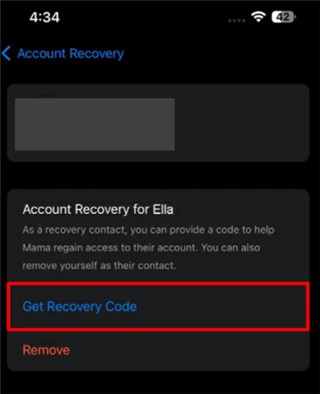
Press Get Recovery Code
Step 5. Once they share this recovery code, enter within iForgot. Finally, follow some prompts on your screen to set and confirm new passwords.
Way 3. Reset Apple ID Password with Email/Security Questions
When you haven’t enabled two-factor authentication or advanced account recovery, Apple still provides older recovery methods such as recovery email or security questions. These are less secure than 2FA or Recovery Key, but they remain a fallback for older Apple IDs or accounts not upgraded to the latest security standards. Follow these instructions to reset Apple ID password online:
Step 1. Go to iForgot website and enter the email address of your ID. Tap on I Need to Reset My Password > Continue.
Step 2. Hit the Get an Email option and follow the link it provides to create new passcodes. Upon picking Answer Security Questions, answer all three questions correctly to regain access.
Alternatives to Unlock Apple ID Password When Forgotten
When official online reset options aren’t available, additional tricks can help. Here are three alternative ways to regain access to your Apple ID:
Way 1. Remove Apple ID Password via AnyUnlock
AnyUnlock is an advanced iPhone unlocker by iMobie that can remove a locked Apple ID without needing the old password. Compatible with Windows and Mac, it support unlock Apple ID on most iPhone, including the latest iphone 17. When Find My iPhone is turned off, iPhones are supported to unlock Apple ID without loss of any data. Its user-friendly design makes it suitable for both beginners and advanced users. Except for Apple ID unlock, AnyUnlock also can help you remove iPhone screen locks, bypass iCloud activation lock, etc.
Main Features of AnyUnlock:
- Remove Apple ID from iPhone without password.
- Easy steps & fast unlocking process to remove Apple ID.
- Support the latest iOS 26/iPadOS 26, iPhone 17, iPad Pro models.
- Also unlock iCloud, iOS screen lock, SIM card, MDM, etc.
Free Download * 100% Clean & Safe
To use AnyUnlock to remove this account, follow these steps:
Step 1. Download and install AnyUnlock on your computer. Launch it and tap Unlock Apple ID from its main screen.
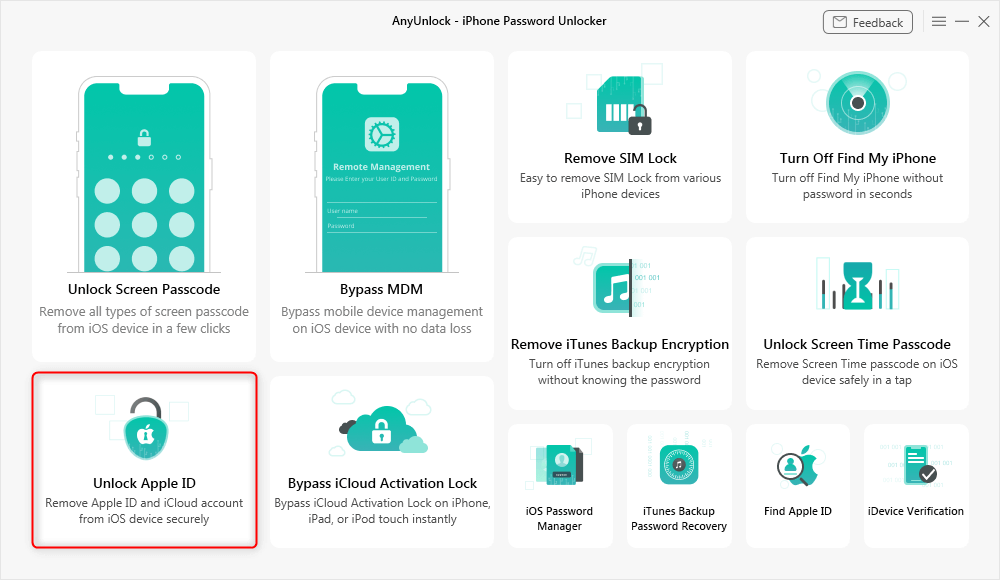
Click Unlock Apple ID from the Homepage
Step 2. Connect your iPhone to the computer using a USB cable and click Start Now to begin.
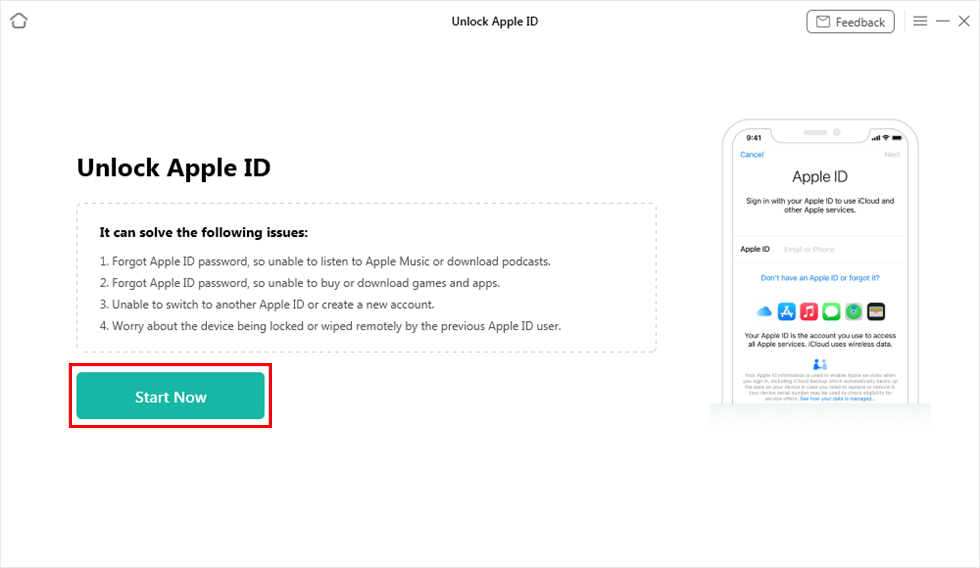
Click on Start Now Button
Step 3. Click Unlock Now and wait while this tool removes the Apple ID from your device. Wait the Apple ID is removed successfully
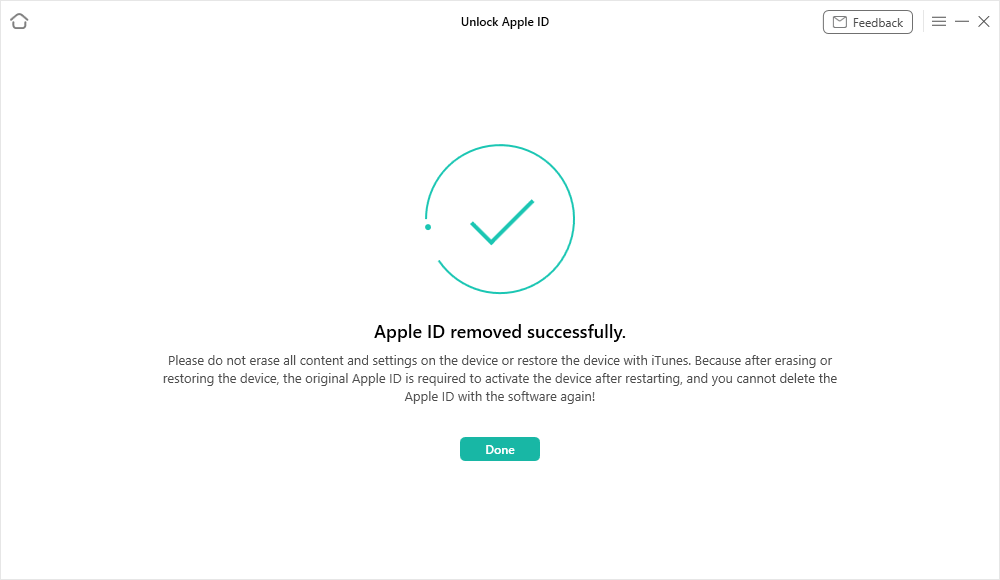
Apple ID Removed Successfully
Way 2. Retrieve Apple ID Password via Browsers
In case you ever saved your Apple ID password in a web browser, you can view it there instead of resetting it. Modern browsers like Chrome and Safari have a Password Manager, which you can use as follows:
Step 1. After opening your browser, go to Settings and enter Autofill and Passwords. Now, tap on Google Password Manager to proceed with this task.
Step 2. Moving forward, locate the entry for your Apple ID account and tap the eye icon next to the saved password.
Way 3. Recover Apple ID Password via System Settings
If you are already signed in with your Apple ID on a trusted device, the simplest way to reset your password is directly through the system settings. However, this method only works if you’re still signed in on a trusted device and know its passcode or login password. Here are steps to recover Apple ID password via system settings:
Step 1. Open Settings and then tap on your profile.
Step 2. Proceed to hit the Sign-In & Security option and then press Change Password.
Step 3. Moving forward, enter your device passcode and then write a new password on the screen.
Bonus Tip: Change Your Apple ID Password on Web with Known Credentials
If you remember your current Apple ID password, you can simply update it from your account settings. Just sign in to Apple’s account website and complete two-factor authentication if prompted. Once you are logged in, choose Sign-In & Security and click Change Password from the Password screen. Afterwards, simply write your current password and then enter a new password. Then, clicking the Change Password button will save the update.
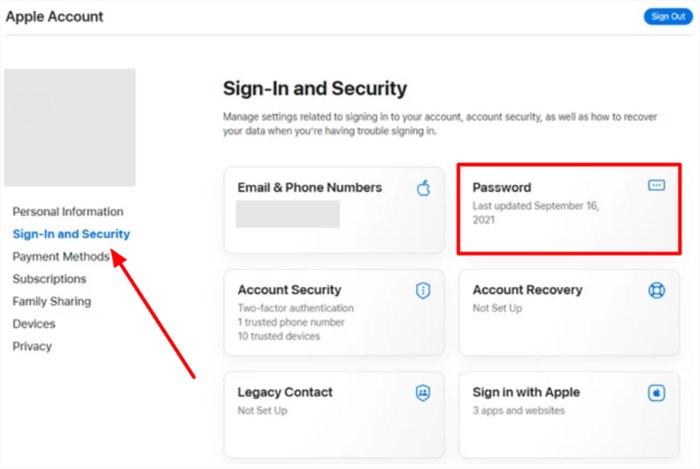
Change Password on Web
FAQs about How to Reset Apple ID Password Online
Q1. How do I recover my Apple ID password?
To recover your password, go to the iForgot site and enter your email address. Then, follow the prompts to verify your identity and reset the password. If you’re already signed in on a device, you can also reset it in the Sign-In & Security settings.
Q2. How to reset Apple ID password without email or phone?
On the iForgot website, tap “Can’t Use this Number?” repeatedly until you can enter a 28-digit Recovery Key or select the Recovery Contact method.
Q3. How to reset or change your Apple ID password?
You can either reset it using the iForgot website or sign in to your Apple account if you know the old password. Afterwards, go to the Sign-In & Security settings and choose the Change Password option.
Conclusion
In this guide, we covered six practical ways to reset Apple ID password online. For a more reliable and user-friendly solution, AnyUnlock stands out. Unlike traditional methods that require trusted devices or a password, AnyUnlock directly helps you remove a locked Apple ID with a few clicks. Free download AnyUnlock to reset your Apple ID password securely, regain access to iCloud, and fix your disabled account in the App Store and iTunes without hassle.
Free Download * 100% Clean & Safe



Wanda Norris is a junior author in iMobie specializing in iOS tips and solutions. She keeps a close eye on every iOS update to provide practical, easy-to-understand guides that help users solve problems and master their Apple devices.
Product-related questions? Contact Our Support Team to Get Quick Solution >
