How to Change Account Location on Roblox: Official Fixes & Workarounds for 2026
Stuck with the wrong region on Roblox? This guide explains how to update your account location using official billing adjustments, along with safe alternative methods to change your region and currency quickly and effectively.
When I recently moved from the United States to Europe, I ran into an incredibly frustrating issue: my Roblox store was still stuck in USD, and my account seemed permanently tied to my old American address. After searching endlessly for “how to change account location on Roblox,” I quickly realized that the official help pages were frustratingly vague. Meanwhile, community forums were full of conflicting advice about using shady free VPNs or searching for account settings that simply do not exist.
If you are reading this, you are probably in the same boat. Maybe you have relocated permanently and want your Robux pricing to reflect your new local currency. Or, perhaps you are simply trying to access a region-locked game that isn’t available in your country.
As a gamer and tech editor who has tested these methods across iOS, Android, and Windows desktop environments, I wrote this guide to save you the headache I went through. We are going to separate fact from fiction. We will look at exactly why your account is stuck, the official (and safe) way to permanently update your billing region, and the temporary workarounds available if you just want to play international games.
Why Your Roblox Region is Wrong (And Why There is No Simple Toggle)
If you are tearing your hair out looking for a simple “change country” dropdown menu in your account settings, you can stop right now. It doesn’t exist.
Here is the expert insight that most other tutorials completely miss: Roblox does not allow you to manually toggle your location in your profile preferences. Instead, the platform’s backend system triangulates your physical location using three primary signals:
1.Network Detection (IP Address): Roblox continuously scans your active network connection. If you created your profile while living in the US, the system logged a US IP address as your home base.
2.Financial History: This is the strongest anchor. The country attached to your verified credit card or PayPal account heavily dictates your locked region. Even after you move abroad, your old payment methods keep your account tethered to your previous country.
3.Server Activity: Consistent logins from specific regional server nodes solidify your profile’s assumed location over time.
This layered approach is designed to prevent users from easily hopping regions to exploit cheaper international currency rates. Because the system relies on this heavy data triangulation, trying to fix a billing or currency issue by simply changing your IP address will not work.
WARNING: The Danger of Free VPNs
Many outdated guides suggest using a free VPN to mask your location. Do not do this for account settings. Modern security patches easily detect shared, public VPN nodes. Relying on these low-quality services to change your location often triggers automated security lockouts, flags your account for fraud, and can temporarily freeze your ability to make purchases.
To successfully update your account, you must choose the right solution for your specific problem. If you moved and need to fix your currency, you need a Permanent Billing Update. If you just want to access a region-locked experience, you need a Temporary GPS Workaround. Let’s break down both.
The Permanent Fix: The Official Roblox Billing Country Change
If you have permanently relocated and want your currency, pricing, and store options to match your new physical location, this is the only officially recognized and safe procedure.
Updating your billing information with a local payment method forces the platform’s backend system to reassess your geographic origin. By adding verified financial credentials from your new country, you prove to Roblox that you have genuinely moved.
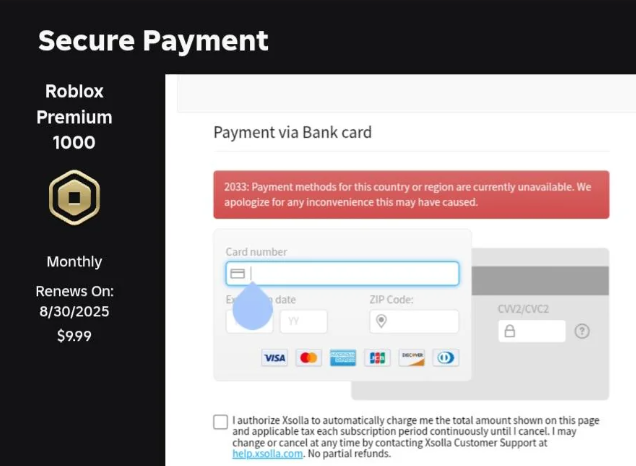
Step-by-Step Procedure for Updating Billing
1.Log In Securely via Desktop: Open your preferred desktop web browser and log into your profile. Always use a Windows or Mac computer for this process. The mobile app interface can be glitchy when updating financial details.
2.Access Account Settings: Click the gear icon located in the upper right corner of the screen and select “Settings.”
3.Navigate to Billing: Select the “Billing” tab from the navigation menu on the left side of the screen.
4.Update Your Payment Method: Input a new, localized credit card or debit card . The card must be registered to a physical physical address in your new country, and the postal code you enter must perfectly match the billing address on file with your bank.
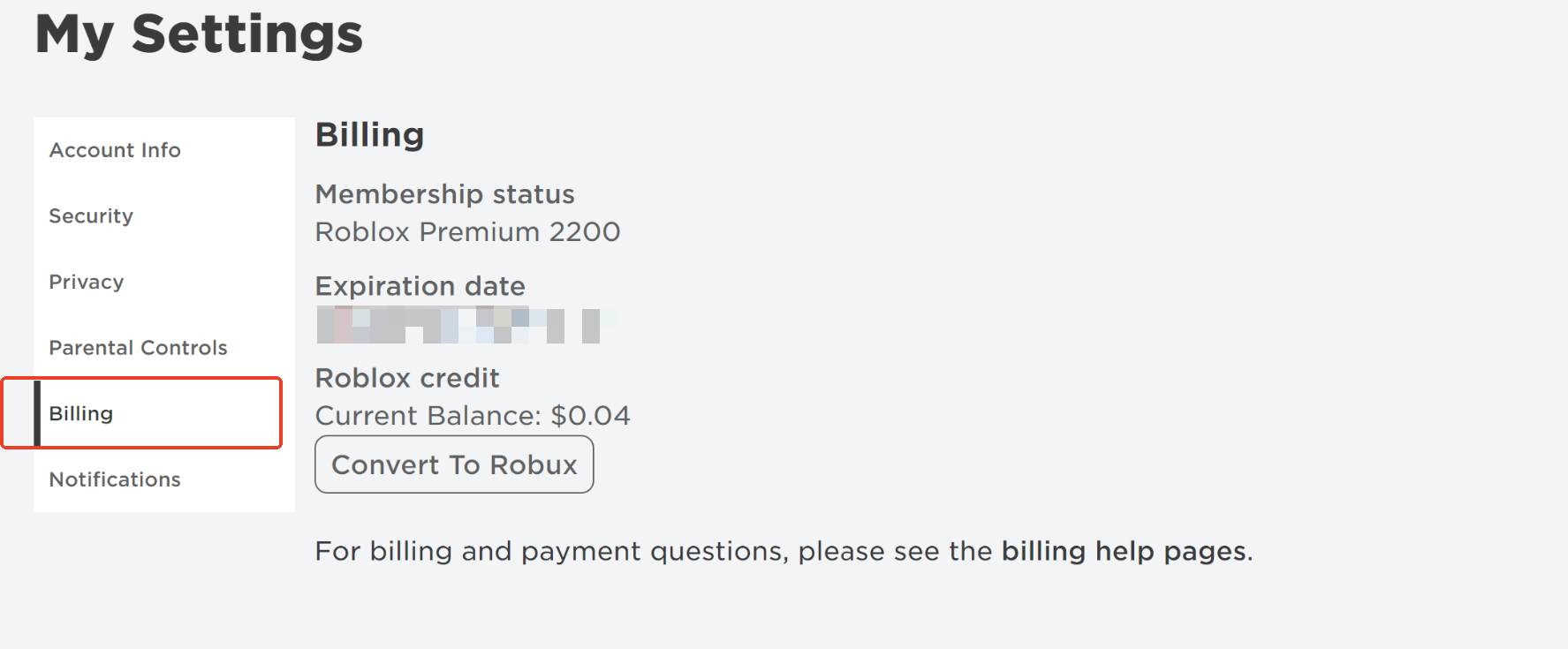
5.Make a Verification Purchase: Buy the smallest available tier of Robux using this newly added local payment method.
Once the payment processes successfully, the system will slowly update your store’s currency settings to align with the payment origin. However, this sync is rarely instantaneous. It typically takes the system about 48 hours to fully migrate your profile to the new region.
What to Do When the Manual Update Fails (Contacting Support)
Sometimes, especially if your account has years of purchase history in your old country, the system will stubbornly refuse to update automatically. If your currency hasn’t changed after 48 hours, or if your new card is actively being declined due to a region mismatch, you must contact customer service.
Here is exactly how to do that, and what you will need:
1.Go to the Official Support Portal: Navigate directly to en.help.roblox.com and click on “Contact Us,” which will take you to the official support form.
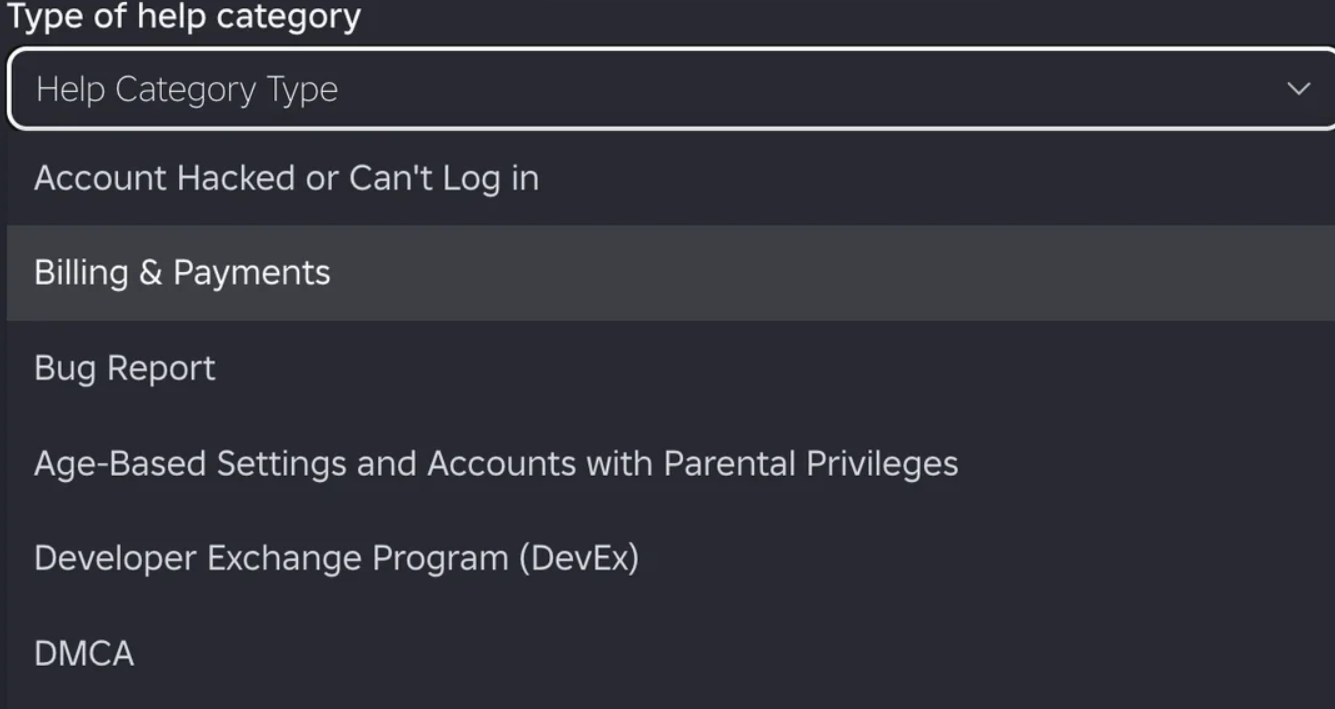
2.Select the Right Categories: Under “Type of help category,” select Billing & Payments, and then choose the sub-category regarding currency or account updates.
3.State Your Case Clearly: In the description box, explicitly state: “I have permanently relocated from [Old Country] to [New Country]. I have attempted to update my payment method, but my account currency is still locked to my previous region. Please update my account region manually.”
4.Provide Proof of Residency: Customer support will reply to your ticket via email. To process the change, they will require proof that you actually live in the new country. Be prepared to attach a high-quality photo of one of the following:
- A recent utility bill (water, electric, or gas) showing your name and new address.
- A recent bank statement (with sensitive financial numbers blacked out) showing your local address.
- A government-issued ID, like a local driver’s license or residency card.
Once provided, support will manually flip your account to the correct region, permanently fixing your currency issues.
The Temporary Workaround: Using GPS Tools for Region-Locked Games
What if you haven’t moved at all? What if you are a player who just wants to test pricing differences, or you are trying to access a specific game experience that the developer has locked to another country (like Japan or the UK)?
In this scenario, changing your official billing information makes absolutely no sense. Instead, you need a way to temporarily trick the Roblox mobile app into thinking your physical device is in a different country.
For this specific use case, premium GPS simulation tools like Fonelora Location Changer are highly effective. Unlike free VPNs that just mask your network (and get you flagged for fraud), Fonelora physically alters the GPS coordinates broadcasted by your phone.
Important Clarification: Using a GPS tool like this does not change your permanent account settings or your store currency. It is strictly a temporary trick for your current play session. You must keep the software running on your computer while you play on your phone for the location change to remain active.
How to Safely Simulate a New Location
If you decide to use this workaround for gameplay purposes, follow these steps to minimize the risk of a soft-ban:
1.Connect Your Device: Download and launch Fonelora Location Changer on your PC or Mac. Connect your iOS or Android smartphone via USB or Wi-Fi. Ensure your phone is unlocked and set to “trust” the computer.

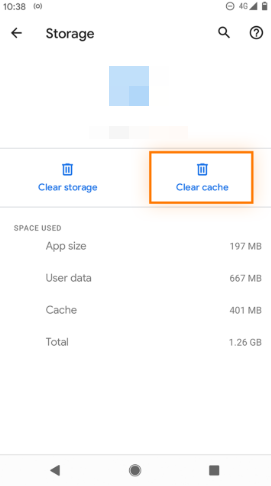
2.Clear the App Data: Before you open the game, you must clear the app’s cache on your phone. If you don’t, the app will pull your old geographic data from your previous session, causing a conflict with your new GPS coordinates and potentially triggering a security flag.
3.Select Teleport Mode: In the software interface, select “Teleport Mode.”

4.Input Target Destination: Enter your desired destination (e.g., “Tokyo, Japan”) into the search bar.
5.Apply and Play: Click the “Move” button. The tool instantly overrides your phone’s GPS data. You can now launch the mobile app and access the region-specific content.

Fonelora Location Changer features a specialized “Safe Game Mode” with a built-in cooldown timer. This prevents you from “teleporting” from New York to London in five seconds, which is a massive red flag for automated security bots. Always wait a few hours before teleporting your GPS back to your real home location.
Frequently Asked Questions
Navigating account settings can be confusing. Here are straightforward answers to the most common questions about region updates.
Can I manually change my Roblox account location in settings?
No. There is no dropdown menu or toggle to change your region. The platform infers your location based on your IP address, active payment methods, and server login history.
Why is my Robux currency wrong?
Your currency is tied to the physical location where you created your account, or to the billing address of the credit card you previously used. If you moved abroad, your currency will remain stuck until you officially update your financial footprint.
Will using a VPN fix my account region?
No. While a VPN changes your network IP, it does not change your billing history. Furthermore, the platform actively blocks known VPN IP addresses, and using one can trigger an automated security lockout on your account.
Do I have to leave the GPS spoofer running?
Yes, if you are using a tool like Fonelora to access region-locked gameplay on your phone, the software must remain active. Once you disconnect or turn off the software, your phone’s real GPS will kick back in, and you will return to your native region.
Regaining Control of Your Account
Dealing with locked regions and mismatched currencies doesn’t have to be a nightmare once you understand how the system actually operates. Stop wasting time looking for a hidden toggle switch.
If you have genuinely moved to a new country, focus entirely on the official procedure: add a local payment method, attempt a small purchase, and don’t hesitate to reach out to Customer Support with your proof of residency if the system gets stuck. It takes a little patience, but it is the only 100% safe way to permanently align your account with your new life.
On the other hand, if you are just looking to explore global, region-locked game servers for an afternoon, using a premium simulation tool like Fonelora Location Changer will help you bypass the restrictions temporarily without messing up your official account settings. By choosing the right tool for your specific situation, you can get back to gaming safely and securely.
More Related Articles



Joy Taylor is a seasoned technical writer with over a decade of experience in mobile technology. At iMobie, she specializes in producing in-depth content on iOS data recovery, iPhone unlocking solutions, and iOS troubleshooting.
Product-related questions? Contact Our Support Team to Get Quick Solution >
