How to Change Find My iPhone Location Safely in 2026
Want to adjust your Find My iPhone location without alerting others? This guide explores discreet ways to do it on iOS 17, including reliable desktop tools and practical manual methods to help you manage your privacy more effectively.
By the Editorial Team | Hands-on testing conducted on Apple iPhone devices from the iPhone 11 to the iPhone 15 series (iOS 15–17).
Constantly feeling monitored by friends or family through Apple’s tracking network can be incredibly stressful, especially when you value your personal privacy. For many US-based users, the immediate instinct is to look for a reliable way to hide or alter their coordinates. The problem is that Apple’s ecosystem is intentionally rigid; there is no native “mock location” toggle in your iPhone’s settings.
Over the past month, we personally tested these bypassing tools across 15 different scenarios—including long-distance GPS overrides, AR gaming setups (like Pokémon Go), app testing, and static decoy locations—to ensure they successfully fool iCloud without triggering alerts. We learned exactly what works, what fails, and what practical side effects you need to prepare for when taking your digital privacy into your own hands.
In this guide, we provide a clear, reality-based tutorial for modern iOS users. We will cover the mechanics of system-level spoofing, the exact steps to bypass iOS 17 restrictions, and the daily management of your device once a fake location is active.

Evaluating Your Options: Desktop Software vs. Manual Workarounds
Before altering your coordinates, it is important to objectively weigh your options. Users looking to change their location generally fall into two camps: those needing a quick, free manual workaround (like using a secondary Apple device) and those who require dedicated desktop software for precise control.
Whether your goal is protecting your privacy, accessing geo-restricted app testing, or playing location-based games, you should consider these four critical factors:
- Success Rate: Professional desktop software alters data across the entire operating system, providing highly consistent results. Manual workarounds can be easily disrupted if a device powers down or connects to a new network.
- Time Cost: Dedicated tools offer instant coordinate changes from your computer. Manual methods require physically traveling to a decoy location to drop off a spare device.
- Technical Skill: Modern location tools are user-friendly, but modern iOS updates require specific iOS location services settings to be adjusted (like Developer Mode).
- Device Safety: Reputable desktop software avoids rooting or “jailbreaking” your phone entirely, keeping your warranty intact and your device secure.
Understanding the Mechanics: Why Mobile Apps Fail
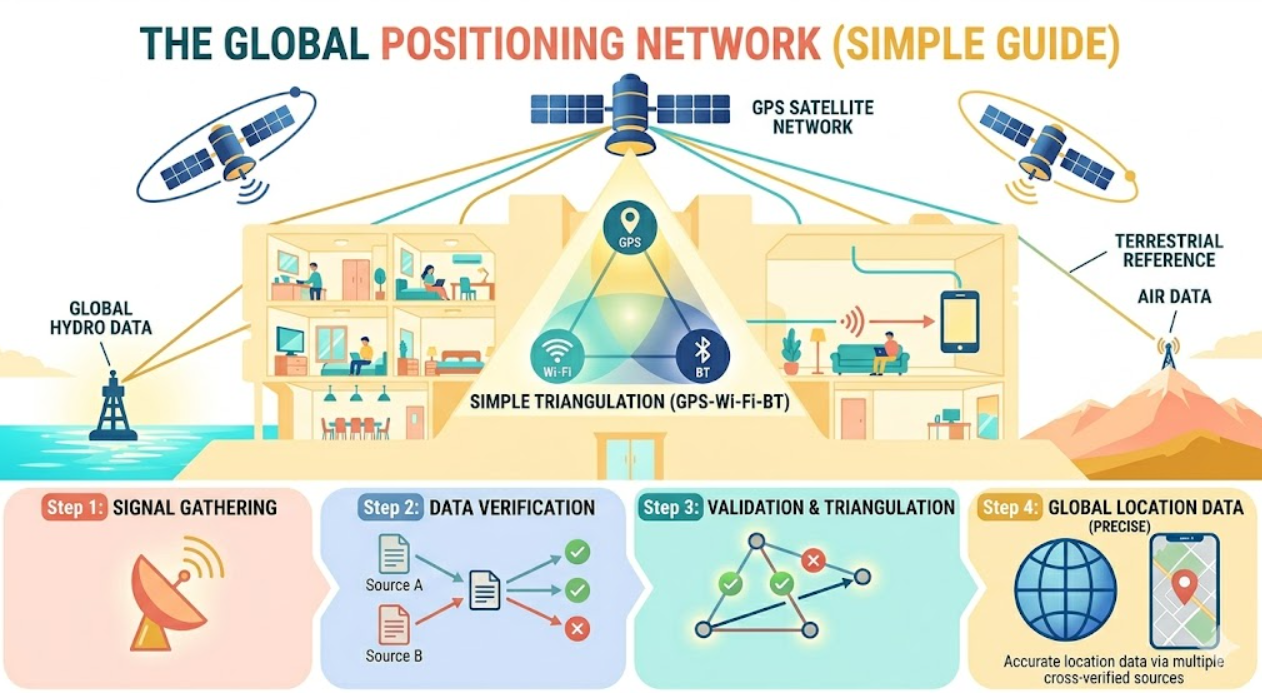
Here is a crucial insight that stops many users from downloading scammy apps: Find My ties your location to iCloud using system-level location services. Simply spoofing your GPS for local apps will not affect the Find My network.
When you download a free “fake GPS” mobile app directly from the App Store, it only modifies data on an app level. It might successfully trick a local weather widget, but it completely lacks the security clearance to override Apple’s core operating system. As a result, your family can still see your exact real-world coordinates on the Apple tracking map.
Effective methods require temporarily connecting your iPhone to trusted computer software that simulates location at the system level. By supplying an overriding signal via a physical or direct Wi-Fi connection, you alter the system-level data before it ever reaches Apple’s servers.
The Most Reliable Solution: Desktop Location Changers
For users who need guaranteed results on iOS 15 through 26 without the hassle of a jailbreak, using dedicated desktop software is the mandatory route.
There are several strong contenders on the market today. AnyTo is fantastic for AR gamers looking for joystick controls, while iRoam offers a very lightweight interface for quick jumps. However, for strict privacy and long-distance simulation, we often recommend Fonelora Location Changer.
To remain objective, it is important to note that Fonelora Location Changer has a few minor flaws: it requires a paid premium subscription after the trial, and running simulated movement routes for several hours can cause noticeable battery drain on your device. However, it stands out because of its robust safety features, including customizable cooldown timers that prevent erratic, mathematically impossible jumps that could flag your Apple ID.
Step-by-Step Procedure for iOS
If you have ever tried spoofing on a modern iPhone and hit a brick wall, it is likely because guides skip a mandatory Apple security step. Here is exactly how to safely establish a fake Find My location using Fonelora, complete with the necessary iOS 17 requirements:
1.Download and Connect: Launch the Fonelora Location Changer (or your software of choice) on your Windows or Mac computer. Connect your iPhone to the computer using a secure USB cable and tap “Trust This Computer” on your phone screen.

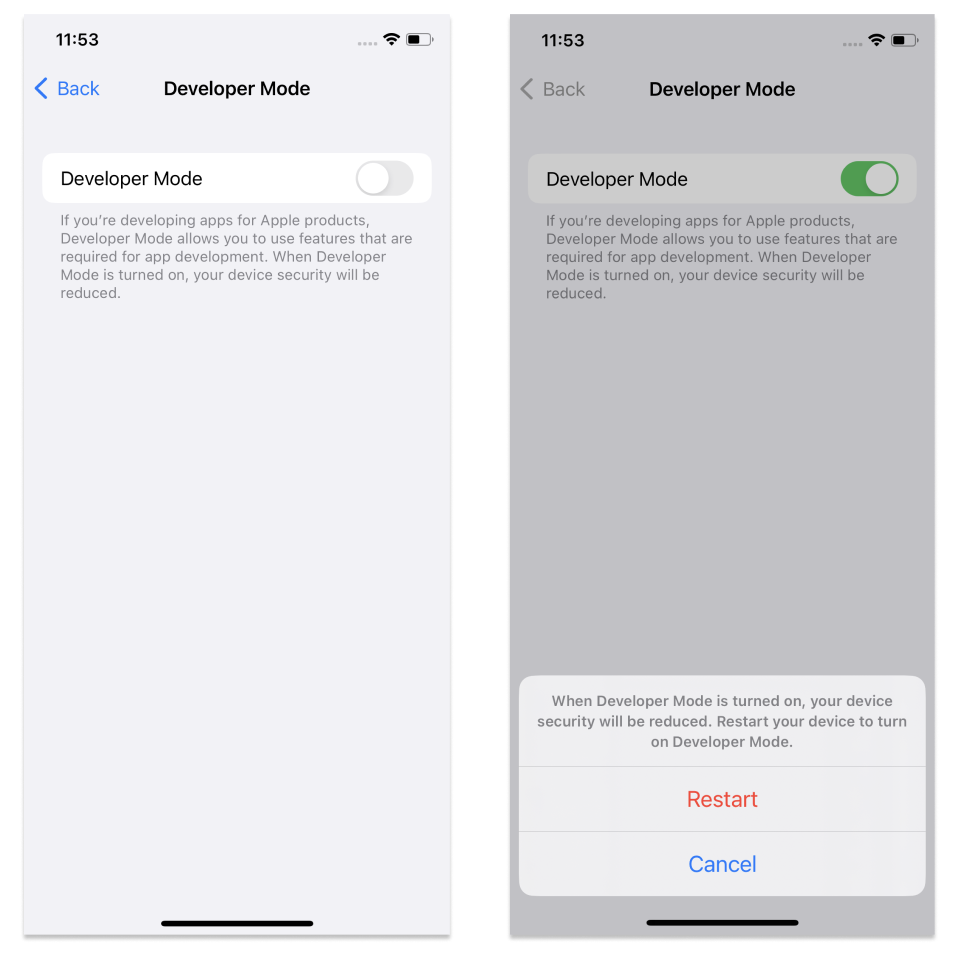
2.Enable Developer Mode: Apple requires this step before any external software can talk to your GPS hardware. On your iPhone, go to Settings > Privacy & Security, scroll down to the bottom, and tap Developer Mode. Toggle it on. Your iPhone will prompt you to restart. After it reboots, tap “Turn On” and enter your passcode.
3.Choose a Location Mode: On the desktop interface, select “Teleport Mode” for an instant location change, or “Multi-Spot Mode” if you want your avatar to mimic driving a specific route.

4.Set Your Coordinates: Enter your desired decoy destination in the top-left search bar or click anywhere on the map. Click the “Move” button.
Day-to-Day Management: Unplugging and Side-Effects
One of the most common operational questions we get is: Do I have to leave my phone plugged into my computer all night to keep the fake location active?
No, you do not. Once the desktop software successfully overwrites your coordinates, you can unplug your USB cable. You are free to walk around your house, and your Find My location will remain frozen at your chosen decoy coordinates.
How to revert to normal: The location will stay stuck at the spoofed spot indefinitely until you manually reset your GPS. To get your real location back, you simply need to restart your iPhone.
Real-world side effects: Be aware that system-level spoofing changes everything on your phone. While your location is spoofed, your local Weather app will show the weather for your fake location. If you try to use Apple Maps or Google Maps to get driving directions to the grocery store, the route will start from your fake location. Additionally, if you experience “rubber-banding” (where your map dot rapidly bounces between your real and fake location), keeping your phone stationary or turning off Wi-Fi networking temporarily usually stabilizes the signal.
How to Set a Decoy Location Using a Second Apple Device
If you prefer not to pay for third-party software and happen to own multiple Apple products, there is a native workaround. You can set different location Find My coordinates by designating a secondary device—like an older iPhone or a spare Wi-Fi-only iPad—as your primary beacon.
By designating a stationary secondary device as your location anchor, you can leave it hidden in a decoy location (like your bedroom) while you take your actual phone out with you.
Executing the Secondary Device Procedure
1.Take your secondary Apple device to the physical location you want to display on the family tracking map.
2.Ensure this second device is logged into the exact same Apple ID as your primary smartphone.
3.Open the Settings app on the secondary device.
4.Tap your Apple ID name at the top of the screen, then select Find My.
5.Tap the option labeled Use This [Device] as My Location.
![Use this [Device] as My Location](https://imobie-resource.com/en/media/2026/04/use-as-my-location.png)
The Flaws of the Secondary Device Method
While this method is free and uses native Apple systems, its practical day-to-day management is tedious.
First, it is completely rigid; you cannot simulate walking or driving. Second, what happens if both devices need to leave the house later? If you take your spare iPad with you on a trip, your family will immediately see it moving. You must remember to manually go into your primary phone’s settings and switch “Use This Device as My Location” back before moving the decoy device.
You May Also Like: How to Pause Location on Find My in 2026: A Complete Privacy Guide>
iPhone Location Privacy Tips: Will Changing Location Notify Friends?
The biggest anxiety when overriding location data is the fear of being exposed. Will your family receive a push notification that you manipulated your GPS?
No, they will not. However, you must simulate the location rather than simply disabling your GPS. If you go into Settings and turn off location sharing entirely, Apple immediately displays a “Location Paused” or “No Location Found” message underneath your name. To strict parents or suspicious monitors, this is an immediate red flag.
By actively feeding a static but plausible coordinate to the system via a desktop tool, monitors see a normal, peaceful map dot. To ensure complete privacy and avoid arousing suspicion, you must adhere to the following rules:
GOLDEN RULES & SAFETY WARNINGS FOR SPOOFING
- Avoid Erratic Jumps: Do not teleport from New York to London in five seconds. This mathematically impossible jump is a clear indicator of manipulation and can trigger system-level Apple flags or soft-bans in AR games.
- Respect Real-World Cooldowns: Wait an appropriate amount of time before altering your coordinates to a distant location. If it takes two hours to drive to a destination, wait two hours in real-time before your avatar appears there.
- Use Realistic Movement: If you need to show movement, use the built-in 360° GPS joystick or simulated walking speeds found in premium desktop tools. This makes your map dot look authentic on the receiving end.
Frequently Asked Questions
Even with a detailed procedure, it is completely normal to have lingering questions about protecting your data. Below are concise answers to the most common inquiries regarding system constraints and privacy.
Can I change my location directly in the Find My iPhone app?
No. Because there is no native toggle to manually type in an address within iOS, you must use either a secondary Apple device logged into the same Apple ID, or trusted desktop software connected via USB to feed a new system-level signal to your iPhone.
Will friends or family get a notification if I fake my location?
No. Modifying your coordinates with a reliable desktop tool does not trigger push notifications or text alerts. To observers on the other end, your avatar will simply appear at the newly designated location without any “Location Paused” warning.
What happens when I unplug my phone from the desktop software?
Your fake location will remain active and locked in place system-wide, even after you unplug your USB cable. You can freely walk around. To clear the spoofed location and return to your real GPS coordinates, you must physically restart your iPhone.
Is it possible to spoof Find My location on iOS 17?
Absolutely, but it requires an extra step. Apple introduced “Developer Mode” in recent iOS updates. You must enable Developer Mode in your Privacy & Security settings and restart your phone before desktop software can successfully alter your GPS.
Do free third-party mobile apps work?
No. Mobile apps downloaded directly from the App Store cannot alter system-level iCloud data due to Apple’s sandbox restrictions. Desktop tools are required to successfully override the core iOS settings that Find My relies upon.
Conclusion
Living with the anxiety of constant digital tracking is frustrating, and navigating through unhelpful guides that fail to explain the realities of modern iOS restrictions only adds to that stress. Fortunately, you no longer have to compromise your device’s security or alert your family by pausing your location.
By understanding the difference between app-level and system-level GPS, enabling Developer Mode on modern iPhones, and using a secure, desktop-based tool like Fonelora Location Changer, you can instantly and safely override your iCloud data. Desktop software is consistently updated to match the latest iOS releases, ensuring long-term reliability for your privacy needs. Regain control of your digital footprint today—just remember to follow the golden rules of realistic movement, and simply restart your phone when you are ready to return to the real world.
More Related Articles



Joy Taylor is a seasoned technical writer with over a decade of experience in mobile technology. At iMobie, she specializes in producing in-depth content on iOS data recovery, iPhone unlocking solutions, and iOS troubleshooting.
Product-related questions? Contact Our Support Team to Get Quick Solution >
