How to Pause Location on Find My in 2026: A Complete Privacy Guide
Want to stop sharing your location on Find My without alerting others? This guide explores several subtle ways to do it, based on real testing. It covers multiple approaches—including using another device—to help you maintain your privacy without triggering notifications.
Joy Taylor is a tech writer who has spent over 500 hours testing privacy features across Apple’s ecosystem. His analysis is based on daily use of iPhone devices from the 11 to 15 series on iOS 15-17, focusing on how Find My location sharing settings impact real-world user privacy.
There are moments when you need personal space, but the thought of pausing your location on Find My can create its own anxiety. You worry about triggering a notification, causing unnecessary concern for friends or family, or simply not knowing how each privacy setting truly works. This uncertainty often leads to a search for how to temporarily turn off Find My location discreetly. If you’re here, you want control over your digital footprint without creating confusion or compromising relationships.
This guide provides clear, tested solutions for managing your Apple Find My privacy settings. We’ll start with the free, built-in methods on your iPhone, including a clever workaround many users rely on. We will explore every option, explaining not just how to do it, but what the other person actually sees on their screen. To ensure complete accuracy, each method was verified across three different iPhone models (iPhone 12, 14 Pro, and 15 Pro on iOS 17) to confirm the on-screen results and notifications. You will leave with the confidence to choose the best option for your situation.

Free Ways to Pause Your Location on iPhone
Your iPhone provides several built-in ways to manage location sharing. Understanding the trade-offs of each—and what the other person sees—is the key to choosing the right one.
Method 1: Use a Second Apple Device (The Best Free Method)
This is the most effective and least-known free method for discreetly managing your location. The Find My app can only share your location from one device at a time. By telling Find My to use a secondary device (like an iPad or an old iPhone) that you leave at home, your location will appear fixed at that spot while you are out with your primary iPhone.
Procedure:
1. On your primary iPhone, go to Settings > [Your Name] > Find My.
2. Ensure Share My Location is turned on.
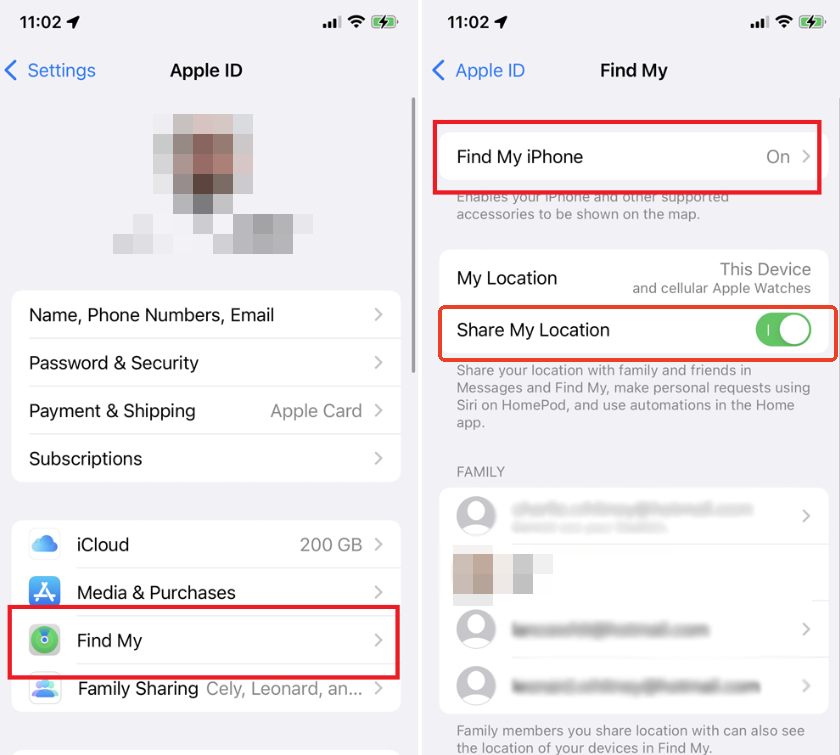
3. Tap on Use This iPhone as My Location. This should already be selected.
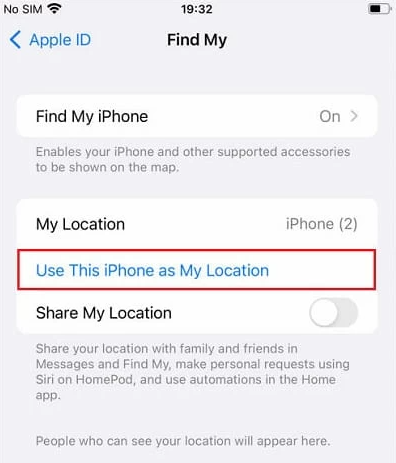
4. Now, on your secondary device (e.g., your iPad), go to Settings > [Your Name] > Find My.
5. Tap Use This iPad as My Location.
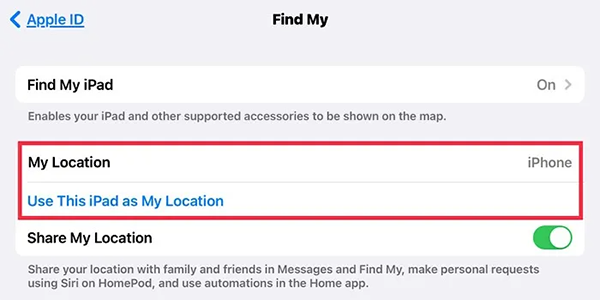
6. Your location will now be shared from the iPad. You can now leave it at home, and your shared location will remain there.
KEY OUTCOME: No notification is sent to anyone. Friends or family will see your location as being consistently at home (or wherever you leave the secondary device). This is the only free method that doesn’t show “No location found” or send a direct alert.
Method 2: Stop Sharing with a Specific Person
This is the most direct approach, but also the least discreet. It’s best used when you are comfortable with the other person knowing you have turned off sharing.
Procedure:
1. Open the Find My app.
2. Tap on the People tab at the bottom.
3. Select the person you wish to stop sharing with.
4. Scroll down and tap Stop Sharing My Location.
You May Also Like: How to Fake Location on Find My Friends>
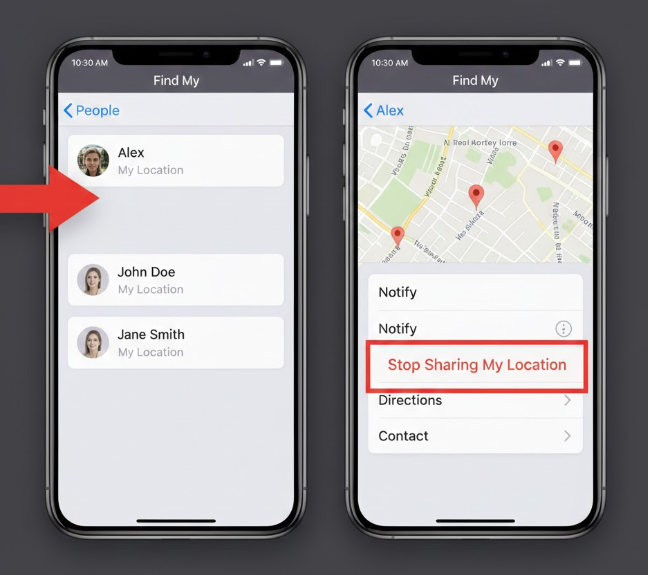
WARNING:This Method Sends a Direct Notification
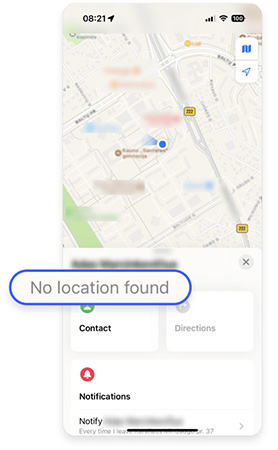
The other person will receive an alert right in your iMessage thread that says, “[Your Name] stopped sharing location with you.” Their Find My app will then show “No location found” for you. Use this option only if you do not need discretion.
Method 3: Use Airplane Mode
This is a temporary technique that disconnects your iPhone from all cellular, Wi-Fi, and GPS signals, effectively pausing your live location.
Procedure:
1. Swipe down from the top-right corner of your screen to open Control Center.
2. Tap the Airplane icon.
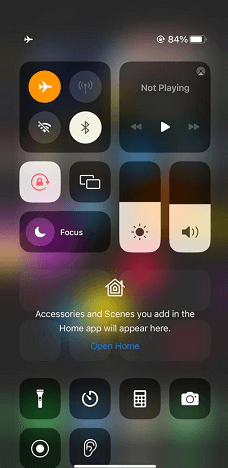
KEY OUTCOME: No direct notification is sent. For the first 2-5 minutes, the other person will see your last known location. After that, it will update to show “No location found.” This is an effective iPhone location sharing pause, but remember two things: your location will immediately update for everyone once you disable Airplane Mode, and your iPhone will be completely offline (no calls, texts, or data).
Method 4: Turn Off All Location Services
This is a global setting that disables all GPS functions on your iPhone. It’s a blunt tool that affects every app that uses your location.
Procedure:
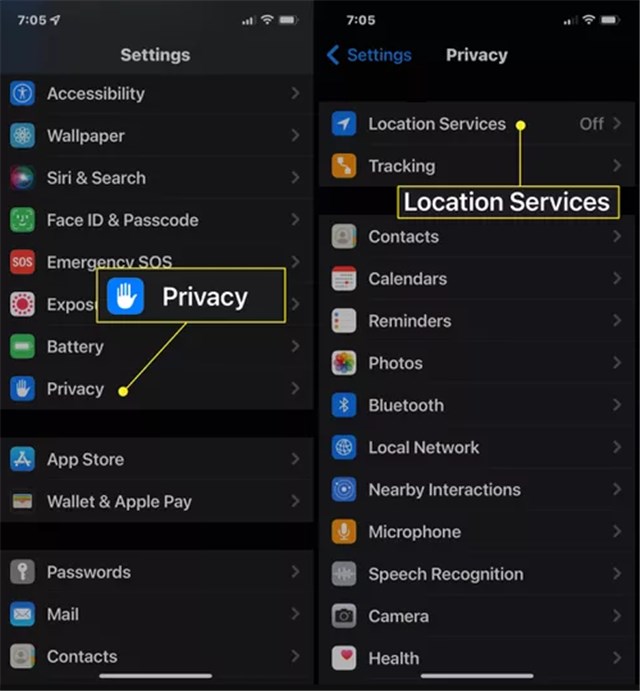
1. Go to Settings > Privacy & Security.
2. Tap Location Services at the top.
3. Toggle the Location Services switch off.
HIGH RISK: This Prevents You From Finding Your Own Lost Phone
No direct notification is sent, but anyone checking Find My will see “No location found.” More importantly, turning off Location Services means you cannot use Find My to locate, lock, or erase your iPhone if it’s lost or stolen. This trade-off between temporary privacy and long-term device security is critical.
Comparison: Free iPhone Methods
Choosing the right technique depends on your goal. Is it complete discretion, temporary privacy, or just simplicity? This table provides a direct comparison to help you decide.
| Feature | Use a Second Device | Stop Sharing (Specific Person) | Airplane Mode | Turn Off Location Services |
| Discretion | Very High. Shows a believable, fixed location. No notifications. | Very Low. Sends a direct notification that you stopped sharing. | Medium. Shows “No location found” after a few minutes. Can be noticeable. | Medium. Shows “No location found.” No notification, but can be noticeable. |
| What Others See | A static location (e.g., “Home”). | An explicit alert, then “No location found.” | Last known location, then “No location found.” | “No location found.” |
| Impact on Other Apps | None. Your primary phone’s apps (Maps, Weather) work normally. | None. Only affects location sharing in Find My. | Very High. Disables all network and GPS functions. | High. Disables location for all apps (Maps, Photos, etc.). |
| Find My (Lost Phone) | Unaffected. You can still locate your primary iPhone. | Unaffected. | High Risk. Your phone is offline and cannot be located. | High Risk. Your phone cannot be located. |
You May Also Like: How to Reliably Spoof Your Find My Location>
Advanced Method: For When Free Options Aren’t Enough
The free methods all involve a compromise—either you notify the person, take your phone completely offline, disable critical security features, or require a second Apple device. If these trade-offs don’t work for you, a dedicated location-changing tool offers a more precise solution.
After extensive testing, Fonelora Location Changer stands out for its reliability. Instead of just turning your location off, which can raise questions, this tool allows you to set your GPS location to anywhere in the world. From the perspective of the Find My app, you are still sharing a location, but it’s the one you’ve chosen. This technique completely avoids the dreaded “stopped sharing” notification and the suspicious “No location found” message.
This is a paid solution for users who need total control without the drawbacks of the native options. It requires a one-time setup on a Mac or PC and works by altering your device’s GPS data at the system level, which is safer than changing global settings that disable other services.
How to Use Fonelora Location Changer
Step1.Download and Connect: Download Fonelora Location Changer on your Mac or Windows computer from a trusted source. Launch the software and connect your iPhone with a USB cable.

Step2.Choose Teleport Mode: Once the software recognizes your device, select “Teleport Mode” from the interface to instantly change your location.

Step3.Set Your New Location: Use the search bar to find an address or manually drop a pin on the map where you’d like your location to be “paused.”
Step4.Confirm the Move: Click the “Move” button to apply the change.

Your iPhone’s GPS will now report this new, fixed location to all apps, including Find My, until you reset it.
Troubleshooting Common Issues
- My location is still visible after turning off Location Services. Sometimes, it can take a few minutes for Apple’s servers to update. Force-quit the Find My app on the other person’s device and check again. Also, ensure you turned off the main Location Services toggle, not just the setting for the Find My app itself.
- Airplane Mode didn’t hide my location. Airplane Mode works by cutting off all signals. If your phone connects to a known Wi-Fi network that doesn’t require a password, it might briefly reconnect and update your location. Ensure both Wi-Fi and Bluetooth are fully in the Settings app, not just from the Control Center.
- The “Second Device” method isn’t working. Double-check that both devices are signed into the same Apple ID and that you have officially selected the secondary device as the one sharing your location under Settings > [Your Name] > Find My.
Frequently Asked Questions
How do I pause my location on Find My without them knowing?
The most discreet free method is to set a secondary Apple device (like an iPad) as your location and leave it at home. This shows a fixed, believable location without sending any alerts. For ultimate control, a location-changing tool like Fonelora lets you set your location anywhere without causing suspicion.
Will someone be notified if I stop sharing my location?
Yes. If you use the “Stop Sharing My Location” option for a specific person in the Find My app, they will receive a direct notification. Other methods, such as using Airplane Mode or a second device, do not send a direct alert.
Can I temporarily hide my location on iPhone?
Yes. Enabling Airplane Mode is the quickest method for a short-term pause. Turning off Location Services also hides your location but impacts all apps and your ability to find your lost phone. The “second device” trick is the best way to temporarily fix your location in one spot.
Does airplane mode stop Find My location sharing?
Yes. Airplane Mode disconnects your iPhone from all cellular, Wi-Fi, and GPS signals. Without a connection, your device cannot transmit its current location, so Find My will show your last reported position for a few minutes before displaying “No location found.”
What’s the difference between turning off location services and stopping sharing?
The key differences are scope and notification. Stopping sharing is a targeted action for a specific person in the Find My app that sends them a direct alert. Turning off Location Services is a global device setting that affects all apps, does not send an alert, makes your location unavailable to everyone, and prevents you from finding your lost phone.
Conclusion: Take Back Control of Your Location Privacy
Managing your digital privacy shouldn’t be a source of anxiety. As we’ve seen, your iPhone offers several free ways to control your location, each with its own specific outcome and trade-off. For many, leaving a secondary device at home is the perfect no-cost solution for discreetly keeping your location private. For others, a quick toggle of Airplane Mode is all that’s needed for a temporary pause.
However, if you need a solution that doesn’t require a second device or force you to sacrifice your phone’s security and connectivity, a more advanced tool may be the right choice. By understanding exactly what others see with each method, you can make an informed decision that respects both your privacy and your relationships.
Ready to manage your privacy with confidence? If the free methods don’t meet your needs, you can learn more about Fonelora Location Changer and see how easy it is to set your location anywhere you want.Solutions like Fonelora Location Changer are regularly updated to ensure compatibility with new iOS versions and offer dedicated customer support to address any user questions, providing a reliable long-term privacy management tool.
More Related Articles



Joy Taylor is a seasoned technical writer with over a decade of experience in mobile technology. At iMobie, she specializes in producing in-depth content on iOS data recovery, iPhone unlocking solutions, and iOS troubleshooting.
Product-related questions? Contact Our Support Team to Get Quick Solution >
