Getting classic games to run perfectly shouldn’t require a degree in computer science. Yet, figuring out confusing firmware setups or dealing with audio lag on older smartphones is incredibly frustrating. Returning to your favorite childhood releases should be a joyful experience. Like many retro gamers, Alex just wanted to revisit his favorite titles on his laptop. Instead, he encountered confusing port compatibility issues and clunky keyboard configurations that turned a nostalgic evening into a stressful technical chore.
This article provides a clear, tested procedure for finding and configuring a reliable Game Boy Advance emulator. By following our exact step-by-step method, you will bypass these obstacles entirely. We will outline precisely how to load your games, map your controllers to fix input latency, and even sync your progress seamlessly between your desktop and mobile devices. Prepare to transform your current laptop or smartphone into a perfectly optimized gaming console in just a few minutes.
Also Read: PGSharp Monster Hunter Now
This guide focuses on classic GBA emulation, which is different from location-based mobile game setups. If your goal is to manage GPS location for mobile games or apps rather than run retro ROMs, a desktop GPS tool like Fonelora Location Changer may be more relevant. It helps iPhone and Android users change their device’s GPS location from a computer without a jailbreak or root access. For players researching emulator-based location tools, you may also want to read this PGSharp emulator PC setup guide.
Selecting the Best Game Boy Advance Emulator for Your Device
When searching for the best Game Boy Advance emulator, you will typically encounter two main software categories: multi-system frontends and standalone applications. Multi-system tools require significant configuration but offer support for dozens of distinct retro consoles within a single interface. Conversely, standalone emulators focus entirely on a single system, offering a highly accessible plug-and-play experience.
For beginners aiming for a fast GBA emulator download, we strongly recommend standalone options. These dedicated programs allow you to start playing immediately without navigating complicated sub-menus or downloading additional core files. To help you decide, consider the following evaluation criteria:
- Success Rate: Standalone apps typically boast higher initial success rates because they require fewer software dependencies to boot a game.
- Time Cost: Setting up a multi-system frontend can take hours of file management. A dedicated GBA ROM emulator takes merely minutes to install and launch.
- Technical Skill: Multi-system setups often demand complex folder structuring. Standalone tools feature standard, intuitive graphical interfaces.
- Safety Risk: Downloading simple, open-source, standalone software from official developer websites minimizes the risk of acquiring malware.
| Feature | Standalone Emulators | Multi-System Frontends |
| Setup Time | Under 5 Minutes | 30+ Minutes |
| Ease of Use | High (Plug-and-play) | Moderate to Low (Requires core downloads) |
| System Focus | Game Boy Advance exclusively | Multiple retro consoles |
| Best For | Beginners and casual players | Advanced users with large libraries |
If your goal is simple gameplay without complex menus, standalone apps are the optimal choice. Selecting the right portable emulator software early prevents configuration fatigue and ensures you spend your time actually playing the games.
Gameboy Advance Emulator for PC and Mac Configuration
The initial Game Boy Advance emulator setup phase often causes the most confusion for new users. Returning to Alex’s story, his primary goal was finding a reliable Game Boy Advance emulator for pc that didn’t require a massive manual to understand.
A common point of confusion is the Game Boy Advance BIOS. Here is the reality: highly optimized modern emulators do not require a BIOS file to boot your games. Applications like mGBA use high-level simulation to run titles instantly out of the box. Adding an official BIOS file can slightly improve audio and visual accuracy for heavily demanding games, but you can entirely skip this step and still play the vast majority of the library without seeing a single error screen.
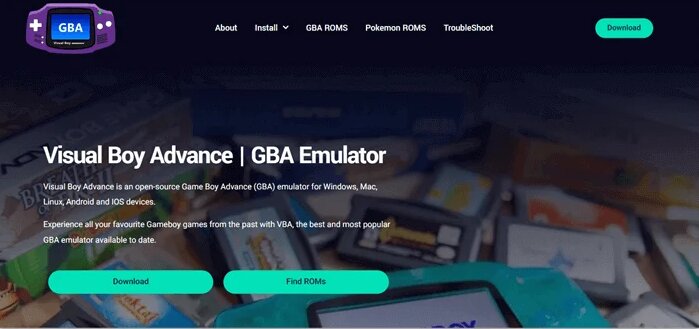
Here is the exact, step-by-step procedure to configure mGBA, our top recommendation for desktop users:
1. Download and Extract: Navigate to the official mGBA website and download the correct version for Windows or macOS. Create a dedicated folder on your hard drive (for example, C:\Emulators\GBA) and extract the files there.
2. Organize Your Games: Inside that GBA folder, create a sub-folder named ROMs. Place your legally dumped .gba game files into this folder.
3. Launch the Software: Double-click the mGBA.exe application to open it. You will see a blank screen.
4. Load Your Game: Click File in the top-left corner of the window, then select Load ROM. Navigate to your ROMs folder, double-click your chosen game, and it will boot immediately.
Pro-Tip for Directory Management:
Keeping your games separated in a ROMs sub-folder makes updating the mGBA software much easier in the future. When a new version is released, you simply replace the main executable file without losing track of your library.
Your desktop computer is now fully prepared to run these classic titles.
Installing a GBA Emulator for Android and iOS Platforms
Transitioning from a desktop environment to a mobile device requires a slightly different approach. If you are searching for a GBA emulator for Android or an iOS GBA emulator solution, the mobile ecosystem presents unique file management variables.
Just like mGBA on a PC, our recommended mobile emulators do not require a BIOS file to run Game Boy Advance titles. You can jump straight into the action.
iOS Setup with Delta
Apple recently updated its App Store policies to allow emulation software. You can now download Delta directly from the App Store, completely avoiding complex sideloading. However, because Apple’s file system is locked down, getting games into the app requires a specific workflow:
1. Download Delta: Install the app directly from the iOS App Store.
2. Save to iOS Files: Download or transfer your legally obtained .gba ROMs to your iPhone. Save them directly into the native iOS Files app (creating a specific folder in iCloud Drive or “On My iPhone” is highly recommended).
3. Import into Delta: Open the Delta app. Tap the + (Plus) icon in the top right corner.
4. Select the Game: Choose Files from the popup menu, navigate to where you saved your ROM, and tap the file. It will instantly populate in Delta’s main library grid with box art. Simply tap the game cover to play.
Android Setup with Pizza Boy
Modern Android devices easily run portable emulator software at full speed. For Android, Pizza Boy GBA is highly regarded for its accuracy and clean interface.
1. Download Pizza Boy: Install the app from the Google Play Store.
2. Locate Your Directory: Upon launching, the app will ask for permission to access your device’s storage.
3. Select Your ROM Folder: Navigate to your phone’s ‘Downloads’ folder or wherever you transferred your .gba files, and select it. The app will automatically scan and load your library.
4. Optimize Video Settings: If you are using an older smartphone, tap the settings gear, navigate to Video, and disable high-resolution shaders to maximize battery life and maintain smooth frame rates.
Syncing GBA Saves Across PC and Mobile
One of the most frequently asked questions is how to keep your progress synchronized. If you play on your PC at home, you naturally want to pick up exactly where you left off on your phone during your commute.
To achieve this, you need to manage the game’s native .sav file.
Locating and Moving Saves:
- On PC (mGBA): By default, mGBA creates a .sav file in the exact same folder as your ROM, sharing the exact same filename (e.g., Pokemon.gba and Pokemon.sav).
- On iOS (Delta): Long-press the game cover in your library grid, tap Manage Save File, and select Export Save File. Save this to a cloud drive (like Google Drive or Dropbox) via the iOS Files app.
How to Sync Your Progress:
1. Set up a dedicated “GBA Saves” folder in a cloud service like Google Drive.
2. When finishing a session on mGBA, upload the resulting .sav file to your Google Drive folder.
3. When you open your phone, download that updated .sav file.
4. In Delta, long-press the game, tap Manage Save File, select Import Save File, and choose the file you just downloaded.
For Android users using Pizza Boy, you can use third-party apps like Autosync for Google Drive to automatically sync your phone’s save folder with your PC’s save folder, making the process completely invisible and automatic.
Mastering GBA Save States and Controller Support
GBA emulators allow retro gamers to play classic titles on modern hardware with massive quality-of-life improvements. However, relying on a laptop keyboard or a flat glass screen is less than ideal for fast-paced action games.
GBA Controller Support and Fixing Input Lag
Mapping a physical gamepad is a vital procedure for an authentic experience. If you are using mGBA on a PC, do not just plug in a controller and hope it works. You must map it manually:
1. Plug in your USB controller.
2. In mGBA, go to Tools > Settings > Controllers.
3. Click into the text box next to “Up”, press Up on your controller, and repeat for all buttons. Click Apply.
We have found that Bluetooth controllers connected to Android devices often suffer from noticeable input lag. To fix this, open your Android device’s system settings, search for Game Mode (or Game Booster, depending on your manufacturer), and enable it. This prioritizes the Bluetooth polling rate and dramatically tightens your reaction times.
Managing GBA Save States
Traditional saving requires locating in-game save points. Conversely, GBA save states capture an exact snapshot of the device’s memory at any given second.
- In mGBA: Press Shift + F1 to instantly save your exact position. Press F1 to load that exact snapshot.
- In Delta: Press the menu button during gameplay and tap Save State.
Save states are perfect for retrying difficult platforming sections immediately upon failure, effectively removing the obstacle of lost progress.
Managing Your Gameboy Advance BIOS and Legal Rules
Before setting up any library, it is crucial to understand the rules surrounding retro gaming. Emulation software itself is completely legal. The games you load into these applications, however, are protected by copyright.
To address concerns regarding the legality of ROMs, you must follow established guidelines closely:
- Physical Ownership: You must own the original physical cartridge of the game you intend to play.
- Personal Backups: You may use dedicated hardware dumpers (like the Epilogue GB Operator) to copy the game data directly from your physical cartridge to your computer.
- Unauthorized Downloads: Downloading ROMs from unauthorized third-party websites remains a violation of copyright law and carries massive security risks for your devices.
By ensuring your files originate from your personal physical collection, you maintain a completely legal and compliant emulation environment.
Frequently Asked Questions About GBA Emulators
Even with a detailed guide, you might encounter minor technical variations based on your specific device hardware. Below, we address the most common configuration questions.
What is a Game Boy Advance emulator?
It is a dedicated software application designed to mimic the hardware of the original console, allowing you to play its games on modern desktop computers and mobile devices.
Which GBA emulator is best?
For Windows and Mac users, the standalone tool mGBA is the undisputed standard. For Android, Pizza Boy GBA is fantastic, and Delta is the premier choice for iOS users.
Do GBA emulators need a BIOS to work?
No. Modern emulators like mGBA, Delta, and Pizza Boy use high-level simulation to boot games immediately without needing an official BIOS file. A legally dumped BIOS can be added to settings for perfect accuracy in a handful of complex games, but it is entirely optional.
How do I get games into Delta on iOS?
You must save your legally obtained .gba files to the native Apple Files app first. Then, open Delta, tap the ‘+’ icon, select ‘Files’, and tap your ROM to import it into the emulator.
Can I sync saves between my PC and phone?
Yes. You can manually upload the .sav file from your PC (found in the mGBA ROM folder) to a cloud service like Google Drive, and then import that same file into your mobile emulator to continue your progress.
Is it legal to use an emulator?
The emulators themselves are completely legal. You must, however, dump your own ROMs from physical cartridges you legally own to remain compliant with copyright laws.
Conclusion
Regaining access to your favorite childhood games does not have to be an exhausting process. By understanding exactly how to load files into mGBA or Delta, you can confidently bypass the confusing menus that normally trip up beginners. You now know that you can skip the frustrating hunt for BIOS files, sync your hard-earned save data across your PC and smartphone, and defeat Android Bluetooth input lag by optimizing your device’s game mode.
If your broader gaming setup also involves mobile location-based apps rather than classic GBA titles, Fonelora Location Changer can help you manage GPS location from desktop more flexibly. It is not needed for normal GBA emulation, but it can be useful when the problem is device location rather than ROM loading, BIOS setup, or controller configuration.
Take back control of your gaming library today. Download a trusted standalone app, map your preferred controller, and dive straight back into the classics you love. The entire setup process only takes a few minutes, delivering a perfectly optimized retro experience on any device you choose.


Hot Topics
