How to Get the Joystick for Pokémon GO on iPhone in 2026
Looking for a Pokémon GO joystick on iPhone? Learn the safest no-jailbreak methods, avoid Error 12, compare spoofing tools, and discover how to simulate movement without risking your account.
Living in a rural area with just one PokéStop can make playing location-based games feel incredibly restrictive. I know this firsthand. When I started researching ways to play from my quiet neighborhood, I watched YouTube videos of players effortlessly catching rare creatures in Tokyo or New York, leaving me spinning the same solitary signpost. Naturally, you search for a simple joystick app for your iPhone, hoping for a quick App Store download. Instead, you find a frustrating maze of modified apps, sideloading tutorials, and warnings about Error 12 or account bans.
To figure out what actually works in 2026, I spent weeks testing different methods on my iPhone 17 Pro running iOS 26, and later verified the steps on an iPhone 16 and an older iPhone SE.
The biggest mistake players make is assuming iOS handles location spoofing like Android. Because of Apple’s strict system restrictions, legitimate one-click iOS joystick apps do not exist. This guide cuts through the noise. We will explain the actual methods available, the risks of each, and how to use a tethered desktop location changer to simulate route movement without falling into common traps.
Managing Expectations: Why an iOS Location Changer Differs from Android
Before looking at specific solutions, it is critical to understand why a virtual joystick is so difficult to set up on Apple devices. On Android devices, developers have access to an open mock-location API. This allows Android users to download a fake GPS tool, grant it developer permissions, and immediately see a visible joystick overlay on their screen.
Apple’s architecture operates under a completely different set of rules. iOS uses strict sandboxing, a security mechanism that prevents apps from altering system settings or interfering with other installed software. Furthermore, Apple strictly enforces Location Services and Precise Location tracking. Because an app cannot fake the system GPS for another app on iOS, there is no such thing as a simple joystick app on the App Store.
WARNING: AVOID FREE PROFILE INSTALLATIONS.
If you see a free profile installation online promising an instant joystick without a computer or external hardware, avoid it immediately. These are frequently scams designed to deploy malware, compromise your Apple ID, or trap you in endless ad-verification loops. To change your iPhone’s location safely, you must use a system-level tool.
Evaluating Your Options: How to Choose a Joystick Setup
Because of Apple’s restrictions, learning how to use a joystick on your iPhone means choosing one of four distinct categories. Each method carries a different profile for setup difficulty, technical skill, and risk of a Niantic account strike.
| Method Category | Setup Difficulty | Account Safety Risk | Best For |
|---|---|---|---|
| Desktop-Tethered Location Changers | Easy to Moderate | Low to Moderate | Users who want stability without jailbreaking. |
| Bluetooth Hardware (e.g., iTools BT) | Moderate | Low | Players willing to buy expensive hardware devices. |
| Modified Apps (e.g., iPogo) | Moderate | Very High | High-risk players who do not mind frequent bans. |
| Jailbreak Tweaks | Very Hard | High | Technical users with older, compatible iOS versions. |
Pro-Tip: Niantic actively monitors for unauthorized third-party software. Your choice directly impacts your account safety, making professional desktop tools or hardware the preferred solutions over hacked game files.
A Working Desktop Solution: Using Fonelora Without Jailbreak
If you want a joystick in Pokémon GO on your iPhone but refuse to compromise your device security with a jailbreak, a tethered desktop location changer is currently one of the most practical methods.
Fonelora Location Changer is a premium desktop tool designed to alter your GPS coordinates at the system level via a Windows PC or Mac. Because the location is changed through your computer’s connection to your phone, you get to play on the official, untouched Pokémon GO app.
While Fonelora includes a Safe Game Mode to enforce realistic movement speeds, you need to understand that no tool is perfectly safe. Error 12 is still a known risk, but using a desktop tether significantly reduces the immediate threat of permanent account bans compared to downloading hacked game files.
Step-by-Step: Setting Up Your Virtual Joystick
Install the Software: Download and install Fonelora Location Changer on your Mac or Windows PC.
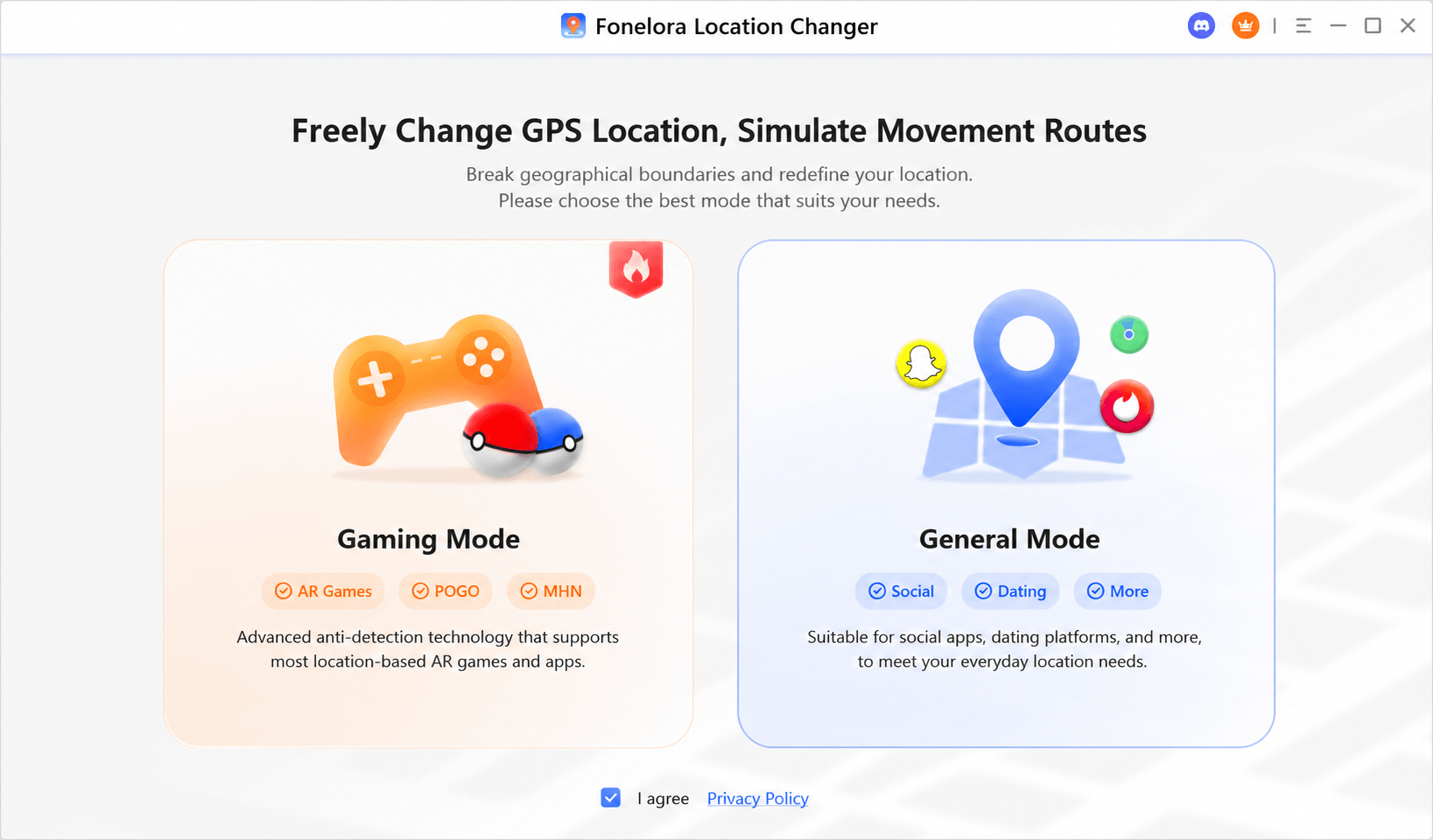
Connect Your Device (The Critical Step): Launch the software and connect your iPhone using a high-quality data USB cable. Keep your iPhone screen unlocked.

- If you are on iOS 16, iOS 17, or iOS 18: Your phone will prompt you to enable Developer Mode. Go to Settings > Privacy & Security > Developer Mode and toggle it on.
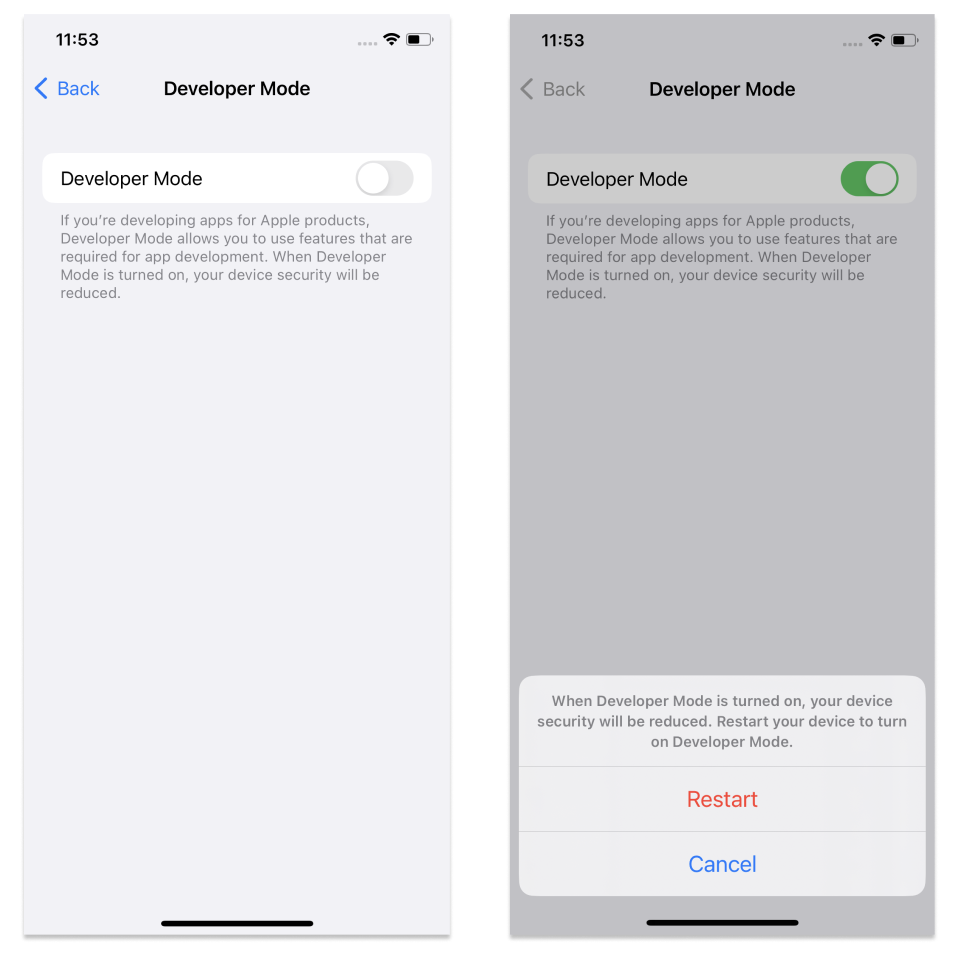
- Troubleshooting Developer Mode: If the Developer Mode toggle does not appear in your settings, keep your phone plugged into your computer and restart the iPhone. In some cases, you must have iTunes (or the Apple Devices app on modern Windows) open in the background to trigger the necessary Apple developer drivers onto your device.
Select Joystick Mode: Once your phone is successfully tethered and recognized, select the 360° GPS joystick icon from the top-right menu on the desktop dashboard.
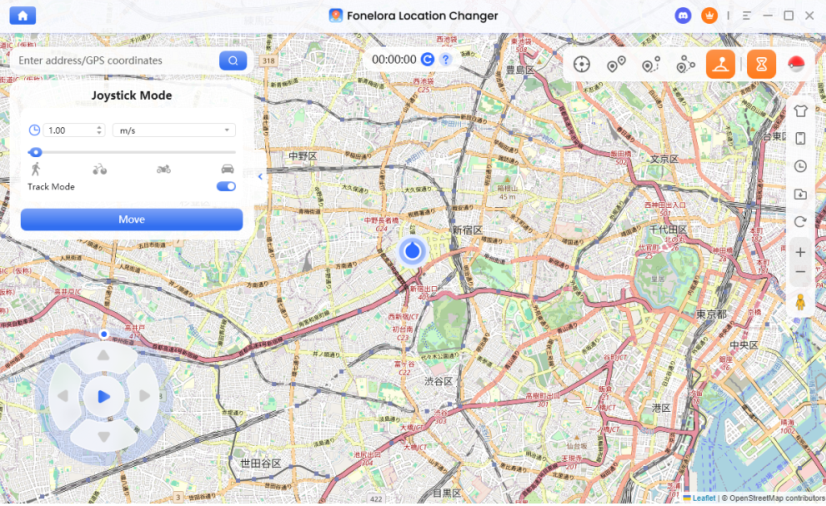
Adjust Auto Walk Speed: Set your simulated movement speed. When I tested this on my iPhone 17 Pro running iOS 26, my game began to lag and rubber-band when I set the speed to 15 km/h. I highly recommend keeping it strictly at 9 km/h (a brisk walking or slow cycling speed) to successfully hatch eggs and avoid detection.
Start Route Simulation: Use your computer’s keyboard arrows or on-screen controls to navigate. Your avatar will walk smoothly in the game.
Protecting Your Account: The Brutal Truth About Error 12 and Cooldowns
Even with premium tools, a joystick only changes how location movement is simulated; it does not make you immune to Niantic’s rules. Account safety requires strict adherence to cooldown times and knowing how to handle aggressive GPS errors.
Fixing Error 12 and Rubber-Banding
Players testing a tethered location setup frequently encounter the dreaded “Failed to detect location (12)” message. I need to be brutally honest here: “just update your tool” is not always a magic fix. Apple fundamentally changed how newer iOS versions handle location overrides, making it much harder for desktop software to push developer images to the phone continuously.
If you encounter Error 12, here is how to actually troubleshoot it:
- Prevent Network Triangulation: If your avatar snaps back to your real location (rubber-banding), your iPhone is likely using nearby Wi-Fi networks to triangulate your true physical position. Turn off Wi-Fi on your iPhone completely while using a tethered GPS spoofing connection. Rely solely on your cellular data.
- Keep the Screen Awake: Do not let your iPhone screen turn off or go to sleep while tethered. iOS aggressively drops background developer tasks to save battery, which will instantly trigger Error 12.
- Wait for Developer Patches: Sometimes, Niantic updates their app to detect the specific Apple developer image your desktop tool is using to mount the fake location. When this happens, tethered spoofing may temporarily break across all iOS 17/18 devices. You simply have to wait a few days for your software provider to push an update that circumvents the new detection.
The Cooldown Time Rule
Cooldown is the mandatory waiting period required after performing a significant in-game action (like catching a creature or spinning a stop) before you can perform another action in a distant location.
If you use a teleport mode to jump from Los Angeles to London without waiting, you will trigger a soft ban. During a soft ban, all creatures will flee, and PokéStops will grant zero items. As a general rule, a jump of over 1,500 kilometers requires a strict two-hour cooldown time. Always use the built-in cooldown timer provided by desktop location changers.
Alternative iOS Joystick Techniques: Modified Apps and Bluetooth Devices
While desktop-tethered methods offer excellent stability, some players prefer on-device convenience. The two most common alternatives are Bluetooth hardware and modified applications.
Bluetooth Spoofing Devices
Devices like the iTools BT dongle connect to your phone via Bluetooth to transmit virtual location coordinates directly to the system.
- The Advantage: Because you use the official App Store version of Pokémon GO, it largely bypasses software-based anti-cheat detection and rarely triggers Error 12.
- The Drawback: These physical tools are incredibly expensive (often over $70), frequently out of stock, and require cumbersome technical workarounds like RJ45 Ethernet adapters to bypass Apple’s iOS 15+ distance limits.
Modified Third-Party Apps
Modified versions of the game (such as iPogo or SpooferPro) include a built-in joystick overlay and teleport mode right on the screen. These are usually installed using sideloading software like AltStore.
CRITICAL SECURITY WARNING: AVOID MODIFIED APPS.
Logging into your account through an unofficial, sideloaded client is highly dangerous. Niantic detects these modified apps rapidly, leading to swift account suspensions. Using hacked IPA files is the fastest way to get a permanent ban.
Official Gameplay Alternatives for Stationary Players
If reviewing the risks of Error 12 and account bans makes you hesitant to proceed with a location spoofing setup, there are legitimate, 100% risk-free ways to play without moving from your couch.
- Remote Raid Passes: You can join raid battles anywhere in the world. Use global community boards to find hosts and participate in legendary raids directly from your home.
- Daily Adventure Incense: Activating this daily item attracts spawns to your exact location for 15 minutes, even if you are entirely stationary.
- Campfire Coordination: Use Niantic’s official Campfire app to view the map remotely. This helps you identify active local raids so you only travel when a specific event is confirmed.
These official mechanics guarantee account safety for players unwilling to risk third-party software.
Frequently Asked Questions
Can I get a joystick for Pokémon GO on my iPhone?
Yes, but it requires specific tools. You cannot download a simple overlay app. You must use desktop location changer software, purchase a physical Bluetooth spoofing device, or take a massive risk by sideloading a modified game client.
Is there an official joystick feature for iOS?
No. Niantic requires players to physically move in the real world. Any joystick movement or GPX route simulation is achieved through third-party tools.
Can I use a joystick on my iPhone without jailbreaking?
Absolutely. Desktop-tethered programs manipulate the device’s system coordinates via a USB connection and Apple Developer tools, requiring zero jailbreak permissions.
What is the safest way to use joystick movement?
The safest method is pairing the official Pokémon GO app with a hardware Bluetooth spoofer or a reputable desktop-tethered location changer. Avoid modified third-party applications at all costs.
Why do I get Error 12 or GPS Signal Not Found?
Error 12 occurs when the app detects location manipulation or conflicting system data. To minimize this, turn off your phone’s Wi-Fi to stop network triangulation, keep your screen unlocked so developer background tasks don’t drop, and ensure your desktop location tool is updated to the latest iOS developer image.
Do I need to turn on Precise Location?
Yes. To avoid basic GPS errors and ensure the game registers your simulated location correctly, Location Services and Precise Location must remain enabled in your iPhone settings.
Conclusion
Feeling locked out of global events due to your physical location is incredibly frustrating, but risking your years of progress on a shady modified app is not the answer. You need a method that respects iOS security while providing reliable virtual movement.
While no method is entirely immune to Niantic’s detection or Apple’s strict location rules, tethered desktop software currently offers the best balance of safety and ease of use. Fonelora Location Changer empowers you to explore the map globally without the severe risks associated with sideloading unauthorized software. By handling your GPS coordinates at the system level and enforcing realistic walking speeds, it helps you safely bypass physical limitations. If you are tired of spinning the same single PokéStop, download the free trial of Fonelora Location Changer, connect your device carefully using the steps above, and regain control of your gameplay.



Joy Taylor is a seasoned technical writer with over a decade of experience in mobile technology. At iMobie, she specializes in producing in-depth content on iOS data recovery, iPhone unlocking solutions, and iOS troubleshooting.
Product-related questions? Contact Our Support Team to Get Quick Solution >
