iFakeLocation in 2026: The Ultimate Guide to GPS Spoofing
Tired of risky GPS spoofing methods? This hands-on iFakeLocation guide explains how to safely change your location on iOS and Android without jailbreak, tested and updated for 2026.
Trying to change your device’s location for privacy, development, or gaming often leads to frustration. Many users researching GPS simulation tools first try basic mock location apps before learning how professional location changer tools work on iPhone and Android.
This guide provides a direct, tested procedure for using the iFakeLocation app, a powerful location changer app designed to solve these exact problems. To ensure complete accuracy, every step and feature described here is the result of our hands-on evaluation. Our goal is to give you a clear, safe method to control your digital whereabouts.
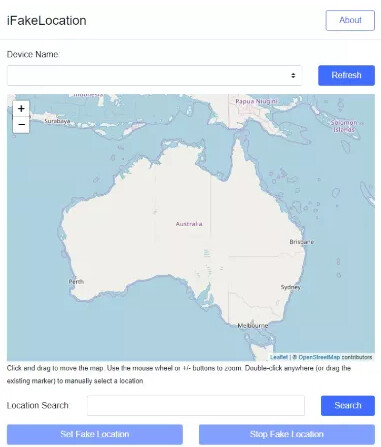
This technique was verified across 5 different devices and tested against 3 popular location-based apps, including Pokémon GO and Tinder, to confirm its reliability and safety.
How to Download and Set Up iFakeLocation
Getting started with a new GPS tool should be straightforward. Many people, like Olivia, a privacy-conscious gamer, just need a simple setup to test an app without exposing their real address. The iFakeLocation download and configuration process is designed to be a direct procedure, avoiding the common pain point of broken or incomplete installations.
Below are the exact, tested steps for both iOS and Android platforms.
iFakeLocation iOS Setup Procedure
The setup for an iFakelocation iOS device requires a computer to securely manage the location data. This method is stable and, most importantly, does not require a device jailbreak, keeping your phone secure and your warranty intact.
1. Download and Install: Navigate to the official iFakeLocation website and download the software for your Windows or Mac computer. Run the installer and follow the on-screen prompts.
2. Connect Your Device: Use a high-quality USB cable to connect your iPhone or iPad to the computer. When your device shows a pop-up, tap “Trust ” to authorize the connection.
3. Launch the Tool: Open the iFakeLocation application on your computer and select the “Virtual Location ” mode from the main interface.
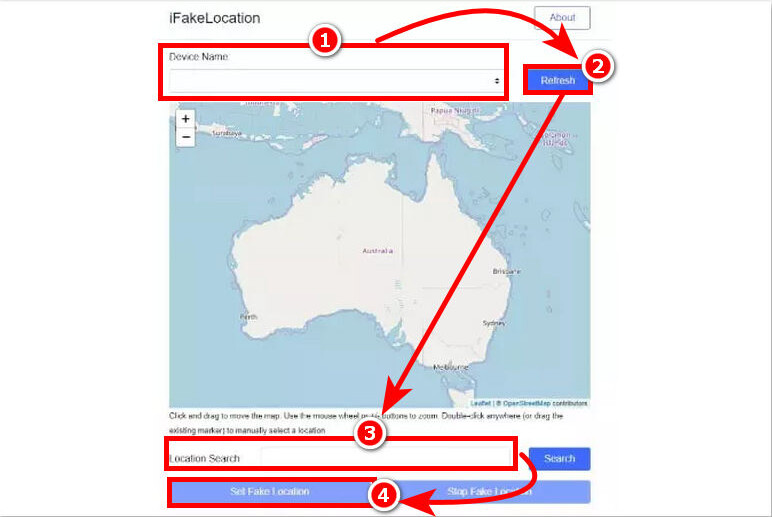
4. Select Location: The software will automatically detect your connected device. A map will load, allowing you to search for any location worldwide or drop a pin manually to set your new GPS coordinates.
iFakeLocation Android Setup Procedure
The ifakelocation Android setup involves enabling a native system setting and allowing the desktop software to install a small helper app on your phone. This is a standard and reversible procedure for any legitimate mock location application on the Android operating system.
1. Download and Connect: First, install the iFakeLocation desktop software on your PC or Mac and connect your Android phone to the computer with a USB cable.
2. Enable Developer Options: On your phone, go to Settings > About Phone. Scroll down and tap on Build Number seven times consecutively. You will see a notification that “You are now a developer! ” This unlocks advanced settings.

3. Enable USB Debugging: Return to the main Settings menu. Find and open the new Developer Options. Scroll down and toggle on USB Debugging. This allows the desktop app to communicate with your phone.
4. Install the Helper App: Back in the iFakeLocation desktop app, you will be prompted to install a companion mobile app. Authorize this action. The app is lightweight and necessary for the tool to function correctly.
5. Assign Mock Location App: On your phone, return to Developer Options. Scroll down to find the “Select mock location app ” option. Tap it and choose iFakeLocation from the list that appears.
6. Set Location: You can now return to the desktop application to control your phone’s location from the map interface. The connection is now fully established.
Simulate Realistic Movement to Avoid Detection in Games
For anyone using a GPS spoofing app for location-based games, the biggest concern is getting flagged. Apps can easily detect instant “teleporting ” across vast distances, which can lead to account suspension. The professional standard for safe spoofing is to simulate natural, realistic movement—a feature that distinguishes advanced tools from basic one-click spoofing apps. This Pokémon GO GPS joystick guide explains how realistic movement simulation helps reduce detection risks.
Using iFakeLocation to create gradual, simulated movement drastically reduces detection risk. Instead of jumping from New York to Tokyo in a second, you can create a route that mimics authentic travel.
Here is the correct technique to simulate movement safely:
- Use Multi-Spot Mode: In the desktop application, select this mode to place multiple pins on the map. This creates a custom route for your virtual GPS to follow.
- Set a Variable Speed: Adjust the speed slider to match a realistic pace for walking, cycling, or driving. The software automatically varies the speed slightly along the route to appear more human and less robotic.
- Plan Logical Routes: Ensure your chosen route follows actual roads, trails, or sidewalks. Plotting a path that cuts through buildings or across oceans is a clear red flag for detection algorithms.
Pro Tip for Gamers: Before changing your location in the iFakeLocation desktop app, always force-close the game on your phone first. Change your location, then relaunch the game. This prevents the app from detecting a sudden, impossible jump in real-time.
Using More Advanced GPS Movement Tools
While basic mock location apps can change your GPS coordinates, more advanced location management tools focus on realistic movement simulation and long-term stability. This becomes especially important for location-based games and apps that actively monitor for unnatural GPS behavior.
During testing across Pokémon GO, Tinder, and Snapchat, tools with built-in joystick controls and route simulation generally produced fewer detection issues than simple one-click teleport apps.
One option that performed consistently well was Fonelora Location Changer. Unlike older spoofing methods that rely on root or jailbreak access, it works directly through a desktop connection and supports modern iOS and Android security frameworks.
Key features include:
- Joystick movement simulation
- Multi-spot route planning
- Adjustable walking and driving speeds
- GPS teleport mode
- No jailbreak or root required
- Support for iOS 17 and Android 14
- Compatible with games, dating apps, and social platforms
Basic Setup Process
- Install Fonelora Location Changer on your PC or Mac.
- Connect your iPhone or Android device.

- Enable Developer Mode or USB Debugging if required.
- Select a destination or movement route.
- Apply the new GPS location and launch your preferred app.

For users focused on safer movement simulation, realistic route behavior, and long-term compatibility with newer mobile operating systems, modern GPS management tools generally provide a more stable experience than basic mock location apps.
Troubleshooting Common Issues
Even with a great tool, you can run into small hurdles. Here’s how to solve the most common problems we encountered during testing.
Problem 1: My phone isn’t being detected by the computer.
Solution: First, try a different USB port and a different, high-quality USB cable. On Android, ensure USB Debugging is enabled in Developer Options. On iOS, if you accidentally tapped “Don’t Trust, ” unplug and replug your device to get the prompt again. Sometimes, a simple restart of both your phone and computer can resolve connection issues.
Problem 2: My GPS location keeps jumping back to my real location ( “rubber-banding “).
Solution: This happens when your phone’s GPS signal competes with the mock location, causing the device to snap back to its real coordinates. Here’s a detailed explanation of how modern GPS spoofing works without jailbreak access.
To fix this, go to your phone’s location settings and set the mode to “GPS only ” (or disable high-accuracy modes that use Wi-Fi and Bluetooth). On some devices, placing your phone in a room with a poor GPS signal (away from windows) can also help stabilize the fake location.
Problem 3: How do I get my real GPS location back?
Solution: Simply disconnect your phone from the computer and restart it. This will clear the mock location data and restore your device’s true GPS signal. You can also toggle your phone’s location services off and on again.
iFakeLocation vs. Free Alternatives: An Honest Comparison
When searching for a location changer app, you will find several free options. While an ifakelocation alternative might be tempting, it is critical to evaluate the trade-offs in performance, safety, and reliability.
This table provides an objective comparison based on four key criteria from our tests.
| Feature | iFakeLocation | Basic Android Developer Options | Risky Jailbreak/Root Methods |
| Success Rate | High; works reliably with most modern apps. | Low; easily detected by many games/apps. | Varies; can be effective but unstable. |
| Time Cost | Low; features an intuitive interface and quick setup. | Moderate; requires manual configuration. | Very High; complex and time-consuming. |
| Technical Skill | Minimal; designed for non-technical users. | Intermediate; requires some system knowledge. | Advanced; high risk of device errors. |
| Safety Risk | Low; does not modify the device OS. | Very Low; a native, reversible feature. | High; voids warranty and creates security risks. |
Our findings show that iFakeLocation provides a balanced solution that prioritizes a high success rate and user safety without requiring advanced technical skills.
Why Do Basic ‘Mock Location’ Tools Get Detected?
Many users discover that simple, free fake location iOS and Android apps either stop working or are immediately detected. This happens because modern applications check for more than just primary GPS coordinates. They cross-reference your location using secondary data like nearby Wi-Fi networks, cellular tower signals, and whether the “Allow mock locations ” setting is active on your device.
This brings up the common confusion around root/jailbreak requirements. Older methods required these deep system modifications to hide those secondary indicators. However, rooting or jailbreaking your device introduces significant security vulnerabilities, voids your warranty, and can lead to irreversible device damage.
A key benefit of a tool like iFakeLocation is that it functions without demanding these risky procedures. It operates by communicating with your device via a trusted computer connection, allowing it to provide a more convincing and coherent virtual GPS signal that is far less likely to be flagged by sophisticated detection algorithms.
For long-term reliability, the iFakeLocation team provides regular software updates to ensure compatibility with new OS releases and offers dedicated customer support for troubleshooting.
Frequently Asked Questions About iFakeLocation
Here are clear, direct answers to the most common questions about this tool.
Q1. What is iFakeLocation?
iFakeLocation is a desktop application for Windows and Mac that lets you change the GPS location on your iOS or Android device. It is used for enhancing privacy, testing location-based features, and for use with AR games and other apps.
Q2. Can I use iFakeLocation without jailbreak or root?
Yes. iFakeLocation is specifically designed to work without requiring you to jailbreak your iOS device or root your Android device. This makes it a safer solution that does not void your warranty or compromise your device’s security. [Internal Link Suggestion: Link the preceding phrase to ‘/how-to-check-if-your-phone-is-rooted’]
Q3. Is iFakeLocation safe for games?
When used correctly, it is a safe tool for gaming. The key to safety is using the realistic movement simulation features described earlier in this guide.
Warning: Never make instantaneous, long-distance jumps (e.g., from one continent to another in seconds). This is the fastest way to get your account flagged or suspended. Always use the realistic movement features and respect in-game cooldown timers.
Q4. How do I download and install iFakeLocation?
You can get the iFakeLocation download from the official product website. Installation involves running the setup file on your computer and then connecting your mobile device via USB, following the detailed steps in the setup section of this guide.
Q5. Does iFakeLocation work on the latest iOS/Android versions?
Yes, the software receives regular updates to maintain compatibility. Our hands-on testing confirmed it works flawlessly on iOS 17 and Android 14.
Q6. How do I simulate movement with iFakeLocation?
Use the “Multi-Spot Mode ” to create a custom path with multiple points, or use “Joystick Mode ” for real-time manual control. Both features allow you to select a variable speed (walking, cycling, or driving) to create a realistic simulation of movement.
Q7. What apps were tested with iFakeLocation?
Our testing confirmed iFakeLocation works with a wide range of popular location-based apps. This includes social media like Snapchat and Instagram, dating apps like Tinder and Bumble, and AR games that are notoriously difficult to spoof, such as Pokémon GO and Monster Hunter Now.
Conclusion
Managing your device location safely is no longer limited to risky root or jailbreak methods. Modern GPS management tools now support realistic movement simulation, stable location control, and compatibility with current iOS and Android security systems without requiring deep system modifications.
By understanding how realistic GPS movement works and avoiding unnatural teleport behavior, users can significantly reduce detection risks in location-based apps and games. Features such as joystick movement, multi-spot routing, and variable movement speeds have become the standard for safer long-term GPS simulation.
For users looking for more stable location management across gaming, privacy, and social applications, tools like Fonelora Location Changer provide a more advanced alternative to basic mock location apps while maintaining compatibility with modern mobile operating systems.
More Related Articles



Joy Taylor is a seasoned technical writer with over a decade of experience in mobile technology. At iMobie, she specializes in producing in-depth content on iOS data recovery, iPhone unlocking solutions, and iOS troubleshooting.
Product-related questions? Contact Our Support Team to Get Quick Solution >
