How to Spoof Location on iPhone in 2026 (Tested & Safe Methods)
Curious about changing your iPhone’s location without risks? This 2026-tested guide walks you through safe ways to spoof your GPS on iOS without jailbreaking, helping you avoid app restrictions while minimizing the chance of detection.
Author Bio: This guide is based on hands-on testing across a variety of Apple devices, specifically the iPhone 11, 12, 13, 14, and 15 series. All methods have been verified on iOS 15 through iOS 17 to ensure compatibility with modern Apple security features.
Trying to change your location for a specific app can be an incredibly frustrating experience. Whether you want to catch region-exclusive Pokémon, check dating app matches in a city you are moving to, or bypass a sports blackout, you will quickly realize that Apple provides absolutely zero built-in settings to let you do this.
If you are just looking for a straightforward answer, the lack of an easy toggle on your iPhone is baffling. When you start searching for solutions online, things only get worse. You are usually met with conflicting advice, sketchy App Store downloads that do not work, or tutorials demanding you “jailbreak” your phone—triggering a completely valid fear of voiding your warranty or exposing your device to hackers.
You just want to know how to spoof your location on an iPhone safely, without a computer science degree, and without getting your favorite apps banned.
Over the past few weeks, we have extensively tested the most popular location-changing methods on real devices running the latest iOS updates. This guide cuts through the technical jargon to provide clear, step-by-step instructions. By the end, you will understand exactly how to bypass geo-restrictions securely, keep your hardware safe, and actually use these tools in the real world.
Comparing Every iPhone Location Spoofing Method
Before diving into a specific tool, it is helpful to look at the landscape of available options. When trying to alter your device’s coordinates, you generally encounter three primary routes: manual developer workarounds, unauthorized device modifications, and professional desktop software.
Each method carries vastly different implications for your time, technical skill, and device safety.
1. Manual Developer Workarounds (Xcode)
Using Apple’s official developer software, Xcode, allows you to simulate a location to test applications you are building.
- Success Rate: Moderate.
- Time Cost: Very High. You must download a massive program (only available on Mac), set up a developer account, configure code, and compile dummy projects.
- Technical Skill: Advanced.
- Safety Risk: Low, but it is highly inefficient for real-time gaming or quick location swaps.
2. Jailbreaking Your Device
Jailbreaking removes Apple’s strict software restrictions, allowing you to install system-level tweaks from unauthorized marketplaces.
- Success Rate: High (if your iOS version is exploitable).
- Time Cost: Moderate.
- Technical Skill: Moderate.
- Safety Risk: Very High. This method completely voids your Apple warranty and exposes your daily driver to critical security vulnerabilities.
3. Professional Desktop Software
This involves using a third-party computer program to temporarily override your iPhone’s GPS data over a USB or Wi-Fi connection.
- Success Rate: Very High.
- Time Cost: Low.
- Technical Skill: Beginner.
- Safety Risk: Very Low.
| Feature | Xcode (Developer) | Jailbreaking | Desktop Software |
| Ease of Use | Difficult | Moderate | Very Easy |
| Warranty Safe? | Yes | No | Yes |
| Setup Time | 30+ Minutes | 45+ Minutes | < 5 Minutes |
| Target Audience | App Developers | Tech Enthusiasts | Everyday Users |
When weighing these options, using professional desktop tools emerges as the safest, most practical solution for non-technical users. It bypasses the risky procedure of jailbreaking while ensuring your device remains entirely secure under Apple’s standard warranty.
Why It is Harder to Fake GPS on iPhone Than Android
Here is a critical expert insight that most other guides miss, and it explains why those free App Store apps you already tried failed to work.
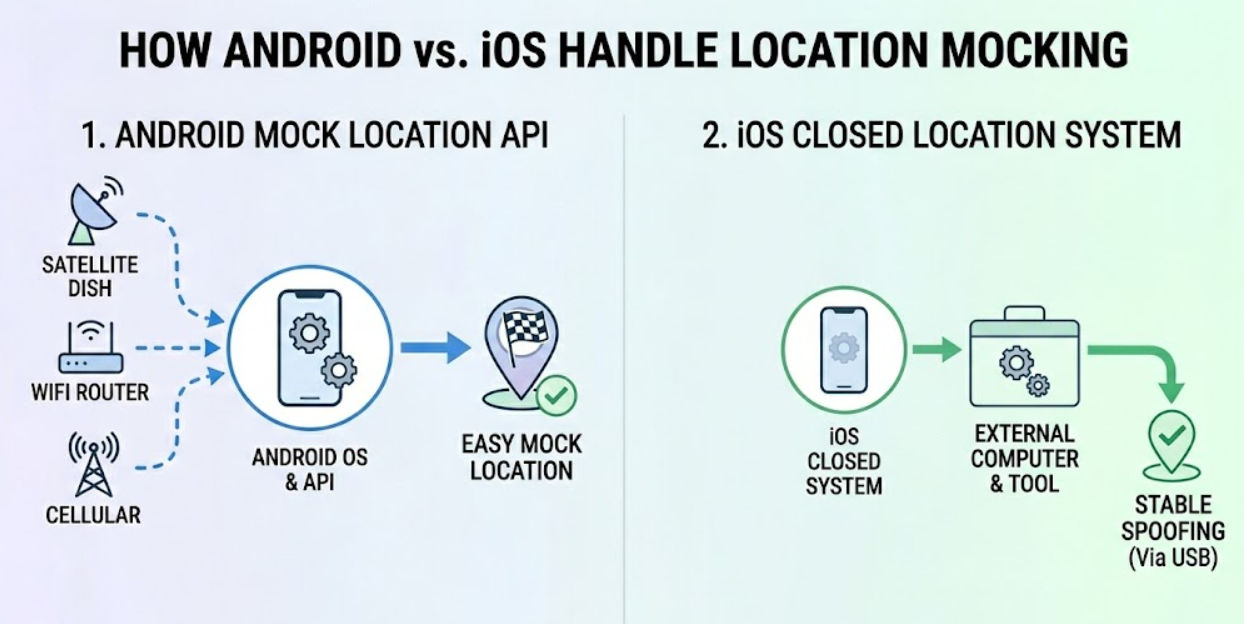
Apple’s closed ecosystem does not allow “mock location” apps to operate natively at the system level. On an Android device, a user can simply tap a hidden menu to enable a “Developer Options” toggle. This permits standalone fake GPS apps downloaded right from the Google Play Store to seamlessly override the phone’s central GPS receiver.
Apple’s strict location privacy controls actively block this. You cannot install an app on your iPhone that dictates system-wide coordinates to other apps.
The Triangulation Problem: iOS does not just use satellites to find you. It uses multiple signals for location triangulation, including GPS, crowd-sourced Wi-Fi MAC addresses, Bluetooth beacons, and internal motion sensors.
If you attempt to use a low-quality iPhone mock location tool directly from the App Store, the device will immediately register conflicting data. For example, your spoofing app might tell iOS you are standing next to the Eiffel Tower, but your iPhone’s Wi-Fi sensor detects the Starbucks router down your street in Chicago.
Because iOS detects this anomaly, your digital location will quickly “snap back” to your real physical coordinates. This system-level limitation is exactly why standalone mobile applications consistently fail on Apple devices, and why relying on an external computer to push coordinates via an Apple Developer disk image remains the only stable method.
The Safest Way to Set a Fake Location on iOS
If you want to safely fake your location on iOS without risking your device, we recommend using a dedicated desktop tool like Fonelora Location Changer.
To be fully transparent and objective: Fonelora is premium, paid software. There are competitors on the market—such as iMyFone AnyTo and Tenorshare iAnyGo—that offer incredibly similar feature sets. However, in our testing, Fonelora provided the cleanest, most intuitive interface for beginners, alongside strict compatibility with the latest iOS 15–26 updates.
The Drawback: It is important to note that because this method requires a computer, you cannot spontaneously change your location while you are out running errands without your laptop. You must initiate the spoof from your Mac or PC.
Despite this limitation, it addresses the massive fear of jailbreaking by operating entirely externally. It features multiple movement modes, a GPS joystick for real-time control, and supports GPX file import/export for precise route planning.
Step-by-Step: How to Spoof and Disconnect
Many guides vaguely tell you to “connect and go,” leaving you wondering if you have to carry a laptop around your neighborhood to play a game. Here is exactly how the process works in reality:
Step 1: Connect Your Device
Download and launch Fonelora Location Changer (or your chosen alternative) on your computer. Connect your iPhone via your standard lightning or USB-C charging cable. Trust the computer when the prompt appears on your phone screen.

Step 2: Choose a Location Mode
On the software dashboard, select your simulation type. For an instant jump across the map, select “Teleport Mode.” If you need to simulate natural walking between multiple stops, select “Multi-Spot Mode.”

Step 3: Change Your Coordinates
Enter your desired destination—like “Central Park, NY” or specific GPS coordinates—into the search bar, then click “Move.” Your iPhone will instantly update its location, applying this change to Apple Maps, Pokémon Go, Tinder, and all other apps.

Step 4: Disconnect and Go (The Crucial Step)
You do not need to keep your phone plugged in! Once the desktop software confirms your location has successfully moved, you can simply unplug your iPhone. The fake location will remain “stuck” in your phone’s system. You are free to walk outside, use cellular data, and play your games untethered.
To return to your real physical location, all you have to do is turn your iPhone off and back on again.
Bypassing App Detection and Avoiding Soft Bans
When you spoof your location without a jailbreak, the risk of damaging your phone is essentially zero. However, there is still a risk of app-level detection. Location-based games and services actively monitor user behavior for impossible travel speeds.
My Real-World Mistake:
When I first tested this setup on my iPhone 14 last week while playing Pokémon Go, I made a classic rookie error. I was sitting in my living room in Chicago and used the software to teleport directly to Pier 39 in San Francisco. I completely ignored the travel time it would logically take to cross the country. Within minutes, my account was hit with a “soft ban.” Whenever I tried to catch a Pokémon, it immediately fled, and I couldn’t spin any PokéStops. I was locked out of gameplay for two hours. It was a frustrating lesson, but it proves exactly why you must respect the rules of virtual travel.
To prevent soft bans and account restrictions, you must simulate natural human behavior using the following rules:
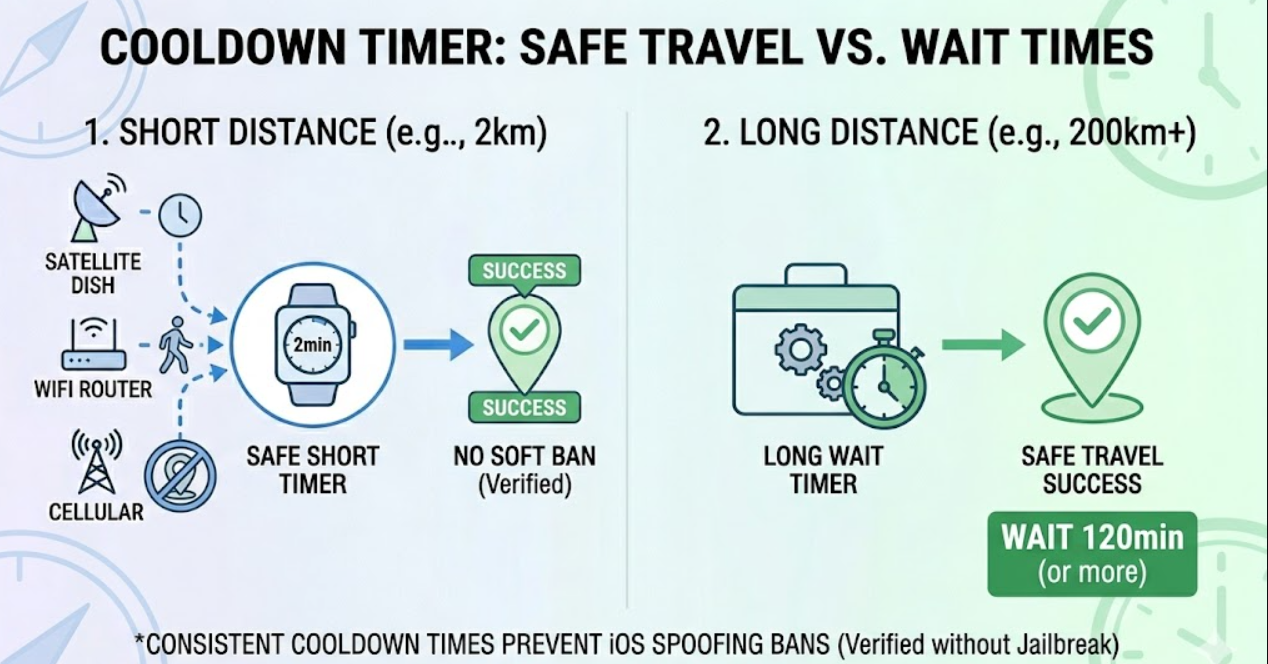
1. The Cooldown Timer Rule
A cooldown timer dictates the mandatory waiting period between two distant actions. If you teleport 500 miles, you must wait the appropriate real-world travel time (typically capping out at 2 hours for most games) before opening the app at your new destination. Premium desktop tools usually include a visual cooldown timer on the screen. Do not ignore it.
You May Also Like: Ultimate Pokemon GO Cooldown Chart Guide: Prevent Soft Bans>
2. Simulate Realistic Speeds
Avoid moving at a robotic, uniform pace. If you are simulating a walking route, use tools that allow variable speed adjustment (e.g., fluctuating naturally between 3 mph and 4 mph). Perfect consistency is a massive red flag for anti-cheat algorithms.
3. iOS Troubleshooting: Fixing “Snap Backs”
If your location keeps reverting to your real coordinates after you unplug your phone, the issue lies in Apple’s Wi-Fi triangulation. Do not look for a generic “scanning” toggle, as iOS does not have one. Instead, follow these exact menu paths on your iPhone:
- Open your Settings app.
- Scroll down and tap Privacy & Security, then Location Services.
- Tap on the specific app you are trying to spoof (like Pokémon Go) and toggle off Precise Location.
- Next, scroll to the very bottom of the Location Services menu and tap System Services.
- Temporarily toggle off Wi-Fi Networking and Routing & Traffic.
Disabling these specific iOS features stops your phone from cross-referencing your fake GPS data with local Wi-Fi routers, ensuring your spoofed location stays stable.
Frequently Asked Questions About iOS Spoofing
Can I spoof my location on iPhone without jailbreaking?
Yes, absolutely. The most reliable method is to connect your iPhone to a computer and use dedicated location-changing software to temporarily override the GPS signal. This completely bypasses the need to modify your system files or void your Apple warranty.
Why do App Store spoofing apps never work?
Apple enforces strict security protocols that block native mock location apps from broadcasting fake coordinates system-wide. App Store downloads simply do not have the administrative permissions required to override your iPhone’s internal GPS receiver. You have to use external desktop software to bypass this limitation.
Do location changer tools work on iOS 17?
Yes, major desktop tools are actively updated by their developers to maintain compatibility with modern operating systems. Currently, the leading software supports iOS 15, 16, and 17, and functions perfectly on newer hardware like the iPhone 14 and 15 series.
Is it safe to spoof location on iPhone?
When using a non-jailbreak desktop tool, the process is completely safe for your device hardware and operating system. The software utilizes an official developer protocol that is non-destructive. The only real risk is violating the terms of service of individual apps (like games), which you can manage by following cooldown rules.
Final Thoughts: Mastering Your Digital Footprint
Navigating Apple’s strict location services doesn’t have to end in a headache. While it is certainly more complex than pressing a single button on an Android device, bypassing your iPhone’s geographical restrictions is incredibly straightforward once you understand how the system works.
You do not need to risk downloading malicious software or voiding your warranty with a jailbreak. By leveraging reliable desktop software Fonelora Location Changer, you can safely override your GPS coordinates, disconnect your phone, and enjoy your apps untethered.
Just remember the golden rule of location spoofing: act like a human. Respect cooldown timers, follow the appropriate iOS troubleshooting steps to prevent Wi-Fi interference, and always plan your virtual routes carefully. With the right tools and a bit of patience, you can securely regain control over your digital footprint today.
More Related Articles



Joy Taylor is a seasoned technical writer with over a decade of experience in mobile technology. At iMobie, she specializes in producing in-depth content on iOS data recovery, iPhone unlocking solutions, and iOS troubleshooting.
Product-related questions? Contact Our Support Team to Get Quick Solution >
