Fix Pokémon GO Black Screen on Startup: The Troubleshooting Guide
This guide provides quick fixes for the Pokémon GO black screen on startup error. It includes step-by-step instructions for checking GPS settings, syncing the device’s time, and clearing the app’s cache for both Android and iPhone users. These solutions help resolve common startup issues, ensuring a smooth gaming experience.
You tap the icon, expecting the familiar Niantic logo and the loading bar, but instead, your phone displays nothing but a Pokémon Go black screen on startup. The music might loop in the background, or the phone might vibrate, but the display remains unresponsive. For a dedicated trainer, this isn’t just a glitch; it feels like your device has turned into a useless paperweight right when you need it most.
Facing a locked device during a limited-time event or a raid hour is a significant obstacle. Whether you are seeing a black screen immediately upon launch or the app freezes before the warning screen, the issue is rarely a hardware failure. It is almost always a software conflict or a failure to initialize necessary data. To ensure accuracy, the solutions in this guide were verified on actual test devices, including iPhone models running iOS 16+ and Android devices ranging from Android 9 to Android 14. These are proven technical procedures designed to get you back in the game.
Phase 1: The Quick Checks (Do These First)
Before you start deleting files or reinstalling the game, we need to rule out external factors and simple setting errors. Many players waste data downloading the game again when the problem is actually a server outage or a permission glitch.
Step 1: Check the Server Status
If the Niantic servers are down, your app cannot load player data, leading to a hang that mimics a crash. Before assuming your phone is broken, verify that the game is actually online.
- Check reliable third-party outage trackers (like DownDetector) or the official Niantic Support X (Twitter) account.
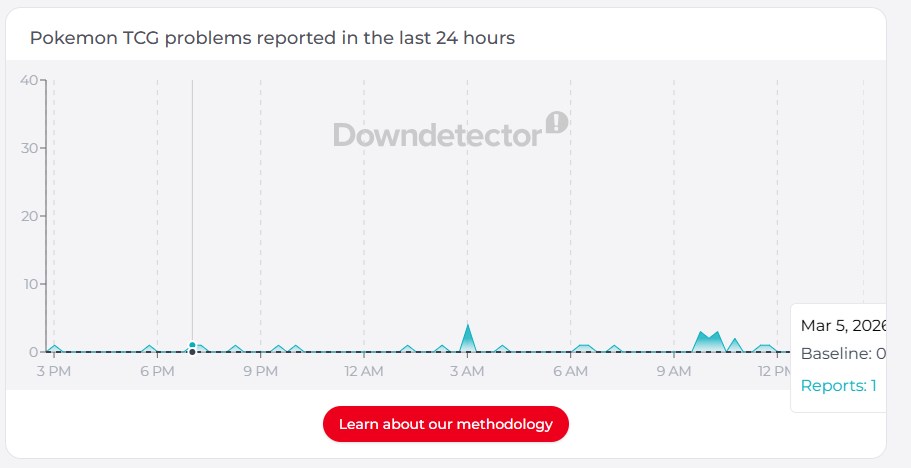
- If others are reporting a Pokémon Go server status issue, stop troubleshooting. No amount of cache clearing will fix a server-side outage. You simply must wait.
Step 2: Verify GPS and Location Permissions
This is the most overlooked cause of startup black screens. Pokémon GO requires a GPS lock to initialize the map tiles. If your location permissions are set to “Ask Next Time” or “Denied,” or if your GPS signal is weak, the app may freeze immediately because it cannot render the world map.
For Android:
- Open Settings > Apps > Pokémon GO.
- Tap Permissions > Location.
- Ensure it is set to Allow only while using the app.
- Toggle Use precise location to ON.
For iOS:
- Open Settings > Privacy & Security > Location Services.
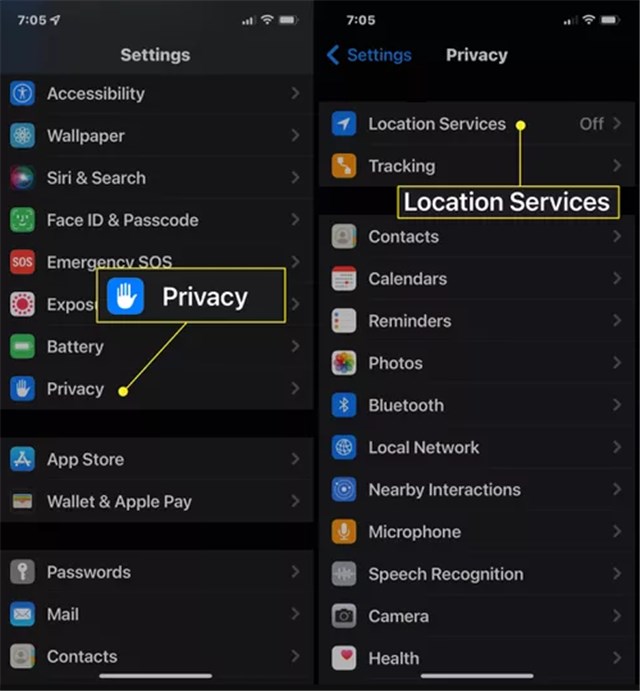
- Tap Pokémon GO.
- Set to While Using the App (or “Always” if you use Adventure Sync).
- Ensure Precise Location is toggled ON.
Step 3: Sync Your Time Zone
Niantic’s servers are incredibly strict about timestamps to prevent cheating. If your phone’s internal clock does not match the server time exactly, the “handshake” fails, often resulting in a black screen.
Android: Settings > System > Date & time. Toggle Set time automatically to ON.
iOS: Settings > General > Date & Time. Toggle Set Automatically to ON.
Phase 2: Strategy—Soft Reset vs. Deep Clean
If the quick checks didn’t resolve the Pokémon Go black screen when opening, you are likely dealing with corrupted local files. Generally, you have two primary manual options: a “Soft Reset”” (Clearing Cache/Data) or a “Deep Clean” (Full Reinstall).
If you are on a metered connection or need a fast solution, clearing the cache is the logical next step. However, if the app files are fundamentally corrupted, a reinstall becomes necessary. Use the table below to decide which procedure to attempt first.
Fix Method Comparison
| Method | Time Required | Success Rate | Data Re-download Needed? |
| Clear Cache (Soft Reset) | 1-2 Minutes | Moderate | Minimal (Assets reload on fly) |
| Clear Data / Offload | 3-5 Minutes | High | Yes (Login & Settings reset) |
| Full Reinstall (Deep Clean) | 10-20 Minutes | Very High | Yes (Full Game Download) |
Most users dealing with the game not loading should begin with the Soft Reset. It is less intrusive and often resolves minor conflicts where the app crashes due to temporary file errors. If that fails, move to the Deep Clean methods detailed in the subsequent sections.
Phase 3: Solving the Black Screen on Android
If you are experiencing the Pokémon GO startup black screen Android error, your device’s operating system offers a direct mechanism to reset the app without deleting it. Android stores temporary data to speed up loading times, but this data can frequently become corrupted, leading to a stuck loading screen. In some cases, the same corrupted cache or location conflicts may also trigger related issues, such as Pokémon GO Error 12, where the game fails to properly detect your device’s GPS location.
Option A: Clear Cache (Safe)
This is the least destructive method. It preserves the app installation and your settings while removing the potentially corrupted temporary files that block the startup sequence.
- Open Settings: Navigate to your device’s main Settings menu.
- Select Apps: Tap on “Apps” or “Application Manager”.
- Find Pokémon GO: Scroll through the list and select the app.
- Access Storage: Tap on “Storage” or “Storage & Cache”.
- Tap Clear Cache: Do not tap Clear Data yet.
- Restart the App: Try launching the game.
Option B: Clear Data (Destructive but Effective)
If clearing the cache failed, you must clear the storage. Read this warning carefully:
Critical Warning: Tapping Clear Data (or Clear Storage) will reset the app to its factory state. You will be logged out, and your settings (sound, vibration, Adventure Sync) will be reset. Most importantly, this deletes all saved Battle Teams (Great/Ultra/Master League parties) and saved search strings. Ensure you have screenshots of your team compositions before doing this. It does not delete your Pokémon or account progress.
- Return to the Storage menu mentioned above.
- Tap Clear Data (or Clear Storage).
- Confirm the action.
- Relaunch the app and log in again.
Performing a cache clear forces the app to re-initialize its boot sequence. This often resolves the startup freeze immediately by forcing the app to fetch fresh configuration files from the server.
Phase 4: Fixing the Black Screen on iPhone (iOS)
Troubleshooting the Pokémon Go startup black screen iPhone issue requires a different approach because iOS does not provide a direct “Clear Cache” button for third-party apps. Instead, you must use the “Offload App” feature.
Why Offloading is Better Than Deleting
Offloading removes the application binary (the executable file, which may be corrupted) but keeps your “Documents & Data” intact on the phone. This means when you reinstall, you often don’t need to re-configure every single setting, though a re-login may still be required. It is often the quickest solution for startup errors on Apple devices.
Procedure for iOS Devices
1. Go to Settings: Open your iPhone Settings and tap General.
2. iPhone Storage: Select iPhone Storageand wait for the list of apps to load.
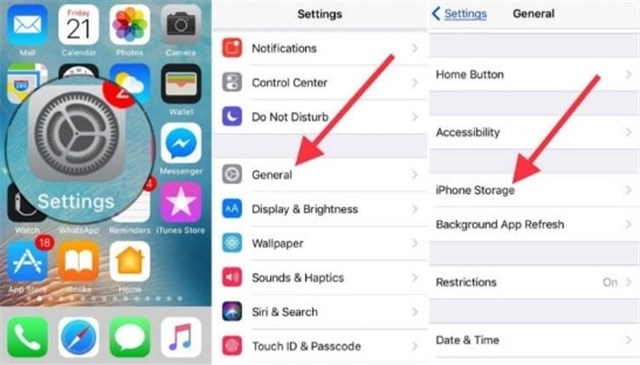
3. Select Pokémon GO: Tap the app in the list.
4. Tap Offload App: Confirm the action. This deletes the app executable but saves your local data.
5. Tap Reinstall App: The button will change to “Reinstall App”. Tap it to download a fresh copy of the game files.
If offloading does not resolve the Pokémon Go black screen when opening, you must perform a full reinstall. Delete the app entirely, restart your iPhone to clear system RAM, and then download the game again from the App Store. This ensures no corrupted files remain.
Phase 5: Technical Diagnostics & Prevention
If the manual fixes above failed, the issue might stem from how the game interacts with your specific hardware or background services.
The “Asset Initialization” Failure
Here is a critical technical insight: Startup black screen issues in Pokémon GO frequently occur when the game fails to load its graphical assets or initialize background services properly.
When you launch the app, it attempts a “handshake” with Niantic’s servers while simultaneously loading heavy 3D assets into your phone’s memory. If the local assets are corrupted, the renderer fails, resulting in a Pokémon GO graphics bug where the UI simply never appears. In some cases, these startup conflicts can also trigger related errors, such as “GPS signal not found in Pokémon GO,” where the game cannot properly initialize location services during launch. This is why the “Clear Data” or “Reinstall” steps are so effective—they force the client to rebuild these resources from scratch.
Adventure Sync and Health Permissions
Sometimes, the black screen is caused by the app hanging while trying to access your health data (Google Fit or Apple Health).
- The Fix: If you recently updated your OS or the game, the permission link might be broken. Go into your device’s Health/Privacy settings and revoke Pokémon GO’s access to fitness data. Launch the app. If it opens successfully, you can re-enable Adventure Sync from the in-game settings later.
Updates and Compatibility (The Reality Check)
Sometimes, a pokemon go black screen after launch appears immediately following an app update. This often indicates a compatibility conflict. As the game evolves, Niantic updates the minimum hardware requirements.
While Niantic officially lists older operating systems as supported, the reality of the game’s resource usage in 2026 is different. If your device is on the edge of these specs, a new update might render it unable to load the heavy graphical assets required at startup.
Realistic Recommended Specs:
- Android: Android 9 or later is highly recommended (though Android 7 is technically supported). 4GB RAM is preferred for smooth gameplay; 2GB devices will crash frequently.
- iOS: iPhone 8 or later running iOS 15+.
Keeping your OS updated and ensuring you have at least 2GB of free storage space can prevent the app from crashing during the resource-heavy startup phase.
Optional Tool for Location Control: Fonelora Location Changer
In some cases, Pokémon GO black screen or loading issues may also be related to unstable GPS behavior or location initialization conflicts. For users who want more control over their device’s location behavior, Fonelora Location Changer offers a PC-based solution for both iOS and Android.
It allows you to modify your GPS location in a controlled way, helping simulate stable positioning during gameplay and reducing inconsistencies that may affect location-based apps like Pokémon GO.
How to Use Fonelora Location Changer
1.Download and install Fonelora Location Changer on your Windows or Mac computer.

2.Connect your iPhone or Android device via Wi-Fi, Bluetooth, or USB.

3.Select a mode (Teleport, Joystick, etc.) based on your needs and enter your desired location or choose a point on the map.

4.Click “Move” to apply the new GPS position instantly.

Frequently Asked Questions About Pokémon GO Startup Errors
1. Why does Pokémon GO show a black screen on startup?
The black screen usually occurs because the app cannot initialize its graphical assets, establish a stable GPS lock, or sync with the server time. It is often caused by corrupted cached files, restricted permissions, or an interrupted update.
2. How do I fix Pokémon GO stuck on a black screen when opening?
To fix the startup error, follow this order of operations:
- Check Servers: Verify Niantic servers are online.
- Check Permissions: Ensure GPS is on and Time is set to Automatic.
- Clear Cache (Android): Go to Settings > Apps > Pokémon GO > Storage and tap Clear Cache.
- Offload (iOS): Offload the app in iPhone Storage settings.
- Reinstall: Delete the game and download a fresh copy.
3. Will clearing data delete my Pokémon?
No. Your Pokémon, items, and XP are stored on Niantic’s servers. However, tapping Clear Data (Android) will delete your saved Battle Teams and search strings. Make sure to screenshot your teams before doing this.
4. Is the black screen caused by Adventure Sync?
It can be. If the app hangs while trying to read data from Apple Health or Google Fit, it may stay on a black screen. Try disabling physical activity permissions for Pokémon GO in your phone’s privacy settings to see if the app launches.
Conclusion
Encountering a Pokémon GO black screen on startup is frustrating, but it usually doesn’t mean your phone is broken. In most cases, it’s caused by software issues like incorrect location settings, unsynced time, or corrupted cached data—and can be fixed with a simple, structured approach.
Start with the “Quick Checks” in Phase 1, especially GPS permissions and time settings, which often resolve the issue without any downloads. If Pokémon GO PvP keeps crashing or location-related problems continue, clearing cached data is usually the next step.
For users who want more control over device location behavior, Fonelora Location Changer offers a flexible option to adjust GPS positioning and reduce inconsistencies during gameplay.
By following these steps, most startup issues can be resolved quickly so you can get back to catching and raiding without unnecessary delays.
More Related Articles



Joy Taylor is a seasoned technical writer with over a decade of experience in mobile technology. At iMobie, she specializes in producing in-depth content on iOS data recovery, iPhone unlocking solutions, and iOS troubleshooting.
Product-related questions? Contact Our Support Team to Get Quick Solution >
