How to Choose a Safe GPS Spoofer for iPhone in 2026
Learn how to spoof your iPhone location safely without jailbreak. Compare GPS spoofing methods, avoid account bans, fix location snap-back issues, and protect your privacy on iOS.
Feeling trapped by your own device can be incredibly frustrating. Maybe you want to see how your profile fares on a dating app in another city, protect your exact coordinates from a family social tracking app like Life360, or simply enjoy a session of Pokémon GO from your living room.
Should you download a VPN, buy a Bluetooth device, attempt a complicated developer simulation, or risk a jailbreak? You need clarity, not more confusion. This guide cuts through the noise. We will break down exactly which methods actually work on modern iPhones, why your device keeps snapping back to its real location, and how to safely change your virtual coordinates without triggering account bans.
Comparing iOS Location Changers: Which Method Actually Works?
When exploring virtual location options, you will quickly find several different techniques. Unlike Android, which has a built-in “Mock Locations” feature, Apple heavily restricts system-wide modifications. You cannot simply download a mobile app to overwrite your GPS data.
To help you make an informed decision, here is a breakdown of the most common methods available in 2026:
The Location Spoofing Method Matrix
| Method | Technical Skill Required | Success Rate | Setup Time | Safety / Account Risk |
|---|---|---|---|---|
| Desktop Tethering Tool | Low | High | Low | Low (if used correctly) |
| Xcode Simulation | High | Medium | High | Low |
| Hardware Bluetooth Spoofer | Medium | High | Medium | Low |
| Jailbreaking | High | High | High | High |
| VPN Applications | Low | Zero (For GPS) | Low | Low |
VPNs: A VPN only encrypts your internet connection and changes your IP location. It has absolutely no effect on your device’s internal GPS receiver. If an application requests your physical Location Services data, a VPN will not hide it.
Xcode Location Simulation: While technically safe and free, using Xcode is a developer technique that requires a Mac, an Apple ID, and a highly complex setup procedure. It is entirely impractical for gaming or quick testing on the go.
Hardware Bluetooth GPS Devices: Gadgets physically override the iPhone GPS signal locally. They work well for no-jailbreak setups, but they are expensive, prone to shipping delays, and require you to carry an extra piece of hardware everywhere you go.
Jailbreaking: Modifying your iOS system at the root level allows you to install system-wide mock location apps. However, this severely compromises your privacy protection, voids warranties, breaks banking apps, and frequently triggers anti-cheat bans.
Desktop Tethering: Connecting your phone to a desktop location changer via USB or Wi-Fi is the most reliable method for everyday users. It modifies the system-wide coordinates safely from your computer. However, it does have one distinct drawback: you must be tethered to a computer. You cannot walk around outside while spoofing; you must manage your location from your desk.
The Expert ‘Location Stack’: Why VPNs and Fake GPS Apps Fail
Here is a crucial insight that most online tutorials miss: the biggest mistake users make is treating an “iPhone spoof location app” as a single, magic tool. In reality, there are two distinct challenges: changing the coordinates the iPhone hardware reports, and convincing the target app to accept those coordinates as genuine.
An application like Apple Maps might reflect a simulated location easily, but dating apps, family trackers, and games evaluate much more data. This verification framework is what cybersecurity experts call the Location Stack.
The 4 Layers of the Location Stack
- GPS Coordinates: The literal latitude and longitude data reported by the satellite receiver inside your device.
- IP Location: The geographic region associated with your internet connection.
- Wi-Fi Positioning & Cell Towers: Apple frequently scans the MAC addresses of nearby Wi-Fi networks and cell towers to cross-reference and verify your placement. If your GPS says you are in London, but your Wi-Fi detects a router located in New York, the system flags a mismatch.
- App Permissions & Account Behavior: Applications monitor how fast you travel. If your account history shows you moving 3,000 miles in five seconds, anti-cheat mechanisms will flag your account immediately.
Strict iOS sandboxing prevents basic App Store downloads from altering your system-wide GPS data. Understanding this stack explains why a tethered desktop location changer is necessary to override the sensors and safely simulate your environment without raising red flags.
A Safe Setup Guide: Using Desktop Tethering Tools
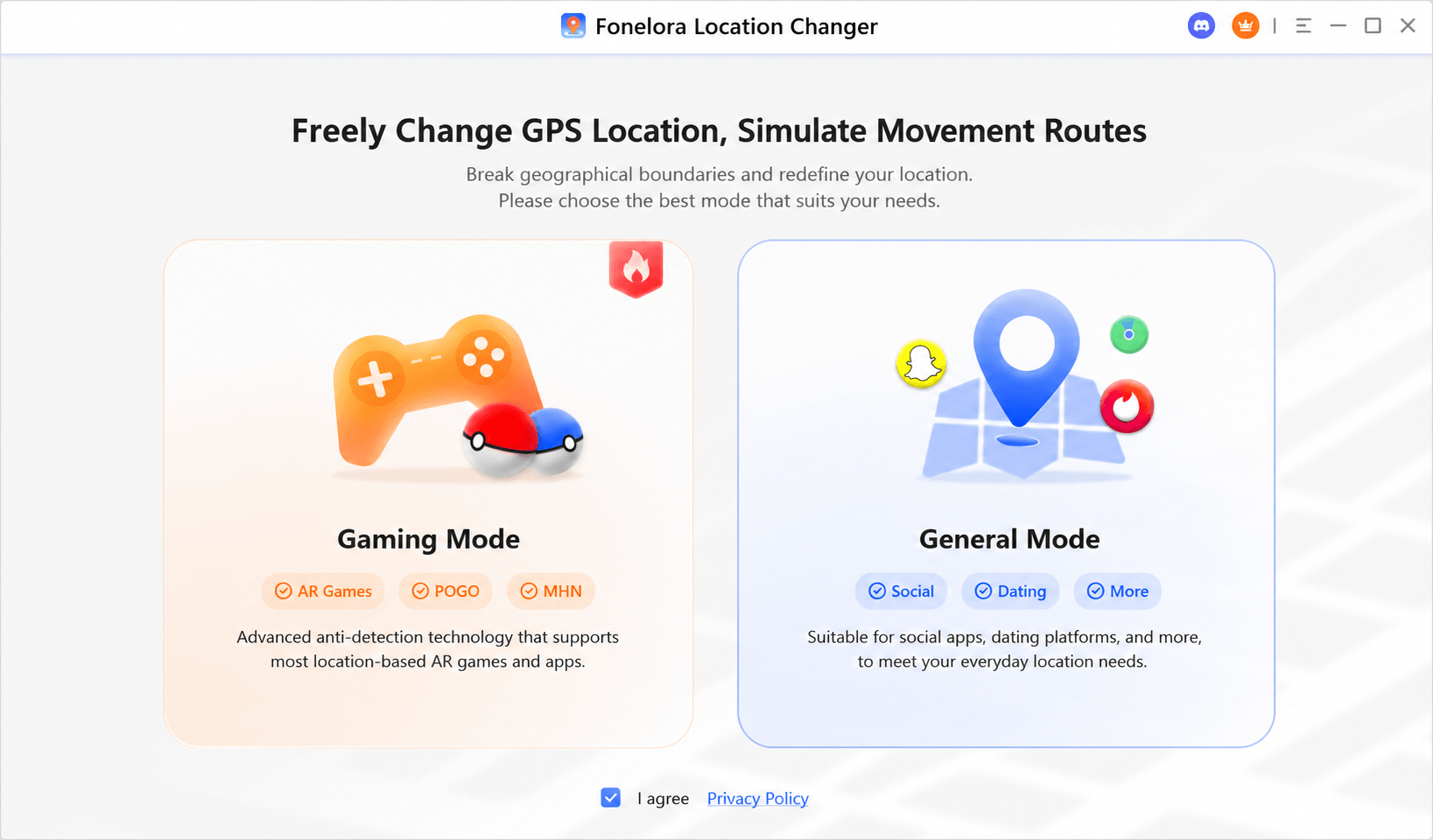
If your goal is to find a reliable way to manage Pokémon GO, Life360, Snap Map, Tinder, and Find My, desktop tethering tools are your best option. While there are several reputable tools on the market (such as AnyTo or iAnyGo), we will use Fonelora Location Changer as our primary example to demonstrate the setup, as it handles the “Location Stack” beautifully.
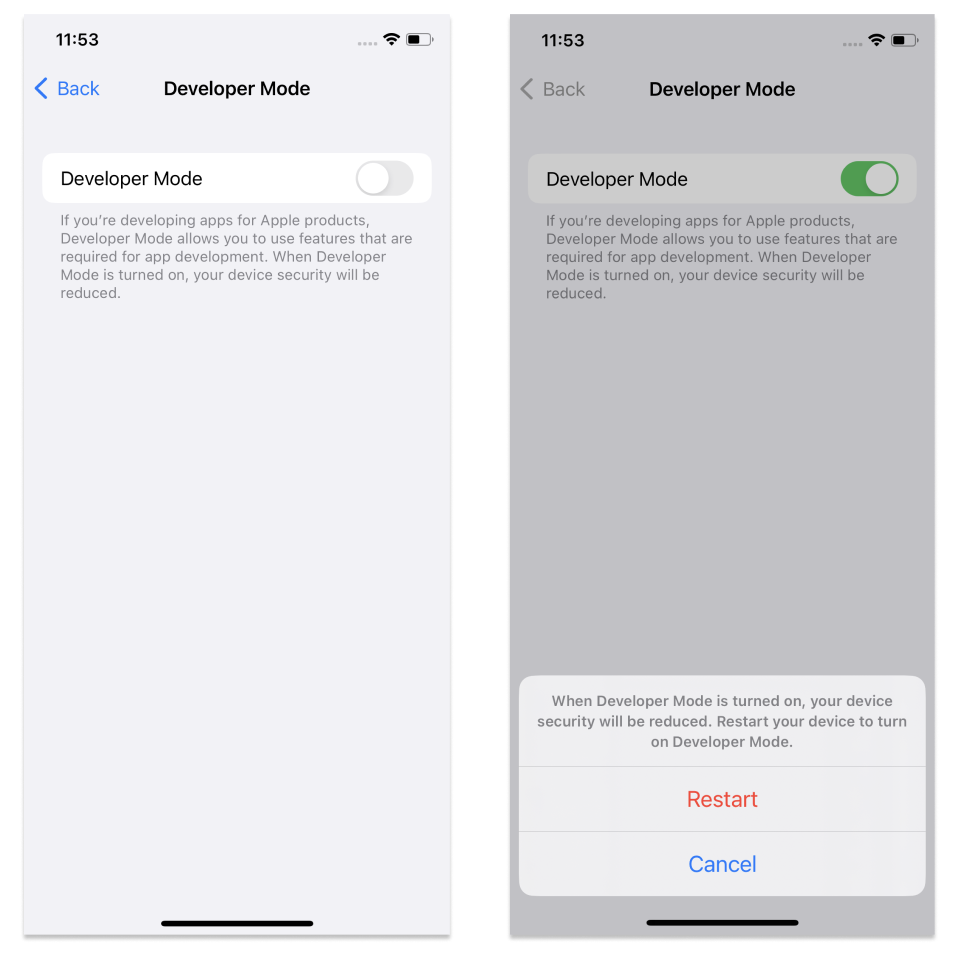
🚨 WARNING: The Missing iOS Requirement Most older tutorials skip a critical step for modern iPhones. If you are running iOS 16, iOS 17, or iOS 18+, Apple strictly blocks desktop location tools by default. You must enable Developer Mode before doing anything else, or your software will instantly fail.
Step-by-Step: Changing Your Coordinates on iOS 16+
Enable Developer Mode: On your iPhone, navigate to Settings > Privacy & Security. Scroll down to the bottom and tap Developer Mode. Toggle it on. Your iPhone will prompt you to restart. After it reboots, tap “Turn On” and enter your passcode to confirm.
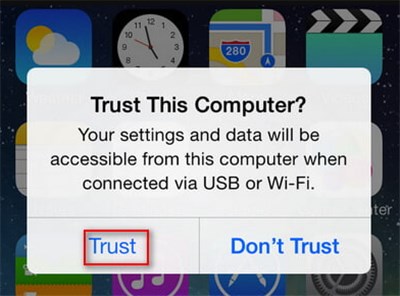
Connect and Trust Your Device: Download and launch your chosen desktop tool (like Fonelora Location Changer) on your PC or Mac. Connect your iPhone securely via an MFi-certified USB cable. Unlock your phone. When the “Trust This Computer?” prompt appears, tap Trust and enter your passcode.
Configure Settings for Your Specific App:
- For Dating Apps / Maps: Use Teleport Mode for instant geographical jumps. Enter your target city and click “Move.”
- For Life360 / Social Trackers: A static, frozen location looks highly suspicious to family members. Use the software’s Location Drift feature. This simulates tiny, natural micro-movements around a specific block or house, making your digital presence appear completely organic.
- For Gaming: Use the multi-stop route simulation or the 360-degree joystick to create a natural walking speed.
High-Risk vs. Low-Risk Apps: Avoiding Account Bans
Different applications react very differently to a virtual location. You must match your tool’s settings to the specific application you are targeting.
Low-Risk Map and Social Testing
Changing your dating app location or viewing Snapchat location features in a new city is generally a low-risk procedure. For example, adjusting your coordinates to preview Tinder matches in a city you plan to move to rarely causes account issues, provided you do not teleport frantically across the globe within minutes.
High-Risk Gaming Scenarios (Pokémon GO, Monster Hunter Now)
Gaming applications represent high-risk environments. These games actively monitor your account behavior for sudden, impossible geographic jumps.
🚨 WARNING: Understanding the “Cooldown Timer“ The most common way players get their Pokémon GO accounts banned or hit with an “Error 12” is by ignoring cooldown rules. A cooldown is the realistic physical travel time you must wait between two geographic actions.
Example: If you spin a PokéStop in New York, you cannot teleport to London and immediately catch a Pokémon. The game knows airplanes don’t fly that fast. For a distance of 1,500+ kilometers, you must close the game and wait a minimum of 2 hours before interacting with the map in the new location. Always check a standard cooldown chart before making long-distance jumps.
How to Fix “Rubber-Banding” and Location Snap-Back Errors
Even with a premium iOS location changer, you might occasionally encounter a massive frustration known as “rubber-banding”—where your phone changes perfectly on the desktop map but suddenly snaps back to your real coordinates inside the target app.
This happens because the iOS Location Stack is trying to correct what it sees as a GPS error by cross-referencing your real Wi-Fi environment. Here is how to stop it:
- Disable Wi-Fi and Bluetooth (The Right Way): iOS uses nearby Wi-Fi MAC addresses and Bluetooth beacons to pinpoint your location. Swiping down the Control Center and tapping the Wi-Fi icon does not actually turn it off—it only disconnects from your current network. You must go into the main Settings app > Wi-Fi and toggle it completely off. Do the same for Bluetooth.
- Clear Application Cache: Force close the target application by swiping it away from your app switcher. Restart it only after your mock location is active on your desktop.
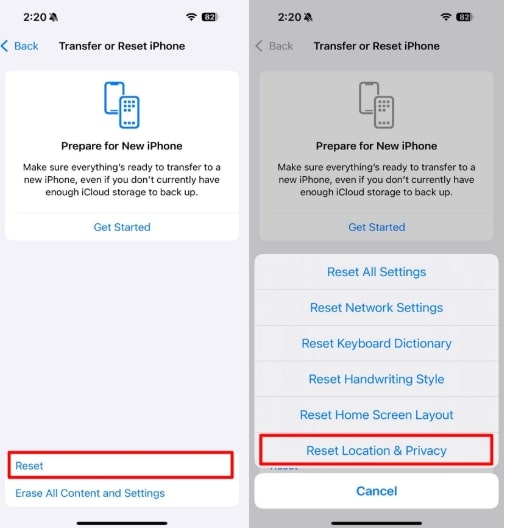
- Reset Location Services: If the snap-back problem persists, navigate to Settings > General > Transfer or Reset iPhone > Reset > Reset Location & Privacy. This clears outdated sensor data and forces apps to read the newly provided coordinates.
Privacy Protection and Safety: When to Avoid Third-Party Tools
Before downloading any third-party tool, you must prioritize your digital safety. The internet is flooded with suspicious downloads that promise “free iPhone fake GPS no jailbreak” capabilities but deliver malware instead.
🚨 WARNING: The GPS Spoofing Safety Checklist
- NO Untrusted Profiles: Never install an “iOS configuration profile” from a random website claiming to enable spoofing.
- NO “Survey to Unlock” Scams: If a YouTube tutorial requires you to complete a survey or download three unrelated apps to “unlock” a spoofer, it is a scam designed to harvest your data.
- NO Shady IPA Files: Avoid sideloading unknown .ipa files, as they can compromise your Apple ID and steal personal information. Stick to official, established desktop software.
Using Built-in iOS Alternatives
Sometimes, altering your exact coordinates is an unnecessary procedure. If your goal is simply to protect your privacy from intrusive retail apps or background social media tracking, Apple provides excellent native controls.
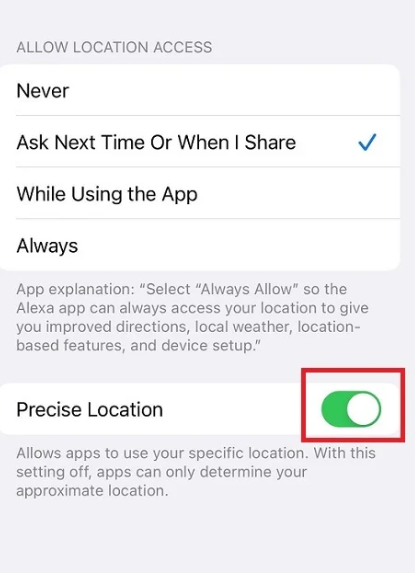
Instead of generating a mock location, you can disable Precise Location. Navigate to Settings > Privacy & Security > Location Services. Select your target app and toggle off Precise Location. The app will only receive a multi-mile radius of your general area rather than your exact street address. This technique is highly effective for maintaining privacy without the technical complications of fully manipulating your system.
Frequently Asked Questions About iOS GPS Spoofing
Can I spoof GPS location on iPhone without a jailbreak?
Yes. The safest method is using a tethered desktop location changer like Fonelora, iAnyGo, or AnyTo. This procedure connects your iPhone to a PC or Mac to securely rewrite the system coordinates without breaking Apple’s developer restrictions.
Why does a VPN not change my iPhone GPS location?
A VPN encrypts your internet traffic and alters your IP location. However, it has zero effect on the physical GPS receiver inside your device. Apps that rely on Location Services will bypass the VPN and read your real coordinates.
What is the difference between GPS spoofing and turning off Precise Location?
Spoofing actively feeds false latitude and longitude coordinates to your phone system. Turning off Precise Location is a built-in iOS setting that simply obscures your exact location, providing apps with a broad, generalized area while keeping your true location private.
Can I spoof location for Pokémon GO on iPhone?
Yes, but it is high risk. You must enable Developer Mode, respect 2-hour cooldown times for long distances, and use realistic route simulation tools to avoid soft bans or the ‘Error 12’ warning.
Will GPS spoofing get my account banned?
It depends entirely on the app. General map testing or dating app location changes carry very low risk. However, competitive location-based games have strict policies and anti-cheat systems that will ban accounts showing impossible travel speeds.
Author Closing Note: Because Apple updates iOS frequently, always ensure your chosen desktop location changer provides regular software updates and active customer support. What works perfectly on iOS 17 might require a software patch to remain stable on iOS 18 or later.
Conlusion
Changing your location on an Apple device should not feel like navigating a minefield of malware and account bans. Whether you want to protect your privacy on social apps, explore new cities on a dating platform, or safely manage location-based games from home, understanding the limitations of your device is essential.
By utilizing the right desktop tethering tools and respecting app-specific rules like cooldown timers, you can bypass the risks of sketchy downloads and complex developer setups. Take control of your Location Stack, remember to enable Developer Mode, and you can finally regain authority over your digital footprint securely.



Joy Taylor is a seasoned technical writer with over a decade of experience in mobile technology. At iMobie, she specializes in producing in-depth content on iOS data recovery, iPhone unlocking solutions, and iOS troubleshooting.
Product-related questions? Contact Our Support Team to Get Quick Solution >
