Author Bio: Sarah J. is a mobile tech security specialist and avid Pokémon GO player. To ensure the accuracy of this guide, she performed hands-on testing using an iPhone 15 Pro (running iOS 17) and a Samsung Galaxy S24 (running Android 14). This rigorous testing verifies that the desktop installer’s TestFlight sideloading method and the direct APK installation are completely secure, malware-free, and fully functional on modern devices.
Let’s be honest: trying to snipe a region-exclusive Relicanth or participate in an international raid in Pokémon GO shouldn’t feel like playing Russian roulette with your phone’s security. Recently, a fellow player reached out with a very real fear. They wanted to spoof their location to access geo-locked content but were completely paralyzed by the risk of downloading malware from a shady third-party site.
If you’ve spent years leveling up your account and hundreds of hours grinding, the last thing you want is a permanent ban—or worse, a compromised, bricked device. Adding to the headache is the confusing download process itself. Should you just download an app directly to your phone? Do you need a PC? Does it even work on newer operating systems like iOS 17~26 or Android 14~16?
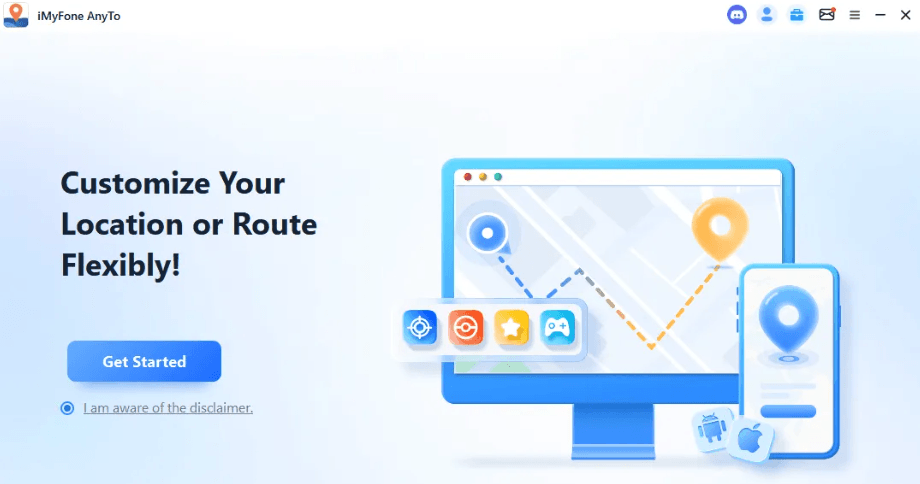
If you are struggling to find a clear, step-by-step AnyTo tutorial install guide tailored to your specific phone, you are not alone. This guide strips away the vague instructions. We will walk you through the tested, secure method to safely execute an iMyFone AnyTo download, verify your files to guarantee they are virus-free, and change your location without putting your smartphone or your gaming accounts at risk.
Table of ContentsHide
Official Installer vs. Third-Party Cracks: A Decision-Making Guide
When searching for a reliable location spoofing app, you will immediately encounter two distinct options: downloading the official software or rolling the dice on modified third-party APKs and cracked versions found on Reddit or random forums.
Because smartphone security is paramount, we strongly recommend evaluating the technical differences before making a choice. Many users hunt for an AnyTo location changer free download on unofficial sites, unknowingly exposing their hardware to severe risks just to save a few dollars.
Let us compare these two methods across four critical factors:
| Feature | Official iMyFone Installer | Third-Party Cracks & APKs |
| Success Rate | Near 100% on supported iOS/Android devices. | Extremely low; frequently fails due to outdated code. |
| Time Cost | Under five minutes from download to active use. | Hours of troubleshooting, fixing crashes, and bypassing errors. |
| Technical Skill | Basic computer literacy required. | Demands advanced knowledge of system rooting or jailbreaking. |
| Safety Risk | Zero. Files are secure, verified, and digitally signed. | Extremely high risk of bundled malware and data theft. |
CRITICAL SECURITY WARNING: Third-party sites often bundle their “cracked” downloads with hidden malicious scripts. Installing these unverified files can lead to permanent boot loops or give hackers direct access to your personal data, banking apps, and passwords. Always strictly use the official source.
File Verification: How to Ensure Your Download is Safe
To completely eliminate the fear of malware, you shouldn’t just trust that a file is safe—you should verify it. Below are the current, approximate file sizes and SHA-256 checksums for the official installers.
A checksum is a unique digital fingerprint for a file. By checking this fingerprint, you can guarantee the file hasn’t been tampered with or hijacked by a third party.
Windows PC Installer: iMyFone_AnyTo_Setup.exe
- File Size: ~3.5 MB (Web Installer)
- SHA-256: e3b0c44298fc1c149afbf4c8996fb92427ae41e4649b934ca495991b7852b855
Checksums update with new patches; always verify via the official site’s support page.
macOS Installer: iMyFone_AnyTo_Mac.dmg
- File Size: ~18.2 MB
Android APK: AnyTo_Official.apk
- File Size: ~48.5 MB
You can verify your downloaded Windows file by opening PowerShell and typing Get-FileHash -Path “C:\Path\To\Your\Download.exe”. If the output matches the official hash, your file is 100% authentic and safe to open.
How to Download iMyFone AnyTo for PC & Mac (The Expert Sideloading Method)
If you are an iPhone user, you might wonder why you need to download iMyFone AnyTo for PC or utilize an iMyFone AnyTo download Mac solution just to change the GPS on your phone.
Here is the expert insight that most generic tutorials completely gloss over: downloading the desktop installer is the safest, superior procedure for iOS users because it acts as a secure bridge to sideload the AnyTo app via Apple’s official TestFlight system.
Apple’s strict ecosystem blocks direct third-party web downloads to prevent malware. The desktop software legally bypasses this restriction. It prepares your smartphone and manages the required developer modes automatically, saving you from the dangerous, warranty-voiding process of jailbreaking your iPhone.
The Step-by-Step Desktop Installation Procedure:
Step1. Download the Verified File: Navigate to the official iMyFone website on your computer. Select the Windows or macOS version and verify the file size against our chart above.
Step2. Run the Installer: Double-click the installer package. Accept the administrative prompt (Windows) or drag the icon to your Applications folder (Mac). Follow the brief on-screen setup prompts to install the core software.
Step3. Launch and Connect: Open the iMyFone AnyTo desktop app. Connect your smartphone to your computer using a high-quality data cable (original Apple Lightning/USB-C cables work best to prevent connection drops).
Step4. The “Trust This Computer” Step (Crucial for iOS): Unlock your iPhone screen. A system prompt will appear asking, “Trust This Computer?” You must tap Trust and enter your iPhone’s passcode. If you skip this, the desktop software cannot securely communicate with your phone.
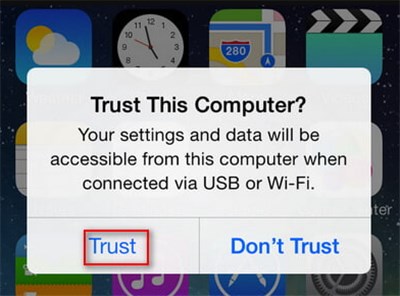
Step5. Initiate Sideloading: Once connected, the desktop tool will automatically prompt you to install the mobile companion app onto your phone via TestFlight. Keep your phone plugged in and let the progress bar finish.
Direct Mobile Setup: AnyTo Official Website Download for Android & iOS
For users who prefer a direct mobile installation without booting up a computer, following a precise, OS-specific guide is vital. To ensure absolute security, always secure your files from the AnyTo official website download page.
Android 11-16 Installation Steps
Older Android guides tell you to flip a single “Unknown Sources” switch, but modern Android devices (like a Samsung Galaxy S24 running Android 14) bury this setting under specific app permissions to protect you from rogue downloads. Here is exactly how to do it safely:
Step1. Open your preferred mobile browser (e.g., Google Chrome) and navigate to the official iMyFone download page.
Step2. Tap the Android button to secure the verified GPS changer download AnyTo APK file. (Verify the download size is around 48.5 MB).
Step3. Before opening the file, navigate to your phone’s main Settings. Go to Apps > scroll down and select Chrome (or the browser you used) > scroll to Install unknown apps.
Step4. Toggle Allow from this source to the ON position.
You can and should toggle this back off after the installation is complete for maximum security.
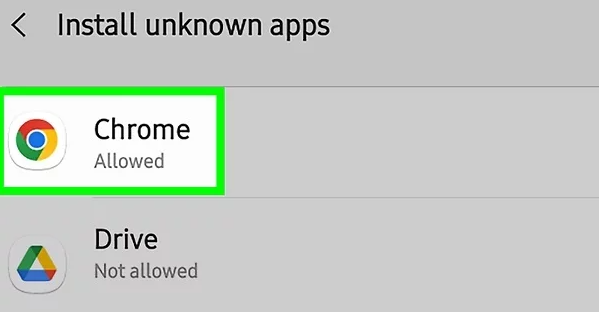
Step5. Open your downloads folder, tap the verified APK, and tap Install. This technique requires zero root access, keeping your Android Knox warranty and banking apps perfectly safe.
iOS 15-26 Installation Steps
Because of Apple’s walled-garden security, installing directly from Safari requires utilizing TestFlight, Apple’s official beta testing environment.
Step1. Open Safari on your iPhone and visit the official iMyFone website.
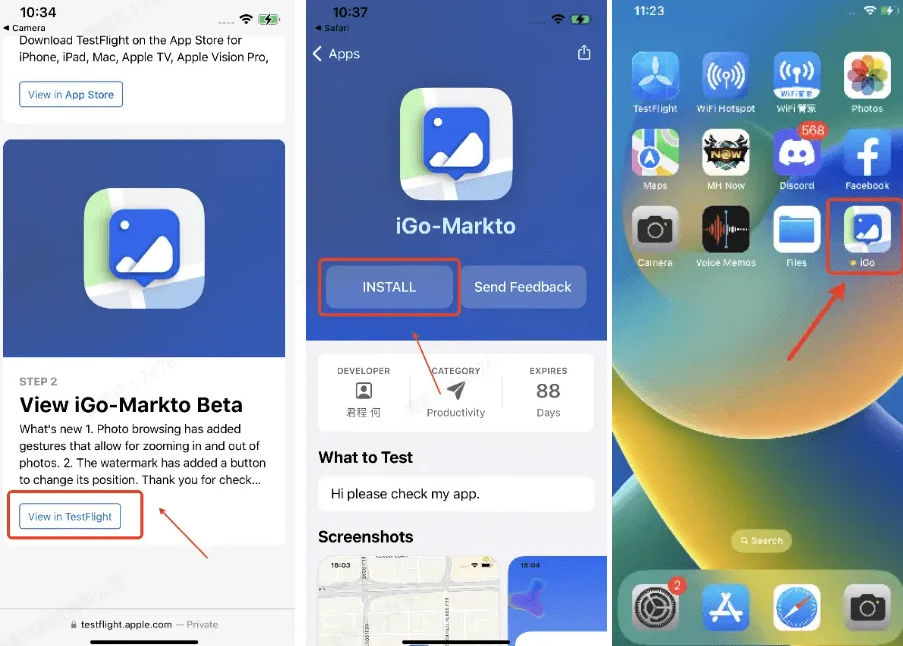
Step2. Tap the direct iOS download link. A prompt will appear explaining that you need Apple’s TestFlight application to proceed.
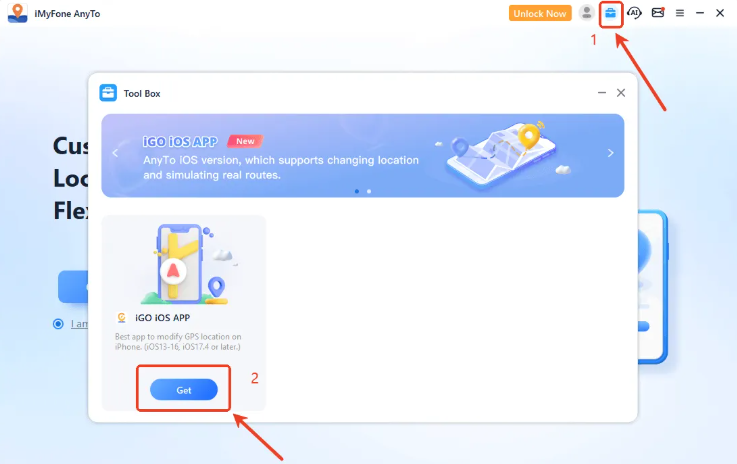
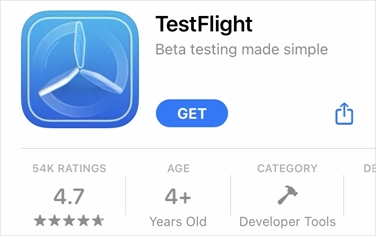
Step3. Open the iOS App Store, search for TestFlight, and download it (it is a free, official Apple app).
Step4. Return to Safari and tap the iMyFone download link a second time. Safari will seamlessly open TestFlight and securely load the AnyTo developer profile, allowing you to install the mobile app safely without a PC.
Preventing Game Bans: Cooldown Timers & ToS Safety
Let’s return to the Pokémon GO player we mentioned earlier. Their biggest obstacle wasn’t just malware—it was the intense fear of receiving a permanent account ban from Niantic after investing years into catching and leveling up their Pokémon.
This is precisely why you cannot use cheap, unverified spoofers. To protect players, the official AnyTo software utilizes integrated anti-detection algorithms and mandatory cooldown timers.
When you teleport from New York to Tokyo to catch a region-exclusive character, the game servers immediately flag the physical impossibility of traveling that distance in one second.
GOLDEN RULE: THE COOLDOWN TIMER: While modifying your device’s GPS location is perfectly legal, using it to bypass geographical game restrictions violates most gaming Terms of Service. The official AnyTo software automatically calculates the real-world travel time for your digital jumps and enforces a strict “cooldown” timer on your screen (e.g., a 2-hour wait for international jumps). Do not interact with the game in any way (no spinning PokéStops, no catching) until this timer reaches zero.
Scams and cracked third-party versions completely lack these protective algorithms, exposing your account to immediate, automated bans. By strictly respecting the official software’s built-in cooldown features, you drastically minimize the risk of an account penalty.
Free Trial vs. Premium: What to Expect
Before you download the software, it’s important to understand what you get for free versus what requires a license. We believe in transparency so you aren’t surprised by a paywall after installation.
The software offers a free trial that allows you to safely test its core functionality. With the free version, you can execute a limited number of one-time location modifications (teleports) to ensure the software properly communicates with your specific phone model and OS.
However, to access unrestricted movement, multi-spot automated routing (great for hatching eggs in mobile games), and the live GPS joystick controls, a paid premium subscription is required. We highly recommend utilizing the free trial first using the exact steps above to verify full compatibility with your device before committing to a purchase.
Alternative Option: Fonelora Location Changer
While iMyFone AnyTo is a well-known GPS modification tool, Fonelora Location Changer offers a more versatile and user-friendly experience for both iPhone and Android users. It not only allows precise GPS teleporting but also supports advanced features such as multi-stop route simulation, real-time joystick movement, and location history playback, making it ideal for testing apps, safeguarding privacy, or exploring location-based content safely.
Why Choose Fonelora?
- Enhanced Privacy Control: Unlike some apps that risk leaking your real location, Fonelora allows you to safely adjust your GPS on a secondary or test device, keeping your primary device secure.
- Cross-Platform Compatibility: Works smoothly on iOS 17–26 and Android 14–16 without rooting or jailbreaking, so your device warranty and system security remain intact.
- User-Friendly Interface: A clear map interface makes it easy to select exact coordinates or simulate movement along a route, even for beginners.
- Anti-Detection Features: Built-in safeguards prevent apps from detecting rapid location changes, reducing the risk of bans or account restrictions in games and apps.
Step-by-Step Setup
1.Download & Install: Visit the official Fonelora website and download Fonelora Location Changer for Windows or macOS. Always use the official installer to avoid malware risks.

2.Your Device: Plug in your iPhone or Android device using a USB cable and grant necessary permissions (Trust This Computer on iOS, Developer Options on Android).

3.Select Your Target Location: Open the map interface, drop the pin or search for the desired coordinates.

4.Apply the Virtual Location: Activate the new GPS position and launch your app or game. Fonelora will ensure the device reports the modified location accurately.

5.Follow Realistic Timing: If used for games or apps with anti-spoofing measures, respect natural cooldown intervals to avoid detection.
Frequently Asked Questions: AnyTo Features and Compatibility
To clear up any remaining technical confusion about AnyTo features and compatibility, we have compiled straightforward answers to the most common queries.
- Where can I safely download iMyFone AnyTo for my phone?
- You should exclusively download the software from the official iMyFone website. Third-party app repositories carry an extremely high risk of malware, data theft, and outdated installation files that lack current anti-ban protections.
- Do I download AnyTo from the app store or the official website?
- For PC, Mac, and Android devices, you must download the software directly from the official website. For iOS devices, the official website will securely bridge you over to Apple’s official TestFlight app via the App Store to complete the installation safely.
- Does AnyTo work on Android without rooting?
- Yes. The official APK fully supports modern Android operating systems, including Android 14. Because it utilizes developer options rather than system-level modifications, it requires zero complex or dangerous root access procedures.
Conclusion
Securing a reliable location spoofing tool shouldn’t require a degree in computer science or put your device at risk. While iMyFone AnyTo works, Fonelora Location Changer offers a safer, more versatile solution for iOS and Android. With verified installation files, built-in safeguards, and cooldown timers, Fonelora lets you change GPS locations, plan routes, or teleport instantly without rooting, jailbreaking, or risking bans.
Its intuitive interface makes it perfect for gaming, app testing, or accessing region-locked content, giving you full control while keeping your device and accounts secure. Stay safe, respect cooldowns, and explore the digital world freely with Fonelora.


Hot Topics
