Samsung FRP Lock Explained: Why Galaxy Phones Get Stuck on Google Verification
FRP is a Google security feature that locks Samsung phones after an untrusted reset, requiring the original account to verify identity and prevent unauthorized access or data misuse.
If you are staring at a screen that says “Verifying your account” and asks for a previously synced Google account, your Samsung Galaxy is currently under Factory Reset Protection (FRP) lock.
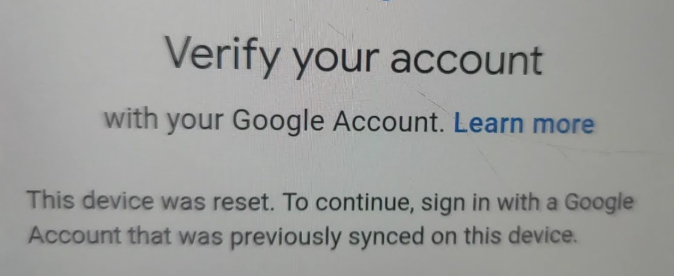
Factory Reset Protection is a built-in Google security feature designed to keep your data safe and prevent anyone from easily resetting and using your phone without your permission. If you are looking to remove previously synced Google account from Android settings normally, that requires your password—but an abnormal reset triggers a lockdown.
Your phone is stuck on this verification screen because it recently underwent an “untrusted” hard reset. When a device is wiped using physical buttons (Recovery Mode) or third-party tools rather than through the normal settings menu, Android automatically triggers FRP. It assumes the reset might be unauthorized, so it locks the phone until the original owner confirms their identity.
If you are feeling frustrated right now, it helps to know that your phone is not broken, and this is not a glitch. The system is working exactly as intended. Getting past it requires proving authorization, which usually means entering the correct Google account credentials or following a structured recovery path.
How Factory Reset Protection Works on Samsung Devices
To understand why bypassing FRP requires specific conditions, it helps to know exactly what this feature is protecting.
At its core, FRP acts as a digital padlock. Its primary purpose is anti-theft. In the past, if someone found or stole a smartphone, they could simply hold down the power and volume buttons, force a factory reset, and set it up as a brand-new device. Google introduced FRP to stop this loophole.
Here is how the mechanism works:
- The Trigger: FRP activates silently the moment you add a Google account to your Samsung phone.
- The Lockdown: If the phone is wiped from outside the standard Android Settings menu (such as via Android Recovery Mode), FRP kicks in immediately.
- The Requirement: To unlock the phone, the system requires the exact email address and password of the Google account that was last synced to the device before the reset.
Because FRP links the physical device directly to those specific account credentials, clearing the lock requires either official account authentication or highly specific software conditions that reset the phone’s configuration.
Diagnosing Your Situation: Forgotten Password vs. Second-Hand Phone
The safest way to get past the Google verification screen depends entirely on how you got locked out. Review the common scenarios below to map out your next step, especially if you cannot login Google after factory reset.
Scenario 1: You forgot your own Google account password after a reset
- The Situation: You wiped your own phone because it was lagging or you forgot the screen pin, but now you cannot remember the password for the Google account you used to set it up.
- The Solution: Your focus should be entirely on official account recovery using a secondary device. You own the account, so recovering the password is the safest and most direct path.
Scenario 2: You bought a legally owned second-hand Samsung phone
- The Situation: You purchased a used Galaxy phone online or from a local shop, but the previous owner wiped it from Recovery Mode without logging out of their Google account first.
- The Solution: You will need to contact the seller to either provide the login credentials or remove the device remotely from their Google account. If they are unresponsive, you will need to rely on proof of purchase or a guided bypass tool for authorized devices.
Bypassing FRP without authorization is against Google’s terms. Any bypass tools or support services should only be considered if you are the legal owner of the device and have permission to access it.
Official Ways to Pass Google Verification on a Samsung Phone
Before looking into any third-party software, you should always try the official, free methods provided by Google and Samsung. These methods do not require downloading anything and carry zero risk to your device.
Step 1: Perform standard Google account recovery
Use a computer or another smartphone to visit the official Google Account Recovery page. Follow the prompts to reset your password using your recovery email or phone number.
Step 2: Wait out the security cooldown period
If you successfully reset your Google account password in Step 1, Google often enforces a 24-to-48-hour security hold. You may not be able to log into the locked Samsung phone immediately. Wait two days and try the new password again.
Step 3: Have the previous owner remove the device remotely
If you bought the phone second-hand, ask the seller to log into their Google account from a web browser, go to their “Security” tab, find “Your devices,” and sign out of the Samsung phone. Once they do this, restart the phone to clear the lock.
Step 4: Visit an official Samsung Support Center
If you are the original owner but cannot recover your Google account, take the phone and your original proof of purchase (a valid receipt showing the IMEI number) to a certified Samsung service center. They can physically flash the device to remove the lock.
The Problem with Manual FRP Bypass Methods
If official recovery paths fail, you will likely find thousands of YouTube tutorials claiming to offer free, manual FRP bypass methods. While it is tempting to follow them, these chaotic methods often lead to wasted time and severe frustration.
Here is why manual FRP exploits frequently fail:
- Highly Dependent on Android Versions: A manual bypass trick that worked perfectly on Android 12 will almost certainly crash on Android 14. Bypasses are not universal.
- Fast Security Patching: Google updates Android security patches monthly. A YouTube video from just six months ago often relies on a loophole that Google has already closed.
- Technical Complexity: Many manual methods require entering complex ADB (Android Debug Bridge) commands, shorting physical test points on the motherboard, or navigating hidden accessibility menus. One wrong step can leave the phone completely frozen.
- Safety Risks: Free tutorials often ask you to download “FRP Bypass APKs” from unverified file-sharing sites, which can introduce malware to your computer or phone.
Because of these limitations, non-technical users who legally own their devices often find themselves stuck in an endless loop of outdated tutorials. When scattered manual exploits are too complex or obsolete, utilizing a reliable Samsung FRP tool with a guided, compatibility-aware software workflow becomes necessary.
Comparing Your FRP Bypass Options
To help you decide the best next step for your specific situation, here is a quick breakdown of how the three main approaches compare:
| Method Type | Ease of Use | PC Required? | Success / Risk Dependency |
|---|---|---|---|
| Official Recovery | Moderate | No (Can use another phone) | High success if you own the account or can reach the seller. Zero risk. |
| Manual Exploits (YouTube/ADB) | Complex | Often Yes | High risk. Success heavily depends on finding an unpatched loophole for your exact Android version. |
| Guided PC Tool (e.g., DroidKit) | Easy (Guided Interface) | Yes | Safe, but success depends on device model, Android version, and security patch compatibility. |
A Guided Alternative: Using DroidKit for Samsung FRP Bypass
If you cannot recover your Google account, cannot reach the previous owner, and find manual ADB exploits too confusing, DroidKit provides a structured alternative. For users who legally own their Samsung device or have authorization to use it, the DroidKit FRP Bypass module offers a guided PC workflow designed specifically for non-technical users.
Unlike scattered YouTube tutorials, DroidKit customizes the bypass process based on your specific Samsung device model, Android version, and security patch level.

DroidKit
As a complete Android solution, DroidKit can easily help you recover lost data with/without backup, unlock Android screen, bypass FRP lock, fix system issues, etc. within minutes.
Here is how the general workflow operates:
1. Check Compatibility: Ensure your specific Samsung model and current Android version are supported by DroidKit.
2. Connect Your Device: Open DroidKit on your computer, select the FRP Bypass module, and connect your locked Samsung phone via USB.
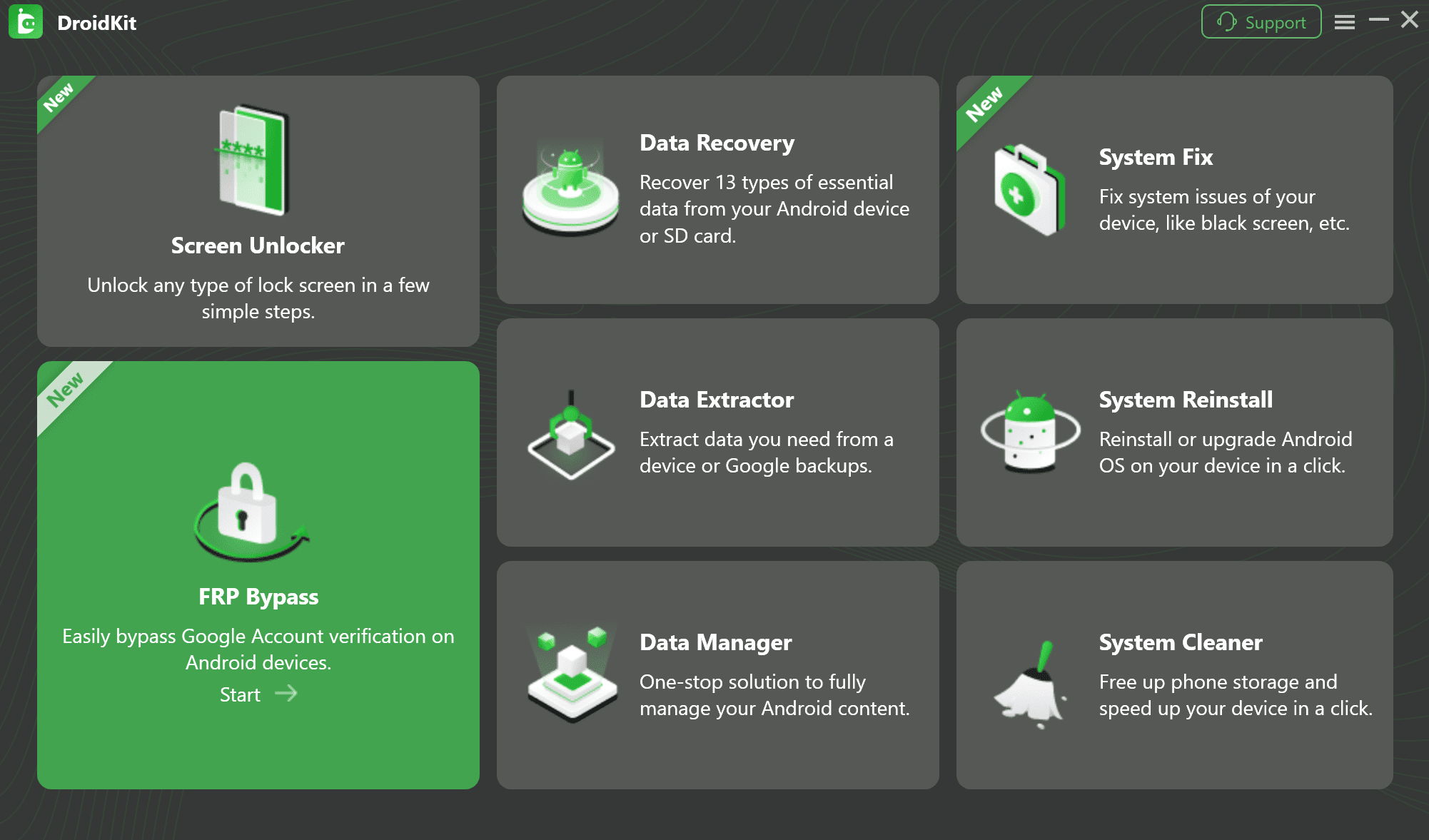
3. Follow Guided Steps: DroidKit will detect your device and prepare a configuration file matching your system.
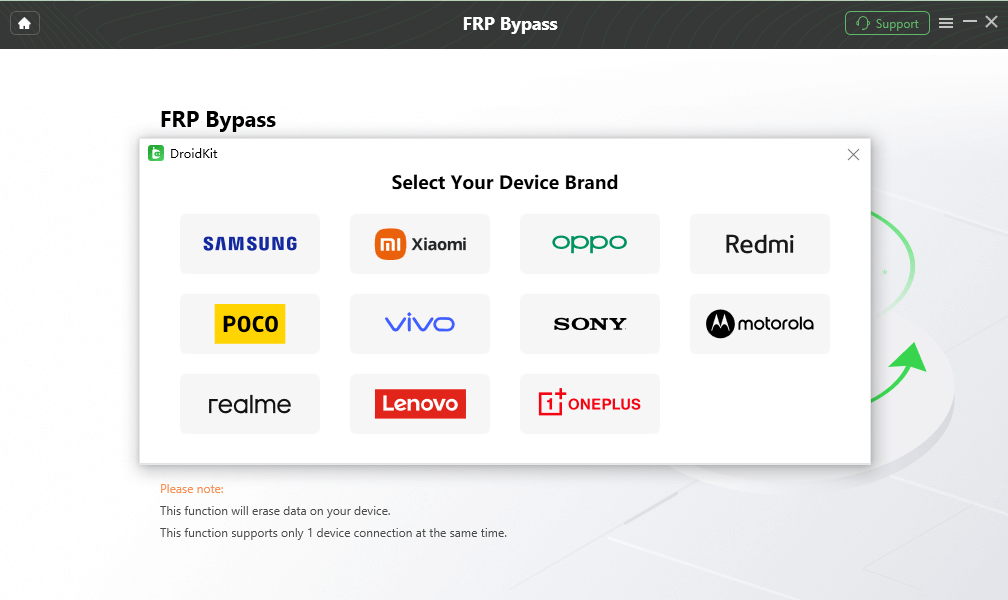
4. Regain Access: Follow the on-screen instructions to reset the setup configurations, which clears the Google verification screen and allows you to set up a new account.
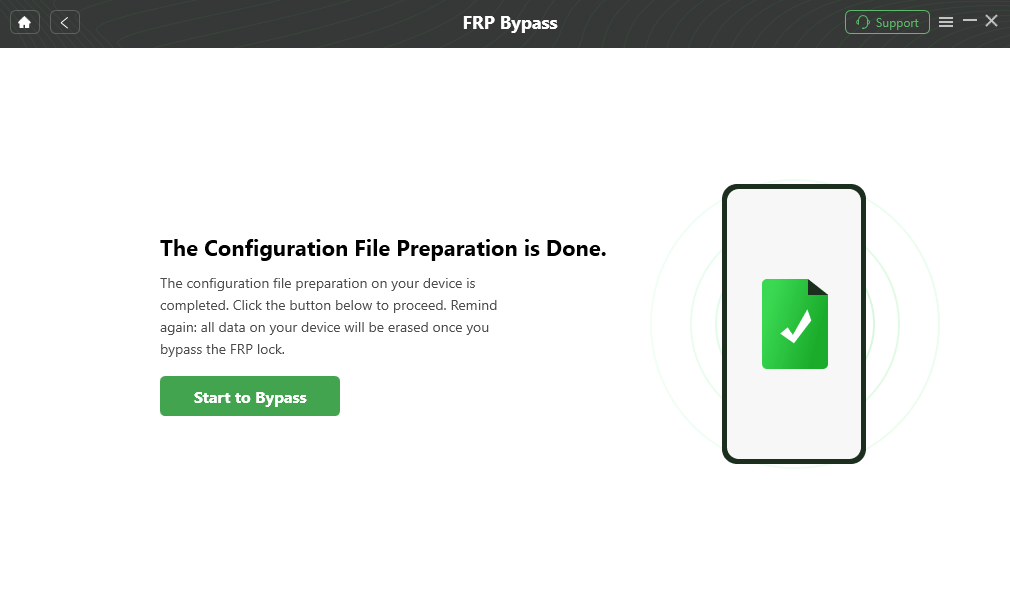
Success depends heavily on your exact device compatibility and security patch level. Always review the product’s supported device list before beginning.
Frequently Asked Questions About Samsung FRP Locks
Does a factory reset remove the Google account lock?
No. In fact, performing an untrusted factory reset (using the physical buttons instead of the phone’s settings menu) is exactly what triggers the Google account lock in the first place.
How do I bypass FRP without a PC or password?
Bypassing FRP without a computer relies on finding loopholes in the Android setup menu. However, Google patches these “no-PC” methods very quickly. If you cannot remember your password, using official account recovery or a structured PC tool like DroidKit is generally much more reliable than hunting for unpatched loopholes.
Can I bypass Google verification on a second-hand Samsung?
Yes, provided you acquired it legally. You can contact the seller to remove the device from their Google account remotely, provide proof of purchase to Samsung, or use a compatible FRP bypass tool for authorized devices.
Will flashing new firmware remove FRP?
Usually, no. Factory Reset Protection is stored in a secure partition of the device that typically survives standard firmware flashing.
Is it safe to use FRP bypass APKs?
You should exercise extreme caution. Many free FRP APKs hosted on random file-sharing sites carry malware risks, and most are based on patched security loopholes that no longer work on modern Samsung devices.
Final Thoughts: Safely Getting Past the Verification Screen
Seeing the “Verifying your account” screen on your Samsung Galaxy can be stressful, but remembering that Factory Reset Protection is a built-in security feature meant to keep data safe can help you approach the problem calmly.
Your first step should always be the official route: try recovering your Google account using another device, wait out the 24-hour security cooldown if you just changed your password, or contact the seller if the phone is second-hand.
If those official methods are impossible and manual exploits prove too complex or outdated, you still have options. For a legally owned device, checking DroidKit’s compatibility can provide a much clearer, guided FRP bypass process, allowing you to finally regain access to your phone.
DroidKit – Unlock Android Screen in 1 click
- Can unlock multiple screen locks like digital password, PIN, pattern, Touch/Face ID, etc.
- Only need to click buttons. No root requirement. As simple as possible.
- Compatible with almost all Android brands such as Huawei, Samsung, Sony, etc.
Free Download for all windows & 100% safe
Free Download for all mac & 100% safe
Free Download 100% Clean & Safe
Related Articles
Bypass Google FRP on Samsung Tablet
Samsung A15 FRP Bypass Guide
How to Unlock Samsung Phone Forgot Password



Jeremy Feron is a writer for iMobie with a deep passion for Android. He specializes in creating clear guides on Android tips and the latest updates, helping users navigate their devices and get the most out of new features.
Product-related questions? Contact Our Support Team to Get Quick Solution >
