USB No Media Fix (2026): Diagnostics, Repair, and Data Recovery Guide
Seeing a “USB No Media” error can be alarming, especially when the drive shows 0 bytes and no accessible data. This 2026 guide explains what the USB No Media error really means, how to diagnose whether the issue is logical or hardware-related, and which fixes are worth trying first.
Facing a locked device when you need it most can be a significant obstacle. For Sarah, a graphic designer who contacted us, the panic was instant. She connected her flash drive to access her portfolio, to open USB on Windows 10, only to be blocked by a Windows error: “Removable Disk (F:) — Please insert a disk.” When she checked the drive’s properties, it displayed USB No Media 0 bytes. The files weren’t just hidden; according to the operating system, the storage capacity didn’t exist.
If you are seeing the USB no media error, you likely see the drive letter in File Explorer, but clicking it triggers an error loop. This guide is built on hands-on verification using Windows 10 and 11 builds. We have replicated these specific controller behaviors to help you distinguish between a simple driver glitch and a fatal USB controller failure. Before assuming the drive is dead, we must verify the symptoms. This procedure will guide you to test the hardware, attempt logical repairs, and—if necessary—understand your options for data recovery USB services when software fails.
Step 1: Isolate Hardware Issues Before Software Repairs
Before attempting complex software repairs, you must rule out physical connection faults. A USB drive shows no media error can sometimes stem from insufficient power or a faulty port. We prioritize this step because, unlike software fixes, it carries zero risk of data loss.
Check Your Physical Connections
Perform these immediate checks:
- Switch Ports: Plug the drive into a rear USB port (if using a desktop) to ensure it receives direct power from the motherboard. Front panel ports sometimes lack sufficient voltage to power the controller correctly.
- Test a Different PC: Connect the drive to a completely different computer. If the external hard drive shows no media error on the second machine, the issue is with the drive itself, not your computer’s drivers.
The “Card Reader” False Positive
A common oversight involves USB card readers (SD/microSD adapters). If you have a multi-card reader plugged in but no SD card inserted, Windows will often assign a drive letter to the empty slot. When you click it, it reports “Please insert a disk” and shows “No Media” in Disk Management—an issue often confused with true drive failure before attempting Micro SD Card recovery.
To verify:
- Open Device Manager (Right-click Start > Device Manager).
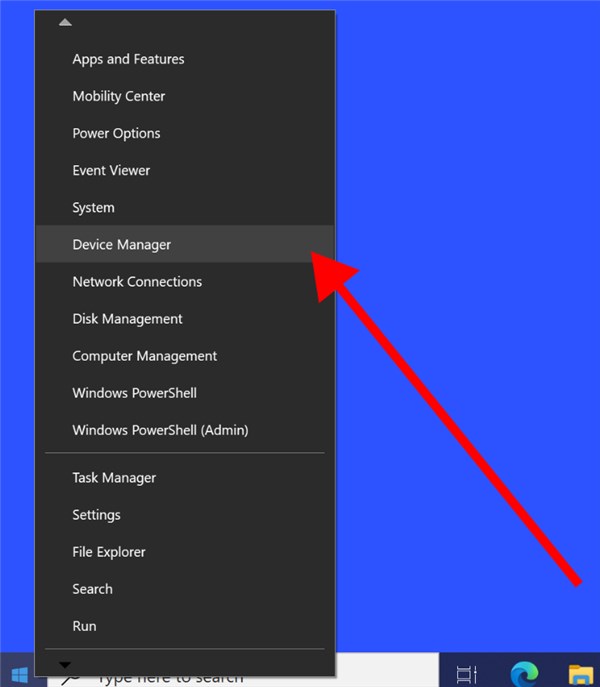
- Expand Disk Drives.
- If you see “Generic Storage Device” or “Multi-Card Reader” instead of the brand name of your flash drive (like SanDisk or Kingston), you are likely looking at an empty card reader slot, not a corrupted USB. Ensure your actual USB not detected device is plugged in securely.
Critical Decision: Data Recovery vs. Drive Repair
The following steps involve manipulating drivers and partition tables. While often necessary to fix the device, some methods (like the diskpart clean command coming up in Step 3) are destructive and will wipe data structures. If your USB no media 0-byte drive contains critical documents, you must pause here.
If the drive has suffered a physical USB controller failure or NAND corruption, attempting to force it to format can make professional recovery impossible later. Use the table below to determine your best course of action based on the value of your files.
| Method | Best For… | Data Safety Risk | Success Rate (Hardware Failure) | Cost |
| Manual Software Fixes | Non-critical data; trying to reuse the drive. | High (May overwrite data) | Low | Free |
| Professional Recovery | Critical, irreplaceable files (business docs, family photos). | Safe (Hardware-level extraction) | High | $200 – $1000+ |
| Drive Replacement | Drive is old/cheap; data is backed up elsewhere. | N/A (Data is abandoned) | 100% (New Hardware) | Cost of new USB |
If your priority is simply making the USB stick work again and you don’t care about the files, proceed to the software fixes below. If the data is vital, consider consulting a specialist for chip-level repair before typing any commands.
Step 2: Fix Driver Conflicts and Check Disk Management
When you first encounter this issue, it is logical to hope for a simple driver conflict. Corrupt drivers can sometimes prevent Windows from reading the drive’s capacity correctly, leading to the USB drive shows no media error.
Reinstalling USB Mass Storage Drivers
To refresh the connection:
1. Right-click the Start button and select Device Manager.
2. Expand the Disk Drives section. Look for your USB device (it may appear as “Unknown Device” or by its brand name).
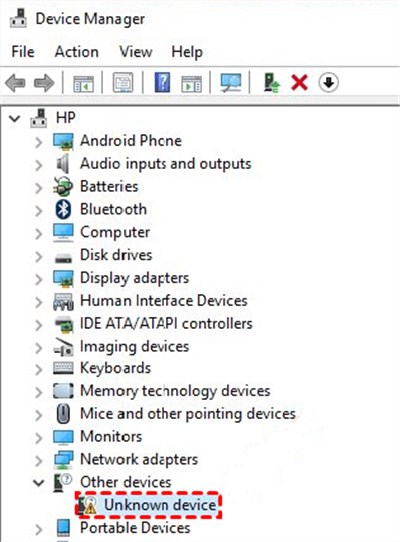
3. Right-click the device and select Uninstall device.
4. Once removed, go to the top menu, click Action, and select Scan for hardware changes. Windows will attempt to reinstall the driver cleanly.
Verifying Status in Disk Management
If the driver update does not resolve the issue, check the drive’s status in Disk Management.
1. Press Windows Key + X and select Disk Management.
2. Locate your removable disk. If the USB says no media in disk management and shows “No Media” under the disk number (e.g., Disk 1), right-click the drive area.
3. Select Change Drive Letter and Paths. If the option is greyed out, or if the drive lists USB not showing capacity no media, the file system is not readable by the OS.
If these steps result in the same error, the issue runs deeper than a simple Windows glitch.
Expert Insight: Why “No Media” Often Indicates Controller Failure
Before we attempt the more aggressive repairs in Step 3, it is vital to understand why the software might fail. If your computer sees the drive letter but can’t access the storage, you are likely dealing with a hardware disconnect.
Most guides miss this critical distinction: “No Media” usually means the USB controller is detected, but the flash storage is not accessible.
A USB drive consists of two main parts:
- The Controller: The “brain” that talks to the computer.
- The NAND Flash: The memory chips that actually hold your data.
When you plug the drive in, the Controller wakes up and tells Windows, “I am here.” Windows assigns a drive letter. However, when the Controller turns around to read the data from the NAND Flash chips, it gets no response due to USB flash drive firmware corruption or physical damage to the NAND chip.
The result:
- 0 Bytes: Because the Controller cannot see the storage capacity, it reports an empty capacity to Windows.
- Impossible Scans: This is why USB no media and 0 bytes recovery is often impossible with standard software. Tools like CHKDSK or format utilities cannot function because they require a reported capacity to create a file system.
Essentially, the bridge is up, but the road on the other side has collapsed. If the next step fails, you can be certain the issue is physical.
Step 3: Resetting the Drive (WARNING: WIPES DATA)
If Disk Management cannot interact with the drive, the diskpart utility is your most powerful tool for fixing no media USB drive issues. This tool interacts directly with the storage controller.
⚠️ STOP AND READ:
The clean command below removes all partition formatting.
- Data Loss is Guaranteed: This process creates a blank slate. Your files will be gone.
- Select Carefully: You must identify the correct drive. Wiping the wrong disk (like your backup drive) is irreversible.
How to Use Diskpart Safely
1. Type cmd in the Windows search bar, right-click Command Prompt, and choose Run as administrator.
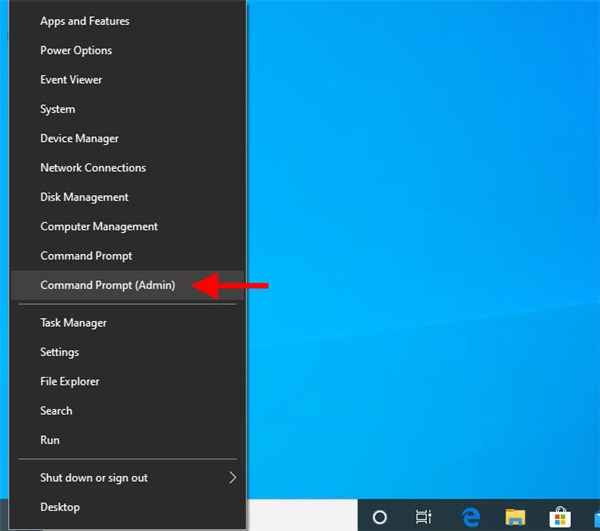
2. Type diskpart and press Enter.
3. Type list disk and press Enter.
Identifying a “No Media” Drive
This is where users get confused. A healthy drive lists a size in GB. A “No Media” drive will likely look different:
- It may show Size: 0 B.
- It may show Status: No Media.
Example Output:
Disk ### Status Size Free Dyn Gpt
——– ———- ——- ——- — —
Disk 0 Online 931 GB 0 B
Disk 1 No Media 0 B 0 B
In this example, Disk 1 is the failed USB.
1. Type select disk X (replace X with your USB’s disk number, e.g., select disk 1).
Safety Check: Type detail disk and press Enter. Ensure the details match your USB (e.g., it might say “Generic USB”). If you see your main hard drive’s name, do not proceed. Select the correct disk again.
2. Once you are 100% sure you have the USB selected, type clean and press Enter.
Interpreting the Results
- Success: If the Command Prompt says “DiskPart succeeded in cleaning the disk,” the controller was simply confused by corrupt partition data. You can now create a new partition by typing create partition primary followed by format fs=fat32 quick.
- Failure: If you receive the message “Virtual Disk Service error: There is no media in the device,” this confirms the drive is unresponsive to commands. No amount of software manipulation will fix this, as the diskpart clean command cannot execute on storage that doesn’t report its presence.
Real Data Recovery Options for “No Media” Drives
Many users ask, “Can I scan this with recovery software?” The honest answer is no. Standard data recovery tools need to detect a valid storage device with readable sectors (even raw ones). If your usb no media 0 bytes drive reports no capacity, software like Recuva or Disk Drill has nothing to scan.
The Two Remaining Options
1. Professional Chip-Off Recovery
This is the only safe method for vital data if the drive failed the diagnostics above. Specialists physically desolder the memory chip from the circuit board and read it using a separate device, bypassing the failed controller. This requires cleanroom tools and specific expertise.
2. MPTool (Mass Production Tool) — For Advanced Users Only
If you don’t care about the data but want to save the hardware, you can try “flashing” the firmware using a manufacturer-specific MPTool. This factory-level software can reset the controller.
How to find your VID/PID:
To find the correct tool, you need the Vendor ID (VID) and Product ID (PID) of your specific controller.
1. Open Device Manager.
2. Right-click your USB device and select Properties.
3. Go to the Details tab.
4. In the Property dropdown, select Hardware Ids.
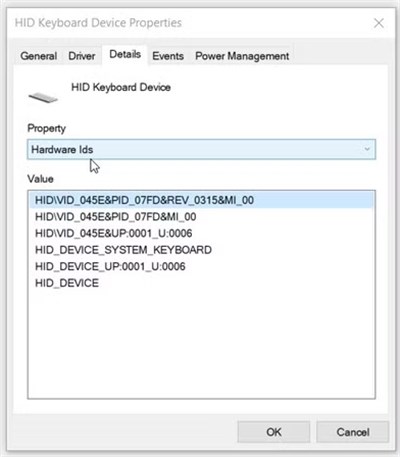
5. You will see a string like USB\VID_090C&PID_1000.
The Process:
Take that VID and PID and search online repositories (like “USBDev”) for the matching Mass Production Tool.
- The Risk: This is complex and varies by every single drive model.
- The Outcome: If successful, this resets the controller to factory settings. However, it will permanently erase all data. This is a repair strategy, not a recovery strategy.
Frequently Asked Questions About USB Errors
Q1. What does ‘No Media’ mean on a USB drive?
It indicates that the computer communicates with the USB controller, but the controller cannot communicate with the NAND flash storage. It is often a sign of firmware corruption or physical memory failure.
Q2. Why does my USB show 0 bytes?
Because the storage chip is inaccessible, the controller reports an empty capacity to Windows. Without access to the storage sectors, the operating system registers the device as having 0 bytes of space.
Q3. Can I recover files from a USB that says No Media?
Not with standard downloadable software. Since the drive shows no capacity, software cannot scan it. Professional data recovery services using chip-level repair are required.
Q4. Can DiskPart fix a No Media USB?
Only if the error is logical (partition table corruption). If the issue is physical, diskpart will return a “Virtual Disk Service error: There is no media in the device.”
Q5. Is a No Media USB drive physically damaged?
In many cases, yes. The connection between the controller and the memory chip is broken. While updating drivers is a valid troubleshooting step, persistent No Media errors usually require drive replacement.
Conclusion
The “No Media” error is frustrating because it sits in a grey area: the computer sees the device, but the device is empty. As we explored, this typically points to a disconnect between the USB controller and the memory chips. If you have confirmed the issue on a second computer and the diskpart method failed with the “Virtual Disk Service” error, you are likely dealing with USB controller failure, where standard USB Flash Drive recovery tools may not be able to detect any recoverable capacity.
If your data is critical, do not attempt further software repairs—contact a professional immediately. If the data is expendable, the most practical solution is to replace the drive. Storage hardware degrades over time, and a “0 bytes” error is the definitive sign that it’s time to retire the device. By identifying the root cause now, you stop wasting time on scans that won’t work and can take the right step to regain your workflow.
More Related Articles



Joy Taylor is a seasoned technical writer with over a decade of experience in mobile technology. At iMobie, she specializes in producing in-depth content on iOS data recovery, iPhone unlocking solutions, and iOS troubleshooting.
Product-related questions? Contact Our Support Team to Get Quick Solution >
