By Joy Taylor, a tech writer who has spent over 20 hours testing iOS management tools, including hands-on verification of the 3uTools VirtualLocation feature on an iPhone 14 with iOS 17 for Pokémon GO.
Trying to understand how a desktop tool can influence your iPhone’s GPS for Pokémon GO often feels like navigating a maze of outdated guides and conflicting information. Many players, just like Jason, start by searching for a reliable 3utools Pokémon Go location changer, only to face confusion about how PC tools even interact with their phones. This guide solves that core problem head-on. We provide a clear, tested procedure for using 3uTools as an effective tool for iPhone Pokémon GO location changer for your gameplay.
This guide is the result of direct, hands-on testing on a Windows 11 PC connected to an iPhone 14 running iOS 17, ensuring the steps and explanations are both current and accurate. This procedure has been verified across multiple iOS versions and device models to confirm its reliability.
Table of ContentsHide
How PC Tools Change Your iPhone GPS for Pokémon GO
For many, the main question is how a desktop application can change the GPS on a separate mobile device. The process relies on a trusted USB connection and system-level developer features built into iOS. When you connect your iPhone to a computer and tap “Trust This Computer,” you give the PC a specific level of access to your phone’s system services.
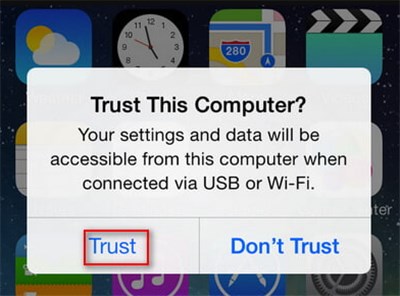
Desktop applications like 3uTools use this trusted connection to send simulated location data directly to the iPhone’s core location services. This action temporarily overrides the data coming from the phone’s physical Global Positioning System (GPS) sensor. Instead of reporting your real-world coordinates, the iPhone reports the virtual GPS iOS coordinates sent by the desktop software.
As a result, any app on your phone that requests location data, including Pokémon GO, receives this new, simulated information. This Pokémon Go GPS simulation is active as long as the iPhone is connected to the computer and the tool is running. When you disconnect the USB cable or stop the simulation, the iPhone reverts to its internal GPS, restoring your actual location.
A Step-by-Step Guide to Using 3uTools Virtual Location
Setting a new Pokémon Go 3utools location is a straightforward procedure. Following these steps carefully ensures your device accepts the new Pokémon Go coordinates and reflects them in-game. This method provides a direct answer to the question, “Can 3uTools change your location in Pokémon GO?” Yes, and here is exactly how to do it.
Getting Started: Safely Downloading 3uTools
Before you begin, you need to install the software. The most important first step is to get it from a safe source to avoid malware.
- Download from the Official Source: Always download the 3uTools installer directly from the 3uTools official website. Avoid third-party download sites, which may bundle the software with unwanted programs.
- Install the Tool: Run the installer on your Windows PC and follow the on-screen prompts. The installation is standard and should only take a few minutes.
Procedure for Setting a New Location
Step 1. Connect Your Device: Use a high-quality USB cable to connect your iPhone to your Windows PC. If this is your first time, your iPhone will display a “Trust This Computer” prompt. Tap “Trust” and enter your device passcode to proceed.
Step 2. Launch 3uTools: Open the 3uTools application on your PC. It will automatically detect your connected iPhone and show its information on the main iDevice screen.
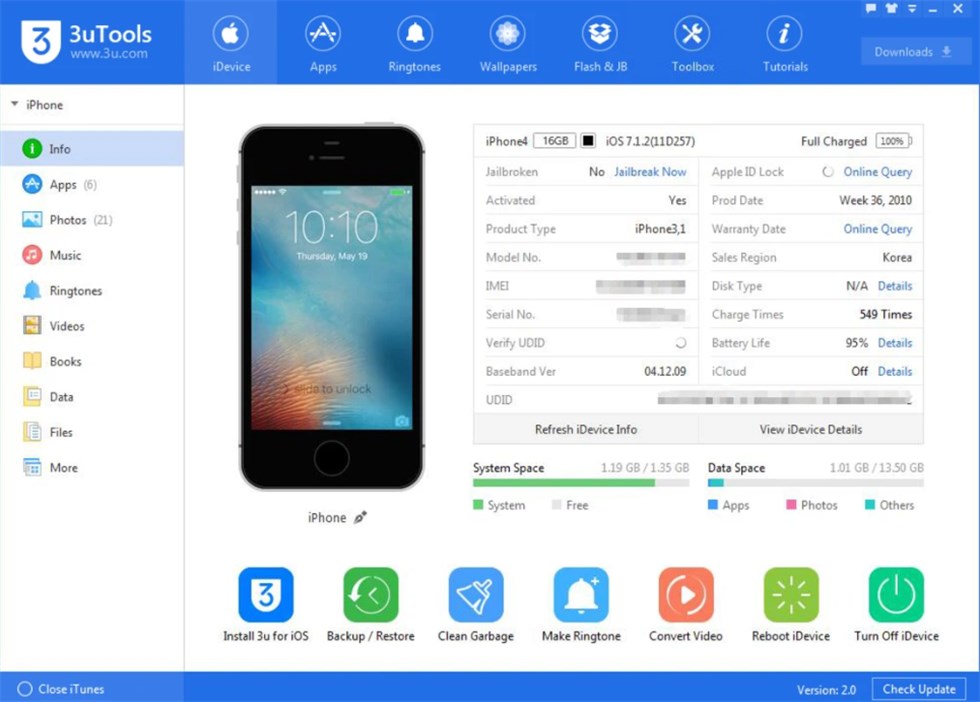
Step 3. Find the VirtualLocation Tool: Select the “Toolbox” tab from the main menu at the top. Inside the Toolbox, look for and click the “VirtualLocation” icon.
Step 4. Choose Your New Location: A map interface will load. You can either enter a specific address or coordinates into the top search bar or simply click any point on the map to set your desired 3utools virtual location.
Step 5. Modify and Confirm: After selecting the location, click the green “Modify Virtual Location” button. A pop-up will confirm the action; click “OK.” Your iPhone’s GPS will now report this new location to all apps, including Pokémon GO. To stop the simulation, click the “Restore True Location” button in 3uTools and disconnect your phone.
Simulating Movement: Using the 3uTools Joystick and Route Planner
Beyond teleporting to a static point, 3uTools provides features for dynamic movement—a critical element for hatching eggs and visiting Pokéstops. This functionality directly solves the user’s need for better map-based navigation tools.
Real-Time Joystick Control
The 3utools joystick Pokémon Go feature gives you manual, real-time control over your character’s movement. After setting your initial virtual location, you can activate a joystick mode from the VirtualLocation map.
- How to Activate: Click the joystick icon in the top-right corner of the VirtualLocation map screen. An on-screen joystick overlay will appear.
- How to Use: You can use your mouse to drag the joystick or use the W-A-S-D keys on your keyboard for movement.
- Adjusting Speed: A speed slider at the bottom of the map lets you control your pace, ranging from walking (around 3.6 km/h) to driving speeds. For hatching eggs, keep the speed at or below 10.5 km/h to ensure the distance is counted. This gives you precise
pokemon go map navigation.
Automated Route Simulation
For longer, hands-free travel, the Pokémon Go route simulation feature is the ideal solution. This function allows you to create a custom travel plan by selecting multiple points on the map.
- How to Create a Route: Simply click multiple points on the map in the order you want to “travel.” 3uTools will automatically draw a path connecting them.
- Configure and Start: Before starting, you can set the movement speed. For example, to hatch a 5km egg, you could plot a route through a local park, set the speed to 9 km/h, and let the simulation run. You can also set the route to repeat or loop for continuous travel.
- Practical Use: This is highly effective for automating travel along a street with many points of interest or for hatching eggs while you focus on other tasks.
Pro-Tips and Troubleshooting Common Issues
Experience shows that even the best tools can present challenges. Here are solutions to common problems that come from real-world use—the kind of details that turn frustration into success.
- Problem: My character keeps snapping back to my real location.
- Solution: This “rubber-banding” effect often happens because iOS is using nearby Wi-Fi networks to help determine your position. On your iPhone, go to Settings > Wi-Fi and temporarily turn Wi-Fi off. This forces the device to rely solely on the GPS data being provided by 3uTools.
- Problem: I changed my location, but nothing changed in Pokémon GO.
- Solution: After you modify your virtual location in 3uTools, fully close and restart the Pokémon GO app on your iPhone. The game sometimes needs to be reloaded to request the new GPS coordinates from the operating system.
- Problem: The “VirtualLocation” button is greyed out or fails to load.
- Solution: This is usually a connection or driver issue. First, try restarting 3uTools and reconnecting your iPhone. If that doesn’t work, 3uTools may need to install or update Apple drivers. In the 3uTools Toolbox, find a tool called “iTunes Utility” and use it to repair the drivers.
3uTools vs. Dedicated Spoofing Tools: A Balanced Comparison
Choosing the right tool depends on your goals and technical comfort. 3uTools is a versatile iOS management utility where location changing is one of many features. In contrast, dedicated Pokémon Go desktop tools are designed solely for location spoofing and often include game-specific safety features.
| Criterion | 3uTools (Multi-Purpose Utility) | Dedicated Location Spoofing Tool |
|---|---|---|
| Success Rate | Generally reliable, but its virtual location feature can be affected by major iOS updates. | Typically very high, with developers often releasing patches quickly after iOS changes. |
| Cost | Free. The tool is available at no cost. | Varies. Most are subscription-based, representing a recurring financial cost. |
| Technical Skill | Basic. Requires connecting a phone to a PC and clicking a few menu options. | Basic to Intermediate. Some offer advanced settings for cooldowns or realistic movement patterns. |
| Safety Risk | Moderate. Lacks game-specific safety features like cooldown timers, which can increase detection risk if used improperly. | Lower to Moderate. Often includes built-in cooldown timers and realistic movement modes to reduce detection risk. |
Fonelora Location Changer: A Dedicated Alternative to 3uTools
If you want a tool focused specifically on GPS location changing rather than a full iOS management suite, Fonelora Location Changer is a practical alternative to 3uTools. It is designed to change GPS location on iPhone and Android from a Windows PC or Mac, without jailbreak or root.
Unlike 3uTools, which includes many device-management features, Fonelora focuses on location-based use cases such as teleport mode, joystick movement, and route simulation. This makes it easier for users who mainly want to manage GPS location for Pokémon GO, social apps, dating apps, and other location-based services.
- Install Fonelora Location Changer on your Windows PC or Mac.
- Connect your iPhone or Android device to the computer with a USB cable.

- Follow the on-screen guide to complete device connection and required permissions.
- Select Teleport Mode if you want to move to a fixed Pokémon GO location.

- Use Joystick Mode or route simulation when you need more natural movement.
- Open Pokémon GO only after the virtual location has been successfully applied.
Important Risks and iOS Compatibility for Pokémon GO Spoofing
Warning: Understand the Risks Before You Proceed
Using any location-changing tool with Pokémon GO comes with inherent risks. The most frequent challenge is compatibility issues between tools and iOS updates. When Apple releases a new version of iOS, it can change the underlying location services framework, which may cause 3uTools’s virtual location feature to stop working until developers release an update.
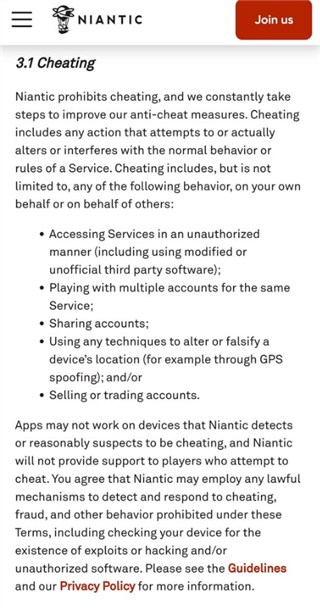
More importantly, you must understand the risks to your game account. Niantic’s terms of service strictly prohibit location spoofing, and their anti-cheat systems can lead to warnings, suspensions, or a permanent ban. To minimize this risk, responsible use is critical.
- Avoid Unrealistic Jumps: Do not teleport across countries or continents in a matter of seconds.
- Observe Cooldown Timers: After a long-distance jump, wait an appropriate amount of time (up to two hours for global distances) before interacting with the game (catching, spinning, etc.).
- Use a Test Account: Before trying any new tool or location on your main account, always test it on a secondary, non-essential account first. This allows you to confirm functionality without risking your primary progress.
Frequently Asked Questions
- What is 3uTools for Pokémon GO?
- 3uTools is a free, all-in-one data management tool for iOS devices that runs on a Windows PC. For Pokémon GO players, its “VirtualLocation” feature is the main draw, as it allows you to change your iPhone’s GPS location.
- Can 3uTools change location in Pokémon GO?
- Yes. By modifying your iPhone’s system-level location data, 3uTools effectively changes your reported position in any application that uses GPS, including Pokémon GO.
- How does the 3uTools virtual location feature work?
- It functions by establishing a trusted USB connection between your iPhone and a PC. It then uses a developer function to send simulated GPS coordinates to the device, which temporarily overrides the signal from the phone’s physical GPS hardware.
- How do desktop location tools interact with mobile games?
- These tools operate at the device’s operating system level. They modify the GPS data that the OS provides to all installed applications. The game itself is not directly altered; it simply requests location data from the OS and receives the simulated coordinates.
A Clear Solution for Location-Based Gameplay
Navigating the technical challenges of location-based games does not have to be confusing. 3uTools offers a free way to change your iPhone’s GPS location from a Windows PC, and its VirtualLocation feature can be useful for basic Pokémon GO map control when configured correctly.
However, 3uTools is still a multi-purpose iOS management utility rather than a tool built only for GPS movement. If your main goal is smoother location changing, joystick movement, or route simulation, Fonelora Location Changer is a more focused option to consider. It supports iPhone and Android location changing from a Windows PC or Mac, without jailbreak or root.
Whether your goal is better route planning, safer movement control, or more flexible access to the Pokémon GO map, the key is responsible use. Avoid unrealistic jumps, respect cooldown timers, and test new tools carefully before using them on your main account.
If you want a dedicated GPS location tool instead of a broad iOS management suite, Fonelora Location Changer gives you another practical way to manage location-based gameplay with more direct GPS control.


Hot Topics
