Facing a drained battery and a locked device when you need it most is a massive obstacle. I know the feeling all too well. Walking miles only to realize the game failed to log your physical effort is incredibly frustrating. You might experience confusion about enabling sync on iOS or Android, or notice that the tracking sometimes fails to update your distance correctly.
Perhaps you feel uncertainty about how steps translate into egg hatching or buddy candy, or encounter difficulty linking health or fitness apps on your newly upgraded smartphone. When I first wanted to hatch more eggs without carrying my phone constantly open, I spent hours navigating buried settings just to get my steps to register.
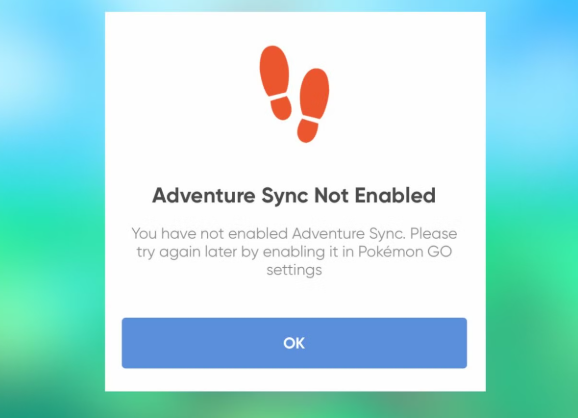
This guide provides a tested procedure to eliminate these exact issues. By properly configuring your native health applications, you can ensure every single step counts toward your next milestone. This method permanently ends the disappointment of rewards not appearing after completing weekly goals, allowing you to seamlessly merge your daily exercise with your favorite game.
You must link Apple Health for iPhone users or Google Fit for Android users. If you use Samsung Health or a third-party step counter, you must use an intermediary syncing app to push that data into Google Fit first for the game to recognize it.
Table of ContentsHide
Configuring Your Adventure Sync Settings
Setting up your device requires a specific procedure to ensure accurate background tracking. You must directly link Apple Health if you operate an iOS device, or Google Fit if you operate an Android device.
Applying this solution meant I could quickly link my health applications to see immediate automatic tracking. This completely eliminated my need to keep the screen illuminated during long neighborhood walks. To clear up any configuration obstacles and prevent difficulty linking your fitness apps, follow the exact method below for your specific operating system.
iOS Setup Procedure (Apple Health Integration)
Apple devices require a direct permissions handshake between the game and your native Health app to activate background tracking.
1. Open the Apple Health app on your iPhone and tap your profile icon in the upper right corner.
2. Select “Apps” under the Privacy menu.
3. Tap “Pokémon GO” from the populated list and toggle on all categories to allow complete data sharing (specifically focusing on Steps and Walking + Running Distance).
4. Open Pokémon GO, tap the main menu Poké Ball, and select “Settings.”
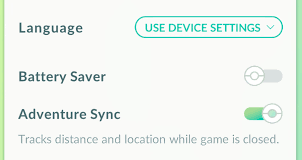
5. Tap “General” and toggle the “Adventure Sync” option to the on position.
Android Setup Procedure (Google Fit Integration)
Android environments rely heavily on Google Fit to process your background activity. If your distance fails to update, verifying this specific connection is always your first troubleshooting step.
1. Download and open the Google Fit app from the Play Store, ensuring you log in with the exact same Google account linked to your Pokémon GO profile.
2. Open Pokémon GO, tap the Poké Ball icon, and navigate to “Settings.”
3. Select “General” and tap the “Adventure Sync” option to enable it.
4. When prompted by the system overlay, select the specific Google account associated with your Google Fit profile to finalize the connection.
Once you complete these steps, your settings are active. Your device will now quietly log your movement without requiring active gameplay.
Background Tracking vs. Active Gameplay: A Method Comparison
Choosing how to log your steps involves evaluating active gameplay against automated background synchronization. Manual tracking requires keeping your screen illuminated, which heavily drains your hardware resources. In contrast, the automated background procedure works efficiently behind the scenes.
Here is a structured evaluation of both tracking techniques to help you make an informed decision regarding your device’s performance:
| Evaluation Criteria | Active Gameplay Tracking | Background Adventure Sync Method |
| Success Rate | Logs distance effectively but frequently drops data if your screen times out, locks, or loses cellular connection. | Securely and consistently records steps via your system’s native offline pedometer and health application. |
| Time Cost (Battery) | Keeping the game active constantly drains battery power and generates heavy thermal output, limiting your playtime. | Background syncing consumes minimal power, preserving your device for active catching, trading, and raid battles. |
| Technical Skill | Requires zero initial setup. | Demands a brief, one-time configuration within your OS privacy and health settings. |
| Safety Risk | Staring at a screen while walking creates a severe physical distraction. | Allows you to put your phone securely in your pocket, significantly reducing distracted walking risks. |
For users who value their time and want a guaranteed outcome for their fitness efforts, automated background tracking stands as the superior technique. It optimizes both personal safety and overall device battery life.
Understanding Weekly Rewards and Milestones
Reaching your weekly walking goals unlocks specific item drops every Monday morning at 9:00 AM local time. You earn a weekly reward based on three distinct distance milestones: 5km, 25km, and 50km.
As a mobile gaming analyst, I often explain that this system is designed to seamlessly integrate the game with your health apps, tracking distance even when the app is completely closed. This distance is then converted directly into in-game rewards like buddy candy, egg progress, and Stardust bonuses. Adventure sync encourages players to combine gameplay with physical activity, rewarding consistent movement.
These distance tiers directly boost your digital inventory:
- 5km Milestone: Yields 20 standard Poké Balls.
- 25km Milestone: Upgrades your payout to include 10 Great Balls, plus rare items like Silver Pinap Berries, 500 Stardust, or a special 5km egg.
- 50km Milestone: Provides the ultimate payout, including 5 Ultra Balls, a massive 1,500 Stardust bonus, Rare Candies, and potentially a highly sought-after 10km egg containing rare Pokémon.
CRITICAL WARNING: Check Your Inventory Space!
If your Egg inventory or Pokémon storage is full at 9:00 AM on Monday, you will not receive the 5km or 10km Adventure Sync eggs. The game will simply bypass the egg reward entirely. Always verify that you have at least two open egg slots and sufficient Pokémon storage space on Sunday night to guarantee you receive your hard-earned rewards.
PRO-TIP: Maximize Your Monday Stardust
Set a weekly alarm for 8:55 AM local time every Monday. Log into the game and activate a Star Piece right before 9:00 AM. This applies a 1.5x multiplier to your weekly Stardust rewards, boosting the 50km tier payout from 1,500 to a massive 2,250 Stardust.
Furthermore, this continuous background logging system ensures steady buddy candy progress. However, heavy walkers should note that there is a daily walking candy cap (typically around 40km, depending on your specific buddy). Once you hit that cap, your buddy will stop finding candy until the daily reset, though your overall weekly distance will continue to climb.
Resolving Common Adventure Sync Challenges
Experiencing tracking failures can disrupt your weekly goals, but most of these problems stem from simple configuration errors. If your game fails to log distance correctly, you can usually resolve the issue with a quick settings adjustment.
Correcting Background Location Permissions
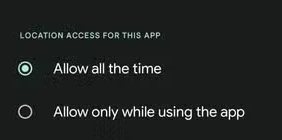
One frequent obstacle involves missing background location permissions. Your device must have permission to access location data “Always” or “All the time,” not just “While using the app.” Without this specific permission, the operating system cannot verify your movement while the screen is locked. Navigate to your device’s application manager to adjust this privacy setting.
Bypassing Battery Saver Restrictions
Battery saver modes frequently block health app integrations and generate the most common syncing failures. On devices running modern Android operating systems, aggressive OS-level battery optimizations silently stop background processes.
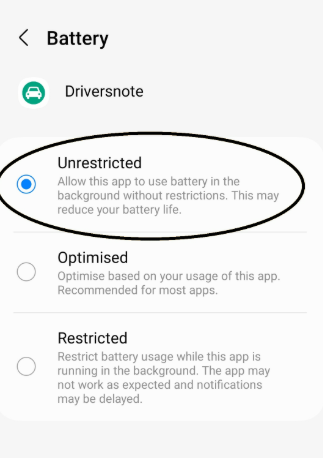
To fix this, you must explicitly tell Android not to restrict the game. Follow this exact menu sequence:
Settings > Apps > Pokémon GO > Battery > Unrestricted.
Additionally, check the in-game Battery Saver setting (found in the game’s main settings menu). Sometimes, leaving the game’s internal battery saver enabled causes syncing conflicts with your device-level settings. If your steps aren’t registering, try disabling the in-game battery saver entirely.
Forcing App Synchronization
App synchronization delays pose another hurdle. Sometimes, data takes several hours to transfer from Apple Health or Google Fit to the game servers. If you notice a discrepancy in your steps, open your native health application first to force a local data refresh. After confirming your steps appear in the health app, open Pokémon GO. This technique almost always pushes the updated distance data through to the game servers correctly.
Top Tips for Maximizing Your Fitness Tracking
Maximizing your weekly distance requires more than just carrying your phone. By optimizing your physical routines, you can dramatically increase your overall output.
Your mobile step tracker relies entirely on internal pedometer data when the application is completely closed. This means treadmill running or stationary biking can successfully log steps, provided you keep your phone securely in your pocket or strapped to your leg.
PRO-TIP: The Treadmill Rule
You must fully close the game application before starting your indoor exercise. If you leave the game running in the background while indoors, it will attempt to use GPS-based tracking. Because you aren’t moving geographically, GPS drift indoors often results in zero recorded distance. Fully closing the app forces the system to rely on your pedometer data instead.
By remembering to forcefully swipe the app closed before my daily treadmill sessions, I successfully capture all my indoor movement. Earning digital items for my favorite companions keeps my motivation high, perfectly demonstrating how adjusting your procedure yields better results.
Finally, if you use a smartwatch, always verify that your specific wearable properly pushes data to Apple Health or Google Fit. Pokémon GO cannot read data directly from a Garmin or Apple Watch; it only reads the central hub of your phone’s native health app.
Adventure Sync vs. GPS Location Tools: Know the Difference
Adventure Sync mainly depends on step and fitness data from Apple Health or Google Fit. It is designed to track walking distance in the background, especially when Pokémon GO is fully closed. This means a GPS location tool cannot replace the need to link the correct health app or fix missing permissions.
However, if you also need better control over Pokémon GO location-based activity during active gameplay, Fonelora Location Changer can be a useful companion tool. It lets you change GPS location on iPhone or Android from a Windows PC or Mac, without jailbreak or root, and supports joystick movement and route simulation for location-based apps.
Use Adventure Sync for background step tracking, egg progress, buddy candy, and weekly distance rewards. Use Fonelora Location Changer only when your goal is GPS-level location control during active Pokémon GO gameplay. Always avoid unrealistic movement and follow cooldown rules.
Frequently Asked Questions
Understanding the precise mechanics of background activity helps you manage your account effectively. Here are clear, direct answers to the most common setup and tracking questions.
- Does it track steps when the app is closed?
- Yes. Fully closing the app forces the system to rely on your pedometer data, which correctly logs your distance without draining your battery or relying on spotty GPS signals.
- Why is my distance not updating?
- Battery saver modes or incorrect background location permissions usually block background processing. You must ensure Android battery settings are set to “Unrestricted” and location data is set to “Always Allow.”
- Which apps need to be linked?
- You must link Apple Health for iPhone users or Google Fit for Android users. If you use Samsung Health or a third-party step counter, you must use an intermediary syncing app to push that data into Google Fit first for the game to recognize it.
Conclusion
Resolving the confusion about enabling Adventure Sync on iOS or Android—and fixing cases where Pokémon GO fails to track distance correctly—helps you make every step count. By linking Apple Health or Google Fit properly, allowing background location access, removing battery restrictions, and fully closing the app before indoor workouts, you can improve egg hatching progress, buddy candy collection, and weekly reward tracking.
The most important thing to remember is that Adventure Sync is a fitness-data feature. It depends on your phone’s health app, pedometer data, permissions, and background syncing. If your distance is not updating, start with the settings in this guide before assuming the game itself is broken.
If you also need GPS-level location control during active Pokémon GO gameplay, Fonelora Location Changer can be a practical companion. It lets you change GPS location on iPhone or Android from a Windows PC or Mac, without jailbreak or root, and supports joystick movement and route simulation for location-based apps.
Use Adventure Sync to track real step-based progress in the background. Use Fonelora Location Changer only when your goal is controlled GPS movement during active gameplay. Keep your movement realistic, follow cooldown rules, and make sure your Pokémon storage and egg slots are ready before Monday rewards arrive.


Hot Topics
