5 Ways to Export Contacts from iPhone 2026
How to export my iPhone contacts? If you are trying to export all contacts from iPhone to PC or Mac, we will show you how to get this done.
Having trouble with exporting or backing up iPhone contacts? Well, it’s a question many iPhone users ask when switching to a new phone, sharing contacts with others or just securing a backup.
One does not have to be a technology expert to achieve this, as there are simple ways to export numbers using iCloud, email, or helpful apps, among others. This article explains 5 ways for you to export contacts from iPhone, step by step.
Can I Export Contacts from iPhone?
Yes, you can definitely export contacts from iPhone! Apple has even integrated a few built-in ways through iCloud or sharing contacts through email or using AirDrop. This is a quick way to create a backup of contacts or transfer them to a new phone. If you want more options or something in an Excel or VCF format, you can always count on third-party apps to help with that.
How to Export Contacts from iPhone
Exporting from your iPhone may get complex or easier depending on which method one chooses. A few options are available only for the more recent iOS versions; others will require either a third-party app or a computer.
Method 1: Export iPhone Contacts with NameDrop [iOS 17 and Later]
NameDrop is a cool new feature in iOS 17 that makes sharing contacts super easy. Just bring two iPhones together, and you can share contacts in no time-either wired or wireless! But it works on iPhone models running iOS 17 and above. You can share one contact at a time only rather than the whole list. If you’re standing near someone and want to send them a contact, it’s actually pretty simple.
- On both phones, iOS 17 or later should have been installed. Make sure to turn on Bluetooth and AirDrop.
- Then open your contacts and look for your name. And go from there.
- Hold the two iPhones close together NameDrop should pop up on the screen automatically.
- When it does, just tap Share to send the contact through AirDrop.
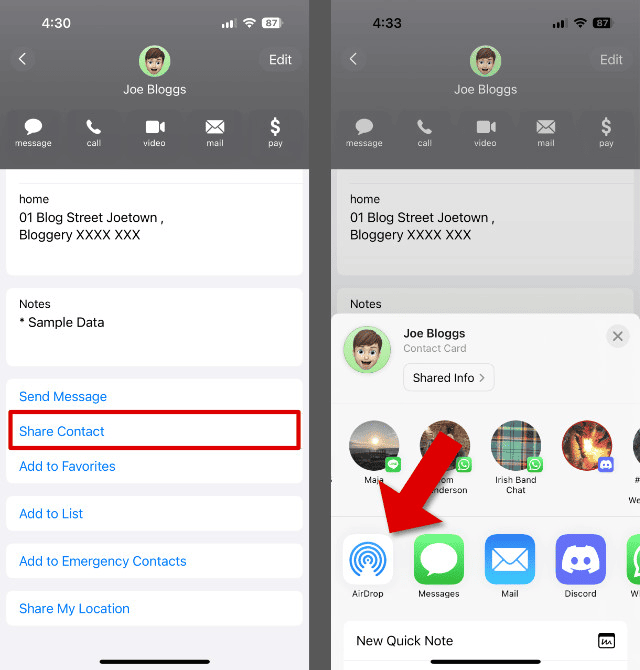
Export iPhone Contacts with NameDrop
Method 2: Export iPhone Contacts to vCard/CSV/Excel via iCloud
A great option of iCloud allows exporting all contacts or selected contacts from your iPhone into vCard format(.vcf), which afterward can easily be converted to either CSV or Excel format. It would require that you have iCloud contacts sync on, and you would need some kind of computer connected to the Internet to carry out the exporting. However, bear in mind that you cannot finish the entire procedure immediately from your iPhone. You will need a computer for some of it.
- First, launch the Settings app on your iPhone. Tap your name at the top, then select iCloud.
- Look for Contacts and make sure the toggle is turned on; this will sync your contacts with iCloud.
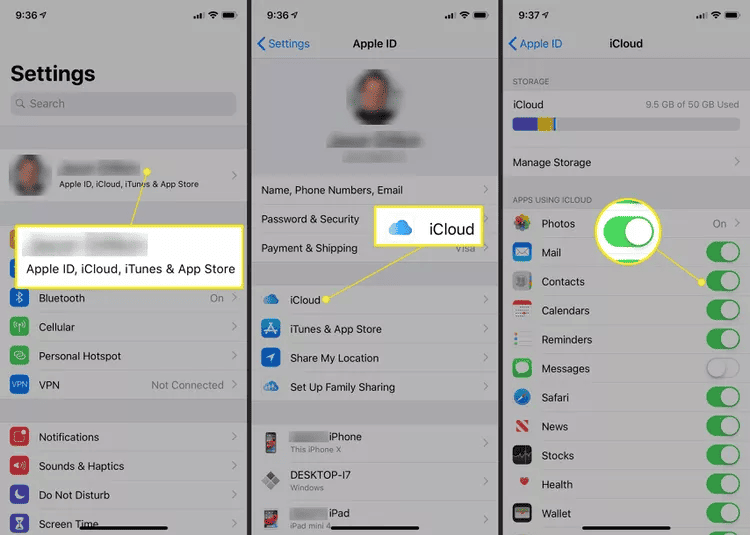
Sync iPhone Contacts with iCloud
- Switch to your computer and navigate to iCloud website using a web browser.
- Sign in with your Apple ID and then click Contacts. Once your contact list displays, locate the gear icon in the bottom-left corner.
- Click it and choose All (or select certain contacts by holding Shift or Ctrl while clicking).
- Click the gear icon again, then select Export vCard.
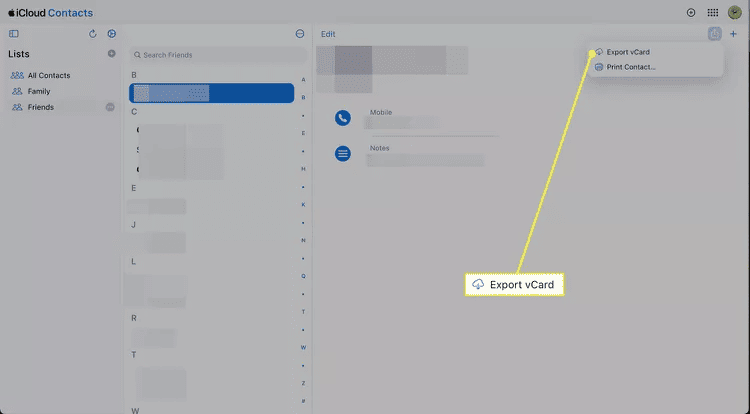
Export iPhone Contacts on iCloud
Method 3: Export iPhone Contacts to PC with AnyTrans
Transferring your contacts from iPhone to PC or Mac is not complicated. AnyTrans makes everything simple, super quick, and flexible. Unlike iTunes, which is slow and never works the way it should, AnyTrans makes everything super smooth and easy.
Contacts can be saved in either Excel CSV or vCard formats for backup or sharing purposes. It practically supports any iPhone model, even old ones, all the way to iPhone 13 and newer. Whether you want to back up or move to a new device, AnyTrans makes it an easy job.
Steps to Export Contacts from iPhone with AnyTrans:
Step 1. Install AnyTrans on your PC or Mac, then plug in your iPhone with a USB cable and open the app.
Free Download * 100% Clean & Safe
Step 2. Click “Device Manager” from the left panel, then choose “More” to access contact management.
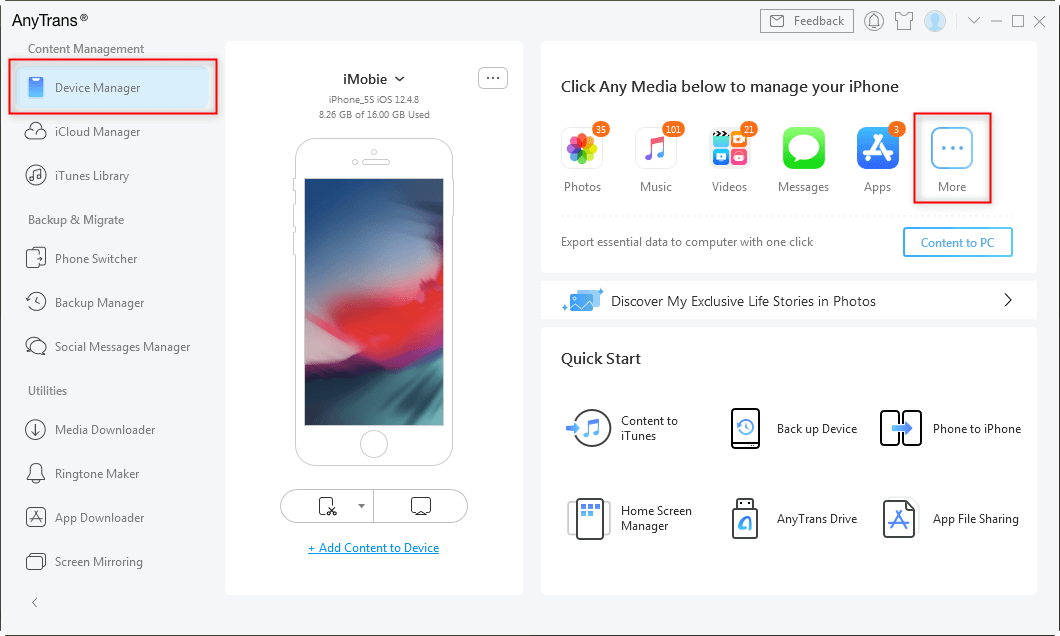
Choose Device Manager and Click on More
Step 3. In the data categories that appear, click on “Contacts”. AnyTrans will scan and display all your iPhone contacts in one place.
Step 4. Now, just pick the contacts you want to save either a few or all of them. Then hit the “To PC” or “To Mac” button, depending on what you’re using. Before the export starts, click the little settings icon to choose how you want the file, either as an Excel sheet (.csv) or a contact file (.vcf).
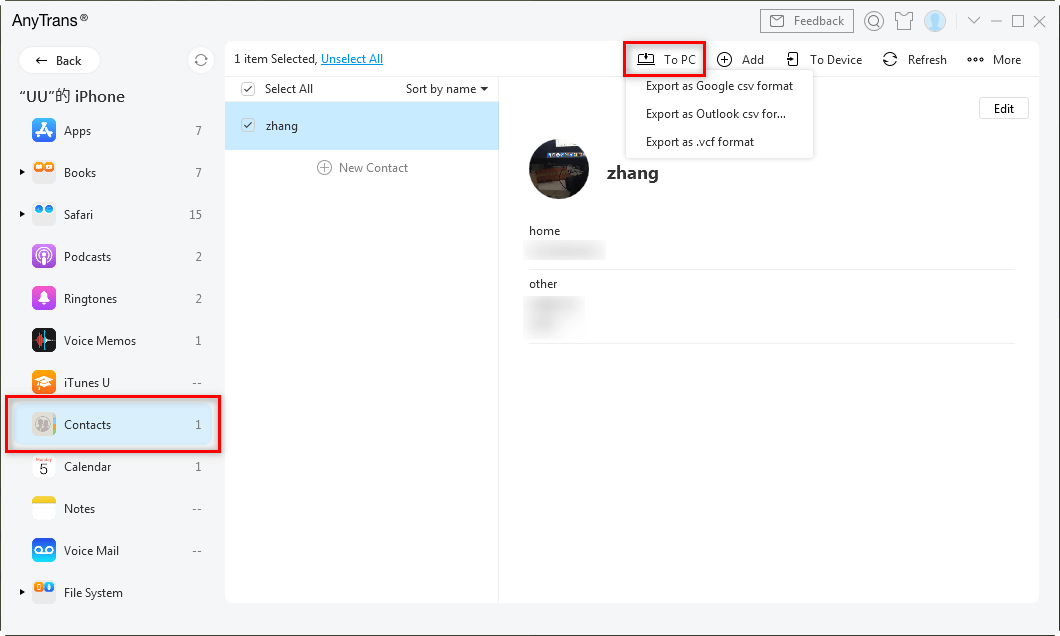
Transfer Contacts from iPhone to Computer
Method 4: Export Contacts from iPhone to Android with DroidKit
Transferring your contacts doesn’t have to be stressful. Undoubtedly with DroidKit, an Android Phone Toolkit, you would migrate all your contacts from iPhone to Android in just several clicks without any technical knowledge at all.
It supports all Android brands, including Samsung, Google Pixel, Huawei, LG, and others. At the same time, it is fast, flexible, and user-friendly. You also have the option of whether you want all the contacts or only what you require. If you are looking for a way to export contacts from an iPhone to an Android phone safely and efficiently, DroidKit is the first option.
Why Choose DroidKit:
- Move contacts, messages, photos, call logs, music, and more.
- No tech skills required. Just plug in, click, and transfer.
- Transfer thousands of contacts in just 3 minutes.
- You may export everything at once or only select what you want to transfer.
- DroidKit works smoothly with all major Android brands whether you’re using a Samsung, Pixel, Huawei, or LG.
Free Download * 100% Clean & Safe
Here is how to export contacts from iPhone to Android via DroidKit:
Step 1: Start by downloading and installing DroidKit on your computer. After setting it up, you have to open it and go to Data Manager, then click on Android Mover.
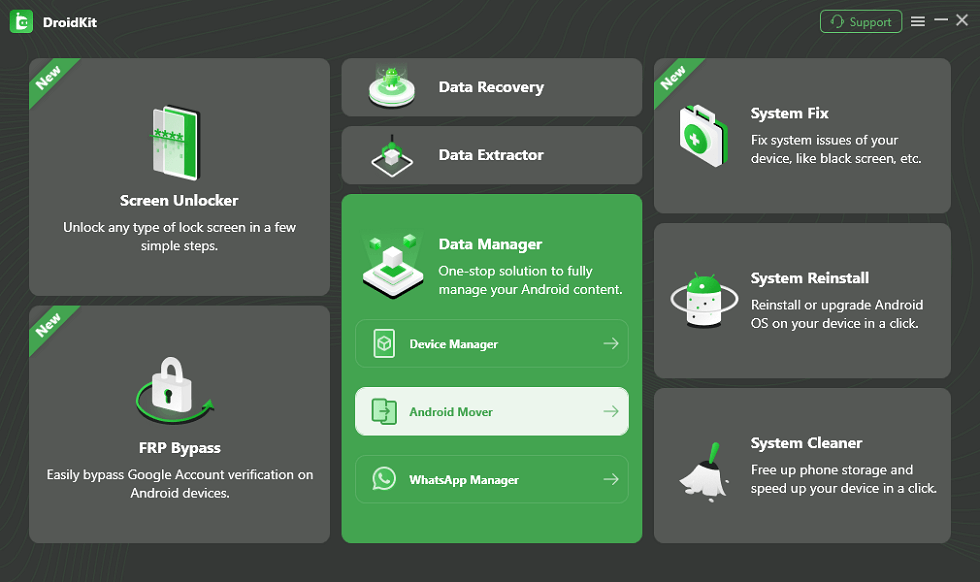
Choose Android Mover
Step 2: Select iPhone to Android from the menu for transfer. Now connect both your iPhone and Android with USB cables. Just make sure both devices are detected properly before moving forward.
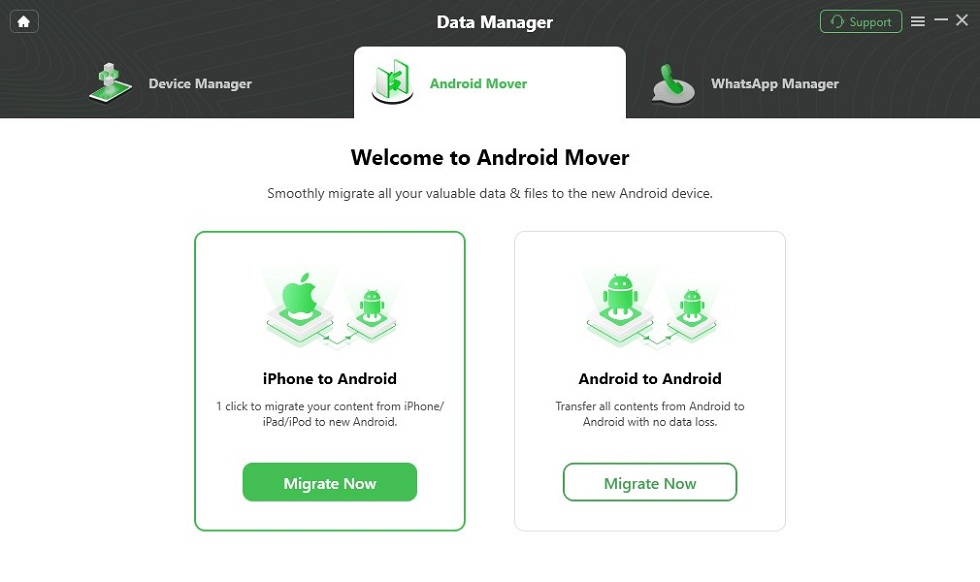
Choose iPhone to Android
Step 4: Select contacts from the list of the shown data types, but feel free to grant any other necessary choices. Click Next to proceed.
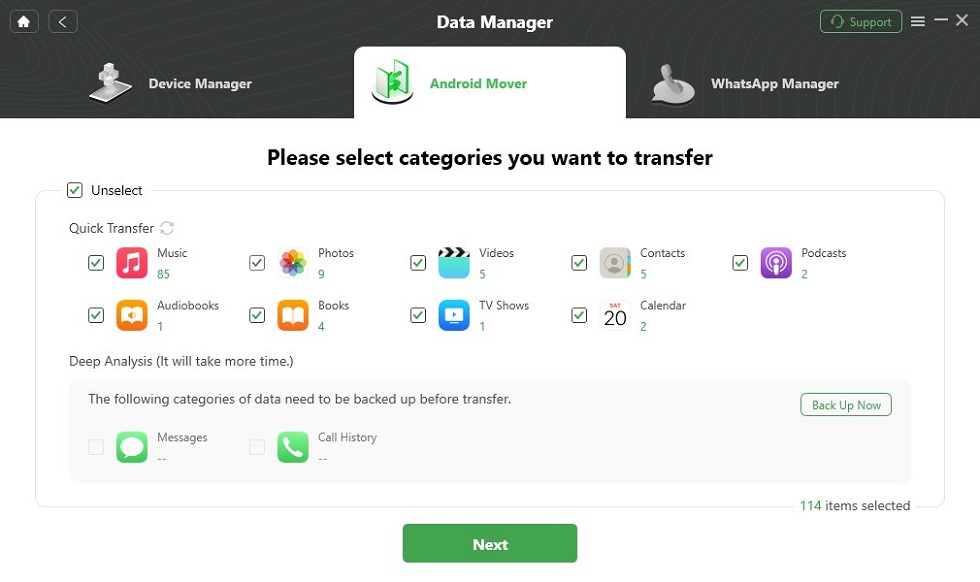
Select Data to Transfer
Step 5: DroidKit will immediately begin transferring contacts to your Android. It normally just takes a few seconds.
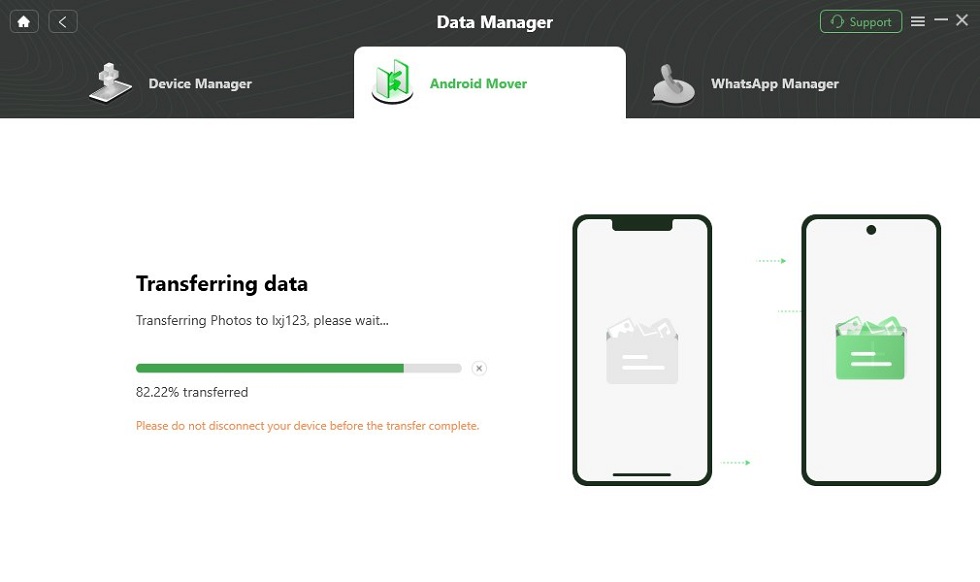
iPhone Contacts Exporting to Android
Method 5: Export Contacts from iPhone to Email
The built-in sharing feature on your iPhone makes it really simple. You can send a contact from your iPhone pretty easily. It’ll be sent as a little file (called .vcf) that most phones or email apps can read. Don’t forget, this only goes for one at a time, so if you want to share many, this method can be pretty slow. First, open the Contacts app on your phone.
- Open the Contacts app on your iPhone.
- Find the contact you want to send and tap on it.
- Scroll down and hit Share Contact.
- Choose Mail or any other app you like.
- Type in your email address and press Send.
FAQs About Exporting Contacts from iPhone
1. Can I export my iPhone contacts to my computer?
Yes! You can use iCloud to do it. Just sync your contacts on your iPhone, navigate to any computer, access the iCloud website, and download contacts from iCloud. If it seems a little complicated, use AnyTrans because it is so much easier and faster.
2. How do I export my iPhone contacts to Excel?
Start by grabbing your contacts from iCloud they’ll come as a .vcf file, which is just a standard contact format. Then use a free website to convert that file to Excel. Or use a tool like AnyTrans, which can directly save your contacts as an Excel file.
3. How do I transfer all my iPhone contacts?
For those who are moving to new iPhones, simply turn on iCloud Contacts, log into the new phone, and you’re set. If you are switching to Android, then try DroidKit; it moves your contacts in a few simple steps.
Conclusion
You can export contacts from iPhone easily and securely through multiple methods. While iCloud provides an easy way, tools like AnyTrans offer a well-deserving choice, where you can export contacts either in Excel or vCard formats; if switching to an Android device, another reliable option is DroidKit, which transfers your contacts through a few easy clicks. All these tools come in handy to let anyone manage and export iPhone contacts with ease and comfort.



Senior writer of the iMobie team as well as an Apple fan, love to help more users solve various types of iOS & Android-related issues.
Product-related questions? Contact Our Support Team to Get Quick Solution >
