Chimera Tool Download Guide: Setup, Price & Crack Risks
Looking for Chimera Tool download? Check the official Windows installer, current version, license prices, supported-model procedures, setup steps, crack/APK risks, and common fixes before you install or buy.
If you are looking for the latest Chimera Tool download, start with the official Windows client rather than a mirror, crack archive, or supposed Chimera APK. Chimera changes frequently, so the version number, installer size, checksum, supported procedures, and license terms should all be checked against the official Chimera pages before you install or pay.
Chimera Tool is a multi-brand mobile-servicing platform for technicians, repair shops, solo repairers, and experienced users. Depending on the exact device, its procedures can include FRP removal, firmware operations, bootloader work, network servicing, diagnostics, certificate functions, and other device-specific operations.
Before downloading: check three things in order: the current official installer, your complete phone model plus the exact procedure you need, and the license limits that fit your repair volume. A supported brand or model does not automatically mean every Chimera procedure is available for it.
Table of ContentsHide
Chimera Tool Official Download: Version & Requirements
What Is Chimera Tool and Who Is It For?
Chimera Tool Crack or APK: What to Check
Chimera Tool vs Other Repair and FRP Tools
Chimera Tool License Price
How to Download, Install and Activate Chimera Tool
When Chimera Tool May Be More Than You Need
How to Check Supported Models and Procedures
Chimera Tool Not Working: Common Fixes
Chimera Tool Pros and Cons
Chimera vs DroidKit for One FRP Job
Chimera Tool FAQs
Final Verdict
Chimera Tool Official Download: Version & System Requirements
When this article was last checked, Chimera’s official Download & Changelog page listed version 47.61.1255, released on Aug. 11, 2026. Because Chimera publishes frequent updates, treat the values below as a release checkpoint rather than a permanent “latest version.”
| Download Item | Information Checked for This Release |
| Chimera Tool version | 47.61.1255 |
| Release date | Aug. 11, 2026 |
| Installer size | 14.46 MB |
| Installer MD5 | 96fcc75dd27895a625da1022cb31b70a |
| Update size | 58.44 MB |
| Desktop OS listed | Windows 10 and Windows 11, 32-bit and 64-bit |
| Native macOS client listed? | No |
Use the official Chimera Download & Changelog page to confirm the current release before installing.
How to Verify the Chimera Installer
For the release above, the official page published the MD5 checksum 96fcc75dd27895a625da1022cb31b70a. A checksum comparison can help confirm that the file you received matches the file associated with that release.
Do not reuse this checksum after Chimera publishes another build. Compare the version, release date, installer size, and checksum from the same release.
Important: A matching checksum is a file-identity check. It does not make an unrelated mirror trustworthy and does not replace normal Windows security checks.
What Is Chimera Tool and Who Is It For?
Chimera Tool is Windows-based mobile-servicing software. Instead of providing one universal unlock button, it presents procedures according to the connected model and the operations currently available for that device.
Depending on the phone and current support, procedure categories can include:
- FRP reset or removal.
- Firmware and software operations.
- Bootloader unlock or relock procedures.
- Network servicing functions.
- Device information and diagnostics.
- Certificate-related procedures where supported.
- Factory reset and other model-specific service operations.
The key phrase is where supported. Two phones from the same brand can expose different procedures because the exact model code, chipset, firmware, BIT version, carrier variant, or other device conditions differ.
Who Is Chimera Designed For?
Chimera makes the most sense when you regularly service phones and need more than one consumer unlock function. Its multi-brand environment is particularly relevant to repair technicians, repair shops, solo repairers, and higher-skill hobbyists.
A user with one FRP-locked phone has a different decision. Before buying an annual technician license, check whether you actually need Chimera’s wider repair environment or only one supported FRP workflow.
Chimera Tool Crack or APK: Official vs Unofficial Downloads
Searches for Chimera Tool crack, Chimera Tool cracked, and Chimera Tool APK should not be treated as alternate editions of the official download.
| Search Term | What It Usually Means | What to Check |
| Chimera Tool download | Current Windows client | Official Chimera domain, release information, file size, and checksum |
| Chimera Tool latest version | Newest published client release | Current Download & Changelog page |
| Chimera Tool crack / cracked | Modified software claiming to bypass the normal account or license workflow | It is outside Chimera’s official distribution and update chain |
| Chimera Tool APK | An Android package using the Chimera name | The current official Chimera client is Windows software, not a normal Android APK |
Warning Signs in an Unofficial Chimera Download
- The archive has no verifiable publisher or source.
- It promises lifetime Premium access without the normal Chimera account and license workflow.
- It requires you to disable security software permanently.
- The build number does not match the official changelog.
- The file size or checksum does not match the corresponding official release.
- An Android APK is presented as a replacement for the official Windows client.
If endpoint security blocks a file you believe is legitimate, verify the source, release, checksum, and publisher information first. Do not create a broad security exclusion for an unknown executable simply to make it run.
Chimera Tool vs Other Repair and FRP Tools
Chimera belongs to the technician-platform category rather than the single-purpose FRP-tool category. The useful comparison therefore starts with the job you need to perform.
| Tool Type | Typical User | Main Decision |
| Chimera Tool | Technicians and users servicing multiple phones | Does the exact model support the required procedure, and does the annual license fit your workload? |
| Other technician platforms | Repair users with different brand, chipset, or workflow priorities | Which platform covers the procedures that make up your actual repair work? |
| Focused FRP software | User dealing mainly with Google verification on a supported device | Does the specific FRP workflow support the device and situation? |
| Manual FRP route | User following a device-specific setup route | Does the required setup entry point still exist on that device build? |
If you are comparing professional servicing platforms, the UnlockTool technician review covers another technician-oriented option.
If your only task is one Google verification screen, do not choose a platform by feature count alone. An annual repair-platform license can be unnecessary when a narrower device-specific workflow is all you need.
Chimera Tool License Price: Basic vs Professional vs Premium
Chimera currently offers Basic, Professional, and Premium annual licenses. The important differences include phone connections, paid-procedure discounts, attachable computers, and USB Authenticator support.
| License | Annual Price | Phone Connections | Procedure Credit Discount | Attachable Computers | USB Authenticator |
| Basic | $99.90/year | 100 | 0% | 8/year, 2 each quarter | Not supported |
| Professional | $149.90/year | 1,500 | 10% | 24/year, 6 each quarter | Supported |
| Premium | $189.90/year | 5,000 | 15% | 32/year, 8 each quarter | Supported |
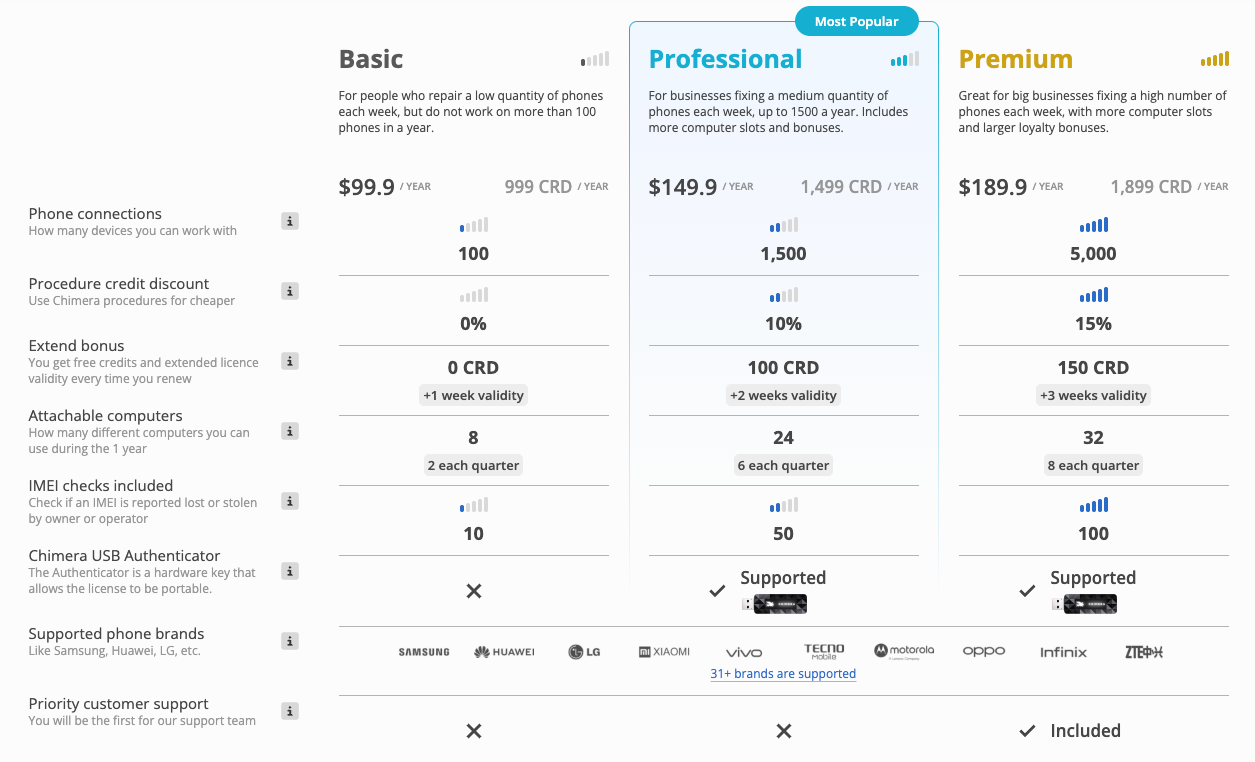
Chimera License Plans — Confirm Current Pricing Before Purchase
Check the official Chimera shop before purchasing because prices, included credits, connection limits, bonuses, and paid function packs can change.
Which Chimera License Fits?
- Basic: intended for lower-volume use, currently up to 100 phone connections during the license period.
- Professional: intended for more regular servicing, with a higher connection limit, more computer attachments, and a paid-procedure discount.
- Premium: aimed at higher-volume servicing with the largest connection allowance and procedure discount among the three current tiers.
Do not buy a larger license to solve a compatibility problem. A higher tier does not make an unsupported procedure appear for a phone.
Does Chimera Require a Dongle?
A traditional hardware box is not required for the standard Chimera software workflow. Chimera also offers an optional USB Authenticator for license portability. The current shop states that it is supported with Professional and Premium but not with Basic.
How to Download, Install and Activate Chimera Tool
Use the official account and installer workflow so that the software, account, license, updates, and model database remain in the same support chain.
Step 1. Create a Chimera Account
Open the official Chimera signup page and complete the account-registration process.
Do not treat an unknown marketplace account advertised as “pre-activated” as equivalent to creating and controlling your own Chimera account.
Step 2. Download Chimera Tool
Open the official Download & Changelog page and confirm the current release information before downloading.
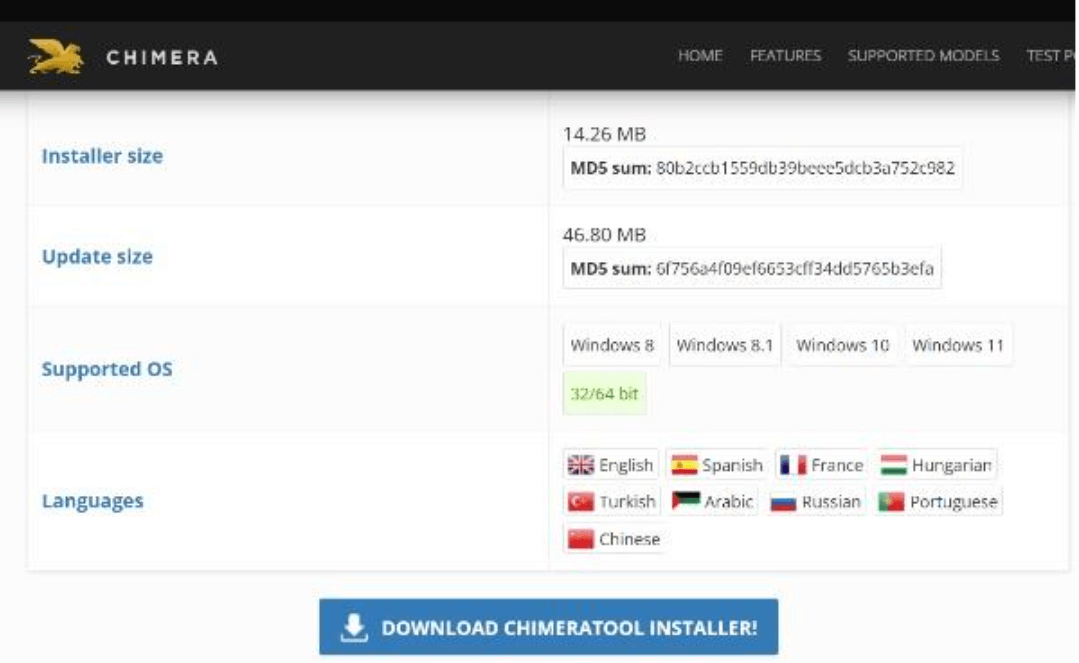
Download Chimera Tool from the Official Source
Step 3. Install the Windows Client
Step 1. Open the official installer and review the Windows UAC prompt.
Step 2. Review the current license agreement.
Step 3. Choose the installation options appropriate for your servicing setup.
Step 4. Install the device drivers required by the workflows you expect to use.
Step 4. Sign In and Check Your License
Launch Chimera, sign in with your account, and confirm the active license and relevant credit or service information before starting a paid procedure.
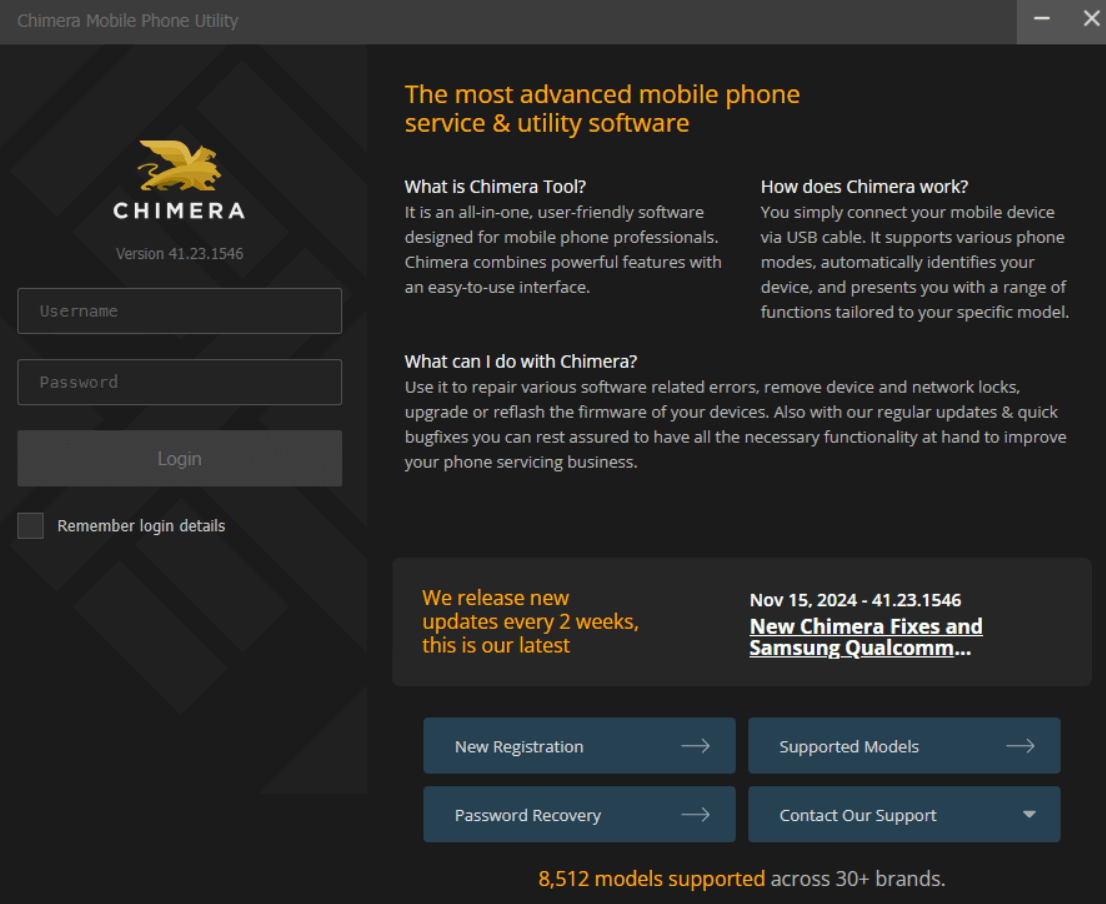
Sign In Through the Official Chimera Account Workflow
Step 5. Prepare the Device Connection
Install or update the driver required by the phone and selected procedure. Use a known-good USB data cable and connect directly to the computer when troubleshooting detection problems.
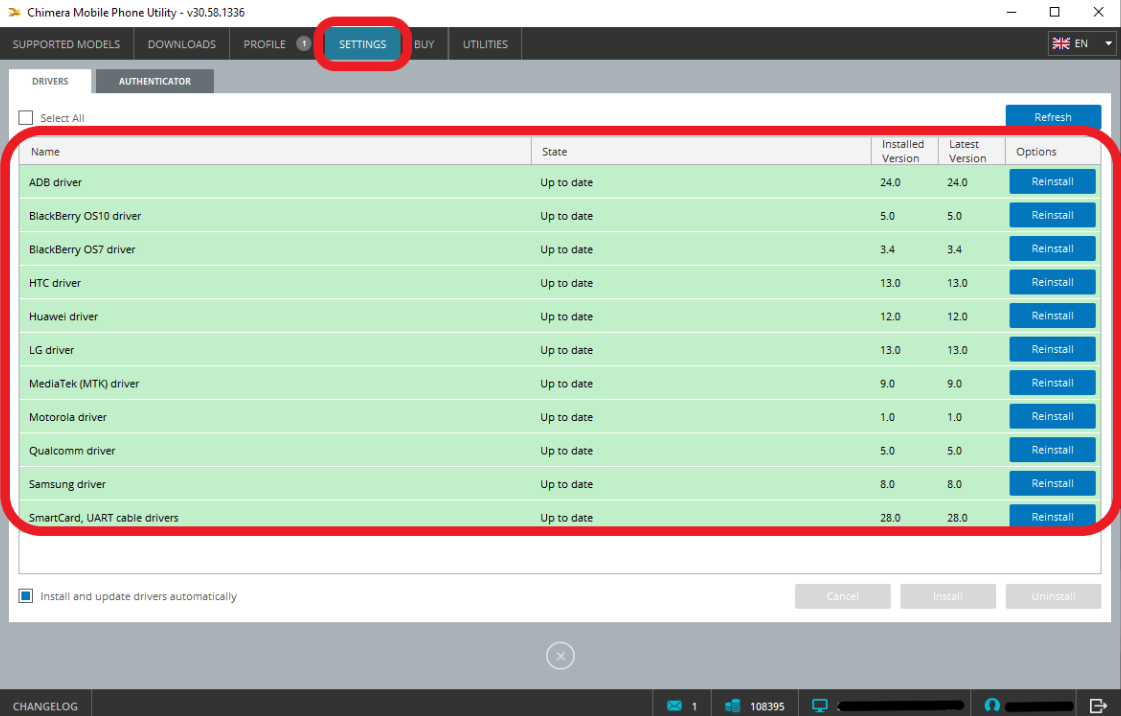
Install the Driver Required for the Connected Device
Step 6. Check the Exact Model and Procedure
Before running FRP removal, firmware work, bootloader operations, or another service procedure, search the complete device model in Chimera’s current database and confirm that the specific operation is listed.
A phone being detected by Chimera does not mean every Chimera function is available for that device.
How to Check Chimera Supported Models and Procedures
The live Supported Models database is more useful than a static list of supported brands because Chimera support is procedure-specific.
Step 1. Identify the phone’s complete model code rather than relying only on its retail name.
Step 2. Open the official Chimera Supported Models database.
Step 3. Search for the exact model.
Step 4. Review the procedures listed for the matching result.
Step 5. Check any firmware, BIT, chipset, connection-mode, or other requirements attached to the procedure.
Search the Exact Model and Procedure
Supported Model Does Not Mean Every Procedure Is Supported
This distinction matters especially for FRP searches. A phone can appear in the database for device information or another service operation without offering the FRP procedure you need.
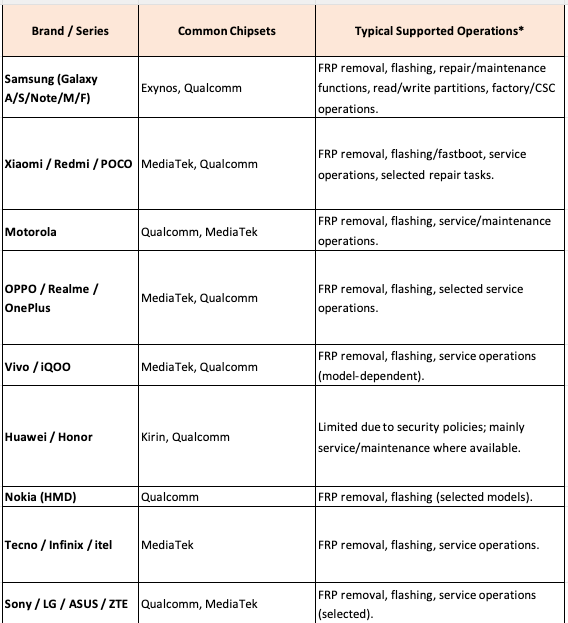
Likewise, support for one Samsung, Xiaomi, Motorola, or other device does not establish the same procedure for every model from that manufacturer.
Why Old Chimera Tutorials Can Stop Matching
Chimera adds and changes device-level procedures while phone manufacturers release new firmware, bootloader revisions, and security updates. Use an older video or article as background information, not as proof that the same procedure remains available for a different current build.
Chimera Tool Not Working: Login, Driver and Procedure Fixes
Start troubleshooting at the stage that actually failed instead of reinstalling Chimera or switching procedures immediately.
| Failure | Check First | Avoid Assuming |
| Installer does not run | Official source, release, checksum, Windows version, and security message | That a cracked installer is the solution |
| Authentication fails | Account credentials, internet connection, Windows time, and firewall | That reinstalling automatically fixes the account |
| License unavailable | Account status, license tier, expiration, and computer attachment | That reinstalling changes the license |
| Phone not detected | USB mode, driver, cable, port, and Windows detection | That the procedure itself is the first problem |
| Model detected but operation missing | Current model result and available procedures | That every function is available for every supported model |
| Procedure fails | Final log lines, device state, firmware, security level, and prerequisites | That repeatedly running unrelated procedures is the right fix |
Chimera Authentication Failed
Confirm that the account credentials work with Chimera’s official service. Then check the Windows date and time, internet connection, firewall or endpoint-security message, and current license status before reinstalling the application.
Chimera Does Not Detect the Phone
Check the connection mode required by the procedure, reinstall or update the appropriate driver, use a data-capable USB cable, try a direct USB port, and make sure Windows recognizes the device.
Chimera Says Procedure Failed
Read the final meaningful log lines first. Reconfirm the full model code, reopen the current model entry, and check the firmware, BIT, chipset, boot mode, or other requirements for that procedure.
Remove FRP Is Missing
Successful installation and device detection do not establish FRP support. If the current model entry does not list the required FRP operation, do not substitute another model simply because its name looks similar.
Chimera Tool Pros and Cons
| Factor | Advantage | Limitation |
| Servicing scope | Combines multiple device-service categories | Can be excessive for one consumer unlock problem |
| Supported Models database | Lets you check models and procedures separately | Requires accurate model and operation matching |
| Frequent updates | Device-level procedures can be added or changed | Static tutorials become outdated quickly |
| Official licensing | Clear account, update, and license workflow | Annual cost needs to fit your repair volume |
| Windows client | Current official client supports Windows 10 and Windows 11 | No native macOS client is currently listed |
| USB Authenticator | Can make eligible licenses more portable | Separate hardware and not supported with Basic |
Chimera vs DroidKit for a One-Device FRP Job
Chimera and a focused consumer FRP application solve different types of problems. Chimera is built around recurring multi-device servicing; a user dealing with one Google verification screen may not need that full environment.
| Your Situation | Direction to Evaluate |
| You regularly service multiple phone brands | Chimera’s multi-brand servicing workflow may fit the job |
| You need firmware, bootloader, network, certificate, or diagnostic procedures | Evaluate Chimera’s exact model-level procedure support |
| You need one FRP workflow on one Android phone | A focused FRP application may be simpler to evaluate |
| You use macOS and need native software | Check another tool’s current platform support because Chimera currently lists Windows |
For a one-device FRP case, DroidKit FRP Bypass is a narrower workflow to evaluate. This does not replace Chimera’s technician-level servicing functions; it addresses a different user journey.
Compatibility still comes first: check the exact device and available FRP workflow before choosing either type of software.
Chimera Tool Download, License & Compatibility FAQs
What is the latest Chimera Tool version?
When the release information in this guide was checked, the official Chimera Download & Changelog page listed version 47.61.1255, released Aug. 11, 2026. Chimera updates frequently, so verify the official page before downloading rather than treating this version number as permanent.
Where should I download Chimera Tool?
Use Chimera’s official Download & Changelog page. It provides the current Windows client and release information you can compare before installation.
Does Chimera Tool work on Windows 11?
Yes. The official download information currently lists Windows 10 and Windows 11 in 32-bit and 64-bit editions.
Does Chimera Tool work on Mac?
The current official download information does not list a native macOS Chimera client. Check the current system requirements again if Mac support is essential to your workflow.
Is Chimera Tool free?
Chimera uses paid annual licenses. The official shop currently lists Basic, Professional, and Premium plans, and some special functions can involve additional function-pack costs.
Is there an official Chimera Tool APK or crack?
The current official Chimera distribution is a Windows desktop client. A cracked executable or Android APK from another source is outside the normal official account, license, update, and support workflow.
Can Chimera Tool remove FRP?
Chimera provides FRP-related procedures for supported devices, but support is model- and procedure-specific. Search the complete phone model in the official Supported Models database and confirm that the required FRP operation is actually listed.
Why is my phone not showing in Chimera?
Check the required device mode, driver, USB cable, USB port, and Windows detection first. Once the device is detected correctly, confirm that the required procedure is supported for the exact model.
Final Verdict: Check the Download, Device and Procedure First
For Chimera Tool, the safest and most efficient sequence is simple: confirm the current official installer, search the complete phone model and exact procedure, and only then decide which license fits your workload.
This also resolves most confusing Chimera searches. A supposed Chimera APK does not match the current official Windows distribution. A crack is outside the supported license and update workflow. And a phone appearing in the Supported Models database does not mean that FRP removal, firmware operations, bootloader work, and every other procedure are all available for it.
Chimera makes the most sense when you expect to use its broader servicing environment across multiple repair jobs. If you are dealing with only one FRP-locked Android device, compare the complexity and annual license requirements with a narrower FRP workflow before deciding.
More Related Articles



Joy Taylor is a seasoned technical writer with over a decade of experience in mobile technology. At iMobie, she specializes in producing in-depth content on iOS data recovery, iPhone unlocking solutions, and iOS troubleshooting.
Product-related questions? Contact Our Support Team to Get Quick Solution >
