FRP Bypass Methods Compared (2026): Free, Manual & PC Options
An FRP method is only useful when its prerequisites match your phone. Compare Google account recovery, manual setup routes, FRP APKs, PC software and technical service options by required access, compatibility, data impact and failure signals.
FRP bypass methods are often compared as “free versus paid” or “old Android versus new Android.” That is too simple. A method can fail because the required TalkBack menu is missing, a browser cannot leave Setup Wizard, an APK cannot reach the installer, a PC tool does not support the phone, or a security patch changes the route.
A better comparison starts with prerequisites. Before spending an hour on a no-PC tutorial or paying for software, identify what the method needs from your phone and check whether those conditions actually exist.
If you are looking for brand, Android-version, and device-specific FRP guides rather than comparing method categories, start with the Android FRP bypass guide. If you have already decided that you want software and need to compare individual products, use the FRP bypass tool comparison.
Before comparing bypass routes: If the phone is yours and you can recover a Google account that was previously added to it, account recovery is the first route to evaluate. If the device came from another owner, contact that person before treating unknown Google credentials as a software problem.
Table of ContentsHide
Quick Answer: Which FRP Route Fits Your Phone?
Start with Google Account Verification
Four Checks Before Choosing an FRP Method
FRP Bypass Methods Compared
Manual and No-PC FRP Routes
FRP Bypass APK: Check the Dependency Chain
When a PC FRP Tool Makes Sense
DroidKit FRP Bypass: Check Compatibility First
Flashing, Odin, MTK and Other Technical Routes
Choose an FRP Route by Brand
Why Your FRP Method Failed
FAQs About FRP Bypass Methods
Conclusion: Compare the Prerequisites, Not the Claims
Quick Answer: Which FRP Route Fits Your Phone?
Do not choose an FRP method only from the Android version in a video title. Use the actual condition of the locked phone.
| Your Situation | First Route to Evaluate | Main Check |
| You know or can recover a previously synced Google account | Google account recovery and verification | Confirm the account can be signed in on another device before trying bypass software. |
| You bought the phone second-hand | Previous-owner assistance | Ask the seller to resolve the account relationship before testing technical methods. |
| A no-PC tutorial’s Share, browser, TalkBack, or Settings screen exists | Evaluate that exact manual route | Every required screen in the chain must match, not just the first gesture. |
| The first required manual menu is missing | Stop that manual route | Do not continue with later steps that depend on an entry point you cannot access. |
| The method requires an APK | Check browser, file, installer, source permission, and package compatibility | The APK filename alone does not tell you whether the route can run. |
| You want a PC-based FRP workflow | Check current vendor compatibility | Verify brand, Android environment, device route, security-patch limits, and data impact. |
| You are considering flashing or service tools | Confirm the exact technical purpose first | Reinstalling firmware should not automatically be treated as removing Google FRP. |
The key difference from many older FRP comparison pages is that there is no useful rule such as “Android 13–16 always needs a PC” or “Android 10 and below always works manually.” Brand software, model, Setup Wizard, security patch, and method prerequisites can change the answer.
Start with Google Account Verification
Factory Reset Protection exists to make a reset phone require ownership verification. If the required Google credentials are available, using them avoids compatibility questions about TalkBack tricks, APKs, USB drivers, firmware modes, and third-party software.
Google’s current factory-reset guidance also warns that a reset erases phone data and that you should know a Google Account previously present on the device because security information may be required when setting the phone up again.
If the reset has already happened and the verification screen is the main problem, see the Google account verification after reset guide for the account-specific decision path.
| Account Situation | What to Do |
| You remember the Google email and password | Try that previously synced account at the verification screen. |
| You remember the account but not the password | Use Google Account Recovery on another device and confirm you can sign in. |
| You do not remember which Google account was on the phone | Review accounts and recovery information you control before moving to a bypass route. |
| The previous account belongs to the seller | Ask the seller or previous owner to help resolve the ownership verification. |
Four Checks Before Choosing an FRP Method
Most failed FRP attempts can be screened out with four checks before you start.
1. What Brand and Model Is the Phone?
Samsung One UI, Xiaomi HyperOS/MIUI, Motorola Android builds, OPPO ColorOS, Vivo software, and other OEM environments can expose different Setup Wizard screens. A route shown on one brand is not automatically transferable to another.
2. What Does the Method Need to Open?
Write down the first real dependency:
- TalkBack or Accessibility Settings
- Share menu
- YouTube or browser handoff
- Emergency dialer
- Settings activity
- APK installer
- USB / MTP connection
- Factory or diagnostic mode
If that dependency is already absent, you can reject the method without following another ten steps.
3. Is the Method Brand-, Build-, or Patch-Specific?
A tutorial may be accurate for the phone shown in the video and still be wrong for yours. Compare the model, Android version, OEM interface, and any security-patch requirement before assuming that a menu should exist.
4. What Happens to Device Data?
FRP normally appears after a reset, so much of the phone’s local data may already have been erased. Some additional PC workflows also explicitly erase device data. Check that before choosing between methods rather than assuming “bypass” means data preservation.
FRP Bypass Methods Compared
The comparison below deliberately avoids star ratings, invented success percentages, and fixed completion times. Those numbers would require controlled testing across models, firmware builds, security patches, and tools that is not available for this page.
| Method | PC Needed? | Cost | Required Access | Best Fit | Main Limitation |
| Google account recovery | No | Free | Account recovery information or valid previously synced credentials | Owners who can recover the Google account | Does not help when the relevant account cannot be identified or recovered. |
| Manual Setup Wizard route | No | Free | Specific Share, TalkBack, browser, dialer, Settings, or accessibility entry point | Phones whose setup screens match a device-specific route | A missing entry point stops the entire method. |
| FRP bypass APK route | Usually no | Often free | Browser/file access, package installer, source permission, compatible APK, required post-install activity | Specific setup environments where all APK prerequisites are available | Unknown-file risk and multiple installation/permission failure points. |
| PC FRP software | Yes | Usually trial or paid | Supported device route, USB connection, correct mode and current compatibility | Users who prefer device-specific software instructions | Brand support does not guarantee every model, patch, or route is supported. |
| Technical service / firmware route | Usually | Varies | Firmware, chipset, device mode, drivers, and technical knowledge | Experienced users or service scenarios where the exact route is documented | Higher complexity; flashing firmware alone should not be assumed to remove FRP. |
What the Table Means in Practice
A free method is not automatically worse because it costs nothing, and a commercial tool is not automatically better because it uses a PC. The relevant question is which route has prerequisites your phone can satisfy.
For example, a manual TalkBack route may be a reasonable choice when every required accessibility and Settings screen is present. A PC tool becomes more relevant when that manual chain is unavailable and the software explicitly provides a route for the connected device.
Manual and No-PC FRP Routes
No-PC FRP methods usually rely on a temporary path from Setup Wizard into another part of Android. That path is the part you should test—not an assumed “success rate.”
| Manual Route | Required Checkpoint | Stop When |
| TalkBack / Accessibility | The accessibility shortcut, required menu, and next browser or Settings handoff all appear | TalkBack opens differently, Help is absent, or the expected activity cannot be reached. |
| Share-menu route | Selected setup text can open the required Share target | Share is missing or only irrelevant targets are available. |
| Browser / YouTube route | An allowed link can leave Setup Wizard and reach the required browser screen | The external handoff is blocked or returns to setup. |
| Emergency / dialer route | The exact brand/model provides the dialer or diagnostic path used by the guide | The code, dialer, or subsequent brand-specific screen is unavailable. |
| Settings route | The temporary entry point can launch the Settings activity required by the sequence | Settings will not open or only a restricted settings page is available. |
Security updates and OEM changes can alter these setup-stage paths. That is why the phrase “manual FRP method” is too broad to label as working or not working across all modern Android devices.
When a Manual Method Is Worth Trying
- The guide clearly matches your brand or model.
- The first required menu exists on your phone.
- The next required handoff is also visible.
- The sequence does not require downloading unknown files from untrusted mirrors.
- You understand where the method should stop if one prerequisite is missing.
When to Stop
Stop when you reach the first mismatch. If a guide needs TalkBack Settings but your TalkBack menu has no corresponding route, repeatedly drawing the gesture will not make the rest of the tutorial compatible. The same logic applies to Share, browser, dialer, and Settings methods.
FRP Bypass APK: Check the Dependency Chain
FRP APK methods deserve their own category because downloading the file is only one part of the process. A functioning APK route typically depends on several separate conditions.
| APK Stage | What Must Be Available | Typical Failure Signal |
| Reach the download | Browser or another permitted external route | You cannot leave Setup Wizard or open the download page. |
| Access the file | Downloads, Files, or another route that can launch the package | The file downloads but cannot be opened. |
| Start installation | Android package installer | No installer opens. |
| Allow the source | Permission for the relevant app/source to install unknown apps | The required installation permission cannot be reached. |
| Run the package | APK compatible with the device and Android environment | “App not installed,” crash, or package error. |
| Complete the route | The activity, accessibility setting, account screen, or Settings page expected by the method | The APK installs but cannot reach the next required Android function. |
If you specifically want to evaluate APK methods, use the FRP bypass APK guide for APK-focused safety and compatibility information.
APK decision rule: “App not installed” is a diagnosis point, not a reason to download five random copies of the same package. Check the installer, source permission, package compatibility, and required post-install activity first.
When a PC FRP Tool Makes Sense
PC-based software is most useful when it replaces an unavailable manual entry point with a documented device workflow. It should not be selected simply because the phone runs a particular Android major version.
Before using an FRP tool, compare these items:
- Supported brand: Is your brand explicitly listed for the FRP feature?
- Android/device route: Does the program provide the required workflow for your device environment?
- Security-patch restrictions: Does the developer publish any exceptions?
- USB requirements: Can the computer detect the phone in the mode required by the software?
- Data impact: Does the current guide warn that FRP removal erases data?
- Free vs paid limits: Can the free version only detect the phone while actual FRP removal requires activation?
This is also the point where the best FRP bypass tools comparison is more useful than another manual-method tutorial, because individual software products do not have identical device coverage.
DroidKit FRP Bypass: Check Compatibility First
DroidKit is one PC-based option on this comparison page. Its value is the guided brand/device workflow rather than a claim that one universal process works on every Android phone.
The current DroidKit FRP Guide lists these supported device families:
- Samsung
- Xiaomi
- OPPO
- Motorola
- Lenovo
- VIVO
- Redmi
- POCO
- Realme
- SONY
- OnePlus
The guide lists these devices as running Android 6 and above, but that should not be read as “every Android 6+ phone is supported.” The selected brand, system version, chipset/device route, and any documented restriction still matter.
There is also a specific Samsung limitation to check: the current DroidKit FRP Guide states that Samsung devices with security patches dated August 2023 or later are currently unable to use its FRP bypass workflow.
| DroidKit Check | What It Means |
| Your brand appears in the current FRP list | Continue to the device/version matching step; brand listing alone is not the final compatibility check. |
| Samsung patch is August 2023 or later | Do not treat DroidKit FRP Bypass as the applicable route under the current documented restriction. |
| The phone is not detected | Check cable, USB port, connection instructions and device mode before concluding that the FRP route itself failed. |
| The software asks for Android/device version | Select the actual device environment; choosing the wrong version can make the route fail. |
| Data is important | The current DroidKit FRP Guide states that this FRP function erases device data. |
You can review DroidKit FRP Bypass and its current compatibility information before deciding whether it matches your phone.
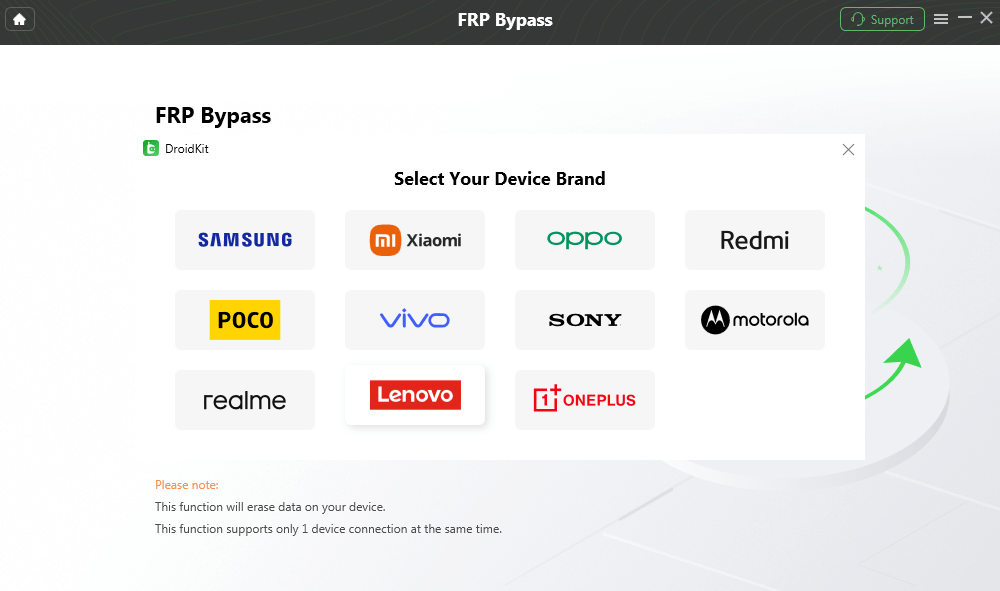
Check the Current DroidKit FRP Brand and Device Route Before Starting
Use the product recommendation conditionally: DroidKit is relevant when its current FRP module covers the phone in front of you. If your device falls outside the documented route or restriction, choose another applicable method rather than treating the software as a universal fallback.
Flashing, Odin, MTK and Other Technical Routes
Firmware and service tools are frequently grouped with FRP methods, but they need a different expectation. They are device-service technologies first; whether they can participate in a specific FRP workflow depends on the device and procedure.
Samsung and Odin
Odin is primarily a Samsung firmware flashing tool. Reinstalling compatible Samsung firmware is not, by itself, proof that Google verification will disappear after reboot. Technical FRP workflows involving Samsung firmware must match the exact model, bootloader state, binary, and intended procedure.
If your comparison specifically involves Samsung firmware methods, use the Odin FRP guide for that narrower topic.
MediaTek / MTK Service Routes
Some Android devices use MediaTek chipsets, and service utilities may interact with chipset-specific modes. This is substantially different from following a normal Setup Wizard workaround. Drivers, chipset, boot mode, firmware state, and model-specific support all matter.
ADB and Fastboot
ADB normally requires debugging access and computer authorization; Fastboot capabilities depend on the manufacturer and bootloader state. A reset phone sitting at Google verification should not be assumed to expose either route simply because command-line instructions exist online.
Technical-method checkpoint: Before flashing or issuing service commands, identify the exact access requirement and what the operation is intended to change. “Reinstall firmware” and “remove FRP” are not interchangeable descriptions.
Choose an FRP Route by Brand
A broad method comparison can tell you which category to consider. The brand guide should tell you which setup paths and tools actually apply to the phone.
| Brand | What to Check | Next Direction |
| Samsung | One UI/Android version, security patch, Test Mode or other Samsung-only dependency, and current tool restrictions | Use a Samsung-specific FRP route rather than copying Xiaomi or Motorola instructions. |
| Xiaomi / Redmi / POCO | HyperOS/MIUI environment, Share/browser/Settings availability, model-specific account behavior | Use Xiaomi/Redmi-specific setup guidance when the generic method reaches a different screen. |
| Motorola | Model family, Android build, Emergency Information/accessibility path, PC-tool compatibility | Use Motorola-specific steps for Moto devices. |
| OPPO / Realme / OnePlus | ColorOS/OxygenOS/Realme UI and the exact device route required by the software or manual method | Do not transfer Samsung diagnostic instructions to these devices. |
| Vivo | Funtouch OS/device setup behavior and current tool support | Use Vivo-specific instructions when available. |
| Google Pixel | Google’s own Setup Wizard and account-recovery options | Do not assume support simply because a product says “Android”; verify Pixel explicitly. |
For example, the Redmi Google FRP guide is more useful than a generic TalkBack tutorial when the phone is a Redmi running MIUI or HyperOS, while the OPPO FRP guide keeps the decision inside the OPPO software environment.
Why Your FRP Method Failed
Failure is useful information when it tells you which prerequisite is missing. Instead of immediately switching to another video, classify the failure.
| Failure | What It Usually Tells You | Next Check |
| TalkBack menu does not match the tutorial | The accessibility route is different on your current device environment | Stop the TalkBack chain and use a guide matching the brand/build. |
| Share menu is missing | The Setup Wizard does not expose the required share action | Reject that Share-dependent method. |
| Browser or YouTube Terms cannot open | The external-app handoff required by the method is unavailable | Do not continue into APK or Settings steps that depend on the browser. |
| FRP APK says “App not installed” | Package, source permission, installer, or compatibility problem | Diagnose the APK chain before downloading another copy. |
| APK installs but Settings cannot open | The package cannot reach the activity or permission expected by the tutorial | Stop the APK-dependent route. |
| PC software does not detect the phone | USB cable, port, driver, device mode, or detection issue | Resolve connection detection before judging FRP compatibility. |
| PC tool does not list the brand or required route | Compatibility has not been established | Do not assume generic Android support covers the FRP feature. |
| DroidKit + Samsung August 2023 or later security patch | The device falls under the current published DroidKit FRP restriction | Use another applicable Samsung route instead of repeating DroidKit FRP. |
| Firmware was flashed but Google verification remains | The firmware operation did not remove the FRP ownership requirement | Return to account recovery or an explicitly applicable FRP route. |
If you are already at this troubleshooting stage, the dedicated FRP bypass not working guide goes deeper into failed TalkBack, APK, security-patch, detection and setup-route problems.
FAQs About FRP Bypass Methods
What is the best FRP bypass method in 2026?
There is no single best route for every phone. If a previously synced Google account can be recovered, account verification is the shortest route. A manual method is worth evaluating when its exact Setup Wizard entry points exist. A PC tool is more relevant when its current documentation covers your brand and device route. Technical service methods should be reserved for situations where their prerequisites and purpose are understood.
Can I bypass FRP without a PC?
A no-PC route is possible only when the required setup path exists on the device. Check the exact TalkBack, Share, browser, emergency, Settings, or other entry point used by the guide. The Android version alone cannot tell you that the complete no-PC sequence is available.
Do FRP bypass methods only work on older Android versions?
No useful cutoff applies to every brand. Older tutorials may have a better chance of matching older software environments, but an Android version is only one variable. OEM Setup Wizard, model, security patch and the method’s first required entry point are equally important.
Are FRP bypass APKs safe?
The risk depends on the file source and what the route asks the APK to do. Avoid unknown mirrors, repacked files and downloads linked from unverified comments. Even a legitimate APK is not useful if the locked Setup Wizard cannot reach the installer, grant the required source permission, or open the post-install activity the method needs.
Does flashing firmware remove FRP?
Do not assume it does. Firmware flashing and Google ownership verification are separate concepts. A device can boot successfully after a firmware operation and still request a previously synced Google account during setup.
When should I use a PC FRP tool?
Use software when its current FRP documentation matches your phone and the PC route is preferable to an unavailable manual entry point. Check brand support, Android/device route, security-patch restrictions, USB requirements and data-loss conditions before starting.
Does DroidKit support every Android phone?
No. The current DroidKit FRP Guide lists Samsung, Xiaomi, OPPO, Motorola, Lenovo, VIVO, Redmi, POCO, Realme, SONY and OnePlus devices running Android 6 and above. Support still depends on the relevant device route, and the guide currently states that Samsung devices with security patches dated August 2023 or later cannot use its FRP bypass workflow.
Will DroidKit FRP Bypass erase data?
Yes. DroidKit’s current FRP Guide explicitly states that the FRP Bypass function erases data on the device. If the phone was already factory-reset before FRP appeared, local data may also have been removed by that earlier reset.
Why does the same FRP method work on one phone but not another?
The two phones may differ by brand, model, Android build, OEM Setup Wizard, security patch or available system activities. Compare the first required entry point on each phone rather than assuming a method is universal because both devices run Android.
What should I do if the phone belongs to a previous owner?
Contact the seller or previous owner and ask them to resolve the Google account verification first. A second-hand-device ownership problem should not automatically be converted into a search for increasingly aggressive FRP tools.
Conclusion: Compare the Prerequisites, Not the Claims
A useful FRP comparison does not need invented success rates or promises that one category always wins. Google recovery, manual Setup Wizard routes, APK methods, PC software and technical service methods all depend on different prerequisites.
The fastest way to eliminate a bad option is to identify its first dependency. No TalkBack menu means the TalkBack sequence is irrelevant. No browser handoff means the browser/APK chain stops there. No supported PC route means a paid license will not create compatibility. Flashing firmware does not automatically remove Google verification.
DroidKit remains a relevant commercial option on this page because its current FRP documentation covers multiple Android brands and provides a device-guided workflow. But it belongs after the compatibility check, not ahead of it. For Samsung in particular, check the documented August 2023 security-patch restriction, and for every supported brand, read the data-erasure notice before proceeding.
More Related Articles


Roger Smith is a senior technical writer with years of experience in providing Android solutions. He loves to help users solve various problems such as Android unlock, Android data recovery, and Android system repair.
Product-related questions? Contact Our Support Team to Get Quick Solution >
