Android Phone Not Showing Up on PC? Fixes Here!
To fix an Android phone not showing up on a PC, try to use a different USB cable or port, change your phone’s USB mode to “File Transfer” or “MTP,” restart both your phone and computer, and look for updated drivers in Device Manager. Or try DroidKit to fix this issue with only a few clicks.
DroidKit – Fix Android Phone Not Showing Up Easily
Free download DroidKit to fix Android phone not showing up on PC in easy steps. Supports Android 6 – 15. No technical skills are required.

It is essential for data transfer to link your Android phone to a PC, but there are times when your device is not shown, and you are unable to transfer Android files or manage information. This article uncovers the reason why your Android phone is not showing up on PC and presents 9 solved propositions, such as restarting the devices, checking the cables, updating the drivers, and using a trustworthy utility like DroidKit. Read on to quickly get your device recognized in 2025.
Table of ContentsHide
Why Android Phone Not Showing Up on PC When Connected?
How to Fix Android Phone Not Showing Up on PC?
- Tip 1: Restart Your Phone and PC
- Tip 2: Try a Different USB Cable
- Tip 3: Clean Micro-USB Port
- Tip 4: Update MTP Driver
- Tip 5: Uninstall Android Drivers
- Tip 6: Connect Your Android Phone as a USB Mass Storage Device
- Tip 7: Enable USB Debugging
- Tip 8: Check USB Connection Mod
- Tip 9. Fix Android Phone Not Showing Up on PC With DroidKit Securely
FAQs about Android Phones Not Showing Up on PC
Why Android Phone Not Showing Up on PC When Connected?
There are several reasons why an Android phone may not show up on a PC. The most common causes are the following:
- If the USB cable is broken, or it is not for data only, it can be the reason that the connection is blocked, allowing only charging but not data transfer.
- If a phone is in the “Charge Only” mode, a media device will still not see it; thus, the PC will not detect it.
- In case there are no proper MTP (Media Transfer Protocol) driver installations on your computer, the computer won’t be able to recognize the Android device.
- Dust, lint, or damage to the port can cause the USB connection to not work properly, thus causing the malfunction of the device.
- Disabled USB debugging—USB debugging is a feature that allows advanced connection; therefore, if it is off, certain PCs or software might not be able to locate the device.
How to Fix Android Phone Not Showing Up on PC?
After learning the possible reasons for Android phone not showing up on PC, let’s move to the easy fixes.
Tip 1: Restart Your Phone and PC
In case a temporary glitch is present in either your phone or computer, it can lead to a device that is not recognized. Through restarting, both systems are refreshed, and the background processes that may be engaged with the connection are cleared. This can usually fix the Android phone not showing up on a PC.
Tip 2: Try a Different USB Cable
Simply changing the cable is the quickest way to resolve the Android phone not showing up as an unrecognized device. Not every USB cable supports data transfer: some are only created for charging purposes. In case you are using a non-data cable, your Android phone will be completely invisible to your PC.
Recommend using the original cable that came with your device or a certified replacement. They ensure stable connections, faster data transfer, and safe charging, reducing the risk of recognition errors or potential damage to your phone and PC.
Tip 3: Clean Micro-USB Port
Tiny dust particles or other micro debris in the charging port may prevent the USB connector from making proper contact. Use a soft brush, a toothpick, or a can of compressed air to clean the port; however, do not scratch the delicate pins inside.

Clean Micro-USB Port
Tip 4: Update MTP Driver
The Media Transfer Protocol (MTP) driver allows file transfer between an Android device and a PC. The driver may be out of date or corrupted if your PC cannot detect the phone. In Device Manager, find your Android phone under Portable Devices, right-click it, and select Update driver. Selecting Search automatically for drivers will let Windows install the most recent version and thus reconnect the connection.
Tip 5: Uninstall Android Drivers
Corrupted or conflicting drivers can result in a PC not recognizing the device. To solve the problem, Windows Device Manager should be open on your computer. In the Universal Serial Bus controllers, uninstall drivers for the Android device. Disconnect the phone, and reconnect the phone for an automatic reinstallation of fresh drivers. This solution removes corrupted driver data and provides a secure connection.
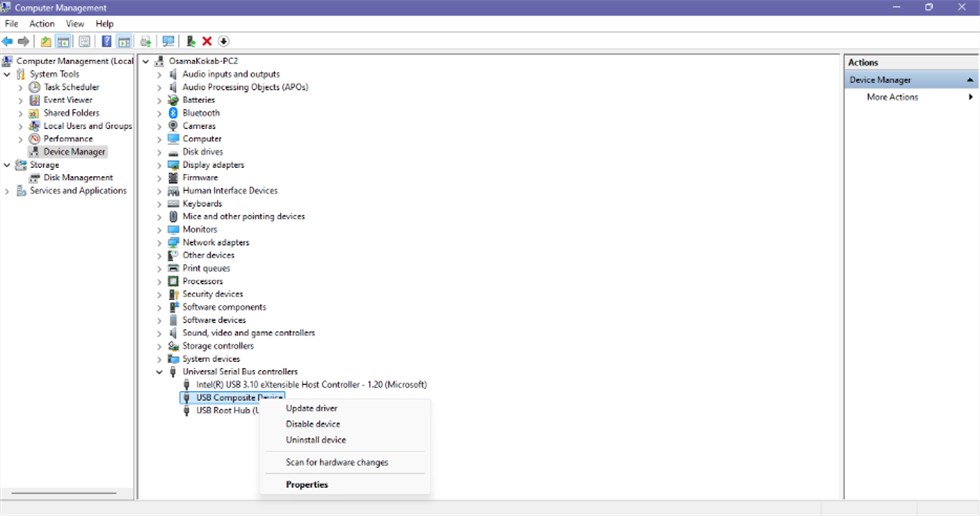
Uninstall Android Drivers
Tip 6: Connect Your Android Phone as a USB Mass Storage Device
If your PC doesn’t recognize the phone in the default MTP mode, try switching to USB Mass Storage. This way, your computer will detect the phone like a flash drive, which can help avoid compatibility issues and make file transfers easier. To activate it:
Step 1. Open the Settings app on your Android device.
Step 2. Go to Wireless and Network and tap on USB Utilities. Pick Connect storage to PC.
Step 3. Plug your phone back into the PC. Going through the latter can get around certain incompatibilities and still let you transfer files should the regular MTP mode fail.
Tip 7: Enable USB Debugging
USB debugging is often needed when using Android management tools for advanced functions, which allow your PC to interface with your phone. Go to Settings > About phone, tap Build number seven times to enable developer mode, then go to Settings > Developer options and enable USB debugging.
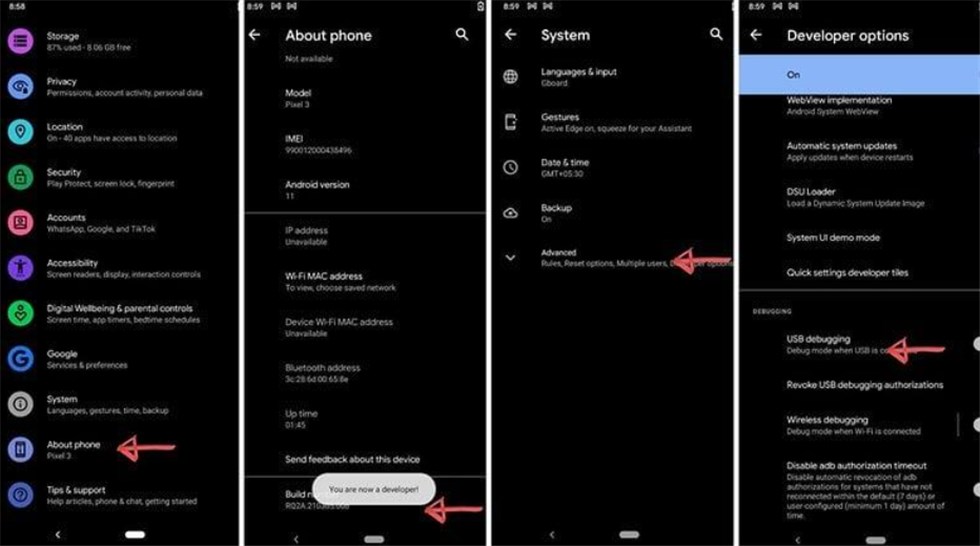
Enable USB Debugging
Tip 8: Check USB Connection Mode
Android devices can work with USB in different modes such as Charge Only, File Transfer (MTP), and Photo Transfer (PTP). If your phone is set up as “Charge Only,” then your PC will not be able to identify it as a storage device. To connect the phone to the computer, it is recommended that you open the notification panel, tap the USB notification, and choose File Transfer (MTP) so the PC can access the files.
Tip 9. Fix Android Phone Not Showing Up on PC With DroidKit Securely
When regular troubleshooting is ineffective, a professional tool such as DroidKit can fix connection problems on your Android device quickly while maintaining the safety of your data. The functionalities of DroidKit comprise repair of over 50 Android system problems, file recovery, lock bypass, and easy PC connection. This tool can help you fix Android phone not showing up on PC without any technical work. It is a safe and dependable tool for users with various levels of skill.
Key Features of DroidKit:
- Fixes Android system issues on a corrupted device easily.
- Provides tailored repair solutions based on device type.
- Requires no rooting, ensuring data security. No viruses and malware.
- Works on both Windows and Mac computers.
Free Download * 100% Clean & Safe
Steps to fix Android phone not showing up on PC via DroidKit:
Step 1. Free download and install DroidKit on your computer. Connect your phone via USB and open the Fix System Issues panel.
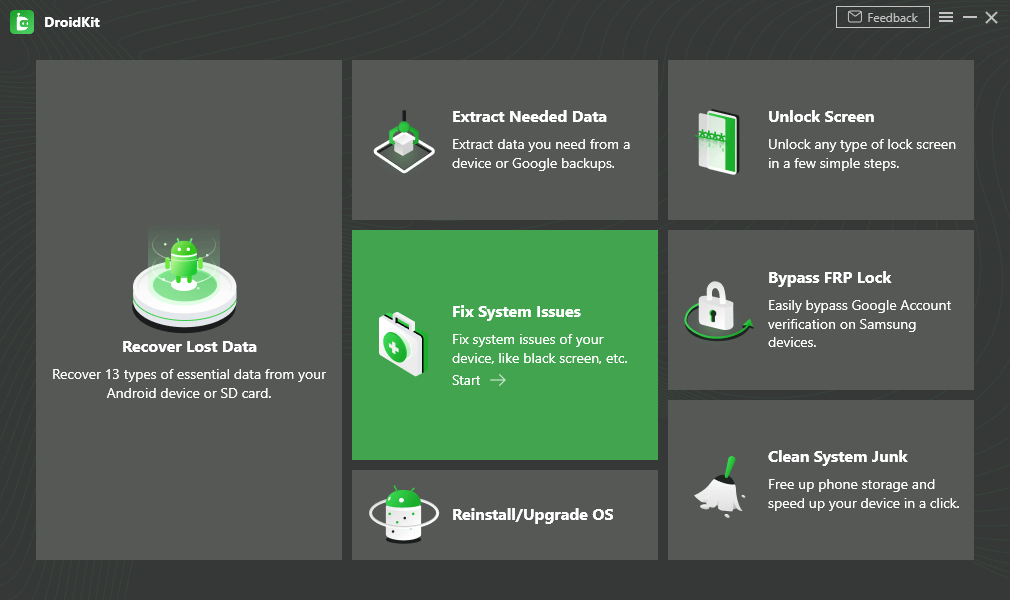
Choose Fix System Issues
Step 2. Click Start to begin the process. Get the matching code for your device and tap Download Now to install the required firmware.
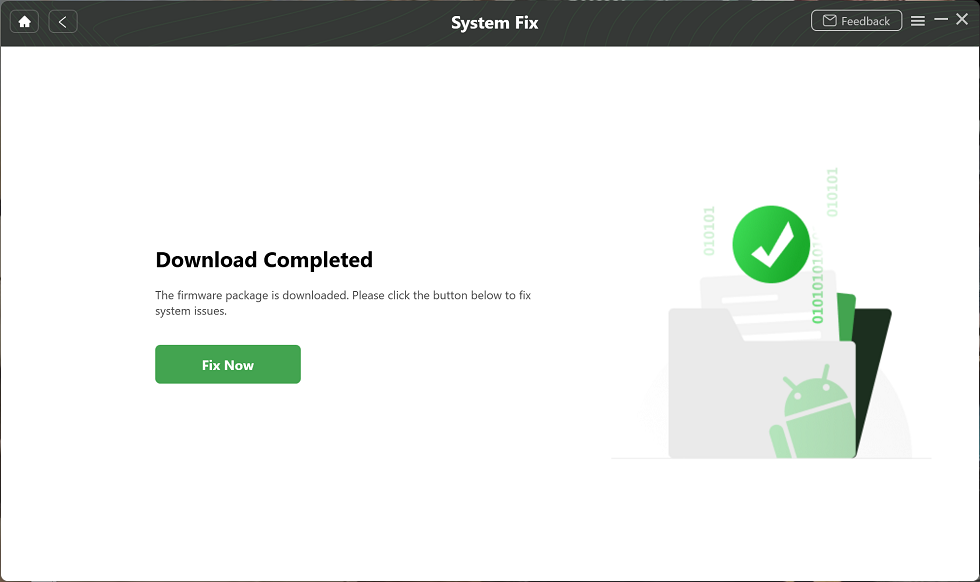
Complete the Firmware Download
Step 3. Once the firmware downloads, click Fix Now. Follow the on-screen instructions to enter Download Mode, then tap Next.
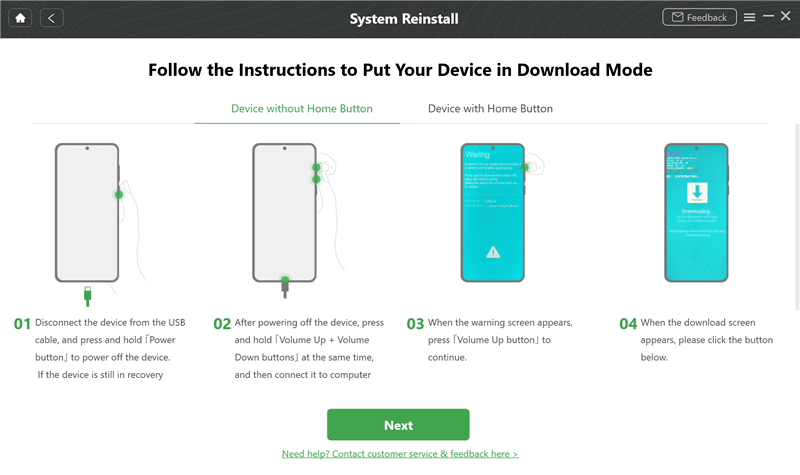
Put the Device in Download Mode
Step 4. DroidKit will now repair your device. Wait a few minutes, and you’ll see a confirmation screen when the process is complete.
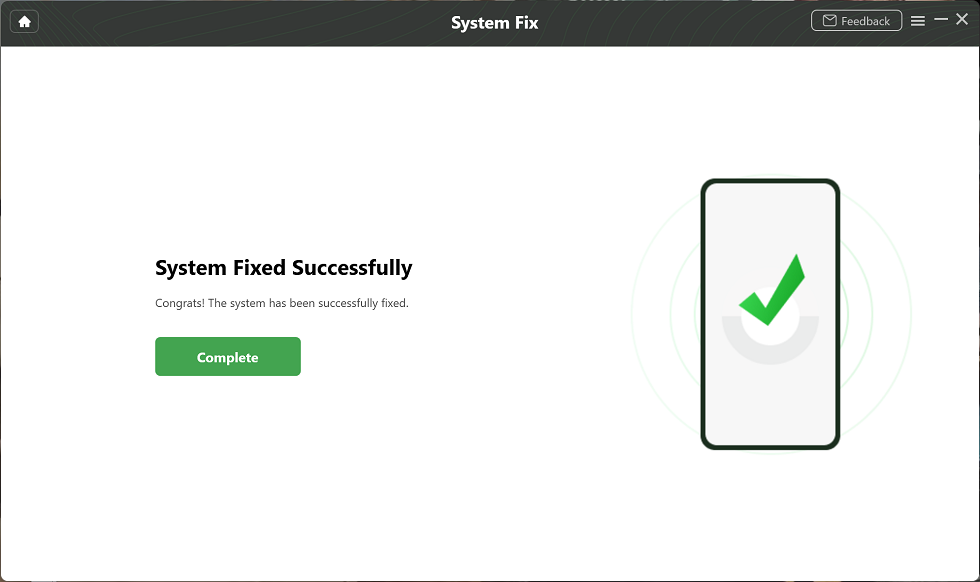
System Fixed Successfully
FAQs about Android Phones Not Showing Up on PC
Q1. Why is my Android phone not connecting to PC?
The defective USB cable, the wrong USB connection mode, the old or missing driver, the dirty charging port, or the disabled USB debugging are just a few of the typical reasons why your Android phone won’t connect.
Q2. Why is Samsung phone not showing up on PC when connected?
One of the reasons for detection issues with Samsung devices is outdated MTP drivers, a particular USB mode, or a system glitch. Setting the USB correctly, installing the latest drivers, or starting the System Fix mode of DroidKit can solve the problem of the device becoming visible to the PC in a short time.
Q3. How can I use my PC to operate my Android phone wirelessly?
The use of apps such as AirDroid, Scrcpy, or Your Phone Companion (Windows) enables mirroring and remote control of the Android device without a cable.
Conclusion
In summary, this guide introduced 9 practical methods to fix the “Android phone not showing up on PC” issue, covering everything from basic troubleshooting to connection settings. For a more secure and dependable solution, DroidKit can help you fix Android phone not showing up with easy steps. Start using DroidKit to accomplish quick and safe restoration of your Android device and get data transfer as well as device management.
Free Download * 100% Clean & Safe


Roger Smith is a senior technical writer with years of experience in providing Android solutions. He loves to help users solve various problems such as Android unlock, Android data recovery, and Android system repair.
Product-related questions? Contact Our Support Team to Get Quick Solution >
