How to Bypass Samsung A33 FRP (With or Without PC) [2026 Guide]
If you want to know about FRP bypass, this article offers easy methods for the Samsung A71 FRP bypass with and without PC.
If you’re stuck on the Google verification screen after a factory reset, you’re dealing with Samsung’s Factory Reset Protection (FRP). This guide shows you how to bypass FRP on Samsung A33 using both PC and no-PC methods.
Whether you want a quick solution or a free workaround, we’ll walk you through everything step by step.
Table of ContentsHide
Is It Possible to Bypass FRP Lock in Samsung?
Yes, there are ways to bypass Samsung’s Factory Reset Protection (FRP). While FRP is designed to protect your device, several working methods still exist.
You can either:
- Use a professional FRP unlock tool (fast & stable)
- Try manual methods like APK bypass (free but less reliable)
👉 The key is choosing the right method based on your situation.
Which FRP Bypass Method Should You Use on Samsung A33?
Before jumping into the steps, here’s a quick guide to help you choose the best method:
| Situation | Recommended Method |
| You want the fastest and easiest solution | Method 1 (DroidKit) |
| You don’t have a PC | Method 2 (APK Method) |
| Manual methods failed | Use a professional FRP tool |
| You’re not tech-savvy | Method 1 (automatic solution) |
👉 In most cases, users prefer a stable and quick solution, especially on newer Android versions.
Method 1. Bypass Samsung A33 FRP with PC (Fast & Stable)
The easiest way to bypass Samsung A33 FRP is by using a reliable Android unlocking tool like DroidKit–Android Phone Toolkit. This comprehensive tool safely helps you bypass the FRP lock on Samsung devices. Additionally, it can unlock Android lock screens, upgrade your system, recover lost data, fix system errors, and more.
Free Download * 100% Clean & Safe
Why Choose DroidKit?
- Quick: Remove FRP lock in minutes
- Beginner-friendly: No technical skills required
- High success rate on Android 11/12/13/14/15
- Supports Samsung, Xiaomi, Redmi, POCO, etc.
- Safe and secure with no malware
DroidKit is compatible with all Samsung devices running Android version above 6, you can download DroidKit for free, and here’s how to use it to bypass FRP on Samsung.
Steps to Bypass Samsung A33 FRP:
Step 1: Launch DroidKit on your PC or Mac and select the FRP Bypass option from the main menu.

Choose FRP Bypass Mode
Step 2: Connect your Samsung device to your computer using a USB cable, then click “Start.” You’ll need to select your device brand.
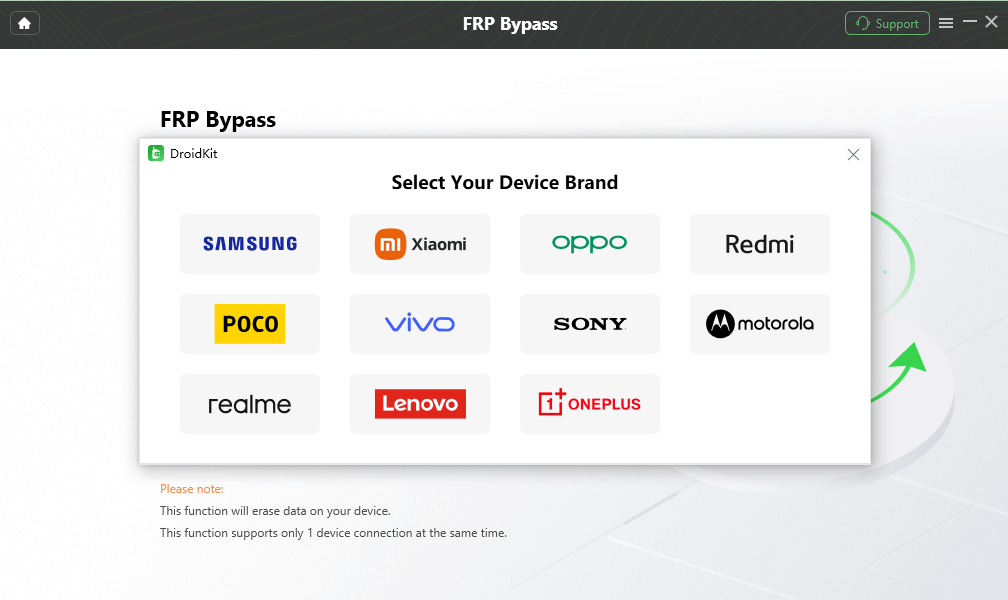
Choose Device Brand
Step 3: DroidKit will create a configuration file for your device. Make sure to keep your phone connected during this process. Once ready, click “Start to Bypass.”

Step 4: Choose your Android system version from the options provided and click “Next.”
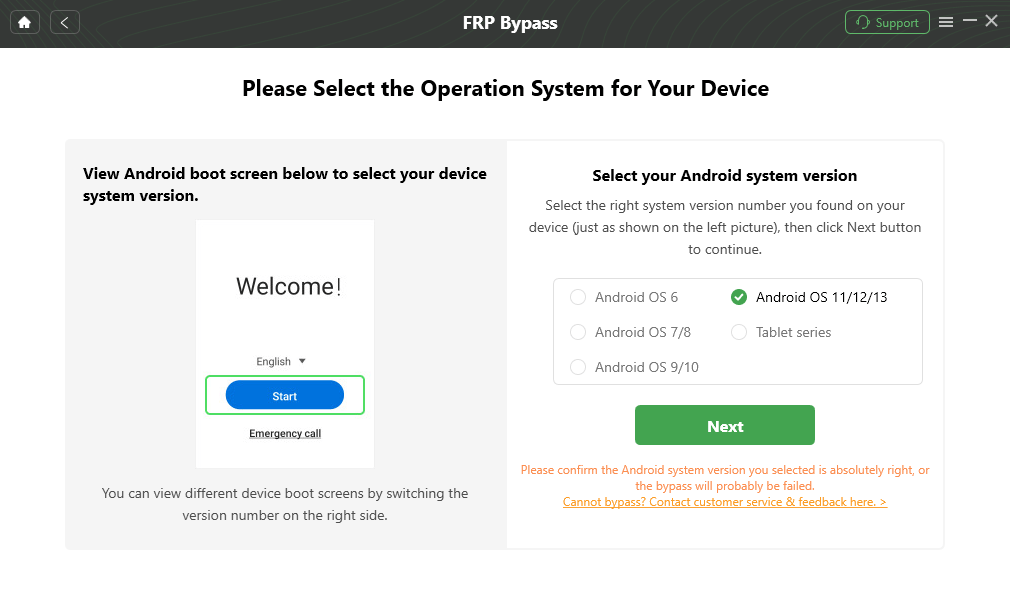
Choose System Version
Step 5: Follow the on-screen instructions in the DroidKit interface to adjust some settings on your device.
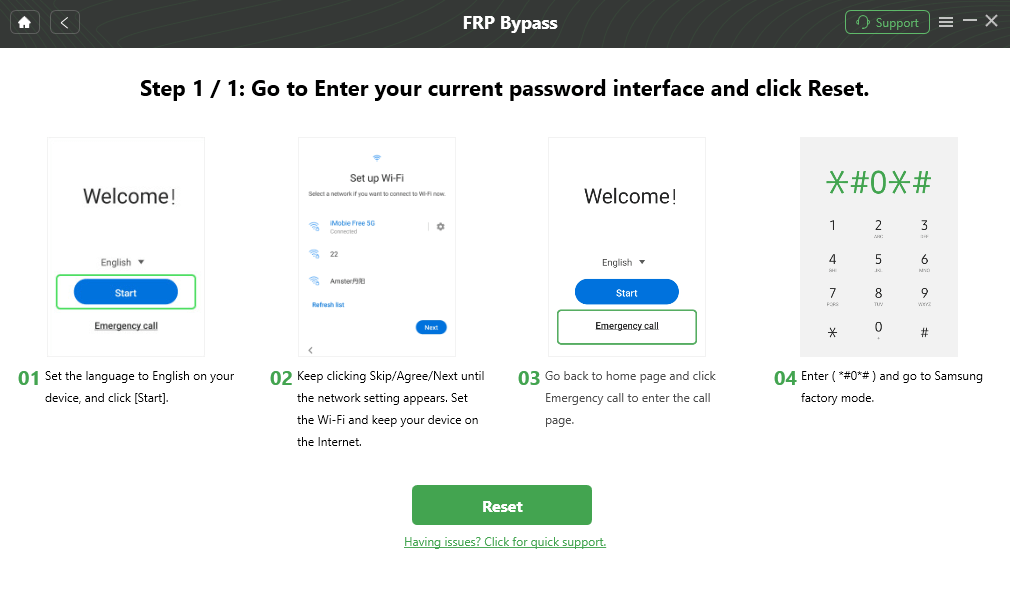
Go to Enter your Current Password Interface and Click Reset
Step 6: After completing the on-screen steps, DroidKit will bypass the FRP lock, allowing you to easily access your phone.

FRP Bypass Complete
Why Many Users Prefer This Method
Manual FRP bypass methods often:
- Stop working after system updates
- Require complex steps
- Have low success rates
👉 If you want a reliable one-time solution, a tool-based method is usually the best choice.
Method 2. Bypass Samsung A33 FRP Without PC (APK Method)
If you don’t have access to a computer, you can try an FRP bypass APK method.
⚠️ Note: This method may not work on all Android versions and requires more steps.
Here’s how to do it:
Step 1: Connect your Samsung device to a Wi-Fi network.
Step 2: Tap the arrow next to the Wi-Fi network and select “Manage Network Settings.”
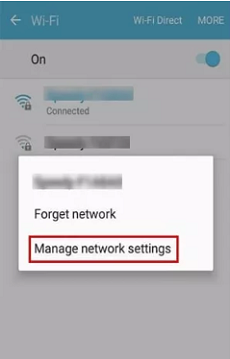
Tap Manage Network Settings
Step 3: Tap on “Static IP” and then “IP Address.”
Step 4: Enter any value in the IP address field, then long-press it until you see the “Web Search” option.
Step 5: Search for “FRP Bypass APK,” then download and install the app.
FRP Bypass APK
Step 6: Open the FRP Bypass APK and navigate to “Settings > Try.”
Step 7: Go to “Fingerprints, Face, and Password > Screen Lock > Pattern” and create a new pattern for your device.
Step 8: Return to the main screen and enter your new lock screen pattern.
Step 9: Tap on “Skip” to bypass the FRP lock.
And that’s it! You’ve successfully bypassed the FRP lock on your Samsung device in just a few simple steps.
What to Do If Samsung A33 FRP Bypass Is Not Working
Sometimes FRP bypass may fail due to:
- Android version restrictions (Android 12/13/14)
- APK download blocked
- Google security updates
- Incorrect steps
Solutions:
- Try another method (PC-based is more stable)
- Restart and repeat the process
- Use a professional FRP bypass tool
👉 If you’re stuck, using a tool like DroidKit FRP Bypass is often the fastest way to fix the issue.
FAQs about Samsung A33 FRP Bypass
1. Can I bypass FRP on Samsung A33 without a PC?
Yes, you can use APK-based methods, but success rates vary.
2. What is the easiest way to bypass FRP?
Using a dedicated FRP unlock tool is the easiest and fastest way.
3. Is FRP bypass legal?
It is legal only if you own the device or have permission.
4. Why does FRP bypass fail?
Because of system updates, incorrect steps, or unsupported Android versions.
Summary
In this guide, we covered how to bypass Samsung A33 FRP with and without a PC.
- APK methods are free but less reliable
- Tool-based methods are faster and more stable
👉 If you want a smooth and successful unlock, DroidKit is a practical option to try.
More Related Articles



Joy Taylor is a seasoned technical writer with over a decade of experience in mobile technology. At iMobie, she specializes in producing in-depth content on iOS data recovery, iPhone unlocking solutions, and iOS troubleshooting.
Product-related questions? Contact Our Support Team to Get Quick Solution >
