FRP Bypass Android Guide (2026): How to Remove Google FRP Lock on Any Phone
Locked out of your phone by Google’s FRP screen? Generic guides fail because the right method depends on two key things: your phone’s brand and its Android version. This updated 2026 guide helps you quickly find the right FRP bypass solution for Samsung, Xiaomi, Huawei, Motorola, OPPO, Vivo, Tecno, and more.
Staring at a Google account verification screen after a factory reset can make your phone feel like a paperweight. You search for how to bypass FRP on Android, try a method from a video, and quickly discover the menus shown don’t exist on your device. That frustration is common; a procedure for a Samsung phone is useless for a Motorola or a Huawei.
In this definitive hub, we provide a current, tested, and brand-specific resource for bypassing Google FRP lock on any Android phone. Whether you are using Android 14, Android 13, Android 12, or Android 11, this hub provides the latest working methods and troubleshooting solutions.
Quick Answer: How to Bypass Google FRP Lock on Android
The easiest way to bypass a Google FRP lock depends on your device brand and Android version.
Common FRP bypass approaches include:
- Using TalkBack or accessibility exploits to access browser settings
- Entering diagnostic or engineering modes on certain devices
- Installing APK tools to open system settings
- Using PC-based FRP bypass tools for newer Android versions
If manual methods fail due to recent security patches, dedicated FRP unlock tools can automate the process and unlock the device within minutes.
Quick NavigationHide
FRP Bypass Methods by Phone Brand
- Samsung FRP Bypass
- Xiaomi / Redmi FRP Bypass
- Huawei FRP Bypass
- OPPO FRP Bypass
- Vivo FRP Bypass
- Tecno / Infinix FRP Bypass
- Motorola FRP Bypass
- Google Pixel FRP Bypass
- BLU / Hisense FRP Bypass
FRP Bypass Methods by Android Version
FRP Bypass by Situation
- FRP Bypass Without PC
- FRP Bypass Without SIM Card
- FRP Bypass for Second-Hand Phones
- FRP Bypass After Factory Reset
- FRP Bypass on Latest Security Patch
Recommended FRP Tools
What is Google FRP (Factory Reset Protection)?
Factory Reset Protection (FRP) is a built-in security feature Google introduced with Android 5.1 Lollipop. It automatically activates when a Google account is added to an Android device.
If the device is factory reset without first removing the Google account, Android will require the previously synced Google account credentials during setup.
This prevents unauthorized users from accessing the phone after a reset.
However, FRP can also lock out legitimate users when:
• You forgot the Google account password
• You bought a second-hand phone
• The previous owner didn’t remove their account
• The device was reset accidentally
In these cases, an FRP bypass method may be required to regain access.
Which FRP Bypass Method Should You Use?
Different Android phones require different FRP bypass solutions. This quick comparison helps you choose the best method for your situation.
| Your Situation | Recommended Solution |
| Samsung device running Android 14 | Use Samsung-specific FRP methods or PC tools |
| Xiaomi / Redmi device | Try browser-based MIUI methods |
| Huawei phone with EMUI | Use eRecovery or backup restore methods |
| No PC available | Try accessibility or TalkBack methods |
| Latest Android security patch installed | Professional FRP tools are usually more reliable |
| Bought a second-hand phone | Start with brand-specific guides first |
| Manual methods keep failing | Use an automated FRP bypass tool |
FRP Bypass Methods by Phone Brand
The single most important factor in a successful FRP bypass is your phone’s brand. Manufacturers like Samsung, Xiaomi, and Huawei use heavily customized versions of Android (One UI, MIUI, EMUI), which have entirely different software interfaces and security loopholes. An exploit that opens a hidden test menu on a Samsung simply does not exist on a Vivo or OPPO phone.
This is the primary reason generic guides fail.
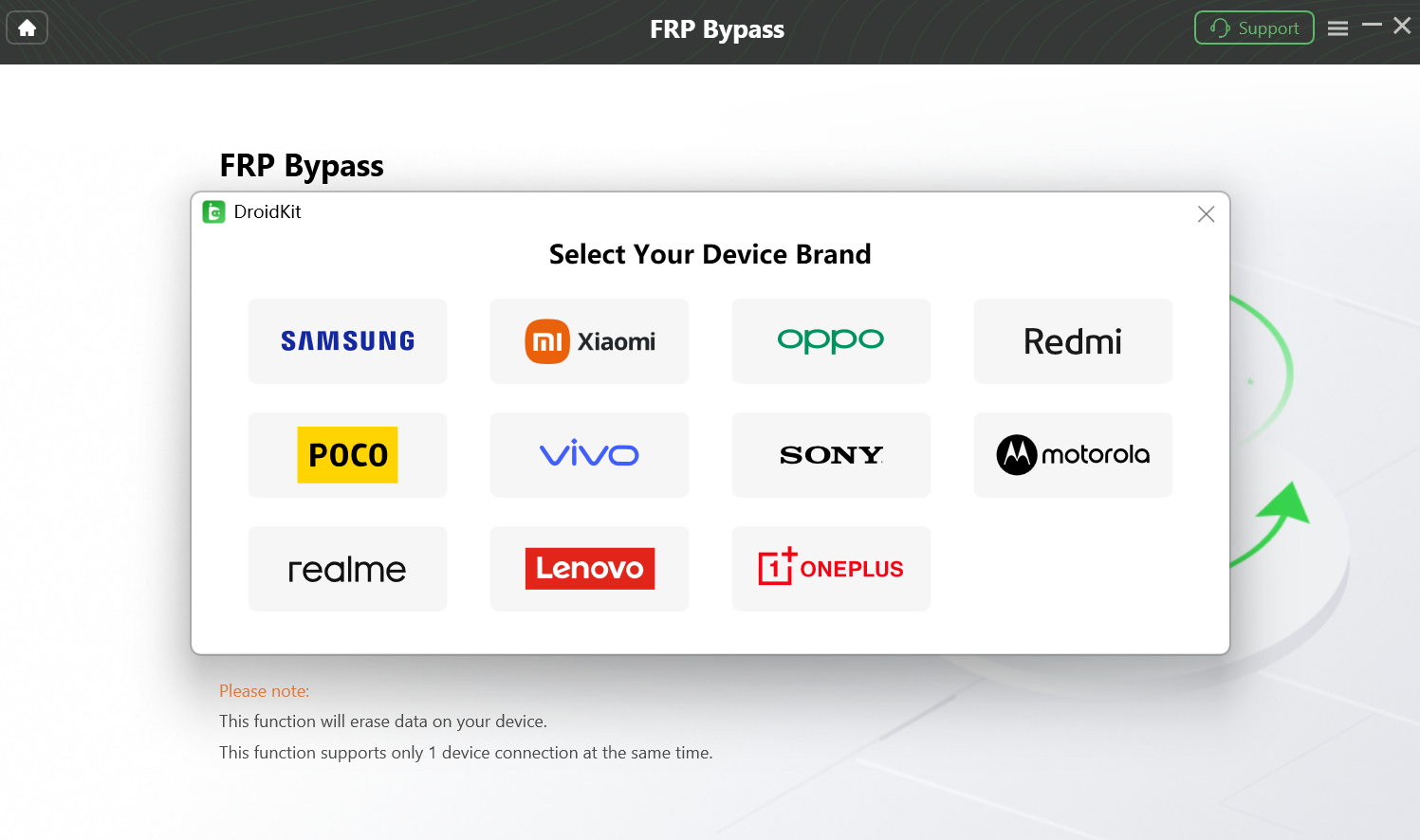
To give you an effective solution, we have organized our methods by brand. Find your phone’s manufacturer in the list below and click the link to get the latest, most detailed step-by-step guide.
Samsung FRP Bypass (One UI Devices)
Samsung phones often allow access to diagnostic mode or ADB-based tools, making them one of the most commonly bypassed devices.
Popular solutions include:
- Samsung diagnostic mode (#0#*)
- ADB FRP bypass tools
- Accessibility menu exploits
➡ Read the full guide: How to Bypass the FRP Lock on Samsung Devices
Xiaomi / Redmi / POCO FRP Bypass (MIUI)
Many Xiaomi FRP bypass methods rely on accessing the browser through Wi-Fi settings.
Users typically open the browser from the “Add network” field and install APK utilities to reach system settings.
➡ Read the full guide: Complete Xiaomi/Redmi FRP Bypass Guide
Huawei FRP Bypass (EMUI Devices)
Huawei devices often use different techniques due to limited Google services on newer models.
Common solutions include:
- eRecovery firmware flashing
- Huawei Backup restore exploit
- OTG-based system access
➡ Read the full guide: Huawei FRP Bypass Methods
OPPO FRP Bypass (ColorOS)
Bypassing FRP on OPPO devices often requires entering an engineering mode with a different code than Samsung. Another common method is to exploit the Phone Clone app’s data migration process to skip the setup wizard entirely.
-> Safely Bypass Google FRP on OPPO Devices
Vivo FRP Bypass (Funtouch OS)
Vivo bypass techniques frequently rely on accessing Google Keyboard settings or browser shortcuts from Wi-Fi setup menus.
-> How to Perform a Vivo FRP Bypass
Tecno / Infinix FRP Bypass (XOS & HiOS)
These devices commonly rely on bugs triggered by switching system languages multiple times or by using the “Help” option within the Wi-Fi QR code sharing screen. This can open a browser or share menu, creating an entry point.
-> How to Perform a Tecno FRP Bypass in 2026
Motorola FRP Bypass
Motorola’s methods are quite varied. Older models might still be susceptible to the TalkBack exploit, while newer ones often require a combination of actions involving the SIM card tray or specific menus within Accessibility settings.
-> 5 Proven Ways to Bypass Motorola FRP Lock in 2026
Google Pixel FRP Bypass
As the stock Android experience, Pixel phones have the tightest security. Bypassing them is challenging and often relies on exploiting bugs related to SIM card ejection notifications or navigating through language and help menus.
-> Click Here for the Complete Google Pixel FRP Bypass Guide
BLU / Hisense FRP Bypass
Brands like BLU and Hisense often use a near-stock version of Android or run on MediaTek (MTK) chipsets. Their bypass methods are more likely to involve older TalkBack exploits or require generic PC-based tools designed for MTK processors.
-> Click Here for the Guide on Bypassing FRP on BLU, Hisense, & More
FRP Bypass Methods by Android Version
Google regularly patches FRP bypass exploits in new Android versions. If you know your Android version, use the appropriate guide below.
Android 14 FRP Bypass
With Android 14, Google has patched most non-PC methods, including older TalkBack and accessibility menu exploits. Successful bypasses often require a PC-based tool or more complex, brand-specific diagnostic mode entries.
-> How to Bypass FRP on Android 14
Android 13 FRP Bypass
Android 13 still has several viable manual bypass methods, though they are more intricate than on older versions. Many exploits involve manipulating the language settings, TalkBack, or SIM card tray to open a browser window.
-> How to Bypass FRP Android 13: Step-by-Step
Android 12 FRP Bypass
This version marked a significant security increase. However, many known loopholes still exist, particularly those involving the Accessibility Menu shortcut and the “disable app” trick from within the settings that can be accessed via a browser.
-> How to bypass FRP on Android 12
Android 11 FRP Bypass
Many classic FRP bypass methods are still effective on Android 11. Exploits using Google Assistant voice commands, setting a new screen lock from a shared link, or using the “Easy Samsung FRP Tool” are common for this version.
-> How to Run FRP Bypass Android 11
FRP Bypass by Situation
Some users do not know their Android version or phone model. In these cases, situation-based guides may help.
| Situation | Recommended Approach |
| No PC available | Use TalkBack or browser-entry methods |
| No SIM card | Use Wi-Fi setup exploits |
| Bought a second-hand phone | Start with brand-specific solutions |
| Latest security patch installed | Use professional FRP software |
| APK installation blocked | Try PC-based tools instead |
Best FRP Bypass Tools for Android (2026)
When manual methods fail due to security patches, FRP bypass tools can automate the unlocking process.
Below are some commonly used solutions.
| Tool | Best For | Supported Devices | Difficulty |
| DroidKit | Automated FRP removal | Samsung, Xiaomi, many Android devices | Easy |
| SamFw FRP Tool | Samsung FRP bypass | Samsung devices | Medium |
| SP Flash Tool | MediaTek devices | Redmi, Tecno, Infinix | Advanced |
Dedicated FRP tools typically handle:
- driver installation
- device detection
- automated bypass scripts
This significantly reduces the risk of manual errors.
Manual Methods vs FRP Tools
Before choosing a solution, it helps to understand the difference between manual methods and automated tools.
|
Feature
|
Manual Methods (Free)
|
FRP Tools |
|
Success Rate
|
Low, depends heavily on the security patch.
|
High, updated for the latest systems.
|
|
Time Cost
|
1-3 hours, often with multiple failed attempts.
|
10-20 minutes for a complete, guided process.
|
|
Required Skill
|
Moderate to High; may require complex steps & PC use.
|
Low; often a simple point-and-click interface.
|
|
Safety Risk
|
It can be high when downloading files from unknown sources.
|
Generally Low; download from official developer sites.
|
For older Android devices, manual methods may work. For newer devices, FRP tools are usually more reliable.
-> Read Our In-Depth Review: Professional FRP Bypass Tools vs. Manual Methods
The Easiest & Most Reliable Solution: Automated FRP Tools
For users who want to save time and avoid the risks of downloading unknown files, an automated tool is the most effective solution.
Top Recommendation (For Simplicity & Success): DroidKit
DroidKit provides:
- automated FRP removal
- guided unlocking steps
- support for Samsung, Xiaomi, and many Android brands
It is designed for users who want to bypass FRP without manually testing multiple exploits. As a complete Android toolkit, DroidKit can also help:
- unlock Android screens
- recover lost data
- repair Android system issues
Free Alternative for Advanced Users: SamFw FRP Tool
If you are comfortable with manual setup steps and driver installation, free tools like SamFw FRP Tool may help bypass FRP on some Samsung devices.
However, these tools typically require:
- manual driver configuration
- USB debugging compatibility
- technical troubleshooting experience
They may also stop working after newer Android security updates. For beginners or users who want a faster and more stable solution, automated FRP tools are usually recommended.
Common FRP Bypass Problems (Troubleshooting)
Some users encounter issues when attempting FRP bypass.
Common problems include:
- FRP bypass not working after update
- Google verification screen keeps returning
- TalkBack method not opening browser
- APK installation blocked
If you encounter these issues, see the troubleshooting guide:
➡ FRP Bypass Not Working – Solutions
Frequently Asked Questions (FAQ)
How can I check the Android version on my locked phone?
You can find this in Recovery Mode. First, power off the device. Then, press and hold a specific key combination (commonly Volume Up + Power or Volume Down + Power) until a text menu appears. The Android version is usually listed at the top.
Why don’t older FRP bypass methods work anymore?
Google continuously patches security vulnerabilities through monthly Android updates.
Methods that worked a year ago may no longer function on newer devices.
Is FRP bypass legal?
FRP bypass should only be used on devices you legally own or have permission to unlock.
Using bypass methods on stolen devices may violate local laws.
Does Google provide an official FRP bypass tool?
No. Google’s only official solution is entering the previously synced Google account credentials. If those credentials are unavailable, third-party solutions are often required.
Final Verdict: Regain Access to Your Device Today
Bypassing the Google FRP lock in 2026 requires an approach tailored to your device brand and Android version.
Manual methods may work for older phones, but newer Android security patches often require more advanced techniques.
If manual solutions fail, a dedicated FRP bypass tool can automate the process and help you regain access to your device more quickly and safely.
Free Download for all windows & 100% safe Free Download for all mac & 100% safe
Free Download100% Clean & Safe
More Related Articles


Roger Smith is a senior technical writer with years of experience in providing Android solutions. He loves to help users solve various problems such as Android unlock, Android data recovery, and Android system repair.
Product-related questions? Contact Our Support Team to Get Quick Solution >
