OPPO A57 FRP Bypass Guide: 4G/5G Checks, Codes & PC Route
The OPPO A57 name covers more than one hardware and software target, so an FRP method should begin with the exact model—not an emergency code. This guide separates A57 4G and 5G context, explains the limits of old code, SIM, and Bluetooth routes, and covers account recovery and a PC option for compatible devices.
An OPPO A57 FRP bypass search can hide an important detail: not every phone called A57 is the same device target.
The global OPPO A57 specification identifies model CPH2387, while OPPO also released an A57 5G for the Chinese market with different hardware. Add regional firmware, ColorOS updates, and security changes, and an emergency-code tutorial recorded on one A57 can behave very differently on another.
That is the starting point for this guide. Before trying an OPPO FRP bypass code, SIM-card route, Bluetooth keyboard trick, or PC tool, identify the A57 in your hand and the screen where the setup process actually stops.
If you need broader OPPO guidance across A-series, Reno, F-series, different ColorOS versions, APK routes, and PC tools, use the OPPO FRP bypass guide. This page stays with the A57 and the specific queries that bring users here.
Table of ContentsHide
First Check Which OPPO A57 You Have
What the FRP Screen Means on an A57
OPPO A57 FRP Bypass Code: What About *#813# and *#812#?
Can You Bypass OPPO A57 FRP Without a PC?
Recover the Previous Google Account First
A PC Route for a Compatible OPPO A57
OPPO A57 FRP Bypass Not Working
A57 Unlock Tool Search: Screen Lock or FRP?
FAQs About OPPO A57 FRP Bypass
First Check Which OPPO A57 You Have
Do not start with the code. Start with the model.
The A57 name has been used for devices that differ by market and hardware. For FRP research, that matters because a method may depend on the Android and ColorOS environment, chipset-related service route, setup screen, or security state of the device.
| A57 Target | How to Recognize the Context | Why It Matters for FRP Research |
| Global A57 / A57 4G context | Official global specifications identify CPH2387 | Use instructions written for the same model family and software environment |
| China-market A57 5G context | Official Chinese product information identifies a Dimensity 810-based 5G model | Do not assume a CPH2387 tutorial is automatically interchangeable |
| A57 after later software updates | The same phone may no longer show the setup path used in an older tutorial | Code, browser, Settings, and pairing routes can depend on the current software state |
Check the model label on the box, purchase record, service information, or other reliable device documentation available to you. When a tutorial says only “OPPO A57” but does not identify the model context or software environment, treat it as incomplete information.
Why the A57 4G Query Deserves Its Own Check
One of the current search patterns is OPPO A57 4G FRP bypass. That query is more useful than a generic A57 search because it narrows the hardware context.
Before following any guide, compare:
- The model code.
- The country or regional firmware context.
- The Android and ColorOS version shown by the device history when known.
- The exact Google verification screen.
- The setup options currently available on the phone.
An A57 guide becomes much more trustworthy when those details match. A video title alone is not enough.
What the FRP Screen Means on an OPPO A57
FRP appears after a reset when Android still requires ownership verification through a Google Account associated with the device.
This is different from:
- A normal PIN, pattern, or screen password before reset.
- An OPPO or HeyTap account sign-in screen.
- A SIM network restriction.
Read the message before choosing an unlock method.
If the A57 asks you to verify a Google Account previously associated with the phone after a factory reset, this article addresses that FRP scenario.
If the phone instead boots normally but stops at a PIN or pattern, an OPPO screen unlock tool comparison is the more relevant path. FRP and local screen locks should not be mixed just because the search includes the word “unlock.”
A57 checkpoint: before trying a code or PC tool, write down three things—the exact A57 model, the software environment when known, and the wording on the locked screen.
OPPO A57 FRP Bypass Code: What About *#813# and *#812#?
Searches for OPPO FRP bypass code often lead to the strings *#813# and *#812#. Older OPPO tutorials may show one of these codes being entered from an Emergency Call screen and then moving to another part of the setup environment.
That should not be interpreted as proof of a universal A57 password or permanent FRP-removal command.
For an A57 user, the useful question is not simply:
Which code should I type?
It is:
Does this exact A57 build expose the same setup route shown in the tutorial?
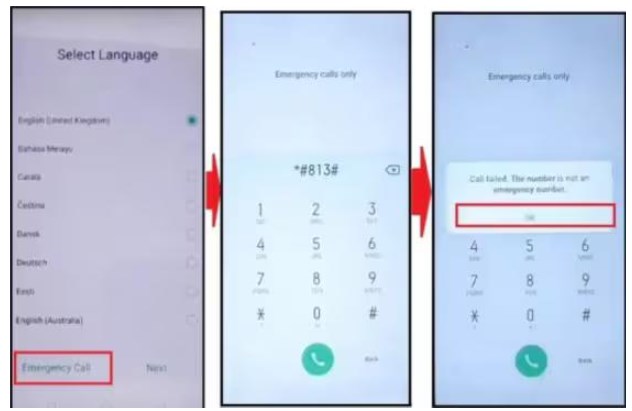
An older OPPO tutorial showing the emergency-dialer code route.
What If the Code Opens Nothing?
Do not keep changing between random emergency and service codes.
A code that does nothing may simply mean the route shown in the tutorial is unavailable in the current model, region, firmware, or software state.
What If the Code Appears to Open Settings?
Opening another screen and completing Google ownership verification are not automatically the same event.
The old article used a Settings screenshot as evidence that the code route had reached another part of the phone. The important checkpoint is what happens after restart and setup—not merely whether a Settings screen appeared temporarily.
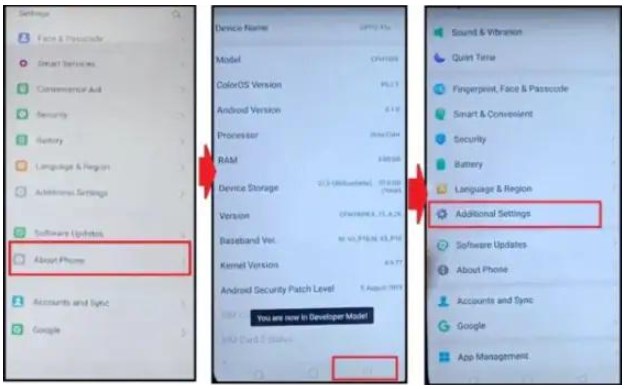
Reaching a Settings screen on one software build does not establish universal A57 compatibility.
Can You Bypass OPPO A57 FRP Without a PC?
Older A57 articles commonly group three no-PC ideas together: an emergency dialer route, a SIM-related path to browser access, and a Bluetooth keyboard route.
The problem is not that every screenshot is fabricated. The problem is that each route depends on a chain of setup permissions that may not be present on another A57 build.
Emergency Call Route: The Dialer Is Only the Entry Point
The old workflow begins from the Emergency Call screen.
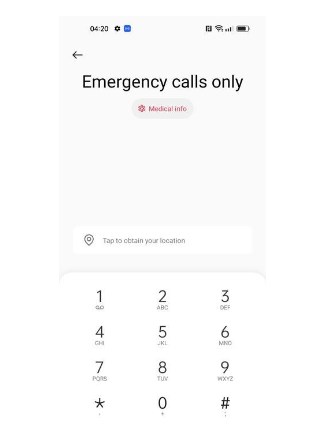
Older no-PC tutorials often begin from the Emergency Call screen.
For the route to matter, several additional things still need to be true:
- The software build reacts to the code or service action used by the tutorial.
- The setup environment exposes another usable screen.
- The phone permits the next transition described in the guide.
- The final setup state actually changes after restart.
If the first transition never happens, the rest of the tutorial does not apply to that phone state.
SIM-to-Browser Route: Browser Access Is the Real Dependency
Another older sequence claims that a SIM-related menu can eventually lead to a browser.
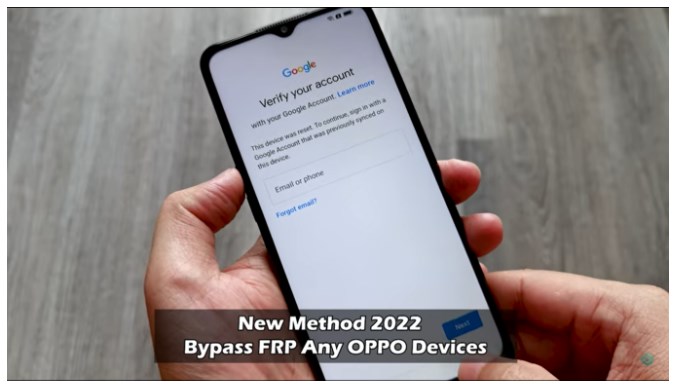
The browser step is useful only when the current setup environment still exposes the same route.
The critical dependency here is not the SIM card itself. It is whether the current A57 setup flow still provides a path from the locked setup screen into a usable browser and then into the next required screen.
If the browser never opens, changing the SIM card does not solve the actual limitation.
Bluetooth Keyboard Route: Pairing Is Not the Same as Settings Access
A Bluetooth keyboard may still pair where the setup screen permits Bluetooth devices.
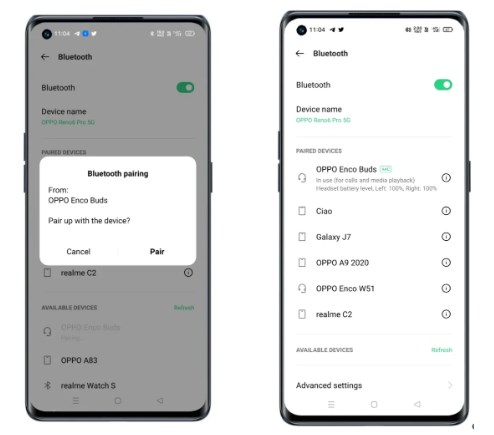
A paired keyboard does not by itself guarantee access to account or Settings screens.
The weak point in many keyboard tutorials is the next sentence: “use shortcuts to open Settings.”
That transition depends on what the setup environment accepts. Pairing success should not be treated as proof that keyboard shortcuts can escape the current setup screen.
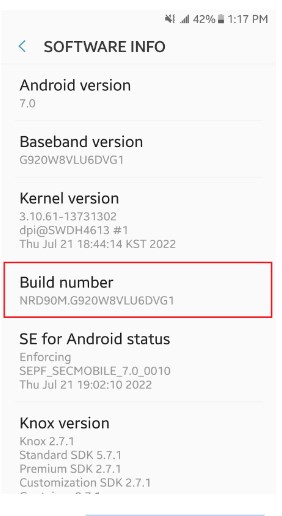
Account-management access is a separate checkpoint from Bluetooth pairing.
When Is a No-PC Route Worth Investigating?
A no-PC guide is more credible when it documents:
- The same OPPO A57 model context.
- A comparable ColorOS and Android environment.
- The same setup screens shown on your phone.
- The exact transition from one setup screen to the next.
- What happens after restart, not only a temporary screen change.
When those elements do not match, stop combining steps from unrelated A57, A55, and generic OPPO tutorials.
Recover the Previous Google Account First
If you are the original owner and the A57 is asking for a Google Account that you previously used, account recovery is the first route to check.
Step 1. On another phone or computer, open the official Google Account Recovery guidance.
Step 2. Recover the username if the email address is forgotten, or begin password recovery for the account you believe was previously used on the A57.
Step 3. Use a familiar device, browser, and location when possible during account recovery.
Step 4. After access to the correct Google Account is restored, return to the A57 setup screen and continue the ownership-verification process.
Step 5. If the phone is second-hand, contact the seller or previous owner instead of guessing account details or testing unrelated files.
This route solves a different problem from an emergency code: it restores access to the account Android is asking you to verify.
A PC Route for a Compatible OPPO A57
For an A57 visitor, the reason to consider a computer is specific: the phone still shows Google verification, but the no-PC tutorial being followed does not match the actual setup screens, or the code, browser, or keyboard transition never appears.
DroidKit includes an FRP Bypass module for supported Android device routes, including OPPO as a supported brand category. Exact device compatibility should be checked before purchase and before starting the procedure.
Step 1. Install DroidKit on the computer and open FRP Bypass.

Open the FRP Bypass module.
Step 2. Connect the A57 with a data-capable USB cable and continue to the device-selection stage.
Step 3. Select OPPO when the software asks for the device brand.
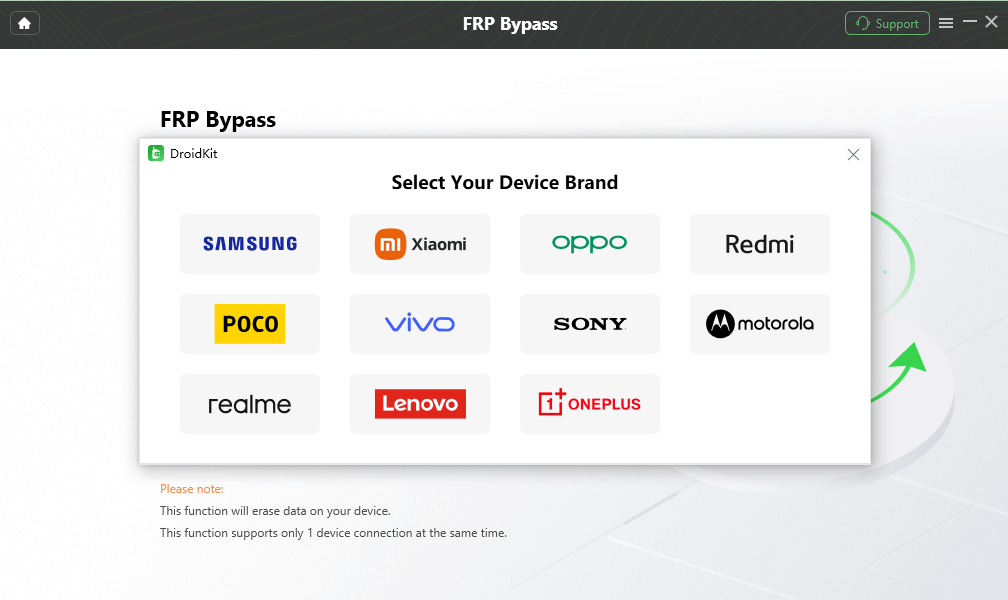
Choose the correct device brand when prompted.
Step 4. Wait while the software prepares the information required for the available device route. Continue only when the displayed phone and software prompts correspond to the device in front of you.
Step 5. Click Start to Bypass when the software is ready and follow the instructions displayed for the available OPPO route.
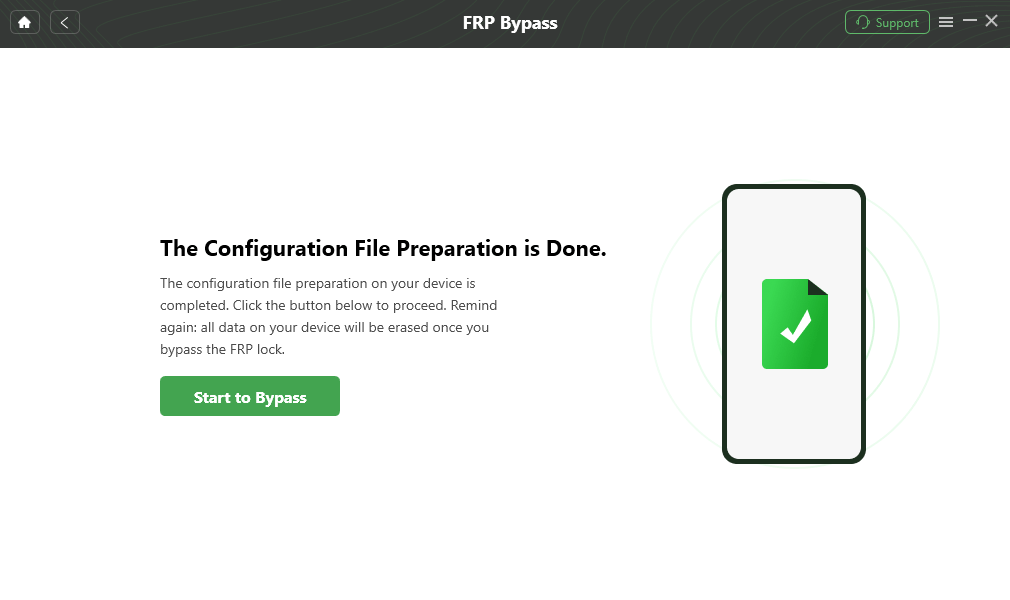
Continue after the required preparation is complete.
Step 6. Complete the device-side instructions shown by the program. Do not substitute an unrelated Samsung, Xiaomi, or another OPPO model sequence for the instructions displayed for the current route.
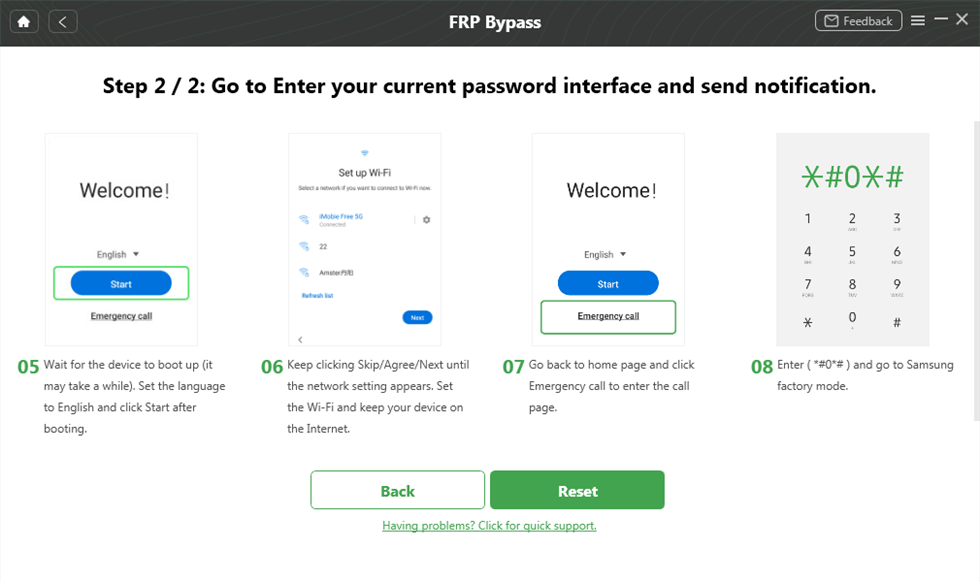
Follow the device-side prompts shown for the current workflow.
Step 7. Keep the device connected until the software reports the result.

Review the completion result before restarting setup.
DroidKit is commercial software. Check current compatibility before purchase. FRP-related workflows can affect device data and settings, and the phone may already have been erased by the factory reset that triggered Google verification.
OPPO A57 FRP Bypass Not Working: Diagnose the A57, Not Just the Method
The Video Says A57, but Your Screens Look Different
Check whether the video concerns the same A57 variant and a comparable software environment. An A57 4G query and an A57 5G tutorial should not be treated as interchangeable simply because both use the A57 name.
*#813# or *#812# Does Nothing
Treat that result as evidence that the route shown in the old tutorial is not available in the current phone state. Do not keep entering random service codes.
The Code Opens Another Screen, but FRP Returns After Restart
A temporary transition to Settings or another screen did not complete the ownership-verification process. Reassess the route instead of repeating factory resets.
The SIM Method Never Opens a Browser
The missing browser path is the blocker. Changing SIM cards does not recreate a setup transition that the current phone does not expose.
The Bluetooth Keyboard Pairs, but Shortcuts Do Nothing
Pairing and Settings access are separate capabilities. The current setup environment may accept keyboard input without allowing the navigation sequence shown in an older tutorial.
The Phone Asks for Google Verification After Another Reset
Another reset is not an account-recovery process. If the correct Google Account can be recovered, return to the official recovery route rather than treating repeated erasure as an FRP solution.
The PC Software Does Not Recognize the A57
Check the USB cable, USB port, Windows or macOS connection state, and whether the current device route is supported. Do not select a different OPPO model merely to make the workflow continue.
The Guide Is for A57 4G but the Phone Is A57 5G
Stop before combining the two workflows. Return to the exact model and software environment and use instructions written for that target.
Searching for an OPPO A57 Unlock Tool? First Check the Lock Type
The GSC query cluster also contains OPPO A57 unlock tool and OPPO A57 FRP unlock tool. Those phrases should not be treated as identical.
A local PIN, pattern, or password appears before normal access to the phone. Google FRP appears after a reset and asks for account verification during setup.
If the A57 boots normally but you forgot the PIN or pattern, do not begin with an FRP code or account-verification workflow. Use a screen-lock solution intended for that problem.
If the phone has already been reset and shows Google verification, remain in the FRP workflow described on this page.
FAQs About OPPO A57 FRP Bypass
Is there an OPPO A57 FRP bypass code?
Older OPPO tutorials commonly mention *#813# and *#812#. They should not be treated as universal A57 master codes. Whether an old code route opens anything can depend on the model, region, software build, and current setup behavior.
Does *#813# work on every OPPO A57?
No universal compatibility assumption should be made. An A57 tutorial should be checked against the exact device variant and software environment. If the code produces no relevant transition, the rest of that code-based tutorial does not match the current phone state.
Is OPPO A57 4G the same as A57 5G for FRP instructions?
No. The A57 name covers different hardware targets. The global A57 CPH2387 and the China-market A57 5G should not be treated as interchangeable when selecting a device-specific FRP guide.
Can OPPO A57 FRP be bypassed without a PC?
Older no-PC tutorials may depend on emergency-dialer behavior, browser access, SIM-related setup paths, or keyboard navigation. Their usefulness depends on whether the exact A57 setup environment still exposes every required transition.
Why does the OPPO A57 SIM-card method fail?
The real dependency is usually the transition from the setup screen to another usable interface such as a browser. If that path is unavailable, inserting or changing the SIM card does not solve the missing setup access.
Why does the Bluetooth keyboard connect but not open Settings?
Bluetooth pairing and system navigation are separate checkpoints. The A57 may accept a keyboard connection while blocking the shortcut or Settings transition used by an older tutorial.
What should I do if I forgot the Google Account used on the A57?
Use Google Account Recovery on another trusted device or computer. Recovering the username or password for the correct previously used account is different from trying an emergency code or installing an unlock application.
Does another factory reset remove FRP from OPPO A57?
Another reset should not be expected to act as account recovery. A protected Android phone may still ask for ownership verification after the reset.
Can DroidKit work with OPPO FRP?
DroidKit provides FRP workflows for supported Android device routes and lists OPPO among its supported brand categories. Check the current device route and compatibility before purchase or starting the process.
Why did an A57 method work in a video but not on my phone?
Compare the exact A57 model, regional context, software build, and setup screens. The same commercial model name can appear across different hardware or software environments, and older setup routes may not match the phone in front of you.
For the OPPO A57, the Model Name Is the First Compatibility Check
The biggest mistake in an OPPO A57 FRP search is treating every A57 tutorial as though it describes one identical phone.
It does not.
A57 4G and A57 5G context can lead to different hardware targets. Regional software and later updates can change the setup screens. An emergency code can do nothing. A browser route can disappear. A Bluetooth keyboard can pair without opening the account-management path shown in an old video.
So before testing another code, identify the phone. Before changing SIM cards, identify the missing transition. Before selecting an unlock tool, identify whether the screen is asking for a local password or Google verification.
On the A57, compatibility begins with the device in your hand—not the title of the tutorial.
More Related Articles



Joy Taylor is a seasoned technical writer with over a decade of experience in mobile technology. At iMobie, she specializes in producing in-depth content on iOS data recovery, iPhone unlocking solutions, and iOS troubleshooting.
Product-related questions? Contact Our Support Team to Get Quick Solution >
