Samsung A5 2017 FRP Bypass: , No-PC Routes & Unlock Tool
A Galaxy A5 search can refer to different device generations, including the 2015, 2016, and 2017 models. That distinction matters because old no-PC tutorials rely on setup menus and Android behavior that may differ across generations and updates. This guide separates account recovery, legacy keyboard and APK routes, outdated Find My Mobile advice, and a PC option for compatible A5 devices.
Samsung A5 FRP bypass searches often hide the first question that should be answered: which Galaxy A5 is actually on the table?
Samsung released different A5 generations, including 2015, 2016, and 2017 models. Their model families and launch software environments are not identical. That matters because many no-PC A5 tutorials depend on old keyboard menus, accessibility shortcuts, browser access, APK installation, or other setup-screen paths.
A tutorial recorded on one A5 generation should not automatically be applied to another just because both phones have “Galaxy A5” on the box.
This guide therefore starts with the device generation, then moves through Google Account recovery, older no-PC route checks, the current limitation of Samsung remote unlocking, and a PC-based FRP tool route.
For other Galaxy A phones, the Samsung Galaxy A-Series FRP guide connects model-specific pages and Samsung A-series tool options. The article below stays focused on the Galaxy A5 and the strong A5 2017, no-PC, and unlock-tool queries behind this URL.
Table of ContentsHide
First: Which Samsung Galaxy A5 Do You Have?
Confirm That the A5 Is Actually FRP-Locked
Recover the Previous Google Account
Samsung A5 FRP Bypass Without PC: What to Check
Why Find My Mobile Is Not an A5 FRP Method
Samsung A5 FRP Unlock Tool Option with a PC
Samsung A5 FRP Bypass Not Working
FAQs About Samsung A5 FRP Bypass
First: Which Samsung Galaxy A5 Do You Have?
For this particular FRP topic, the model year is not a cosmetic detail.
Samsung support records identify separate Galaxy A5 generations and model families, including A5 2015, A5 2016, and A5 2017 devices. Regional suffixes can differ, so use the complete model information available from the box, purchase record, support page, or service documentation.
| A5 Generation | Example Model Family | Why It Matters |
| Galaxy A5 2015 | SM-A500 family | Older tutorials may show setup menus that differ from later A5 generations |
| Galaxy A5 2016 | SM-A510 family | Do not automatically follow A5 2017 instructions just because the commercial name is similar |
| Galaxy A5 2017 | SM-A520 family | This is a strong search intent on this page and should be matched with 2017-model instructions and the actual software state |
The A5 2017 launched in the Marshmallow era, but individual devices may have different update histories. That is why the useful compatibility question is:
Does the tutorial match the A5 generation and the screens currently visible on the phone?
If you need a broader Samsung-level view of FRP across newer and older Galaxy models, the Samsung FRP bypass guide organizes routes by Samsung model, Android environment, PC access, and technical level.
A5-specific check: write down the model generation before trying an FRP tool or no-PC video. An A5 2017 search should not silently turn into instructions for an A5 2015 or A5 2016 device.
Confirm That the Samsung A5 Is Actually FRP-Locked
Users often search for an “A5 unlock tool” when they are dealing with different lock types.
FRP is the relevant problem when the Galaxy A5 has already been reset and the setup process asks for Google Account verification associated with the device.
That is different from:
- A PIN, password, or pattern on the normal lock screen.
- A SIM network lock.
- A Samsung Account sign-in issue.
- A phone that cannot boot because of a firmware or hardware problem.
If the A5 starts normally and stops at a PIN or pattern, an FRP method is the wrong category. FRP begins after the reset and ownership-verification stage.
Why Another Factory Reset Does Not Solve the Account Prompt
The Google verification stage exists specifically after a protected device has been reset. Repeating the reset should not be expected to recover the account or make ownership verification disappear.
Before searching for another A5 bypass file, check whether the previously used Google Account can be recovered.
Recover the Previous Google Account Before Testing Old A5 Workarounds
The A5 is old enough that many search results immediately jump into keyboard shortcuts and APK files. But a forgotten Google password is an account problem, not necessarily a phone-software problem.
Step 1. On another trusted phone, tablet, or computer, open the official Google Account Recovery guidance.
Step 2. Recover the username first if the email address is forgotten, or begin password recovery for the account you believe was previously used on the A5.
Step 3. Answer the recovery questions as accurately as possible and use familiar account-recovery information where available.
Step 4. After access to the correct Google Account has been restored, return to the Galaxy A5 setup flow and complete verification.
Step 5. For a second-hand A5 that still belongs to another person’s Google Account context, contact the seller or previous owner rather than entering unknown credentials into third-party pages.
This route is especially important for an older second-hand phone: a technically complicated FRP tutorial is unnecessary when the real blocker is simply forgotten access to the correct account.
Samsung A5 FRP Bypass Without PC: What to Check Before Following an Old Tutorial
Samsung A5 FRP bypass no PC is one of the strongest query clusters for this page.
The age of the A5 family is exactly why search results contain many old keyboard, TalkBack, OTG, browser, and APK tutorials. Some of those guides describe setup environments that existed on particular firmware versions. The problem is that they are often copied without the A5 generation or software context.
Keyboard Route: Does the Same Settings Path Still Appear?
Older Android-era tutorials may depend on opening keyboard settings, Help content, web search, or another screen from the setup process.
Before continuing, compare the tutorial with the phone:
- Is the keyboard interface the same?
- Does the settings or Help entry exist?
- Can the tutorial reach the next screen it claims to use?
- Is the guide written for the same A5 generation?
If the menu in the first half of the guide does not exist on the phone, do not reconstruct the rest of the method from unrelated Samsung videos.
TalkBack Route: Accessibility Access Alone Is Not Enough
An older TalkBack tutorial is useful only if every required transition still appears.
Turning on accessibility does not by itself complete FRP verification. A complete old route may also depend on opening a menu, launching another activity, reaching browser content, or entering Settings.
If the A5 can enable TalkBack but the next menu in the tutorial is missing, that missing transition is the real failure point.
APK or OTG Route: The File Is Only One Part of the Process
The original article reduced the APK route to four generic actions: download, transfer, install, and follow the prompts. That skips the difficult part.
For an A5 no-PC APK route to proceed, the setup environment must provide every access point the tutorial expects. Depending on the old guide, that can include:
- A route to a browser or file source.
- A way to obtain the APK on the phone.
- Permission to install the package.
- The ability to launch the app.
- Access to the exact Settings or account screen used by that workflow.
If one link in that chain is missing, another APK filename does not automatically fix the A5 setup environment.
What Makes an A5 No-PC Tutorial Worth Checking?
Look for a guide that identifies:
- The A5 generation or model family.
- The Android or firmware context when known.
- The same setup screens visible on your phone.
- The complete transition between screens.
- The final setup state after restart.
For the Galaxy A5, an old tutorial can still be informative. It just needs to be treated as a firmware-specific historical workflow rather than a timeless Samsung shortcut.
Why Find My Mobile Is Not a Samsung A5 FRP Method
The previous version of this article recommended Samsung Find My Mobile as though it could remotely bypass the A5’s Google FRP screen.
That section should not remain in the article.
First, remote screen unlocking and post-reset Google Account verification are different problems. Second, current Samsung support information states that SmartThings Find no longer provides remote phone unlocking.
So, for an A5 already sitting at Google verification after a factory reset:
- Do not look for a remote Unlock button as an FRP procedure.
- Do not confuse a Samsung Account feature with Google Account ownership verification.
- Return to Google Account recovery, the exact A5 setup route, or a compatible FRP tool workflow.
This correction matters because continuing to list Find My Mobile as an FRP bypass method sends users to a feature that does not solve the problem described by this URL.
Samsung A5 FRP Unlock Tool Option with a PC
The tool-intent queries on this page are unusually specific: users search not only for Samsung A5 FRP bypass, but also for Samsung A5 FRP unlock tool and Samsung A5 2017 FRP unlock tool.
The most useful reason to consider a PC workflow is therefore not “manual methods failed” in the abstract. It is more concrete:
The A5 keyboard menu in the tutorial does not exist, TalkBack opens but cannot reach the next screen, the APK cannot be installed, or the no-PC guide turns out to be for a different A5 generation.
For users comparing several Samsung utilities before choosing one, the Samsung FRP tool guide covers multiple tool categories and technician-oriented options.
For a compatible Samsung route, DroidKit includes an FRP Bypass module. Check the current device route before purchase and understand that the FRP process erases device data.
Start the Samsung FRP Workflow in DroidKit
Step 1. Install DroidKit on the computer, launch the program, and choose FRP Bypass.
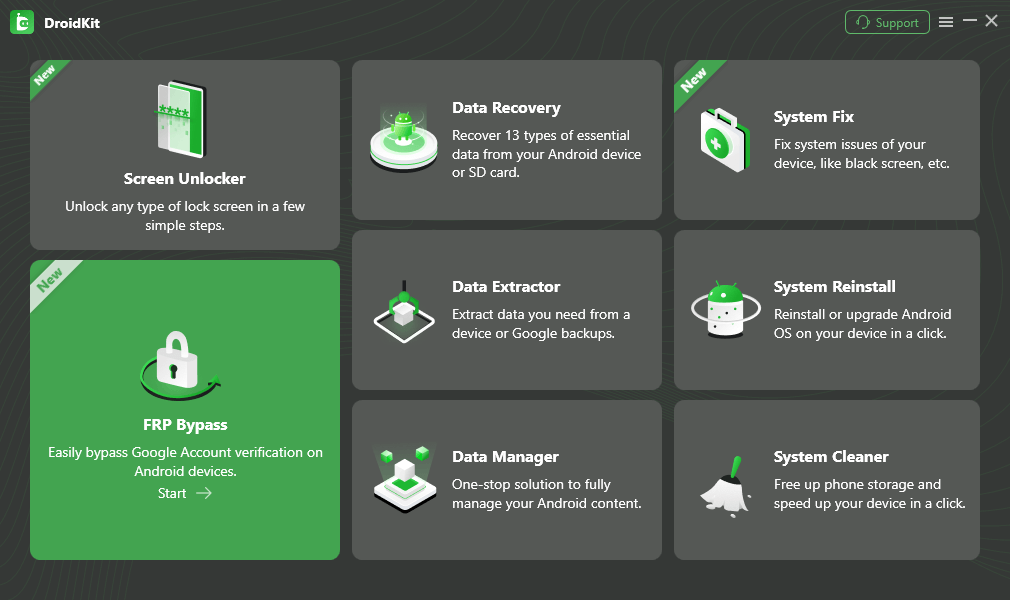
Open the FRP Bypass module.
Data notice: the FRP workflow erases device data. Review compatibility and the expected result before starting.
Step 2. Connect the Galaxy A5 to the computer with a data-capable USB cable, click Start, and choose Samsung when the software asks for the brand.
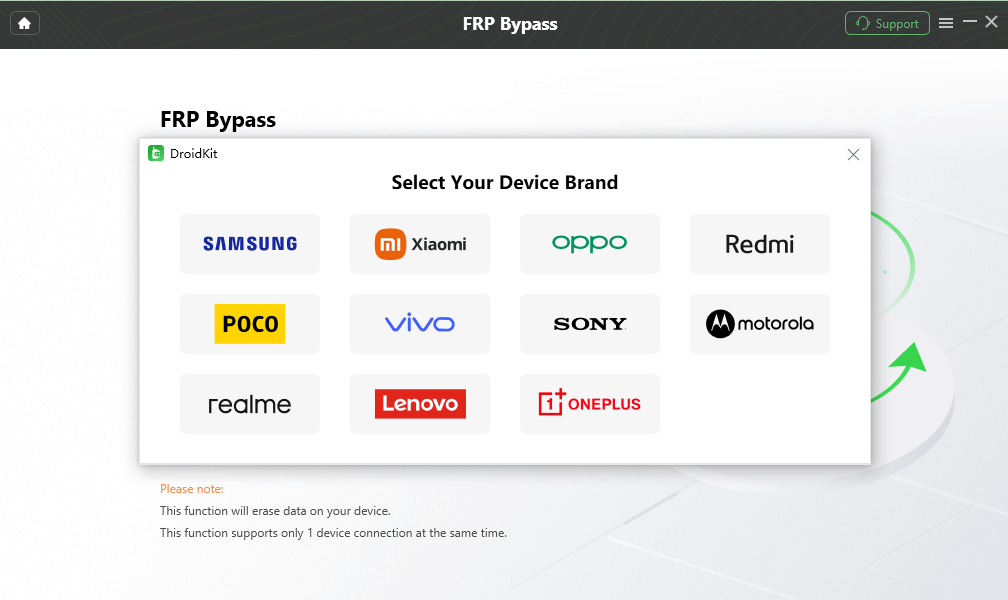
Choose Samsung when prompted for the device brand.
Step 3. Wait while the software prepares the required configuration for the available Samsung route. Continue when Start to Bypass becomes available.
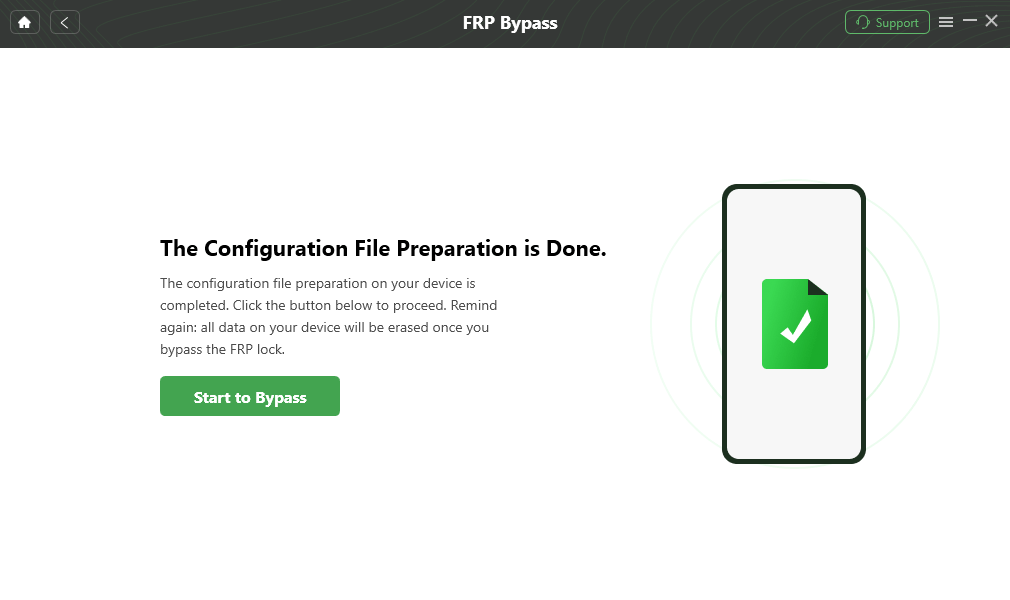
Continue after the required preparation is complete.
Step 4. Select the Samsung system-version or boot-screen information requested by the software. Do not guess based only on the A5 product name.
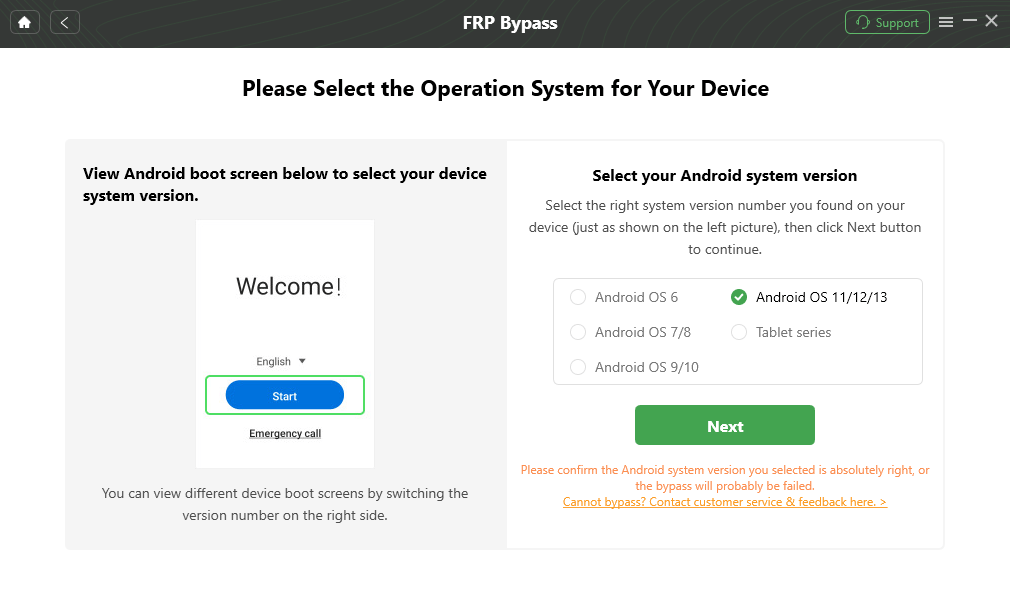
Choose the system information requested by the workflow.
Step 5. Follow the device-side settings shown by the program for the selected Samsung route.
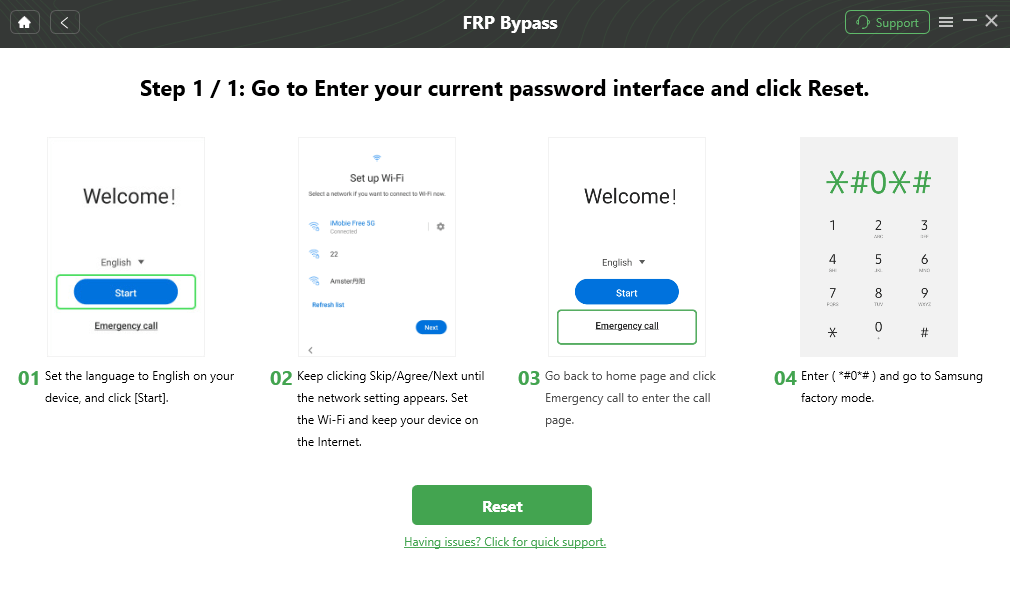
Complete the device-side settings shown by the program.
Step 6. Keep the Galaxy A5 connected until the software reports the final result.
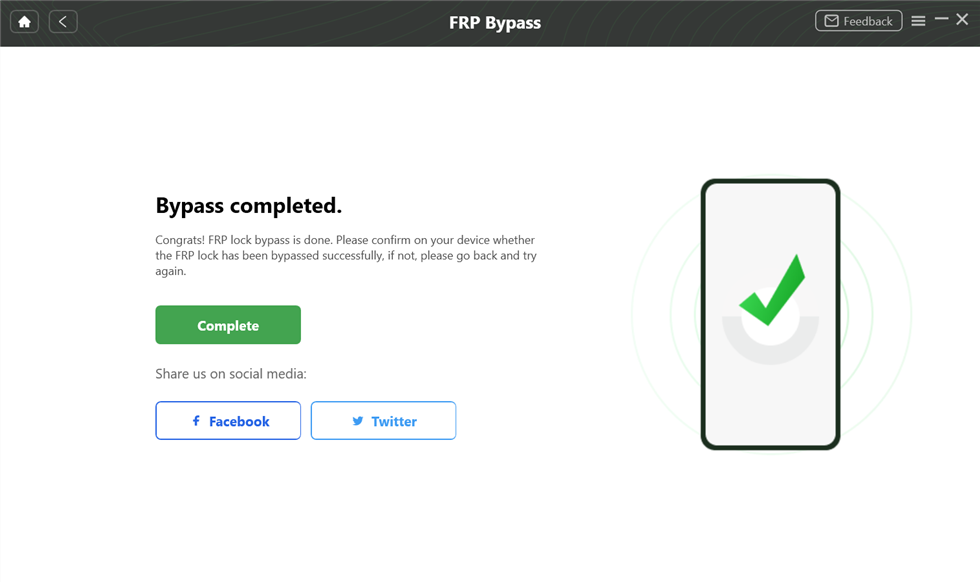
Review the final result before continuing device setup.
DroidKit is commercial software. The right reason for an A5 visitor to consider this route is specific: the old no-PC tutorial does not match the actual A5 generation or setup environment, while the phone is still at Google verification and the current device route is compatible.
Samsung A5 FRP Bypass Not Working: Check the Generation Before the Trick
The Tutorial Says “Samsung A5,” but the Screens Are Completely Different
Check the model generation first. An A5 2017 user should verify that the tutorial is actually written for the SM-A520 generation or a matching device environment rather than assuming all A5 tutorials are interchangeable.
The A5 2017 No-PC Tutorial Opens a Keyboard but the Required Menu Is Missing
The keyboard itself is not the method. The missing menu or transition is the failure point. Do not continue by combining the rest of the tutorial with steps copied from another Samsung model.
TalkBack Opens, but the Tutorial Cannot Reach Browser or Settings
Accessibility access and the next application transition are separate checkpoints. If the required menu or activity does not open, the rest of that TalkBack workflow does not match the current A5 setup state.
The FRP APK Cannot Be Installed
Check whether the tutorial had a complete path for acquiring, installing, and launching the file on the same A5 environment. A copied APK filename does not restore a setup-screen route that the phone does not provide.
There Is No Unlock Button in Samsung Find
Do not troubleshoot the A5 as though this is a missing FRP feature. Current Samsung support information says remote unlocking through SmartThings Find is no longer available, and remote screen unlocking was not the same problem as Google FRP verification in the first place.
The PC Tool Does Not Recognize the Galaxy A5
Start with the connection layer: data-capable cable, USB port, computer detection, and the instructions displayed for the current Samsung route. Do not select a different Galaxy model simply to move past device identification.
The A5 Still Requests the Previous Google Account After Another Reset
The reset did not recover the Google Account. Return to account recovery or a compatible FRP workflow rather than repeating the wipe.
The Search Result Says A5 2017 but Never Mentions the Model Generation
Treat the tutorial cautiously. For this URL, the year and model family are meaningful compatibility information, not decoration for the title.
FAQs About Samsung A5 FRP Bypass
Can I bypass FRP on Samsung A5 without a PC?
Some older A5 tutorials use keyboard, TalkBack, browser, OTG, or APK paths without a traditional PC tool. Their usefulness depends on the A5 generation and whether every setup-screen transition shown by the tutorial still exists on the phone.
Is Samsung A5 2017 the same as A5 2016 for FRP instructions?
No. They are separate Galaxy A5 generations with different model families and launch software contexts. Do not treat an SM-A510 guide as automatically interchangeable with an SM-A520 A5 2017 workflow.
What is the model family of Samsung A5 2017?
Samsung support pages identify Galaxy A5 2017 variants in the SM-A520 family, including SM-A520F/DS in some markets. Regional suffixes and variants can differ, so check the complete device information available to you.
Why is “Samsung A5 2017 FRP unlock tool” a different search from a generic Samsung FRP tool?
The A5 2017 query adds a device-generation constraint. A generic Samsung tool list can help with product research, but actual use still needs to be checked against the A5 generation, software state, and available device route.
Can Samsung Find My Mobile bypass FRP on Galaxy A5?
No. FRP is Google Account ownership verification after reset, while remote screen unlocking is a different function. Current Samsung support information also states that SmartThings Find no longer provides remote phone unlocking.
Why does another factory reset not remove FRP from the A5?
Factory Reset Protection is designed to require ownership verification after a protected device has been reset. Repeating the reset is not a Google Account recovery process.
What should I do if I forgot the Google Account on my A5 2017?
Use Google’s Account Recovery process to recover the username or password for the account that was previously used on the phone. For a second-hand A5 linked to another person’s account, contact the previous owner or seller.
Why does an old A5 FRP APK guide stop before installation?
The route may depend on browser access, file transfer, installation permission, or access to a specific Settings activity. If one of those transitions is unavailable, the APK file by itself does not complete the workflow.
Does FRP bypass erase data on Samsung A5?
The phone has already been factory-reset in a normal FRP scenario, so previous local data may already have been erased. The DroidKit FRP workflow also states that device data is erased, so review the expected result before starting.
Which matters more for an A5 FRP tutorial: the year in the article title or the phone model?
The phone model and generation matter more. A recently updated article can still repeat instructions written for a different A5 generation or software environment.
For Galaxy A5, Start with the Year on the Phone—not the Year in the Tutorial Title
The Galaxy A5 has been around long enough for several generations of FRP tutorials to overlap in search results.
That creates a very specific problem: an A5 2017 owner can easily land on instructions written for an older A5 generation, a different Android-era menu, or a Find My Mobile feature that no longer applies.
So the useful order is simple. Identify the A5 generation. Confirm that the screen is Google FRP rather than a normal PIN or Samsung Account issue. Recover the previous Google Account when possible. For an old no-PC guide, check every setup transition before assuming the rest of the tutorial still applies.
On a Galaxy A5, the year attached to the phone can be more useful than the year attached to the tutorial.
More Related Articles



Joy Taylor is a seasoned technical writer with over a decade of experience in mobile technology. At iMobie, she specializes in producing in-depth content on iOS data recovery, iPhone unlocking solutions, and iOS troubleshooting.
Product-related questions? Contact Our Support Team to Get Quick Solution >
