Samsung A Series FRP Bypass Guide in 2026
Locked out of a Samsung Galaxy A phone after factory reset? This guide helps you bypass FRP on Samsung A Series models, including Galaxy A03, A04, A13, A14, A15, A22, A30, A34, A35 and more. Compare DroidKit, no-PC methods, SamFW Tool, and model-specific Samsung FRP guides.
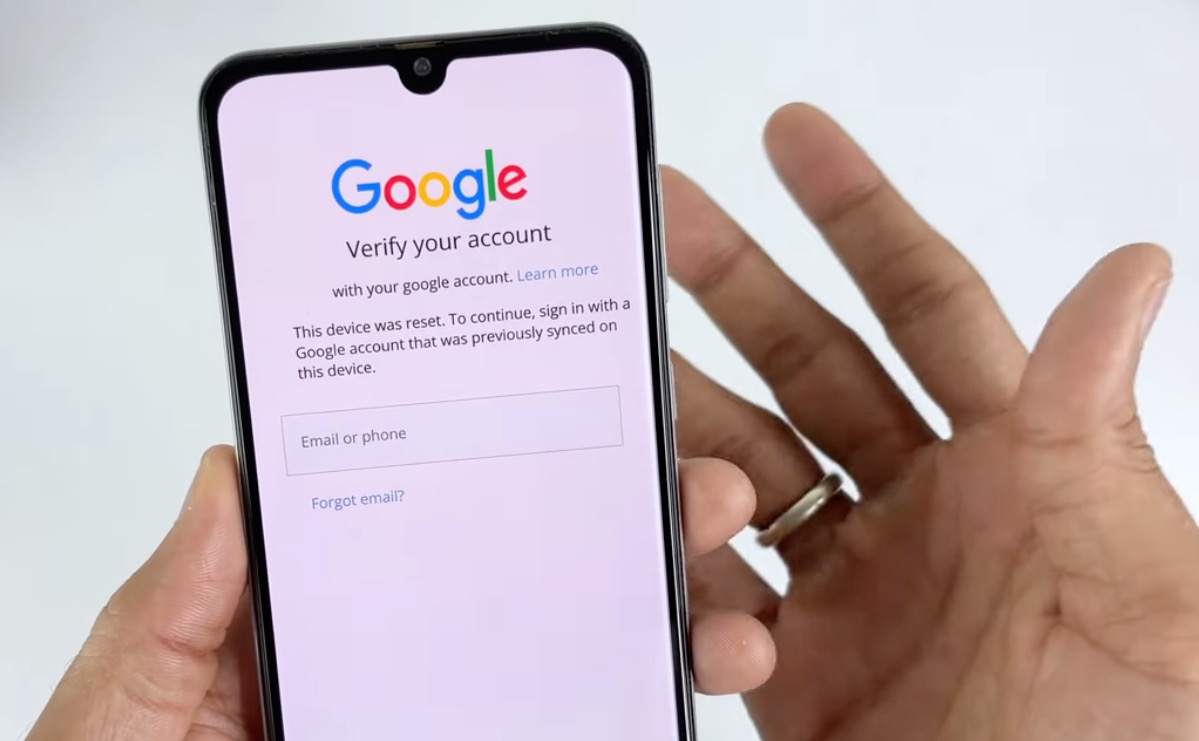
If your Samsung Galaxy A Series phone is stuck on the Google Account Verification screen after a factory reset, the device is protected by FRP lock. This usually happens when the phone was reset before removing the previously synced Google account, or when you bought a second-hand Galaxy A phone that still asks for the original owner’s Google login.
Samsung A Series FRP bypass can be tricky because different models run different Android versions, One UI versions, and security patches. A method that works on Galaxy A03 may not work on Galaxy A15, and an older no-PC trick may fail on newer models like Galaxy A34 or A35. This guide helps you choose the right Samsung A Series FRP bypass method based on your model, Android version, PC access, and technical level.
Table of ContentsHide
Quick Answer: Best Samsung A Series FRP Bypass Method
What Is FRP Lock on Samsung A Series?
Samsung A Series FRP Bypass by Model
How to Choose the Right Method for Your Galaxy A Model
Quick Comparison of Samsung A Series FRP Methods
Method 1: Samsung A Series FRP Bypass with DroidKit
Method 2: Samsung A Series FRP Bypass Without PC
Method 3: Samsung A Series FRP Unlock with SamFW Tool
Why Samsung A Series FRP Methods May Fail
Frequently Asked Questions
Quick Answer: Best Samsung A Series FRP Bypass Method
- Galaxy A03 / A04 / A10 / A12 / A13: Some manual or no-PC methods may work, but success depends on Android version and security patch.
- Galaxy A14 / A15 / A22 / A23 / A24 / A25: Free methods are less reliable on newer patches, so a guided Samsung FRP bypass tool is usually more practical.
- Galaxy A30 / A31 / A32 / A33 / A34 / A35: Model-specific guides are recommended because One UI and Android versions vary widely.
- Galaxy A50 / A51 / A53 / A54 / A71: Try model-specific steps first; if no-PC or free tools fail, use a guided PC-based method.
In most cases, the best Samsung A Series FRP bypass method depends on your exact model and software version. Before trying any method, check your Galaxy A model number, Android version, One UI version, and whether you have access to a Windows or Mac computer.
What Is FRP Lock on Samsung A Series?
FRP, or Factory Reset Protection, is a security feature linked to the Google account previously synced on your Samsung phone. After a factory reset, your Galaxy A phone may ask you to verify the Google account that was used before the reset. This helps prevent unauthorized use if the phone is lost, stolen, or reset without permission.
However, FRP can also lock out legitimate users in common situations:
- You forgot the Google account or password after resetting your Galaxy A phone.
- You bought a used Samsung A Series phone and it still asks for the previous owner’s Google account.
- You reset the phone before removing the Google account from Settings.
- You changed the Google password recently and cannot verify the account immediately.
- The device was repaired, flashed, or reset and now stops at the Google verification screen.
The official solution is always to sign in with the previously synced Google account. If you cannot access it, start with Google account recovery first. If account recovery does not work, you may need to compare Samsung A Series FRP bypass methods based on your model and software version.
Samsung A Series FRP Bypass by Model
Samsung A Series covers many models, from entry-level Galaxy A03 and A04 to newer models like Galaxy A15, A34, and A35. Since FRP methods may vary by Android version, One UI version, and security patch, choose the closest model-specific guide below.
| Samsung A Series Model | Recommended Guide | Best For |
| Galaxy A03 / A03s | Samsung A03 FRP Bypass / Samsung A03s FRP Bypass | Entry-level Galaxy A models with common Google verification lock issues |
| Galaxy A04 | Samsung A04 FRP Bypass | Users locked out after factory reset on Galaxy A04 |
| Galaxy A10 / A12 | Samsung A10 FRP Bypass / Samsung A12 Unlock Guide | Older Galaxy A models where some manual routes may still work |
| Galaxy A13 / A14 / A15 | Samsung A13 FRP Bypass / Samsung A14 FRP Bypass / Samsung A15 FRP Bypass | Popular Galaxy A models with newer Android and One UI versions |
| Galaxy A20 / A21 / A22 / A23 / A24 / A25 | Samsung A20 FRP Bypass / Samsung A22 FRP Bypass / Samsung A23 FRP Bypass | Mid-range Galaxy A models where method compatibility depends on patch level |
| Galaxy A30 / A31 / A32 / A33 / A34 / A35 | Samsung A30 FRP Bypass / Samsung A34 FRP Bypass / Samsung A35 FRP Bypass | Newer or mid-range A Series models where free tricks may be blocked |
| Galaxy A40 / A42 | Samsung A40 FRP Bypass / Samsung A42 FRP Bypass | Users who need model-specific Samsung A40 or A42 steps |
| Galaxy A50 / A51 / A53 / A54 / A71 | Samsung A51 FRP Bypass / Samsung A53 FRP Bypass / Samsung A54 FRP Bypass | Higher A Series models and users who need device-specific FRP guidance |
Tip: If your exact model is not listed, choose the closest Galaxy A model or check the full Samsung FRP bypass guide for broader Samsung phone and tablet options.
How to Choose the Right Method for Your Galaxy A Model
Before choosing a Samsung A Series FRP bypass method, check your device situation first. This helps you avoid wasting time on a method that has already been blocked by your Android or One UI security patch.
1. Check Your Samsung A Model
Galaxy A models can look similar, but their software may be different. For example, Galaxy A03 and Galaxy A04 users may see different setup screens from Galaxy A14 or Galaxy A15 users. Newer models such as Galaxy A34 and A35 usually have stricter security patches, so older no-PC methods may not work.
2. Check Android and One UI Version
- Android 9–11: Some manual or no-PC methods may still work on certain older Galaxy A models.
- Android 12–13: Many older loopholes are patched, so method compatibility becomes more limited.
- Android 14–15: Free tricks are usually less reliable, and guided PC-based tools are often easier for beginners.
3. Check Whether You Have a PC
- No PC: You can try no-PC methods first, but they may fail on newer Samsung A phones.
- Windows PC: You can try Samsung FRP tools such as SamFW Tool if your model supports the required test mode and debugging prompts.
- Windows or Mac: A guided tool such as DroidKit FRP Bypass can be easier if you want step-by-step instructions.
4. Check Your Technical Level
If you are comfortable with Samsung drivers, test mode, USB prompts, and tool compatibility, you may try free utilities. If you are a beginner or your phone is on a newer patch, a guided method is usually more practical.
Quick Comparison of Samsung A Series FRP Methods
The table below compares common Samsung A Series FRP bypass methods by difficulty, PC requirement, and best use case.
| Method | Best For | PC Required? | Difficulty | Main Limitation |
| DroidKit FRP Bypass | Newer Samsung A models and users who want guided steps | Yes, Windows or Mac | Low to Medium | Feature use depends on the product plan |
| No-PC / Emergency Call Method | Older Galaxy A models with unpatched setup screens | No | Medium | Often fails on newer patches |
| SamFW Tool | Advanced Windows users with compatible Samsung firmware | Yes, Windows | High | Depends on test mode and USB debugging prompt |
| Free APK / Manual Methods | Older Android versions where setup access is still possible | Usually no, but varies | Medium to High | APK installation may be blocked during setup |
| Google Account Recovery | Users who own the original Google account | No | Low | Requires access to the previously synced account |
Recommendation: Start with Google account recovery if you own the original account. If that does not work, choose a method based on your Galaxy A model and Android version. For newer Samsung A models, a guided tool is usually more reliable than old no-PC or APK tricks.
Method 1: Samsung A Series FRP Bypass with DroidKit
For many newer Galaxy A models, a guided FRP bypass tool is more practical than trying random APK files or outdated setup-screen tricks. DroidKit FRP Bypass provides step-by-step Samsung FRP bypass instructions on a computer, which can be helpful when manual methods are blocked by newer security patches.
This method is especially useful if you are using a newer Galaxy A phone, such as Galaxy A13, A14, A15, A22, A34, A35, A53, or A54, and the no-PC method does not open the needed settings or test mode menu.
Best for: Samsung A Series users who want guided steps, newer Android or One UI versions, and cases where free methods fail.
Why Use DroidKit for Samsung A Series FRP?
- Offers guided Samsung FRP bypass steps for common FRP lock scenarios.
- Works on Windows and Mac computers.
- Useful when no-PC or APK methods are blocked on newer Galaxy A models.
- Helps users avoid random APK files, suspicious packages, or unclear tool steps.
- Suitable for users who prefer a clearer process instead of trial-and-error manual methods.
Steps to Bypass FRP on Samsung A Series with DroidKit
Step 1. Download and install DroidKit on your Windows or Mac computer.
Step 2. Open DroidKit and choose the FRP Bypass feature.
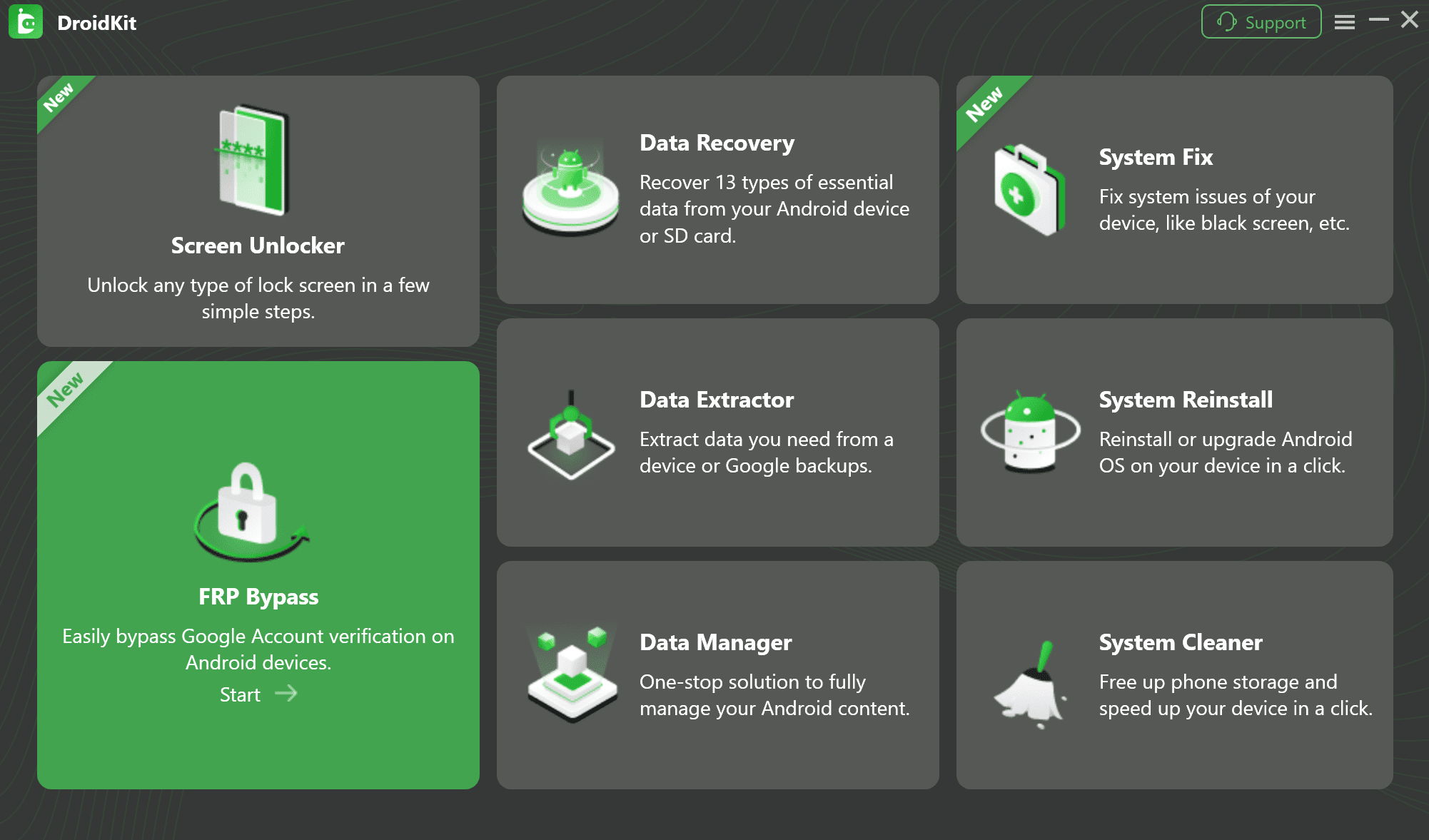
Step 3. Connect your locked Samsung Galaxy A phone to the computer with a USB cable.
Step 4. Wait for DroidKit to detect your device and prepare the required files.
Step 5. Follow the on-screen instructions based on your Samsung model and software version.
Step 6. Wait for the FRP bypass process to complete. Your Samsung A Series phone will restart when the process is finished.
Note: FRP bypass results can vary by model, Android version, One UI version, and security patch. Always make sure you are using the latest version of the tool and following the instructions that match your device.
Method 2: Samsung A Series FRP Bypass Without PC
If you do not have a computer, you can try no-PC methods first. These methods may involve Emergency Call, keyboard settings, accessibility shortcuts, browser access, or other setup-screen routes. However, no-PC methods are less reliable on newer Samsung A Series phones because many loopholes have been patched.
Best for: Older Galaxy A models running older Android versions or security patches.
General No-PC Steps for Older Samsung A Models
Step 1. Turn on your Samsung Galaxy A phone and connect it to Wi-Fi.
Step 2. Return to the Welcome screen or Google verification screen.
Step 3. Try to access allowed setup-screen options such as Emergency Call, keyboard settings, or accessibility options.
Step 4. If a browser or settings route opens, follow the compatible steps for your specific model and Android version.
Step 5. If the needed menu does not open, your security patch has likely blocked this method.
Important: No-PC Samsung FRP bypass is not universal. A method that works on Galaxy A03 may not work on Galaxy A15 or A34. For a broader explanation, check the Samsung FRP bypass without PC guide.
Method 3: Samsung A Series FRP Unlock with SamFW Tool
SamFW Tool is a free Windows utility used by some advanced users for Samsung FRP unlock. It may work on certain Galaxy A models if the phone can open the required test mode menu and show the USB debugging prompt. However, it is not guaranteed on every Galaxy A device.
Best for: Advanced Windows users who understand Samsung USB drivers, test mode, firmware compatibility, and USB debugging prompts.
Before Using SamFW Tool
- Prepare a Windows PC.
- Install official Samsung USB drivers.
- Use a reliable USB cable.
- Check whether your Galaxy A model can open the required test mode menu.
- Download tools only from trusted sources.
General Steps for SamFW Tool
Step 1. Connect your Samsung Galaxy A phone to a Windows PC.
Step 2. On the phone’s setup screen, try to open the Emergency Call or test mode route required by the tool.
Step 3. Launch SamFW Tool on your computer.
Step 4. If the tool detects your device, choose the FRP removal option.
Step 5. Check whether the phone shows an Allow USB debugging prompt.
Step 6. If the prompt appears, allow it and wait for the tool to complete the process.
Warning: If the test mode menu or USB debugging prompt does not appear, this method may not support your Samsung A model or security patch. Do not repeatedly try random tools or unknown packages.
For more details, compare the SamFW Tool guide and alternatives.
Why Samsung A Series FRP Methods May Fail
Samsung A Series FRP bypass may fail for several reasons. Understanding the cause can help you choose a better method instead of repeating the same failed steps.
1. Your Security Patch Is Too New
Samsung regularly updates One UI and Android security patches. Older FRP tricks, APK routes, and Emergency Call methods may stop working after a security update.
2. Your Model Uses a Different Setup Flow
Galaxy A03, A04, A13, A15, A34, and A35 may not show the same setup options. If the menu described in a tutorial does not appear, the method may not match your model.
3. APK Installation Is Blocked
Many APK-based methods require browser access or installation permission during setup. Newer Samsung A models often block these actions before FRP is removed.
4. USB Debugging Prompt Does Not Appear
Some PC tools require the USB debugging prompt. If the prompt never appears, the tool may not work on your firmware.
5. You Are Following a Guide for the Wrong Model
Samsung A Series model names are similar, but FRP steps can be different. Always choose a model-specific guide when possible.
Frequently Asked Questions About Samsung A Series FRP Bypass
Q1. Can I bypass FRP on Samsung A Series without a PC?
Some older Samsung A Series models may support no-PC methods, but newer models and security patches often block them. If the no-PC route fails, you may need a PC-based method.
Q2. Which Samsung A models are covered in this guide?
This guide covers common Galaxy A models, including A03, A03s, A04, A10, A12, A13, A14, A15, A20, A22, A23, A30, A34, A35, A51, A53, A54, A71 and related models.
Q3. Why does the same FRP method work on one Galaxy A phone but not another?
FRP success depends on the exact model, Android version, One UI version, firmware, and security patch. Two Samsung A phones may require different methods even if their names look similar.
Q4. Is SamFW Tool safe for Samsung A Series FRP?
SamFW Tool may work for some advanced users, but you should only download tools from trusted sources. It also depends on test mode access, drivers, and USB debugging prompts.
Q5. What is the official way to remove FRP on Samsung A Series?
The official way is to sign in with the Google account previously synced on the phone. If you forgot the account or password, try Google account recovery first.
Q6. What should I do if all free Samsung A Series FRP methods fail?
If free methods fail, check whether your model has a dedicated guide. You can also compare guided Samsung FRP bypass tools and choose a method that matches your phone, Android version, and technical level.
Final Verdict: Best Way to Bypass FRP on Samsung A Series
The best Samsung A Series FRP bypass method depends on your exact Galaxy A model. Older models such as Galaxy A03, A04, A10, or A12 may have more manual options, while newer models such as Galaxy A14, A15, A34, A35, A53, and A54 are more likely to block old tricks with updated Android and One UI security patches.
If you know your model, start with the model-specific guide above. If you are not sure which method to use, compare the complete Samsung FRP bypass guide. For users who want a guided PC-based option, DroidKit FRP Bypass can help you follow step-by-step instructions instead of relying on patched no-PC, APK, or test mode routes.
Free Download * 100% Clean & Safe
More Related Articles


Roger Smith is a senior technical writer with years of experience in providing Android solutions. He loves to help users solve various problems such as Android unlock, Android data recovery, and Android system repair.
Product-related questions? Contact Our Support Team to Get Quick Solution >
