Forgot Samsung A53 Password? How to Unlock or Reset It
Locked out of your Samsung Galaxy A53? This guide explains what you can try, which methods may erase data, and how to avoid confusing screen lock removal with SIM or carrier unlock codes.
Free Download * Check compatibility before use
If you need a tool-assisted option for a forgotten Samsung A53 screen lock, DroidKit Screen Unlocker can help remove common Android screen locks on supported devices. Check compatibility first and use it only on a device you own or are authorized to unlock.
If you forgot the Samsung A53 screen password, start with the least destructive options first: biometrics, trusted unlock settings, Samsung account options, and account recovery. If none of them works, a factory reset or a supported screen-unlocking tool may help, but you should expect possible data loss and Google account verification after reset.
Conclusion
No. Safe Mode can help only if a third-party lock screen app is causing the lock problem. It does not remove the built-in Samsung PIN, pattern, password, fingerprint, or face lock. If the built-in screen lock is forgotten, you need another recovery method.
6. Can Safe Mode remove a forgotten Samsung A53 PIN?
This is usually Factory Reset Protection, or FRP. After a reset, Android may ask for the Google account that was previously synced on the phone. This helps protect the device from unauthorized use. Before resetting, make sure you know the Google account and password used on the Samsung A53.
5. Why does my Samsung A53 ask for a Google account after factory reset?
No, it should not be listed as a main Samsung A53 method. Google’s old “Forgot pattern” recovery flow applies to Android 4.4 or lower, while the Samsung Galaxy A53 runs much newer Android/One UI versions. For A53 users, focus on Samsung account options, backup recovery, factory reset, or supported unlock tools.
4. Does the old Google Account “Forgot Pattern” method work on Samsung A53?
Google Find My Device, also presented as Find Hub in some Google materials, is mainly designed to help locate, secure, or erase a lost Android device. It should not be presented as a guaranteed temporary-password method for bypassing a forgotten Samsung screen lock. If you erase the phone, your data will be removed and Google account verification may be required.
3. Does Google Find My Device unlock a Samsung A53?
Sometimes, but not always. If you can still use biometric unlock, Smart Lock, or an account-based option that was already enabled, you may be able to regain access without erasing the phone. If those options are unavailable, factory reset and many screen-unlocking tools may erase device data.
2. Can I unlock a Samsung A53 without losing data?
No. A screen lock means the PIN, pattern, password, fingerprint, or face lock that protects access to the phone. Carrier unlocking means removing a SIM or network restriction so the phone can work with another carrier. If your Samsung A53 asks for a network unlock code, contact your carrier or retailer instead of using a screen lock removal method.
1. Is unlocking a Samsung A53 screen lock the same as carrier unlocking?
FAQs About Samsung A53 Unlock
Tip: Avoid repeated factory resets if you do not know the original Google account. Repeated resets will not remove FRP and may make the setup process more confusing.
If you forgot the Google account or password, try account recovery first. You can also read these related guides: bypass Google account verification after reset and Samsung A53 FRP bypass.
If your Samsung A53 asks for a Google account after factory reset, it is likely Factory Reset Protection, also called FRP. This is a security feature designed to prevent unauthorized use after a reset. The safest and official solution is to sign in with the Google account that was previously synced on the device.
What If Samsung A53 Asks for a Google Account After Reset?
If you need more details, read this guide on how to turn Safe Mode on and off on Android.
Step 4. Restart the phone to exit Safe Mode.
Step 3. In Safe Mode, uninstall or disable the third-party lock screen app that caused the issue.
Step 2. Turn the phone on, then press and hold the Volume Down key until Safe Mode appears on the screen.
Step 1. Power off the phone completely.
Safe Mode is useful only when a third-party lock screen app causes the lock problem. It does not remove the built-in Samsung PIN, pattern, password, fingerprint, or face lock.
Method 5. Use Safe Mode for Third-Party Lock Screen Apps
Step 5. Confirm the reset and wait for the phone to restart. Set up the phone again using the Google account that was previously synced to the device.
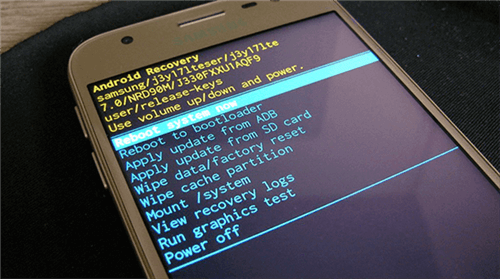
Android Recovery Mode
Step 4. In Recovery Mode, use the volume buttons to highlight Wipe data/factory reset, then press the Power button to confirm.
Step 3. Press and hold the required button combination for Samsung Recovery Mode. On many recent Samsung Galaxy phones, this is usually Volume Up + Power, but the exact behavior may vary by model and software version.
Step 2. Connect the phone to a computer with a USB cable if your model or software version requires it for Recovery Mode.
Step 1. Power off your Samsung A53. If the phone does not power off normally, wait until the battery is low or use the key combination supported by your device model.
Before resetting: Make sure you know the Google account and password previously used on the Samsung A53. If you do not know them, you may be stuck at Google account verification after the reset.
You can also read the full guide on how to reset a locked Samsung phone.
If you cannot use biometrics, Samsung account options, or other recovery methods, a factory reset can remove the screen lock by erasing the phone. This is usually a last resort because it deletes local data and may trigger Factory Reset Protection.
Method 4. Factory Reset Samsung A53 in Recovery Mode
Important: Erasing the device removes data from the phone. After the reset, Android may require the Google account that was previously synced on the Samsung A53.
Step 3. Use the available options to locate, secure, or erase the phone if necessary.
Step 2. Select your Samsung A53 from the device list.
Step 1. Open Google Find Hub / Find My Device on another device and sign in with the Google account linked to your Samsung A53.
Google Find My Device is now also presented as Find Hub in some Google materials. It is useful for finding, locking, playing a sound on, or erasing a lost Android device. However, it should not be treated as a guaranteed temporary-password method for bypassing a forgotten Samsung A53 screen lock.
Method 3. Use Google Find Hub / Find My Device
For a dedicated guide, see Samsung remote unlock.
Note: Samsung’s official guidance can vary by country and device setup. If remote unlock was not set up or the option is not shown, Samsung may direct you to factory reset the device. You can read more in Samsung’s support guide: I can’t unlock my Samsung Galaxy device.
Go to Samsung SmartThings Find / Find My Mobile and sign in with the Samsung account that was added to the locked Samsung A53. Select the device and check whether an Unlock option is available. If it is not available, do not keep trying random PINs. Move to another method.
Samsung account options are worth checking before you reset the phone. Depending on your region, device settings, and Samsung account status, SmartThings Find or Samsung support options may help you locate, lock, back up, or manage a device. In some setups, Samsung may provide a remote unlock option only if the related feature was enabled before you were locked out.
Method 2. Try Samsung Account or SmartThings Find Options
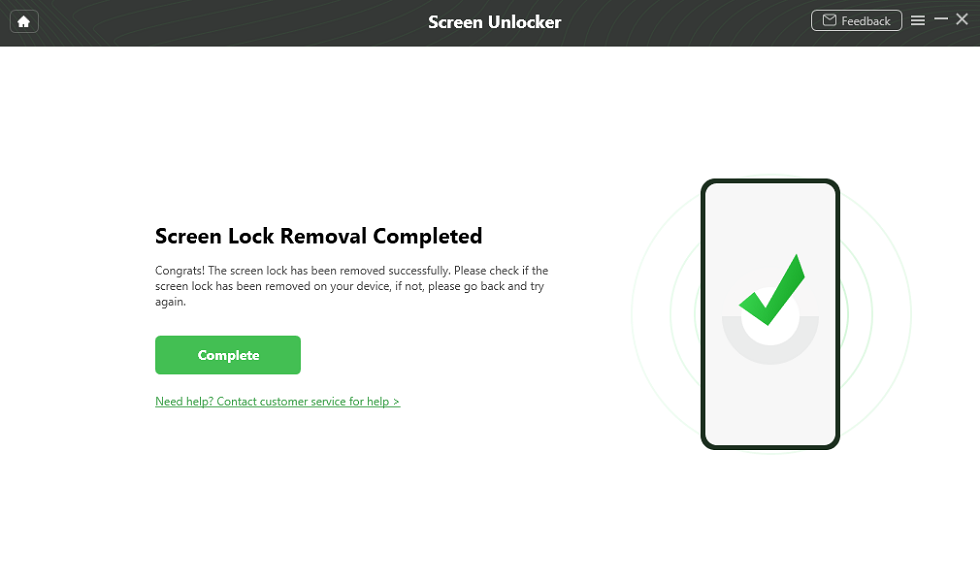
Lock Screen Removal Completed
Step 5. When the process is complete, your Samsung phone will restart. Set up a new screen lock after you regain access.

Finish Settings on Samsung
Step 4. Select Samsung as the device brand. Then follow the on-screen instructions to remove the screen lock.
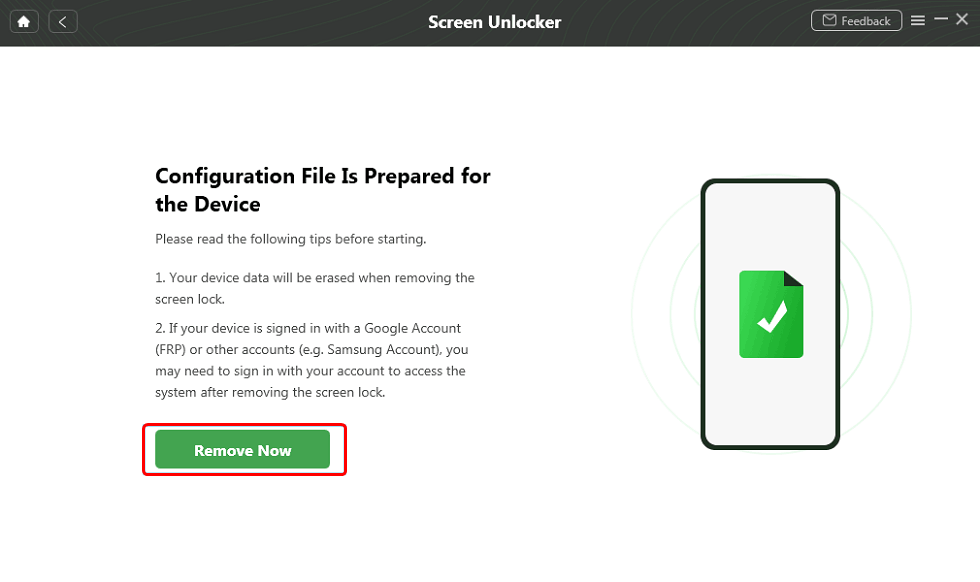
Click Remove Now Button
Step 3. DroidKit will prepare a configuration file for the connected device. Keep the phone connected during this process. When the preparation is complete, click Remove Now.
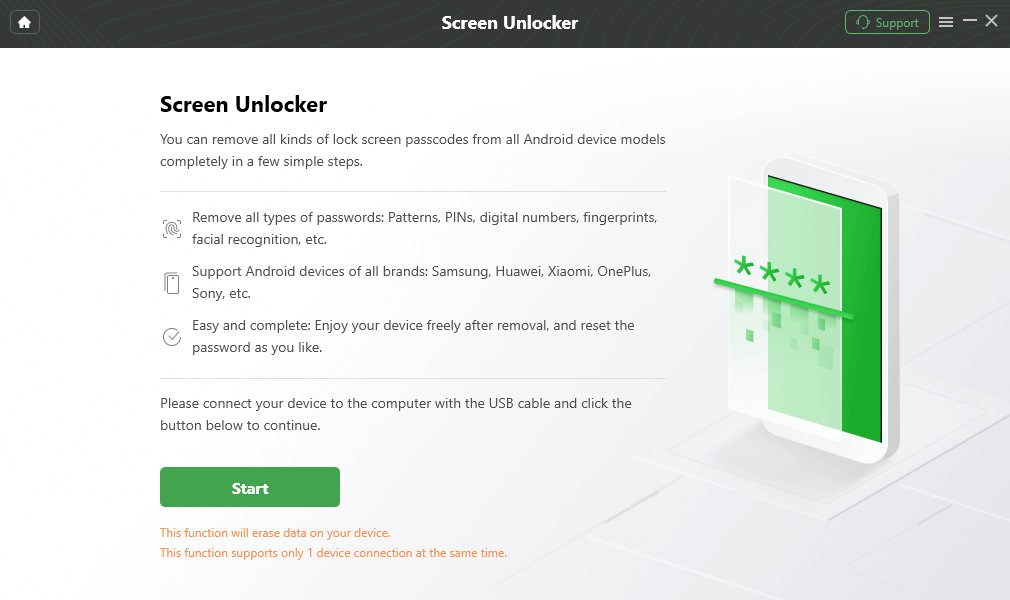
Connect Your Locked Phone
Step 2. Click Start and make sure your Samsung A53 is connected properly.
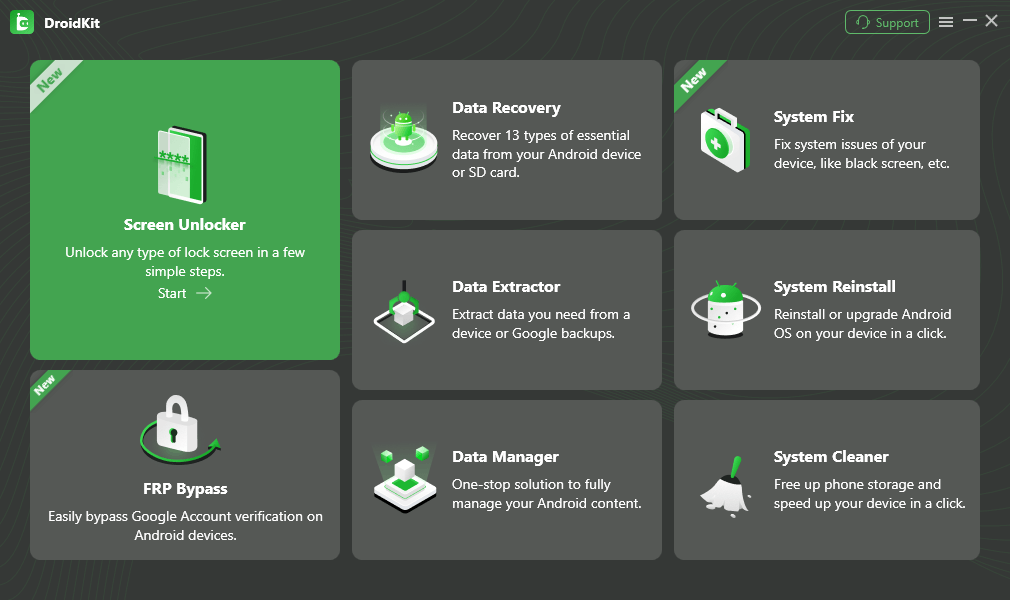
Choose Screen Unlocker
Step 1. Download and install DroidKit on your computer. Connect your Samsung A53 to the computer with a USB cable. Launch DroidKit and choose Screen Unlocker.
Free Download * Check compatibility before use
Before using DroidKit: Screen unlocking may erase data on the device. Check device compatibility first, and use this method only when you own or are authorized to unlock the phone.
If you cannot remember the Samsung A53 screen password and manual options are unavailable, DroidKit can be considered as a tool-assisted option. Its Android Phone Unlocker feature is designed to remove common Android screen locks, such as PINs, patterns, passwords, and fingerprints, on supported devices.
Method 1. Unlock Samsung A53 with DroidKit Screen Unlocker
For more tool options, you can also check this guide to Android phone unlocking software or compare Samsung unlock tools to remove Samsung lock.
| Method | Best For | Data Loss Risk | Requirements | Main Limitation |
|---|---|---|---|---|
| DroidKit Screen Unlocker | Forgotten screen locks when manual options do not work | High; screen unlocking may erase data | Computer, USB cable, supported device | Compatibility must be checked before use |
| Samsung account / SmartThings Find options | Users who enabled Samsung account features before being locked out | Usually lower if the option is available | Samsung account, internet connection, feature availability | The Unlock option may not be available in every region or setup |
| Google Find Hub / Find My Device | Locating, securing, or erasing a lost Android device | High if you erase the device | Google account linked to the phone | It is not a guaranteed forgotten-password unlock method |
| Recovery Mode factory reset | Last resort when you cannot access the phone | High; it erases device data | Physical access to the phone and button combination | May trigger Google account verification after reset |
| Safe Mode | Third-party lock screen app issues | Low | The lock problem must come from a third-party app | Does not remove the built-in Samsung screen lock |
The best method depends on what access you still have, whether the phone is connected to your accounts, and whether you can afford data loss. Use this table to choose a safer starting point.
Compare Samsung A53 Unlock Methods
Important: Only use these methods on a Samsung Galaxy A53 that you own or are authorized to unlock. Some methods erase device data. If the phone belongs to an organization, school, or company, contact the administrator first.
| Unlock Type | What It Means | What You Should Do |
|---|---|---|
| Screen lock | You forgot the PIN, pattern, password, fingerprint, or face lock used to enter the phone. | Use the methods in this guide, such as account options, DroidKit Screen Unlocker, Safe Mode, or factory reset. |
| SIM / carrier unlock | The phone asks for a network unlock code or does not accept another carrier’s SIM card. | Contact your carrier, original seller, or Samsung support. Screen lock removal tools are not for carrier unlock codes. |
| FRP / Google account lock | After a factory reset, the phone asks for the previously synced Google account. | Sign in with the original Google account. If you cannot, read the FRP section below before trying more resets. |
Before trying any Samsung A53 unlock method, make sure you are solving the right type of lock. The word “unlock” can mean different things, and using the wrong method may waste time or erase data unnecessarily.
Before You Start: Screen Lock vs SIM Unlock vs FRP Lock
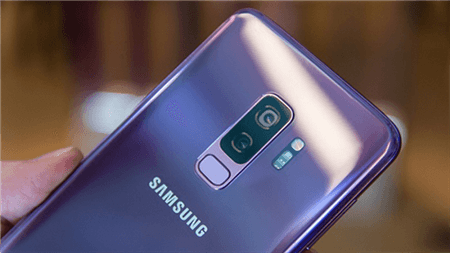
Samsung Galaxy Phone
Quick Answer: If you forgot the PIN, pattern, or password on a Samsung Galaxy A53, there is usually no guaranteed way to remove the screen lock without data loss. First, try any biometric unlock, trusted unlock method, or account option that was already enabled. If those options are unavailable, you may need a factory reset or a supported screen-unlocking tool. A reset can erase data and may trigger Google account verification, so make sure you know the Google account used on the phone before you continue.



Senior writer of the iMobie team as well as an Apple fan, love to help more users solve various types of iOS & Android-related issues.
Product-related questions? Contact Our Support Team to Get Quick Solution >
