How to Unlock Samsung Galaxy S6 Without Password
Locked out of your Samsung Galaxy S6? This guide explains the difference between screen lock, factory reset, Google FRP verification, and network unlock code, then shows practical ways to regain access to your own device.
Quick Answer: If you forgot the Samsung Galaxy S6 password, PIN, or pattern, first check whether you can recover access with your Google account or a previously enabled security option. If that does not work, a factory reset can remove the screen lock but will erase the phone and may trigger Google FRP verification. A network unlock code only removes carrier restrictions, not the screen password. For supported owned devices, DroidKit may be used as a tool-assisted screen unlock or FRP option after checking compatibility.
There are several reasons you may search for a Samsung S6 unlock method. You may have forgotten the lock screen password, bought a second-hand phone with a previous lock, need to erase the device, or want to use the phone with another carrier. These situations require different solutions.
This guide focuses on safe and practical options for your own Samsung Galaxy S6 or a device you are authorized to unlock. It also explains which methods may erase data and what to do if Google verification appears after factory reset.
Before You Start: Which Samsung S6 Unlock Do You Need?
The word “unlock” can mean different things on Samsung Galaxy S6. Before choosing a method, identify the exact lock you are facing.
| Unlock Type | What It Means | Best Method to Try | Data Impact |
|---|---|---|---|
| Screen lock unlock | You forgot the password, PIN, or pattern on the lock screen. | Google recovery, factory reset, or a supported screen unlock tool. | Some methods may erase data. |
| Factory reset unlock | You reset the phone to remove the lock screen. | Recovery Mode factory reset. | Erases local data. |
| Google FRP verification | After reset, the phone asks for the Google Account previously synced to the device. | Sign in with the previous Google Account or use supported FRP guidance for your own device. | Depends on device status. |
| SIM/network unlock | The phone is locked to a carrier and cannot use another SIM card. | Carrier network unlock code. | Does not remove screen password. |
If your main problem is a forgotten screen password, a network unlock code will not help. If your phone asks for a Google Account after factory reset, you are dealing with FRP verification rather than a normal screen lock.
Method 1. Try Google Account Recovery or the Old “Forgot Pattern” Option
On some older Android versions, Android offered a “Forgot Pattern” option after several failed unlock attempts. This method only works if the option appears on the lock screen and the device is linked to a Google Account that you can still access.
This method is limited to older Android behavior. If the “Forgot Pattern” option does not appear on your Samsung Galaxy S6, use another method instead.
How to check this option:
Step 1. Enter an incorrect password or pattern on the lock screen several times.
Step 2. If the Forgot Pattern option appears, tap it.
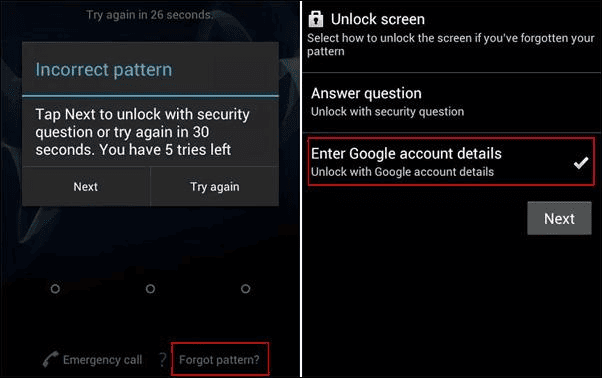
Samsung S6 Forgot Pattern
Step 3. Enter the backup PIN or sign in with the Google Account previously linked to the phone.
Step 4. If verification succeeds, set a new unlock pattern, PIN, or password.
If this option is unavailable, try account recovery from a trusted device or move to another unlock method below.
Method 2. Use Find Hub to Secure or Erase Samsung S6
Google’s device-finding service, now known as Find Hub, can help locate, secure, or erase a lost Android device when the phone is linked to your Google Account and meets the required conditions. For a locked Samsung S6, it may be useful if the device is online and still associated with your account.
Important: Find Hub should not be treated as a guaranteed way to reset a forgotten Samsung S6 lock screen password. Depending on device status and available options, you may be able to secure or erase the device. If you erase it, all local data will be removed, and Google FRP verification may appear during setup.
How to check your Samsung S6 in Find Hub:
Step 1. Sign in with the Google Account associated with your locked Samsung S6.
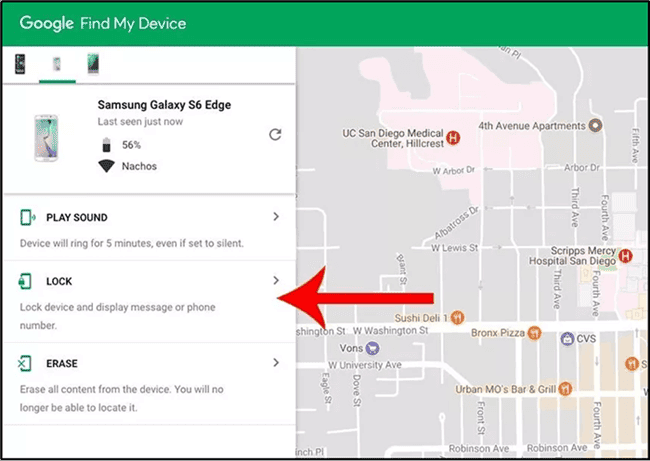
Samsung S6 in Find My Device
Step 2. Select your Samsung S6 from the device list.
Step 3. Review the available actions, such as locating, securing, or erasing the device.
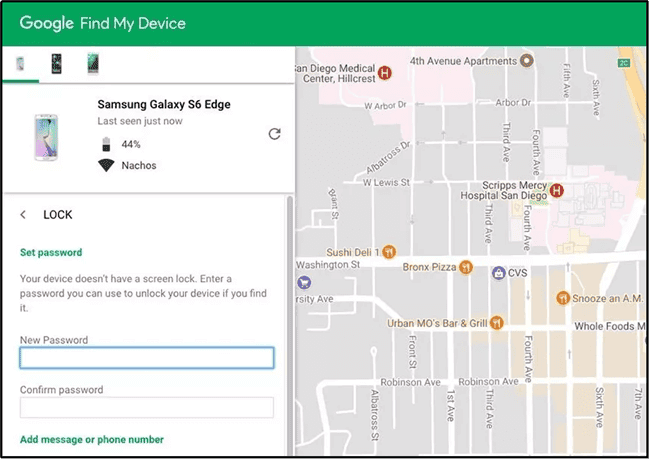
Find My Device Unlock Samsung S6
Step 4. If you choose to erase the phone, make sure you know the Google Account previously synced to the device before resetting it.
Method 3. Factory Reset Samsung S6 from Recovery Mode
A factory reset can remove the Samsung S6 lock screen when you cannot remember the password, PIN, or pattern. However, this method erases local data and restores the phone to default settings.
Before resetting, make sure you understand two risks:
- The phone’s local data will be erased unless it was backed up.
- After reset, the phone may ask for the Google Account previously synced to the device because of Factory Reset Protection.
How to factory reset Samsung S6:
Step 1. Power off your Samsung Galaxy S6.
Step 2. Press and hold the Volume Up, Home, and Power buttons until the recovery menu appears.
Step 3. Use the volume buttons to select Wipe data/factory reset, then press the Power button to confirm.
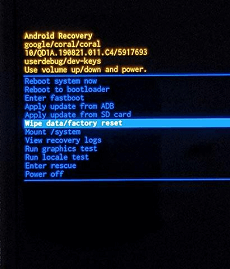
Scroll down to “Wipe data/factory reset”
Step 4. Confirm the reset and wait until the data wipe is complete.
Step 5. Restart the phone and follow the setup process.
If Google verification appears during setup, you need to sign in with the Google Account previously synced to the phone or follow the FRP section below for supported owned-device options.
Method 4. Use a Samsung S6 Network Unlock Code
A Samsung S6 unlock code is for carrier or SIM network unlocking. It lets a network-locked phone use a SIM card from another carrier if the device and carrier policy allow it.
This method does not remove:
- Screen password
- PIN
- Pattern lock
- Google FRP verification
How to use a network unlock code:
Step 1. Contact your carrier or an authorized source to request a Samsung S6 network unlock code.
Step 2. Turn off your Samsung S6.
Step 3. Insert a SIM card from another carrier and power on the phone.
Step 4. Wait for the SIM Network Unlock PIN prompt.
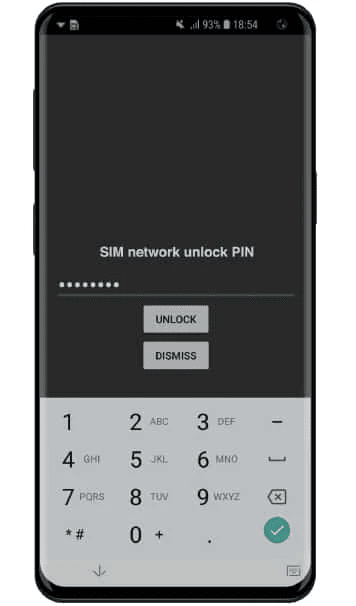
Samsung Network Unlock PIN
Step 5. Enter the carrier unlock code and tap Unlock.
If your problem is a forgotten screen lock, skip this method and use a screen unlock or reset option instead.
Method 5. Unlock Samsung S6 Screen Lock with DroidKit
If you cannot unlock your own Samsung Galaxy S6 with account recovery, Find Hub, or other available methods, DroidKit Screen Unlocker may be a tool-assisted option for supported screen lock cases. Before using it, check device compatibility, Android version, and whether the process may affect data.
DroidKit - Screen Unlocker for Supported Android Devices
DroidKit may help remove screen locks such as PIN, pattern, or password on supported Android devices. Use it only on your own device or an authorized device, and check compatibility before proceeding.

When DroidKit may be relevant:
- You forgot the Samsung S6 screen password, PIN, or pattern.
- You are using your own device or an authorized device.
- Manual recovery methods are unavailable.
- You have checked compatibility and understand possible data impact.
How to use DroidKit Screen Unlocker:
Step 1. Install and launch DroidKit on your computer.
Step 2. Connect your Samsung S6 to the computer with a USB cable. Choose Screen Unlocker from the main menu.
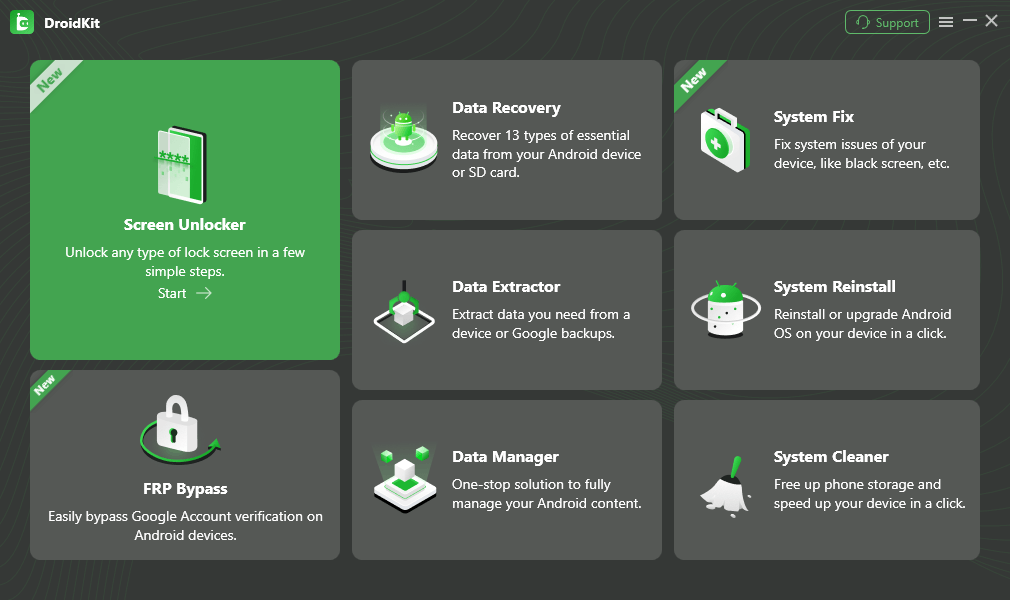
Choose Screen Unlocker
Step 3. Click Start and confirm the device connection. DroidKit will prepare the required configuration file.
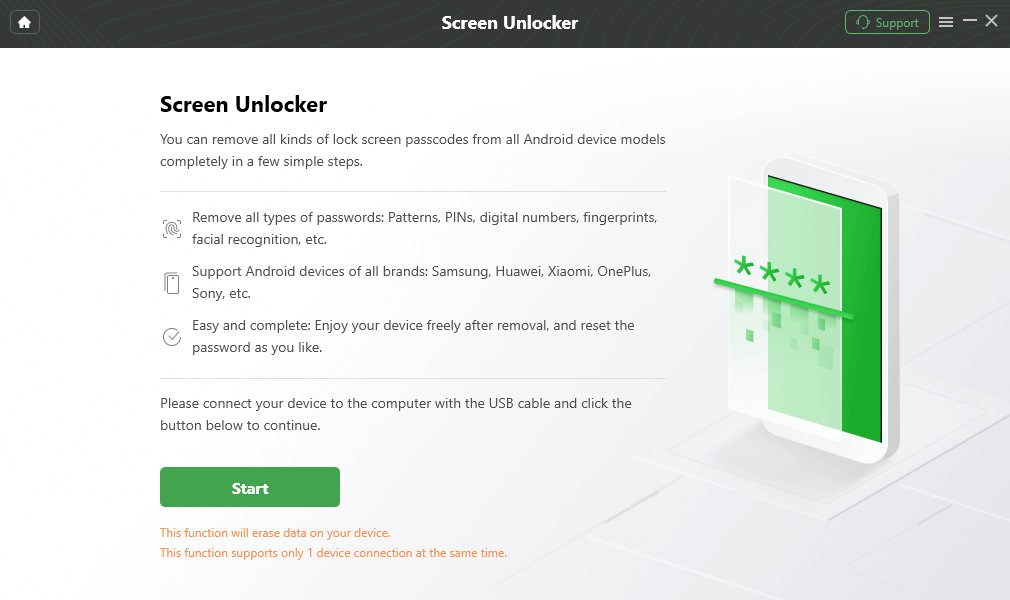
Connect your Locked Phone
Step 4. After the setup is ready, click Remove Now to continue.
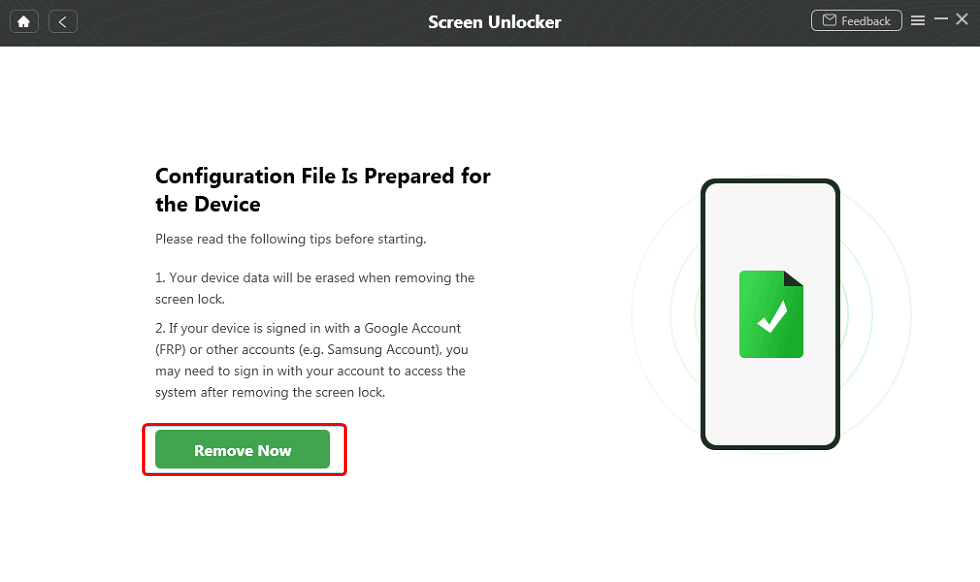
Select the “Remove Now” Button
Step 5. Follow the on-screen instructions for your device. Keep the phone connected during the process.
Step 6. When the process finishes, your Samsung S6 will restart. If the phone asks for Google verification after reset or unlock, see the FRP section below.
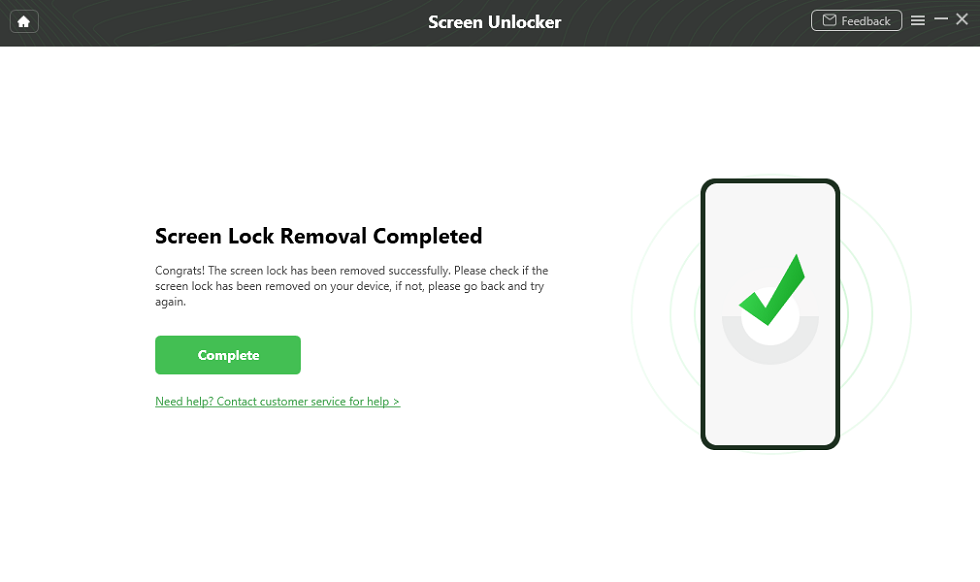
The Lock Screen Is Removed Successfully
Bonus: What If Samsung S6 Asks for Google Verification After Reset?
If you factory reset Samsung S6 and then see a Google account verification screen, the phone is likely protected by Factory Reset Protection. FRP is designed to confirm that the device belongs to you or someone who authorized the reset.
Try these first:
- Sign in with the Google Account previously synced to the Samsung S6.
- If you bought the phone second-hand, ask the previous owner to remove the device from their Google Account.
- Recover the Google Account if you forgot the password.
- Check the exact model number and Android version before using any FRP-related method.
If manual recovery does not work on your own device, DroidKit FRP Bypass may be a tool-assisted option for supported Samsung FRP cases. Use it only for your own device or an authorized device, and confirm compatibility before proceeding.
General DroidKit FRP workflow:
Step 1. Launch DroidKit on your computer and choose FRP Bypass.

Click FRP Bypass
Step 2. Connect your Samsung S6 to the computer with a USB cable.
Step 3. Wait while DroidKit prepares the configuration file. When it is ready, click Start to Bypass.
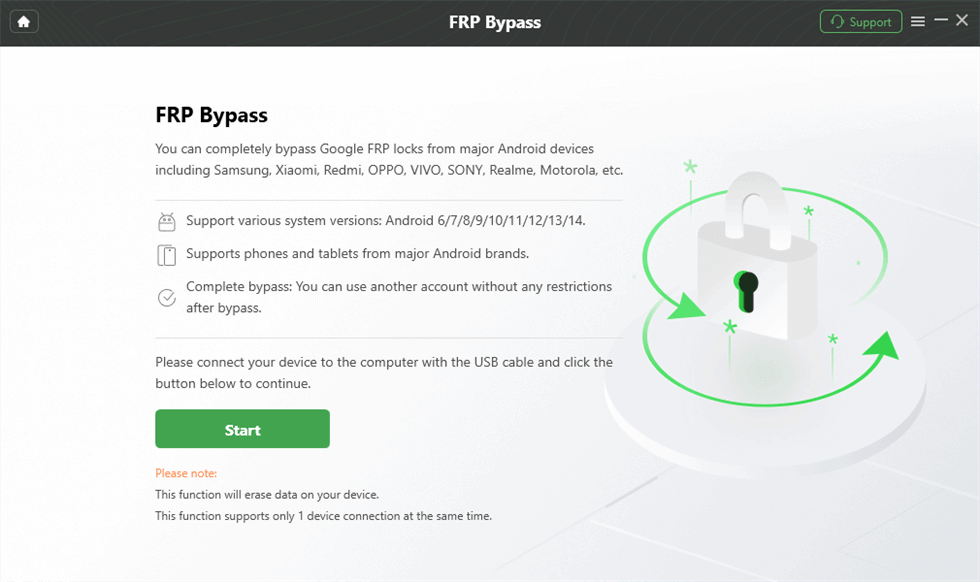
Launch the FRP Operation
Step 4. Select the Android version that matches your device and continue.
Step 5. Follow the on-screen instructions for your supported device model and firmware.
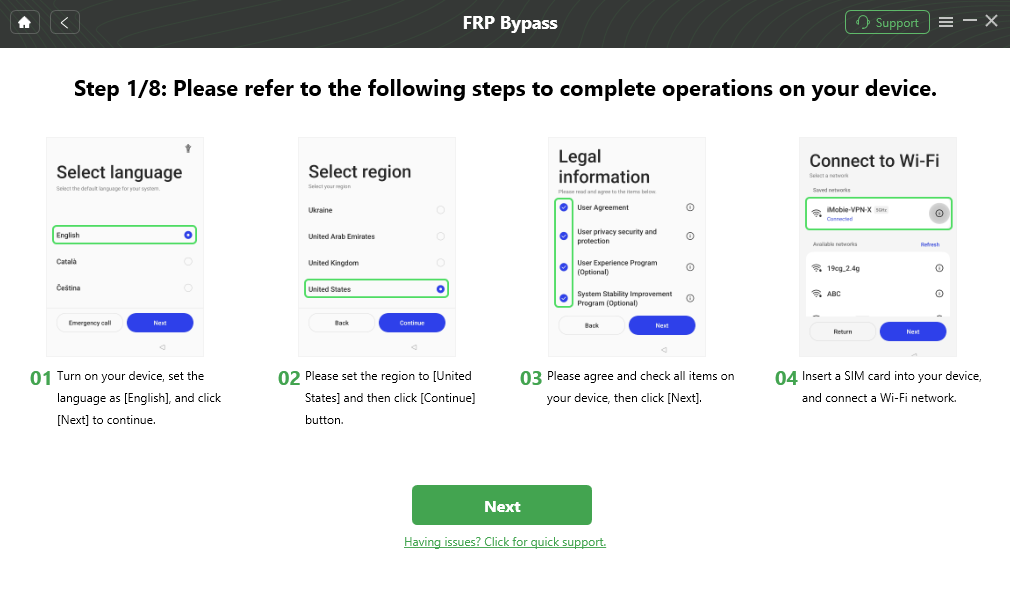
Follow the Bypass Steps
Step 6. When the process finishes, DroidKit will show the completion screen. If it fails, check whether your device model, Android version, or firmware is supported.

FRP Bypass Complete
FAQs About Samsung S6 Unlock
Can I unlock Samsung Galaxy S6 without losing data?
It depends on the method. If you still have a valid Google account, backup PIN, or other recovery option, you may regain access without erasing the phone. A factory reset usually removes the screen lock but also erases local data. Tool-assisted methods may also have data limitations, so check compatibility and data impact before using one.
Does a Samsung S6 network unlock code remove the screen password?
No. A network unlock code is used to remove carrier or SIM restrictions, such as when you want to use a SIM card from another carrier. It does not remove a forgotten screen password, PIN, pattern, or FRP lock.
Can Find Hub unlock my Samsung S6 password?
Find Hub can help locate, secure, or erase a lost Android device, depending on your device status and account settings. It should not be treated as a guaranteed way to reset a forgotten Samsung S6 lock screen password. If the device is erased, FRP verification may still appear afterward.
Will factory reset unlock Samsung S6?
A factory reset can remove the screen lock, but it erases the phone’s local data. After reset, the phone may ask for the Google Account previously synced to the device because of Factory Reset Protection.
Why does Samsung S6 ask for Google account after reset?
This is usually Factory Reset Protection. Android may require the previously synced Google Account to verify that the device belongs to you or someone who authorized the reset.
Can DroidKit unlock Samsung S6 without password?
DroidKit may be a tool-assisted option for supported Samsung S6 screen lock or FRP cases. It should be used only on your own device or an authorized device, and you should confirm compatibility, Android version, and data impact before proceeding.
What should I do before trying any Samsung S6 unlock method?
Check whether you have backups, the Google Account previously synced to the phone, the exact model number, Android version, and proof of ownership. These details determine which unlock option is suitable.
Conclusion
To unlock Samsung Galaxy S6 without password, first identify the lock type. A forgotten screen password, a carrier network lock, and Google FRP verification require different solutions.
If you still have access to your Google Account or a recovery option, try that first. If not, a factory reset may remove the screen lock but will erase local data and may trigger FRP. A network unlock code only helps with carrier restrictions, not screen locks.
For supported owned devices, DroidKit may be a tool-assisted option for Samsung S6 screen lock or FRP cases. Before proceeding, confirm compatibility, Android version, data impact, and device ownership.



Senior writer of the iMobie team as well as an Apple fan, love to help more users solve various types of iOS & Android-related issues.
Product-related questions? Contact Our Support Team to Get Quick Solution >
