How to Factory Reset/Hard Reset iPad Air 2 [Full Guide]
To factory reset an iPad Air 2, you can choose to erase it directly from the Settings app, reset it remotely through iCloud, or restore it using iTunes on a computer. These official methods work if you remember your Apple ID and password. But if you’re locked out or forgot your credentials, AnyUnlock provides the most convenient way to reset your iPad Air 2 without a password.
The iPad Air 2 has been around for years, and many users still rely on it for reading, browsing, or light productivity. However, like any aging device, it can sometimes become unresponsive, slow down, or even freeze completely. When these issues occur, performing a reset is often the most effective way to restore performance. In this guide, we’ll explain the difference between a hard reset and a factory reset and show you proven solutions for how to factory reset iPad Air 2. Let’s explore!
What Is a Hard Reset?
A hard reset, also called a force restart, is a method to restart your iPad when it becomes unresponsive. It’s commonly used if the screen freezes, the device lags, or apps stop working. Unlike a factory reset, a hard reset doesn’t erase any of your photos, apps, or personal files. It simply forces the system to reboot and often clears minor glitches.
Differences Between Hard Reset & Factory Reset
Although the names sound similar, a hard reset and a factory reset serve very different purposes. A hard reset (force restart) only reboots the device and is useful for quick fixes when your iPad freezes, lags, or stops responding—without erasing any data. In contrast, a factory reset wipes everything, including accounts, settings, apps, and photos, restoring the iPad to its original “just out of the box” state. This deeper reset is usually done before selling or giving away the device, or when fixing serious software issues that a simple restart cannot solve.
How to Hard Reset iPad Air 2?
Hard reset is much easier than factory reset. It should be the first method to try when your iPad freezes, lags, or becomes unresponsive. It’s quick, requires no computer or extra tools, and can be done using only the buttons on your device. Here are the steps:
Step 1. Hold Home Button and Power (Sleep/Wake) Button down at the same time.
Step 2. Keep these down for about 10 seconds until the screen blacks out.
Step 3. Wait a few more seconds and you’ll see the Apple logo. Your iPad will then restart normally.
How to Factory Reset iPad Air 2?
While a hard reset is useful for minor glitches, it won’t fix deeper software issues. In such cases, a factory reset is the better option, as it erases all data and restores your iPad Air 2 to its original settings. In this section, we will share 4 solutions for how to factory reset iPad Air 2.
Way 1. How to Factory Reset iPad Air 2 Without Password
When it comes to how to factory reset iPad Air 2, AnyUnlock makes the process straightforward and possible. This professional unlocking tool works on both Windows and Mac and is designed to handle various iOS lock scenarios. With only a few clicks, it can help you factory reset iPad Air 2, even without any password. Beyond factory reset, AnyUnlock also allows you to remove the screen passcode, unlock an Apple ID, bypass iCloud Activation Lock, remove MDM restrictions, etc. By handling the technical steps for you, this tool ensures the entire process is both quick and safe.
Main Features of AnyUnlock:
- Factory reset iPad Air 2 without screen password or Apple ID.
- Works fast and only takes a few simple steps
- Easy to use even without any technical knowledge
- Supports the latest iPhone 17 & iOS 26.
Free Download * 100% Clean & Safe
How to factory reset iPad Air 2 without password:
Step 1. Launch AnyUnlock on your PC/Mac and select the Unlock Screen Passcode option from the interface.
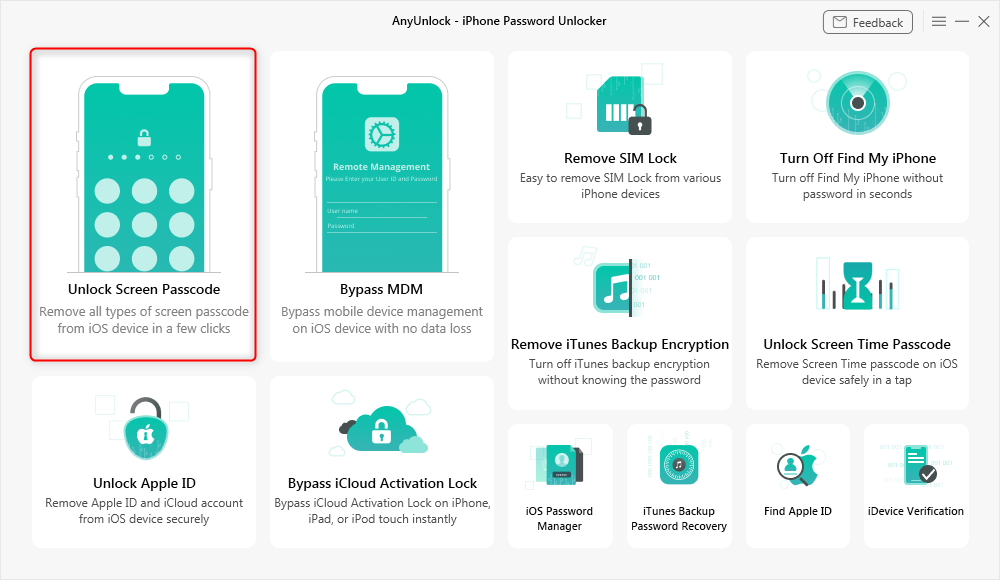
Choose Unlock Screen Mode
Step 2. Connect your iPad to your PC using a lightning cable, and click Start Now.
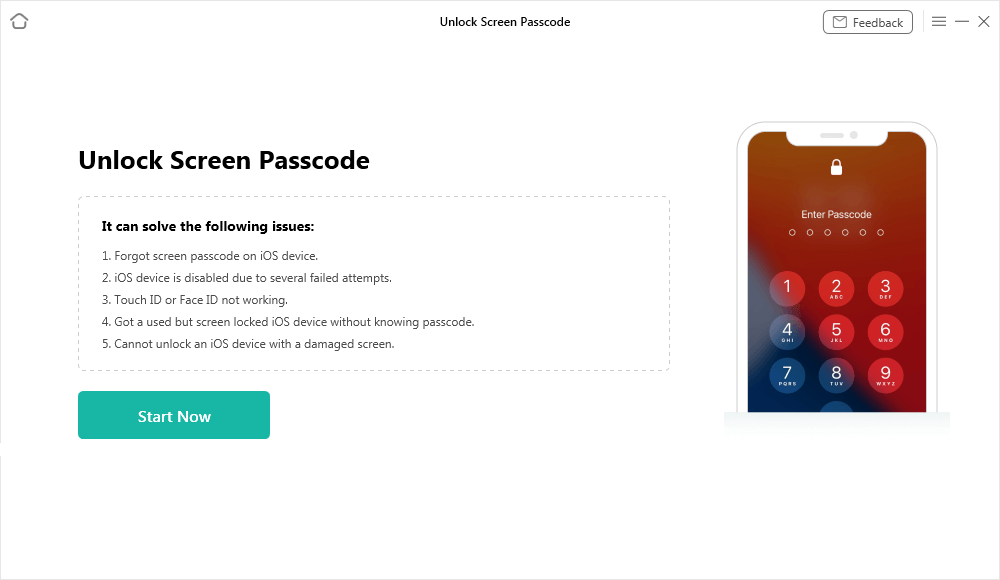
Connect iPhone to Computer
Step 3. Click Download to get the firmware for your iPad’s model. Then, click Unlock Now to unlock and factory reset iPad Air 2.
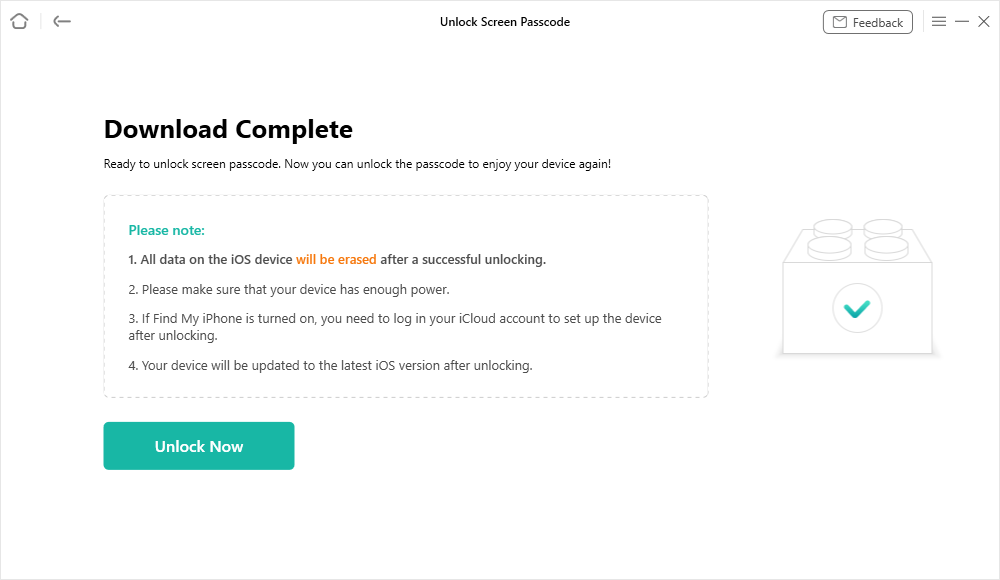
Download Suitable Firmware
Step 4. AnyUnlock will start the screen unlocking process. After that, your iPad Air 2 is factory reset successfully.
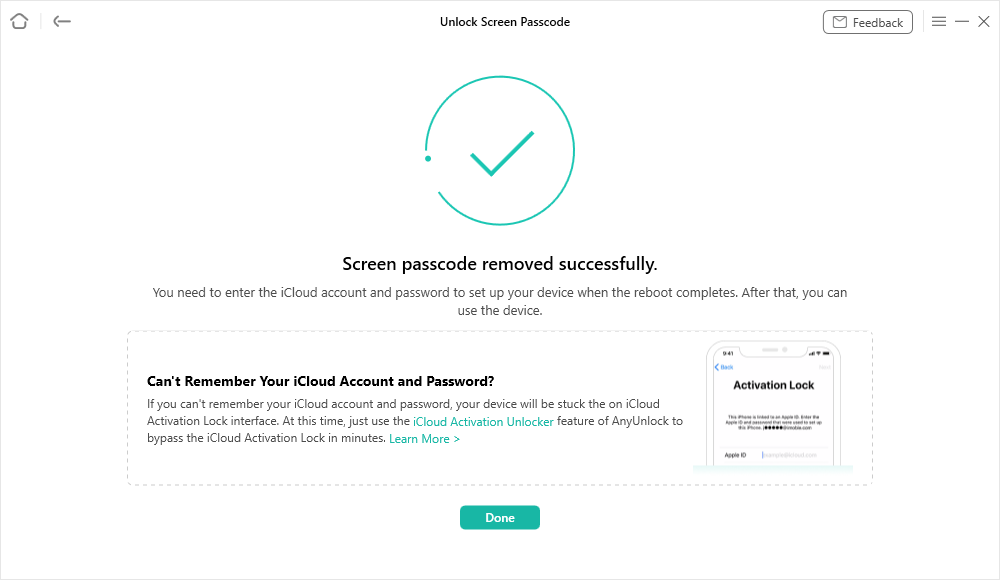
Remove Screen Passcode Successfully
Way 2. Factory Reset iPad Air 2 in Settings App
The most straightforward way to factory reset an iPad Air 2 is by using the Settings app. This method is simple and built into every device, making it a convenient option for most users. However, it requires the correct Apple ID and password to complete, erases all data during the process, and cannot be used if the device is already locked. Here are the steps:
Step 1. Open the Settings app on your iPad.
Step 2. Tap General. Scroll down and select transfer or reset iPad.
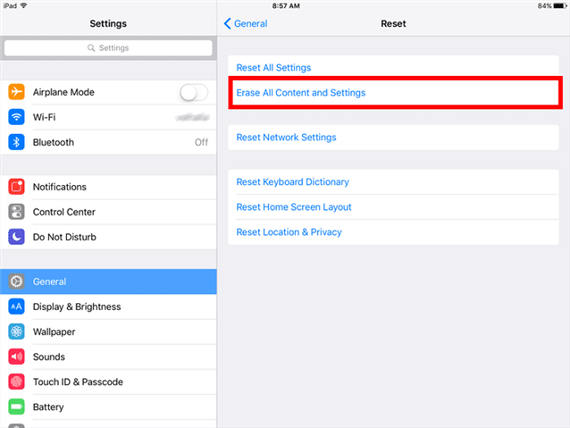
Choose Erase All Content and Settings
Step 3. Proceed by selecting Erase All Content and Settings.
Step 4. Enter your Apple ID password to confirm.
Way 3. How to Factory Reset iPad Air 2 with iCloud
Another way to factory reset an iPad Air 2 is through iCloud, which allows you to remotely erase the device when it’s lost, stolen, or locked. This method is useful if you cannot access the Settings app directly. However, it requires that Find My iPad was enabled beforehand and that the device is connected to the internet. Without these conditions, the reset will not work. Here are the steps:
Step 1. Use a browser on a different computer or device to go to iCloud.com.
Step 2. Enter your Apple ID to log in when you first visit the website. Then click Find My iPhone and select All Devices.
Step 3. Now select your iPad from the visible list. Click the Erase This Device to confirm the command.
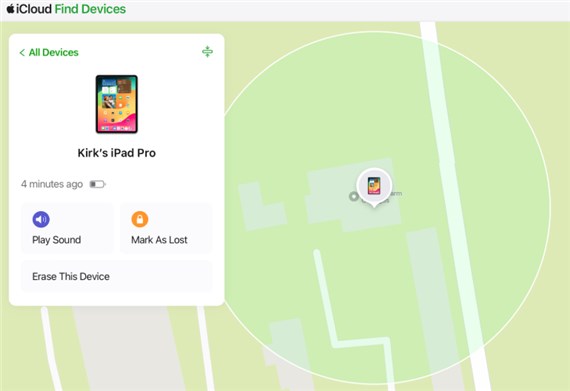
Click Erase This Device
Step 4. Wait for the reset to take over an iPad remotely.
Way 4. Reset iPad Air 2 to Factory Settings Using iTunes
You can also reset iPad Air 2 to factory settings with iTunes on a computer. This method completely wipes the device and reinstalls iOS, making it useful for serious software issues. However, it requires a computer with iTunes installed, can take time to download and restore the system, and you’ll still need the correct Apple ID to reactivate the iPad afterward. Follow the steps below:
Step 1. Connect your iPad Air 2 to a computer using a USB cable.
Step 2. Open iTunes and select your iPad. Click Restore and update iPad and confirm your choice.
Step 3. iTunes will download the latest iOS and reset your device.
Step 4. Wait for the process to complete and your iPad to restart.
FAQs about How to Factory Reset iPad Air 2
Q1. How to factory reset iPad Air 2 with buttons?
You can’t factory reset an iPad Air 2 using buttons alone. The button method only performs a hard reset (force restart), which doesn’t erase data.
Q2. How to do a hard reset on iPad Air 2?
To hard reset iPad Air 2, press and hold both the Home button and the Power button until the screen turns off and the Apple logo appears.
Q3. How to reset an iPad without passcode or computer?
If Find My iPad is enabled and the device is online, you can go to iCloud website, sign in with your Apple ID, select the iPad from the device list, and erase it remotely.
Q4. How to reset iPad Air 4?
To reset iPad Air 4, Go to Settings > General > Transfer or Reset iPad > Erase All Content and Settings. This will wipe the iPad and restore it to factory settings.
Conclusion
In this article, we’ve covered four ways to factory reset the iPad Air 2, along with a tip on performing a hard reset. Each method has its own benefits and limitations, depending on your situation. For users who forget their Apple ID or passcode, AnyUnlock is the most practical option. It allows you to reset your iPad and regain access quickly, without the usual complications. Download AnyUnlock today and get your iPad back to use in just a few simple steps.
Free Download * 100% Clean & Safe



Joy Taylor is a seasoned technical writer with over a decade of experience in mobile technology. At iMobie, she specializes in producing in-depth content on iOS data recovery, iPhone unlocking solutions, and iOS troubleshooting.
Product-related questions? Contact Our Support Team to Get Quick Solution >
