Stepwise Guide to Turn off Parental Controls on Fortnite 2026
Struggling with parental controls on Fortnite? Follow our 2026 step-by-step guide to turn them off in-game or via Epic Games website, plus tips for iOS Screen Time restrictions. Unlock full access safely.
Fortnite remains a global battle royale sensation with millions of players, but parental controls can limit chatting, purchases, and features for teens or adults. These safeguards promote safer gaming, but they can feel restrictive once no longer needed.
This 2026 guide covers how to remove parental controls on Fortnite in two straightforward ways. We’ll explain the alerts, in-game disablement, PIN reset via Epic Games, and a bonus tip for iOS Screen Time limits using AnyUnlock.

Fortnite Interface
Part 1. Why Does Fortnite say I have Parental Controls?
When Fortnite shows the message “parental controls are active”, it means that your Epic Games account has some limits. These controls have been designed to help parents manage the interaction of younger players in the game. Although they are a convenient feature for families, they can be frustrating for an older player who wants to have full access to the Fortnite features.
Parental controls can have different effects on your gameplay, such as:
- Chat restrictions: You may be prevented from voice or text chatting with your friends.
- Purchase limits: The buying of V-Bucks or in-game items may be stopped or require permission.
- Content filtering: Certain mature language or offensive content can be filtered.
- Playtime visibility: Parents are allowed to see the length of each game session.
There are a few reasons why you might be receiving this message:
- On account creation, a parent or guardian established parental control settings.
- The date of birth linked to your Epic Games account indicates that you are a minor.
- A Parental Controls PIN was set up on your account, which stops changes from being made without it being removed.
These features are primarily designed to create a safer and more controlled environment, particularly for children. Still, if you are an adult, then you might be more inclined to remove these restrictions and just play the game without any limitations.
Part 2. How to Turn off Parental Controls on Fortnite in-Game
Here is the complete method on how to remove parental controls from Fortnite directly and easily in five steps:
Step 1. Run Fortnite
Get to the main lobby screen. In the top-right side of the window, click on the three horizontal lines (≡) to open the menu.
Step 2. Select the parental controls tab
Scroll down and choose Parental Controls (usually the third option from the bottom).
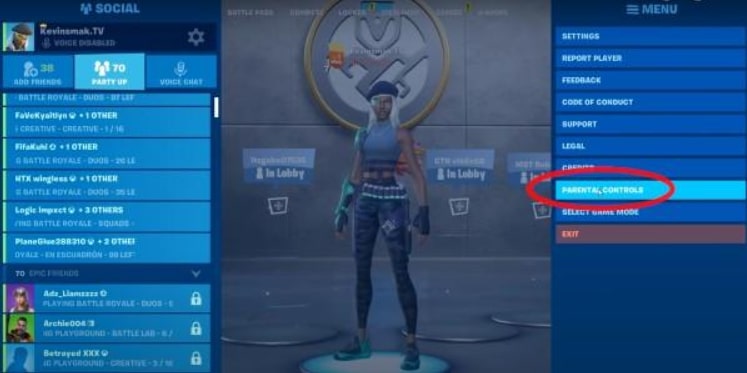
Choose Parental Control Tab
Step 3. Enter the PIN
Input the six-digit PIN that was set when parental controls were enabled. Give the right code to gain access to the settings.
Step 4. Turn off parental controls
Select the option to Disable parental controls from the parental controls menu and then confirm your choice.
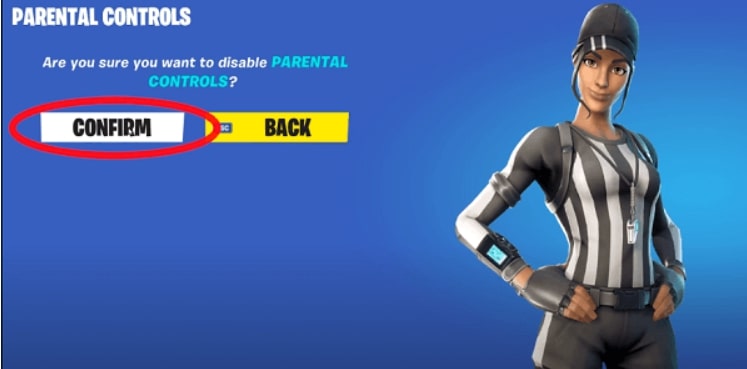
Choose Disable Parental Control Option
Step 5. Save changes and exit
Your parental controls will be turned off once the decision is confirmed. Get out of the menu, and then you will have unrestricted access to Fortnite.
Part 3. How to Remove Parental Controls from Fortnite Website Without PIN
If you forgot the PIN to the parental controls on Fortnite and are wondering how to remove them, don’t worry — it is just like recovering a forgotten password. Epic Games allows you to reset it easily. Here’s the way to do it:
Step 1. Epic Games website visit
Head to the Epic Games official website and log in with your account details.
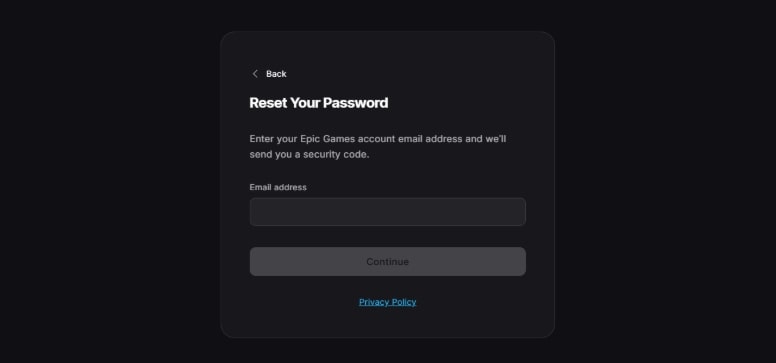
Visit Epic Games Website
Step 2. Parental controls access
After logging in, move to the Account Settings page. Find the Parental Controls section and click on it. Then choose Manage Store Settings.
Step 3. Click on “Forgot your PIN?”
Enter your 6-digit PIN in a pop-up. A blue link will be under it that says Forgot your PIN? Just click on it.

Click on Forgot Your Pin
Step 4. Email check
An email will be sent by Epic Games with directions to reset your parental controls PIN. Go through the email, tap on the link, and create a new PIN. In the case of the account being set up under the supervision of a parent or guardian, the reset email will be sent to their email address, not yours.
Part 4. Bonus Tip. Turn Off Screen Time Restriction on iPhone/iPad
In case the passcode for your Screen Time has slipped your mind and you are reluctant to wipe out your data, AnyUnlock is the answer to your problem, as it provides a means to remove the passcode that is both fast and safe. Just in case it is a Screen Time or old Restrictions passcode, the AnyUnlock technology is the one to get rid of the code or retrieve it with utmost ease—without the need to give up your beautiful photos, contacts, or messages. The revolutionary tool is compatible with the latest iOS 26 and thus guarantees a hassle-free, risk-free unlocking operation in only a few clicks.
AnyUnlock – Turn off Screen Time
- Only 3 steps are needed to turn off screen time without passcode.
- No data will be erased when disabling screen time.
- Unlock both the screen time passcode and restrictions passcode.
- Unlock screen passcode/Apple ID/MDM/iCloud Activation Lock
Free Download100% Clean & Safe
Free Download100% Clean & Safe
Free Download * 100% Clean & Safe
Here’s how to go about it:
Step 1. Get AnyUnlock on your system
Get and install AnyUnlock – iPhone Password Unlocker directly.
Step 2. Use USB to connect your iOS device
Open AnyUnlock and connect your iPhone, iPad, or iPod touch to your computer with a USB cable. Select the mode of “Unlock Screen Time Passcode” and then press the button marked as “Unlock Now”.
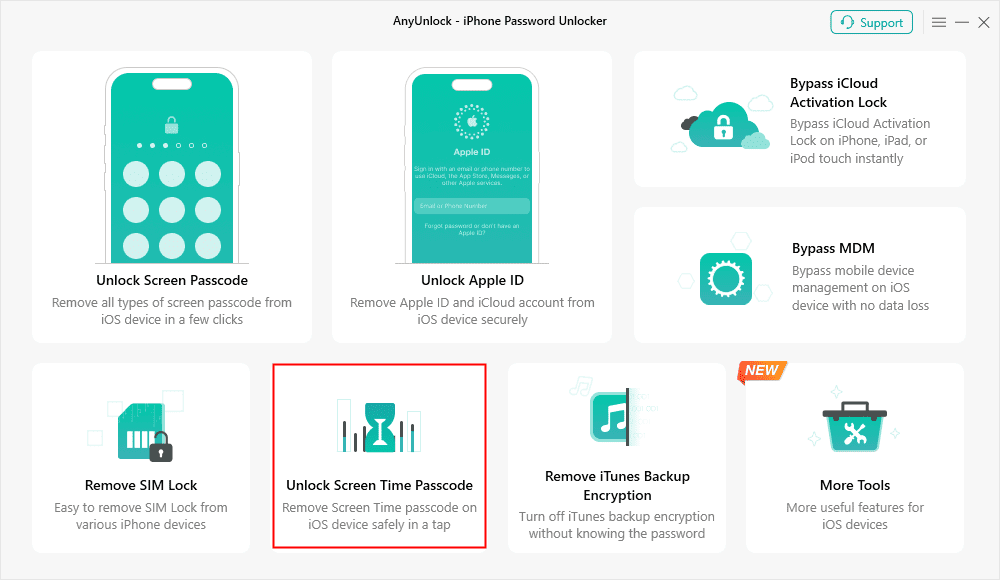
Choose Unlock Screen Time Passcode Mode
Step 3. Set password for backup
AnyUnlock will make an encrypted backup of your device to unlock the Screen Time passcode. So, if a dialogue box appears, please enter a simple password for the backup. When the backup is finished, AnyUnlock will automatically analyze your device data.
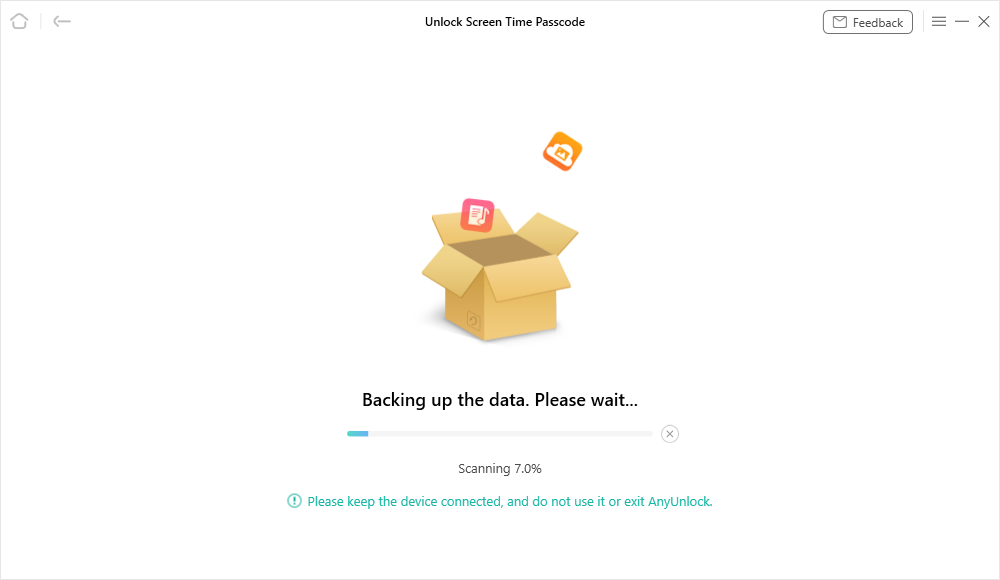
Unlock Screen Time Passcode Process
Step 4. Remove or unlock the Screen Time passcode
The time after which AnyUnlock will start removing the passcode is rather short, so please wait accordingly to enjoy your iOS device without any restrictions.
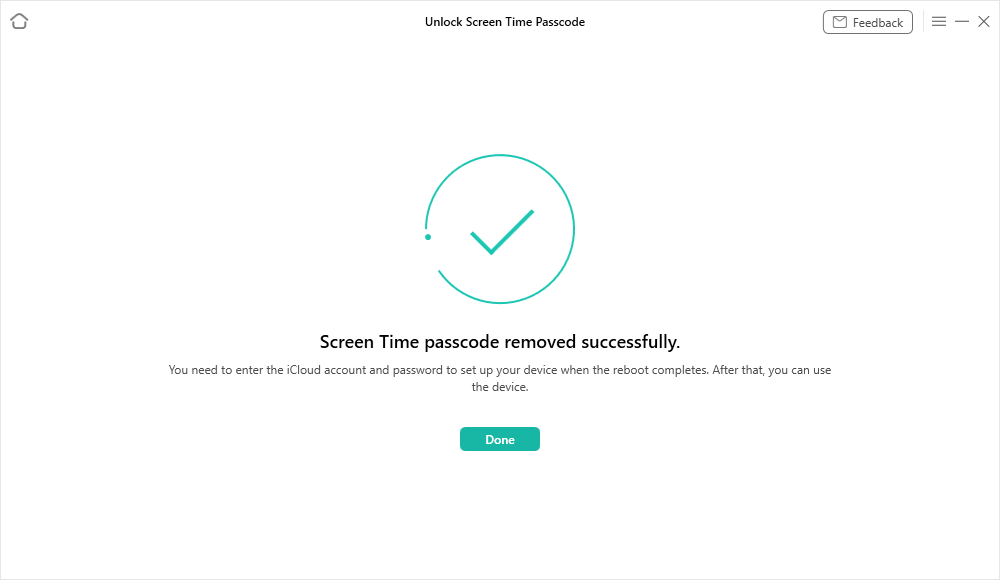
Successfully Removed Screen Time Passcode
Part 5. FAQs
Q1. How to fix parental code on Fortnite?
Is the Fortnite parental controls PIN you cannot recall? Reset it through the Epic Games website. When you are asked for the PIN, select “Forgot your PIN?” and continue with the directions sent to your email.
Q2. How do I turn off parental controls on my iPhone?
If you intend to take off the limitations from your iPhone, then you need to visit Settings> Screen Time. After tapping Change Screen Time Passcode, identify the option Turn Off Screen Time Passcode. Enter your code and click confirm. Consequently, restrictions on apps and usage, which are part of the case of Fortnite, will be removed.
Part 6. Conclusion
Parental controls in Fortnite ensure safe play, but disabling them is simple for adults seeking full access. Use in-game PIN entry or the Epic Games website to reset them quickly. For iOS Screen Time blocks, AnyUnlock provides a secure solution. This tool offers versitle functions to remove your iDevice password, iCloud activation, and so on. Try it now>
Free Download * 100% Clean & Safe



Wanda Norris is a junior author in iMobie specializing in iOS tips and solutions. She keeps a close eye on every iOS update to provide practical, easy-to-understand guides that help users solve problems and master their Apple devices.
Product-related questions? Contact Our Support Team to Get Quick Solution >
