[Guide] How to Transfer Music from iPhone to Computer – Quickly & Easily
AnyTrans
Transfer your iPhone music to PC/Mac/iTunes in seconds!
- Drag & drop your selected music from iPhone to computer/iTunes.
- 1-click back up all your purchase & non-purchased songs to PC.
- Drag audios & videos from PC to your iPhone, iPad, and even iPod.
Available for both Win & Mac
How can I transfer music that was ripped from old CDs, or not purchased from the iTunes Store? I used iTunes to transfer my music, but all my existed songs were gone from my iPhone. So what is the correct method to transfer music from my iPhone to my computer?
Apple suggested using iTunes & iCloud to sync your music library to another device. But data synchronization easily leads to data erasing from your target device. Besides, iTunes transferring process is complex, doesn’t support selectively items transferring and non-purchased music transferring.
To save you time and to transfer both purchased & non-purchased music, you need a professional iPhone transfer tool – AnyTrans, with which you can transfer songs between your iOS device and another mobile or desktop device in seconds. The following is detailed information on how to use it to complete music transfer.
1-Click Back up All iPhone Music to Computer
Put Music from iPhone to iTunes Library on Computer
Transfer Music from iPhone to Computer [Video Tutorial]
How to Transfer Selected Music from iPhone to Computer
Step 1. Download AnyTrans
You should download AnyTrans, install and run it on a computer. This software is fully compatible with all popular computer brands, no matter in Windows or Mac.
Step 2. Connect your iPhone to the computer.
After connecting your iPhone to the computer via USB cable, AnyTrans will automatically recognize your iPhone and load your media files. After scan, click the Music folder to get the song list you are going to transfer.
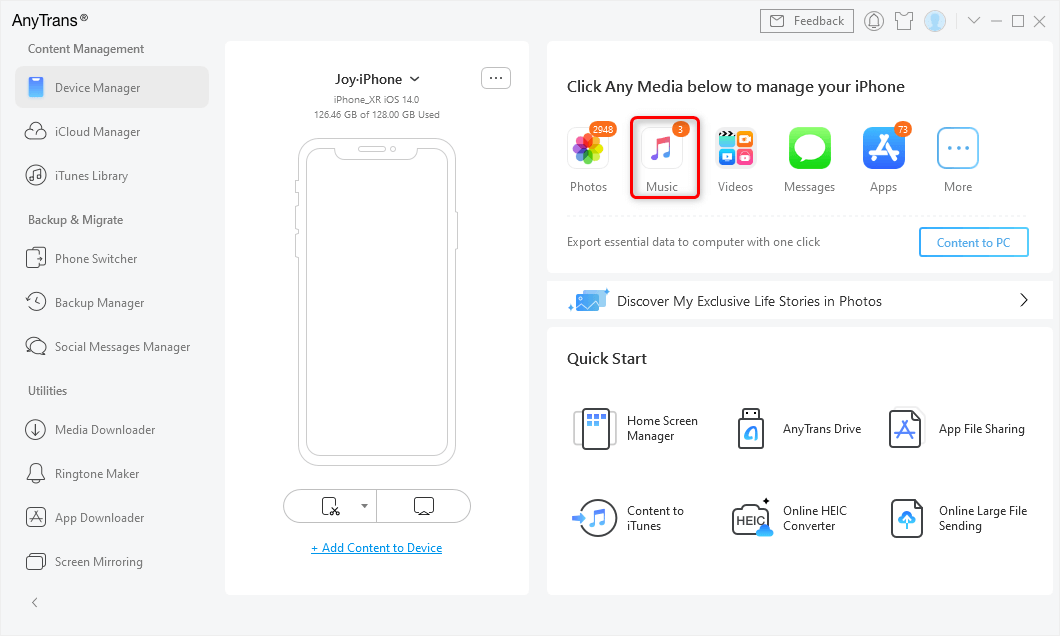
Choose Music in AnyTrans
Step 3. Select songs to transfer.
AnyTrans will list songs with several attributes, group them into Album/Artist folder, and offer a Search feature to let you easily find your favorite songs. To transfer your selected songs, just click “To PC/Mac”, “To Device”, “To iTunes” buttons. Of course, you can directly drag & drop your selected songs to the computer desktop.
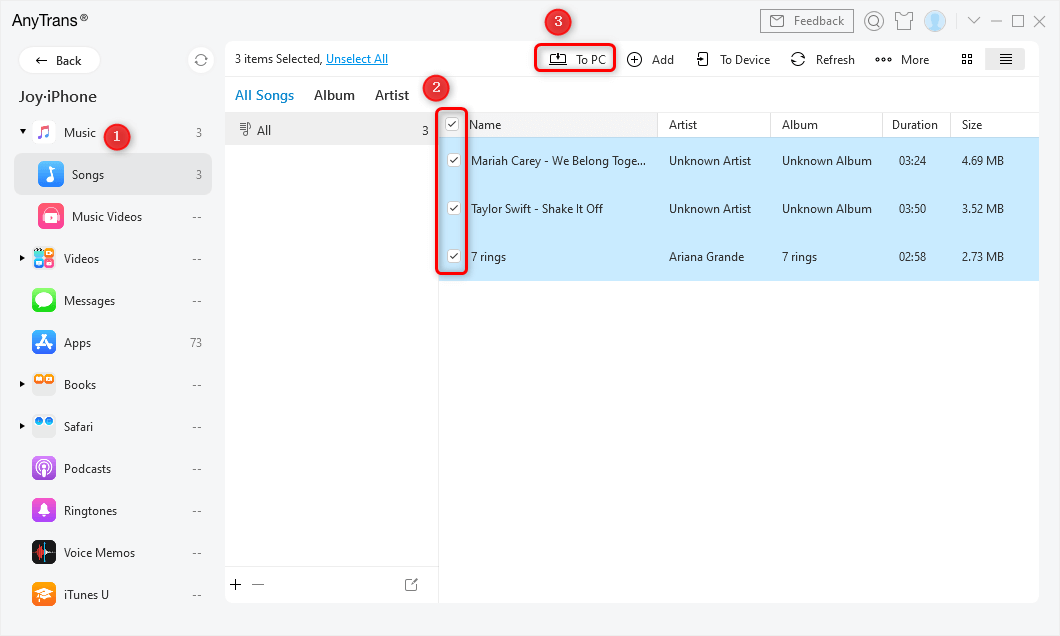
Select Songs and Click to PC/Mac
Step 4. Transferring finished.
AnyTrans will create a folder on your computer to store all exported songs. Just click view files to get all the songs you transferred from iPhone.
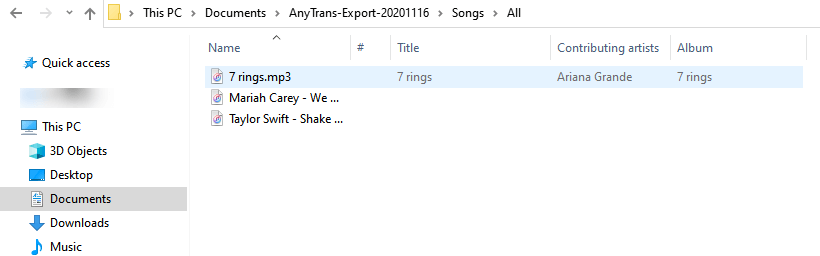
Check the Imported Music on Computer
How to Back Up All iPhone Music to Computer By 1 Click
Besides selectively transferring, AnyTrans also supports 1-click backing up all your songs. Click the “Content to PC” as the screenshot shows. This feature helps you export data and files by category and app.
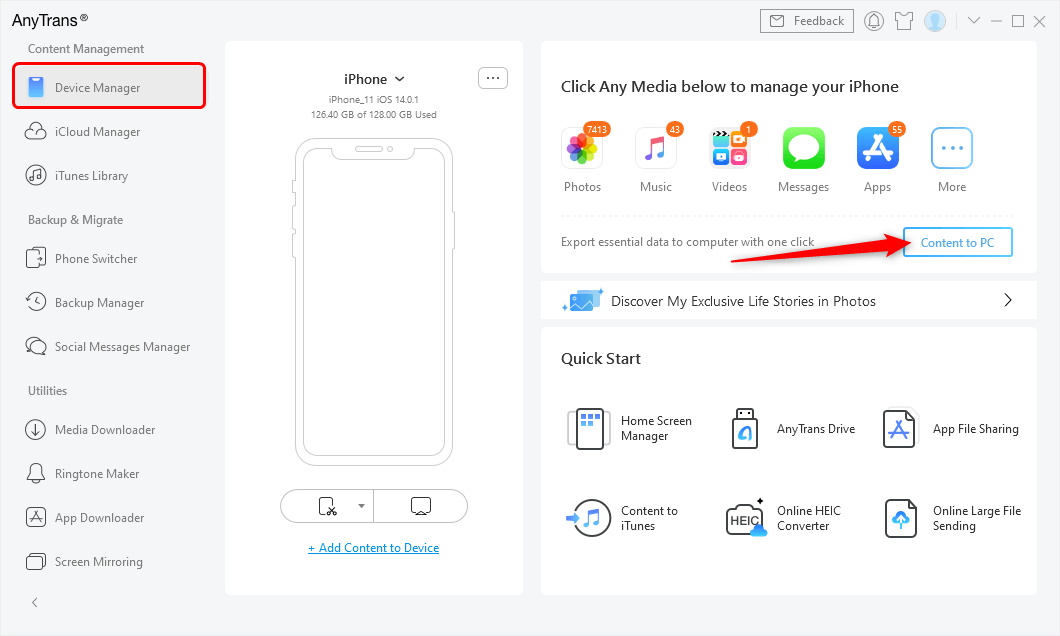
Click Content to PC Button
As you can see, AnyTrans will group all your iPhone data into several categories, and you can export listed categories files to the computer with 1 click.
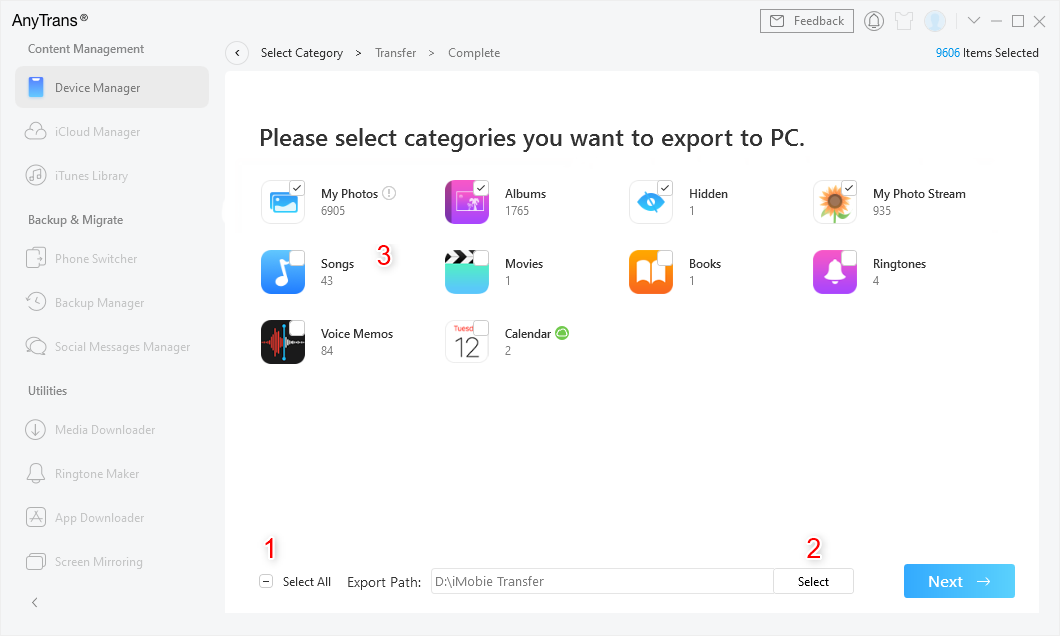
1-Click Export All iPhone Music to PC
How to Transfer Music from iPhone to iTunes Library on PC/Mac
You may not find the function to transfer iPhone music to iTunes. Don’t worry, this feature is hidden behind the More button just as you can see on the screenshot below. This feature helps you directly import selected songs back to your iTunes library app on your computer.
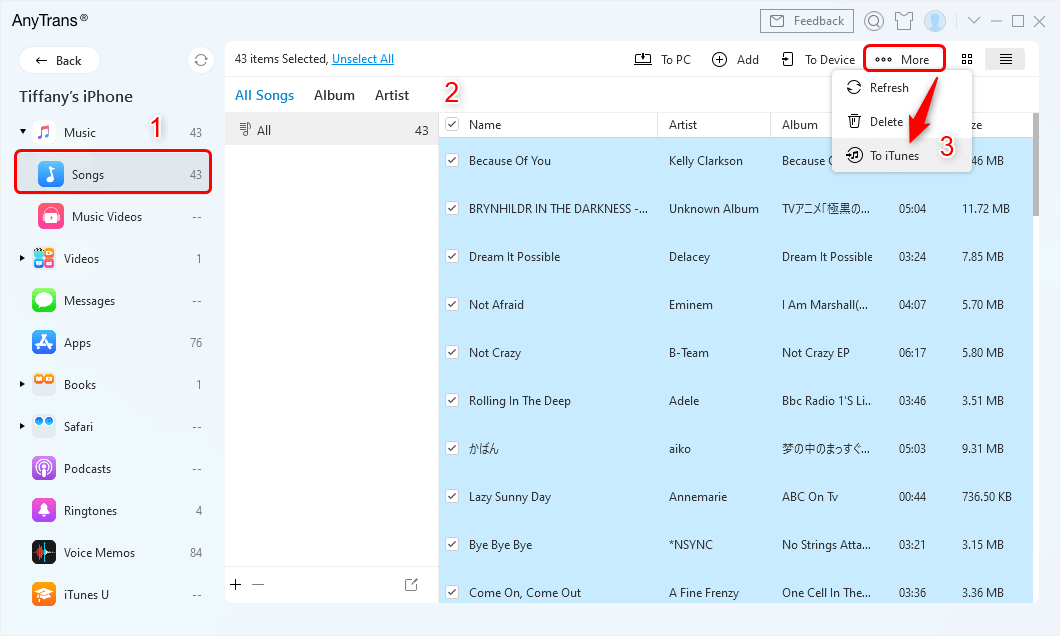
Transfer Songs from iPhone to iTunes
How to Transfer iPhone Music using AnyTrans [Video]
We’ve prepared a video tutorial in 2019 for people to better understand how to transfer music between iPhone and computer using AnyTrans. This video is outdated, but it shows the main process of music transferring via AnyTrans. And after several years of updates released, AnyTrans now supports directly drag and drop your songs to the computer at a faster speed, just download to have a try.
Free Download * 100% Clean & Safe
More Related Articles
- How to View and Get iPhone Messages on PC/Mac Computer
- How to Delete Multiple Contacts at Once on iPhone
- How to Fix: Music Won’t Play on iPhone/iPad/iPod
- How to Transfer Music from iPhone to iPhone (iPhone 11 Supported)
- How to Transfer Photos from iPhone/iPad to USB Flash Drive
- How to Delete Music from iPhone


Work for iMobie team for 5 years as well as an Apple fan, love to help more users solve various types of iOS or Android related issues.
Product-related questions? Contact Our Support Team to Get Quick Solution >
