Creating a Location on Instagram: The Official Guide
Instagram doesn’t support direct location creation. You must use Facebook. This guide explains the official method and common issues to help your custom location appear on Instagram.
If you’re trying to put your new business, pop-up event, or local landmark on the Instagram map, you’ve likely hit a frustrating wall. You go to tag your location in a post, and it simply isn’t there. This is a common problem, and the solution isn’t found within the Instagram app itself.

To create a custom location for Instagram, you must use a specific workaround through the Facebook app. Many online guides offer incomplete or outdated advice, making the process seem more reliable than it is. This guide provides the only official method and, more importantly, addresses the real-world issues you’ll face—like sync delays, confusing settings, and platform bugs—to finally get your location on the map.
How to Create an Instagram Location Using Facebook Check-In
The process for Instagram geotag creation hinges on one key fact: Instagram pulls its location data directly from Facebook’s database. To add a new place to Instagram, you must first add it to Facebook. This is done using the Facebook mobile app’s “Check In” feature.
Follow these exact steps to create your instagram custom location tag.
step 1. Open the Facebook App & Start a Post: On your iOS or Android device, open the Facebook app. Tap on the “What’s on your mind?” field at the top of your news feed to begin creating a new post.
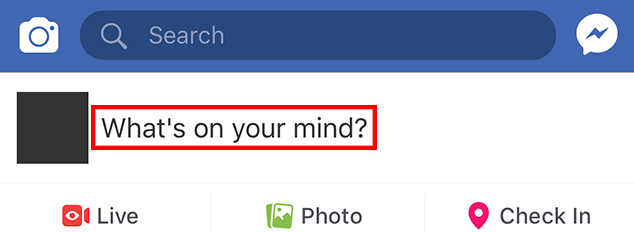
step 2. Tap the “Check In” Button: In the menu of options that appears below the text field, find and tap the red location pin icon labeled Check In.
step 3. Search for Your Location: Your device’s GPS will suggest nearby locations. In the search bar at the top, type the exact name of the new location you want to create. It’s crucial to search first to avoid creating a duplicate. If it doesn’t appear in the results, scroll to the very bottom of the list.
step 4. Select “Add a New Place”: At the end of the search results, you should see a button with a `+` icon labeled “Add a new place.” Tap this to open the location creation screen.
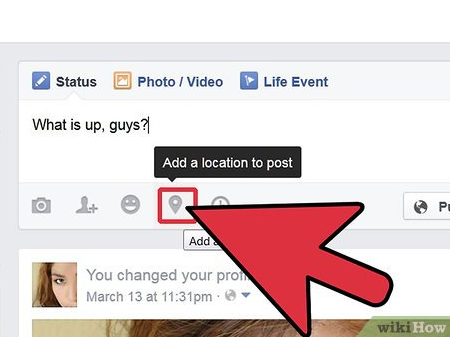
Critical Warning: Is the “Add a New Place” Button Missing?
This is the single biggest point of failure in this process. For many users, this button has been removed or is intermittently unavailable due to a persistent bug in the Facebook app. It is not a mistake you are making.
What to do if it’s missing:
- Update Your App: First, ensure your Facebook app is updated to the latest version.
- Try a Different Account: Some users report the button appears when logged into a different Facebook profile.
- Be Patient: Unfortunately, there is no guaranteed fix. The feature can disappear and reappear based on app updates or account-specific issues. If it’s not there, you may have to check back periodically over several days. We know this is frustrating, but it is a known platform issue.
step 5. Fill in Accurate Details (Critical Step): This is the most important part of the procedure, as Meta’s system automatically filters out locations it deems low-quality or unverifiable.
Place Name: Enter the official name. Avoid special characters like `&` or `@`; spell them out (e.g., “Food and Drink” instead of “Food & Drink”).
- Address: Provide a precise, valid street address. The system uses this to place your pin on the map.
- Category: Choose the most relevant and specific category for your location (e.g., “Coffee Shop,” “Apparel & Clothing,” “Art Gallery”).
Expert Tips for Different Business Types
- For Brick-and-Mortar (e.g., Alex’s Café): Use your exact street address. If you’re in a large building, try creating the location both with and without your suite number, as the system can be particular.
- For Pop-Ups & Events: Use the address of the venue where the event is taking place. If it’s in a public space like a park, you can use the park’s main address or get as close as possible by dropping a pin on the map provided.
- For Mobile or Service-Area Businesses: This is challenging, as Meta’s system is designed for physical locations. You should use your registered business address. Do not use a home address unless it is a registered, public-facing business, as this can be removed for privacy violations.
step 6. Create and Post: Once you have confirmed all the details are correct, tap “Create” in the top-right corner. Facebook will automatically tag your new location in the post you started. You can now add a photo or text and share the post to finalize the location’s creation.
Essential Prerequisite: Enable Location Services
If your instagram location is not working, the cause is often incorrect device permissions. Both Facebook and Instagram require access to your device’s location to create a new place and to find nearby places when you tag a post. Before you start, confirm these settings are enabled.
For iOS (iPhone & iPad)
1. Open the Settings app.
2. Navigate to Privacy & Security > Location Services.
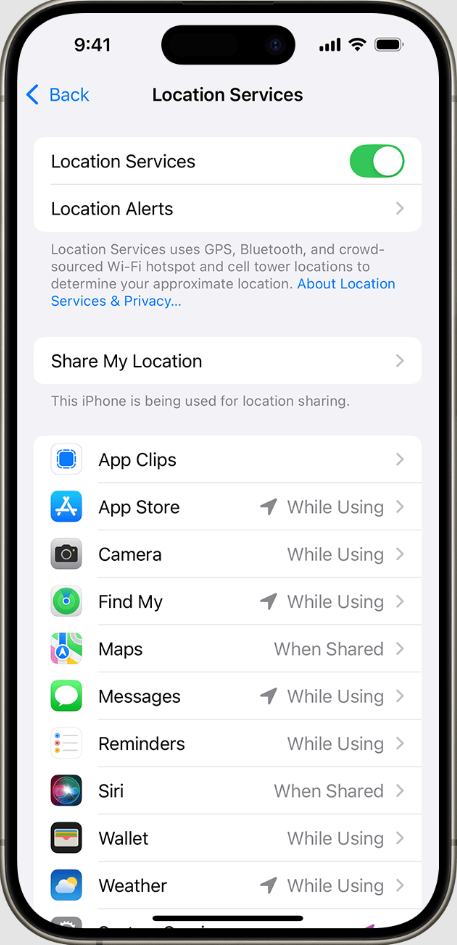
3. Ensure the main Location Services toggle at the top is ON.
4. Scroll down the app list to find Facebook and Instagram.
5. For each app, tap on it and set the permission to “While Using the App.”
For Android
1. Open the Settings app.
2. Tap on Location and ensure the “Use location” toggle is ON.
3. Go to App permissions (or “App location permissions”).
4. Find Facebook and Instagram in the list.
5. For each app, select it and set the permission to “Allow only while using the app.”
You may also like: how to fake location on life360>
Smart Tip: Managing Remote Locations with Fonelora Location Changer
What if you are setting up an Instagram geotag for a business, pop-up, or landmark that you aren’t physically standing at right now? Because Facebook’s Check-In feature heavily relies on your phone’s real-time GPS coordinates to surface the “Add a New Place” prompt, creating a remote location can sometimes be a nightmare.
This is where a professional tool like Fonelora Location Changer comes in handy. Fonelora Location Changer is a secure, no-root/no-jailbreak desktop software for iOS and Android that allows you to safely modify your device’s global GPS coordinates with a single click.
If you are managing social media for a venue across town (or across the globe), you can use Fonelora’s Teleport Mode to virtually place your device at the exact target coordinates. Once your phone’s system GPS matches the venue, opening the Facebook app will allow you to smoothly drop an accurate local pin, bypassing the automated proximity filters that often reject remote submissions.

Troubleshooting: Why Your New Instagram Location Isn’t Showing Up
You’ve followed the steps perfectly, but your instagram location tag for business is still missing. This is the most common outcome, and it’s usually temporary. Here are the reasons for the delay and what you can actually do about it.
1. The Synchronization Delay
Creating a location on Facebook doesn’t make it instantly available on Instagram. The data must be submitted, approved by an automated system, and synchronized with Meta’s central Places database.
- Timeframe: This can take anywhere from 24 hours to over a week. There is no set schedule.
- How to Help: A brand-new location with zero activity is often treated as low-priority. To signal that your location is legitimate, have a few friends or colleagues also check in at the location on Facebook. Multiple check-ins can sometimes speed up the sync process.
2. Vague or Inaccurate Information
Meta’s system prioritizes locations with clear, verifiable data. This is the most common reason a location never shows up.
- Problem: If you used an incomplete address, a non-standard name (“Alex’s Cool Spot”), or a generic category, the system may flag it as low-quality and prevent it from syncing to Instagram.
- Solution: If the location doesn’t appear after a week, your best bet is to try creating it again. Be meticulous. Enter the full street address, city, state, and zip code. Choose the most specific business category possible.
3. The Location Has Disappeared
Sometimes, a working location vanishes. This happens if it’s reported as a duplicate, marked as closed, or violates community standards (e.g., a private home listed as a public place).
- Solution: Your only option is to recreate it using the same Facebook Check-In method.
- Gaining More Control: For an established business, it is beneficial to claim your location by linking it to a Facebook Business Page. This doesn’t guarantee it won’t have issues, but it gives you the ability to edit business details (like hours or a phone number) and merge duplicate locations that may confuse the system.
Related Reading: how to change location on hily >
My New Location Checklist
If you’re running into trouble, go through this checklist:
- Did I wait at least 72 hours? (And up to a week?)
- Is the “Add a new place” button missing? (If so, this is a Facebook bug.)
- Are Location Services enabled for both apps? (See steps above.)
- Was the address 100% accurate, including city and zip code?
- Did I spell out special characters (e.g., ‘and’ instead of ‘&’)?
- Did I choose the most specific category available?
- Have I (and others) posted on Facebook using the new location tag?
Understanding Why This Process is Necessary
The reason this workaround exists is rooted in Meta’s platform structure. Instagram does not maintain its own map or location database. Instead, it pulls all location data from Meta’s central Places database, which is shared across Facebook, Instagram, and Messenger. The facebook check in for instagram feature is currently the only public-facing tool that allows a user to submit a new entry into that master database. Once your location is approved and indexed there, any app with permission—including Instagram—can find and display it. This is why you can’t add location to instagram post creation screen directly; the function simply doesn’t exist in the app.
Related Reading: how to change location in facebook >
Frequently Asked Questions About Instagram Locations
Can you create a location on Instagram directly?
No. The ability to create a new location from within the Instagram app was removed years ago. The only official method is to use the “Check In” feature in the Facebook mobile app. Once created and approved on Facebook, it should sync and become available on Instagram.
How do I get a custom location tag to show up?
First, create it on Facebook with a precise name, a verifiable street address, and a specific category. After creation, you must wait for it to sync, which can take from a few hours to over a week. To improve your chances, ensure location services are enabled for both apps and encourage a few others to check in at the new location on Facebook.
Why doesn’t my business location appear when I search?
The most common reason is the sync delay between Facebook and Instagram. However, if it’s been over a week, it likely failed Meta’s automated verification due to an inaccurate address, a vague category, or a non-standard name. Your best option is to try creating it again with highly accurate data.
Does Instagram location tagging affect engagement?
Absolutely. Using an instagram geotag in posts or an instagram location sticker in Stories makes your content discoverable to a local audience. When users tap on a location, they see a feed of all public posts tagged there, which is a powerful discovery tool for businesses trying to attract nearby customers. It also enables your customers to promote your business for you through user-generated content.
More Related Articles



Joy Taylor is a seasoned technical writer with over a decade of experience in mobile technology. At iMobie, she specializes in producing in-depth content on iOS data recovery, iPhone unlocking solutions, and iOS troubleshooting.
Product-related questions? Contact Our Support Team to Get Quick Solution >
