Want to fake your GPS location on iPhone or Android? Whether you want to protect your privacy, test location-based apps, access geo-restricted content, or simulate movement in another city, changing your phone’s GPS location has become much easier in 2026. Whether you want to fake your current location to protect personal information, test app behavior in another city, or even fake GPS location on iPad for a specific use case, finding a trustworthy method can be frustrating.
That’s why this guide focuses on tested, practical solutions. Every method here has been verified through hands-on testing on an iPhone 15 running iOS 17 and a Google Pixel 8 on Android 14, giving you clear steps to manage your GPS location more securely and effectively.
The methods in this guide have been successfully tested across more than 20 different Android and iOS device models to ensure broad compatibility and reliability.
Table of ContentsHide
Why People Fake Their GPS Location
More users are searching for ways to fake their GPS location because modern apps constantly collect location data in the background. For many, it’s about digital privacy; for others, it’s a professional requirement. Understanding these core motivations helps clarify which method is right for you. Generally, the need to control location services falls into two main categories: protecting personal privacy and enabling technical application testing.
For Enhanced Personal Privacy
Many applications request location access for legitimate functions, such as providing navigation or local weather forecasts. However, some engage in persistent location tracking that feels invasive. When you change your current location, you protect your privacy from apps that collect more data than they need. This gives you control over what companies know about your daily habits, where you live, and where you travel. It is a fundamental step in reclaiming your digital anonymity.

For App Development and Testing
Developers and quality assurance (QA) testers often need to verify how an application behaves in different geographic regions. A virtual GPS makes it possible to perform this testing without the need for travel. For instance, a developer may use a tool to fake Google Maps location settings and confirm whether a food delivery app displays the correct restaurants in Tokyo while they are actually in San Francisco. This is important for validating the user experience across markets and for troubleshooting location-based features more efficiently.
Best Ways to Fake GPS on iPhone & Android
When you decide to spoof your current location, you have two primary approaches: using your phone’s built-in manual settings (on Android) or employing a dedicated virtual location tool. Each has distinct advantages. The manual method is free but requires more technical steps and can be less reliable. In contrast, dedicated software tools are generally more powerful, easier to use, and work on both Android and iPhone, but they are often paid products.
There are two main ways to fake your GPS location: using Android’s built-in developer settings or using a dedicated virtual location tool.
| Feature | Manual Method (Android Only) | Dedicated Virtual Location Tool |
|---|---|---|
| Success Rate | Moderate. Some modern apps can detect this method. | High. More effective at system-level spoofing. |
| Time Cost | Low to moderate. The initial setup can be complex. | Low. Typically features a simple point-and-click interface. |
| Technical Skill | Moderate. Requires enabling Developer Options. | Low. Designed for non-technical users. |
| Safety Risk | Low. Always use apps from the official Play Store. | Low. Choose reputable software providers with clear privacy policies. |
This framework should clarify which solution best fits your comfort level and objectives. If you are an Android user comfortable with system settings, the manual method is a viable starting point. For iPhone users or anyone who needs a more reliable and user-friendly solution, a dedicated GPS location changer is the more effective choice.
What to Look for in a Virtual Location Tool
Instead of just choosing an app with good reviews, look for specific features that ensure it is both safe and effective for your needs. A quality tool should offer:
- Route Simulation: The ability to simulate movement between two or more points with variable speed controls (walking, cycling, driving). This is critical for app testing.
- Regular Updates: The provider should frequently update the software to maintain compatibility with the latest iOS and Android versions.
- A Clear Privacy Policy: The company should be transparent about what data it collects and how it is used. Avoid tools that seem vague on this point.
- Saved Locations: A feature to save favorite or frequently used locations for quick access.
How to Fake Location on Android
Android devices include a built-in mock location feature that allows users to spoof GPS coordinates without root access. You can access this functionality by enabling ‘Developer options’ and selecting a mock location app. This is the most direct way to set a fake GPS location on an Android device without connecting to a computer.
First, you need to download a GPS spoofing app from the Google Play Store. Search for “fake GPS” or “mock location” and choose one that is well-reviewed and has the features you need. Once installed, follow these steps to configure your device’s GPS settings.
Step 1. Enable Developer Options: Navigate to Settings > About phone. Scroll to the bottom and tap on Build number seven times consecutively. You will see a notification that says, “You are now a developer!”
Step 2. Access Developer Options: Return to the main Settings menu and go to System > Developer options. The exact location may vary slightly depending on your Android version and manufacturer.
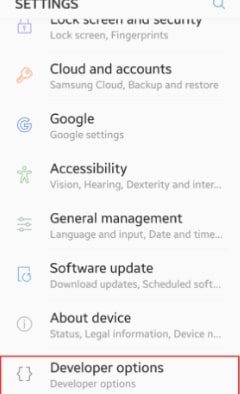
Step 3. Select Mock Location App: Scroll down within the Developer options menu until you find the setting named Select mock location app. Tap on it.
Step 4. Choose Your App: A list of installed apps that can provide mock locations will appear. Select the GPS app you downloaded in the first step.
Step 5. Set Your New Location: Open the mock location app you just selected. Most apps provide a map interface. You can either drag the pin to a new spot or use a search bar to find a specific address.
Step 6. Activate the Spoofing: Press the “Start” or “Play” button within the app. Your device will now report this new location to all other apps. You can verify it by opening a map application.
Step 7. Stop Spoofing: When you are finished, return to the mock location app and press the “Stop” or “Pause” button. It’s also a good practice to disable the Select mock location app setting when not in use.
Simulating Movement for App Testing
For app testers, a static location is often not enough. Many mock location apps on Android offer advanced features to simulate movement. Look for a “route” or “joystick” mode. This allows you to set a starting point and a destination, then choose a speed (like walking or driving) to create a realistic travel path. This is an essential function for testing navigation, delivery, or fitness apps.
How to Change GPS Location on an iPhone Without Jailbreak
Unlike Android, iPhones do not include a built-in mock location feature. The safest and most reliable method is using a desktop-based virtual location tool that changes GPS coordinates without jailbreaking the device. iOS does not have a built-in ‘developer mode’ with a simple mock location setting accessible to users. This security-focused design means that altering the GPS signal requires an external tool.
The most reliable technique for GPS simulation on an iPhone involves using a desktop application that communicates with your device. These tools allow you to select any location from a world map, and they work without needing to jailbreak your phone, which keeps your warranty and security intact.
Here are the typical steps involved:
Step 1. Install a Virtual Location Tool: Download and install a reputable virtual location program onto your Mac or Windows computer.
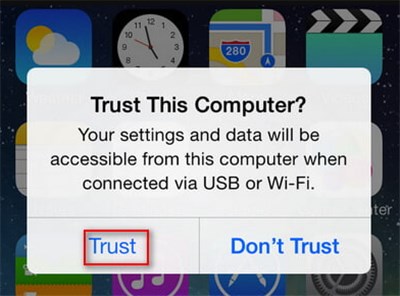
Step 2. Connect Your iPhone: Connect your iPhone to your computer using a USB cable. You may need to tap “Trust This Computer” on your iPhone’s screen and enter your passcode.
Step 3. Launch the Software: Open the desktop application. It should automatically detect your connected iPhone.
Step 4. Choose a New Location: The software will display a map-based interface. Use the search bar to enter an address or simply click anywhere on the map to place a pin for your new desired location.
Step 5. Apply the New Location: Click the “Confirm” or “Start” button in the desktop app. Your iPhone’s GPS will immediately update to the new map coordinates. All location-aware apps on your phone, from Maps to social media, will now believe you are in that new spot.
Some apps compare your GPS coordinates with your IP address to detect location mismatches.
For example, GPS says Paris and IP address says New York.
This inconsistency can trigger detection systems in some apps.
How GPS Spoofing Actually Works
Modern smartphones determine location using a combination of:
- GPS satellites
- nearby Wi-Fi networks
- mobile cell towers
Many people believe it relies solely on a GPS signal from satellites, but that is only part of the story. Modern smartphones use a sophisticated hybrid system called Assisted GPS (A-GPS) to provide fast and accurate location data.
Here’s a critical piece of information many guides overlook: smartphone GPS positioning is determined by a combination of satellite signals, Wi-Fi networks, and cell towers. Because your phone uses multiple data sources to calculate coordinates, a proper GPS location changer must be able to influence the operating system’s final output.
This multi-source approach includes:
- GPS Satellites: The Global Positioning System (GPS) provides the core data. Your phone receives signals from multiple satellites, and the time difference between these signals helps calculate its precise location.
- Wi-Fi Networks: Your phone scans for nearby Wi-Fi networks. It uses a global database of Wi-Fi access points and their known locations to quickly estimate your position, especially indoors, where satellite signals are weak.
- Cell Towers: By measuring the signal strength from nearby cell towers (a process called triangulation), your phone can approximate its location even without a GPS or Wi-Fi signal.
An effective location spoofing tool works by feeding false coordinate data directly into the operating system, which then overrides the physical inputs from these three sources.
A Practical Shortcut for Virtual GPS Control
If you prefer a simpler way to fake your current location without dealing with complex settings, Fonelora Location Changer is a practical option to consider. It helps users change GPS location on iPhone and Android without jailbreak or root, making it especially useful for those who want a more direct and user-friendly solution.
Fonelora Location Changer now supports iOS 27, which is a major advantage for users with newer devices. With teleport mode, route simulation, and joystick control, it can help you quickly switch locations, simulate natural movement, or test how location-based apps behave in different places. For privacy protection, app testing, or everyday virtual location needs, it offers a flexible way to manage your GPS location with less effort.

Frequently Asked Questions
- What is the safest way to spoof GPS location?
- The safest method is using a reputable virtual location tool from a trusted provider with regular updates and a clear privacy policy. Avoid downloading unknown APK files from unofficial websites.
- How do I fake my GPS location on iPhone?
- The most reliable method is using a desktop-based virtual location tool that changes GPS coordinates without jailbreak. These tools connect to your iPhone through a computer and allow you to select any location on a map instantly.
- Can apps detect fake GPS locations?
- Yes. Some sophisticated apps compare GPS coordinates with IP addresses, device behavior, and movement patterns to identify spoofing activity. Using a reliable virtual location tool together with a VPN can reduce detection risks.
- Is fake GPS legal?
- In most regions, changing your GPS location itself is legal. However, using spoofed locations to violate app policies, game rules, or regional restrictions may result in account limitations or bans.
- How do I fake my location without root or jailbreak?
- Android users can use the built-in mock location feature inside Developer Options without rooting the device. iPhone users typically rely on desktop-based virtual location software that works without jailbreak.
Take Back Control of Your Digital Location
Whether you want more privacy, need to test location-based apps, or simply want greater control over your device, GPS spoofing tools make it easier to manage how your location appears. By choosing the right method for your phone, you can reduce unnecessary tracking, simulate movement when needed, and decide what your apps know about your location.
Ready to manage your GPS location with more flexibility? Try Fonelora Location Changer and take the next step toward smarter, easier virtual location control.


Hot Topics
