How to Turn Off Location on Bumble (2026 Guide)
Want to stop sharing your location on Bumble without leaving behind a visible “last known” trace? This guide explains how to manage your location settings more discreetly on both iOS and Android, helping you protect your privacy without drawing attention.
As a digital privacy researcher, I spend a lot of time helping young professionals secure their dating app profiles. Navigating the dating scene should be exciting, but realizing that your exact physical coordinates are actively broadcasted to strangers can be deeply unsettling. You want to use Bumble safely without revealing your neighborhood to the entire city, but you quickly hit a roadblock: dating platforms heavily rely on location services to function.
When searching for ways to protect your location on Bumble, you usually find generic advice that ignores how the app actually works. Does turning off your phone’s GPS hide you, or does it break your matches entirely? What happens to your premium features? To get you actual answers, my team and I rigorously tested these privacy methods across 12 different modern smartphone configurations. We ran these tests on devices where Bumble is actively used—including iPhones (iPhone 11–15) running iOS 15–17, and Android devices (Samsung Galaxy S21–S24, Google Pixel 6–8) running Android OS 11–14.
This guide will clear up the confusion. By understanding exactly how Bumble handles missing GPS data, you can neutralize stalkers, protect your privacy, and maintain a secure, active dating profile.

The Danger of “Last Known Location”: Understanding Bumble’s Distance Algorithm
Before we touch your phone’s settings, we need to address a critical warning that most privacy guides miss. Many tutorials simply tell you to turn off your device location, but they fail to explain how Bumble reacts to that missing data. Bumble relies entirely on location for its distance-based matching algorithm.
CRITICAL WARNING: The “Last Known Location” Trap
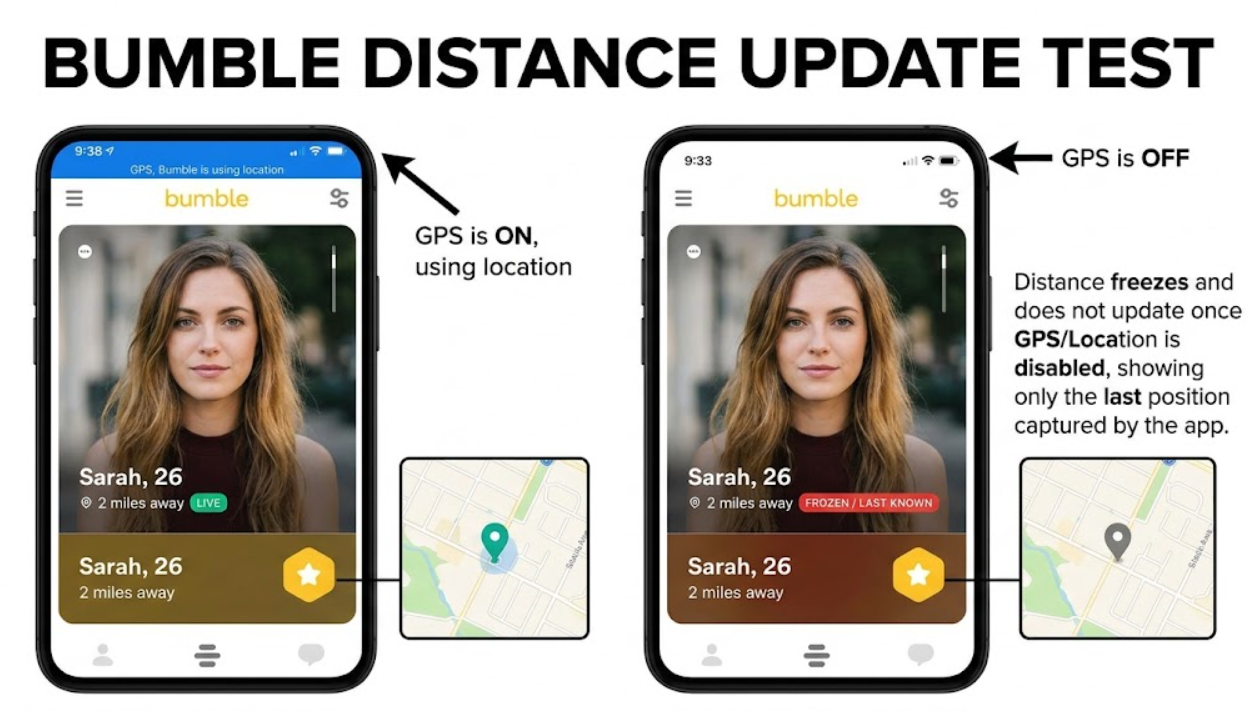
Turning off your GPS at the device level prevents real-time updates, but it does not make your profile vanish. Instead, the app freezes your profile at the exact last place it successfully pinged your device.
If you turn off your location while sitting at your office or in your apartment, Bumble will continue showing your profile to people in that specific area, broadcasting that exact distance. If your goal is to hide from someone in a specific neighborhood, simply disabling your GPS is actually a severe privacy flaw.
Furthermore, when the platform cannot read a live GPS signal, it restricts your usability. You will likely face uncertainty regarding new matches, and features like Bumble Premium or Spotlight may fail to function correctly.
To manage your visibility safely, you need to combine device-level location restrictions with Bumble’s native settings—or use targeted third-party tools if you want to completely manipulate your coordinates.
You May Also Like: How Does Bumble Work? A Tested Guide to Meaningful Connections>
How to Protect Your Privacy: Native Settings vs. Virtual Location Tools
When deciding how to manage your privacy, you generally have three main options: using Bumble’s built-in “Snooze” mode, modifying your phone’s manual OS settings, or using a virtual location (spoofing) tool.
- Bumble’s “Snooze” Mode: Free and built into the app. This is the best method if you want to take a break and completely hide your profile from all users without deleting your account.
- Manual OS Settings: Free and done through your phone’s settings. It stops the app from tracking your real-time movements, but it freezes your distance at your last known spot and restricts your ability to swipe on new profiles.
- Virtual Location Tools: Requires third-party software. This is a niche alternative for users who want absolute privacy while actively using the app. It feeds fake coordinates to your phone, allowing you to swipe in a different city while keeping your real location hidden.
Let’s walk through how to execute each method step-by-step.
Method 1: How to Safely Hide Your Profile Using Bumble’s “Snooze” Mode
If you want to stop broadcasting your location without worrying about the “last known location” trap, Bumble’s native Snooze feature is your best friend. This is the safest way to step back from the app. When you activate Snooze, your profile is hidden from potential matches entirely. Your current matches will be notified that you are taking a break, and your location will no longer be visible to anyone new.
Here is how to activate it:
1.Open the Bumble app and tap the Profile icon in the bottom-left corner of the screen.
2.Tap the gear icon (Settings) in the top-right corner.
3.Tap Snooze.
4.Choose your duration: you can snooze your account for 24 hours, 72 hours, a week, or indefinitely.
5.(Optional) Select an “Away” status to display to your existing matches so they know you haven’t unmatched them.
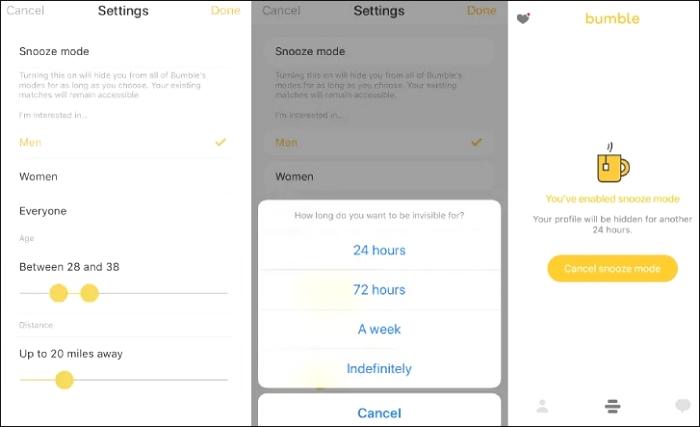
To reactivate your profile and update your location, simply open the app and tap “Deactivate Snooze mode.”
Method 2: Disabling Precise GPS Tracking on iOS
If you want to keep swiping but limit how accurately Bumble tracks you, modifying your iOS settings is a straightforward procedure. This method is completely free and cuts off exact GPS access directly at the Apple operating system level.
Here is the exact menu sequence for iPhones running iOS 15 through 17:
1.Open the Settings app on your iPhone.
2..Scroll down through your list of installed applications until you find and tap on Bumble.
3.Tap on Location to view the application’s current permissions.
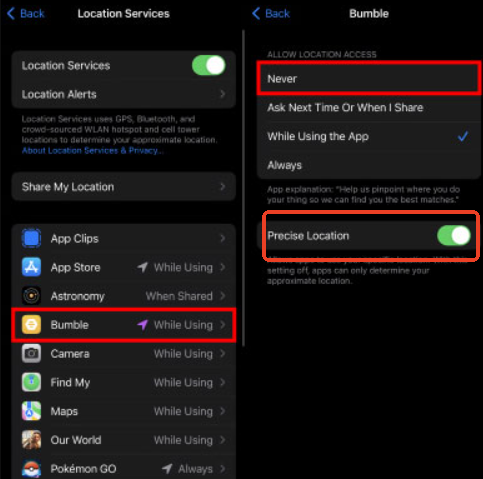
4.Under the “Allow Location Access” heading, select Never to completely revoke the app’s ability to read your GPS. (Remember, this triggers the “last known location” freeze mentioned earlier).
Turn Off “Precise Location” Instead
If you want Bumble to know your general city so you can still get matches, but you don’t want it broadcasting your specific street or apartment building, leave location access on “While Using the App,” but toggle off the switch next to Precise Location. This feeds the app a generalized, wide radius rather than a pinpointed stalker-vulnerable address.
Executing this technique successfully alters your permissions. If you choose “Never,” your matching capabilities will be heavily restricted, and the app will repeatedly ask for location access upon opening.
Method 3: Stopping Background Tracking on Android Devices
For users on Android, navigating privacy options varies slightly depending on your manufacturer. However, on modern devices like the Samsung Galaxy S21-S24 or Google Pixel 6-8, you manage this via system app permissions.
This ensures your hardware stops feeding GPS coordinates to the app while it runs in the background .
Here is the detailed procedure for Android OS 11 through 16:
1.Open your Android device’s Settings menu.
2.Tap on Apps (or “Apps & notifications”).
3.Scroll down and select Bumble. (Tap “See all apps” if it isn’t immediately visible).
4.Tap on Permissions to view what hardware data the app can access.
5.Select Location.
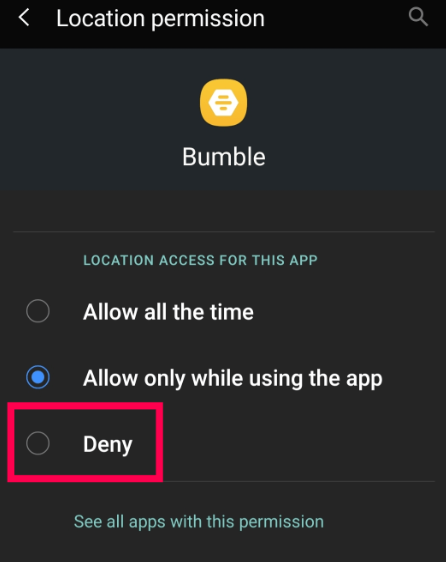
6.Choose Don’t allow to entirely block GPS access.
PRO-TIP: Use “Approximate” Location
Just like on iOS, Android offers a middle-ground. You can leave access allowed but choose Use approximate location instead of precise location. This limits the system to a broader regional area, protecting your exact whereabouts while still letting the app function.
Method 4: The Virtual Location Alternative (Spoofing)
What if you want to actively swipe and use the app, but you absolutely refuse to share your real city? Or perhaps you are traveling soon and want to set up dates before you arrive, but you don’t want to pay for Bumble Premium’s native “Passport” feature.
In these specific scenarios, a dedicated virtual location tool like Fonelora Location Changer is a viable alternative. This software feeds custom, fake coordinates to your phone. It keeps the algorithm fully functional, allowing you to swipe normally, while completely hiding your real-world location.
A common point of confusion with desktop spoofing tools is portability: Do you have to keep your phone plugged into your laptop while you use Bumble at a bar or on the train?
No. You connect your phone to your computer, use the software to set your new location, and then you can unplug your phone. Your device’s GPS will remain locked to that newly spoofed coordinate until you physically restart your phone.
If you choose to use this alternative route, the procedure looks like this:
1.Connect Your Device: Open the Fonelora Location Changer on your PC or Mac and connect your smartphone.

2.Choose a Location: Use the “Teleport Mode” to search for a safe destination—like a busy downtown area miles away from your actual home.

3.Deploy the Fake GPS: Click “Move.” This instantly updates your location across all apps on your device. You can now unplug your phone and open Bumble.

While tools like Fonelora are premium software subscriptions, they offer advanced control for users who prioritize absolute privacy and want to bypass the native restrictions of the dating app entirely .
Troubleshooting: When Bumble Still Shows Your Old Location
Occasionally, after modifying your permissions or setting up a spoofed location, you might notice the app continues to display your previous neighborhood. This usually happens due to cached data clinging to old server pings.
You May Also Like: Bumble Location Wrong on iPhone? How to Fix GPS Errors & See Local Matches>
If your new privacy settings don’t seem to be taking effect, try these troubleshooting steps:
- Force Quit the Application: Swipe Bumble away from your recent apps list. This forces the software to recognize your new settings upon the next launch.
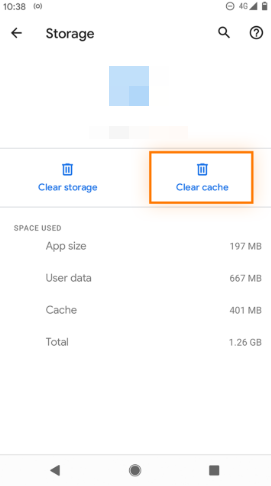
- Clear the App Cache (Android Only): Navigate to Settings > Apps > Bumble > Storage. Tap Clear Cache. This securely removes old location pings stored in the system’s temporary memory.
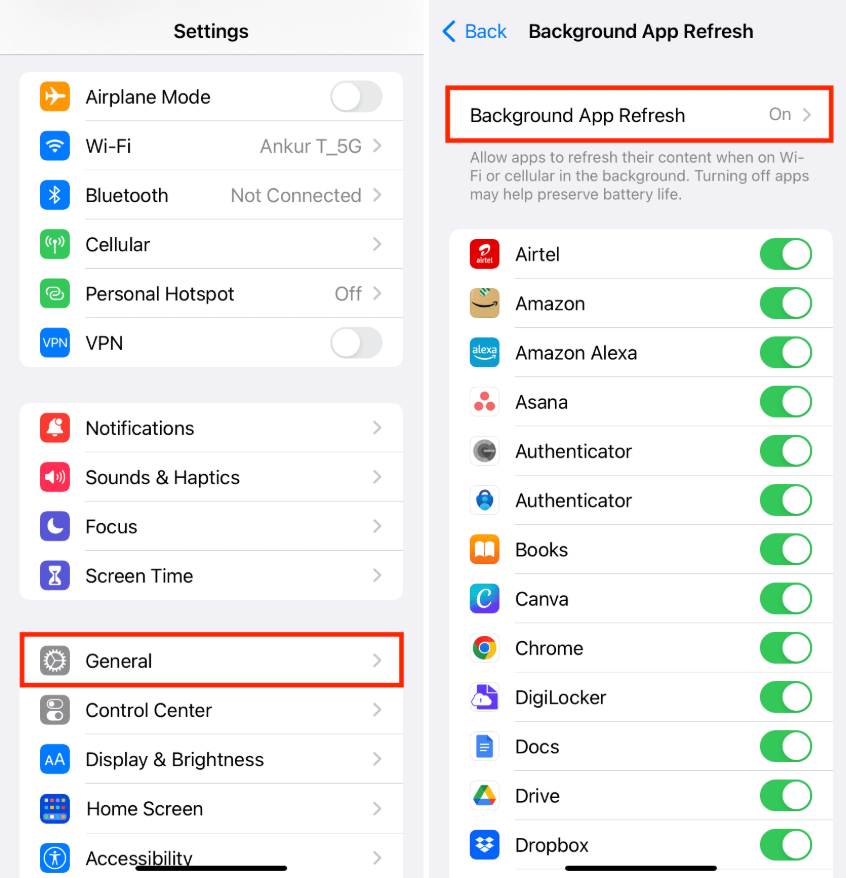
- Disable Background App Refresh (iOS Only): Go to Settings > General > Background App Refresh and toggle the switch off for Bumble. This stops the app from trying to ping servers while your phone is locked in your pocket.
- Restart Your Device: A simple system reboot ensures that all operating system-level permission changes are firmly applied. (Note: If you are using a spoofing tool, restarting your phone will reset your GPS back to your real, physical location).
Frequently Asked Questions About Bumble Location Privacy
How do I safely hide my profile on Bumble?
If you want to hide your profile without deleting your account, use the native Snooze feature. Go to Profile > Settings > Snooze. This makes you invisible to new matches and stops broadcasting your location.
Will Bumble still show my distance if location is turned off in my phone settings?
Yes. If you simply revoke GPS access in your iOS or Android settings, Bumble freezes your distance at your last known location. It does not hide your profile; it just stops updating your movement.
Can I use Bumble without giving GPS access?
Technically, yes, but your experience will be severely degraded. If you entirely deny location permissions, Bumble restricts your ability to view new profiles, as real-time distance is the core of its matching algorithm.
Does turning off my location affect my current matches?
Turning off your device location does not unmatch you from anyone, but it might cause glitches in how your profile is displayed. Activating Snooze mode is the better alternative, as it allows you to set an “Away” status so current matches know you are just taking a break.
Conclusion
Worrying about your personal privacy should never be the cost of digital dating. By understanding how the platform’s algorithm handles your data, you can take control of your digital footprint without breaking the app’s usability.
For most users, simply toggling off “Precise Location” in your phone’s settings or utilizing Bumble’s built-in Snooze mode provides the perfect balance of safety and functionality. If your privacy needs are more extreme, third-party virtual location tool Fonelora Location Changer offer a robust alternative, receiving continuous software updates to ensure your true location remains strictly protected.
You no longer have to choose between personal safety and meeting new people. Adjust your settings today, protect your coordinates, and swipe with peace of mind.
More Related Articles



Joy Taylor is a seasoned technical writer with over a decade of experience in mobile technology. At iMobie, she specializes in producing in-depth content on iOS data recovery, iPhone unlocking solutions, and iOS troubleshooting.
Product-related questions? Contact Our Support Team to Get Quick Solution >
