Apple ID Lock vs iPhone Passcode Lock vs MDM Lock: What’s the Difference?
Apple ID lock vs passcode lock are two different iPhone lock types, and MDM lock vs activation lock is another important comparison. This guide explains what each lock means, how to identify the screen message, and which recovery path fits best. It helps users avoid mistakes, data loss, and wasted time.
Before you try to unlock an iPhone, you need to know exactly which security layer is blocking you. Applying a screen passcode fix to an MDM lock will simply not work, and it will waste your time.
Which iPhone Lock Do You Have? A Quick Visual Checklist
Check your iPhone’s screen right now and match the visual symptom to the correct lock type below to stop guessing.
| What You See on the Screen | What It Means | The Lock Type |
| “iPhone Unavailable” or “Security Lockout” | Too many wrong passcode attempts have disabled local device access. | Screen Passcode Lock |
| “Locked to Owner” or “Activation Lock” | The device is bound to an iCloud account and requires the original Apple ID password. | Apple ID Lock |
| “Remote Management” or a corporate login prompt | The device is enrolled in a company or school deployment server. | MDM Lock |
Knowing your exact symptom is an absolute requirement before choosing any recovery tutorial or tool. Once you have identified your specific lock screen, you can move forward with the correct recovery path.
The Lock Hierarchy: Hardware vs. Cloud vs. Organization Server
To understand why certain unlocking methods fail, you have to understand that these three locks do not live in the same place. They enforce security at completely different levels.
Think of it like renting an apartment:
- The Screen Passcode (Hardware Level): This is the physical key to your front door. It lives locally on your specific iPhone’s internal hardware. If you forget it, you can change the locks, but doing so destroys what is inside.
- Apple ID / Activation Lock (Cloud Level): This is the landlord’s master registry. Even if you break through the front door, the landlord’s global database (Apple’s global iCloud servers) still knows who owns the property. You cannot just bypass this by resetting the physical device.
- MDM Lock (Organization Level): This is a corporate housing agreement. The security rules are dictated remotely by an organization’s deployment server, such as Apple Business Manager or Apple School Manager.
Because these locks exist on independent layers, there is no single “magic password” or simple reset that clears all of them at once.
Beware of Cascading Locks: The Factory Reset Trap
Mistake to Avoid: The Factory Reset Trap Many users perform a factory reset to remove a forgotten screen passcode, expecting to set up their iPhone as new. Instead, the device reboots and hits them with a “Locked to Owner” or “Remote Management” screen.
This happens because of the cascading effect of overlapping locks. Erasing the device removes the local hardware block (the passcode), but it immediately forces the iPhone to “call home” to Apple’s servers during the setup phase.
If the device has “Find My” turned on, the Activation Lock drops down like a security gate. If the device was issued by a company, the MDM server pushes the Remote Management profile back onto the phone.
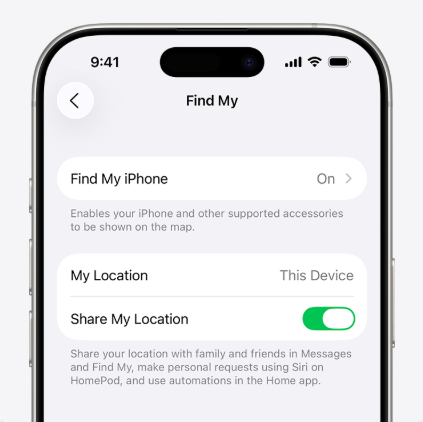
Fixing one lock frequently reveals another beneath it. If you are stuck in this scenario, do not waste time on passcode removal tutorials—your problem has already upgraded to a server-side lock, and you will need a different recovery method.
1. iPhone Screen Passcode: Local Access & Official Limits
If you are locked out by an “iPhone Unavailable” or “Security Lockout” screen, you are dealing with a local Screen Passcode Lock.
The official Apple recovery path requires you to put the iPhone into Recovery Mode and restore it using Finder or iTunes on a computer, or use the “Erase iPhone” option directly on the lock screen if running a newer iOS.
The Strict Limitation: Screen passcode removal will erase all device data. There are no exceptions to this rule. Data preservation is impossible if you do not know the passcode. Your photos, messages, and apps can only be restored from an available iCloud or computer backup that was created before the lockout occurred.
2. Apple ID & Activation Lock: Server Verification
If your screen says “Locked to Owner,” the iPhone is protected by Activation Lock. Because this is a server-side lock, restoring the phone via iTunes will not bypass it.
The official path to remove Activation Lock requires the original Apple ID email and password. If you bought the phone second-hand, the previous owner must remove the device from their account remotely via iCloud.com. If you are the original owner but forgot your details, you can submit an Activation Lock support request directly to Apple, provided you have the original proof of purchase.
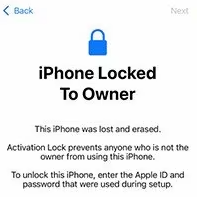
The Limitation of Third-Party Tools: If official avenues fail, some users look for software to bypass this screen. Be aware that third-party Apple ID and Activation Lock workflows are not universal; their ability to work depends heavily on specific iOS versions and device model support. If you explore options, such as comparing an iCloud bypass tool, ensure you check compatibility for your specific iPhone model first.
3. MDM Lock: Remote Management Rules
If your device says “Remote Management” during setup, it is restricted by a Mobile Device Management (MDM) profile. This allows a company or school to monitor the device, restrict features, and demand administrative credentials.
The official removal path is simple but strict: you must ask the organization’s IT administrator to unenroll the device from their deployment server (like Apple Business Manager).
The Limitation of Local Bypasses: If you are authorized to use the device but cannot reach the administrator, certain tools allow you to bypass MDM locally. When comparing the top MDM removal tools for iPhone, remember that these only skip the lock on the phone itself; they do not delete the device’s record from the organization’s server. If you ever factory reset the iPhone again in the future, the Remote Management screen will reappear.
Handling Multi-Lock Scenarios: When to Consider a Multi-Module Toolkit
Knowing the theory is one thing, but in reality, users are often blocked by missing original credentials, unhelpful second-hand sellers, or cascading lock scenarios—such as bypassing a passcode only to get hit with Activation Lock immediately after.
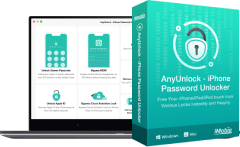
When official prerequisites are unavailable, it is easy to get confused by scattered online tutorials. For users managing an owned or authorized device, AnyUnlock provides a structured, guided desktop iOS access toolkit.

AnyUnlock – One-stop iOS Unlocker
What if you get locked out of your iPhone? Or what if you forgot your Apple ID and its password? No worries, AnyUnlock unlocks any iOS lock for you with 1 click. No technology required. Only 3 steps.
Instead of guessing which tool fixes which lock, you select the specific module that matches your visual diagnosis:
1. Identify the lock: Check your screen for the exact symptom.
2. Open AnyUnlock: Connect your authorized device to your Mac or PC.
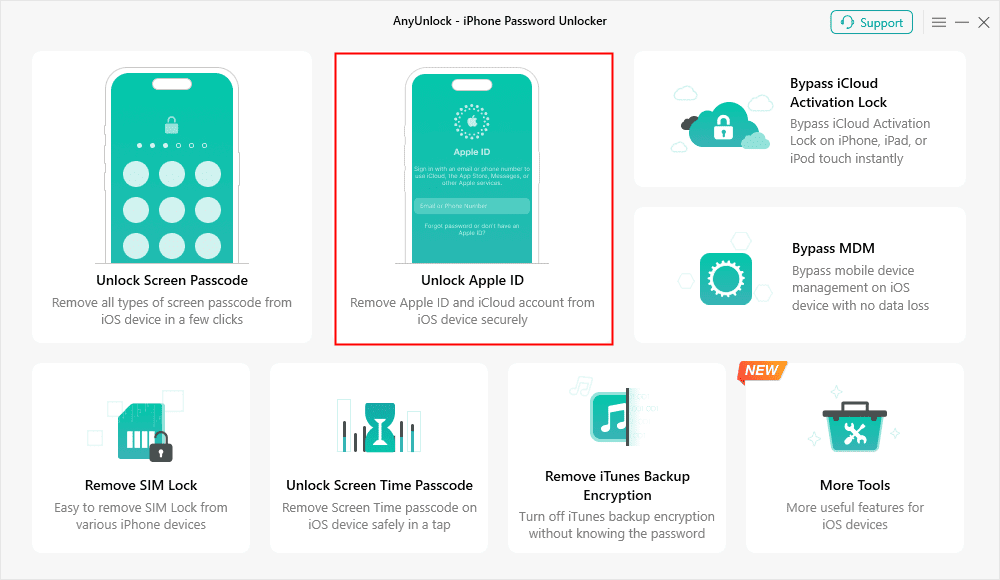
3. Select the targeted module: Choose “Unlock Screen Passcode”, “Bypass iCloud Activation Lock”, or “Bypass MDM” based on your problem.
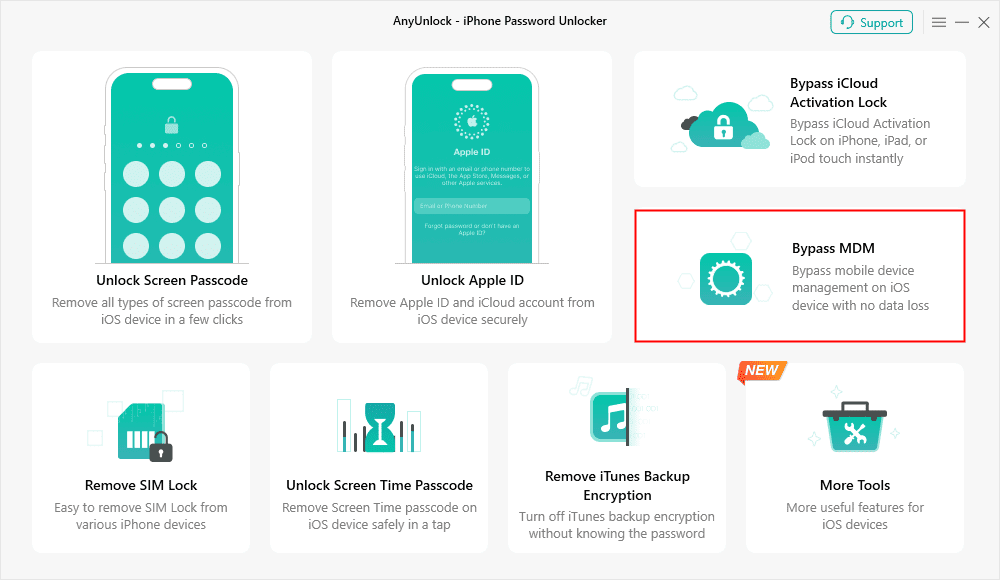
4. Review the prerequisites: Note that Passcode removal erases data, MDM bypass is local, and Apple ID support depends on your specific device and iOS version.
5. Follow the on-screen guided workflow: Proceed through the specific recovery steps.
This module-specific approach helps you manage complex lock states with clear expectations rather than relying on a “magic wand” that claims to delete all security layers simultaneously. Download or learn more about AnyUnlock here to find the guided recovery path tailored to your specific lock screen.
Frequently Asked Questions About iPhone Lock Types
Is the Apple ID password the same as the screen passcode?
No. The screen passcode is a local 4- or 6-digit number to unlock the physical device. The Apple ID password is the alphanumeric login for your global iCloud account. However, in some situations where a user is trusted, Apple allows the screen passcode to reset the Apple ID password.
What happens if I factory reset an MDM locked iPhone?
Because MDM is enforced by a remote server, erasing the iPhone will not remove it. The Remote Management setup screen will simply reappear as soon as the iPhone connects to Wi-Fi.
Will removing the screen passcode bypass the Apple ID lock?
No, it is usually the opposite. Factory resetting the phone to wipe a forgotten screen passcode frequently triggers the Activation Lock, requiring the Apple ID to proceed.
Which tool can unlock both MDM and Activation Lock?
AnyUnlock is a multi-module toolkit that covers both issues through separate workflows (Bypass MDM and Bypass iCloud Activation Lock). Support depends on your device authorization, iOS version, and specific lock state.
Can I keep my data when bypassing these locks?
If you are dealing with a forgotten screen passcode, no. Removing a passcode mandates a factory reset, which will wipe all device data. Data can only be restored from previous backups.
The Bottom Line: Diagnose First, Act Second
The key to resolving an iOS lockout is to identify the visual symptom first. Whether you are facing an “iPhone Unavailable” screen, a “Locked to Owner” prompt, or a “Remote Management” demand, accurately diagnosing your lock prevents you from wasting time on the wrong recovery method.
Always keep the cascading lock effect in mind: fixing a local passcode by factory resetting will erase your data and often reveal a server-side iCloud or MDM lock hiding underneath.
If you have the original credentials or proof of purchase, prioritize Apple’s official native recovery paths. If official options are exhausted—and you understand the data, compatibility, and bypass prerequisites—you can check AnyUnlock’s module-specific toolset to find a guided workflow designed for your exact scenario.
AnyUnlock – Unlock Any iOS Password
Quickly and easily unlock your iPhone/iPad/iPod touch from various locks such as screen lock, MDM lock, iCloud activation lock, Apple ID, iTunes backup password, and more.
Free Download for all windows & 100% safe
Free Download for all mac & 100% safe
Free Download 100% Clean & Safe
More Related Articles



Wanda Norris is a junior author in iMobie specializing in iOS tips and solutions. She keeps a close eye on every iOS update to provide practical, easy-to-understand guides that help users solve problems and master their Apple devices.
Product-related questions? Contact Our Support Team to Get Quick Solution >
