How to Check If Your iPhone Is Supervised or Managed by an Organization
If you think your device is monitored, checking settings is simple, including iPhone supervised mode, Remote locking service for iPhone, How to activate Locked iPhone, and Manage known networks iPhone. This guide explains management status, admin access, and removal options.
If you are worried that your device is being monitored, checking your device settings is simple and completely harmless, including iPhone supervised mode, Remote locking service for iPhone, How to activate Locked iPhone, and Manage known networks iPhone. Many users experience sudden privacy anxiety upon realizing their device might be supervised, worrying that their boss or school can read personal texts or see private photos.
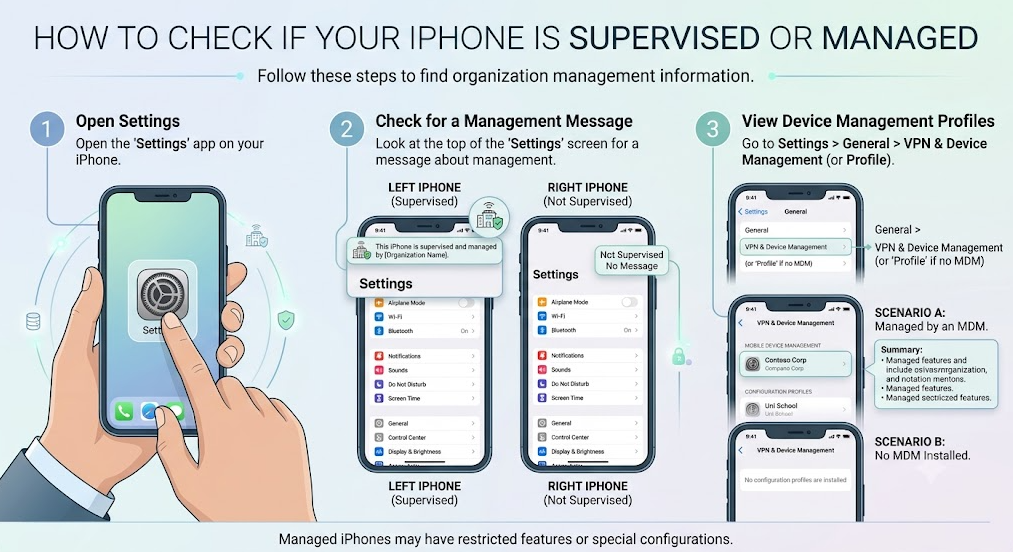
This guide will show you exactly how to check your iPhone’s management status, explain what administrators can actually see, and walk you through your options if you need to remove the restrictions.
How to Check if Your iPhone is Supervised or Managed
To verify if an organization is managing your iPhone, follow these exact steps:
1. Open the Settings app on your iPhone.
2. Tap on General.
3. Scroll down and tap on VPN & Device Management.
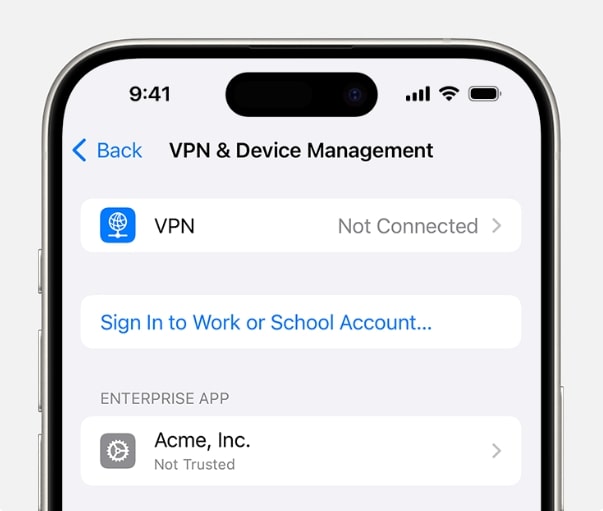
If your device is supervised, you will see an active profile listed on this screen. Additionally, you will often see a clear message at the very top of your main Settings menu stating, “This iPhone is supervised and managed by [Organization Name].”
If there are no profiles listed in the VPN & Device Management menu, your device is not currently managed by an organization.
(Note for second-hand buyers: If you are setting up a wiped device for the first time, seeing a “Remote Management” screen during the initial Wi-Fi setup is another obvious indicator that the phone is enrolled in an organization’s device management program.)
What Can an Employer Actually See on a Supervised iPhone?
Fortunately, Apple enforces strict privacy boundaries for standard Mobile Device Management (MDM) profiles. Standard MDM primarily exists to monitor device compliance, push corporate app installations, and secure network configurations. Your personal data remains strictly separate and private.
Here is a factual breakdown of what an IT admin can and cannot see:
| What Admins Can See | What Admins Cannot See |
|---|---|
| Installed corporate applications | Personal iMessages and text messages |
| Operating system version and compliance status | Personal photos and videos |
| Network, VPN, and corporate email configurations | Phone call history or voicemails |
| Device model, serial number, and battery level | Personal web browsing history |
| Device location (Only if ‘Managed Lost Mode’ is activated) | Personal passwords and Face ID/Touch ID data |
Understanding these limits should bring peace of mind. An employer cannot legally or technically use standard Apple supervision to spy on your personal life.
The Official Way to Remove Device Management
If your iPhone was issued by your workplace or school and you no longer need it to be managed (for instance, you are graduating or leaving the company), the only official and permanent way to remove the supervision profile, including iPhone supervised mode, is by contacting the organization’s IT administrator.
Because the device is registered in Apple Business Manager (ABM) or Apple School Manager (ASM), and may involve a Remote locking service for iPhone, the management profile is tied to your phone’s serial number on Apple’s servers. In some cases users also search How to activate Locked iPhone, which is handled through the same enrollment system. Administrators can also control settings such as Manage known networks iPhone through the management portal.
Once the admin has permanently removed the record on their end, you can simply reboot or factory reset your iPhone, and the device will be completely free of management.
Why a Factory Reset Won’t Remove Remote Management
A common and incredibly frustrating scenario occurs when someone lawfully buys a second-hand iPhone, wipes it clean, and is suddenly blocked by a Remote Management screen during the initial setup.
You might assume that a standard factory reset deletes everything, including restrictions. However, because MDM enrollment is tied to the device’s physical serial number on Apple’s backend servers, a local factory reset is not enough.
The moment the wiped iPhone connects to Wi-Fi to activate, it pings Apple’s servers, recognizes that the serial number belongs to an organization, and immediately pushes the supervision profile back onto the device. If you legitimately own the phone but have no way to contact the original organization’s IT admin to authorize a release, you are essentially locked out of using your own property. In this specific situation, comparing the top MDM removal tools for iPhone is often the next step to safely bypass the setup screen and access your device.
How to Bypass MDM on a Second-Hand iPhone
If you cannot contact the original admin to release your second-hand iPhone, you need an alternative way to bypass the setup lock screen. This is where a specialized desktop toolkit like AnyUnlock provides a practical, guided solution for authorized users.
Unlike overly complex manual methods or a technical 3uTools MDM bypass, AnyUnlock’s Bypass MDM module is designed to help second-hand owners skip the Remote Management screen without needing the corporate username or password. This process performs a “local bypass,” meaning it skips the lock at the setup stage, allowing you to access the iOS home screen, download apps, and use the phone normally on a day-to-day basis.
Important Limitation You Should Know:
Because AnyUnlock performs a local bypass, it does not hack Apple’s servers to delete the serial number record. The device remains technically enrolled in the background. As a result, if you perform a full factory reset or flash the device firmware in the future, the Remote Management screen will trigger again. If that happens, you simply need to run the AnyUnlock bypass workflow again to regain access.

AnyUnlock – One-stop iOS Unlocker
What if you get locked out of your iPhone? Or what if you forgot your Apple ID and its password? No worries, AnyUnlock unlocks any iOS lock for you with 1 click. No technology required. Only 3 steps.
Step-by-Step: Removing Local MDM Restrictions with AnyUnlock
Removing local MDM restrictions with AnyUnlock requires no advanced technical skills, making it accessible for any second-hand buyer. Ensure you legally own the device you are unlocking, and then follow this guided desktop workflow:
1. Download and Launch: Install and open AnyUnlock on your PC or Mac. From the main dashboard, select the Bypass MDM module.
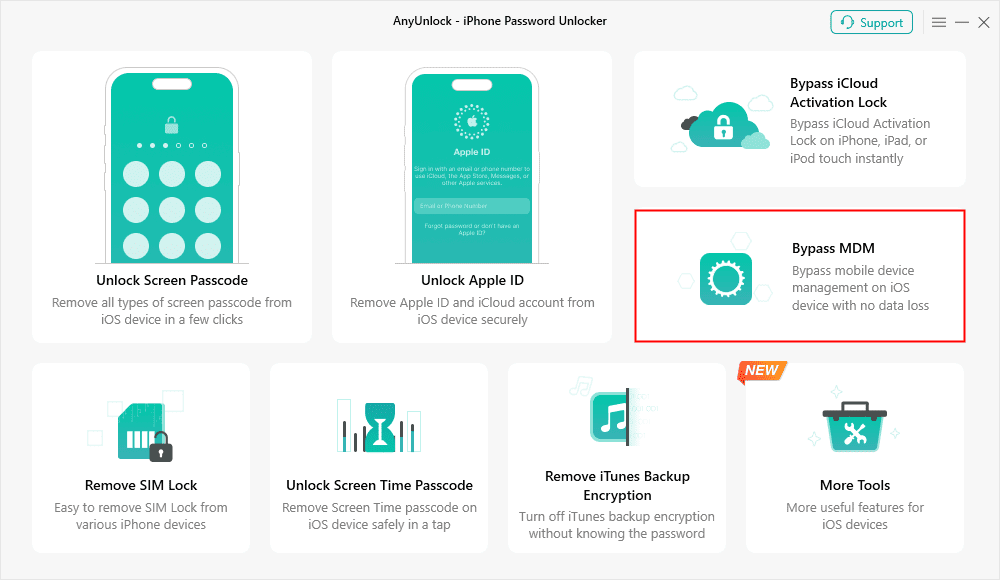
2. Connect the iPhone: Connect your iPhone to the computer using a compatible USB cable. Ensure the iPhone is currently resting on the “Remote Management” setup screen.
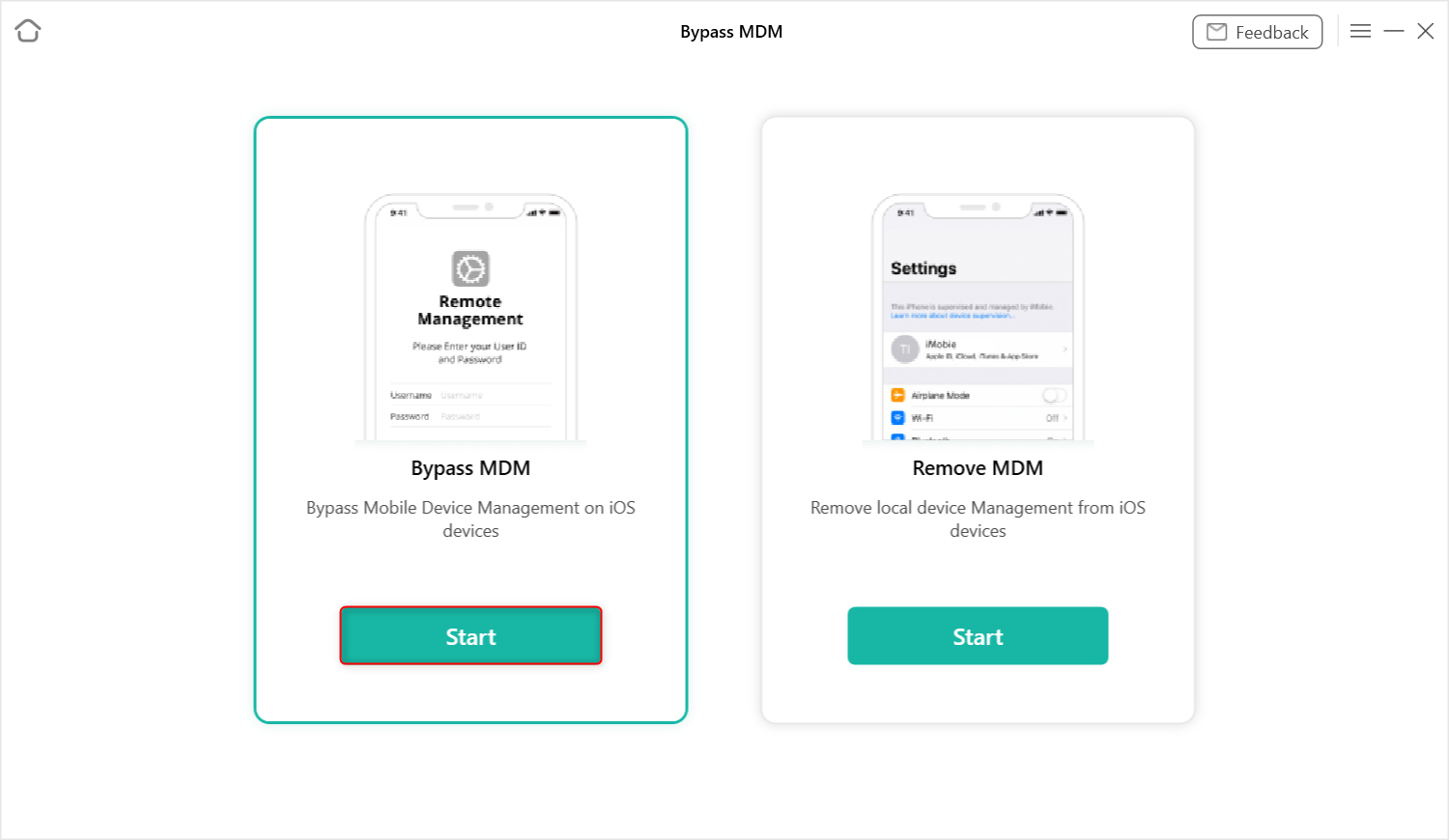
3. Initiate the Bypass: Click the start button on the screen and follow AnyUnlock’s on-screen prompts to begin bypassing the local management profile.
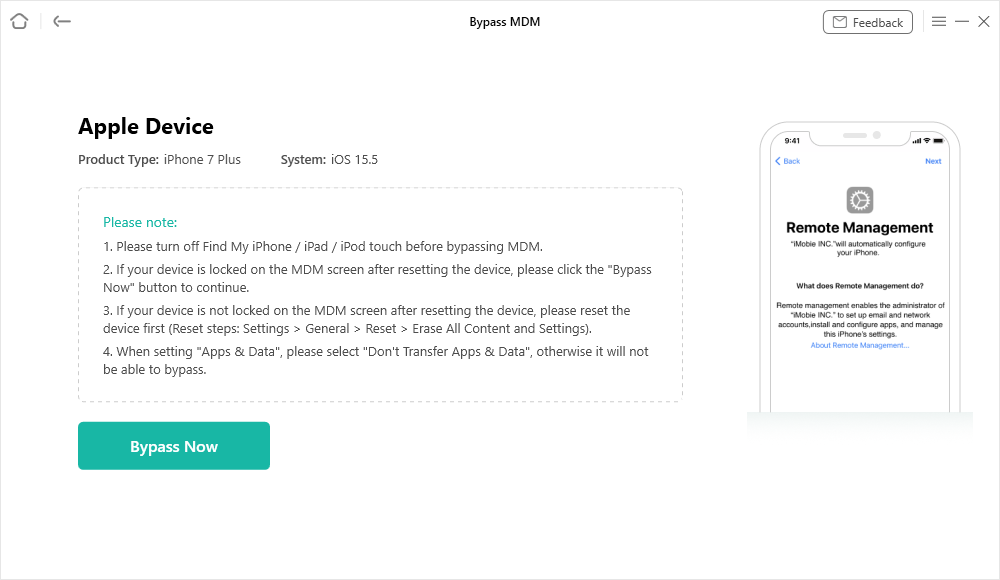
4. Wait for Success: Let the software run for a few moments. Once you see the success screen on your computer, your iPhone will restart automatically. You can now complete the setup process normally without being stopped by the organization’s lock.
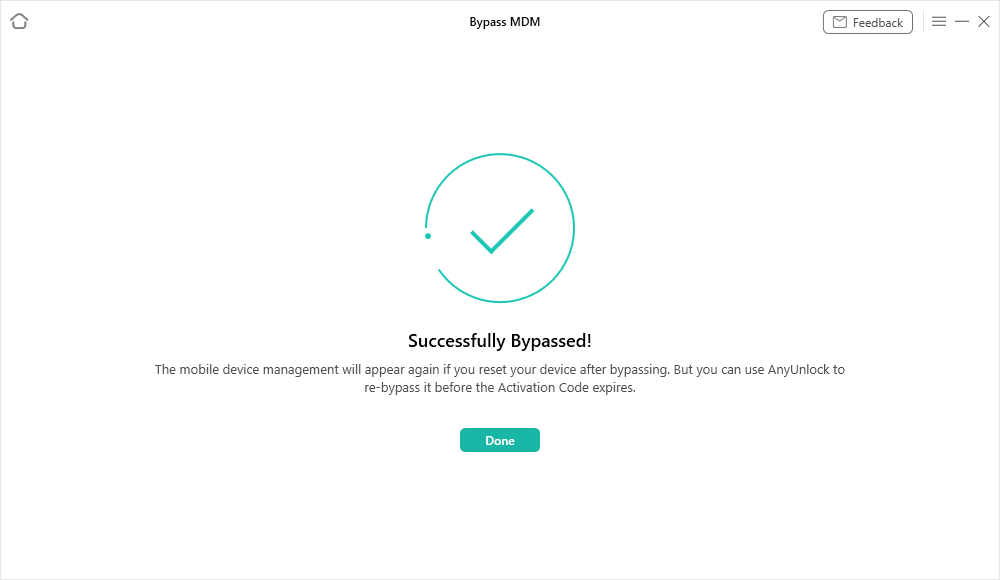
Check AnyUnlock’s compatibility specifications to ensure your specific iOS version and device model are currently supported for MDM bypass.
Download AnyUnlock to bypass MDM today and easily regain full control of your device without needing the IT administrator’s password.
Frequently Asked Questions About iPhone Supervision
How do I know if my employer has installed an MDM on my personal phone?
You can easily check by navigating to Settings > General > VPN & Device Management. If a remote management profile has been installed, it will be clearly listed there.
What can a supervised iPhone track?
A supervised iPhone allows an organization to track device compliance, network settings, and installed corporate applications. They can also track location, but only if the device is explicitly placed in ‘Managed Lost Mode’. They do not track your personal activities or read your texts.
Can I remove remote management without the admin password?
You cannot permanently remove remote management from Apple’s servers without the IT admin. However, if you bought a second-hand device and are locked out, you can use local bypass tools like AnyUnlock to skip the lock screen and use the device normally without the admin password.
What is the difference between local MDM bypass and permanent removal?
Permanent removal means the IT administrator permanently deletes your device’s serial number from the organization’s Apple Business Manager server. A local MDM bypass (using a desktop tool) simply skips the setup lock so you can use the phone, but the MDM profile will reappear if you ever perform a full factory reset.
Final Thoughts: Taking Back Control of Your iPhone
Discovering an unexpected supervision profile on your iPhone can be alarming, but checking your settings and understanding iPhone supervised mode should reassure you that personal data like texts and photos is still protected.
If you see terms such as Remote locking service for iPhone, How to activate Locked iPhone, or Manage known networks iPhone, they are all part of the same MDM system. If removal is needed, employees and students should contact their IT administrator for official release. However, if you are a second-hand buyer, AnyUnlock can also be used to handle MDM-related cases.
AnyUnlock – Unlock Any iOS Password
Quickly and easily unlock your iPhone/iPad/iPod touch from various locks such as screen lock, MDM lock, iCloud activation lock, Apple ID, iTunes backup password, and more.
Free Download for all windows & 100% safe
Free Download for all mac & 100% safe
Free Download 100% Clean & Safe
Related Articles
- MDMPatcher Universal Review: Is It Safe?
- iUnlocker Review: What You Need to Know
- FRPFile iCloud Bypass Tool Review



Wanda Norris is a junior author in iMobie specializing in iOS tips and solutions. She keeps a close eye on every iOS update to provide practical, easy-to-understand guides that help users solve problems and master their Apple devices.
Product-related questions? Contact Our Support Team to Get Quick Solution >
