What is FRP Lock on Android? Factory Reset Protection Explained
FRP is a Google security feature on Android 5.1+ that blocks setup after reset unless the original Google account is verified, sometimes locking out legitimate users who forgot credentials.
Quick Answer: Factory Reset Protection (FRP) is a built-in security feature for Android devices running Android 5.1 and higher. It is designed to protect your device and personal data from unauthorized access if your phone is wiped or reset. When FRP is active, the lock prevents anyone from setting up the phone without entering the Google account email and password that were previously synced to the device.
If you are unexpectedly staring at a “Verify your account” screen and cannot get past it, don’t panic. This is a normal security measure introduced by Google to deter smartphone theft. While it effectively stops thieves from stealing a phone, wiping it, and reselling it, it can also accidentally lock out legitimate owners who simply forgot their login details. To effectively remove previously synced Google account from Android devices after a reset, understanding what this lock is—and why it triggered—is your first step.
FRP Lock vs. Screen Lock: What is the Difference?
One of the most common points of confusion for Android users is the difference between a standard screen lock and the FRP lock. While both keep unwanted users out, they operate under completely different circumstances.
A Screen Lock (which can be a PIN, pattern, password, face recognition, or fingerprint) protects your active, powered-on device during daily use. If you forget it, you might need to use an Android phone unlocking software to regain basic device access.
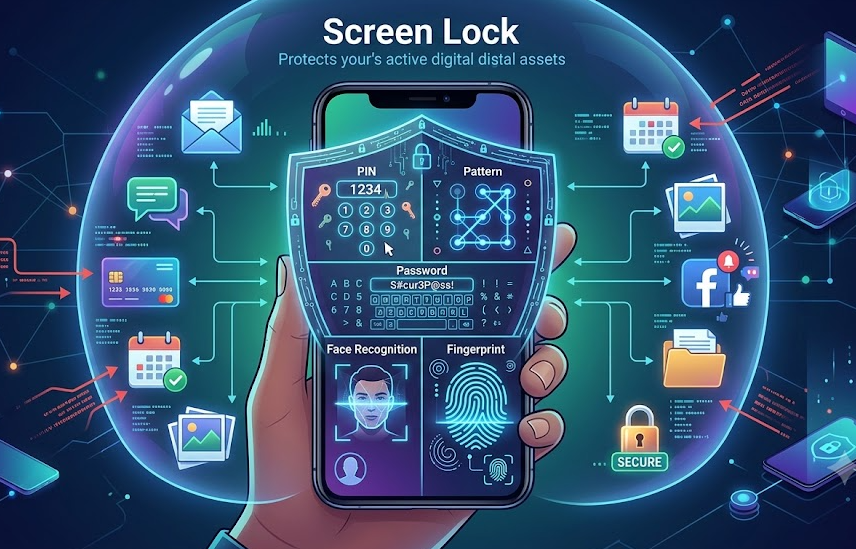
An FRP Lock, on the other hand, operates much deeper in the system. It only activates during the initial setup menu after a device has been wiped or reset. You cannot bypass it with your daily screen PIN; it specifically requires your Google account credentials.
Here is a clear breakdown of how the two security measures differ:
| Feature | Screen Lock | Factory Reset Protection (FRP) Lock |
|---|---|---|
| When does it trigger? | When waking up the phone during daily use. | During the initial setup screen after a hard factory reset. |
| What credential is needed? | Your chosen PIN, pattern, password, or biometrics. | The Google email and password previously synced to the device. |
| What is its main purpose? | To keep friends, family, or strangers out of your apps and private data. | To prevent a stolen or lost phone from being wiped and reused. |
| Can a hard reset remove it? | Yes, forcing a hard reset will erase the screen lock. | No, forcing a hard reset is exactly what activates the FRP lock. |
How Does an Android Device Get FRP Locked?
FRP is a silent feature. You usually don’t know it’s turned on until you are locked out. It is automatically enabled the moment you add a Google account to your phone. Technically, the FRP status is stored in a secure, persistent data partition within the device’s memory. This is why a standard data wipe or forced reset via Recovery Mode cannot erase it—the security flag survives the wipe and triggers the verification lock upon reboot.
FRP only actively locks the device when a specific action occurs: a “hard reset” performed outside of the normal Android Settings menu.
If you factory reset your phone by going to Settings > General Management > Reset, Android assumes you are the authorized user. It will automatically remove your Google account and disable FRP before wiping the phone. But if you bypass the Settings menu, FRP assumes the phone might have been stolen.
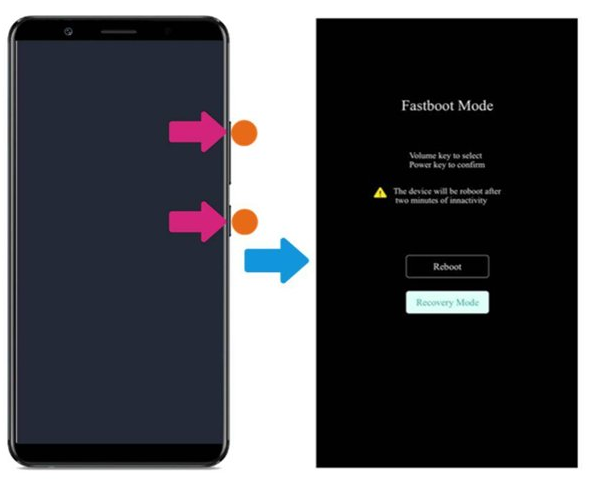
Here are the two most common scenarios where an Android device gets FRP locked:
- Scenario 1: The forgotten PIN reset. A user forgets their daily screen PIN or pattern. Locked out of the phone, they look up a tutorial online and use the physical volume and power buttons to force a factory reset via Android Recovery Mode. Because the phone was wiped without officially removing the Google account first, it boots up directly into the FRP lock screen.
- Scenario 2: The second-hand phone trap. A user buys a used phone online or from a local seller. The previous owner wiped the phone in Recovery Mode before handing it over, completely forgetting to sign out of their Google account. When the new owner turns the phone on and connects to Wi-Fi, they are blocked by a prompt asking for the previous owner’s email and password.
Official Ways to Remove FRP Lock
Before considering any third-party software or workarounds, you should always attempt to remove the FRP lock through official channels. These are the safest, manufacturer-intended paths to regain access to your device.
Try the following official recovery steps:
- Enter the previously synced Google account credentials: This is the primary way to bypass the lock. If you remember the email and password that were on the phone before the reset, simply enter them to proceed.
- Use Google Account Recovery: If you are dealing with a Google account verification after reset and forgot the password, use another computer or phone to visit Google’s Account Recovery page. Reset your password, but be aware: Google occasionally enforces a 24-to-72-hour security delay after a password reset before you can use the new password to bypass FRP on a wiped device.
- Contact the previous owner (for second-hand buyers): If you bought the phone used, ask the seller to help. They don’t need to give you their password. They can log into their Google account on a computer, go to their device management settings, and remotely remove the locked phone from their account.
- Visit an authorized repair center: If you are the original owner but have completely lost access to your Google account, you can take your phone to an authorized manufacturer repair center. If you provide the original receipt or proof of purchase, their technicians can officially flash the device and remove the lock.
What If You Forgot Your Password or Bought a Second-Hand Phone?
Google’s strict verification process is incredibly frustrating when you are the rightful owner of the device but simply cannot satisfy the official recovery paths. If you cannot reset your Google password and the original seller has stopped responding to your messages, you might feel completely stuck.
At this point, many users turn to YouTube to find generic manual bypass tricks. However, these exploits are often outdated. Because Google patches security holes regularly, a bypass trick that worked for Android 11 last year will almost certainly fail on a device with the latest security patch.
Before you waste hours on trial-and-error tutorials, use this simple decision guide to map out your next safe step:
| Your Situation | Recommended Next Step |
|---|---|
| You have the original receipt/proof of purchase. | Stop trying manual bypasses. Take the phone and receipt to an authorized repair center for official removal. |
| You bought it used and can contact the seller. | Ask the seller to log into their Google account on a PC and remotely remove the device. |
| You cannot recover the account, have no receipt, or the seller vanished. | Check the compatibility of a dedicated FRP bypass tool designed for legally owned devices. |
A Word of Warning: Safe software solutions are designed strictly for legally owned or authorized devices. Furthermore, bypass success heavily depends on your specific device brand, model, Android version, and security patch.
How to Bypass FRP Lock on Supported Devices with DroidKit
If you have exhausted all official options and you legitimately own or are authorized to access the device, looking for a guided software solution is your next practical step. Instead of risking your phone on sketchy, scattered tutorials, the DroidKit FRP Bypass module provides a dedicated desktop workflow—requiring a Windows PC or Mac computer—designed to help non-technical users regain access to supported Android phones.
DroidKit replaces confusing manual exploits with a clear, step-by-step process. However, it is important to check compatibility first: DroidKit’s FRP support depends entirely on the device brand (such as Samsung, Xiaomi, or OPPO), the specific model, your current Android version, and the latest security patch.

DroidKit
As a complete Android solution, DroidKit can easily help you recover lost data with/without backup, unlock Android screen, bypass FRP lock, fix system issues, etc. within minutes.
If your owned device is supported, here is how the guided workflow operates:
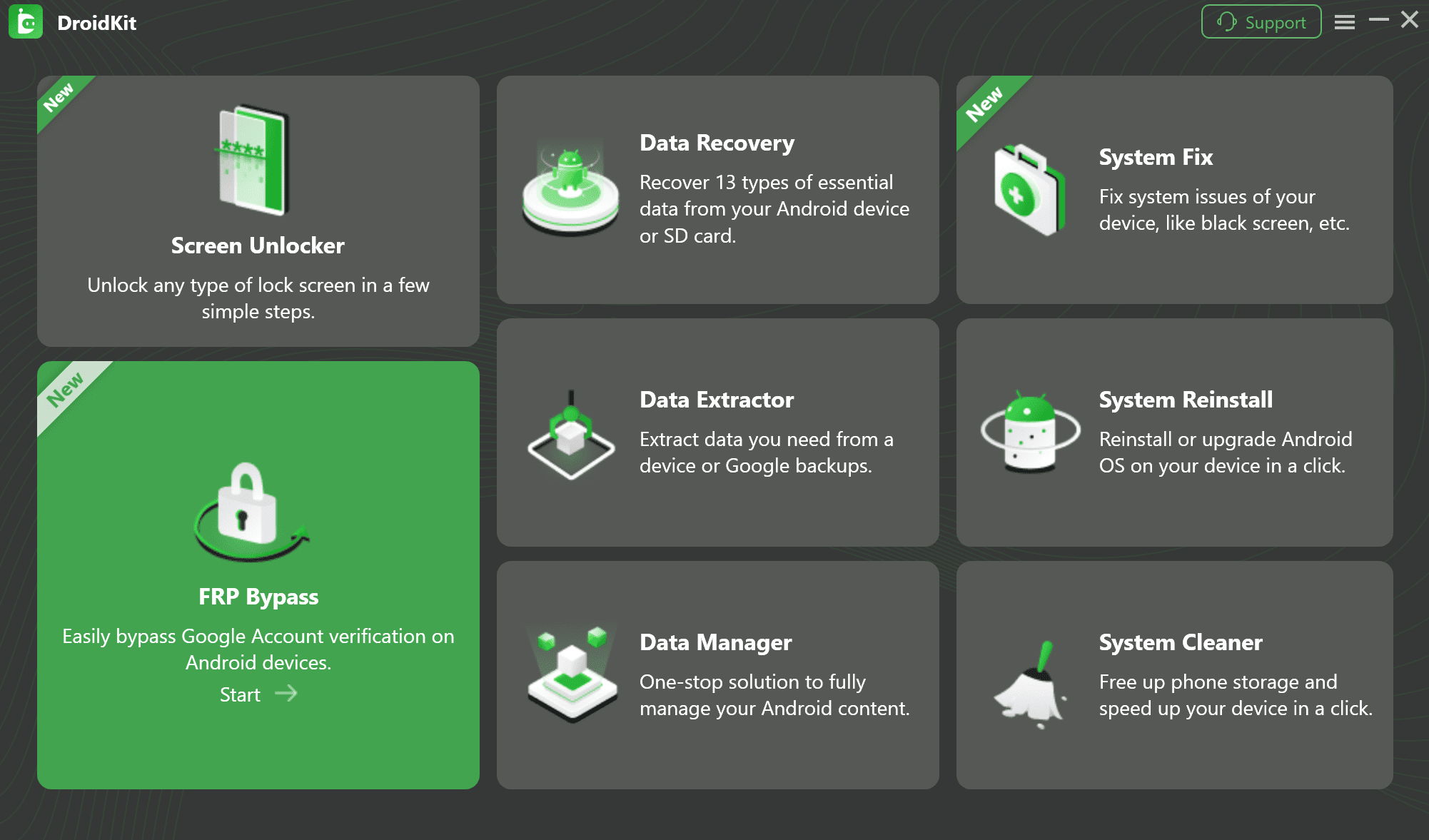
1. Open DroidKit on your computer: Download and install DroidKit on your Windows PC or Mac. Launch the program and select the FRP Bypass module from the main menu.
2. Connect your device: Plug your locked Android phone into your computer using a high-quality USB cable.
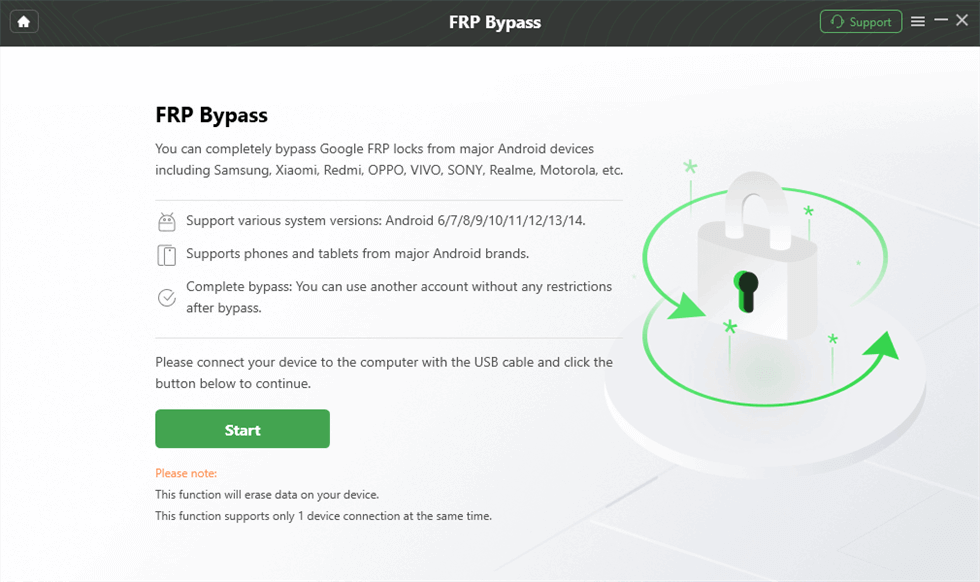
3. Check compatibility: DroidKit will attempt to detect your device brand and provide on-screen notes regarding support for your specific Android version.
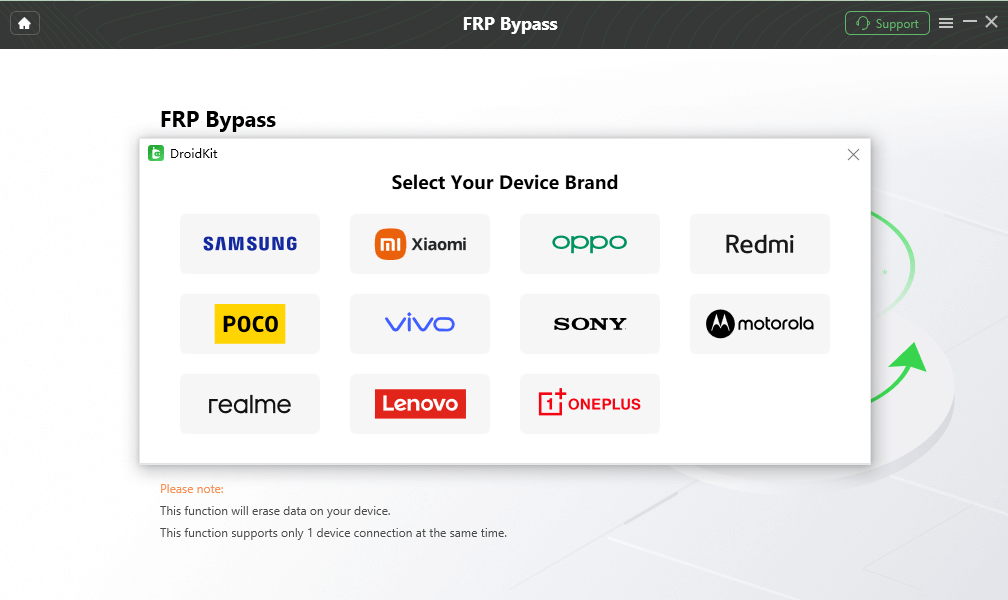
4. Follow the on-screen instructions: DroidKit will guide you through the process of putting your device into the correct recovery or download mode. Follow the specific, tailored steps provided for your phone.
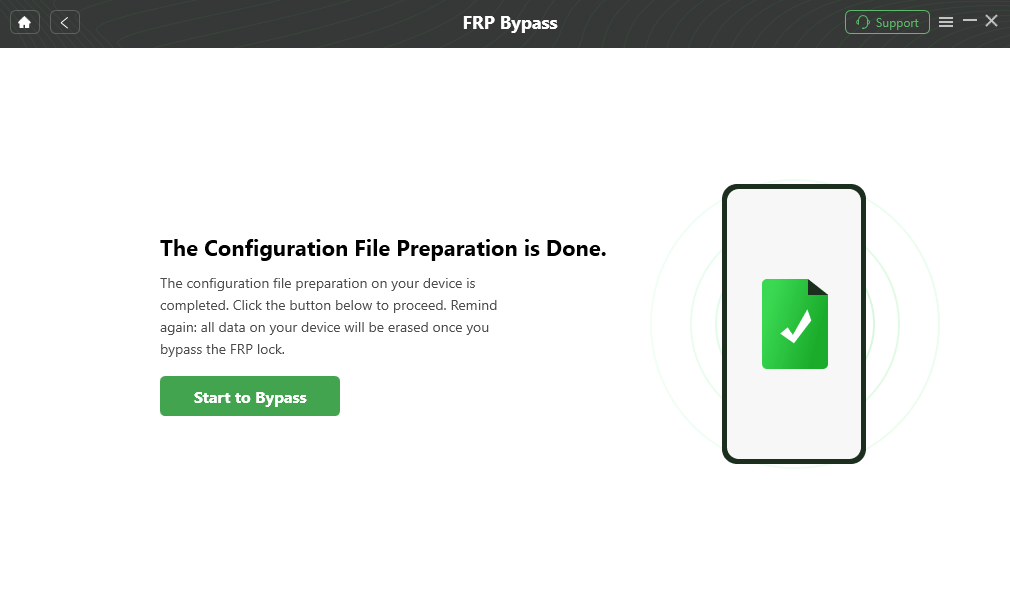
5. Remove the lock: Once the process is successfully completed on a supported device, the previously synced Google account will be removed, allowing you to set up the phone as new.
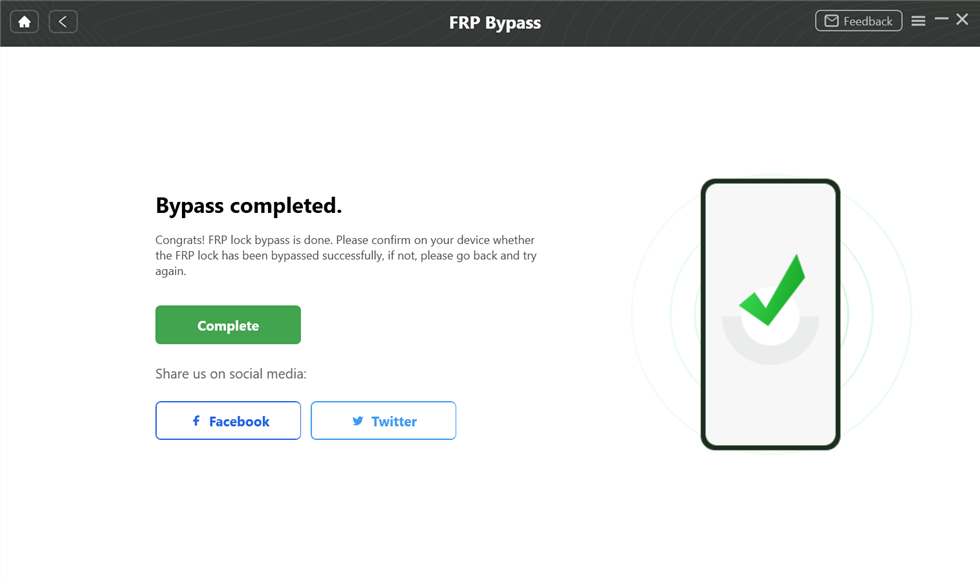
Because Android security updates frequently, results can vary based on your system state. Always check the official DroidKit page to confirm if your device’s brand and Android version are currently supported before starting.
Frequently Asked Questions About FRP Lock
How does Factory Reset Protection work?
FRP links your specific Android device to your Google account. If the device is wiped outside of the normal settings menu (such as via Recovery Mode), the phone’s internal security flag is tripped. Upon rebooting, it requires the last synced Google account to prove that the reset was authorized.
Why is my phone asking for a previously synced Google account?
Your phone is asking for these credentials because it underwent a hard factory reset without the Google account being safely signed out first. Android assumes the phone might be stolen and is verifying ownership.
How do I turn off FRP before a factory reset?
To safely turn off FRP, you just need to remove your Google account before resetting. Go to your phone’s Settings > Accounts (or Users & Accounts) > select your Google account > tap “Remove Account.” Once removed, you can safely factory reset the device without triggering the lock.
Can I remove FRP from a second-hand phone?
Yes, provided you bought it legally. You can either ask the previous owner to remotely remove the device from their Google account dashboard, or, if the phone is a supported model, use a guided software workflow like DroidKit’s FRP Bypass to clear the lock.
Final Thoughts: Choosing the Safest Path Forward
Factory Reset Protection is an essential security measure that keeps personal data safe from thieves, but it can quickly become a nightmare when you accidentally lock yourself out of your own phone. Whether you forgot your screen PIN and forced a hard reset, or you inherited a used phone with the previous owner’s account still attached, understanding why the lock triggered is half the battle.
Always prioritize official recovery paths first. Try to recover your Google account password, contact the original seller, or take your proof of purchase to an authorized manufacturer repair center.
If those official avenues are exhausted and you legitimately own the device, you don’t have to be permanently locked out. By checking your phone’s brand and Android version compatibility with a dedicated tool like DroidKit, you can follow a safe, guided workflow to clear the verification screen and finally regain control of your supported Android device.
DroidKit – Unlock Android Screen in 1 click
- Can unlock multiple screen locks like digital password, PIN, pattern, Touch/Face ID, etc.
- Only need to click buttons. No root requirement. As simple as possible.
- Compatible with almost all Android brands such as Huawei, Samsung, Sony, etc.
Free Download for all windows & 100% safe
Free Download for all mac & 100% safe
Free Download 100% Clean & Safe
Related Articles:
* Samsung FRP Tool
* Bypass Google FRP on Samsung Tablet
* Odin FRP Bypass



Jeremy Feron is a writer for iMobie with a deep passion for Android. He specializes in creating clear guides on Android tips and the latest updates, helping users navigate their devices and get the most out of new features.
Product-related questions? Contact Our Support Team to Get Quick Solution >
